> ## Documentation Index
> Fetch the complete documentation index at: https://docs.probaseapp.com/llms.txt
> Use this file to discover all available pages before exploring further.
# Customer balances
> View and manage customer account balances
## Understanding balances
Each customer has an account balance that's automatically calculated from all their billing line items (charges, credits, and payments).
* **Negative balance** (like -\$150.00) - Customer owes you money
* **Zero balance** (\$0.00) - Account is paid in full
* **Positive balance** (like \$25.00) - Customer has a credit
The balance updates instantly whenever you add charges, credits, or record payments.
## View a customer's balance
Click **Customers** in the sidebar.
Find the customer in the list and click their name to open their profile.
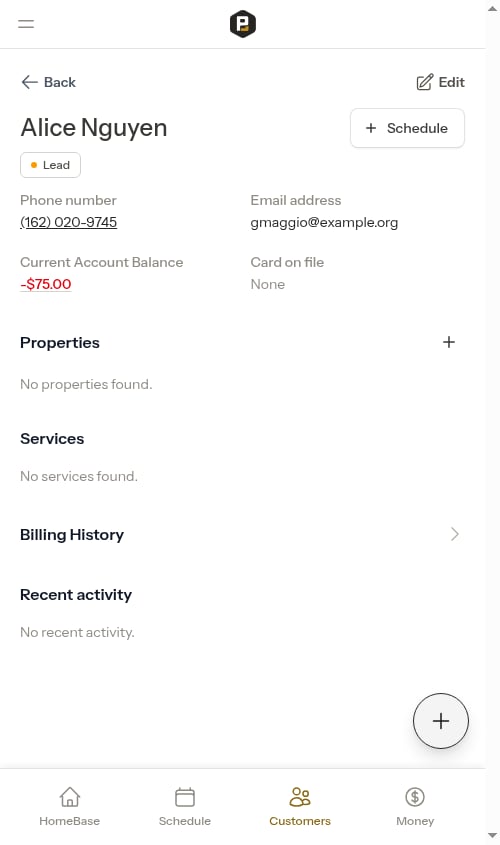
The top card on the customer profile shows the current balance. Click the balance amount to open the full billing history.
 ## View billing history
Each customer has a dedicated billing history page showing all their charges, credits, and payments.
To access it:
1. Click on a customer's name
2. Click the balance amount shown in the top card, or scroll down and tap the **Billing History** link row
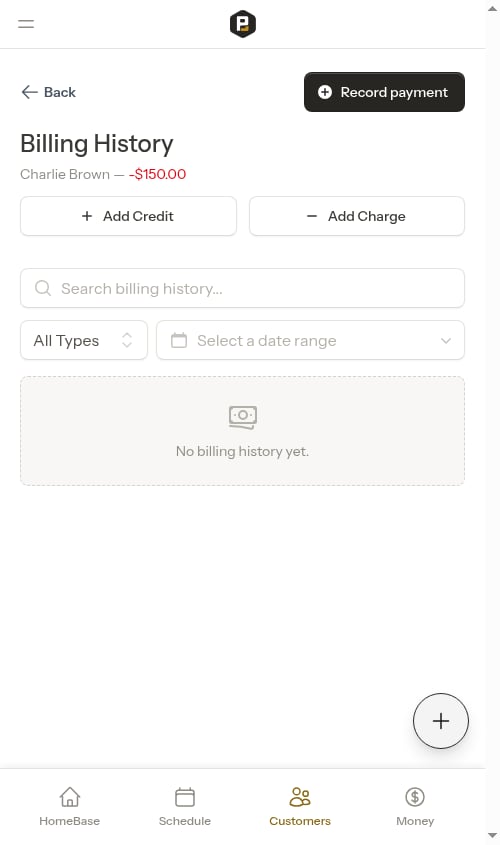
The billing history shows a chronological timeline grouped by date:
## View billing history
Each customer has a dedicated billing history page showing all their charges, credits, and payments.
To access it:
1. Click on a customer's name
2. Click the balance amount shown in the top card, or scroll down and tap the **Billing History** link row
The billing history shows a chronological timeline grouped by date:
 ### Filtering and searching
Use the controls at the top to narrow down the list:
* **Search** — Find entries by title, service name, or property address
* **Type** — Filter to show only Charges, Credits, or Payments
* **Date range** — Filter to a specific time period
### Viewing entry details
Click on any line item to open a detail panel showing the full breakdown including subtotal, tax, total, payment status, and related information.
## Add a charge manually
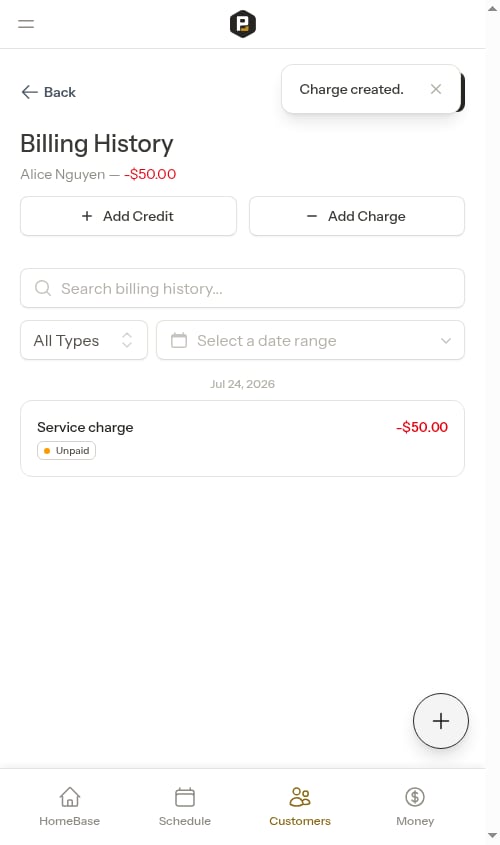
When you need to charge a customer for additional work or fees:
1. Open the customer's billing history (click the balance on their profile)
2. Click the **Add Charge** button at the top of the billing history page
3. Enter a **Title** (required), the **Amount**, optional tax (enter a tax rate % or a dollar amount — they stay in sync), and an optional **Description**
4. Click **Add Charge**
The customer's balance will increase (become more negative) by the charge amount.
### Filtering and searching
Use the controls at the top to narrow down the list:
* **Search** — Find entries by title, service name, or property address
* **Type** — Filter to show only Charges, Credits, or Payments
* **Date range** — Filter to a specific time period
### Viewing entry details
Click on any line item to open a detail panel showing the full breakdown including subtotal, tax, total, payment status, and related information.
## Add a charge manually
When you need to charge a customer for additional work or fees:
1. Open the customer's billing history (click the balance on their profile)
2. Click the **Add Charge** button at the top of the billing history page
3. Enter a **Title** (required), the **Amount**, optional tax (enter a tax rate % or a dollar amount — they stay in sync), and an optional **Description**
4. Click **Add Charge**
The customer's balance will increase (become more negative) by the charge amount.
 ## Add a credit manually
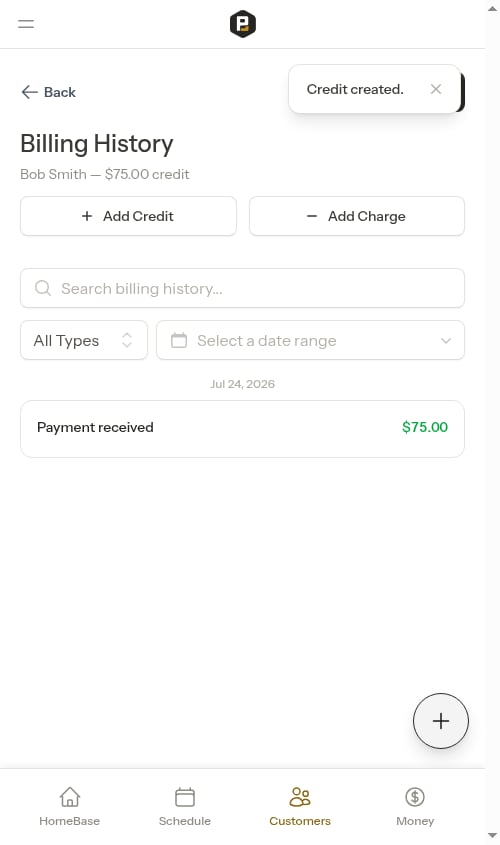
When you want to issue a discount, refund, or adjustment:
1. Open the customer's billing history (click the balance on their profile)
2. Click the **Add Credit** button at the top of the billing history page
3. Enter a **Title** (required), the **Amount**, and an optional **Description**
4. Click **Add Credit**
The customer's balance will decrease (become less negative) by the credit amount.
## Add a credit manually
When you want to issue a discount, refund, or adjustment:
1. Open the customer's billing history (click the balance on their profile)
2. Click the **Add Credit** button at the top of the billing history page
3. Enter a **Title** (required), the **Amount**, and an optional **Description**
4. Click **Add Credit**
The customer's balance will decrease (become less negative) by the credit amount.
 ## Record a payment
When a customer pays by cash, check, or another offline method, use **Record Payment** to add it to their account:
1. Open the customer's billing history or profile
2. Click the **Record Payment** button at the top of the billing history page
3. Select the invoice the payment applies to from the **Invoice** dropdown
4. Choose the payment method and enter the amount
5. Click **Record Payment**
See [Recording payments](/billing/tracking-payments) for full details.
## Share an invoice with a customer
To let customers view and pay an invoice online, send them the invoice payment link:
1. Go to **Money** in the sidebar and click on the invoice you want to send
2. Tap **Send Invoice** to open the SMS sharing modal
## Record a payment
When a customer pays by cash, check, or another offline method, use **Record Payment** to add it to their account:
1. Open the customer's billing history or profile
2. Click the **Record Payment** button at the top of the billing history page
3. Select the invoice the payment applies to from the **Invoice** dropdown
4. Choose the payment method and enter the amount
5. Click **Record Payment**
See [Recording payments](/billing/tracking-payments) for full details.
## Share an invoice with a customer
To let customers view and pay an invoice online, send them the invoice payment link:
1. Go to **Money** in the sidebar and click on the invoice you want to send
2. Tap **Send Invoice** to open the SMS sharing modal
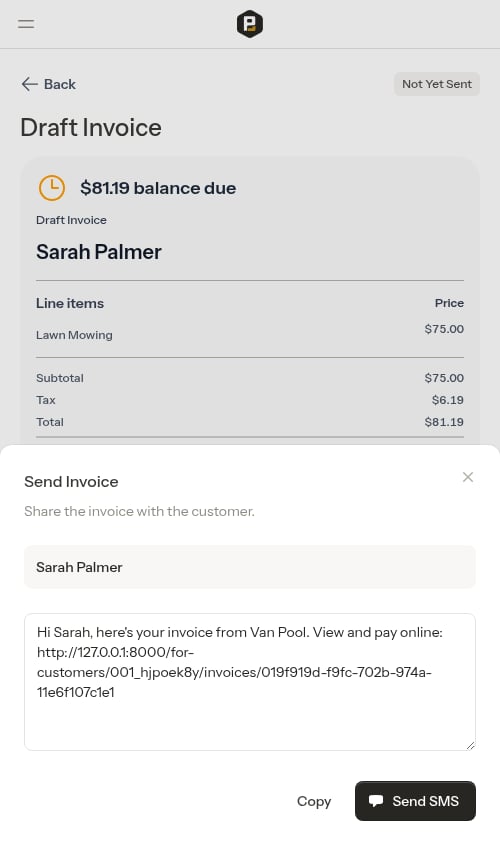 3. Tap **Send SMS** to open your messaging app with the message, or **Copy** to copy the full message (link included) to your clipboard
The customer can open the link to view their invoice, see all charges and credits, and pay online.
See [Sharing payment links](/billing/sending-payment-links) for more details.
3. Tap **Send SMS** to open your messaging app with the message, or **Copy** to copy the full message (link included) to your clipboard
The customer can open the link to view their invoice, see all charges and credits, and pay online.
See [Sharing payment links](/billing/sending-payment-links) for more details.