> ## Documentation Index
> Fetch the complete documentation index at: https://docs.probaseapp.com/llms.txt
> Use this file to discover all available pages before exploring further.
# How billing works
> Understand billing line items, invoices, and customer balances
## Overview
Probase tracks all charges and credits on each customer's account using **billing line items**. These line items are automatically grouped into **invoices** that you can send to customers so they can view and pay online.
## The billing workflow
1. **Billing line items are created** — Charges are added when work is completed or on a subscription schedule
2. **A draft invoice is created automatically** — New charges are grouped into a draft invoice for that customer
3. **You send the invoice** — Tap **Send Invoice** to share a payment link with the customer
4. **Customer pays** — Customers can pay online through Stripe or via cash/check (recorded manually)
5. **Invoice is marked paid** — Once the full balance is covered, the invoice closes
To accept online payments, [connect your Stripe account](/billing/stripe-setup) first.
## Invoice lifecycle
Every invoice goes through four stages:
* **Not Yet Sent (Draft)** — Created automatically when charges are added. Not yet visible to customers. Shows in the Not Yet Sent bar on the Money page.
* **Unpaid** — Sent to the customer. Visible on their payment portal. Shows as Overdue once past the payment due date.
* **Partially Paid** — A payment has been applied but the full balance is not yet covered. The invoice remains open until fully paid.
* **Paid** — All charges fully covered by payments or credits.
See [Managing invoices](/billing/invoices) for details on viewing, sending, and managing invoices.
## When billing line items are created
### Per-service billing
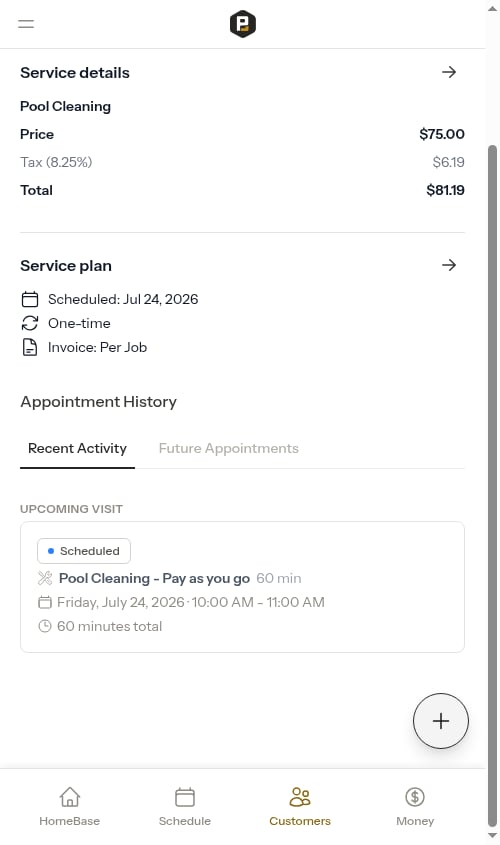
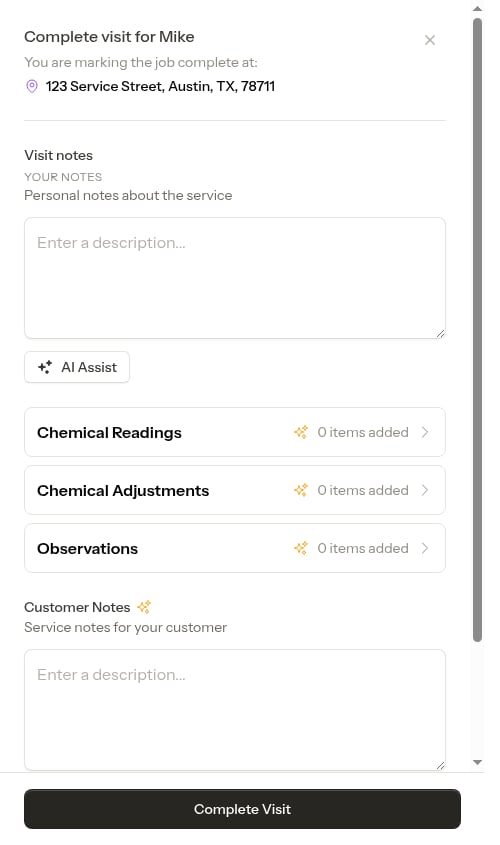
When you complete an appointment for a per-service customer:
1. Crew marks the appointment as complete
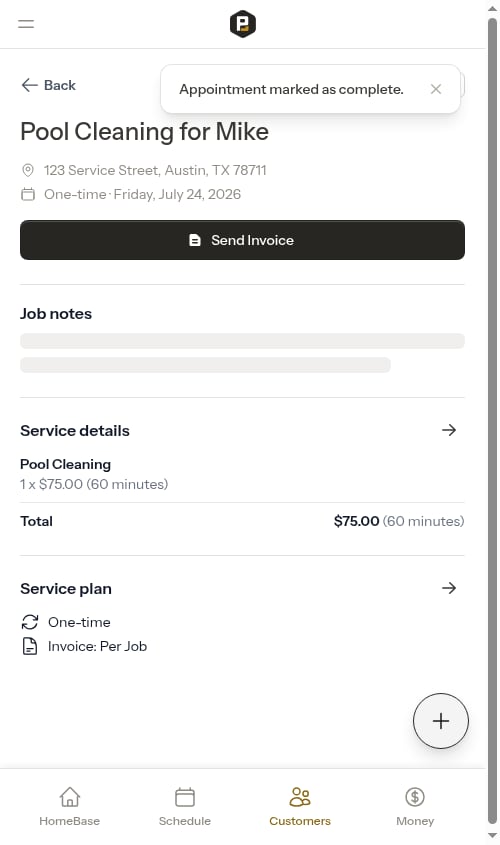
2. A billing line item (charge) is created automatically
3. Amount is based on the service price
4. Tax is calculated and added based on the service's tax rate
5. A draft invoice is created (or the charge is added to an existing draft)
 ### Subscription billing
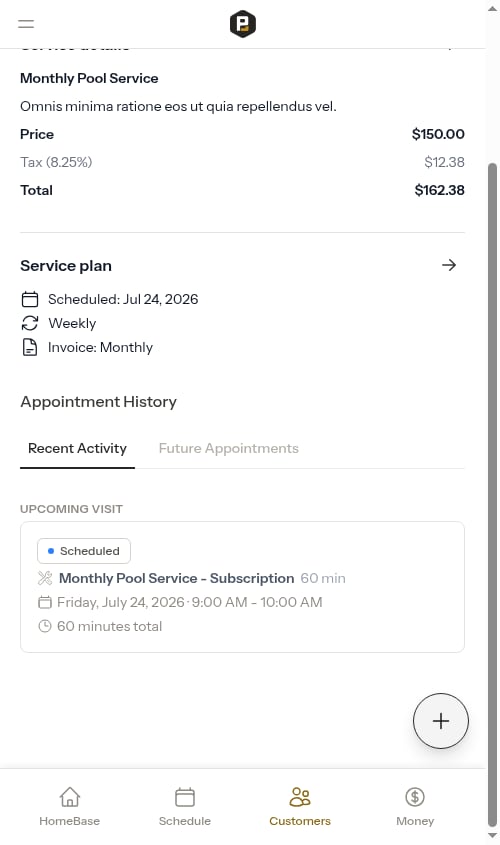
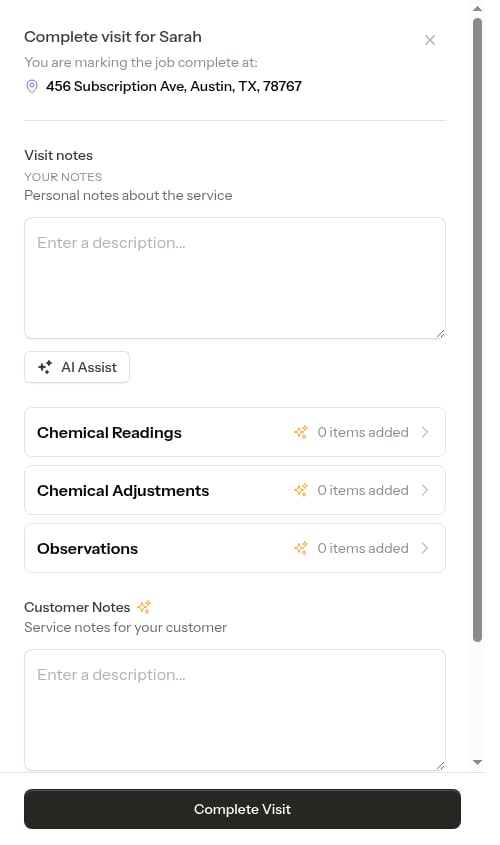
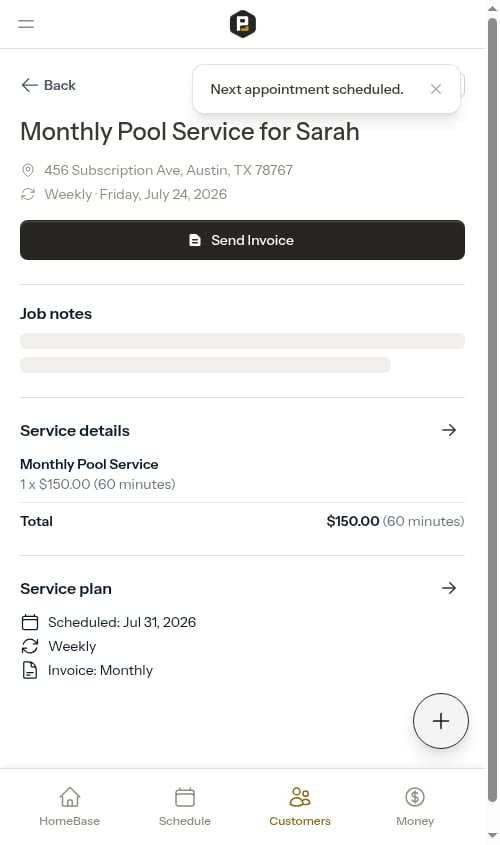
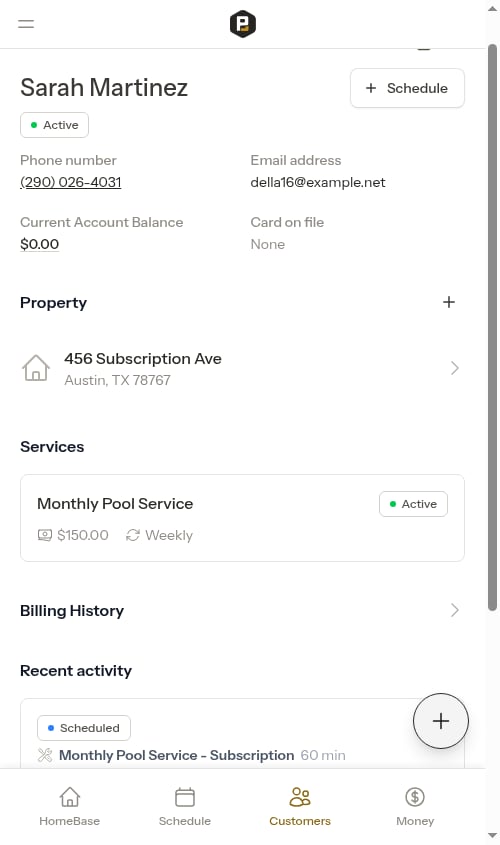
For subscription services, billing line items are created **automatically** by Probase on each configured billing date (the day of week, month, or year you set when creating the service). Unlike per-service billing, subscription charges are not created when appointments are completed — they are created on the billing schedule regardless of whether appointments were performed. Completing a subscription appointment still records a **\$0 "Service completed" entry** in the billing history so the visit is tracked, but it does not add a charge for the base service — the recurring charge appears separately on its billing date. Note that any **additional service items** (materials or add-ons) you add to a subscription appointment *are* still charged when the appointment is completed.
### Subscription billing
For subscription services, billing line items are created **automatically** by Probase on each configured billing date (the day of week, month, or year you set when creating the service). Unlike per-service billing, subscription charges are not created when appointments are completed — they are created on the billing schedule regardless of whether appointments were performed. Completing a subscription appointment still records a **\$0 "Service completed" entry** in the billing history so the visit is tracked, but it does not add a charge for the base service — the recurring charge appears separately on its billing date. Note that any **additional service items** (materials or add-ons) you add to a subscription appointment *are* still charged when the appointment is completed.
 See [Per-service vs subscription billing](/billing/one-time-vs-subscription) for details on choosing the right billing method.
## View billing history
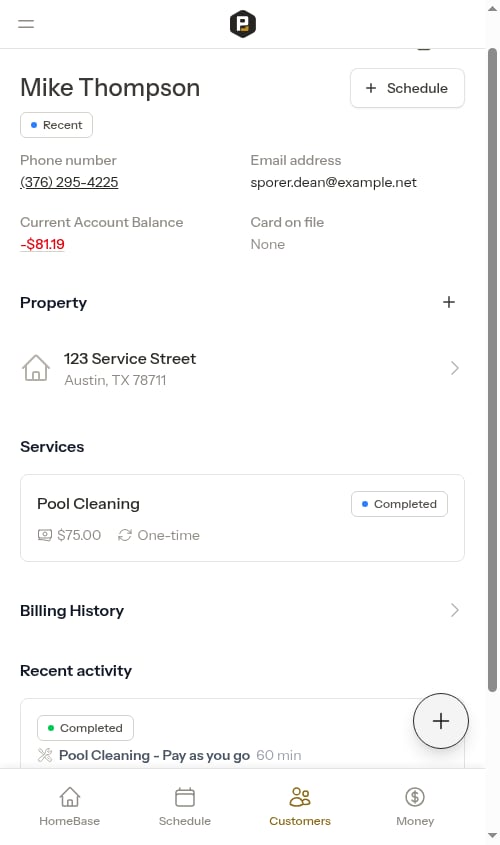
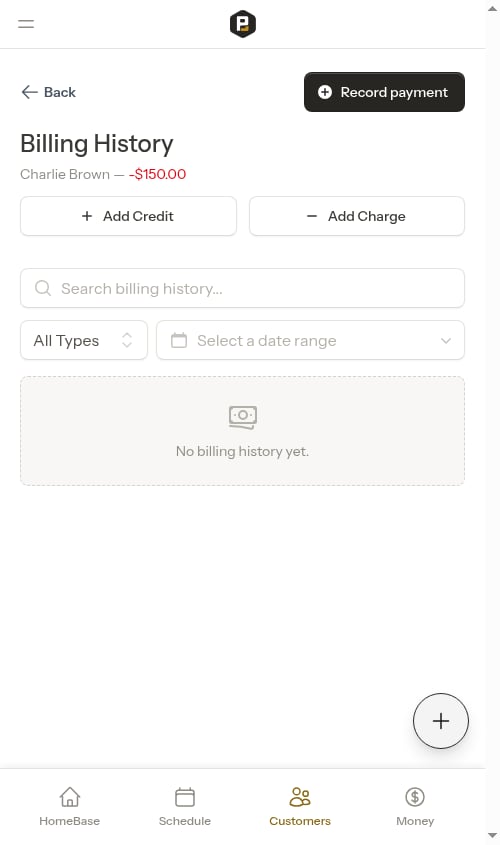
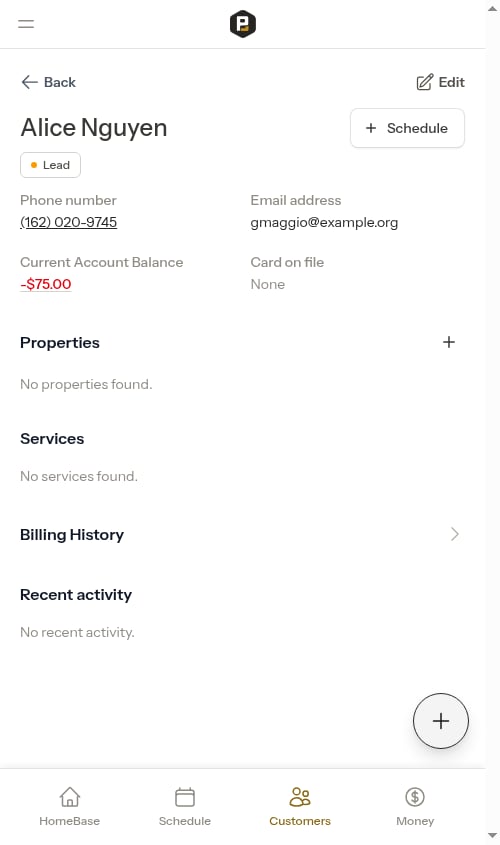
Each customer has a dedicated **Billing History** page showing all their charges, credits, and payments:
1. Go to **Customers** in the sidebar
2. Click on the customer's name
3. Click the balance amount in the top card, or scroll down and tap the **Billing History** link row
The billing history page shows all line items in a timeline, grouped by date. Use the search bar, type filter, and date range picker to find specific entries.
See [Per-service vs subscription billing](/billing/one-time-vs-subscription) for details on choosing the right billing method.
## View billing history
Each customer has a dedicated **Billing History** page showing all their charges, credits, and payments:
1. Go to **Customers** in the sidebar
2. Click on the customer's name
3. Click the balance amount in the top card, or scroll down and tap the **Billing History** link row
The billing history page shows all line items in a timeline, grouped by date. Use the search bar, type filter, and date range picker to find specific entries.
 ### Filtering billing history
* **Search** — Search by title, service name, or property address
* **Type filter** — Filter to show only Charges, Credits, or Payments
* **Date range** — Filter to a specific date range with preset options
### View line item details
Click on any billing line item to open its detail panel, which shows:
* Subtotal, tax, and total amount
* Payment status (Paid or Unpaid for charges)
* Payment method (for recorded payments)
* Linked property, service, or appointment
* Description (if provided)
* For charges: which payments were applied and how much each covered
* For credits: which charges the credit was applied toward
## Add a charge or credit manually
The billing history page has dedicated **Add Charge** and **Add Credit** buttons at the top of the page:
Go to **Customers**, click on the customer's name, then click the balance amount to open billing history.
Use the **Add Charge** or **Add Credit** buttons at the top of the billing history page:
* **Add Charge** — for amounts the customer owes (fees, service charges)
* **Add Credit** — for discounts, refunds, or adjustments
* Enter a **Title** (required) — a short label like "Pool filter replacement" or "Late fee"
* Enter the **Amount**
* For charges, optionally enter a tax rate (%) or tax amount (\$) — the two fields stay in sync automatically
* Add an optional **Description** for additional context — descriptions appear on customer invoices so your customer can see more detail
Click **Add Charge** or **Add Credit** to save. The customer's balance will update immediately and a draft invoice will be created or updated automatically.
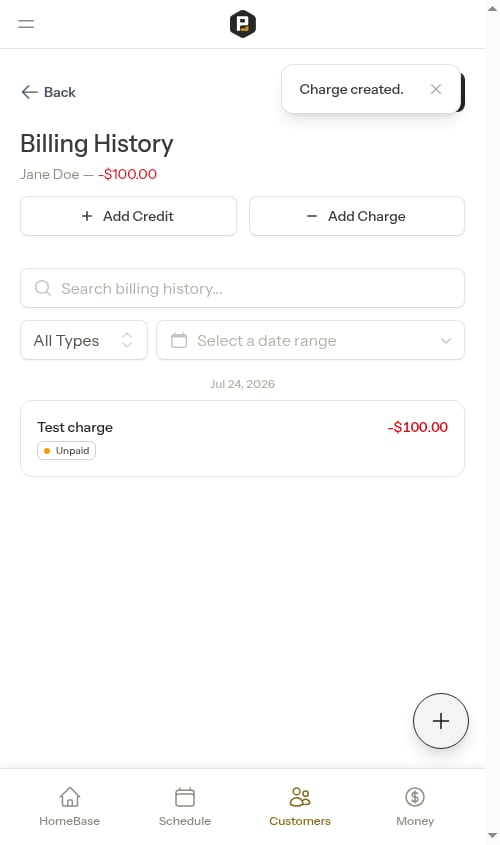
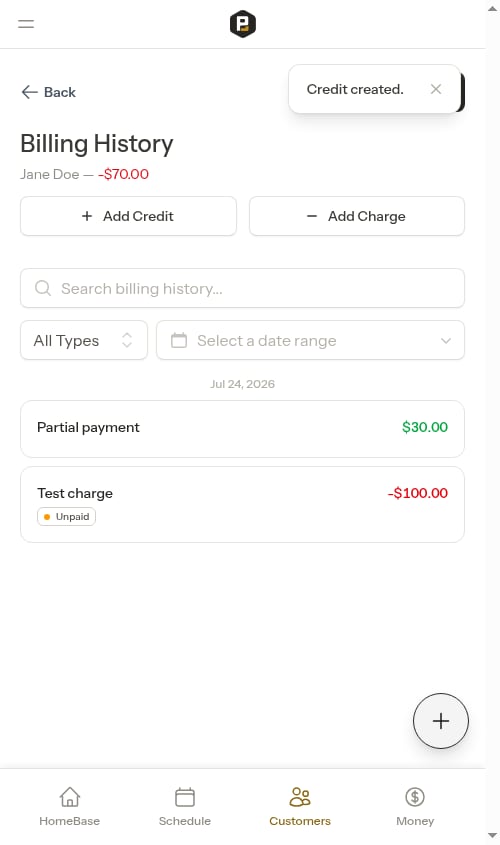
**Charge** amounts are negative (increase what customer owes). **Credit** amounts are positive (reduce what customer owes or add credit to their account).
## Payment status
Charges are automatically tracked as **Paid** or **Unpaid**:
* **Unpaid** — No credits have been applied to this charge yet
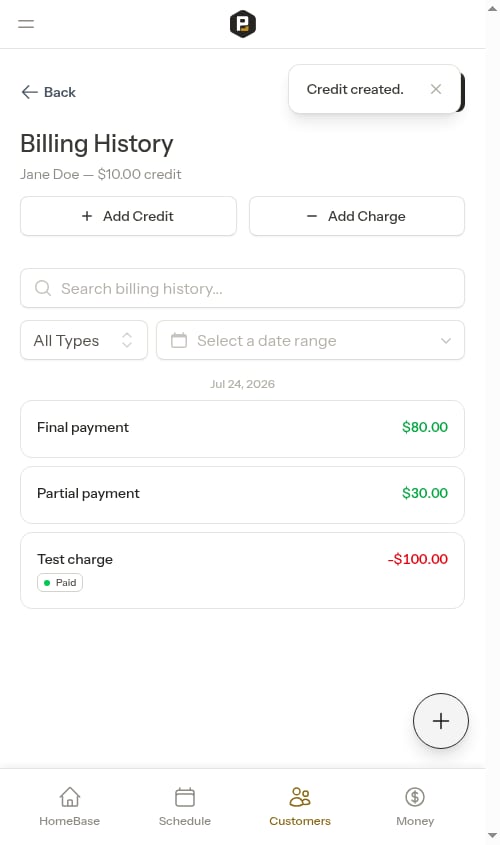
* **Paid** — Credits or payments have fully covered the charge amount
When you record a payment or add a credit, Probase automatically applies it to outstanding (unpaid) charges. Partial payments show the charge as **Unpaid** until it is fully covered.
### Filtering billing history
* **Search** — Search by title, service name, or property address
* **Type filter** — Filter to show only Charges, Credits, or Payments
* **Date range** — Filter to a specific date range with preset options
### View line item details
Click on any billing line item to open its detail panel, which shows:
* Subtotal, tax, and total amount
* Payment status (Paid or Unpaid for charges)
* Payment method (for recorded payments)
* Linked property, service, or appointment
* Description (if provided)
* For charges: which payments were applied and how much each covered
* For credits: which charges the credit was applied toward
## Add a charge or credit manually
The billing history page has dedicated **Add Charge** and **Add Credit** buttons at the top of the page:
Go to **Customers**, click on the customer's name, then click the balance amount to open billing history.
Use the **Add Charge** or **Add Credit** buttons at the top of the billing history page:
* **Add Charge** — for amounts the customer owes (fees, service charges)
* **Add Credit** — for discounts, refunds, or adjustments
* Enter a **Title** (required) — a short label like "Pool filter replacement" or "Late fee"
* Enter the **Amount**
* For charges, optionally enter a tax rate (%) or tax amount (\$) — the two fields stay in sync automatically
* Add an optional **Description** for additional context — descriptions appear on customer invoices so your customer can see more detail
Click **Add Charge** or **Add Credit** to save. The customer's balance will update immediately and a draft invoice will be created or updated automatically.
**Charge** amounts are negative (increase what customer owes). **Credit** amounts are positive (reduce what customer owes or add credit to their account).
## Payment status
Charges are automatically tracked as **Paid** or **Unpaid**:
* **Unpaid** — No credits have been applied to this charge yet
* **Paid** — Credits or payments have fully covered the charge amount
When you record a payment or add a credit, Probase automatically applies it to outstanding (unpaid) charges. Partial payments show the charge as **Unpaid** until it is fully covered.
 ## Understanding customer balances
Each customer has a balance that's automatically calculated from all their billing line items:
* **Negative balance** (like -\$150.00) - Customer owes you money
* **Zero balance** (\$0.00) - Account is paid in full
* **Positive balance** (like \$25.00) - Customer has a credit on their account
The balance updates instantly whenever you add charges, credits, or record payments.
## Understanding customer balances
Each customer has a balance that's automatically calculated from all their billing line items:
* **Negative balance** (like -\$150.00) - Customer owes you money
* **Zero balance** (\$0.00) - Account is paid in full
* **Positive balance** (like \$25.00) - Customer has a credit on their account
The balance updates instantly whenever you add charges, credits, or record payments.
 ## Money overview
The **Money** page (accessible from **Money** in the sidebar) shows all invoices across all customers in one place. It includes summary cards for your Overdue and Unpaid totals, plus what you've been Paid this month, alongside a searchable and filterable invoice list.
See [Money overview](/billing/money-overview) for full details.
## Money overview
The **Money** page (accessible from **Money** in the sidebar) shows all invoices across all customers in one place. It includes summary cards for your Overdue and Unpaid totals, plus what you've been Paid this month, alongside a searchable and filterable invoice list.
See [Money overview](/billing/money-overview) for full details.