> ## Documentation Index
> Fetch the complete documentation index at: https://docs.probaseapp.com/llms.txt
> Use this file to discover all available pages before exploring further.
# Money overview
> Track all your invoices, outstanding balances, and payments in one place
## Overview
The **Money** page gives you a real-time view of all invoices across all of your customers. At a glance, you can see how much is overdue, how much is outstanding, and how much you've collected this month. From here you can view invoice details, send payment links, and record payments.
Access it by clicking **Money** in the sidebar.
 ## Not Yet Sent invoices
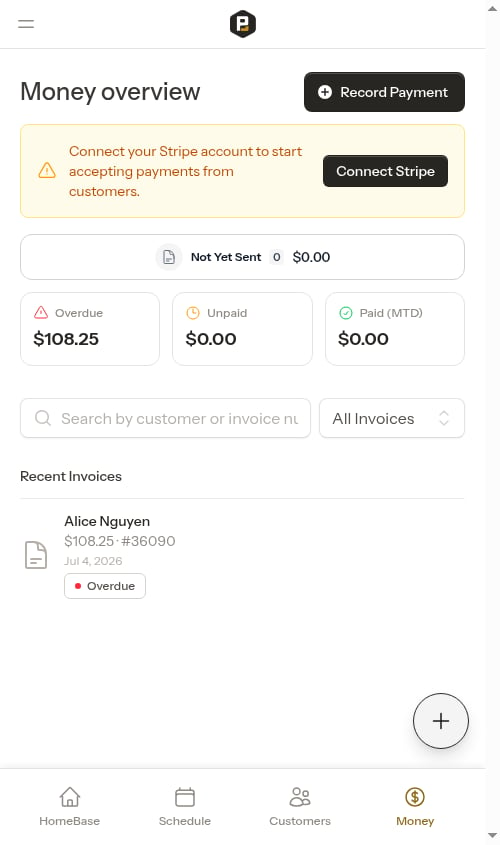
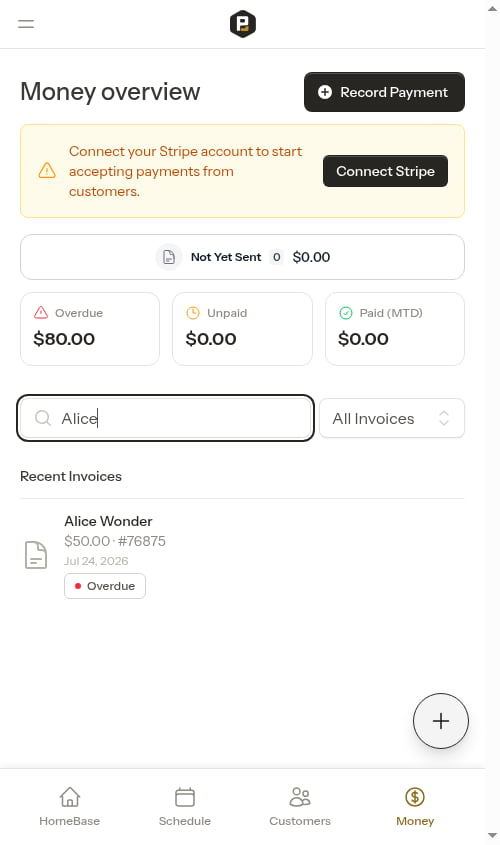
At the top of the page, a bar shows any **Not Yet Sent (draft) invoices** — invoices that have been created automatically when charges were added, but haven't been sent to customers yet. The bar shows the count and total dollar amount of these invoices.
Click the bar to filter the invoice list below to show only Not Yet Sent invoices.
## Summary cards
Below the Not Yet Sent bar are three cards with your key financial totals:
* **Overdue** — Invoices older than your configured payment due period that haven't been paid yet
* **Unpaid** — Recently sent invoices that haven't been paid yet (not yet overdue)
* **Paid (MTD)** — Total payments received this calendar month
Each card also shows a **tip rollup** — the total tip amount included in that category. For example, if your overdue total is $320 and $20 of that came from tips, the card shows both the $320 total and the $20 tip amount separately.
## Not Yet Sent invoices
At the top of the page, a bar shows any **Not Yet Sent (draft) invoices** — invoices that have been created automatically when charges were added, but haven't been sent to customers yet. The bar shows the count and total dollar amount of these invoices.
Click the bar to filter the invoice list below to show only Not Yet Sent invoices.
## Summary cards
Below the Not Yet Sent bar are three cards with your key financial totals:
* **Overdue** — Invoices older than your configured payment due period that haven't been paid yet
* **Unpaid** — Recently sent invoices that haven't been paid yet (not yet overdue)
* **Paid (MTD)** — Total payments received this calendar month
Each card also shows a **tip rollup** — the total tip amount included in that category. For example, if your overdue total is $320 and $20 of that came from tips, the card shows both the $320 total and the $20 tip amount separately.
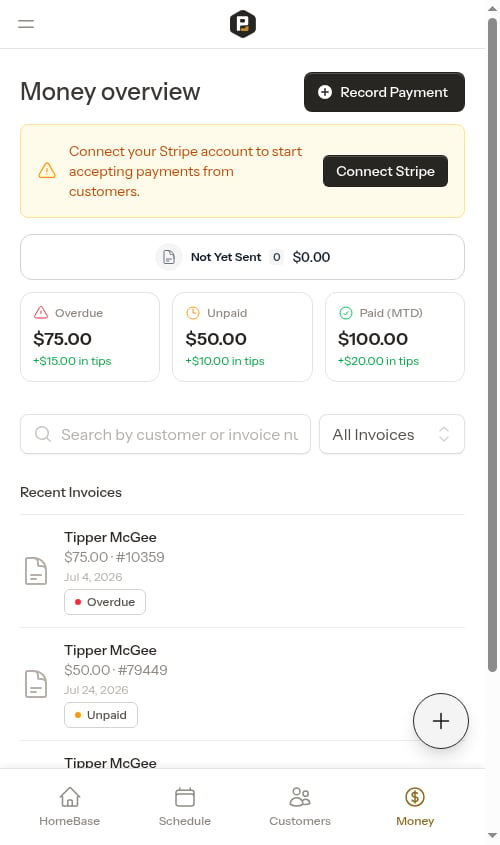 Click any card to instantly filter the invoice list below to that category. Click the same card again to clear the filter.
## Invoice list
Below the summary cards is a list of all invoices for your business. Each row shows:
* Customer name
* Invoice amount and number (if sent), plus a **Partial** indicator if a payment has been made but the balance isn't fully covered
* Date and billing address (if available)
* Payment status badge (**Not Yet Sent**, **Overdue**, **Unpaid**, or **Paid**)
### Filter by status
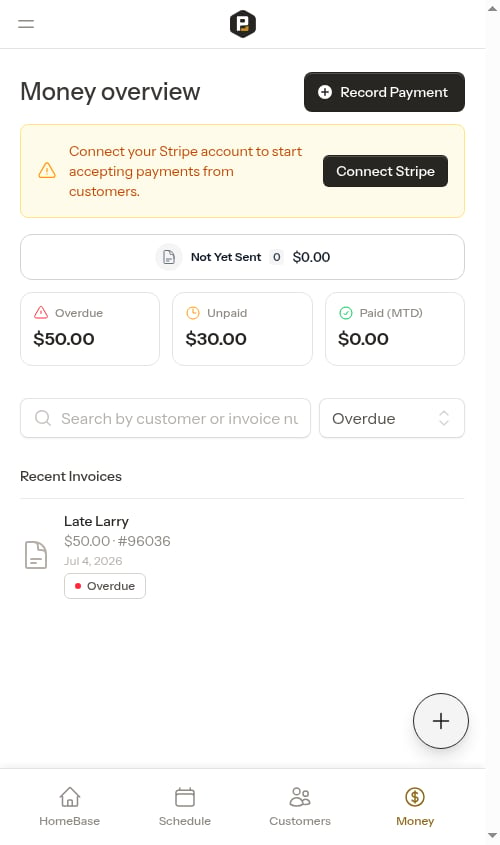
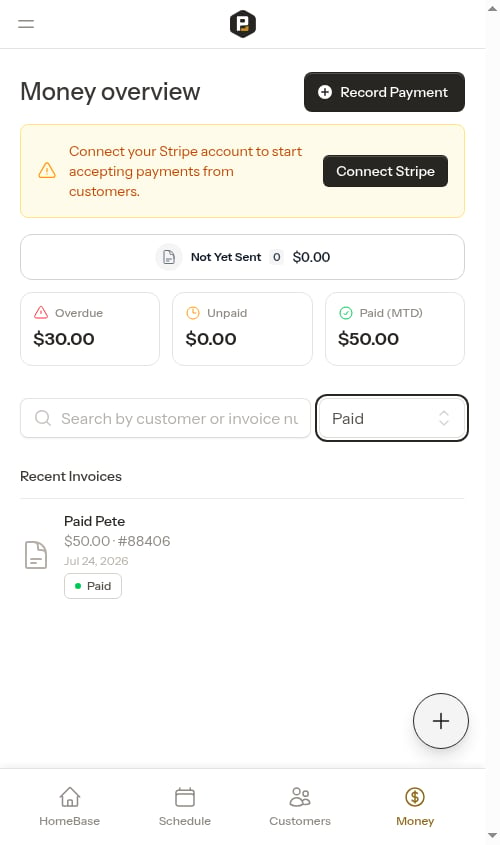
Use the **Status** dropdown to narrow the list:
* **All Invoices** — Shows every invoice
* **Not Yet Sent** — Shows draft invoices not yet sent to customers
* **Overdue** — Shows past-due unpaid invoices (amber due date)
* **Unpaid** — Shows recently sent unpaid invoices
* **Paid** — Shows paid invoices
Click any card to instantly filter the invoice list below to that category. Click the same card again to clear the filter.
## Invoice list
Below the summary cards is a list of all invoices for your business. Each row shows:
* Customer name
* Invoice amount and number (if sent), plus a **Partial** indicator if a payment has been made but the balance isn't fully covered
* Date and billing address (if available)
* Payment status badge (**Not Yet Sent**, **Overdue**, **Unpaid**, or **Paid**)
### Filter by status
Use the **Status** dropdown to narrow the list:
* **All Invoices** — Shows every invoice
* **Not Yet Sent** — Shows draft invoices not yet sent to customers
* **Overdue** — Shows past-due unpaid invoices (amber due date)
* **Unpaid** — Shows recently sent unpaid invoices
* **Paid** — Shows paid invoices
 ### Search
Use the search bar to find invoices by customer name or invoice number.
### Search
Use the search bar to find invoices by customer name or invoice number.
 ## View an invoice
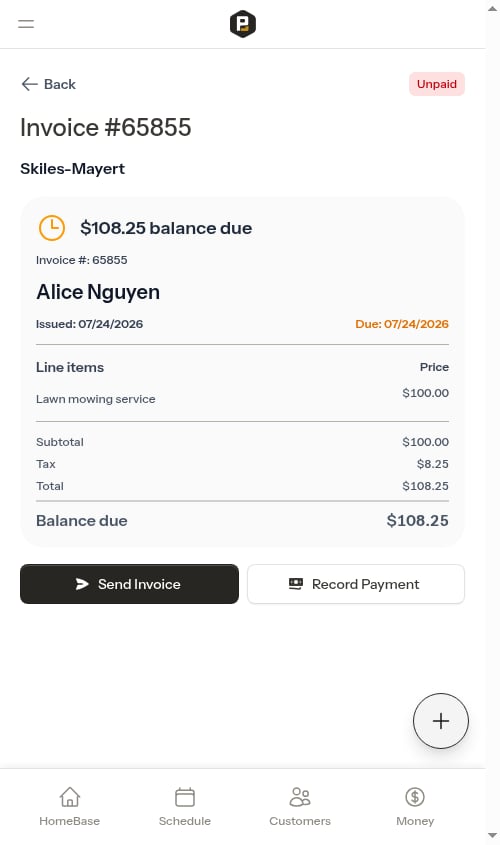
Click on any row in the invoice list to open the invoice detail page. The invoice shows:
* Invoice status and number
* Business information (if configured)
* Customer name and billing address
* All line items with titles, descriptions, and dates
* Any carried-forward items from previous unpaid invoices
* Subtotal, tax, payments & credits, total, and balance due
## View an invoice
Click on any row in the invoice list to open the invoice detail page. The invoice shows:
* Invoice status and number
* Business information (if configured)
* Customer name and billing address
* All line items with titles, descriptions, and dates
* Any carried-forward items from previous unpaid invoices
* Subtotal, tax, payments & credits, total, and balance due
 ## Send an invoice
Invoices are created automatically as **drafts** when charges are added. To send an invoice to a customer:
From the Money page, click on the invoice row to open the invoice detail page.
Tap the **Send Invoice** button. This transitions the invoice from draft to unpaid and opens the SMS sharing modal.
A pre-filled SMS message with the customer's unique payment link is ready to send.
* Tap **Send SMS** to open your messaging app with the message pre-filled (shown when a phone number is on file)
* Tap **Copy Message** to copy the full message to your clipboard (shown when no phone number is on file)
* Tap **Copy** to copy the full message (link included) to your clipboard
Once sent, the invoice is visible to the customer on their payment portal. You can re-share the link at any time using the **Send Invoice** button on unpaid invoices.
See [Sharing payment links](/billing/sending-payment-links) for more details on what customers see when they open their link.
## Record a payment
To log a cash, check, or other offline payment, use the **Record Payment** button at the top of the Money page, or tap **Record Payment** on the invoice detail page.
Tap **Record Payment** at the top of the Money page, or open an invoice and tap the **Record Payment** button.
## Send an invoice
Invoices are created automatically as **drafts** when charges are added. To send an invoice to a customer:
From the Money page, click on the invoice row to open the invoice detail page.
Tap the **Send Invoice** button. This transitions the invoice from draft to unpaid and opens the SMS sharing modal.
A pre-filled SMS message with the customer's unique payment link is ready to send.
* Tap **Send SMS** to open your messaging app with the message pre-filled (shown when a phone number is on file)
* Tap **Copy Message** to copy the full message to your clipboard (shown when no phone number is on file)
* Tap **Copy** to copy the full message (link included) to your clipboard
Once sent, the invoice is visible to the customer on their payment portal. You can re-share the link at any time using the **Send Invoice** button on unpaid invoices.
See [Sharing payment links](/billing/sending-payment-links) for more details on what customers see when they open their link.
## Record a payment
To log a cash, check, or other offline payment, use the **Record Payment** button at the top of the Money page, or tap **Record Payment** on the invoice detail page.
Tap **Record Payment** at the top of the Money page, or open an invoice and tap the **Record Payment** button.
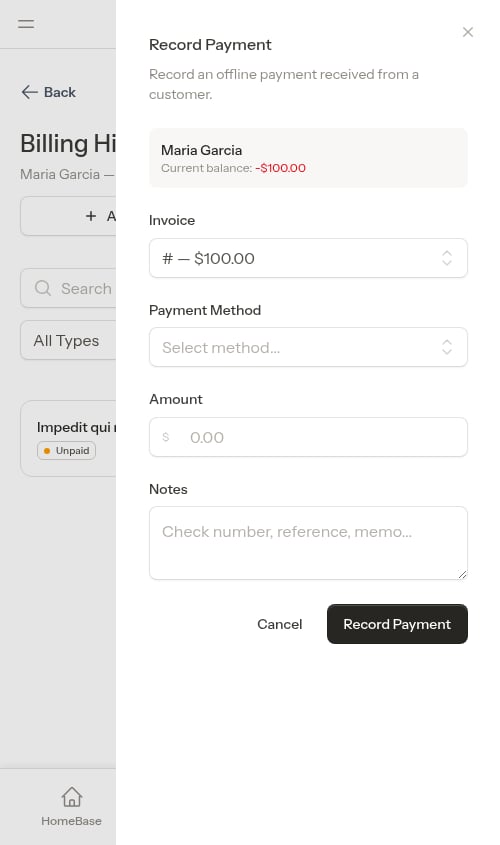 Search for and select the customer. Then select the invoice the payment applies to from the **Invoice** dropdown.
Select how the customer paid and enter the amount received.
Tap **Record Payment**. The invoice balance updates immediately.
Search for and select the customer. Then select the invoice the payment applies to from the **Invoice** dropdown.
Select how the customer paid and enter the amount received.
Tap **Record Payment**. The invoice balance updates immediately.
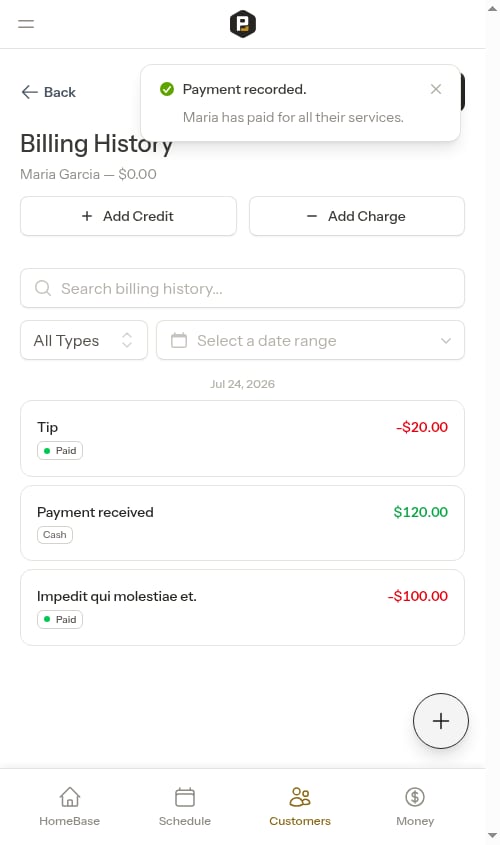 See [Recording payments](/billing/tracking-payments) for full details on payment methods, partial payments, and overpayment handling.
## Payment settings
To configure when invoices are considered overdue, click **Payments** in the sidebar under BUSINESS.
See [Recording payments](/billing/tracking-payments) for full details on payment methods, partial payments, and overpayment handling.
## Payment settings
To configure when invoices are considered overdue, click **Payments** in the sidebar under BUSINESS.
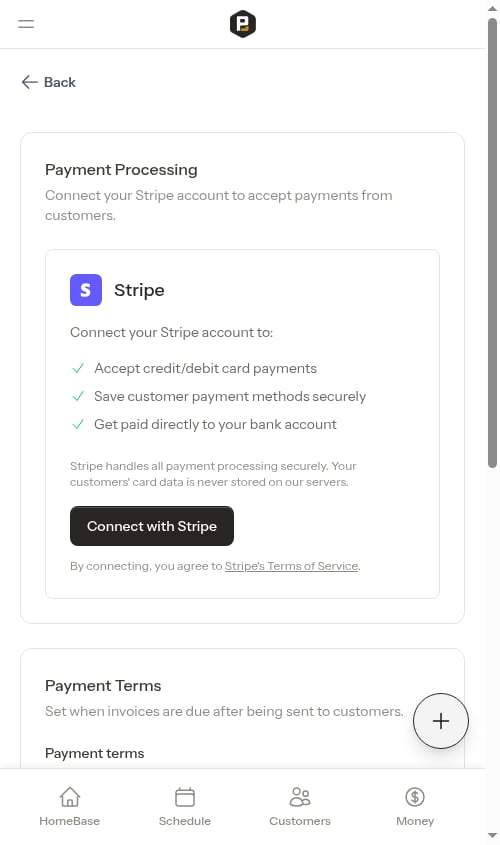 The **Payment Terms** section lets you choose when invoices are considered overdue. Options are **Upon receipt**, **Net 15**, and **Net 30** — meaning payment is due immediately, 15 days, or 30 days after an invoice is sent. New accounts default to **Upon receipt**. Invoices that remain unpaid past the selected period appear in the Overdue category.
See [Setting up payment processing](/billing/stripe-setup) for more details about the settings page and Stripe connection.
The **Payment Terms** section lets you choose when invoices are considered overdue. Options are **Upon receipt**, **Net 15**, and **Net 30** — meaning payment is due immediately, 15 days, or 30 days after an invoice is sent. New accounts default to **Upon receipt**. Invoices that remain unpaid past the selected period appear in the Overdue category.
See [Setting up payment processing](/billing/stripe-setup) for more details about the settings page and Stripe connection.