> ## Documentation Index
> Fetch the complete documentation index at: https://docs.probaseapp.com/llms.txt
> Use this file to discover all available pages before exploring further.
# Per-service vs subscription billing
> Understand billing types
## Why this matters
Probase offers two billing methods: per-service billing (bill when work is done) and subscription billing (bill on a schedule). Understanding the difference helps you choose the right approach for your business and customers.
## Per-service billing
Bill customers when work is completed.
**How it works:**
1. Crew completes an appointment
2. A billing line item is created automatically
3. Customer's balance updates immediately
4. Share the payment link with customers to view their balance
**Best for:**
* One-time jobs (spring cleanup, mulch installation)
* Customers who want to pay per visit
* Variable services where work isn't always the same
**Example:**
* Customer has weekly mowing service
* Crew completes mowing on Monday
* Billing line item created for \$40
* Customer balance shows the new charge
## Subscription billing
Bill customers on a recurring schedule, regardless of when individual visits are completed.
**How it works:**
1. Set up the service with a billing interval (weekly, monthly, annual). Probase automatically uses the day you create the service as the recurring billing day.
2. On each billing date, Probase **automatically** creates a billing line item for the subscription amount
3. Work is performed separately from billing — completing an appointment does not create a charge for the base subscription service (that recurring charge is billed on its own schedule). Any extra service items you add to a visit, however, are still charged on completion
**Best for:**
* Flat-rate monthly services
* Customers who want predictable monthly bills
* Seasonal contracts billed monthly
**Example:**
* Customer pays \$160/month for weekly mowing
* You create the service on the 7th, so Probase automatically creates a \$160 billing line item on the 7th of each month
* Work is performed weekly throughout the month
* Customer sees one monthly charge on their payment link
## Billing intervals for subscriptions
The recurring billing day is set automatically from the day you create the service — no extra input needed. Pick the interval that matches how the customer wants to be billed:
**Weekly**
* Billed on the same weekday each week — whichever weekday you created the service on
* Good for customers who pay weekly
* Example: Create the service on a Monday, the customer is billed every Monday after that
**Monthly**
* Billed on the same day of the month each month — whichever day you created the service on
* Most common for residential customers
* Example: Create the service on the 7th, the customer is billed on the 7th of each month
**Annual**
* Billed on the same day of the year each year — whichever day you created the service on
* Good for seasonal contracts paid upfront
* Example: Create the service on March 1st, the customer is billed every March 1st
## Set up per-service billing
When creating a service template:
1. Go to **Services** in the sidebar (under BUSINESS)
2. Create or edit a service template
3. Set **Invoice Frequency** to **Charge per completed appointment**
4. Set the price
5. Click **Save**
When appointments are completed for services using this template, billing line items are created automatically.
## Set up subscription billing
When creating a service template:
1. Go to **Services** in the sidebar (under BUSINESS)
2. Create or edit a service template
3. Set **Invoice Frequency** to **Charge on a subscription basis**
4. Select the **Subscription Interval** (Weekly Charges, Monthly Charges, or Annual Charges)
5. Set the price
6. Click **Save**
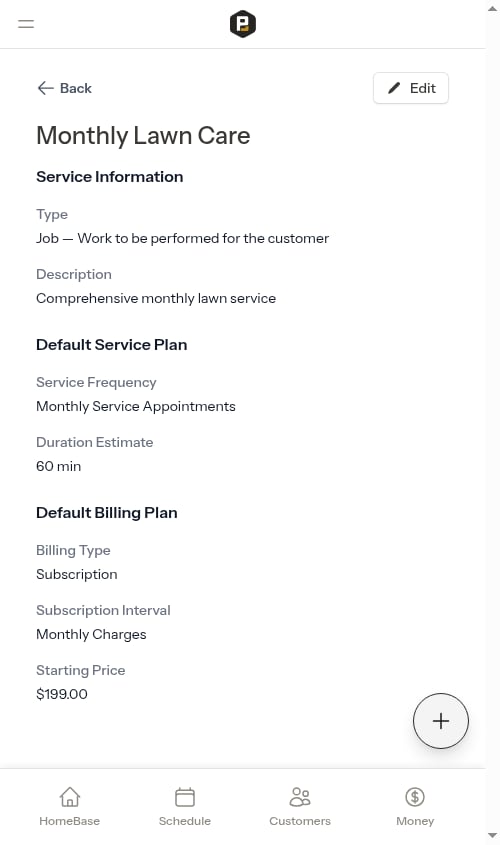 Billing line items for subscription services are created **automatically** on the recurring billing day each period. Probase uses the day you created the service as the recurring billing day. Completing appointments does not create subscription charges.
## Update pricing for a customer's service
Each customer's service has its own price and tax rate that can be updated independently.
To update pricing for a specific service:
1. Go to **Customers**
2. Click on the customer's name
3. Navigate to their property
4. Click on the service
5. Tap the **→** button in the top-right of the **Service details** section
6. Update the **Price** and **Tax Rate** in the Change Pricing modal
Billing type and billing interval are set when the service is created and cannot be changed afterward. If you need a different billing type, you'll need to cancel the existing service and create a new one.
## Combining both methods
You can use both billing types for the same customer:
**Example:**
* Weekly mowing: Per-service billing (\$40 per visit)
* Monthly fertilization: Subscription billing (\$60/month)
This gives you flexibility to match each service to the customer's preference.
## Viewing charges
For both billing types:
* Charges appear in the customer's billing history
* Customer balance updates automatically
* Share the payment link so customers can view their balance online
See [Sharing payment links](/billing/sending-payment-links) for details on sharing balances with customers.
Billing line items for subscription services are created **automatically** on the recurring billing day each period. Probase uses the day you created the service as the recurring billing day. Completing appointments does not create subscription charges.
## Update pricing for a customer's service
Each customer's service has its own price and tax rate that can be updated independently.
To update pricing for a specific service:
1. Go to **Customers**
2. Click on the customer's name
3. Navigate to their property
4. Click on the service
5. Tap the **→** button in the top-right of the **Service details** section
6. Update the **Price** and **Tax Rate** in the Change Pricing modal
Billing type and billing interval are set when the service is created and cannot be changed afterward. If you need a different billing type, you'll need to cancel the existing service and create a new one.
## Combining both methods
You can use both billing types for the same customer:
**Example:**
* Weekly mowing: Per-service billing (\$40 per visit)
* Monthly fertilization: Subscription billing (\$60/month)
This gives you flexibility to match each service to the customer's preference.
## Viewing charges
For both billing types:
* Charges appear in the customer's billing history
* Customer balance updates automatically
* Share the payment link so customers can view their balance online
See [Sharing payment links](/billing/sending-payment-links) for details on sharing balances with customers.