> ## Documentation Index
> Fetch the complete documentation index at: https://docs.probaseapp.com/llms.txt
> Use this file to discover all available pages before exploring further.
# Payment terms and due dates
> Choose when invoices are due and decide whether customers see the due date and past-due wording
## What payment terms do
Payment terms set the **due date** on every invoice you send. When you send an invoice, Probase counts forward from the send date by the number of days you've chosen and stamps that as the due date. The due date is what decides when an invoice counts as **Overdue** on your [Money overview](/billing/money-overview).
Terms are a business-wide setting — one choice that applies to every customer.
## Where to find the setting
Click **Payments** in the sidebar under Business. The **Invoice Settings** card sits at the bottom of the page, below the Stripe and Venmo cards. It holds everything about what an invoice looks like to your customer — your payment terms, the past-due wording switch, the [star-rating requirement](/billing/service-ratings), and your [tipping options](/billing/tips) — all saved together with one **Save** button.
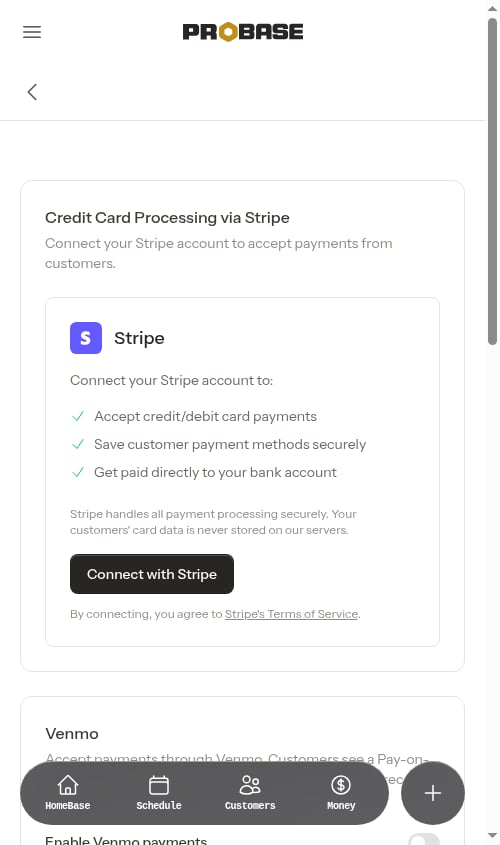 The same **Invoice Settings** card also appears on the **Business Profile** settings page, so you can change it from either place.
**Payments** only appears in the sidebar for the **Admin** role and the business Owner — payment settings are one of the admin-level powers. See [Roles and permissions](/team/roles-and-permissions).
## Choosing your terms
Pick an option from the **Payment terms** dropdown:
| Option | When the invoice is due |
| ---------------- | ----------------------------------------------------------- |
| **Upon receipt** | Immediately, the moment the invoice is sent |
| **Net 7** | 7 days after the invoice is sent (default for new accounts) |
| **Net 15** | 15 days after the invoice is sent |
| **Net 30** | 30 days after the invoice is sent |
| **Custom** | A number of days you choose |
Click **Save** when you're done. An *Invoice settings updated.* confirmation appears.
**New accounts start on Net 7.** A freshly sent invoice gets a week before it's considered late, so a customer who opens their invoice the same day never lands on something that's already past due. If your account was created before this change, your existing choice is untouched — switch it here whenever you like.
### Setting a custom due period
If none of the presets match how you bill, pick **Custom** from the dropdown. A **Custom due days** field appears underneath — type the number of days after sending that the invoice should be due (for example `45`), then click **Save**.
Custom terms must be between **1 and 180 days**. Leave the field blank or enter a number outside that range and Probase shows an error under the field instead of saving.
Once saved, a custom period shows up as **Custom** in the dropdown with your number still filled in, so you can adjust it later without re-picking the option.
Changing your terms applies to **new invoices only**. Invoices you've already sent keep the due date they were given.
## Showing overdue status to customers
By default, the invoice your customer opens stays **neutral**. The page is headed **Pay invoice**, the Balance Due card shows only the **Issued** date, and the **due date isn't printed at all** — so nothing on the page tells the customer they're behind, even when the date has already passed.
The same **Invoice Settings** card also appears on the **Business Profile** settings page, so you can change it from either place.
**Payments** only appears in the sidebar for the **Admin** role and the business Owner — payment settings are one of the admin-level powers. See [Roles and permissions](/team/roles-and-permissions).
## Choosing your terms
Pick an option from the **Payment terms** dropdown:
| Option | When the invoice is due |
| ---------------- | ----------------------------------------------------------- |
| **Upon receipt** | Immediately, the moment the invoice is sent |
| **Net 7** | 7 days after the invoice is sent (default for new accounts) |
| **Net 15** | 15 days after the invoice is sent |
| **Net 30** | 30 days after the invoice is sent |
| **Custom** | A number of days you choose |
Click **Save** when you're done. An *Invoice settings updated.* confirmation appears.
**New accounts start on Net 7.** A freshly sent invoice gets a week before it's considered late, so a customer who opens their invoice the same day never lands on something that's already past due. If your account was created before this change, your existing choice is untouched — switch it here whenever you like.
### Setting a custom due period
If none of the presets match how you bill, pick **Custom** from the dropdown. A **Custom due days** field appears underneath — type the number of days after sending that the invoice should be due (for example `45`), then click **Save**.
Custom terms must be between **1 and 180 days**. Leave the field blank or enter a number outside that range and Probase shows an error under the field instead of saving.
Once saved, a custom period shows up as **Custom** in the dropdown with your number still filled in, so you can adjust it later without re-picking the option.
Changing your terms applies to **new invoices only**. Invoices you've already sent keep the due date they were given.
## Showing overdue status to customers
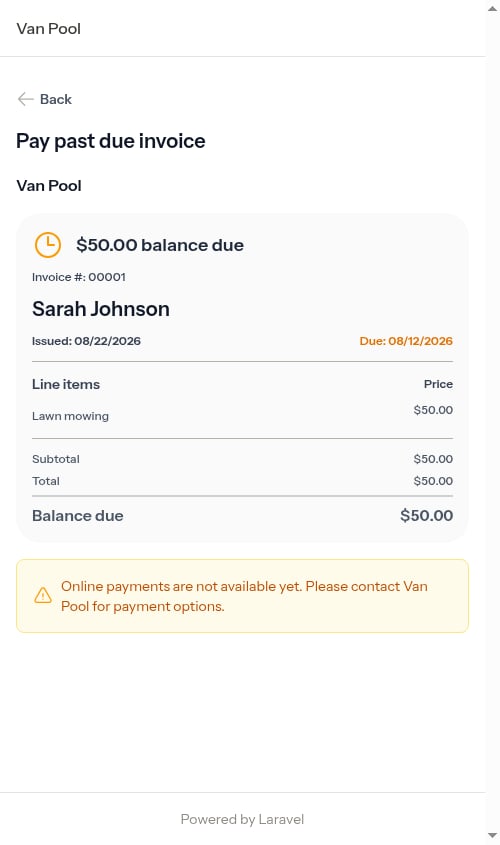
By default, the invoice your customer opens stays **neutral**. The page is headed **Pay invoice**, the Balance Due card shows only the **Issued** date, and the **due date isn't printed at all** — so nothing on the page tells the customer they're behind, even when the date has already passed.
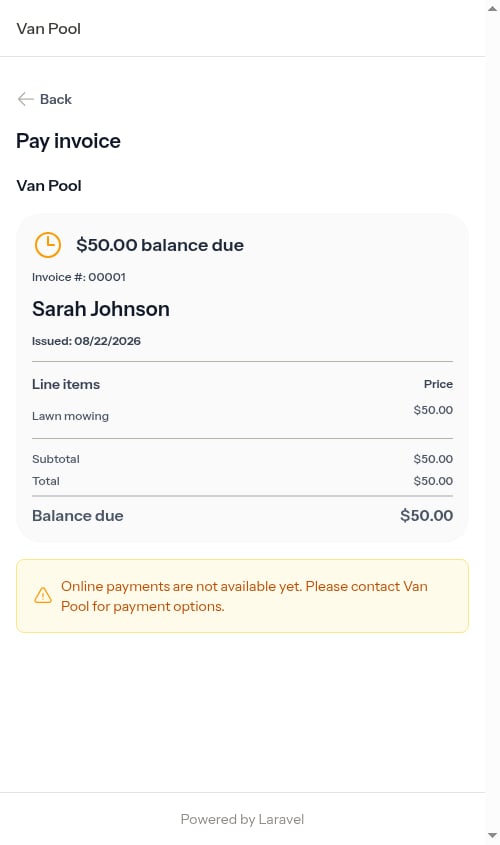 If you'd rather your customers see the deadline — and see when they've missed it — turn on **Show overdue status to customers** in the same **Invoice Settings** card.
Click **Payments** in the sidebar under Business. The **Show overdue status to customers** switch sits just under the payment terms in the **Invoice Settings** card and is **off** by default.
If you'd rather your customers see the deadline — and see when they've missed it — turn on **Show overdue status to customers** in the same **Invoice Settings** card.
Click **Payments** in the sidebar under Business. The **Show overdue status to customers** switch sits just under the payment terms in the **Invoice Settings** card and is **off** by default.
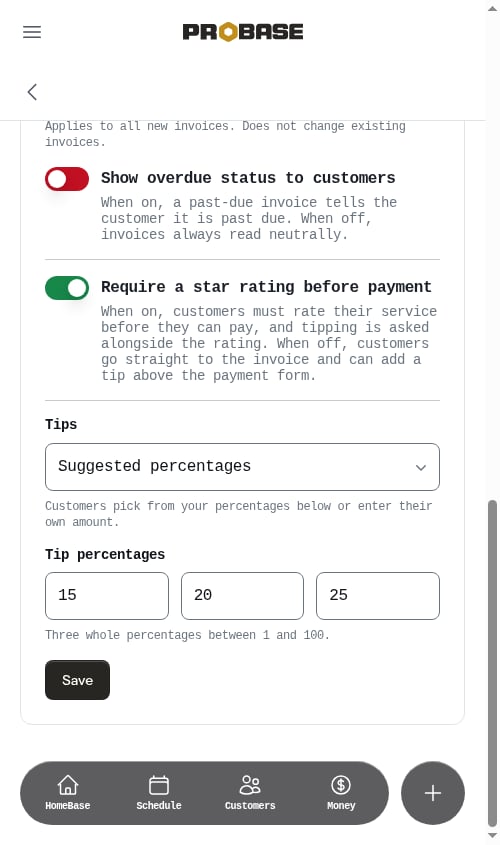 Tap the switch, then click **Save**. The *Invoice settings updated.* toast confirms the change.
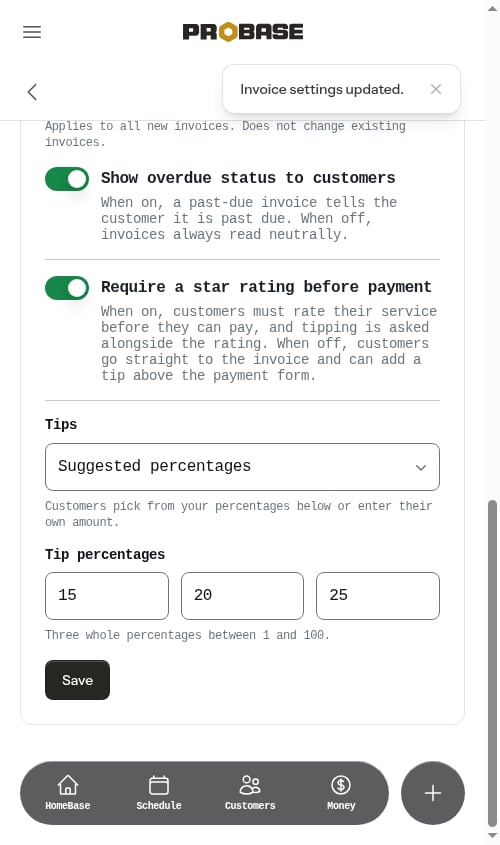 The **Due** date appears next to **Issued** on the Balance Due card of every unpaid invoice. Once that date passes, it turns amber and the page heading changes from **Pay invoice** to **Pay past due invoice**. Invoices that aren't past due still read normally — they just show their due date.
 The switch only changes what the **due date** does on the invoice itself — and because your own invoice detail page shows you the invoice exactly as your customer receives it, the **Due** date is hidden there too while the switch is off. Your bookkeeping is untouched either way: overdue invoices still count toward the **Overdue** total, still carry the **Overdue** badge in your invoice list, and still show up under the **Overdue** filter on the [Money overview](/billing/money-overview). Turning the switch off never changes *when* an invoice counts as overdue — it only stops the deadline being printed.
### Which one should I pick?
* **Leave it off** if you'd rather follow up on late payment yourself, in your own words — by text, call, or by re-sending the payment link. The invoice page stays a plain request to pay, with no deadline printed on it.
* **Turn it on** if you want the deadline visible on the invoice and a past-due label doing the nudging for you the moment that date passes.
Either way, pairing the setting with realistic terms helps: a customer on **Upon receipt** is technically late the day after you send, while **Net 7** gives them a week before anything changes.
## Related
* [Tips and gratuity](/billing/tips) — the tipping options in the same card
* [Service ratings](/billing/service-ratings) — the star-rating switch in the same card
* [Managing invoices](/billing/invoices) — the invoice lifecycle and statuses
* [Money overview](/billing/money-overview) — where overdue totals show up for you
* [Customer portal](/customers/customer-portal) — what customers see when they open their invoice
* [Setting up payment processing](/billing/stripe-setup) — connect Stripe so customers can pay online
The switch only changes what the **due date** does on the invoice itself — and because your own invoice detail page shows you the invoice exactly as your customer receives it, the **Due** date is hidden there too while the switch is off. Your bookkeeping is untouched either way: overdue invoices still count toward the **Overdue** total, still carry the **Overdue** badge in your invoice list, and still show up under the **Overdue** filter on the [Money overview](/billing/money-overview). Turning the switch off never changes *when* an invoice counts as overdue — it only stops the deadline being printed.
### Which one should I pick?
* **Leave it off** if you'd rather follow up on late payment yourself, in your own words — by text, call, or by re-sending the payment link. The invoice page stays a plain request to pay, with no deadline printed on it.
* **Turn it on** if you want the deadline visible on the invoice and a past-due label doing the nudging for you the moment that date passes.
Either way, pairing the setting with realistic terms helps: a customer on **Upon receipt** is technically late the day after you send, while **Net 7** gives them a week before anything changes.
## Related
* [Tips and gratuity](/billing/tips) — the tipping options in the same card
* [Service ratings](/billing/service-ratings) — the star-rating switch in the same card
* [Managing invoices](/billing/invoices) — the invoice lifecycle and statuses
* [Money overview](/billing/money-overview) — where overdue totals show up for you
* [Customer portal](/customers/customer-portal) — what customers see when they open their invoice
* [Setting up payment processing](/billing/stripe-setup) — connect Stripe so customers can pay online