> ## Documentation Index
> Fetch the complete documentation index at: https://docs.probaseapp.com/llms.txt
> Use this file to discover all available pages before exploring further.
# Sharing payment links
> Send invoices and share payment links with customers
## Overview
Payment links give customers a simple page where they can view their invoice, see all charges, add an optional tip, and pay online with a credit card. Each invoice has a unique, secure link that you can share via text or email.
To accept online payments, you'll need to [connect your Stripe account](/billing/stripe-setup) first. Without Stripe connected, customers can still view their invoice but can't complete payments online.
## Send an invoice via SMS
The fastest way to share a payment link is through the **Send Invoice** button on the invoice detail page, which prepares a personalized text message with a direct link to the invoice.
From the **Money** page, click on the invoice you want to send.
Tap the **Send Invoice** button. If the invoice is a draft, this transitions it to unpaid and assigns an invoice number.
The SMS sharing modal opens with a pre-filled message containing the customer's unique invoice link.
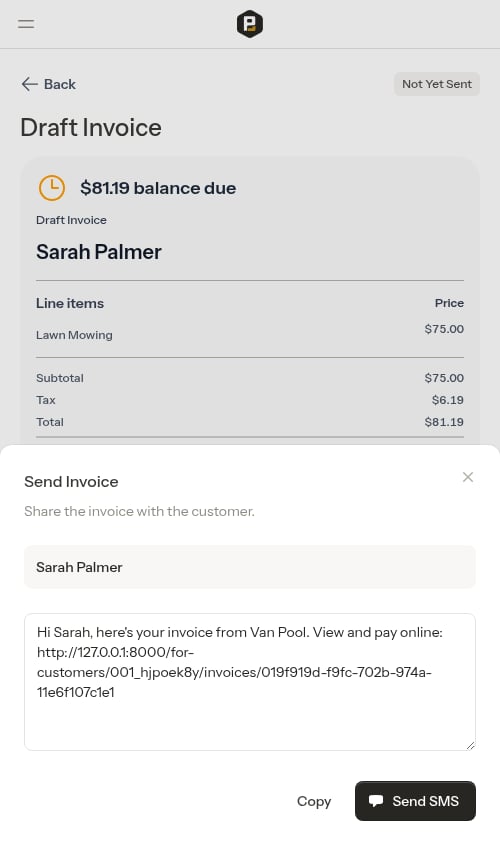 * **Send SMS** — Opens your device's native SMS app with the message pre-filled (requires a phone number on the customer's account)
* **Copy Message** — Copies the full message to your clipboard so you can paste it anywhere (shown when no phone number is on file)
* **Copy** — Copies the full message (link included) to your clipboard
The payment link goes directly to the specific invoice. Customers can also navigate to their full invoice history from the invoice page.
## Sending an invoice from a completed appointment
When you complete a job appointment, a **Send Invoice** button appears on the appointment detail page. This flow includes an invoice preview step so you can review the invoice before it's sent.
After completing a job, find the **Send Invoice** button on the appointment detail page.
* **Send SMS** — Opens your device's native SMS app with the message pre-filled (requires a phone number on the customer's account)
* **Copy Message** — Copies the full message to your clipboard so you can paste it anywhere (shown when no phone number is on file)
* **Copy** — Copies the full message (link included) to your clipboard
The payment link goes directly to the specific invoice. Customers can also navigate to their full invoice history from the invoice page.
## Sending an invoice from a completed appointment
When you complete a job appointment, a **Send Invoice** button appears on the appointment detail page. This flow includes an invoice preview step so you can review the invoice before it's sent.
After completing a job, find the **Send Invoice** button on the appointment detail page.
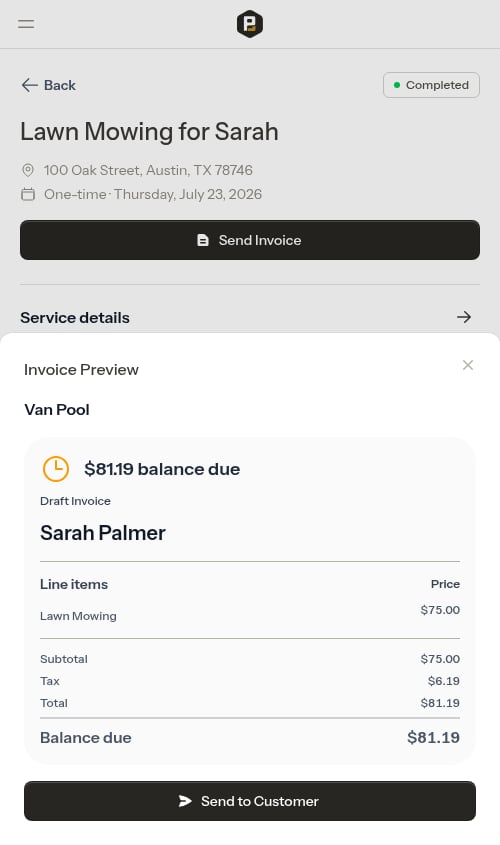
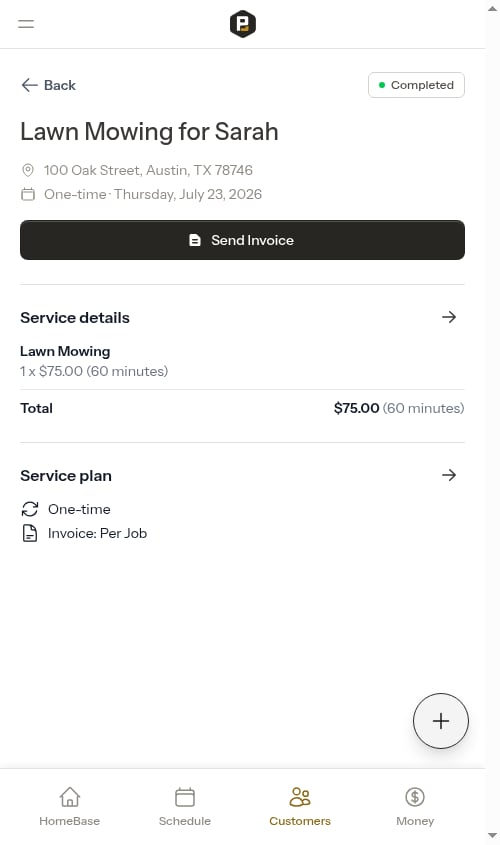 An invoice preview opens showing your business information, the customer's name and billing address, and all charges. Confirm everything looks correct.
 If the customer has no phone number or email on file, a warning appears reminding you to add contact details before sending.
Tap **Send to Customer** to mark the invoice as sent and proceed to the SMS compose step.
The SMS compose modal opens with a pre-filled message tailored to the specific appointment (including the service name and date).
If the customer has no phone number or email on file, a warning appears reminding you to add contact details before sending.
Tap **Send to Customer** to mark the invoice as sent and proceed to the SMS compose step.
The SMS compose modal opens with a pre-filled message tailored to the specific appointment (including the service name and date).
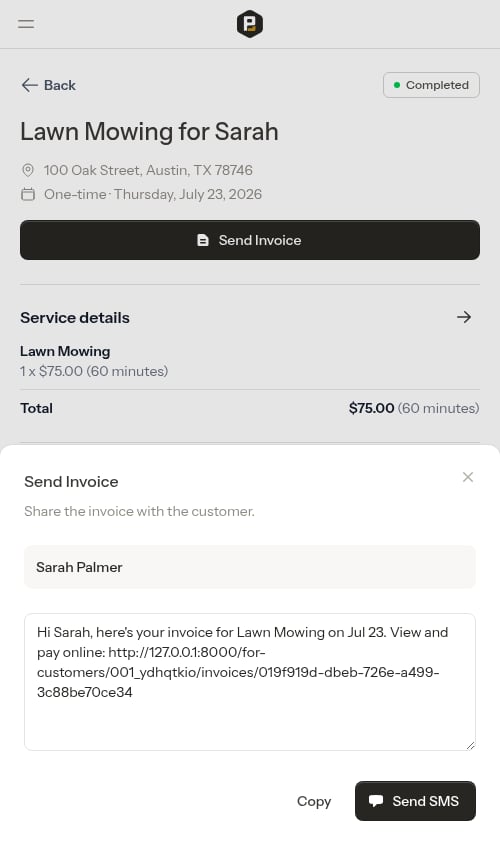 * **Send SMS** — Opens your messaging app with the message pre-filled
* **Copy Message** — Copies the full message (when no phone number is on file)
* **Copy** — Copies the full message (link included) to your clipboard
If you tap **Send Invoice** on a completed appointment that's already been invoiced, Probase reuses the original invoice instead of creating a new one — the preview step is skipped and you go straight to the SMS compose modal. The customer keeps a single invoice number for the visit even when you re-share the link multiple times.
* **Send SMS** — Opens your messaging app with the message pre-filled
* **Copy Message** — Copies the full message (when no phone number is on file)
* **Copy** — Copies the full message (link included) to your clipboard
If you tap **Send Invoice** on a completed appointment that's already been invoiced, Probase reuses the original invoice instead of creating a new one — the preview step is skipped and you go straight to the SMS compose modal. The customer keeps a single invoice number for the visit even when you re-share the link multiple times.
 ## What customers see
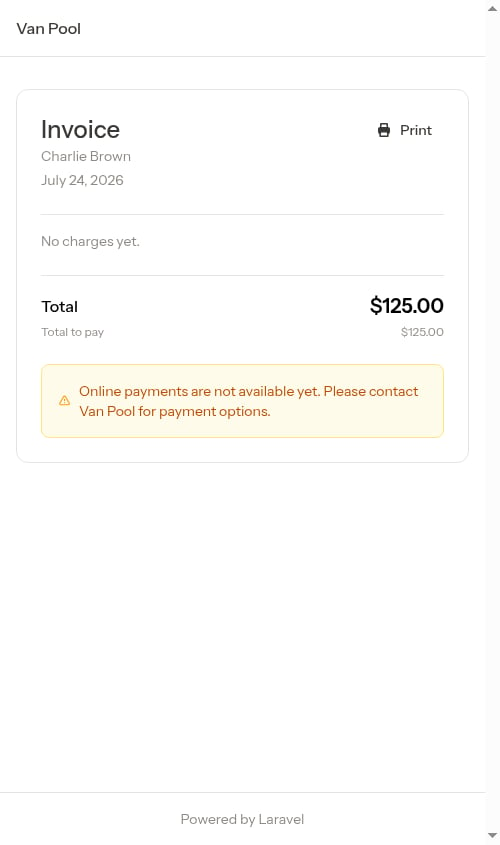
When customers open their invoice link, they see a list of their invoices. Clicking an invoice may first show a **service review page** (for eligible service appointments), then takes them to the payment page.
### Service review
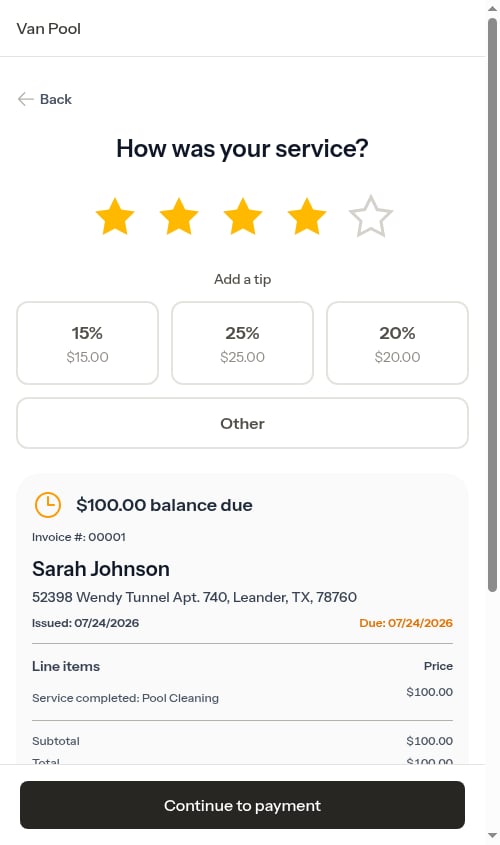
For invoices tied to a service appointment, customers are shown a **"How was your service?"** page before they can pay. They rate their experience with 1–5 stars and can optionally add a tip. The tip selector only appears once a rating is chosen, and offers three preset percentages (**15%**, **25%**, **20%**) plus an **Other** option for a custom dollar amount. Nothing is pre-selected — to decline a tip, the customer simply leaves the section untouched.
Below the tip selector, customers see the full invoice card (the same one shown on the payment page) so they can preview what they're about to pay. Once they tap the floating **Continue to payment** button, their rating and tip are saved and they're taken to the payment page.
## What customers see
When customers open their invoice link, they see a list of their invoices. Clicking an invoice may first show a **service review page** (for eligible service appointments), then takes them to the payment page.
### Service review
For invoices tied to a service appointment, customers are shown a **"How was your service?"** page before they can pay. They rate their experience with 1–5 stars and can optionally add a tip. The tip selector only appears once a rating is chosen, and offers three preset percentages (**15%**, **25%**, **20%**) plus an **Other** option for a custom dollar amount. Nothing is pre-selected — to decline a tip, the customer simply leaves the section untouched.
Below the tip selector, customers see the full invoice card (the same one shown on the payment page) so they can preview what they're about to pay. Once they tap the floating **Continue to payment** button, their rating and tip are saved and they're taken to the payment page.
 ### Invoice payment page
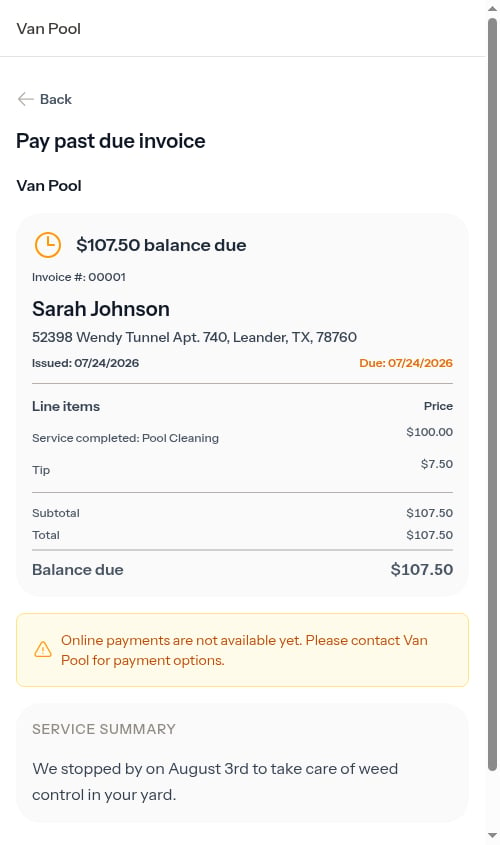
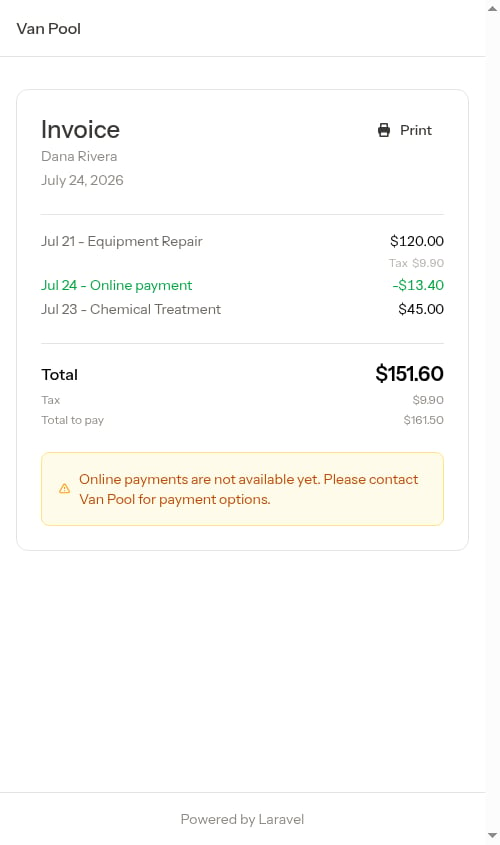
The invoice payment page shows the full breakdown:
* Your business information (if configured)
* Their name and billing address
* Invoice number and dates (issued, due)
* All charges with titles and amounts
* Subtotal, tax, and balance due
### Invoice payment page
The invoice payment page shows the full breakdown:
* Your business information (if configured)
* Their name and billing address
* Invoice number and dates (issued, due)
* All charges with titles and amounts
* Subtotal, tax, and balance due
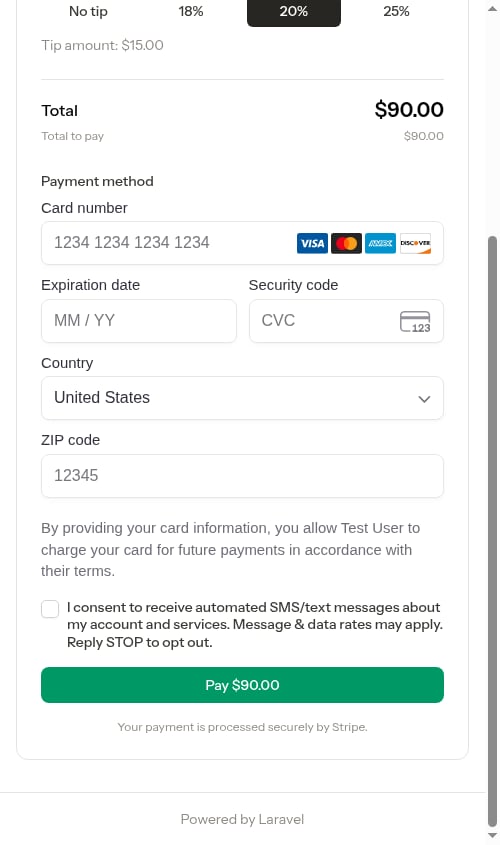
 ### Payment form
When Stripe is connected, customers see a secure payment form where they can enter their credit card details and complete payment.
### Payment form
When Stripe is connected, customers see a secure payment form where they can enter their credit card details and complete payment.
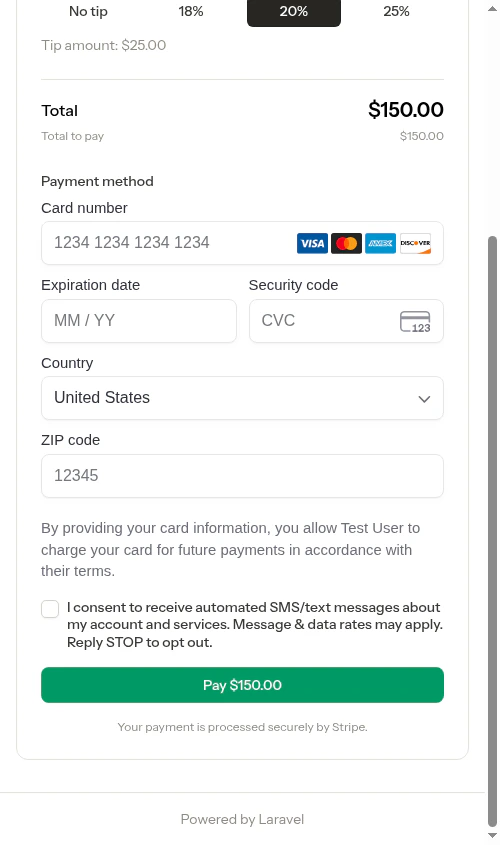
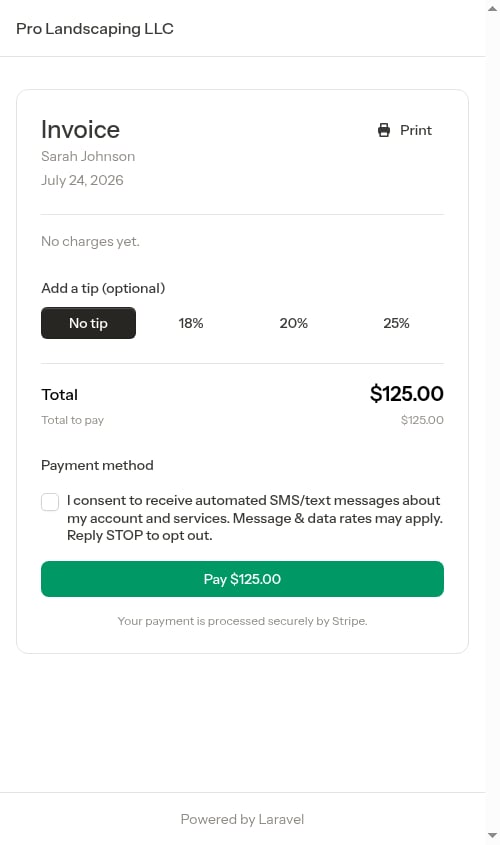 The payment form is powered by Stripe and is fully PCI-compliant. Card details are never sent to Probase — they go directly to Stripe's secure servers.
### Paying with Venmo
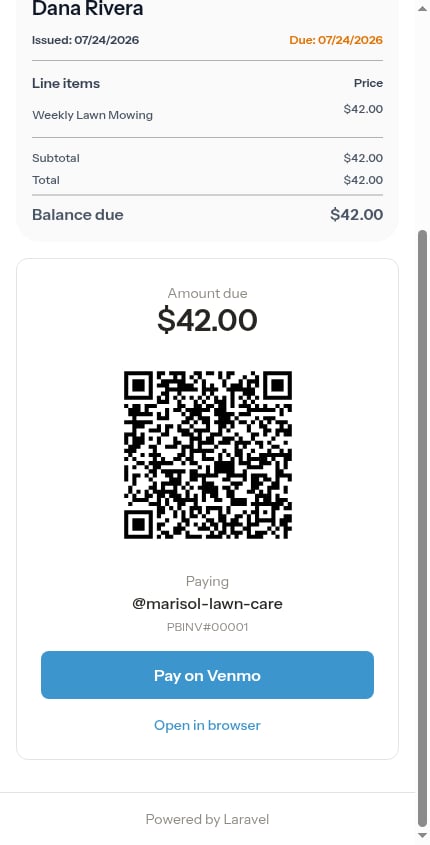
If you've turned on [Venmo payments](/billing/venmo-payments), customers also see a **Pay on Venmo** button and a QR code on their invoice, pre-filled with the amount due and your invoice number. When Stripe is connected too, the card form shows first and Venmo appears below it under an **Or pay with Venmo** heading.
The payment form is powered by Stripe and is fully PCI-compliant. Card details are never sent to Probase — they go directly to Stripe's secure servers.
### Paying with Venmo
If you've turned on [Venmo payments](/billing/venmo-payments), customers also see a **Pay on Venmo** button and a QR code on their invoice, pre-filled with the amount due and your invoice number. When Stripe is connected too, the card form shows first and Venmo appears below it under an **Or pay with Venmo** heading.
 ### Communication consent
During payment, customers may be asked to consent to receive text message communications about their account and services. This consent is optional and not required to complete payment.
### Communication consent
During payment, customers may be asked to consent to receive text message communications about their account and services. This consent is optional and not required to complete payment.
 ### When Stripe isn't connected
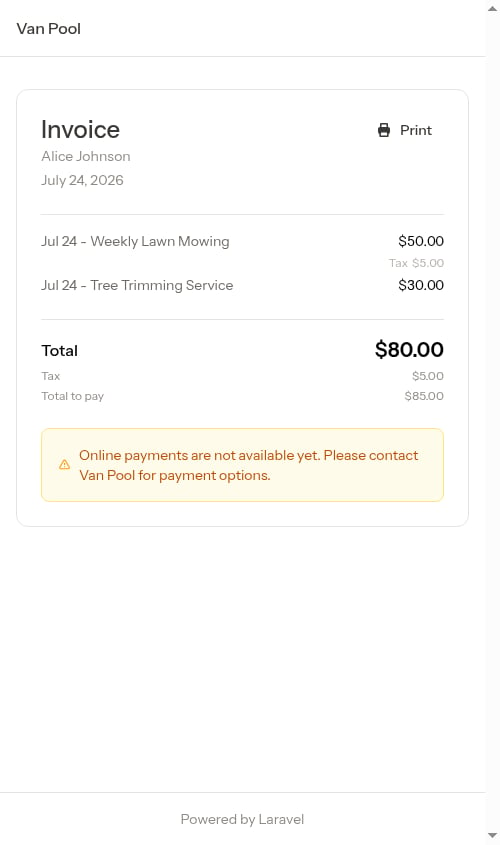
If you haven't connected your Stripe account yet, customers will see a message that online payments aren't available.
### When Stripe isn't connected
If you haven't connected your Stripe account yet, customers will see a message that online payments aren't available.
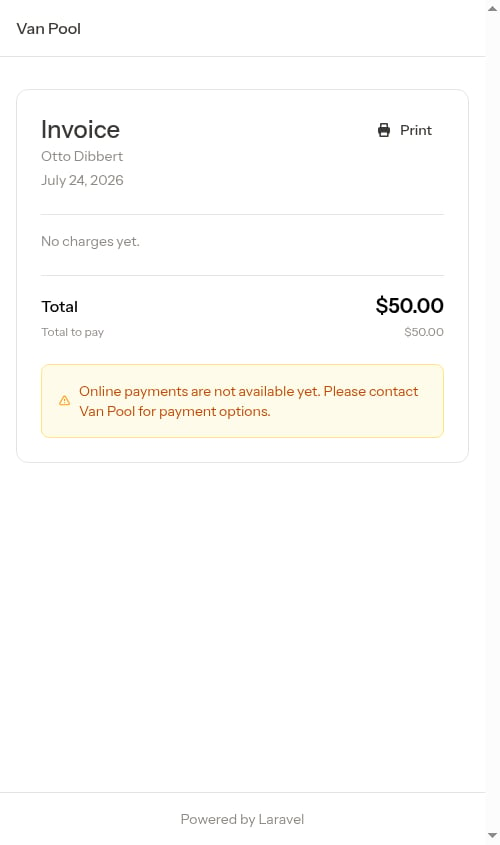 They can still view their invoice and charges, but they'll need to contact you directly to arrange payment. See [Setting up payment processing](/billing/stripe-setup) to enable online payments.
## When to use payment links
Payment links are ideal for:
* Texting customers a link right after completing work so they can see their charge and pay
* Following up on outstanding balances
* Sharing via email or other communication methods
The link never expires, so customers can bookmark it and check their invoice anytime.
They can still view their invoice and charges, but they'll need to contact you directly to arrange payment. See [Setting up payment processing](/billing/stripe-setup) to enable online payments.
## When to use payment links
Payment links are ideal for:
* Texting customers a link right after completing work so they can see their charge and pay
* Following up on outstanding balances
* Sharing via email or other communication methods
The link never expires, so customers can bookmark it and check their invoice anytime.