> ## Documentation Index
> Fetch the complete documentation index at: https://docs.probaseapp.com/llms.txt
> Use this file to discover all available pages before exploring further.
# Setting up payment processing
> Connect Stripe to accept credit card payments online
## Overview
Probase uses Stripe to process credit card payments from your customers. Once connected, customers can pay their balance online through secure payment links.
## Connect your Stripe account
Click **Payments** in the sidebar under BUSINESS. The **Payment Processing** section appears at the top of the page.
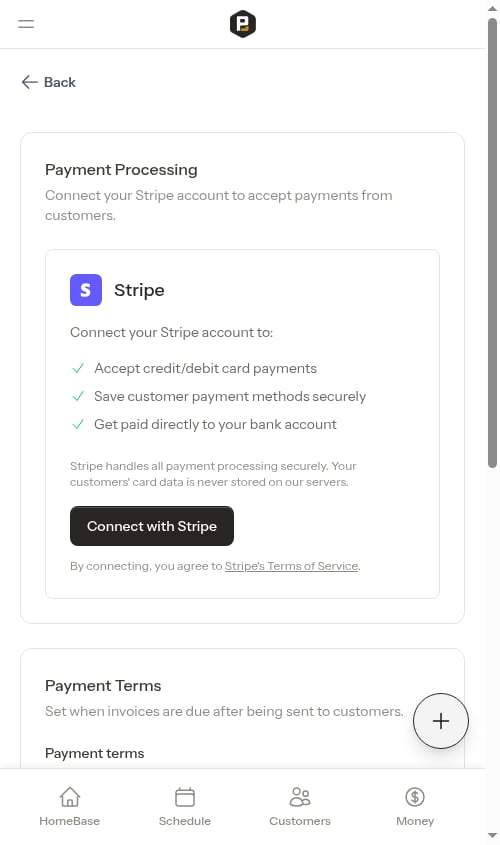
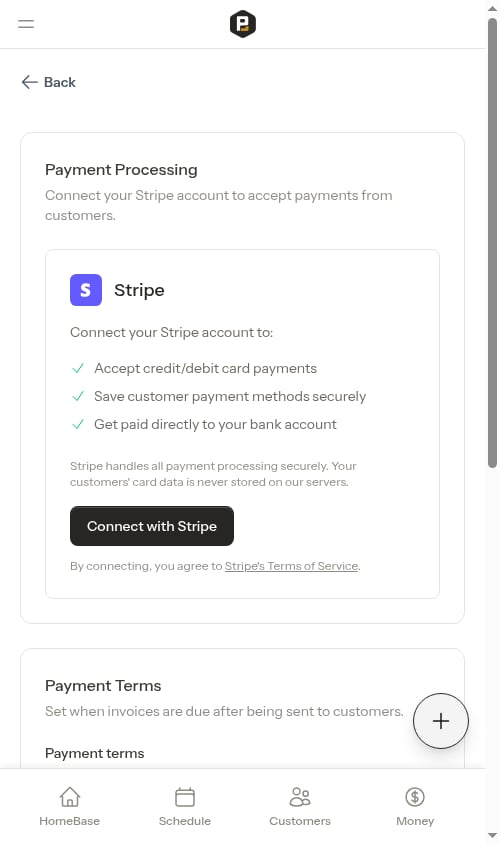 Click the **Connect with Stripe** button. This opens Stripe's secure onboarding flow where you'll provide your business information and bank account details.
Follow Stripe's prompts to:
* Verify your business information
* Provide tax details
* Connect your bank account for payouts
* Verify your identity
Once complete, you'll be redirected back to Probase with Stripe connected.
## Account status
Your Stripe connection status appears in the **Payment Processing** section:
### Pending setup
Your account is created but needs additional information from Stripe.
Click the **Connect with Stripe** button. This opens Stripe's secure onboarding flow where you'll provide your business information and bank account details.
Follow Stripe's prompts to:
* Verify your business information
* Provide tax details
* Connect your bank account for payouts
* Verify your identity
Once complete, you'll be redirected back to Probase with Stripe connected.
## Account status
Your Stripe connection status appears in the **Payment Processing** section:
### Pending setup
Your account is created but needs additional information from Stripe.
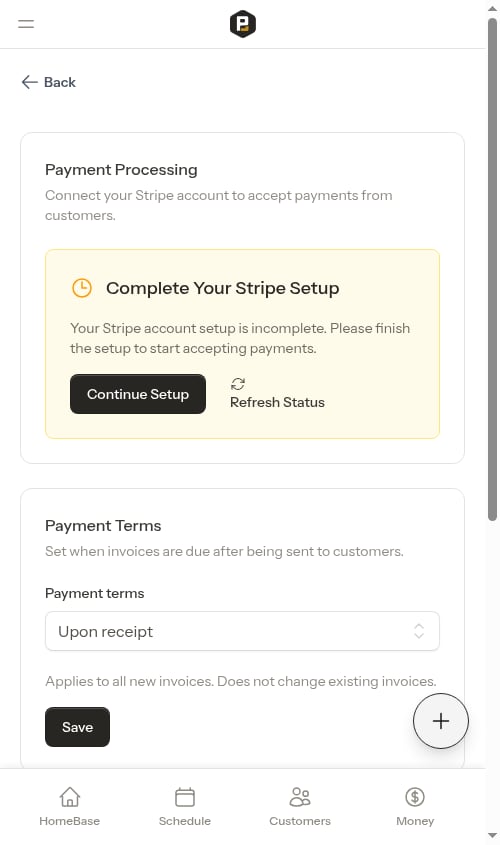 Click **Continue Setup** to complete the required steps with Stripe.
### Restricted
Stripe needs additional information or verification to enable payments.
Click **Continue Setup** to complete the required steps with Stripe.
### Restricted
Stripe needs additional information or verification to enable payments.
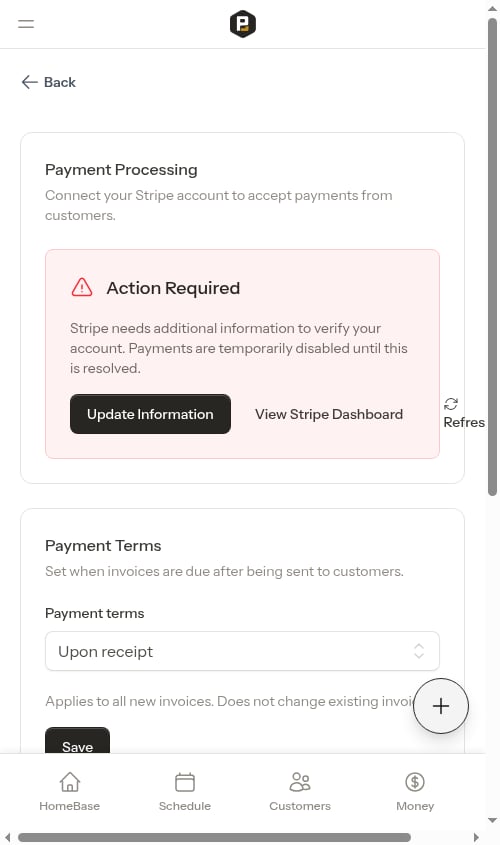 Click **Update Information** to provide what Stripe needs. Payments are temporarily disabled until this is resolved.
### Active
Your account is fully connected and can accept payments.
Click **Update Information** to provide what Stripe needs. Payments are temporarily disabled until this is resolved.
### Active
Your account is fully connected and can accept payments.
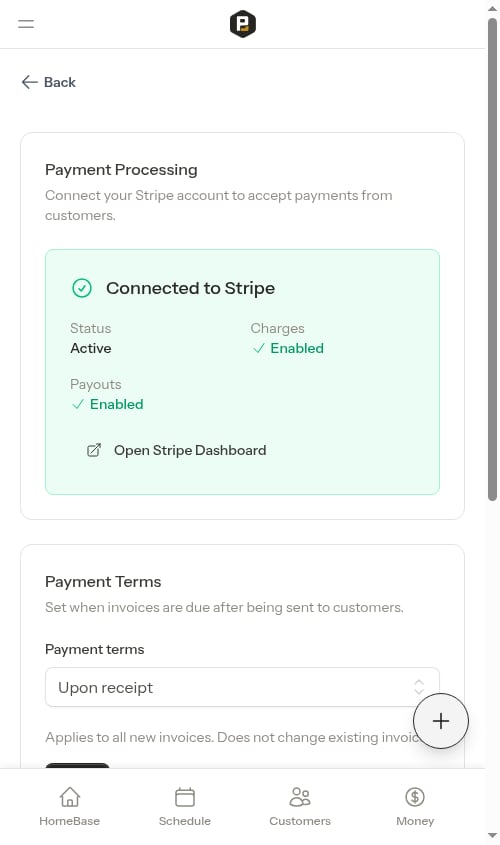 * **Charges: Enabled** - You can accept payments from customers
* **Payouts: Enabled** - Stripe can send money to your bank account
### Limited
Charges are enabled but payouts are on hold pending additional verification.
* **Charges: Enabled** - You can accept payments from customers
* **Payouts: Enabled** - Stripe can send money to your bank account
### Limited
Charges are enabled but payouts are on hold pending additional verification.
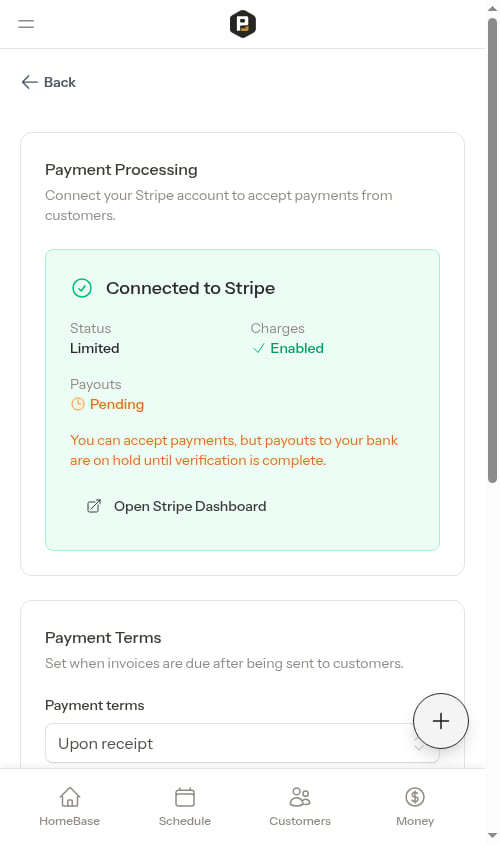 You can still accept payments, but funds won't be sent to your bank until Stripe completes verification.
## Refresh account status
If you've made changes in Stripe or completed required steps, click **Refresh Status** to sync the latest information from Stripe to Probase.
## View Stripe Dashboard
Click **Open Stripe Dashboard** to access your Stripe account where you can:
* View transaction history
* Manage payouts
* Update bank account information
* View detailed reports
* Configure Stripe settings
## What happens after connecting
Once Stripe is connected:
1. **Payment links become active** - Customers can complete payments online through the links you share
2. **Cards are saved securely** - Customers can save payment methods for future use (stored by Stripe, not Probase)
3. **Funds go to your bank** - Stripe deposits payments directly to your connected bank account (typically within 2 business days)
Stripe charges a processing fee for each transaction. Check Stripe's pricing for current rates.
## Payment terms
The payment settings page also includes a **Payment Terms** section where you can configure when invoices are due.
You can still accept payments, but funds won't be sent to your bank until Stripe completes verification.
## Refresh account status
If you've made changes in Stripe or completed required steps, click **Refresh Status** to sync the latest information from Stripe to Probase.
## View Stripe Dashboard
Click **Open Stripe Dashboard** to access your Stripe account where you can:
* View transaction history
* Manage payouts
* Update bank account information
* View detailed reports
* Configure Stripe settings
## What happens after connecting
Once Stripe is connected:
1. **Payment links become active** - Customers can complete payments online through the links you share
2. **Cards are saved securely** - Customers can save payment methods for future use (stored by Stripe, not Probase)
3. **Funds go to your bank** - Stripe deposits payments directly to your connected bank account (typically within 2 business days)
Stripe charges a processing fee for each transaction. Check Stripe's pricing for current rates.
## Payment terms
The payment settings page also includes a **Payment Terms** section where you can configure when invoices are due.
 **Payment terms** — How long customers have to pay after an invoice is sent. Choose from:
* **Upon receipt** — Payment is due immediately when the invoice is sent (default for new accounts)
* **Net 15** — Payment is due 15 days after the invoice is sent
* **Net 30** — Payment is due 30 days after the invoice is sent
Invoices that remain unpaid past the selected due period will appear as **Overdue** on the [Money overview](/billing/money-overview) page and on individual invoices. This setting applies to all new invoices and does not change existing ones.
## Troubleshooting
### The "Connect with Stripe" button isn't working
Tapping **Connect with Stripe** takes you to Stripe's secure onboarding in the same window; when you finish, Stripe returns you to Probase. If Probase can't reach Stripe at that moment, you're returned to the Payments page with the message *"We couldn't connect to Stripe right now. Please try again."* — this is usually a temporary hiccup, so wait a moment and tap **Connect with Stripe** again. If it keeps happening, [contact support](/support/contact-support).
### My status shows as "Pending" or "Restricted"
Click the **Continue Setup** or **Update Information** button to see what Stripe needs. Common requirements include:
* Additional business verification documents
* Bank account verification
* Tax ID confirmation
* Identity verification
### Customers can't complete payments
Check that your account status shows "Active" with both charges and payouts enabled. If your account is restricted, customers will see a message that online payments aren't available.
If you close your Stripe account or disconnect it, customers will no longer be able to make online payments. They'll see a message to contact you for payment options.
**Payment terms** — How long customers have to pay after an invoice is sent. Choose from:
* **Upon receipt** — Payment is due immediately when the invoice is sent (default for new accounts)
* **Net 15** — Payment is due 15 days after the invoice is sent
* **Net 30** — Payment is due 30 days after the invoice is sent
Invoices that remain unpaid past the selected due period will appear as **Overdue** on the [Money overview](/billing/money-overview) page and on individual invoices. This setting applies to all new invoices and does not change existing ones.
## Troubleshooting
### The "Connect with Stripe" button isn't working
Tapping **Connect with Stripe** takes you to Stripe's secure onboarding in the same window; when you finish, Stripe returns you to Probase. If Probase can't reach Stripe at that moment, you're returned to the Payments page with the message *"We couldn't connect to Stripe right now. Please try again."* — this is usually a temporary hiccup, so wait a moment and tap **Connect with Stripe** again. If it keeps happening, [contact support](/support/contact-support).
### My status shows as "Pending" or "Restricted"
Click the **Continue Setup** or **Update Information** button to see what Stripe needs. Common requirements include:
* Additional business verification documents
* Bank account verification
* Tax ID confirmation
* Identity verification
### Customers can't complete payments
Check that your account status shows "Active" with both charges and payouts enabled. If your account is restricted, customers will see a message that online payments aren't available.
If you close your Stripe account or disconnect it, customers will no longer be able to make online payments. They'll see a message to contact you for payment options.