> ## Documentation Index
> Fetch the complete documentation index at: https://docs.probaseapp.com/llms.txt
> Use this file to discover all available pages before exploring further.
# Recording payments
> Track online and offline payments
## Overview
Probase tracks all customer payments, whether they're made online through Stripe or offline through cash, check, or other methods. Payments are always recorded against a specific invoice.
## Online payments through Stripe
When you [connect your Stripe account](/billing/stripe-setup), customers can pay online through their payment link:
1. Share the customer's invoice link (via the **Send Invoice** button on the invoice detail page or from a completed appointment)
2. Customer opens the link, selects their invoice, and enters card details
3. Payment is processed through Stripe
4. A credit is automatically applied to the invoice
5. Funds are deposited to your bank account (typically within 2 business days)
Online payments are recorded automatically - you don't need to do anything. The payment will appear in the customer's billing history.
## Recording offline payments
When a customer pays you by cash, check, bank transfer, or any other offline method, use the **Record Payment** action to add it to their account.
Tap **Record Payment** at the top of the Money page. You can also open any invoice's detail page and tap the **Record Payment** button, which will pre-select the customer and invoice for you.
If the customer isn't pre-selected, search by name, email, phone, or address. The customer's current balance is shown next to their name.
Choose which invoice this payment applies to from the **Invoice** dropdown. The dropdown shows all open (draft and unpaid) invoices for that customer with their remaining balance.
Select how the customer paid:
* **Cash**
* **Check**
* **Credit Card** (manual card transaction, not Stripe)
* **Bank Transfer**
* **Venmo / Zelle**
* **Other** (enter a custom description)
Enter the payment amount. You can also add optional notes (e.g., check number, reference, or memo).
Click **Record Payment**. A confirmation toast will appear showing the customer's updated balance status.
If a customer pays you through the **Pay on Venmo** button on their invoice, the money lands in your Venmo account — Probase doesn't record it automatically. Use these same **Record Payment** steps (with the **Venmo / Zelle** method) to mark the invoice paid. See [Accepting Venmo payments](/billing/venmo-payments) for how to turn Venmo on.
## Payment status tracking
Probase automatically tracks whether each charge has been paid:
* **Unpaid** — The charge has not been fully covered by credits or payments yet
* **Paid** — Credits or payments have fully covered the charge amount
When you record a payment, Probase automatically applies it toward any outstanding (unpaid) charges on the customer's account.
### Partial payments
If a customer makes a partial payment:
1. Record a payment for the amount received
2. The charge will remain **Unpaid** until it's fully covered
3. When they pay the remainder, record another payment
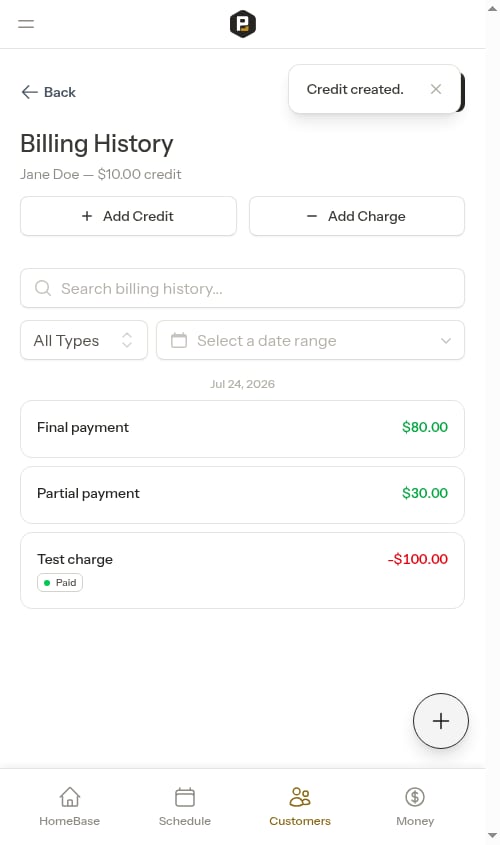
4. Once fully covered, the charge is marked **Paid**
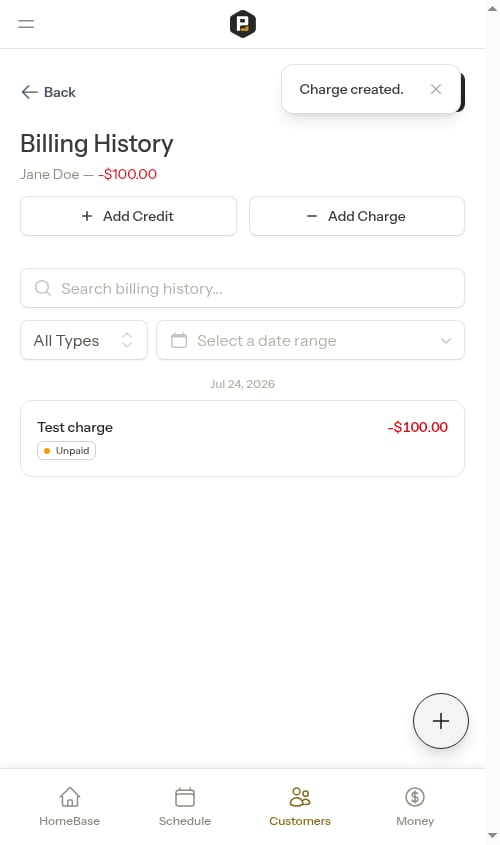
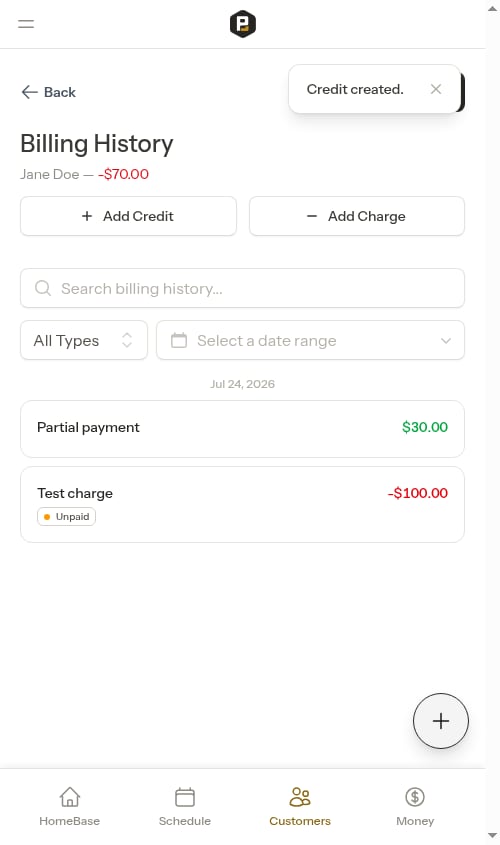
For example, if a customer owes $100 and pays $40:
* Record a \$40 payment
* The charge stays **Unpaid** (still \$60 outstanding)
* When they pay the remaining \$60, record another payment
* The charge is then marked **Paid**
 ## Overpayment handling
If you record a payment for more than the customer owes, Probase detects the overpayment and lets you choose what to do with the extra amount.
When you enter an amount that exceeds the customer's balance, an amber prompt appears showing exactly how much extra you've entered and giving you two options:
* **Record as tip** (default) — The full payment is recorded, and the excess is split off as a separate tip entry. Two line items appear in the billing history: a payment for the full amount and a tip for the overage.
* **Apply as credit** — The full payment is recorded as a credit on the customer's account. Their balance goes positive, meaning they have a credit toward future charges.
From a customer's billing history, click the **Record Payment** button at the top of the page.
## Overpayment handling
If you record a payment for more than the customer owes, Probase detects the overpayment and lets you choose what to do with the extra amount.
When you enter an amount that exceeds the customer's balance, an amber prompt appears showing exactly how much extra you've entered and giving you two options:
* **Record as tip** (default) — The full payment is recorded, and the excess is split off as a separate tip entry. Two line items appear in the billing history: a payment for the full amount and a tip for the overage.
* **Apply as credit** — The full payment is recorded as a credit on the customer's account. Their balance goes positive, meaning they have a credit toward future charges.
From a customer's billing history, click the **Record Payment** button at the top of the page.
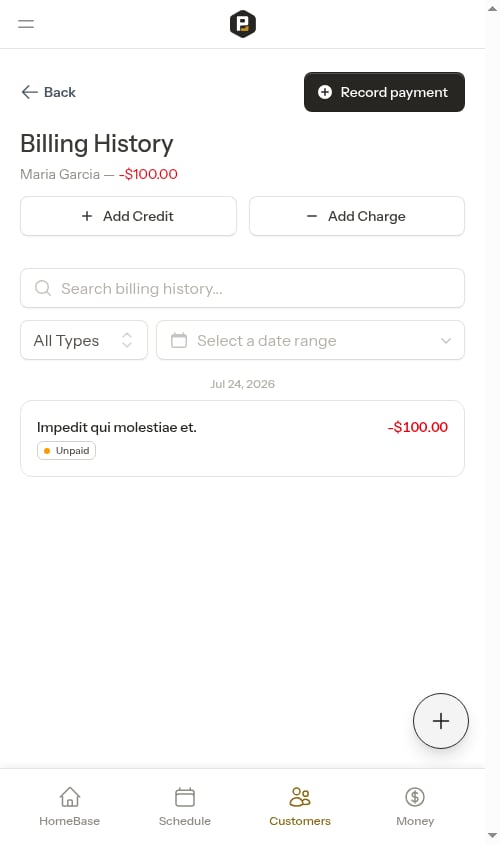
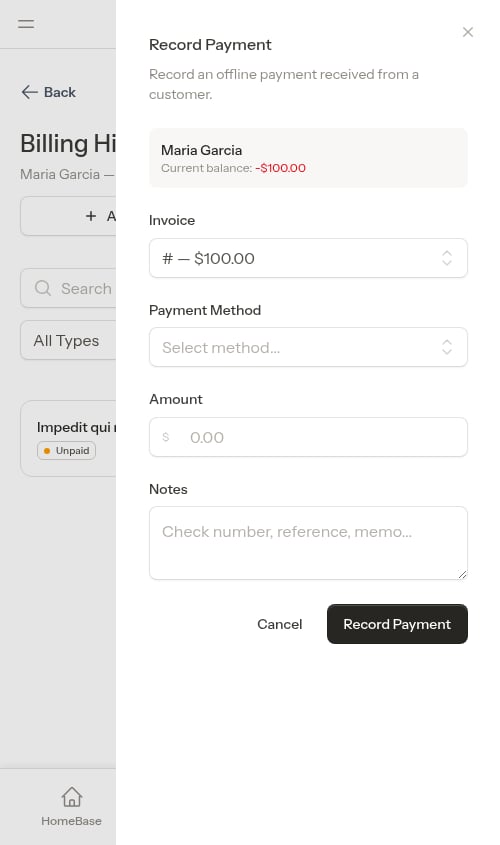 Select the invoice and payment method, then enter an amount greater than what the customer owes. An amber overpayment prompt will appear showing the excess amount.
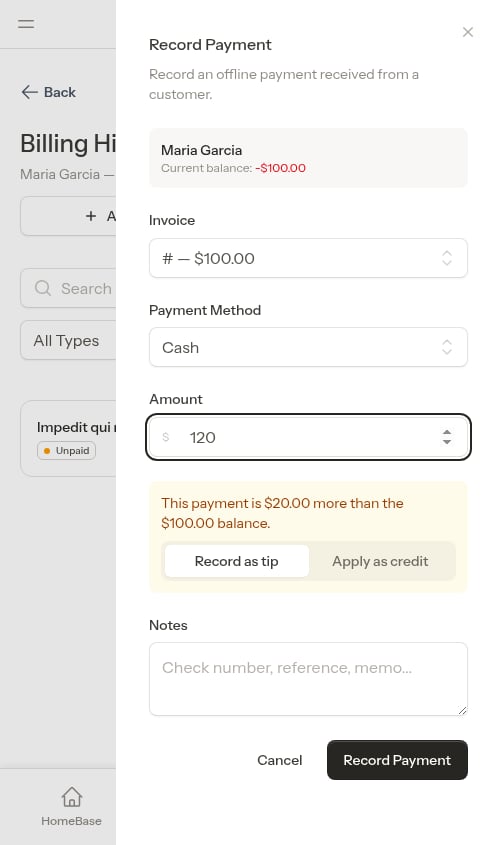 Select **Record as tip** to split the excess into a tip entry, or **Apply as credit** to leave it as a credit on their account. The default is **Record as tip**.
Tap **Record Payment**. A confirmation message appears and the billing history updates immediately.
Select **Record as tip** to split the excess into a tip entry, or **Apply as credit** to leave it as a credit on their account. The default is **Record as tip**.
Tap **Record Payment**. A confirmation message appears and the billing history updates immediately.
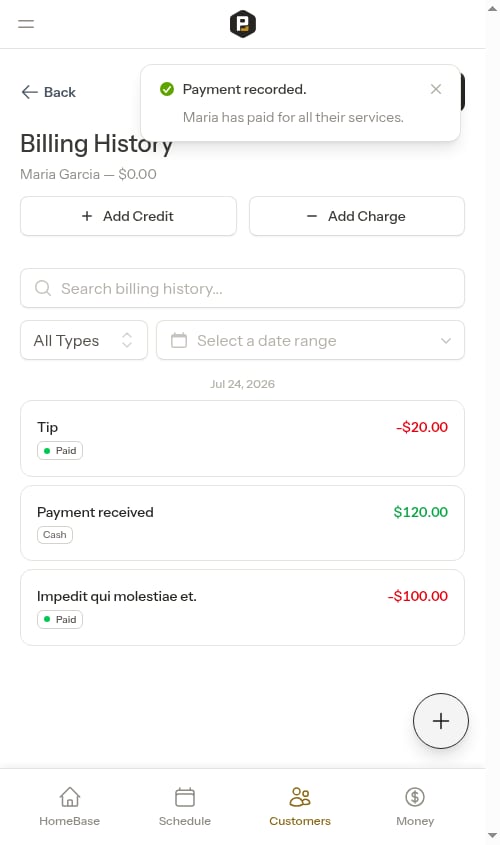 When recorded as a tip, the billing history shows both the payment and the tip as separate line items.
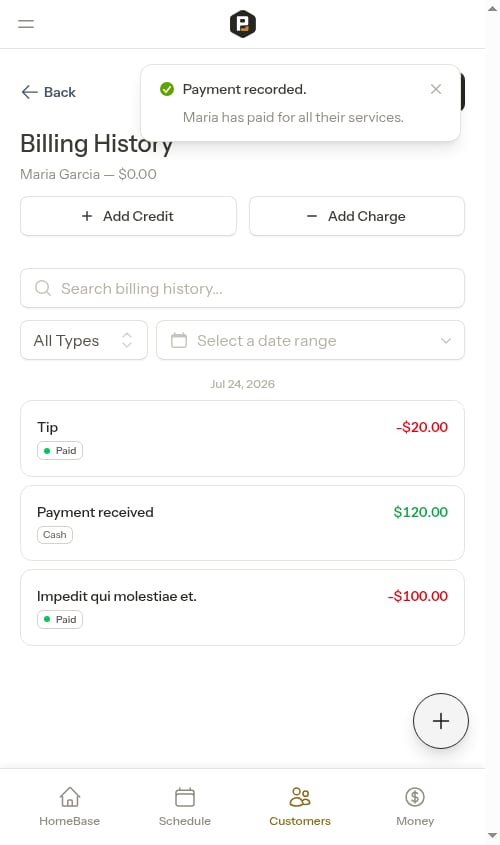 When you choose **Record as tip**, the customer's balance is fully cleared and the tip appears as its own line item labeled "Tip" in the billing history.
## Viewing payment history
To see all payments for a customer:
1. Go to the customer's page
2. Click the balance amount to open billing history
3. Use the **Type** filter and select **Payments** to see only payment entries
4. Click any entry to see full details including payment method and which charges it was applied to
## Payment methods comparison
| Method | Recording | Deposit time | Fees |
| ------------------- | -------------- | --------------------- | --------------------- |
| **Online (Stripe)** | Automatic | 2 business days | Stripe processing fee |
| **Cash** | Record Payment | Immediate | None |
| **Check** | Record Payment | Varies | None |
| **Bank transfer** | Record Payment | Varies | Varies by bank |
| **Venmo/Zelle** | Record Payment | Immediate to 1-3 days | Varies by service |
Online payments through Stripe require you to [connect your Stripe account](/billing/stripe-setup) first.
When you choose **Record as tip**, the customer's balance is fully cleared and the tip appears as its own line item labeled "Tip" in the billing history.
## Viewing payment history
To see all payments for a customer:
1. Go to the customer's page
2. Click the balance amount to open billing history
3. Use the **Type** filter and select **Payments** to see only payment entries
4. Click any entry to see full details including payment method and which charges it was applied to
## Payment methods comparison
| Method | Recording | Deposit time | Fees |
| ------------------- | -------------- | --------------------- | --------------------- |
| **Online (Stripe)** | Automatic | 2 business days | Stripe processing fee |
| **Cash** | Record Payment | Immediate | None |
| **Check** | Record Payment | Varies | None |
| **Bank transfer** | Record Payment | Varies | Varies by bank |
| **Venmo/Zelle** | Record Payment | Immediate to 1-3 days | Varies by service |
Online payments through Stripe require you to [connect your Stripe account](/billing/stripe-setup) first.