> ## Documentation Index
> Fetch the complete documentation index at: https://docs.probaseapp.com/llms.txt
> Use this file to discover all available pages before exploring further.
# Accepting Venmo payments
> Let customers pay you on Venmo with a QR code and Pay-on-Venmo button on their invoice
## Overview
Venmo gives your customers another way to pay their invoice — without you needing to set up card processing. When you turn Venmo on and enter your username, every unpaid invoice shows a **Pay on Venmo** button and a QR code the customer can scan with their phone. Each payment is pre-filled with the exact amount due and your invoice number, so you can match it up when it lands.
Venmo payments are handled entirely inside Venmo. Probase doesn't connect to your Venmo account or track the money automatically — once a payment arrives in Venmo, you record it in Probase yourself using **Record Payment** (see [Tracking payments](/billing/tracking-payments)). This is different from [Stripe](/billing/stripe-setup), where card payments are recorded for you.
## Turn on Venmo
Click **Payments** in the sidebar under BUSINESS. Scroll down past the Payment Processing and Payment Terms sections to the **Venmo** card.
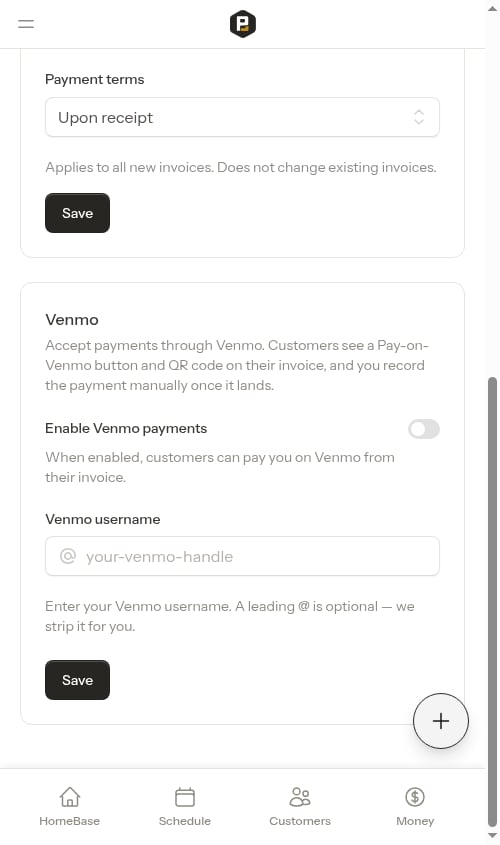 Turn on the **Enable Venmo payments** switch.
Type your Venmo username into the **Venmo username** field. A leading `@` is optional — Probase strips it for you.
As soon as you enter a username, a live **Preview — what your customer sees** appears below the form, showing the exact Pay-on-Venmo block your customers will get.
Turn on the **Enable Venmo payments** switch.
Type your Venmo username into the **Venmo username** field. A leading `@` is optional — Probase strips it for you.
As soon as you enter a username, a live **Preview — what your customer sees** appears below the form, showing the exact Pay-on-Venmo block your customers will get.
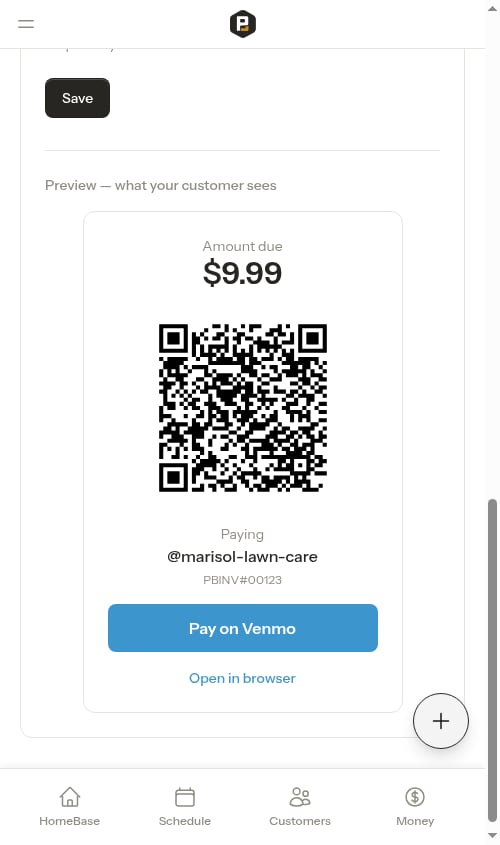 Click **Save**. A confirmation appears and Venmo is now active on your invoices.
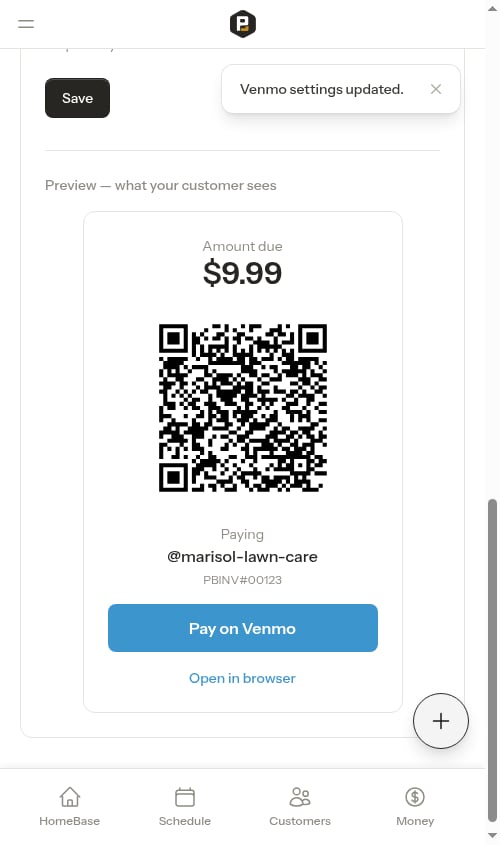 Double-check your Venmo username is spelled exactly right. Probase saves it as you enter it and does not verify it against Venmo, so a typo would send customers to the wrong handle.
## What customers see
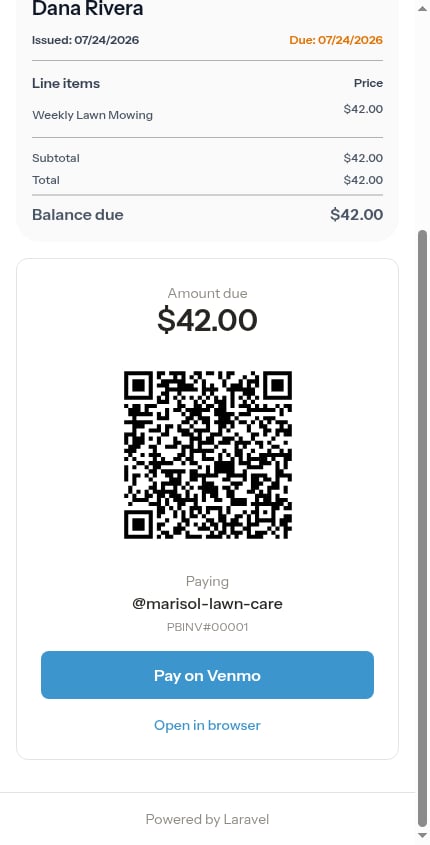
On any unpaid invoice, customers see a Venmo card with:
* **The amount due** — matches the invoice's remaining balance
* **A QR code** — customers scan it with their phone camera to open Venmo with everything pre-filled
* **Your Venmo handle** — shown so they can confirm who they're paying
* **The invoice reference** — a note like `PBINV#00001` that Venmo attaches to the payment, so you can match it back to the invoice
* **A Pay on Venmo button** — opens the Venmo app on a phone
* **An Open in browser link** — a fallback for customers paying from a desktop
Double-check your Venmo username is spelled exactly right. Probase saves it as you enter it and does not verify it against Venmo, so a typo would send customers to the wrong handle.
## What customers see
On any unpaid invoice, customers see a Venmo card with:
* **The amount due** — matches the invoice's remaining balance
* **A QR code** — customers scan it with their phone camera to open Venmo with everything pre-filled
* **Your Venmo handle** — shown so they can confirm who they're paying
* **The invoice reference** — a note like `PBINV#00001` that Venmo attaches to the payment, so you can match it back to the invoice
* **A Pay on Venmo button** — opens the Venmo app on a phone
* **An Open in browser link** — a fallback for customers paying from a desktop
 If you also have [Stripe](/billing/stripe-setup) connected, customers see the credit-card form first and the Venmo option second, under an **Or pay with Venmo** heading — so they can choose whichever they prefer.
## Recording a Venmo payment
Because Venmo runs outside Probase, marking an invoice paid is a manual step:
Check your Venmo account for the incoming payment. The note on the payment (for example `PBINV#00001`) tells you which invoice it's for.
From the **Money** page or the customer's billing history, click **Record Payment**, choose **Venmo / Zelle** as the method, select the matching invoice, enter the amount, and save. The customer's balance updates immediately.
See [Tracking payments](/billing/tracking-payments) for the full walkthrough.
## Turning Venmo off
To stop showing the Venmo option on invoices, return to the **Venmo** card in Payment Settings, turn off **Enable Venmo payments**, and click **Save**. The Pay-on-Venmo block disappears from customer invoices right away.
If you also have [Stripe](/billing/stripe-setup) connected, customers see the credit-card form first and the Venmo option second, under an **Or pay with Venmo** heading — so they can choose whichever they prefer.
## Recording a Venmo payment
Because Venmo runs outside Probase, marking an invoice paid is a manual step:
Check your Venmo account for the incoming payment. The note on the payment (for example `PBINV#00001`) tells you which invoice it's for.
From the **Money** page or the customer's billing history, click **Record Payment**, choose **Venmo / Zelle** as the method, select the matching invoice, enter the amount, and save. The customer's balance updates immediately.
See [Tracking payments](/billing/tracking-payments) for the full walkthrough.
## Turning Venmo off
To stop showing the Venmo option on invoices, return to the **Venmo** card in Payment Settings, turn off **Enable Venmo payments**, and click **Save**. The Pay-on-Venmo block disappears from customer invoices right away.