> ## Documentation Index
> Fetch the complete documentation index at: https://docs.probaseapp.com/llms.txt
> Use this file to discover all available pages before exploring further.
# Completing checklists on a job
> Fill out checklists in the field and share the results with customers
## Where checklists appear on a job
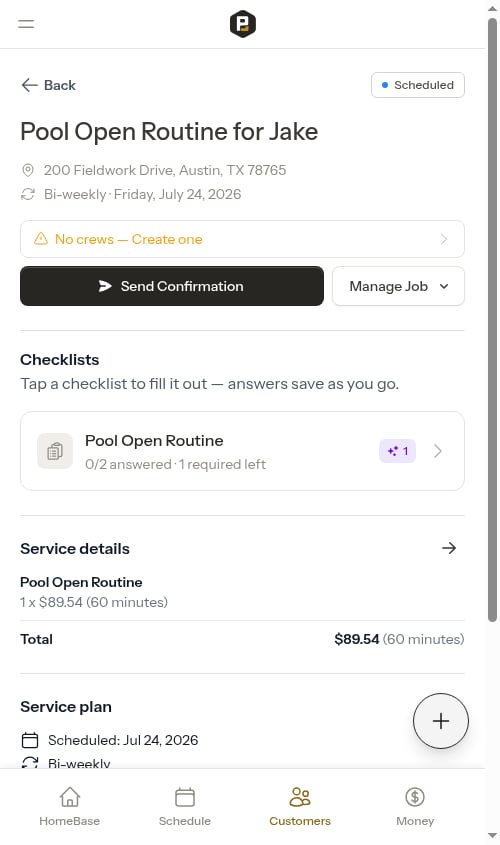
When a crew opens a job that has a checklist attached, the checklist appears on the appointment screen in a **Checklists** section. Each checklist shows a progress indicator — for example, **0/2** — so it's clear at a glance how much is left to fill in.
If a service has more than one checklist, they appear in the order you arranged them on the service (see [Ordering checklists on a service](/checklists/building-checklists#ordering-checklists-on-a-service)).
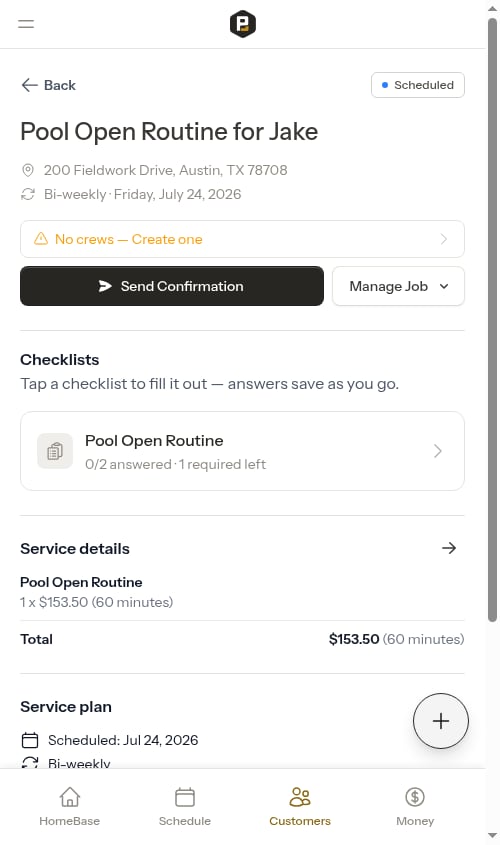 Tap a checklist to open the full-screen fill-in flow.
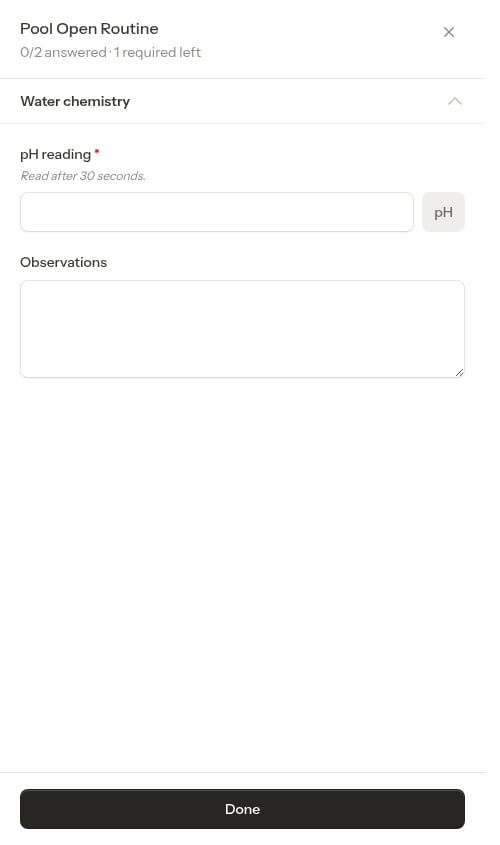 Each question shows its label, any instruction you added when building it, and the right kind of input for its type (a number field, a dropdown, a photo picker, a signature pad, and so on).
## Answers save as you go
You don't need to press a save button while filling out a checklist. Answers **save automatically** as you enter them, and the progress indicator updates in real time.
Each question shows its label, any instruction you added when building it, and the right kind of input for its type (a number field, a dropdown, a photo picker, a signature pad, and so on).
## Answers save as you go
You don't need to press a save button while filling out a checklist. Answers **save automatically** as you enter them, and the progress indicator updates in real time.
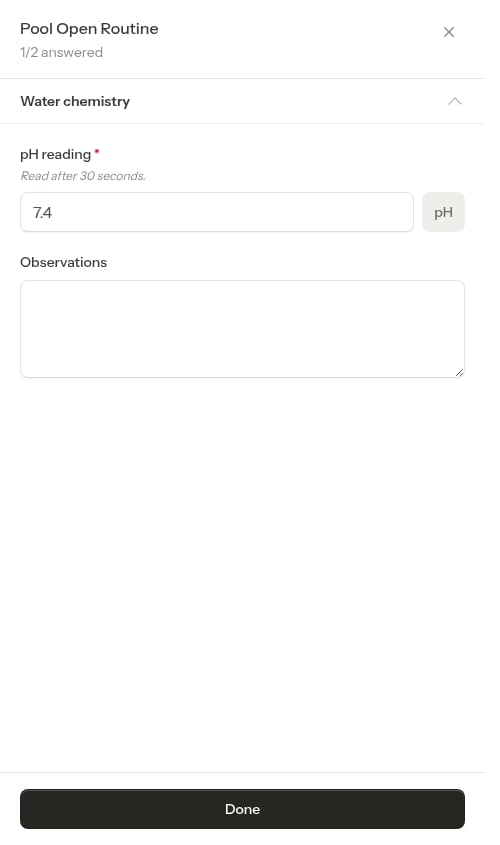 Because answers are saved to the server as you go, your progress is safe even if you close the app, lose signal for a moment, or switch devices. Reopen the job later — even on a different phone — and everything you entered is still there.
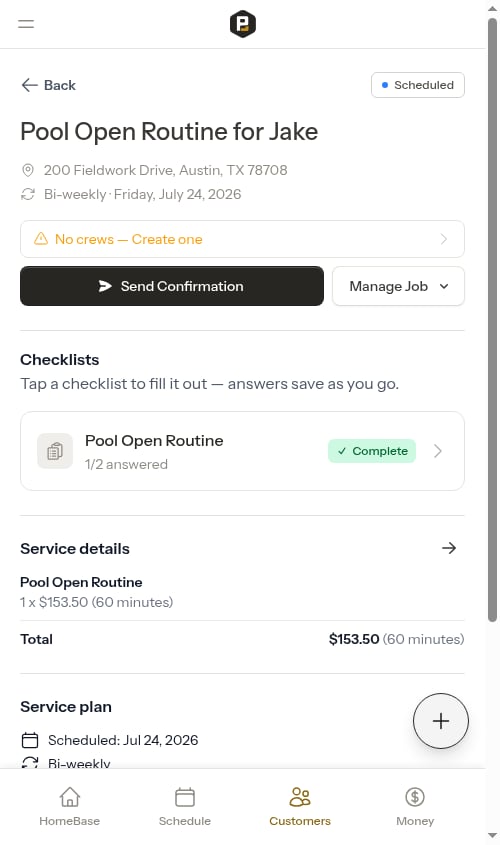 Once every **required** question is answered, the checklist shows a **Complete** badge on the job — optional questions can still be blank. (For a checklist with no required questions, the badge appears when every question is answered.)
## Taking photos
For a **Photo upload** question, tap the question to add pictures straight from your phone's camera or photo library. Each photo you pick is uploaded and attached to the visit right away — it isn't just a preview on your screen.
Once every **required** question is answered, the checklist shows a **Complete** badge on the job — optional questions can still be blank. (For a checklist with no required questions, the badge appears when every question is answered.)
## Taking photos
For a **Photo upload** question, tap the question to add pictures straight from your phone's camera or photo library. Each photo you pick is uploaded and attached to the visit right away — it isn't just a preview on your screen.
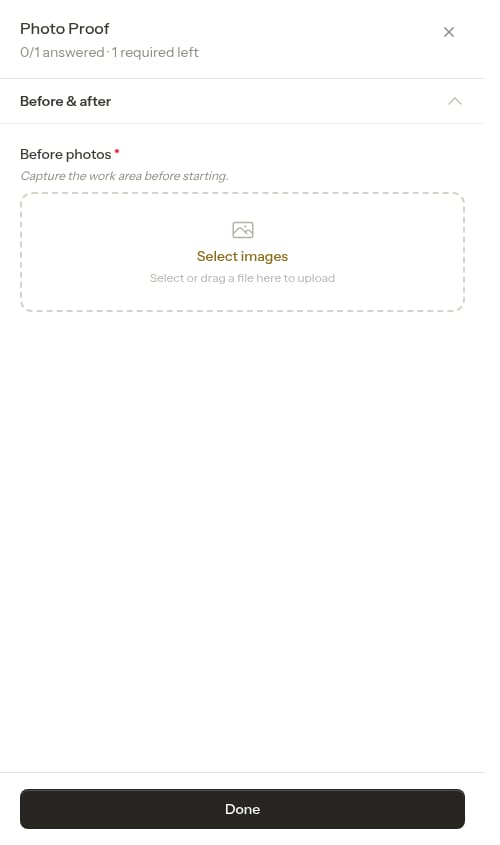 Once a photo is uploaded, it appears as a thumbnail on the question and the photo question counts as answered.
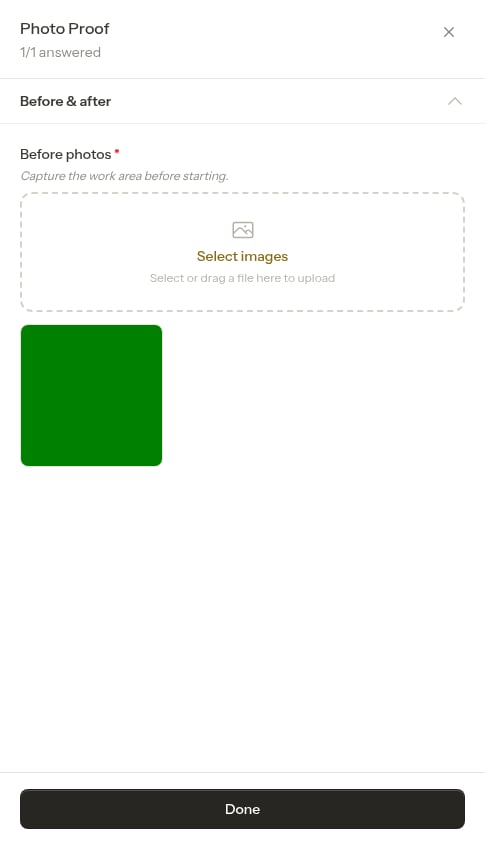 You can add **more than one photo** to the same question — tap it again to pick another picture. Each photo is uploaded one at a time and added to the question, so a single "Before photos" item can hold as many shots as the job needs.
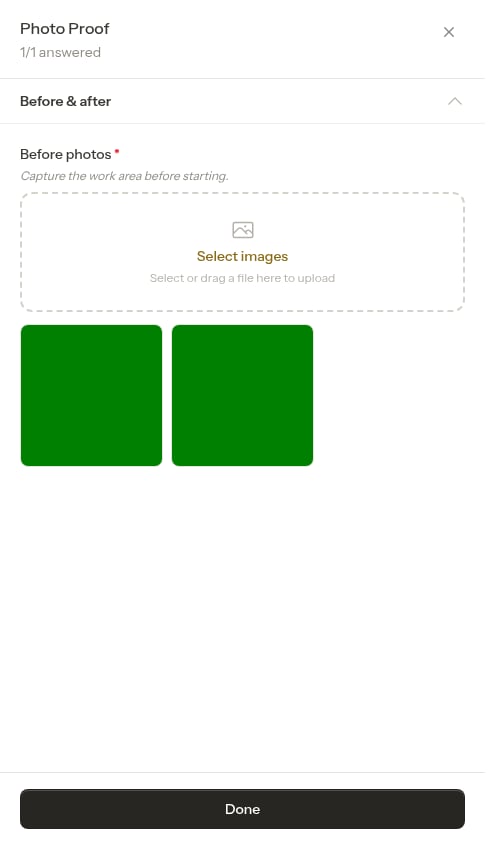 On a desktop or laptop you can also **drag an image straight onto the photo box** and drop it — the drop target lights up while you drag, and the picture uploads exactly the same way as picking it from the file browser.
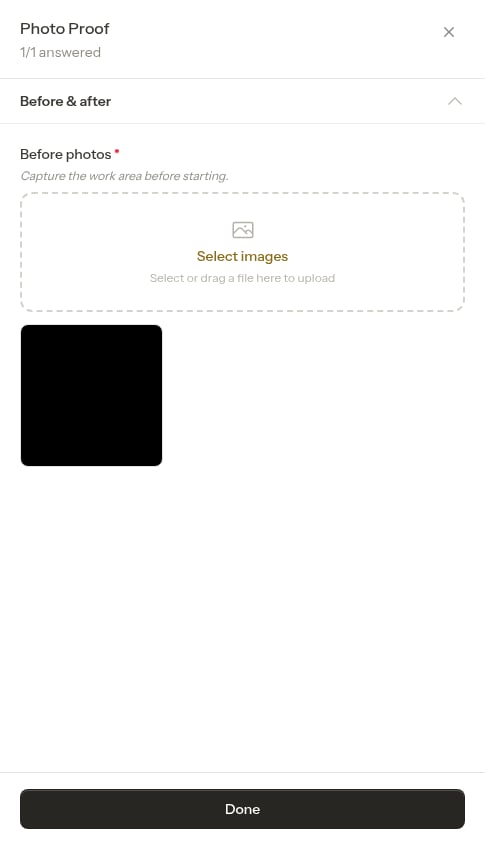 Because photos are saved to the visit as you add them, they survive a reload or a switch to another device — reopen the job and your pictures are still attached.
 ## AI-assisted answers
On some accounts, checklists can be **pre-filled with AI suggestions** drawn from the notes already on the job (assessment notes, job notes, or completion notes). When suggestions are available:
* The checklist row on the job shows a small pill with the number of suggested answers.
## AI-assisted answers
On some accounts, checklists can be **pre-filled with AI suggestions** drawn from the notes already on the job (assessment notes, job notes, or completion notes). When suggestions are available:
* The checklist row on the job shows a small pill with the number of suggested answers.
 * Opening the checklist shows a banner like **"AI found 1 possible answer"**, and each suggested field is marked with an **AI suggested** indicator plus **Accept** and **Reject** controls.
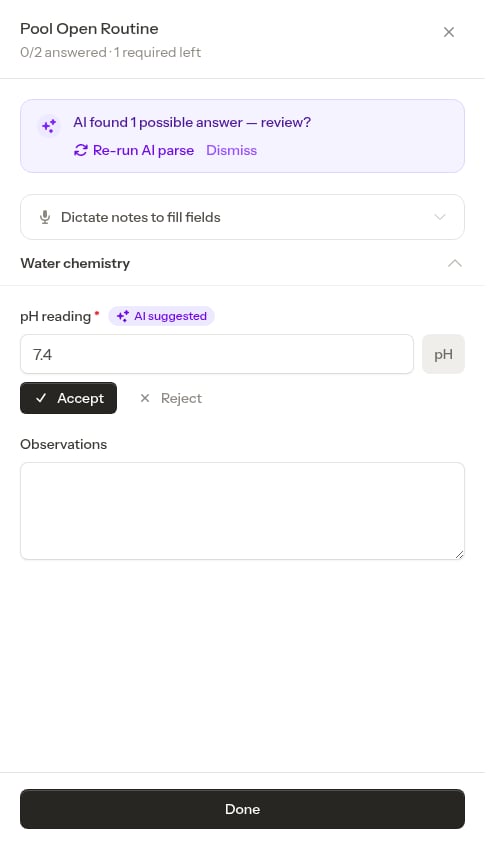 * Tap **Accept** to keep a suggested value (it's saved just like any other answer), or **Reject** to clear it and enter your own. You're always in control — nothing is committed until you accept it.
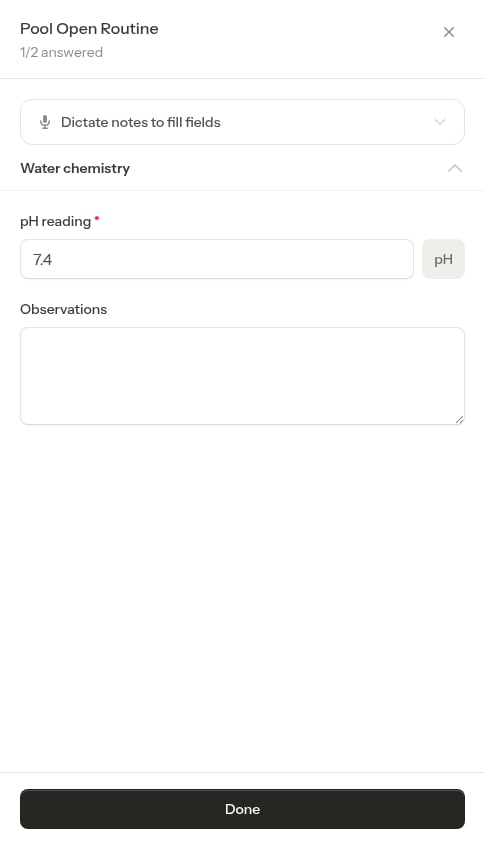 You can also use the **Dictate notes to fill fields** panel on the same screen: speak or type free-form notes (for example, "free chlorine 2 ppm, pH 7.4, pump making noise") and ProBase parses them into the matching checklist fields for you to review.
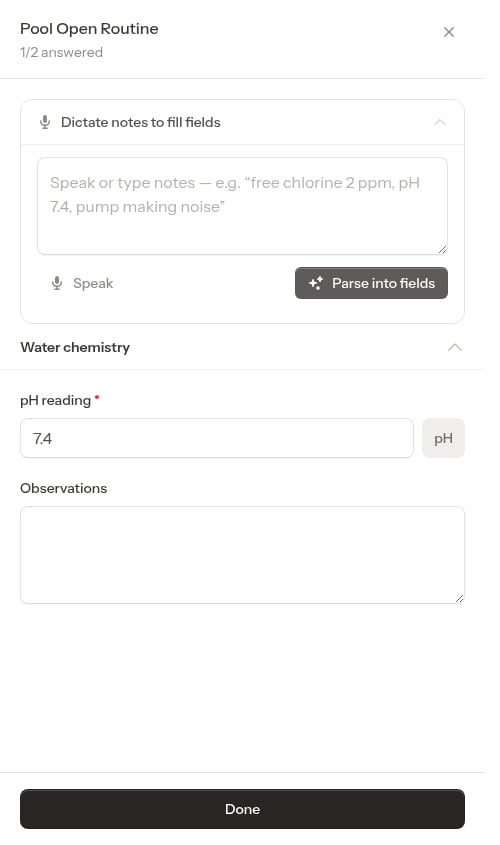 AI-assisted checklist answers are a suggestion only — always review them before accepting. Accepted values persist across reloads and device switches just like anything you type by hand.
### Automatic drafting when you finish a checklist
On accounts with AI assistance turned on, ProBase can go one step further: once you've filled in a checklist and tap **Continue** into the completion form, it can **draft your service records — or, on an assessment, your quote line items — from the checklist answers automatically**, without you having to press the **AI Assist** button.
While it prepares that first draft, a full-screen **"Analyzing your visit…"** indicator covers the form so you know the work is in progress. When it finishes, the completion form is pre-filled with the drafted records (or line items) and a customer-facing summary, ready for you to review and edit — exactly as if you'd tapped **AI Assist** yourself.
This only happens on a clean slate: if you've already added records, line items, or run AI Assist on the visit, ProBase leaves your work untouched rather than overwriting it. See [AI-powered note parsing](/routes/completing-jobs#ai-powered-note-parsing) for how to review and adjust the drafted results.
## Required questions and completing the visit
If a checklist has **required** questions, they must be answered before the visit can be marked complete.
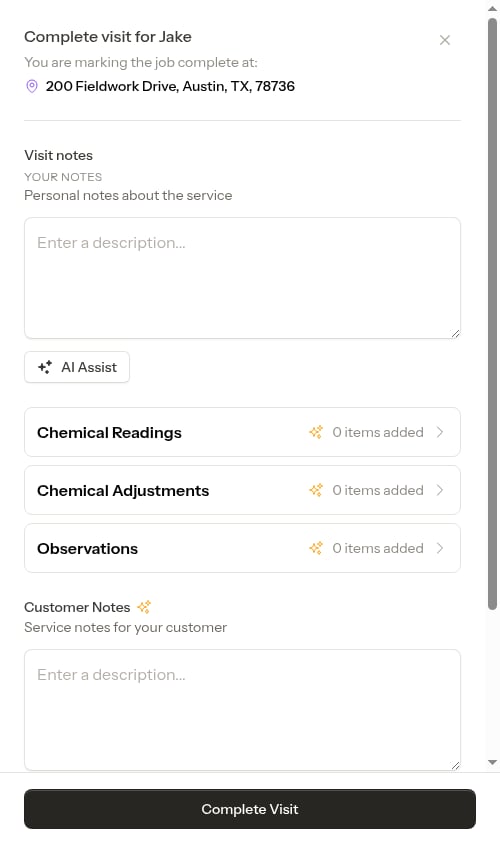
When you tap **Complete Visit** on a job that has checklists, the completion flow routes you through the checklists first:
AI-assisted checklist answers are a suggestion only — always review them before accepting. Accepted values persist across reloads and device switches just like anything you type by hand.
### Automatic drafting when you finish a checklist
On accounts with AI assistance turned on, ProBase can go one step further: once you've filled in a checklist and tap **Continue** into the completion form, it can **draft your service records — or, on an assessment, your quote line items — from the checklist answers automatically**, without you having to press the **AI Assist** button.
While it prepares that first draft, a full-screen **"Analyzing your visit…"** indicator covers the form so you know the work is in progress. When it finishes, the completion form is pre-filled with the drafted records (or line items) and a customer-facing summary, ready for you to review and edit — exactly as if you'd tapped **AI Assist** yourself.
This only happens on a clean slate: if you've already added records, line items, or run AI Assist on the visit, ProBase leaves your work untouched rather than overwriting it. See [AI-powered note parsing](/routes/completing-jobs#ai-powered-note-parsing) for how to review and adjust the drafted results.
## Required questions and completing the visit
If a checklist has **required** questions, they must be answered before the visit can be marked complete.
When you tap **Complete Visit** on a job that has checklists, the completion flow routes you through the checklists first:
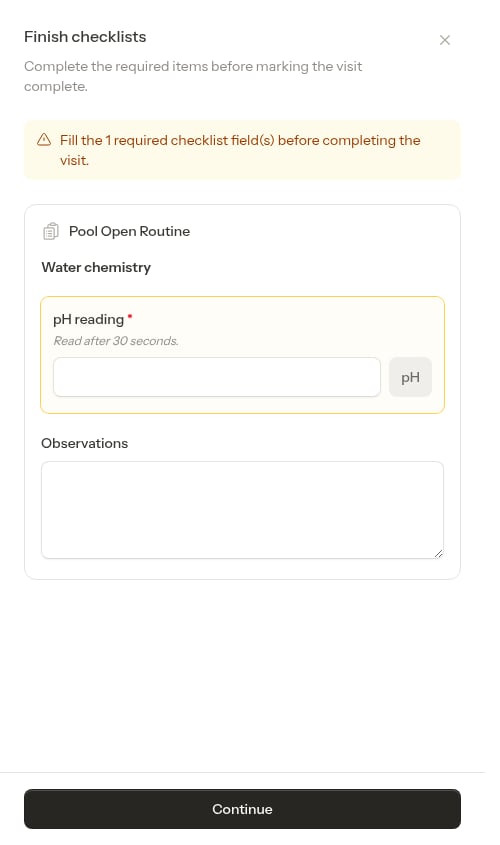
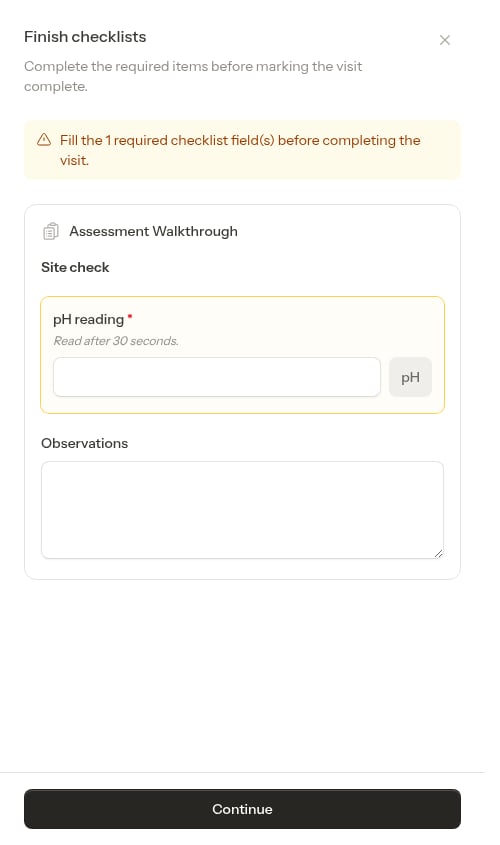
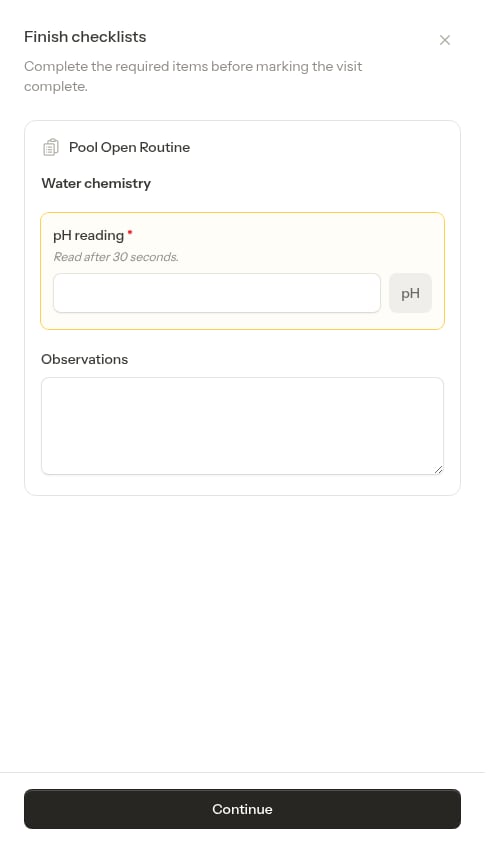 If you try to continue with a required question still blank, you're blocked with a message telling you a required answer is missing.
 Fill in the required answers and tap **Continue** to move on to the rest of the completion form.
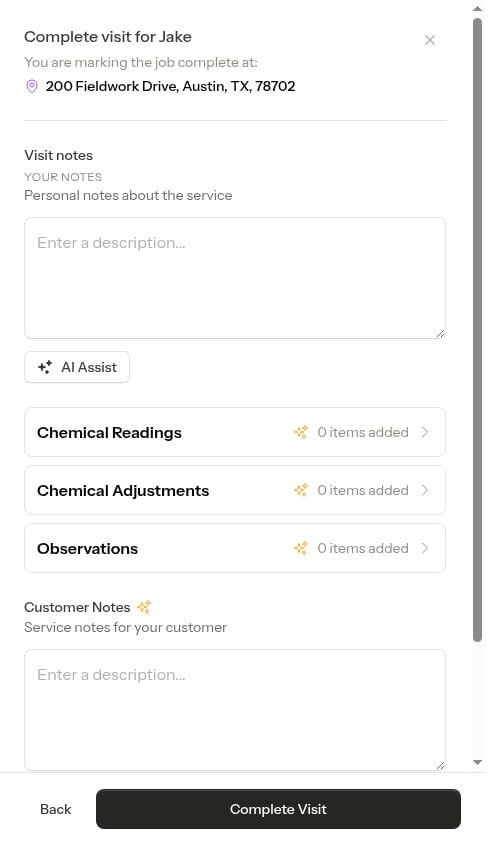 Once you confirm, the visit is marked complete.
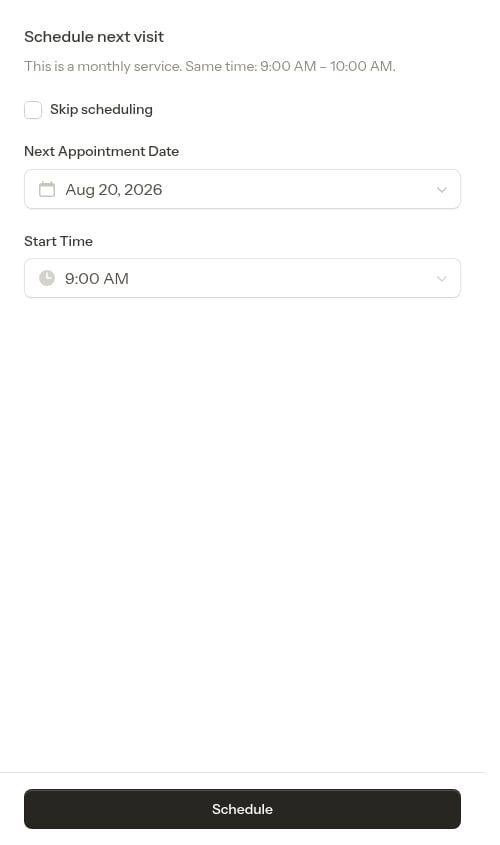 When you complete a visit, the checklist answers are **frozen** with the visit — they become a permanent record of what was captured on that appointment, even if you later change the checklist template.
### Completing an assessment with a checklist
Checklists set to appear on **Assessments** (see [Choosing when the checklist appears](/checklists/building-checklists#choosing-when-the-checklist-appears)) gate the assessment completion form the same way. When you tap **Complete Assessment** on a visit that has an assessment checklist, a **Finish checklists** step opens first.
When you complete a visit, the checklist answers are **frozen** with the visit — they become a permanent record of what was captured on that appointment, even if you later change the checklist template.
### Completing an assessment with a checklist
Checklists set to appear on **Assessments** (see [Choosing when the checklist appears](/checklists/building-checklists#choosing-when-the-checklist-appears)) gate the assessment completion form the same way. When you tap **Complete Assessment** on a visit that has an assessment checklist, a **Finish checklists** step opens first.
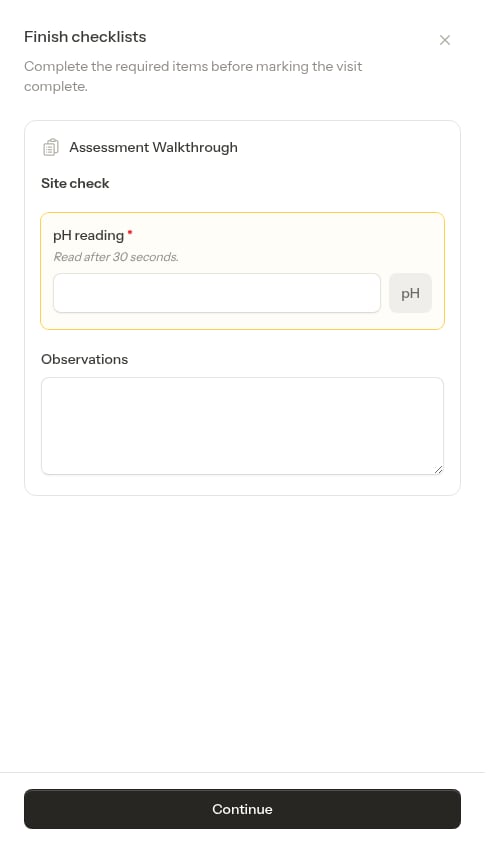 Fill in the required questions and tap **Continue** — you can't move on to the quote form while a required answer is still blank.
 Once the checklist is satisfied, you land on the usual assessment quote form, where you write your notes, draft line items, and name the quote. Tap **Back** if you need to return and edit a checklist answer.
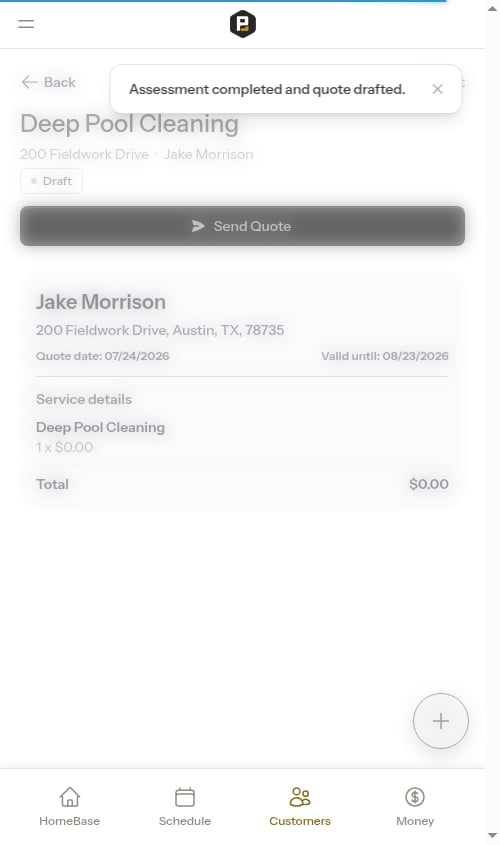
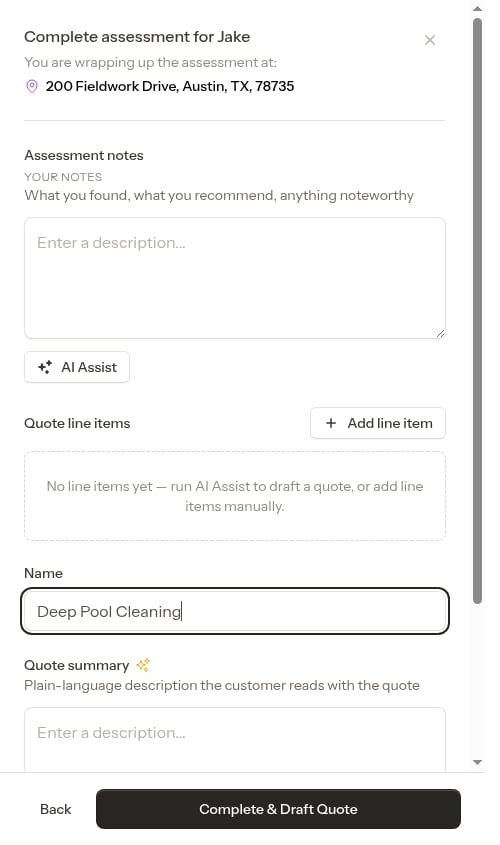 Tap **Complete & Draft Quote** to finish — the assessment is marked complete and the quote is drafted, with the checklist answers frozen to the visit just like on a regular job. See [Completing an assessment appointment](/routes/completing-jobs#completing-an-assessment-appointment) for the full quote workflow.
 ### Answers that become service records
When building a checklist, you can mark individual questions — or a whole section at once — to be added to the visit's **service records** (the **Include in service record** toggle on each question). When you complete the visit, those answers are saved as service records automatically — for example, a "pH reading" numeric answer becomes a chemical-reading service record. This means the readings your crew captures in a checklist flow straight into the property's service history without re-entering them. See [Service records](/routes/service-records).
## Rescheduling with a partially-filled checklist
If a visit is rescheduled before it's completed, any answers already entered on its checklists carry over to the rescheduled appointment. Your crew doesn't lose the work they've already done in the field.
## The customer Service Report
Checklists don't just help your crew — they can also show the customer exactly what was done. Any question you marked with **Include in customer summary** when building the checklist (see [Showing answers on the customer invoice](/checklists/building-checklists#showing-answers-on-the-customer-invoice)) appears on the customer's invoice as a **Service Report**, folded into the invoice's **Service Summary** section right below the plain-language summary and any after-photos. On the customer's invoice, that Service Summary sits in its own card at the bottom of the page — below the Balance Due card and the payment area.
### Answers that become service records
When building a checklist, you can mark individual questions — or a whole section at once — to be added to the visit's **service records** (the **Include in service record** toggle on each question). When you complete the visit, those answers are saved as service records automatically — for example, a "pH reading" numeric answer becomes a chemical-reading service record. This means the readings your crew captures in a checklist flow straight into the property's service history without re-entering them. See [Service records](/routes/service-records).
## Rescheduling with a partially-filled checklist
If a visit is rescheduled before it's completed, any answers already entered on its checklists carry over to the rescheduled appointment. Your crew doesn't lose the work they've already done in the field.
## The customer Service Report
Checklists don't just help your crew — they can also show the customer exactly what was done. Any question you marked with **Include in customer summary** when building the checklist (see [Showing answers on the customer invoice](/checklists/building-checklists#showing-answers-on-the-customer-invoice)) appears on the customer's invoice as a **Service Report**, folded into the invoice's **Service Summary** section right below the plain-language summary and any after-photos. On the customer's invoice, that Service Summary sits in its own card at the bottom of the page — below the Balance Due card and the payment area.
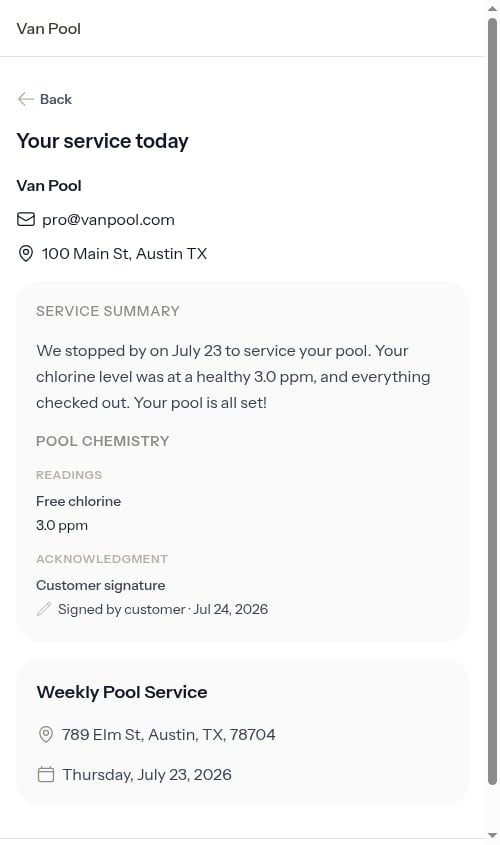 The Service Report lists the checklist's sections and the answers captured on the visit — chemistry readings, completed tasks, and even a customer signature shown as **Signed by customer**. It gives customers a clear, professional record of the work performed on their property, right alongside the rest of the invoice summary.
Which questions appear here is decided in the checklist builder, so the same items are shared consistently on every visit. For how customers view their invoices and service reports, see [The customer portal](/customers/customer-portal).
The Service Report lists the checklist's sections and the answers captured on the visit — chemistry readings, completed tasks, and even a customer signature shown as **Signed by customer**. It gives customers a clear, professional record of the work performed on their property, right alongside the rest of the invoice summary.
Which questions appear here is decided in the checklist builder, so the same items are shared consistently on every visit. For how customers view their invoices and service reports, see [The customer portal](/customers/customer-portal).