> ## Documentation Index
> Fetch the complete documentation index at: https://docs.probaseapp.com/llms.txt
> Use this file to discover all available pages before exploring further.
# Checklists overview
> Reusable in-job forms that capture the same details on every visit
## What are checklists?
Checklists are reusable in-job forms. You build a checklist once — a set of questions like water chemistry readings, tasks completed, before/after photos, or a customer sign-off — and it appears automatically on the jobs it applies to. Your crew fills it out in the field, and the answers are saved to the visit.
Think of a checklist as the standard set of things you want captured every time a particular kind of work is done. Instead of relying on memory or free-form notes, checklists make sure the same details are recorded consistently on every visit.
Common uses:
* **Pool chemistry** — free chlorine, pH, alkalinity, and other readings on every service
* **Task confirmation** — a checkbox list of what was completed
* **Photo documentation** — before and after photos of the work
* **Customer sign-off** — a signature confirming the work was done
## Where to find checklists
Click **Checklists** in the sidebar, under the **BUSINESS** section (next to Services). This opens your **Checklists library** — a list of every checklist available to your business.
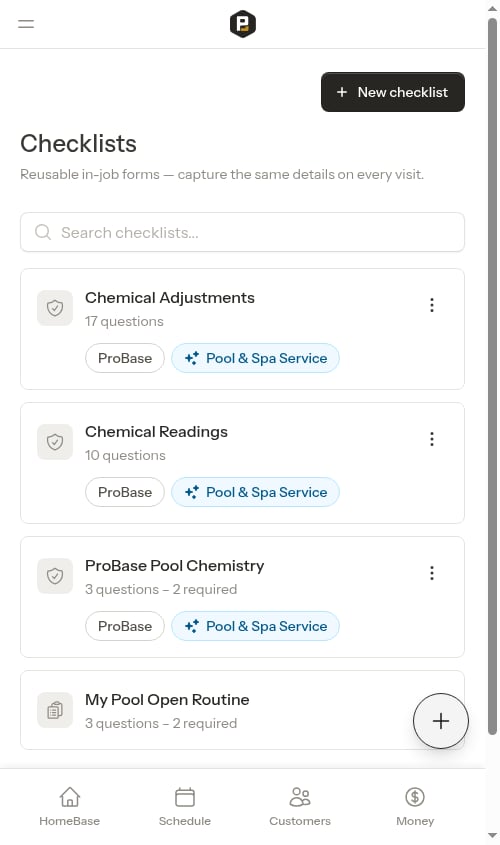 The library shows two kinds of checklists:
* **Your checklists** — the ones you build yourself. These are fully editable.
* **ProBase checklists** — ready-made templates provided by ProBase and marked with a **ProBase** tag. These are automatically added to services that match your industry. You can't edit them, but you can preview them and choose which services they apply to. See [ProBase system checklists](/checklists/system-checklists).
Each row shows the checklist name and how many questions it contains (including how many are required). ProBase checklists also carry a **ProBase** tag and a chip for each industry they match.
## What you can do
Create your own checklists with the mobile-first builder — add sections and questions, choose when the checklist should appear, and decide whether the answers show up on the customer's invoice. See [Building checklists](/checklists/building-checklists).
Connect a checklist to one or more of your services so it shows up automatically on those jobs. See [Attaching checklists to services](/checklists/building-checklists#attaching-checklists-to-services).
When a crew opens a job that has a checklist, they fill it out on the appointment screen. Answers save automatically as they go. See [Completing checklists on a job](/checklists/completing-checklists).
Choose which filled-in items appear on the customer's invoice as a **Service Report**, giving customers a professional record of the work performed. See [The customer Service Report](/checklists/completing-checklists#the-customer-service-report).
## Managing checklists from the library
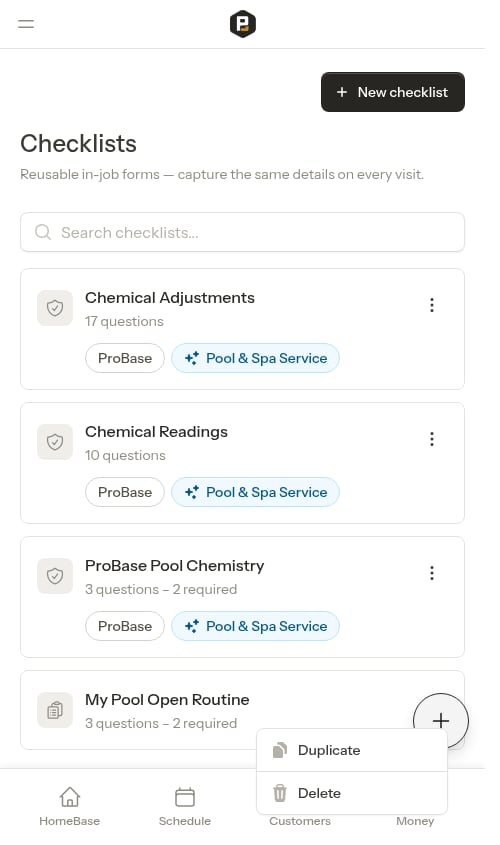
Each of your own checklists has an overflow menu (the **⋮** button) with two actions:
* **Duplicate** — make a copy you can modify without changing the original. Handy for creating a variation of an existing checklist.
* **Delete** — permanently remove a checklist you no longer use.
The library shows two kinds of checklists:
* **Your checklists** — the ones you build yourself. These are fully editable.
* **ProBase checklists** — ready-made templates provided by ProBase and marked with a **ProBase** tag. These are automatically added to services that match your industry. You can't edit them, but you can preview them and choose which services they apply to. See [ProBase system checklists](/checklists/system-checklists).
Each row shows the checklist name and how many questions it contains (including how many are required). ProBase checklists also carry a **ProBase** tag and a chip for each industry they match.
## What you can do
Create your own checklists with the mobile-first builder — add sections and questions, choose when the checklist should appear, and decide whether the answers show up on the customer's invoice. See [Building checklists](/checklists/building-checklists).
Connect a checklist to one or more of your services so it shows up automatically on those jobs. See [Attaching checklists to services](/checklists/building-checklists#attaching-checklists-to-services).
When a crew opens a job that has a checklist, they fill it out on the appointment screen. Answers save automatically as they go. See [Completing checklists on a job](/checklists/completing-checklists).
Choose which filled-in items appear on the customer's invoice as a **Service Report**, giving customers a professional record of the work performed. See [The customer Service Report](/checklists/completing-checklists#the-customer-service-report).
## Managing checklists from the library
Each of your own checklists has an overflow menu (the **⋮** button) with two actions:
* **Duplicate** — make a copy you can modify without changing the original. Handy for creating a variation of an existing checklist.
* **Delete** — permanently remove a checklist you no longer use.
 Deleting a checklist can't be undone. Existing answers already captured on completed visits are preserved, but the checklist will no longer appear on future jobs.
To create a new checklist, tap **New checklist** at the top of the library. To edit one of your existing checklists, tap its row.
Deleting a checklist can't be undone. Existing answers already captured on completed visits are preserved, but the checklist will no longer appear on future jobs.
To create a new checklist, tap **New checklist** at the top of the library. To edit one of your existing checklists, tap its row.