> ## Documentation Index
> Fetch the complete documentation index at: https://docs.probaseapp.com/llms.txt
> Use this file to discover all available pages before exploring further.
# Adding customer notes
> Track important information with customer and property notes
## What are notes?
Notes let you record important information about your customers, their properties, or a specific visit. Notes are visible to everyone on your team and help ensure consistent service.
There are three levels of notes:
* **Customer notes** — information about the customer themselves (contact preferences, billing arrangements, general instructions)
* **Property notes** — details specific to a location (gate codes, parking, pets, equipment locations)
* **Appointment notes** — visit-specific details captured while completing a job
## The Notes card
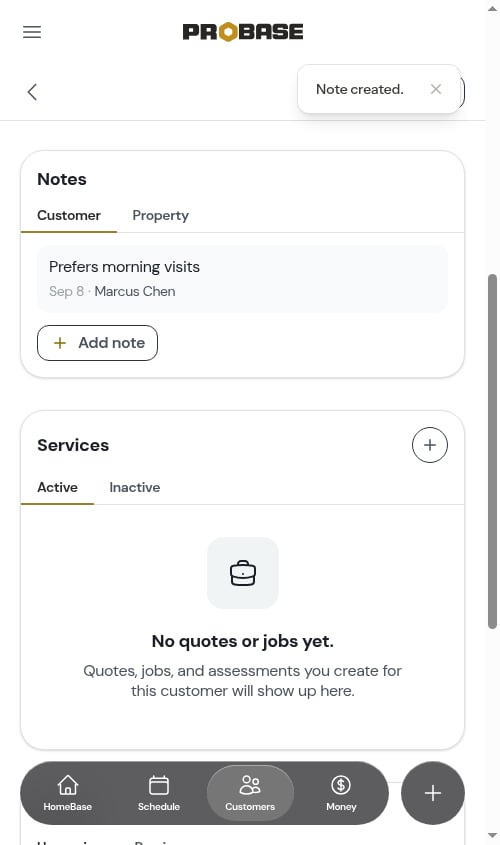
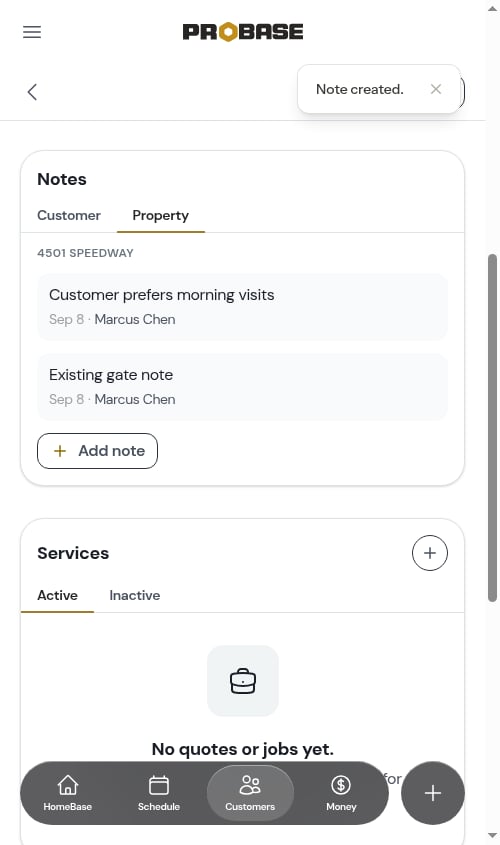
Customer and property notes both live in the **Notes** card, which sits on the customer page and on each property page. The card has two tabs:
* **Customer** — notes about the customer, opens first
* **Property** — notes about the property, labelled with the street address so you always know which location you're looking at
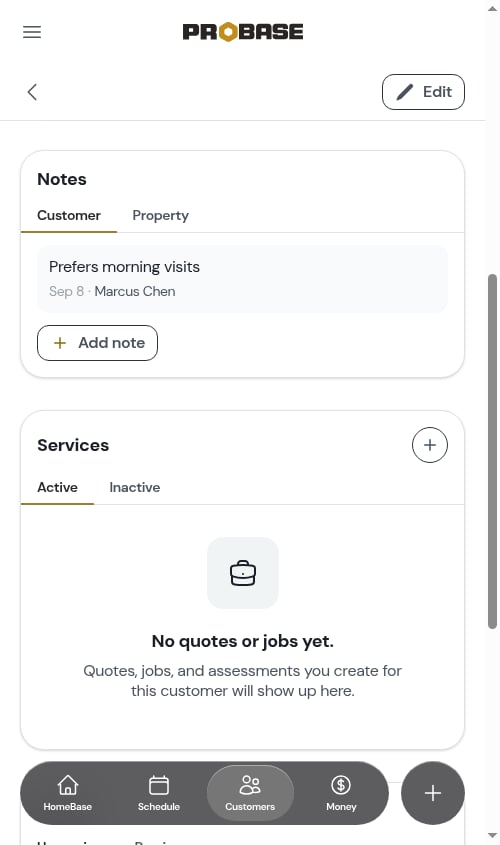
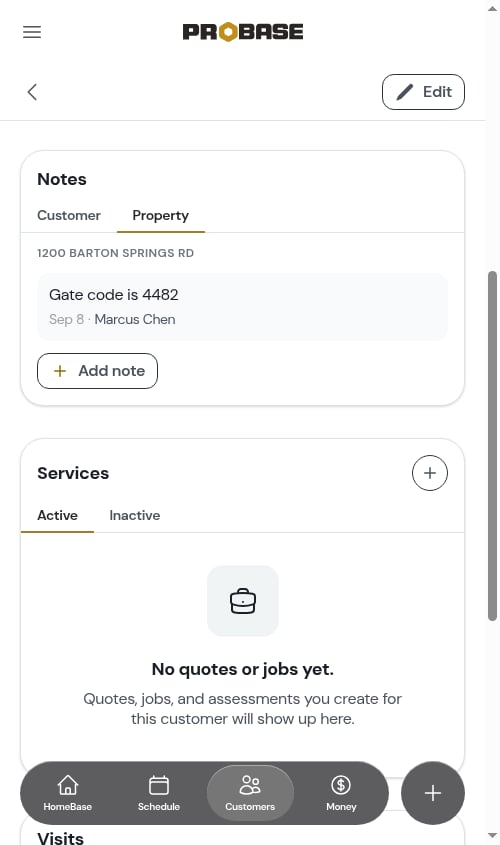 Each note row shows the note text, who wrote it, and when.
**Where the Property tab appears.** If a customer has just one property, the Notes card on their customer page covers both the customer and that property. If they have several, the customer page shows only the property list — open the property you want and use the Notes card on that property's page.
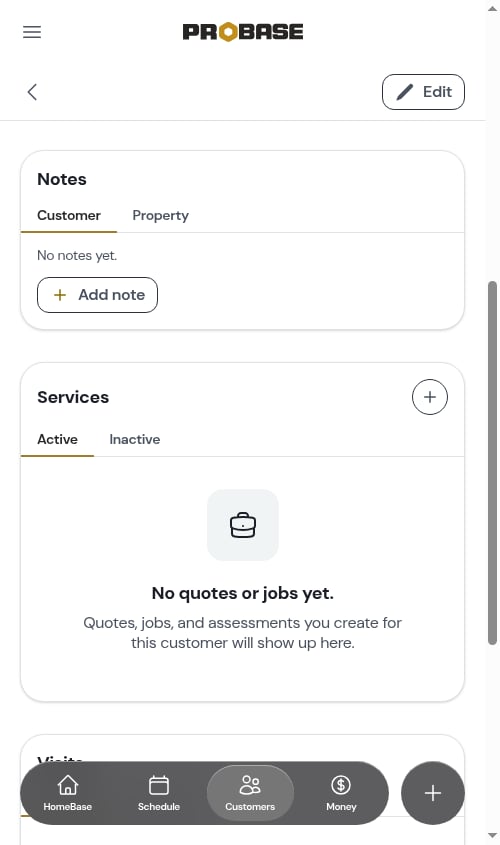
If there are no notes yet, the tab reads **No notes yet.**
Each note row shows the note text, who wrote it, and when.
**Where the Property tab appears.** If a customer has just one property, the Notes card on their customer page covers both the customer and that property. If they have several, the customer page shows only the property list — open the property you want and use the Notes card on that property's page.
If there are no notes yet, the tab reads **No notes yet.**
 ## Adding a note
Go to **Customers** in the sidebar and open the customer. Scroll down to the **Notes** card.
To add a note about a specific property instead, open that property's page and scroll to its **Notes** card.
Choose **Customer** for information about the person, or **Property** for information about the location.
## Adding a note
Go to **Customers** in the sidebar and open the customer. Scroll down to the **Notes** card.
To add a note about a specific property instead, open that property's page and scroll to its **Notes** card.
Choose **Customer** for information about the person, or **Property** for information about the location.
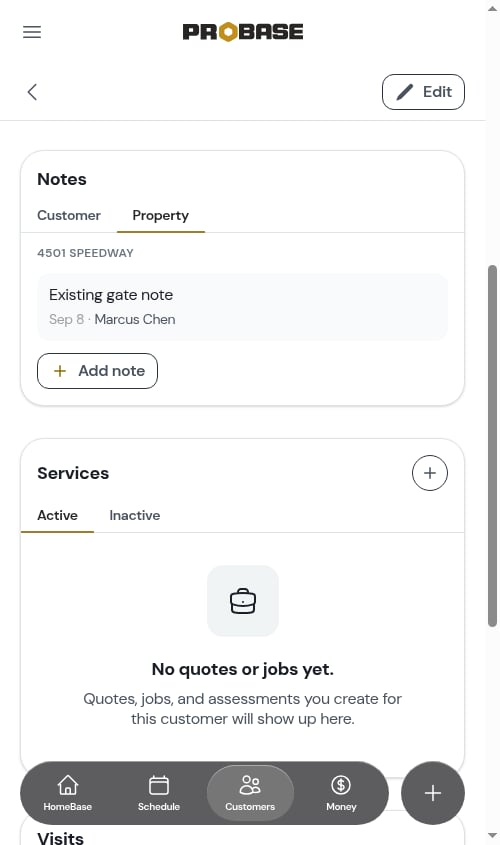 The **Add note** row sits at the bottom of the list. Tapping it opens the **Add Note** window.
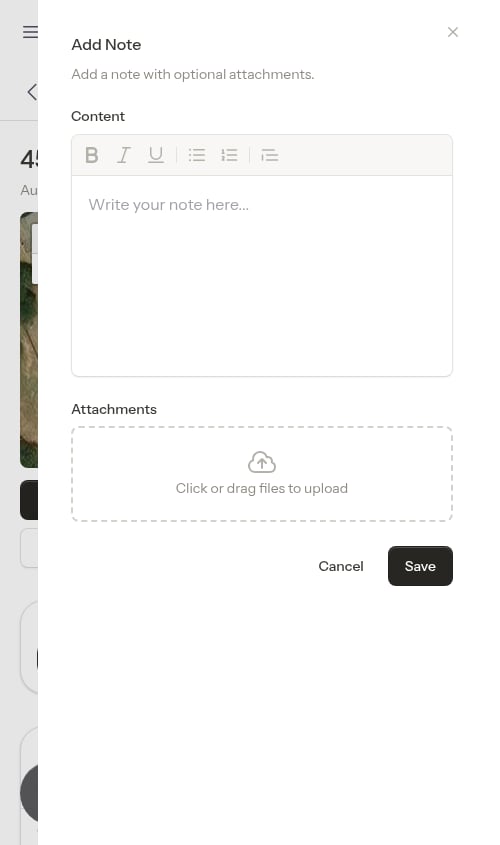 Use the editor to write your note. You can:
* Type plain text
* Format text (bold, italic, underline)
* Create bulleted and numbered lists
* Add block quotes
In the **Click or drag files to upload** area, tap to pick files or drag them in. You can attach several, and any file type is supported (images, PDFs and documents) up to the upload size limit.
While you're still writing, each file you've picked is listed with a small thumbnail (or a document icon) and its filename, plus a **✕** to remove it. Once the note is saved, clicking an image opens it full size.
Tap **Save**. The note appears in the card straight away, without leaving the page.
Use the editor to write your note. You can:
* Type plain text
* Format text (bold, italic, underline)
* Create bulleted and numbered lists
* Add block quotes
In the **Click or drag files to upload** area, tap to pick files or drag them in. You can attach several, and any file type is supported (images, PDFs and documents) up to the upload size limit.
While you're still writing, each file you've picked is listed with a small thumbnail (or a document icon) and its filename, plus a **✕** to remove it. Once the note is saved, clicking an image opens it full size.
Tap **Save**. The note appears in the card straight away, without leaving the page.
 ## Editing or deleting a note
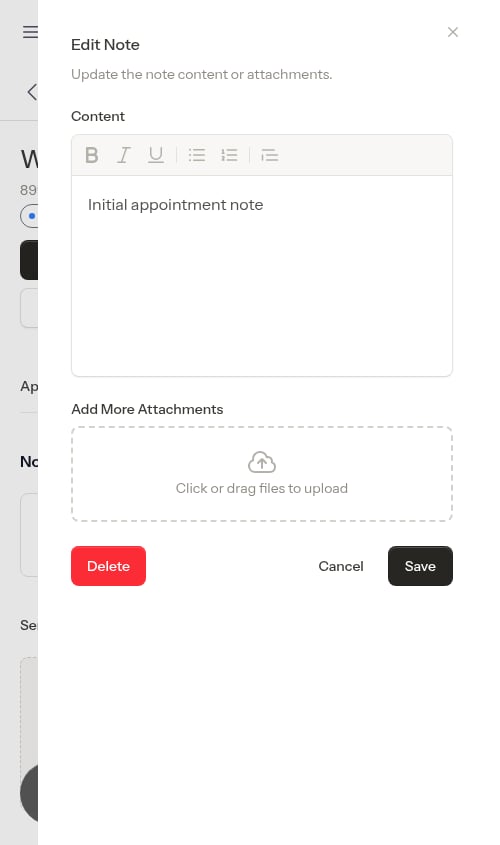
Tap any note in the card to open it. The **Edit Note** window lets you change the text, add or remove attachments, and delete the note outright.
## Editing or deleting a note
Tap any note in the card to open it. The **Edit Note** window lets you change the text, add or remove attachments, and delete the note outright.
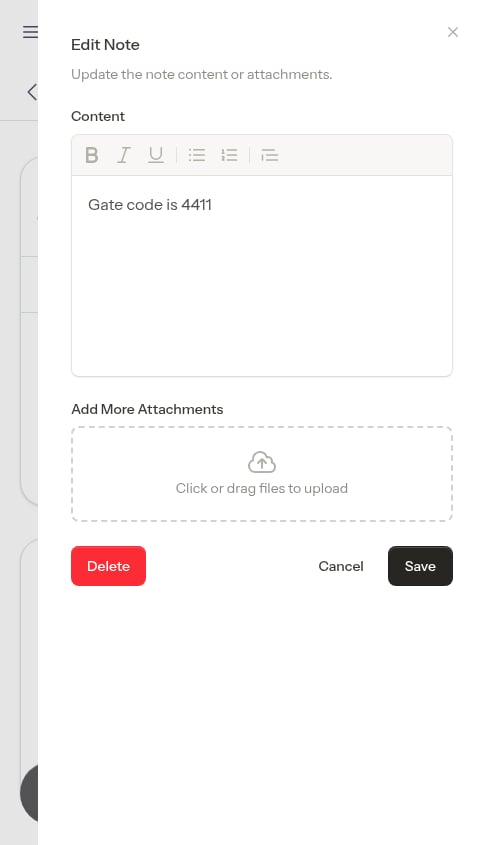 * Tap **Save** to keep your changes.
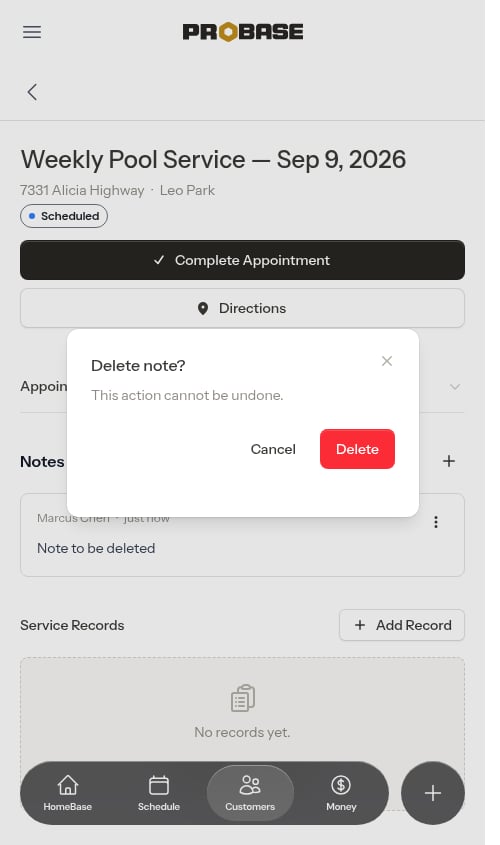
* Tap **Delete** to remove the note. You'll be asked to confirm first.
* Tap **Save** to keep your changes.
* Tap **Delete** to remove the note. You'll be asked to confirm first.
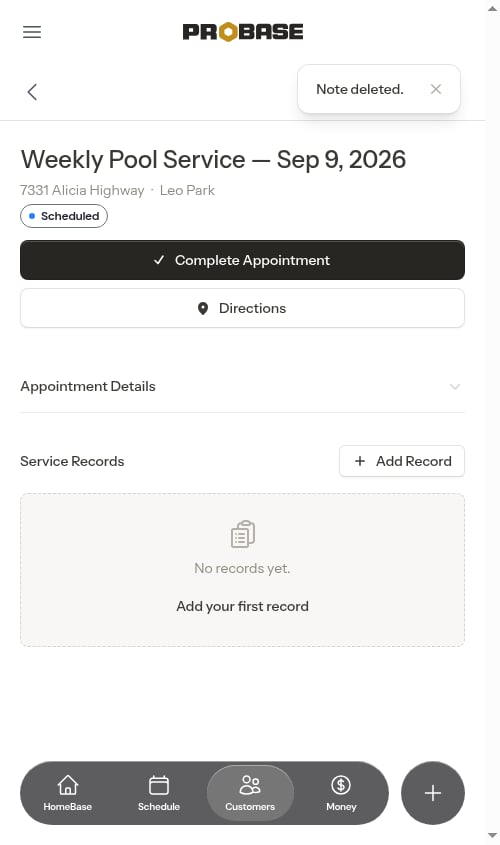
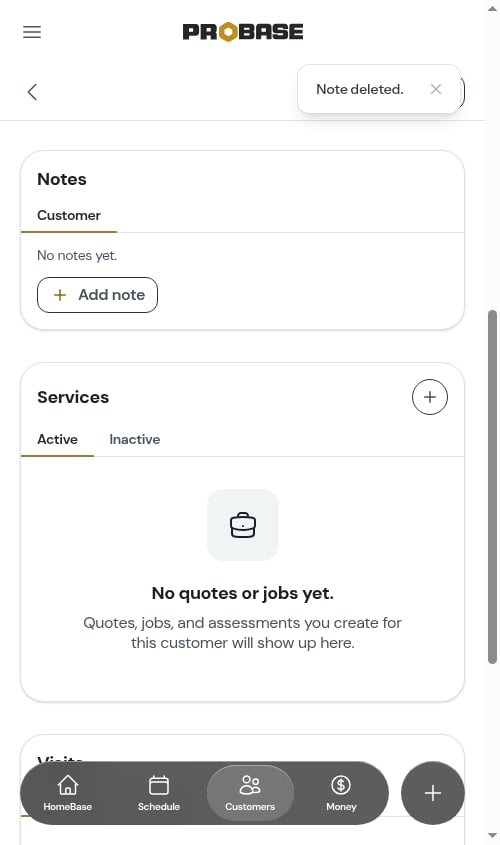 Deleting a note is permanent and cannot be undone. Any files attached to it are deleted too.
**Delete** only appears if your role is allowed to delete notes, and the **Add note** row only appears if your role is allowed to create them. See [Roles and permissions](/team/roles-and-permissions).
## Appointment notes
Visit-specific notes are captured while [completing a job](/routes/completing-jobs) — in the **Visit notes** field on the completion form. They appear in the **Job notes** section on the appointment's own page, where each note has a **3-dot menu** (⋮) for editing and deleting.
Deleting a note is permanent and cannot be undone. Any files attached to it are deleted too.
**Delete** only appears if your role is allowed to delete notes, and the **Add note** row only appears if your role is allowed to create them. See [Roles and permissions](/team/roles-and-permissions).
## Appointment notes
Visit-specific notes are captured while [completing a job](/routes/completing-jobs) — in the **Visit notes** field on the completion form. They appear in the **Job notes** section on the appointment's own page, where each note has a **3-dot menu** (⋮) for editing and deleting.
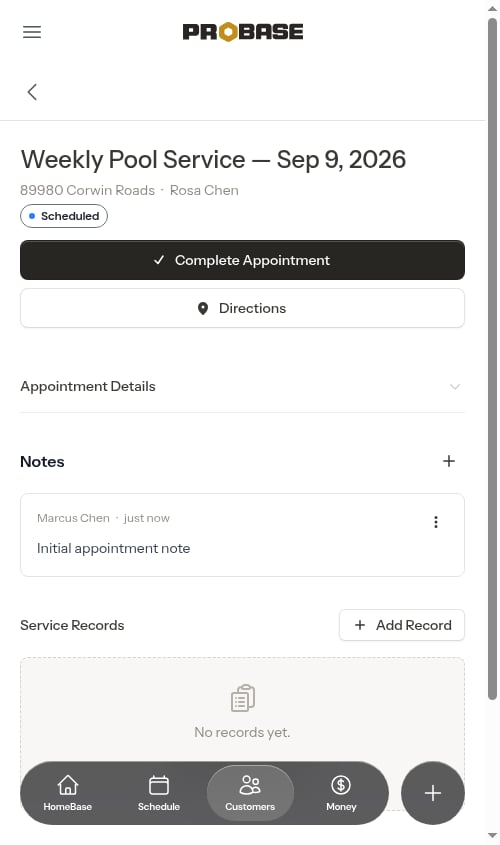
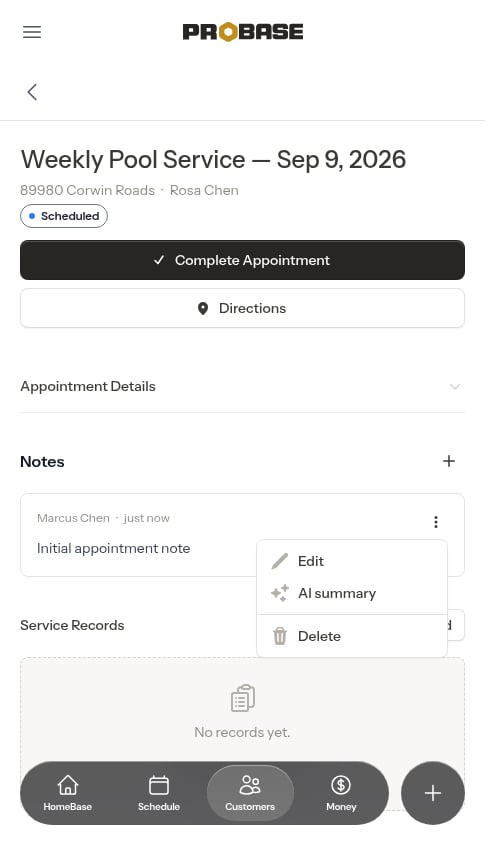
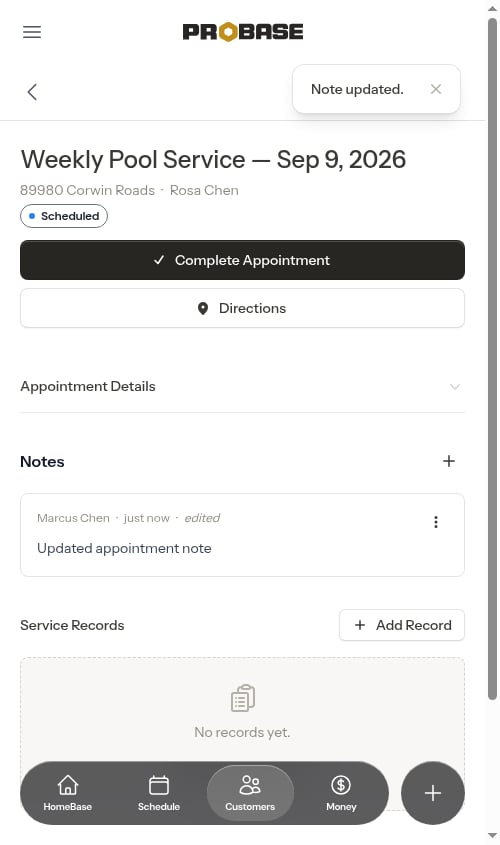 To delete one, choose **Delete** from the same menu and confirm.
 ### Generating an AI summary
On the appointment page, notes can be summarised in plain language for sharing with the customer:
1. Tap the **3-dot menu** (⋮) on the note
2. Choose **AI summary**
A loading indicator shows while the summary is written. Once it's ready, the summary appears below the note in an amber box labelled **AI Summary**. It's saved automatically, and you can regenerate it at any time from the same menu.
## File attachments
### What you can attach
* **Images** — property photos, equipment pictures, before/after shots
* **PDFs** — contracts, quotes, diagrams
* **Documents** — customer communications, instructions
### Viewing attachments
* **Images** appear as inline previews below the note text. Click one to open it full size, with a **Download** button.
* **Other files** appear as download links with the filename and file size.
### Managing attachments
* Add attachments when creating or editing a note
* Remove attachments while editing by tapping the **✕** on each file
* All attachments are deleted when you delete the note
## Best practices
### Write clear, actionable notes
* Be specific: "Prefers text communication, no calls" instead of "Has preferences"
* Include context: "Customer is a teacher, only available after 3 PM"
* Use formatting to highlight important information
### Put the note at the right level
* **Customer tab** — communication preferences, billing arrangements, how they like to be dealt with, how you got the account
* **Property tab** — gate codes, parking instructions, pet warnings, property layout, equipment locations
* **Appointment notes** — what was done on a specific visit, and anything you noticed while you were there
Keeping information at the right level means your crew finds what they need where they'd expect it.
### Keep notes updated
* Edit notes when information changes
* Delete outdated notes so the list stays relevant
* Add new notes as you learn more about the customer
**Notes from your contact form.** When a lead fills out your [contact form](/customers/contact-form) and writes something in the "Additional information" box, ProBase saves it as a property note on the lead automatically. These notes are labelled **Lead Form** instead of a team member's name, so you can tell at a glance which came straight from the customer.
**On a customer from a connected marketplace, notes are read-only.** Both tabs of the Notes card show the notes that came from the marketplace, but there's no **Add note** row and tapping a note doesn't open it for editing. The visit's Job notes carry a **Read-only** badge for the same reason. See [Marketplace customers](/marketplace/marketplace-customers#you-cant-add-your-own-notes-to-marketplace-records).
**On an [archived customer](/customers/archiving-customers), notes are read-only too.** The full history stays viewable, but nothing can be added, changed or deleted.
## Next steps
* [View customer information](/customers/customer-history) to see full details and history
* [Add properties](/customers/properties-and-addresses) to organise services by location
* [Completing appointments](/routes/completing-jobs) to add appointment notes during job completion
### Generating an AI summary
On the appointment page, notes can be summarised in plain language for sharing with the customer:
1. Tap the **3-dot menu** (⋮) on the note
2. Choose **AI summary**
A loading indicator shows while the summary is written. Once it's ready, the summary appears below the note in an amber box labelled **AI Summary**. It's saved automatically, and you can regenerate it at any time from the same menu.
## File attachments
### What you can attach
* **Images** — property photos, equipment pictures, before/after shots
* **PDFs** — contracts, quotes, diagrams
* **Documents** — customer communications, instructions
### Viewing attachments
* **Images** appear as inline previews below the note text. Click one to open it full size, with a **Download** button.
* **Other files** appear as download links with the filename and file size.
### Managing attachments
* Add attachments when creating or editing a note
* Remove attachments while editing by tapping the **✕** on each file
* All attachments are deleted when you delete the note
## Best practices
### Write clear, actionable notes
* Be specific: "Prefers text communication, no calls" instead of "Has preferences"
* Include context: "Customer is a teacher, only available after 3 PM"
* Use formatting to highlight important information
### Put the note at the right level
* **Customer tab** — communication preferences, billing arrangements, how they like to be dealt with, how you got the account
* **Property tab** — gate codes, parking instructions, pet warnings, property layout, equipment locations
* **Appointment notes** — what was done on a specific visit, and anything you noticed while you were there
Keeping information at the right level means your crew finds what they need where they'd expect it.
### Keep notes updated
* Edit notes when information changes
* Delete outdated notes so the list stays relevant
* Add new notes as you learn more about the customer
**Notes from your contact form.** When a lead fills out your [contact form](/customers/contact-form) and writes something in the "Additional information" box, ProBase saves it as a property note on the lead automatically. These notes are labelled **Lead Form** instead of a team member's name, so you can tell at a glance which came straight from the customer.
**On a customer from a connected marketplace, notes are read-only.** Both tabs of the Notes card show the notes that came from the marketplace, but there's no **Add note** row and tapping a note doesn't open it for editing. The visit's Job notes carry a **Read-only** badge for the same reason. See [Marketplace customers](/marketplace/marketplace-customers#you-cant-add-your-own-notes-to-marketplace-records).
**On an [archived customer](/customers/archiving-customers), notes are read-only too.** The full history stays viewable, but nothing can be added, changed or deleted.
## Next steps
* [View customer information](/customers/customer-history) to see full details and history
* [Add properties](/customers/properties-and-addresses) to organise services by location
* [Completing appointments](/routes/completing-jobs) to add appointment notes during job completion