> ## Documentation Index
> Fetch the complete documentation index at: https://docs.probaseapp.com/llms.txt
> Use this file to discover all available pages before exploring further.
# Archiving customers
> Hide customers you no longer work with while keeping their full history
## What archiving does
Archiving is the way to clean up your customer list when you stop working with someone — a customer who moved away, cancelled for good, or was added by mistake. Archiving is **not deleting**: nothing is permanently removed.
When you archive a customer, Probase:
* **Removes them from your active customer list**, so your list only shows people you're currently working with
* **Unschedules their upcoming visits** and takes them off the calendar and route optimizer
* **Stops generating new recurring appointments** for their services
* **Keeps every record** — jobs, invoices, payments, quotes, and notes stay intact and viewable
Archiving keeps the full history on record, including any outstanding balance — nothing is permanently deleted. There isn't yet an in-app way to un-archive a customer, so archive someone only when you're confident you've stopped working with them. If you need a customer restored, contact support.
The **Archive customer** action and the **Archived** status filter are rolling out gradually. If you don't see them on your account yet, they'll appear soon.
## Archive a customer
Open the customer's profile from **Customers** in the sidebar, then click the **Edit** button in the top-right corner.
Scroll to the bottom of the Edit panel. Below the **Save** and **Cancel** buttons you'll find the **Archive customer** action.
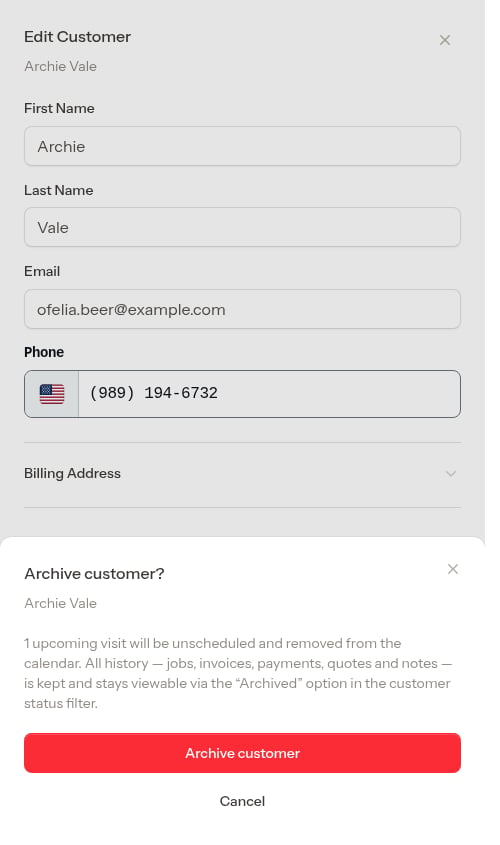
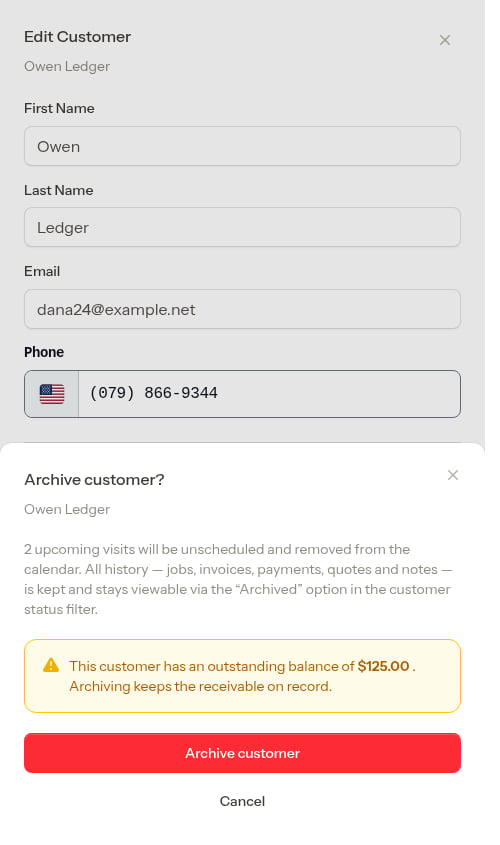
A confirmation dialog summarizes what archiving will do, including how many upcoming visits will be unscheduled. If the customer still owes you money, a warning shows their outstanding balance so you don't lose track of the receivable.
 When a customer has upcoming visits and an outstanding balance, both are called out together:
 Click **Archive customer** to confirm. You'll be returned to the customer list, where the archived customer no longer appears among your active customers.
Archiving a customer with an outstanding balance keeps that balance on record, but the customer drops off your active list — so be sure to collect or settle what's owed before (or after) archiving so it doesn't get forgotten.
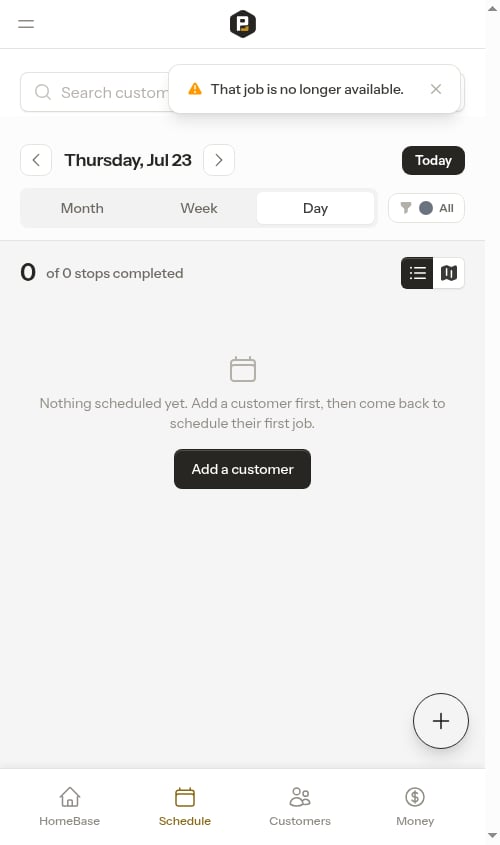
If you (or a teammate) happen to have one of the customer's job pages open when they're archived, Probase won't leave you stranded on a job that no longer exists. The next time that page updates, it shows a **"That job is no longer available"** notice and returns you to your schedule.
Click **Archive customer** to confirm. You'll be returned to the customer list, where the archived customer no longer appears among your active customers.
Archiving a customer with an outstanding balance keeps that balance on record, but the customer drops off your active list — so be sure to collect or settle what's owed before (or after) archiving so it doesn't get forgotten.
If you (or a teammate) happen to have one of the customer's job pages open when they're archived, Probase won't leave you stranded on a job that no longer exists. The next time that page updates, it shows a **"That job is no longer available"** notice and returns you to your schedule.
 ## Viewing archived customers
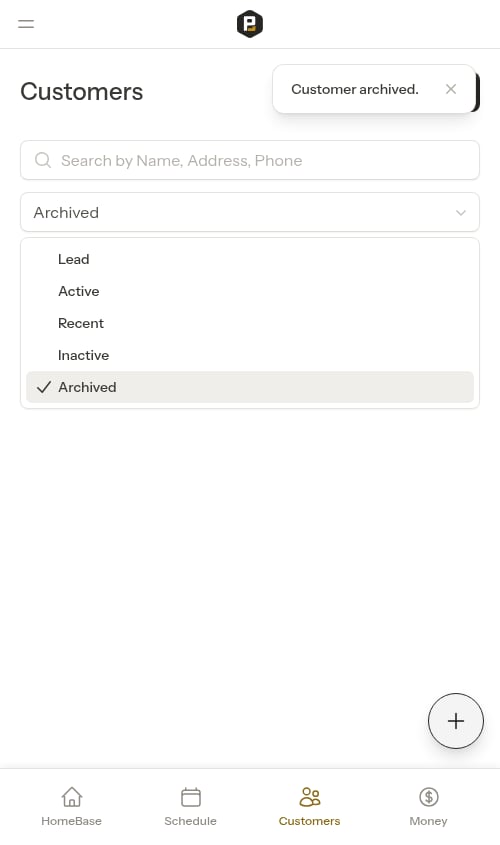
Archived customers are hidden from your customer list by default. To see them, open the **All Statuses** filter at the top of the **Customers** list and select the **Archived** option. Archived customers then appear in the list, marked with an **Archived** badge in place of their usual status.
Because the status filter lets you pick more than one option, you can select **Archived** on its own to see only archived customers, or combine it with active statuses (like **Active** or **Lead**) to show archived customers alongside your current ones.
## Viewing archived customers
Archived customers are hidden from your customer list by default. To see them, open the **All Statuses** filter at the top of the **Customers** list and select the **Archived** option. Archived customers then appear in the list, marked with an **Archived** badge in place of their usual status.
Because the status filter lets you pick more than one option, you can select **Archived** on its own to see only archived customers, or combine it with active statuses (like **Active** or **Lead**) to show archived customers alongside your current ones.
 You can open an archived customer's profile to review their history at any time. The profile is **read-only** — the **Edit** and **Schedule** buttons are removed, and you can't change their properties, services, or appointments. Their billing history stays fully viewable.
## Next steps
* [Understanding customer status](/customers/customer-status) — how active customers are automatically categorized
* [Viewing customer information](/customers/customer-history) — review a customer's full profile and history
* [Customer balances](/billing/customer-balances) — collect or settle an outstanding balance
You can open an archived customer's profile to review their history at any time. The profile is **read-only** — the **Edit** and **Schedule** buttons are removed, and you can't change their properties, services, or appointments. Their billing history stays fully viewable.
## Next steps
* [Understanding customer status](/customers/customer-status) — how active customers are automatically categorized
* [Viewing customer information](/customers/customer-history) — review a customer's full profile and history
* [Customer balances](/billing/customer-balances) — collect or settle an outstanding balance