> ## Documentation Index
> Fetch the complete documentation index at: https://docs.probaseapp.com/llms.txt
> Use this file to discover all available pages before exploring further.
# Creating quotes and assessments
> Create quotes for new customers or schedule on-site assessments
## What are quotes?
In Probase, "quotes" is a general term for creating either Quotes or Assessments for customers. The system provides a guided multi-step wizard that helps you create the right type of work based on your situation.
**Two types of quotes:**
* **Quotes** - Formal quotes with pricing that you send to customers for review and approval before starting work
* **Assessments** - On-site evaluation appointments where you visit the property first to evaluate needs, then create a quote afterward
## When to use each type
### Create a Quote when:
* You can quote the work without visiting the property first
* The customer knows exactly what they want and you know the scope
* You're providing a standard service with known pricing
* You want to send a formal quote for customer approval before starting
### Create an Assessment when:
* You need to visit the property before providing accurate pricing
* The scope of work is uncertain and needs on-site evaluation
* It's a complex or custom project requiring inspection
* New customer inquiries where you need to see the property first
If work is already confirmed and doesn't need a quote or assessment, create a Job directly instead. See [Creating jobs](/getting-started/creating-jobs).
## How to create a quote
Click **New Quote** from the Quick Actions menu (the bottom-right floating button) or from the sidebar to open the wizard. It then guides you through a simple 4-step process.
The wizard remembers your progress, so you can navigate back and forth between steps. If you start from a customer's **Schedule** button (see [Skip steps when you start from a customer](#skip-steps-when-you-start-from-a-customer) below), the customer — and property, if you started from a property — are pre-filled and those steps are skipped.
Choose whether you need to visit the property first or can price the work right away:
* **Schedule an Assessment** - You need to visit the property before you can provide accurate pricing
* **Create a Quote** - You can price this work now and send a quote to the customer immediately
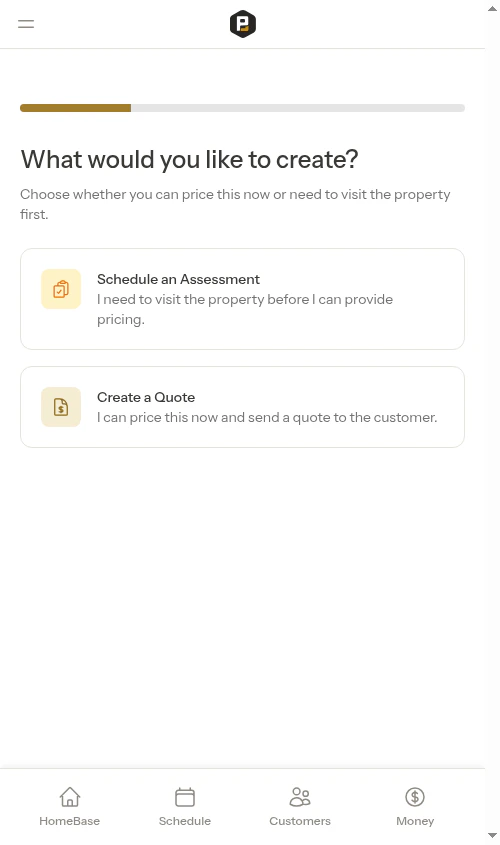 This step also shows which customer and property you've already selected (if coming from a customer/property page).
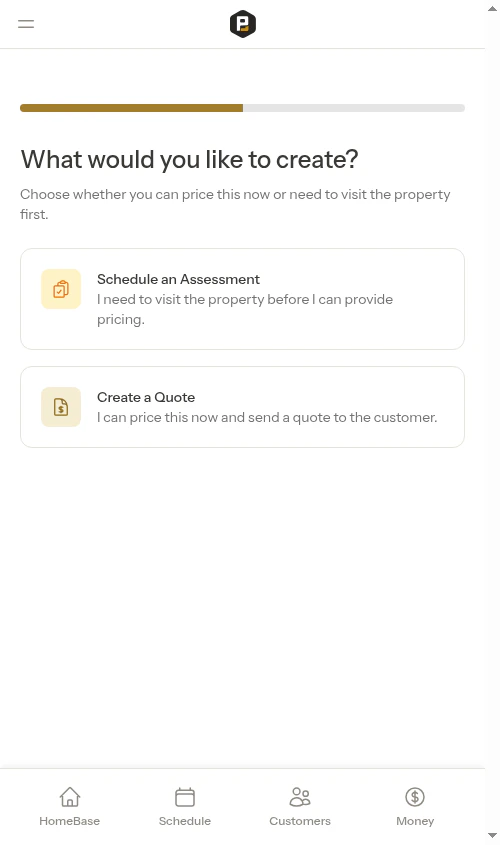 Choose an existing customer or create a new one (skip this step if you came from a customer page).
The customer step shows your full customer list in alphabetical order. The header is sticky as you scroll, so the **Back** button, **New customer** button, and search bar stay reachable.
Choose an existing customer or create a new one (skip this step if you came from a customer page).
The customer step shows your full customer list in alphabetical order. The header is sticky as you scroll, so the **Back** button, **New customer** button, and search bar stay reachable.
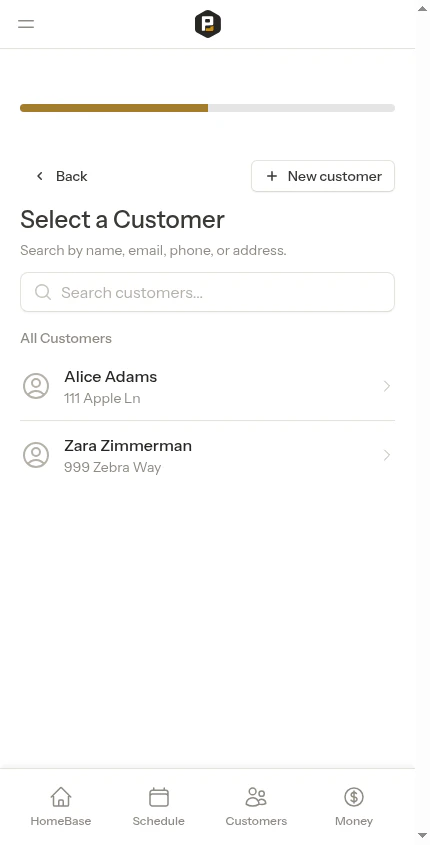 **To select an existing customer:**
1. Scroll through the **All Customers** list — more customers load automatically as you reach the bottom
2. Or type into the search box to filter by name, email, phone, or address
3. Tap the customer to select them
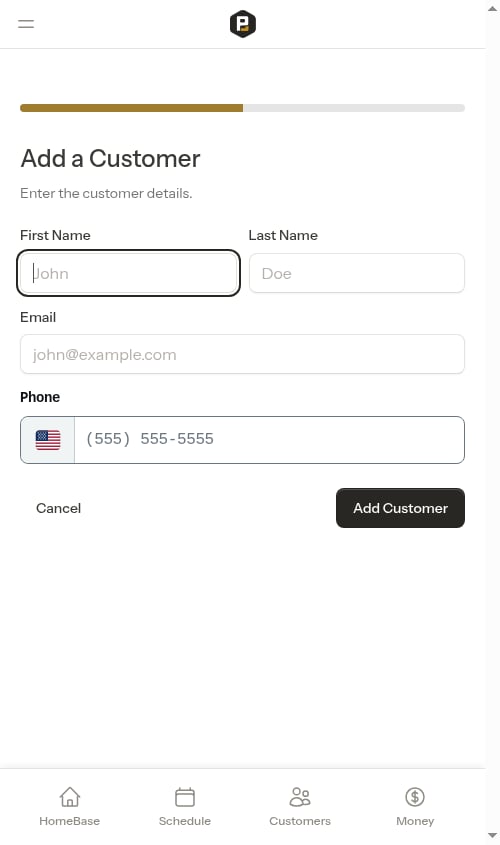
**To create a new customer:**
1. Tap **New customer** in the top-right of the header
2. Fill in their information:
* First Name (required)
* Last Name (required)
* Email (optional)
* Phone (optional)
3. Click **Save**
**To select an existing customer:**
1. Scroll through the **All Customers** list — more customers load automatically as you reach the bottom
2. Or type into the search box to filter by name, email, phone, or address
3. Tap the customer to select them
**To create a new customer:**
1. Tap **New customer** in the top-right of the header
2. Fill in their information:
* First Name (required)
* Last Name (required)
* Email (optional)
* Phone (optional)
3. Click **Save**
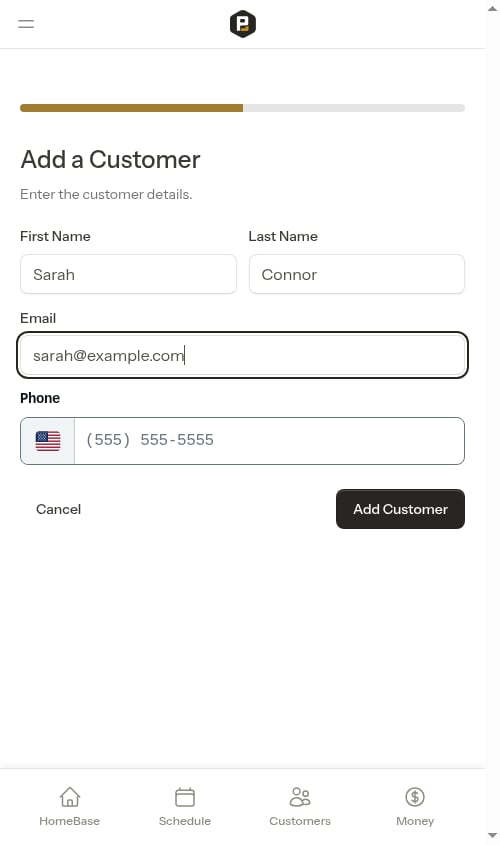 The wizard automatically moves to the next step after you select or create a customer.
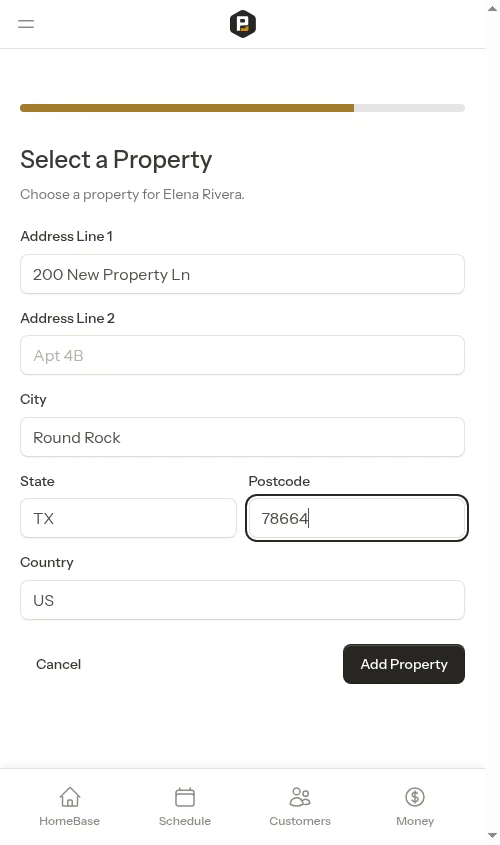
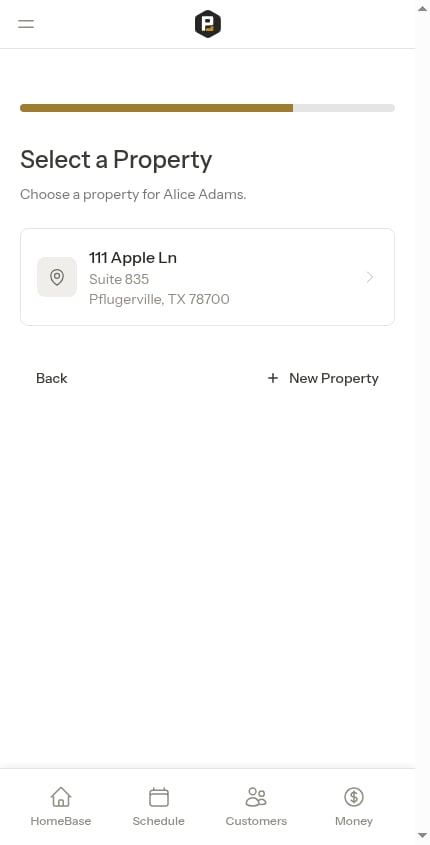 Choose which property address the work is for, or create a new one (skip this step if you came from a property page).
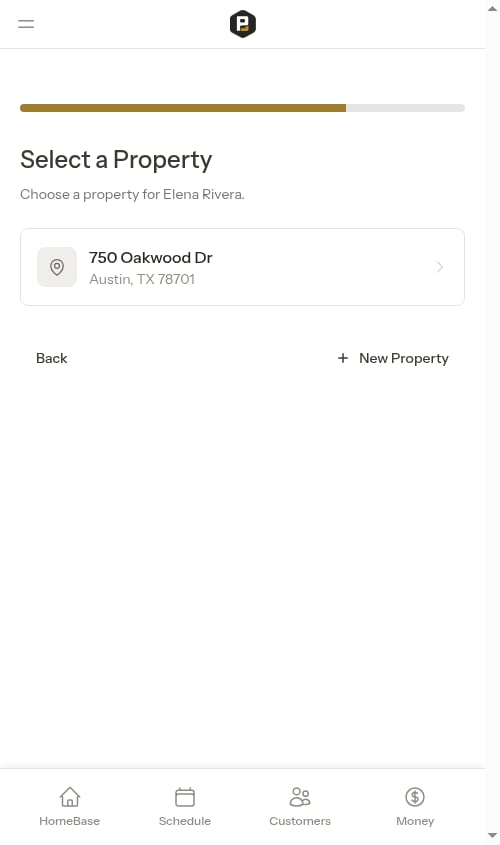 **To select an existing property:**
* Click on any of the customer's properties shown in the list
**To create a new property:**
1. Click **New Property**
2. Fill in the address:
* **Address Line 1** (required) — Start typing and address suggestions will appear. Select one to auto-fill the city, state, and postcode fields automatically.
* **Address Line 2** (optional) — Apartment, suite, or unit number
* **City**, **State**, **Postcode** — Filled in automatically when you select an address suggestion, or enter manually
3. Click **Save**
**To select an existing property:**
* Click on any of the customer's properties shown in the list
**To create a new property:**
1. Click **New Property**
2. Fill in the address:
* **Address Line 1** (required) — Start typing and address suggestions will appear. Select one to auto-fill the city, state, and postcode fields automatically.
* **Address Line 2** (optional) — Apartment, suite, or unit number
* **City**, **State**, **Postcode** — Filled in automatically when you select an address suggestion, or enter manually
3. Click **Save**
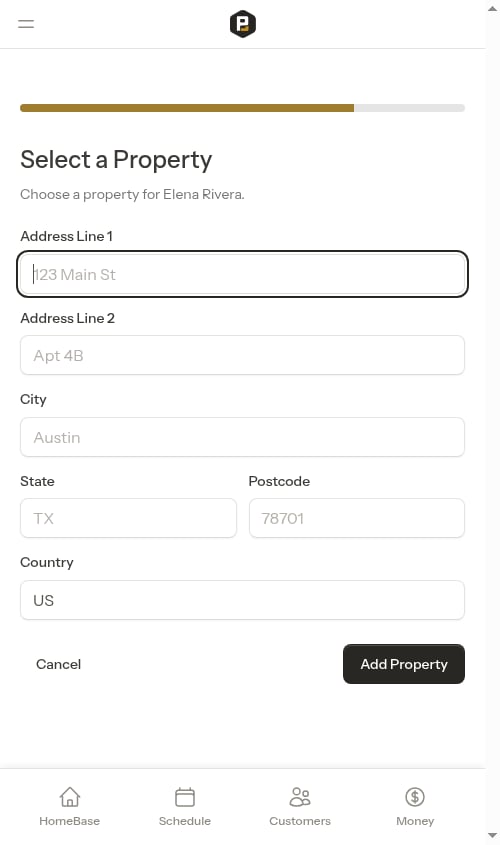
 The property address is automatically geocoded for accurate mapping and route optimization.
The final step depends on whether you're creating a Quote or Assessment.
**For Quotes:**
Fill in the quote details including pricing and service information. See [Creating quotes](#creating-quotes) below.
**For Assessments:**
The form auto-fills the assessment name based on the property address (e.g., "Assessment for 123 Main St"). You can customize the name if needed. See [Creating assessments](#creating-assessments) below.
## Creating quotes
When you select "Quote" in Step 1, the final step shows a quote creation form.
The property address is automatically geocoded for accurate mapping and route optimization.
The final step depends on whether you're creating a Quote or Assessment.
**For Quotes:**
Fill in the quote details including pricing and service information. See [Creating quotes](#creating-quotes) below.
**For Assessments:**
The form auto-fills the assessment name based on the property address (e.g., "Assessment for 123 Main St"). You can customize the name if needed. See [Creating assessments](#creating-assessments) below.
## Creating quotes
When you select "Quote" in Step 1, the final step shows a quote creation form.
 ### Start from a saved service (optional)
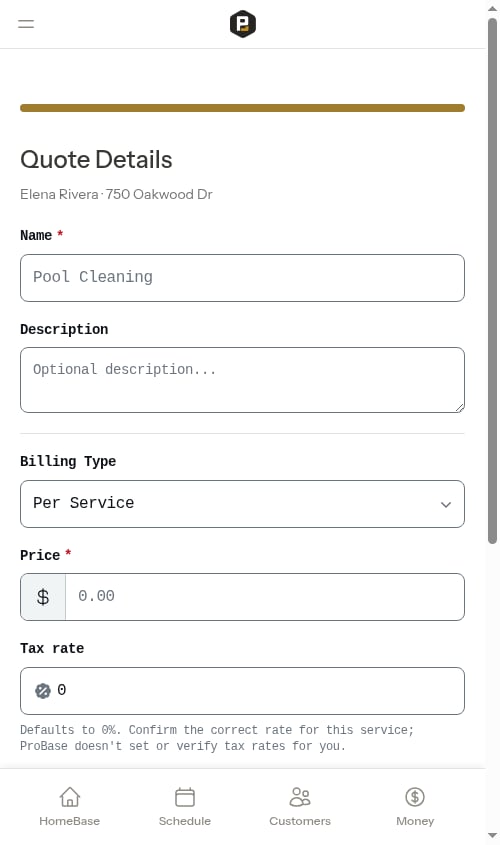
If you've built a [service catalog](/getting-started/service-catalog), the form starts with a **Service Offering** dropdown. Pick a saved service and Probase fills in the name, description, price, billing type and interval, and service frequency for you — so most quotes are one selection plus a tweak. When your catalog spans more than one trade, the dropdown groups the options under industry headers to make them easier to find.
Leave it on **Custom (enter details below)** to type the quote from scratch instead.
### Choose the industry (optional)
If your business works in more than one industry, an **Industry** field appears so you can tag which trade the quote is for. Picking a saved service above fills this in automatically from that service; you can still change it. Businesses that work in a single trade won't see this field — Probase fills it in behind the scenes. See [Industries (trades)](/getting-started/industries) for what tagging a quote's trade unlocks.
### Fill in quote details
**Service Information:**
* **Name** (required) - What service you're providing (e.g., "Weekly Pool Cleaning")
* **Description** (optional) - Details about what's included in the service
**Pricing:**
* **Price** (required) - Amount customer pays per service or per billing period
* **Tax Rate** (required) - Tax percentage (e.g., 8.25 for 8.25% tax)
**Billing Configuration:**
* **Billing Type** - Per Service or Subscription
* **Per Service** - Customer billed each time work is completed
* **Subscription** - Customer billed on recurring schedule regardless of visits
* **Billing Interval** (subscription only) - Weekly, Monthly, or Annual
For subscription services, Probase automatically uses the day the quote is accepted (the day the service is created) as the recurring billing day — there's no separate input to fill in. A monthly subscription accepted on the 7th charges on the 7th of each month; weekly subscriptions repeat on that weekday; annual subscriptions repeat on the same day of the year.
**Service Frequency:** How often the work is performed
* One-time (0 days)
* Weekly (7 days)
* Bi-weekly (14 days)
* Monthly (28 days)
**Optional:**
* **Valid Until** - Quote expiration date
* **Notes** - Any extra context to include on the quote
### Start from a saved service (optional)
If you've built a [service catalog](/getting-started/service-catalog), the form starts with a **Service Offering** dropdown. Pick a saved service and Probase fills in the name, description, price, billing type and interval, and service frequency for you — so most quotes are one selection plus a tweak. When your catalog spans more than one trade, the dropdown groups the options under industry headers to make them easier to find.
Leave it on **Custom (enter details below)** to type the quote from scratch instead.
### Choose the industry (optional)
If your business works in more than one industry, an **Industry** field appears so you can tag which trade the quote is for. Picking a saved service above fills this in automatically from that service; you can still change it. Businesses that work in a single trade won't see this field — Probase fills it in behind the scenes. See [Industries (trades)](/getting-started/industries) for what tagging a quote's trade unlocks.
### Fill in quote details
**Service Information:**
* **Name** (required) - What service you're providing (e.g., "Weekly Pool Cleaning")
* **Description** (optional) - Details about what's included in the service
**Pricing:**
* **Price** (required) - Amount customer pays per service or per billing period
* **Tax Rate** (required) - Tax percentage (e.g., 8.25 for 8.25% tax)
**Billing Configuration:**
* **Billing Type** - Per Service or Subscription
* **Per Service** - Customer billed each time work is completed
* **Subscription** - Customer billed on recurring schedule regardless of visits
* **Billing Interval** (subscription only) - Weekly, Monthly, or Annual
For subscription services, Probase automatically uses the day the quote is accepted (the day the service is created) as the recurring billing day — there's no separate input to fill in. A monthly subscription accepted on the 7th charges on the 7th of each month; weekly subscriptions repeat on that weekday; annual subscriptions repeat on the same day of the year.
**Service Frequency:** How often the work is performed
* One-time (0 days)
* Weekly (7 days)
* Bi-weekly (14 days)
* Monthly (28 days)
**Optional:**
* **Valid Until** - Quote expiration date
* **Notes** - Any extra context to include on the quote
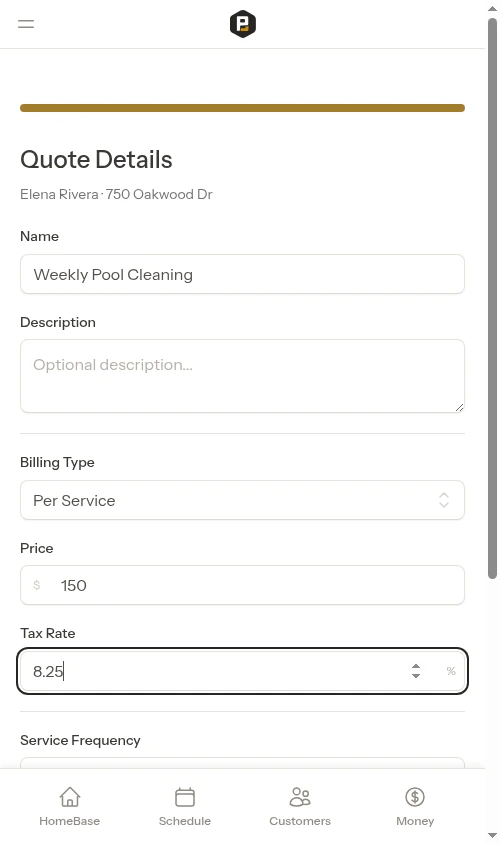 ### Submit the quote
After filling in the details, click **Create Quote**.
### Submit the quote
After filling in the details, click **Create Quote**.
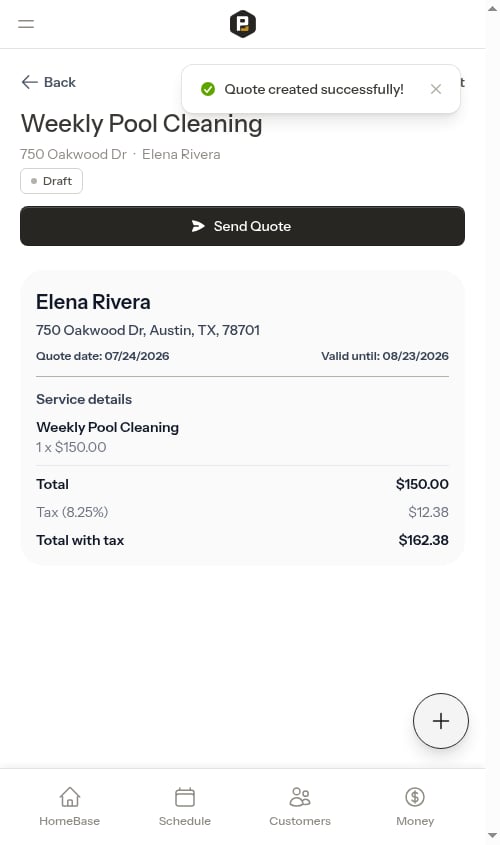 The quote is created in "Draft" status and you're taken to the quote detail page where you can review, edit, and send it to the customer.
See [Managing quotes](/customers/managing-quotes) for details on reviewing, sending, accepting, and declining quotes.
## Creating assessments
When you select "Assessment" in Step 1, the final step shows a simpler assessment creation form.
The quote is created in "Draft" status and you're taken to the quote detail page where you can review, edit, and send it to the customer.
See [Managing quotes](/customers/managing-quotes) for details on reviewing, sending, accepting, and declining quotes.
## Creating assessments
When you select "Assessment" in Step 1, the final step shows a simpler assessment creation form.
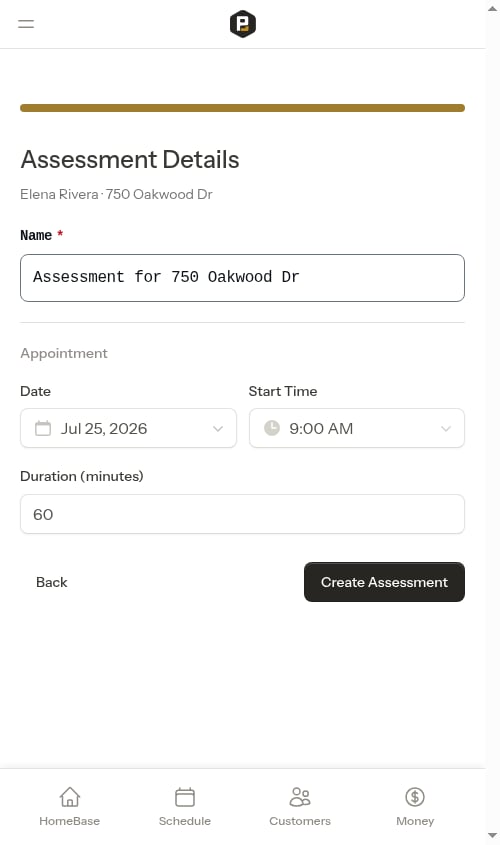
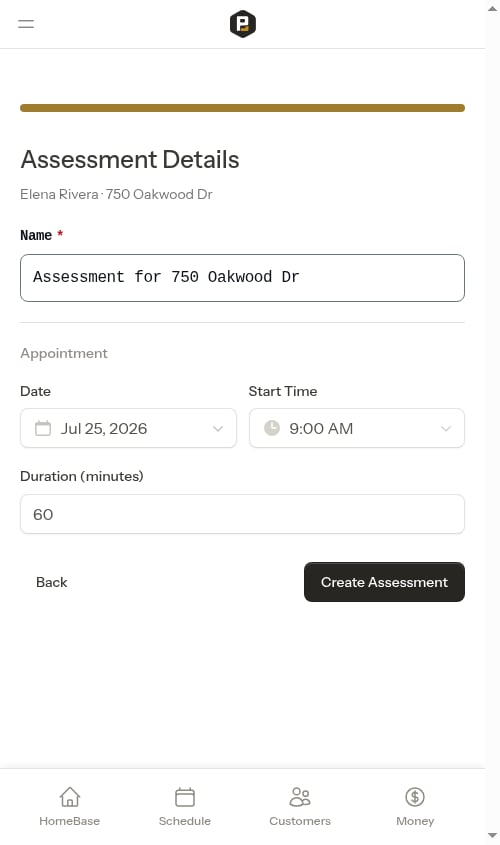 The assessment name is automatically filled using the property address (e.g., "Assessment for 123 Main St"). You can customize this name if needed.
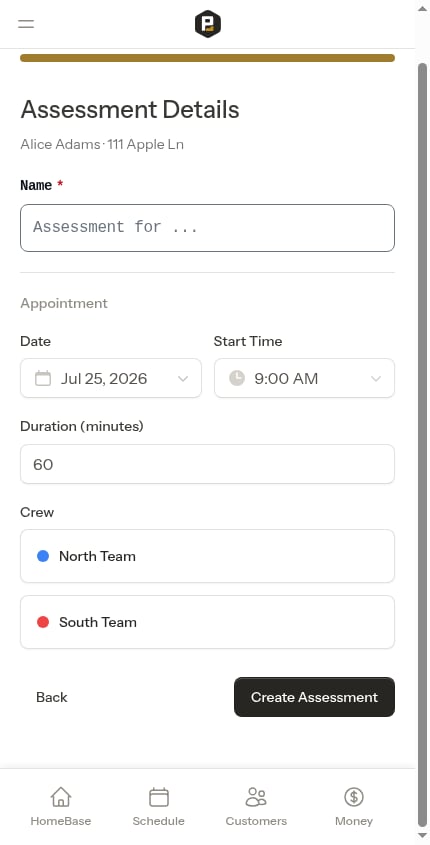
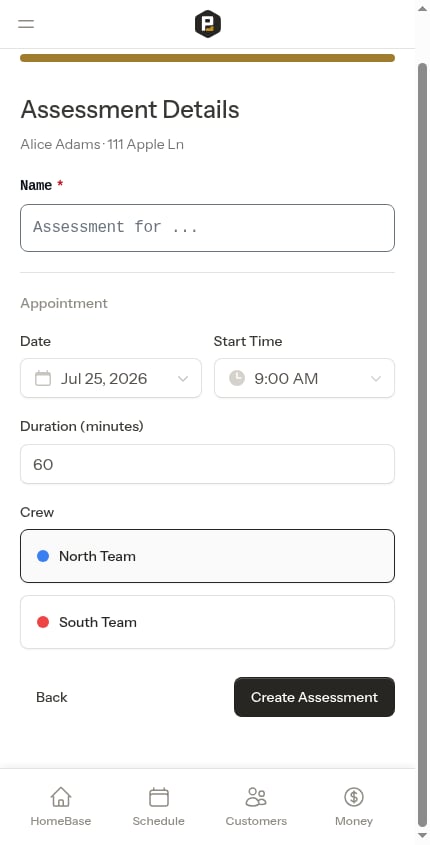
 The assessment form also asks you to pick a date, time, and **Crew** for the on-site visit. The crew picker only appears when your team has more than one crew — with a single crew, the visit is assigned to it automatically. Probase pre-selects your most recently used crew so the common case is one tap.
 ### Submit the assessment
Click **Create Assessment** to create:
1. An Assessment service with "Draft" status
2. An appointment for the on-site visit, scheduled for the date and time you entered on the form
### Submit the assessment
Click **Create Assessment** to create:
1. An Assessment service with "Draft" status
2. An appointment for the on-site visit, scheduled for the date and time you entered on the form
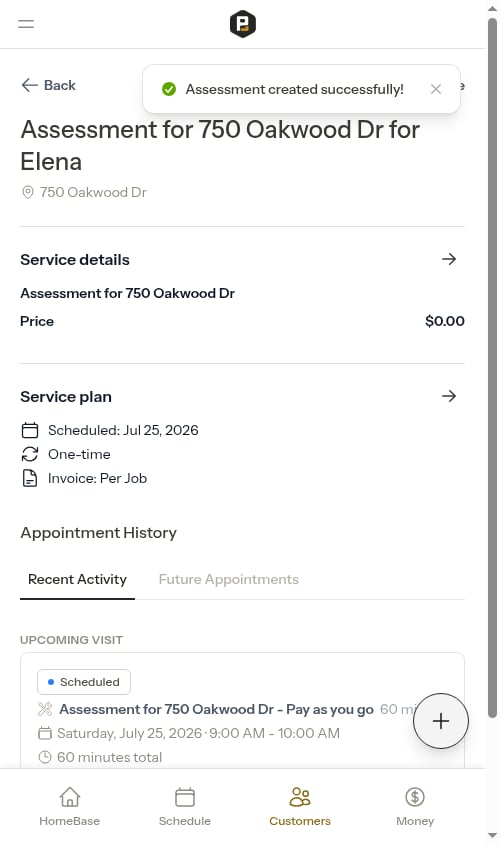 You're redirected to the customer's property page where you can see the newly created assessment service.
The assessment visit is always scheduled when you create the assessment — the date, time, and crew are part of the assessment form, so there's no separate scheduling step.
### Complete the assessment
After visiting the property and evaluating the work needed:
1. Open the scheduled assessment appointment
2. Click **Complete Assessment**
3. A single-screen form opens where you can:
* Enter your assessment notes about what you observed
* Click **AI Assist** to automatically generate quote line items, a quote name, and a customer-facing summary from your notes
* Add or edit line items manually (name, type, price, duration/quantity, recurring)
* Enter a **Name** for the quote (required) — this becomes the title of the resulting job once the customer accepts the quote
* Upload photos of the property
4. Click **Complete & Draft Quote** to finish — the assessment is marked complete and a quote is created automatically
After completing, you can access the quote at any time directly from the assessment service page — a **View Quote** button appears in the header once a quote exists.
See [Completing jobs](/routes/completing-jobs) for detailed instructions on the completion workflow.
## Skip steps when you start from a customer
The fastest way to quote a specific customer is to start from their page, which carries their details into the wizard for you:
**From a customer page:**
Open the customer and tap the **Schedule** button. On the "What would you like to do?" screen, choose **Visit the Property First** — this opens the quote wizard with the customer already pre-filled, so you skip straight to property selection. On the wizard's first step, pick **Create a Quote** or **Schedule an Assessment**.
**From a property page:**
Start the same **Schedule → Visit the Property First** flow from a property and both the customer and property are pre-filled, taking you directly to the details form.
Starting **New Quote** from the Quick Actions menu (FAB) or the sidebar instead opens a blank wizard where you pick the customer and property yourself.
## After creating a quote
**For Quotes:**
1. Review the quote details on the quote detail page
2. Send it to the customer for approval
3. Accept or decline based on customer response
4. When accepted, a Job service is automatically created with the first appointment scheduled
**For Assessments:**
1. Visit the property on the scheduled date and evaluate the work needed
2. Complete the appointment — a single-screen form lets you document findings, use AI Assist to draft quote line items, and click **Complete & Draft Quote**
3. Access the quote from the assessment service page using the **View Quote** button in the header
4. Review and send the quote to the customer
5. When accepted, a Job service is automatically created
Once a quote exists for an assessment service, a **View Quote** button appears at the top of the service detail page so you can navigate directly to it at any time.
You're redirected to the customer's property page where you can see the newly created assessment service.
The assessment visit is always scheduled when you create the assessment — the date, time, and crew are part of the assessment form, so there's no separate scheduling step.
### Complete the assessment
After visiting the property and evaluating the work needed:
1. Open the scheduled assessment appointment
2. Click **Complete Assessment**
3. A single-screen form opens where you can:
* Enter your assessment notes about what you observed
* Click **AI Assist** to automatically generate quote line items, a quote name, and a customer-facing summary from your notes
* Add or edit line items manually (name, type, price, duration/quantity, recurring)
* Enter a **Name** for the quote (required) — this becomes the title of the resulting job once the customer accepts the quote
* Upload photos of the property
4. Click **Complete & Draft Quote** to finish — the assessment is marked complete and a quote is created automatically
After completing, you can access the quote at any time directly from the assessment service page — a **View Quote** button appears in the header once a quote exists.
See [Completing jobs](/routes/completing-jobs) for detailed instructions on the completion workflow.
## Skip steps when you start from a customer
The fastest way to quote a specific customer is to start from their page, which carries their details into the wizard for you:
**From a customer page:**
Open the customer and tap the **Schedule** button. On the "What would you like to do?" screen, choose **Visit the Property First** — this opens the quote wizard with the customer already pre-filled, so you skip straight to property selection. On the wizard's first step, pick **Create a Quote** or **Schedule an Assessment**.
**From a property page:**
Start the same **Schedule → Visit the Property First** flow from a property and both the customer and property are pre-filled, taking you directly to the details form.
Starting **New Quote** from the Quick Actions menu (FAB) or the sidebar instead opens a blank wizard where you pick the customer and property yourself.
## After creating a quote
**For Quotes:**
1. Review the quote details on the quote detail page
2. Send it to the customer for approval
3. Accept or decline based on customer response
4. When accepted, a Job service is automatically created with the first appointment scheduled
**For Assessments:**
1. Visit the property on the scheduled date and evaluate the work needed
2. Complete the appointment — a single-screen form lets you document findings, use AI Assist to draft quote line items, and click **Complete & Draft Quote**
3. Access the quote from the assessment service page using the **View Quote** button in the header
4. Review and send the quote to the customer
5. When accepted, a Job service is automatically created
Once a quote exists for an assessment service, a **View Quote** button appears at the top of the service detail page so you can navigate directly to it at any time.
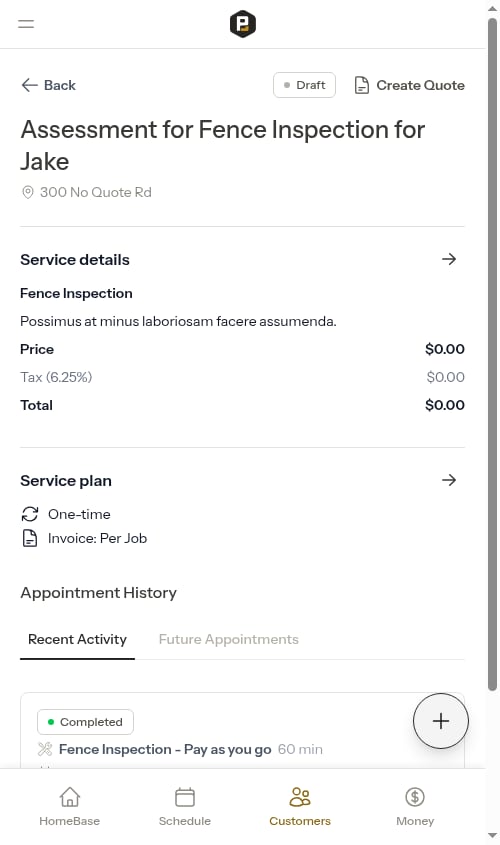
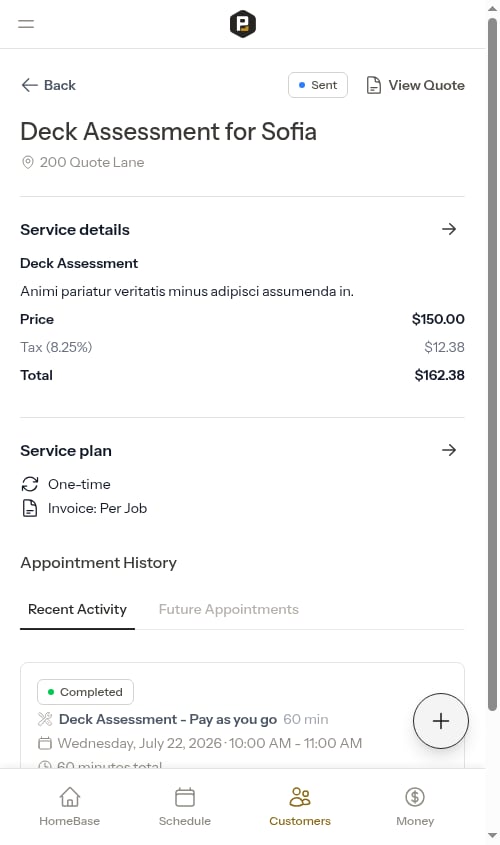 If no quote has been created yet, a **Create Quote** button appears instead, letting you start the quote wizard directly from the service page.
 ## Best practices
**Use assessments for uncertainty** - If you can't accurately quote without seeing the property, create an assessment first. This ensures you can provide accurate pricing based on what you observe.
**Quotes for known work** - If you know the scope and pricing (e.g., standard services), skip the assessment and create a quote directly to speed up the sales process.
**Set valid until dates** - Add expiration dates to quotes to create urgency for customer decisions and protect yourself from pricing changes.
**Include detailed descriptions** - Help customers understand exactly what's included in your quote. The more specific you are, the fewer questions they'll have.
**Use the Quick Actions menu** - Access quote creation from anywhere in the app using the floating action button (FAB) in the bottom-right corner.
## Next steps
* [Managing quotes](/customers/managing-quotes) - Learn about reviewing, sending, accepting, and declining quotes
* [Creating jobs](/getting-started/creating-jobs) - Create confirmed work directly without needing quotes
* [Managing services](/customers/managing-services) - Understand the difference between jobs and assessments
* [Completing jobs](/routes/completing-jobs) - Complete assessment appointments and create quotes
## Best practices
**Use assessments for uncertainty** - If you can't accurately quote without seeing the property, create an assessment first. This ensures you can provide accurate pricing based on what you observe.
**Quotes for known work** - If you know the scope and pricing (e.g., standard services), skip the assessment and create a quote directly to speed up the sales process.
**Set valid until dates** - Add expiration dates to quotes to create urgency for customer decisions and protect yourself from pricing changes.
**Include detailed descriptions** - Help customers understand exactly what's included in your quote. The more specific you are, the fewer questions they'll have.
**Use the Quick Actions menu** - Access quote creation from anywhere in the app using the floating action button (FAB) in the bottom-right corner.
## Next steps
* [Managing quotes](/customers/managing-quotes) - Learn about reviewing, sending, accepting, and declining quotes
* [Creating jobs](/getting-started/creating-jobs) - Create confirmed work directly without needing quotes
* [Managing services](/customers/managing-services) - Understand the difference between jobs and assessments
* [Completing jobs](/routes/completing-jobs) - Complete assessment appointments and create quotes