> ## Documentation Index
> Fetch the complete documentation index at: https://docs.probaseapp.com/llms.txt
> Use this file to discover all available pages before exploring further.
# Viewing customer information
> View customer details, services, and billing
## View a customer's profile
1. Go to **Customers** in the sidebar
2. Search for the customer by name, phone, or email
3. Click on their name to open their page
 ## What you can see
### Customer details
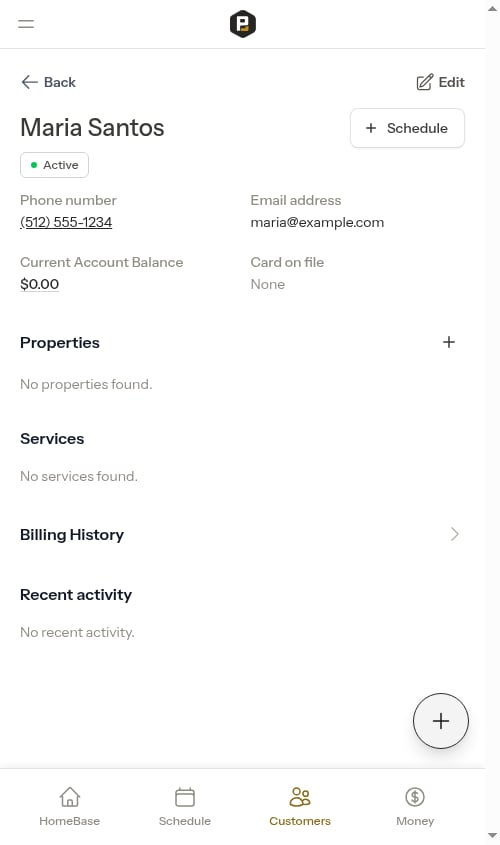
The top card shows your customer's contact details and account status at a glance:
* Phone number and email address
* Customer status (Lead, Active, Recent, or Inactive)
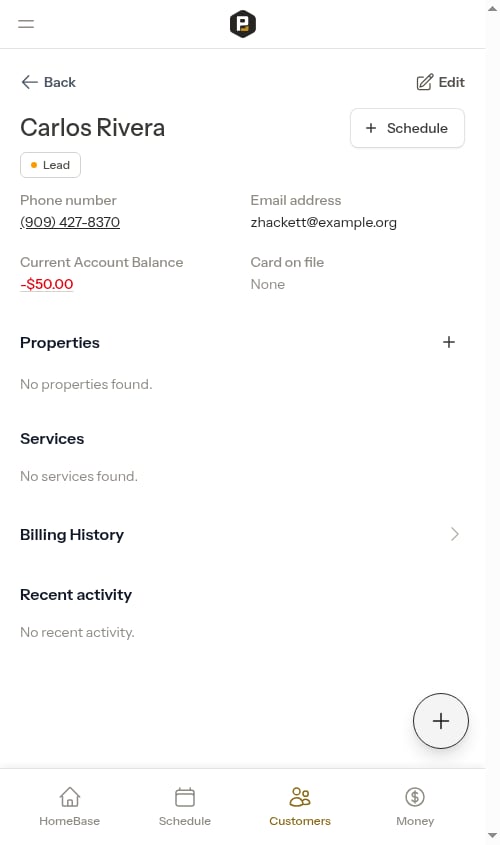
* Current account balance (click to open full billing history)
* Card on file (Probase does not store saved cards, so this currently always reads "None")
To edit customer information, click the **Edit** button in the top-right corner of the page. The Edit panel is also where you [archive a customer](/customers/archiving-customers) you no longer work with.
Use the **Schedule** button next to the customer's name to quickly create a new appointment without navigating away.
If a customer has been [archived](/customers/archiving-customers), their profile becomes read-only — the **Edit** and **Schedule** buttons are removed, but you can still review their full history and billing.
### Properties
See all properties associated with this customer:
* Property addresses
* Services active at each property
* Property-specific notes
## What you can see
### Customer details
The top card shows your customer's contact details and account status at a glance:
* Phone number and email address
* Customer status (Lead, Active, Recent, or Inactive)
* Current account balance (click to open full billing history)
* Card on file (Probase does not store saved cards, so this currently always reads "None")
To edit customer information, click the **Edit** button in the top-right corner of the page. The Edit panel is also where you [archive a customer](/customers/archiving-customers) you no longer work with.
Use the **Schedule** button next to the customer's name to quickly create a new appointment without navigating away.
If a customer has been [archived](/customers/archiving-customers), their profile becomes read-only — the **Edit** and **Schedule** buttons are removed, but you can still review their full history and billing.
### Properties
See all properties associated with this customer:
* Property addresses
* Services active at each property
* Property-specific notes
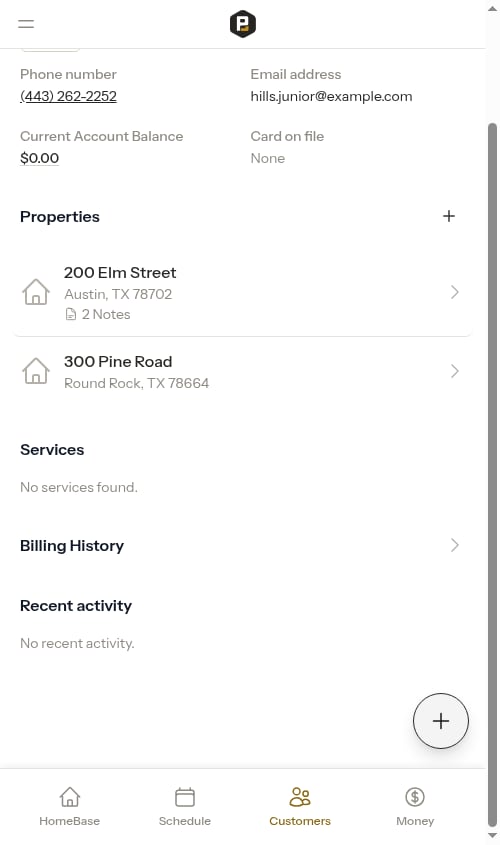 When a customer has a single property with notes, those **property notes appear inline** directly on the customer page below the property listing. Tap the **+** button in the Property Notes section to add a note without leaving the customer page. For customers with multiple properties, each property row shows a note count — click through to the property page to view or manage notes.
### Services
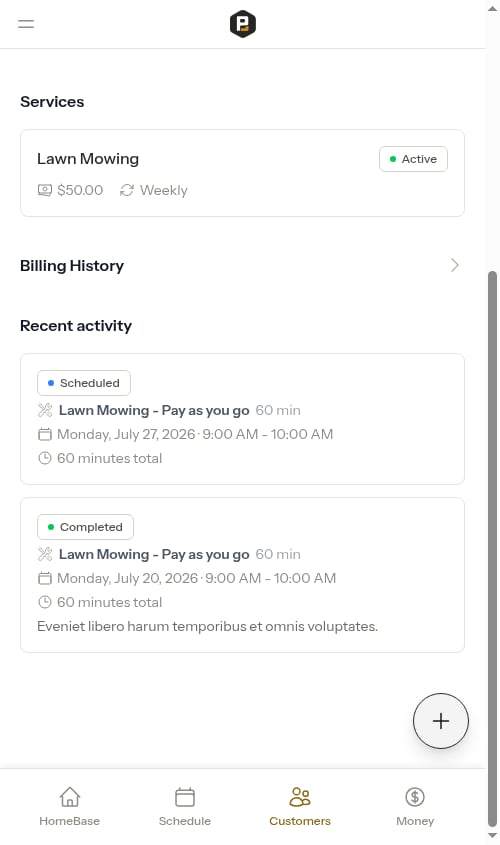
View all services for this customer:
* Active, assessment, and cancelled services
* Service details and pricing
* Upcoming appointments
Once a customer accepts the quote tied to an assessment, that assessment drops out of the services list — the resulting job already represents the same work, so the source assessment is hidden to keep the profile from showing both. Draft, sent, and declined assessments remain in the list.
### Billing
Click the balance amount shown in the top card to open the customer's full billing history. A **Billing History** link row also appears below the services section as a second way to reach the same page.
When a customer has a single property with notes, those **property notes appear inline** directly on the customer page below the property listing. Tap the **+** button in the Property Notes section to add a note without leaving the customer page. For customers with multiple properties, each property row shows a note count — click through to the property page to view or manage notes.
### Services
View all services for this customer:
* Active, assessment, and cancelled services
* Service details and pricing
* Upcoming appointments
Once a customer accepts the quote tied to an assessment, that assessment drops out of the services list — the resulting job already represents the same work, so the source assessment is hidden to keep the profile from showing both. Draft, sent, and declined assessments remain in the list.
### Billing
Click the balance amount shown in the top card to open the customer's full billing history. A **Billing History** link row also appears below the services section as a second way to reach the same page.
 See [Customer balances](/billing/customer-balances) for details on managing charges, credits, and payments.
### Notes
Customer notes are accessed through the **Edit** modal. Click the **Edit** button on the customer page to open the edit modal, where you can view all notes and add new ones. Notes can include text, formatting, and file attachments.
See [Adding notes](/customers/adding-notes) for details on creating and managing notes.
### Recent activity
See recent and upcoming appointments for this customer:
* Completed appointments (full history, most recent first)
* Upcoming scheduled appointments within the next 14 days
* Service name and property address for each appointment
* Appointment status (Completed, Scheduled, etc.)
* Quick access to view appointment details
This section helps you quickly see what work has been done recently and what's coming up, without navigating through individual services.
See [Customer balances](/billing/customer-balances) for details on managing charges, credits, and payments.
### Notes
Customer notes are accessed through the **Edit** modal. Click the **Edit** button on the customer page to open the edit modal, where you can view all notes and add new ones. Notes can include text, formatting, and file attachments.
See [Adding notes](/customers/adding-notes) for details on creating and managing notes.
### Recent activity
See recent and upcoming appointments for this customer:
* Completed appointments (full history, most recent first)
* Upcoming scheduled appointments within the next 14 days
* Service name and property address for each appointment
* Appointment status (Completed, Scheduled, etc.)
* Quick access to view appointment details
This section helps you quickly see what work has been done recently and what's coming up, without navigating through individual services.