> ## Documentation Index
> Fetch the complete documentation index at: https://docs.probaseapp.com/llms.txt
> Use this file to discover all available pages before exploring further.
# Customer payment portal
> Give customers access to view their invoices and pay online
## Overview
The customer payment portal is a simple, secure page where customers can view their invoices, see all charges, add a tip, and pay online with a credit card. Each customer gets a unique payment link that you can share via text or email. No login is required — customers just open the link.
To accept online payments, you'll need to [connect your Stripe account](/billing/stripe-setup) first. Without Stripe, customers can still view their invoices but can't complete payments online.
## How it works
1. You send a payment link to a customer (using the **Send Invoice** button)
2. Customer opens the link (no login required)
3. Customer sees a list of their invoices
4. Customer clicks an invoice to view the full breakdown
5. For eligible invoices, the customer is first shown a **service review page** where they can rate the service and optionally add a tip
6. Customer enters their card details and completes payment (when Stripe is connected)
7. Payment is processed and applied to the invoice automatically
## Send a payment link
From the **Money** page, click on an invoice to open it. Or from a customer's profile, find the invoice in the **Invoices** section.
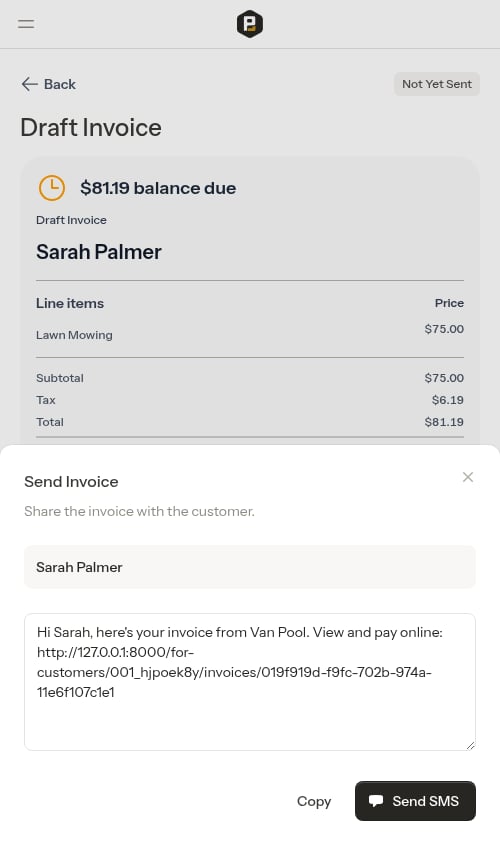
Tap **Send Invoice**. This sends the invoice and opens the SMS sharing modal.
A pre-filled message is ready with the customer's unique payment link. Either:
* Tap **Send SMS** to open your messaging app with the message ready to send (shown when a phone number is on file)
* Tap **Copy Message** to copy the message to your clipboard (shown when no phone number is on file)
* Tap **Copy** to copy the message — including the payment link — to your clipboard
 The payment link shows real-time data. When you add charges or credits to the customer's account, the balance on the payment page updates automatically.
## What customers see
### Invoice list
When customers open their payment link, they see a list of their invoices and service reports. Each entry in the list shows one of the following:
**Invoices** (with a dollar amount):
* **Unpaid** — balance is outstanding
* **Partially paid** — a payment has been made but the full balance is not yet covered (shows the remaining amount owed alongside the original total)
* **Paid** — fully settled
**Service reports** (no dollar amount):
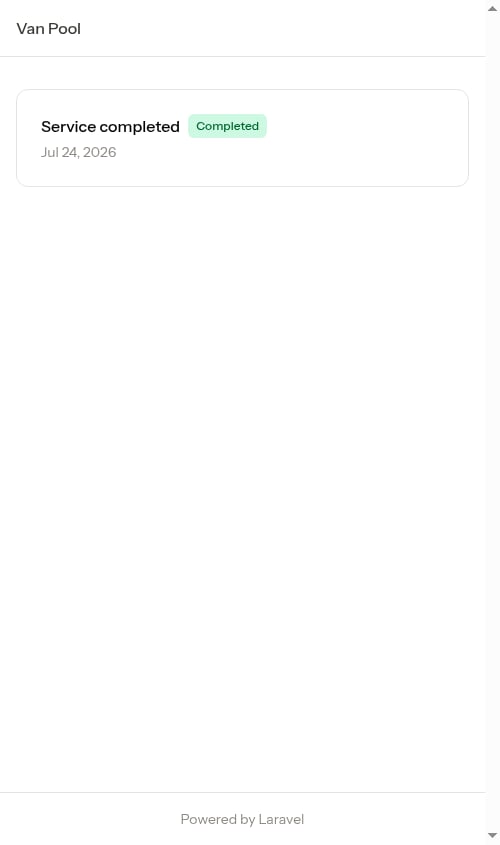
* **Completed** — a \$0 service visit from a subscription service. No payment is required; tapping it shows the service details.
They can tap any item to view details and, for invoices, complete payment.
If a customer has no invoices or service reports, they see a "You're all set!" confirmation message.
The payment link shows real-time data. When you add charges or credits to the customer's account, the balance on the payment page updates automatically.
## What customers see
### Invoice list
When customers open their payment link, they see a list of their invoices and service reports. Each entry in the list shows one of the following:
**Invoices** (with a dollar amount):
* **Unpaid** — balance is outstanding
* **Partially paid** — a payment has been made but the full balance is not yet covered (shows the remaining amount owed alongside the original total)
* **Paid** — fully settled
**Service reports** (no dollar amount):
* **Completed** — a \$0 service visit from a subscription service. No payment is required; tapping it shows the service details.
They can tap any item to view details and, for invoices, complete payment.
If a customer has no invoices or service reports, they see a "You're all set!" confirmation message.
 ### Service reports
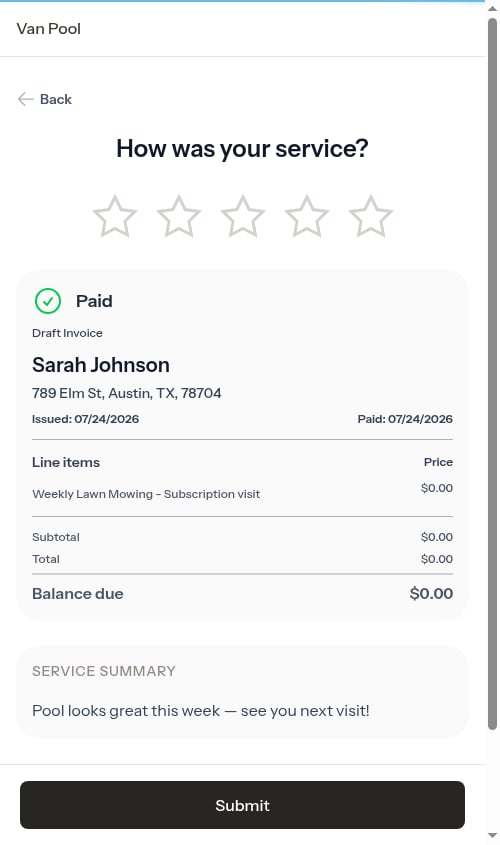
When you complete a subscription service appointment at no charge (for example, a visit included in a flat-rate monthly plan), customers see a **"Service completed"** entry in their portal. Before viewing the service details, customers are shown a quick **"How was your service?"** page where they can rate the experience and optionally add a tip. Tips on service reports work the same way as on invoices — the tip selector only appears once the customer rates, with three percentage presets plus an **Other** option for a custom dollar amount.
### Service reports
When you complete a subscription service appointment at no charge (for example, a visit included in a flat-rate monthly plan), customers see a **"Service completed"** entry in their portal. Before viewing the service details, customers are shown a quick **"How was your service?"** page where they can rate the experience and optionally add a tip. Tips on service reports work the same way as on invoices — the tip selector only appears once the customer rates, with three percentage presets plus an **Other** option for a custom dollar amount.
 After rating (or if the service isn't eligible for review), they see the full service report:
* An **AI-generated service summary** describing the work performed in plain language (when available)
* The service name and property address for each appointment
* The date of each visit
* Photos taken during the job
After rating (or if the service isn't eligible for review), they see the full service report:
* An **AI-generated service summary** describing the work performed in plain language (when available)
* The service name and property address for each appointment
* The date of each visit
* Photos taken during the job
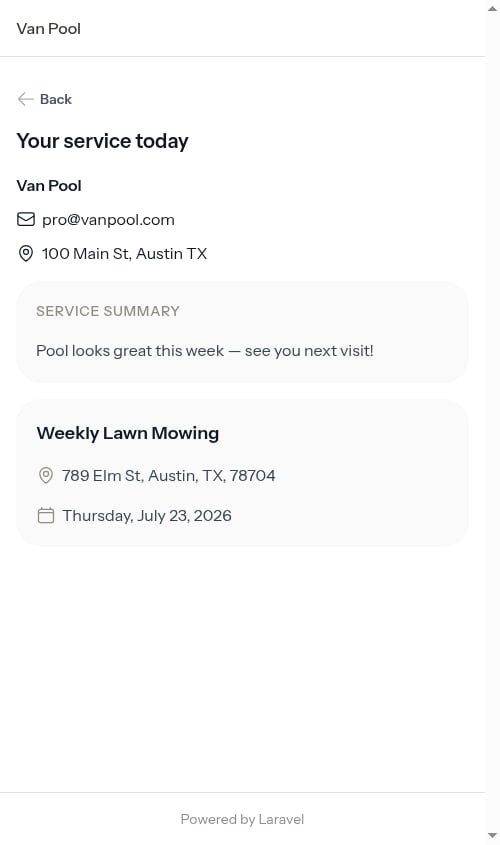 The AI summary is written automatically from the notes your crew enters when completing the appointment. It gives customers a clear, readable account of the visit without exposing your internal notes. This gives customers a record of every visit, even when no invoice is generated.
### Checklist Service Report
If you use [checklists](/checklists/overview) and mark items to include in the customer summary, those filled-in items appear as a **Service Report** — showing the readings, completed tasks, and even a customer signature (labeled **Signed by customer**) captured on the visit. On the invoice, the Service Report is folded into the **Service Summary** card at the bottom of the page, appearing directly beneath the summary text and after-photos.
The AI summary is written automatically from the notes your crew enters when completing the appointment. It gives customers a clear, readable account of the visit without exposing your internal notes. This gives customers a record of every visit, even when no invoice is generated.
### Checklist Service Report
If you use [checklists](/checklists/overview) and mark items to include in the customer summary, those filled-in items appear as a **Service Report** — showing the readings, completed tasks, and even a customer signature (labeled **Signed by customer**) captured on the visit. On the invoice, the Service Report is folded into the **Service Summary** card at the bottom of the page, appearing directly beneath the summary text and after-photos.
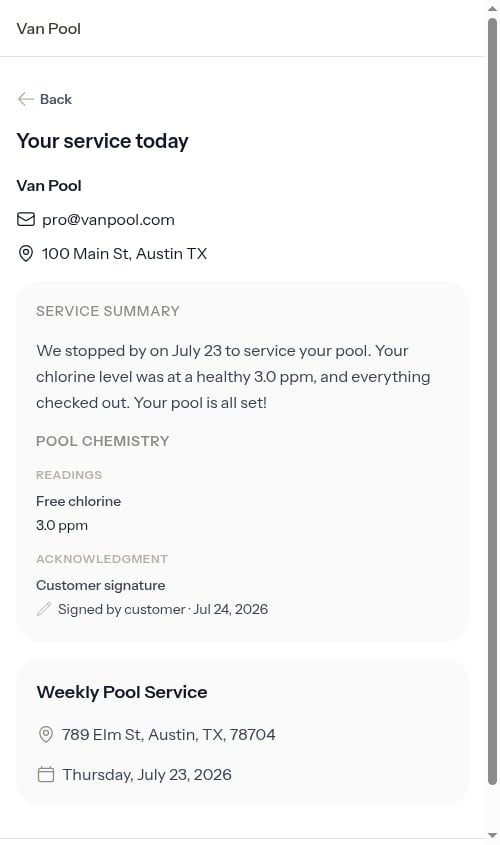 This gives customers a professional, itemized record of exactly what was done. You control which items appear when you build the checklist — see [The customer Service Report](/checklists/completing-checklists#the-customer-service-report).
### Service review
For invoices tied to a completed service appointment, customers are first shown a **"How was your service?"** page before they can pay. This gives them a chance to rate their experience, optionally add a tip, and preview the full invoice they're about to pay.
This gives customers a professional, itemized record of exactly what was done. You control which items appear when you build the checklist — see [The customer Service Report](/checklists/completing-checklists#the-customer-service-report).
### Service review
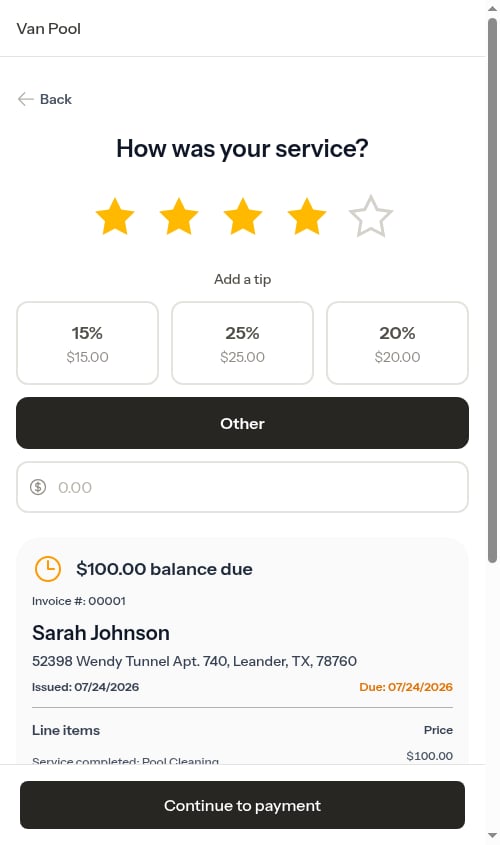
For invoices tied to a completed service appointment, customers are first shown a **"How was your service?"** page before they can pay. This gives them a chance to rate their experience, optionally add a tip, and preview the full invoice they're about to pay.
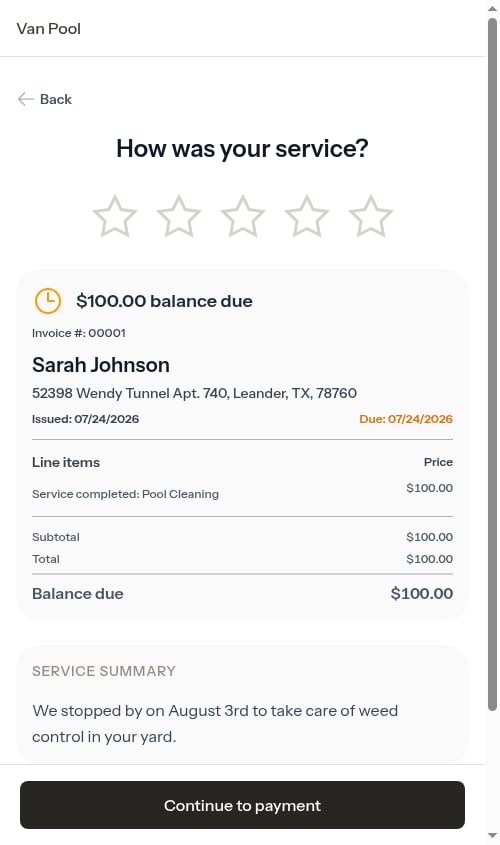 The page is laid out as a single, scrolling experience:
1. **Star rating at the top.** Customers tap 1–5 stars to rate their service. No tip selector is shown until a rating is chosen.
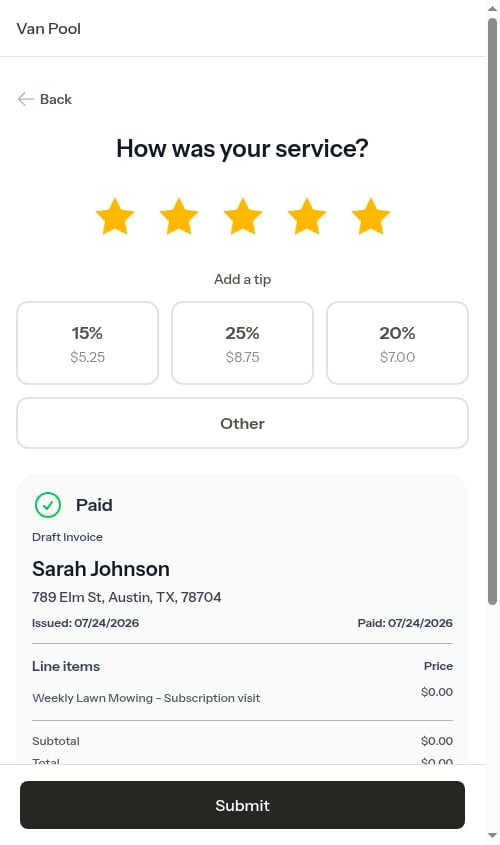
2. **Tip selector (appears after rating).** Once the customer rates, three preset percentage buttons appear — **15%**, **25%**, and **20%** — alongside a full-width **Other** button for a custom dollar amount. Nothing is pre-selected, so customers who don't want to tip simply leave the section untouched.
3. **Balance Due card.** Directly below the tip selector, customers see the same **Balance Due** card they'd see on the payment page — their name and billing address, invoice number and dates, line items, totals, and the balance due. They can preview exactly what they're about to pay before continuing.
4. **Service Summary card.** Below the Balance Due card sits a separate **Service Summary** card (when there's anything to show) — the plain-language summary of the work, any after-photos, and the checklist [Service Report](#checklist-service-report). This card always renders last, beneath the balance and payment area.
5. **Floating "Continue to payment" button.** The CTA sticks to the bottom of the screen on mobile and desktop so it's always within reach.
The page is laid out as a single, scrolling experience:
1. **Star rating at the top.** Customers tap 1–5 stars to rate their service. No tip selector is shown until a rating is chosen.
2. **Tip selector (appears after rating).** Once the customer rates, three preset percentage buttons appear — **15%**, **25%**, and **20%** — alongside a full-width **Other** button for a custom dollar amount. Nothing is pre-selected, so customers who don't want to tip simply leave the section untouched.
3. **Balance Due card.** Directly below the tip selector, customers see the same **Balance Due** card they'd see on the payment page — their name and billing address, invoice number and dates, line items, totals, and the balance due. They can preview exactly what they're about to pay before continuing.
4. **Service Summary card.** Below the Balance Due card sits a separate **Service Summary** card (when there's anything to show) — the plain-language summary of the work, any after-photos, and the checklist [Service Report](#checklist-service-report). This card always renders last, beneath the balance and payment area.
5. **Floating "Continue to payment" button.** The CTA sticks to the bottom of the screen on mobile and desktop so it's always within reach.
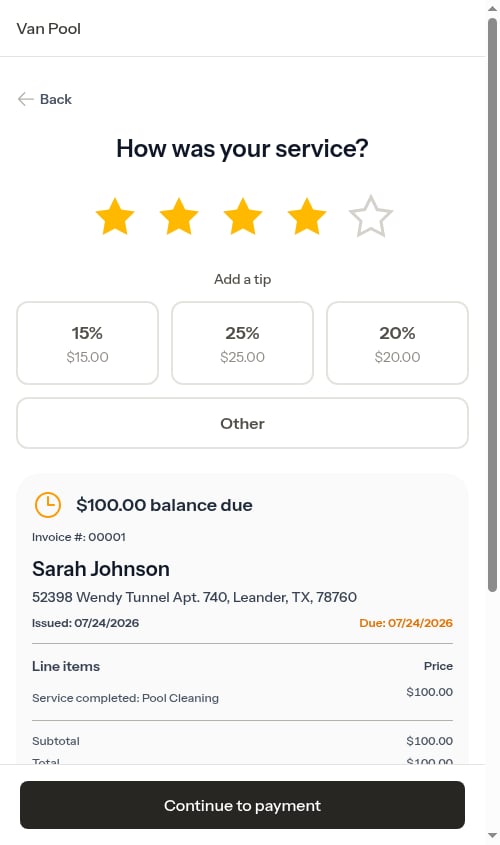 If a customer wants to enter a custom tip amount, they tap **Other** to reveal a dollar-amount input.
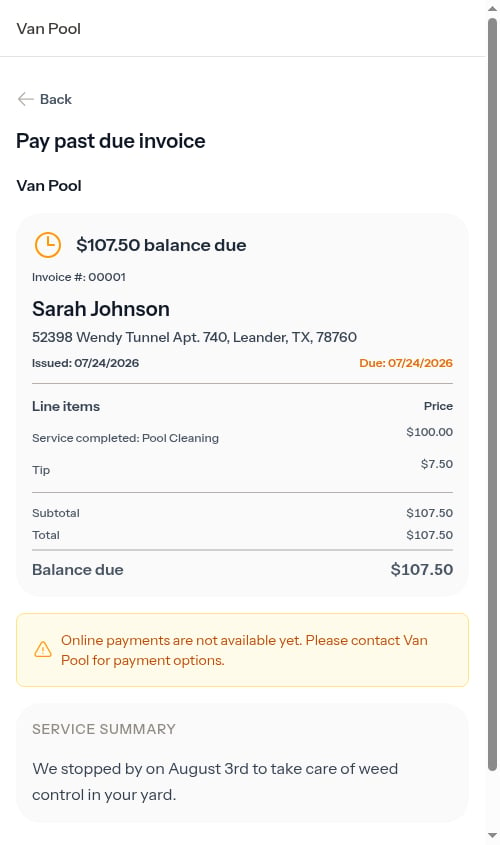
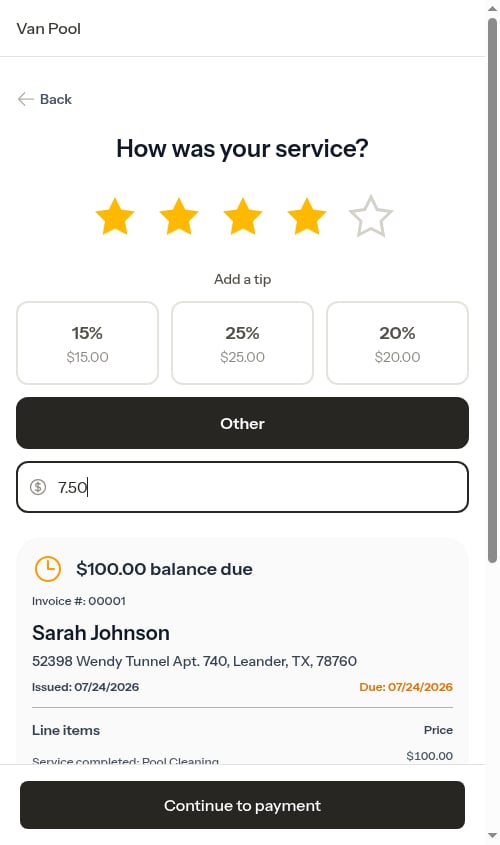 Once the customer taps **Continue to payment**, their rating is saved, the tip (if any) is added as a line item to the invoice, and they're taken to the payment page. The chosen tip carries through to the invoice — they won't be asked to pick a tip again.
 If an invoice is not eligible for review (for example, if the customer has already rated it or already paid), they go directly to the invoice payment page.
 ### Invoice detail and payment
When a customer opens an individual invoice, the page is laid out top-to-bottom as:
* Your business information (logo, name, address, phone, email, and website — whatever you've configured in Business Profile settings) shown above the cards
* A **Balance Due** card with their name and billing address, invoice number and dates (issued, due), all line items with titles and quantity, any carried-forward charges from previous invoices, and the totals (subtotal, tax, any credits applied, total, and balance due)
* The **payment form** (when Stripe is connected and a balance is owed)
* A separate **Service Summary** card at the bottom (when available) with an AI-generated description of what was done, any after-photos your crew uploaded during job completion, and — when a checklist is set to show on the invoice — the checklist **Service Report** items right below
After-photos render as a 3-column grid of thumbnails directly under the summary text. Customers can tap any thumbnail to open the full-size image in a new tab.
Line items show the quantity inline (e.g., `QTY: 2`). When a quantity is greater than 1, the unit price is shown below the item name and the total for that line is shown separately — giving customers a transparent breakdown.
If the invoice is overdue, the page title shows "Pay past due invoice."
The tip the customer picked on the review screen is already applied as a line item on the invoice, so the payment page doesn't ask them to choose a tip a second time — they go straight to entering their card details.
### Payment form
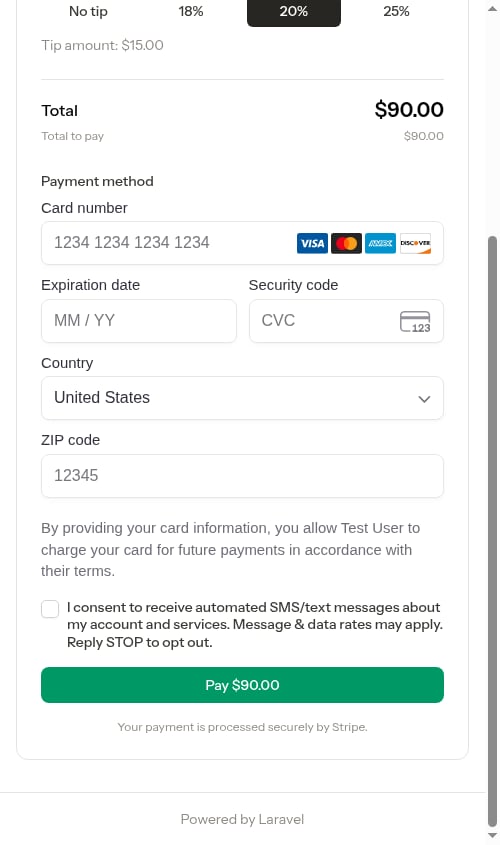
When Stripe is connected, customers see a secure payment form where they can enter their credit card details and complete payment.
### Invoice detail and payment
When a customer opens an individual invoice, the page is laid out top-to-bottom as:
* Your business information (logo, name, address, phone, email, and website — whatever you've configured in Business Profile settings) shown above the cards
* A **Balance Due** card with their name and billing address, invoice number and dates (issued, due), all line items with titles and quantity, any carried-forward charges from previous invoices, and the totals (subtotal, tax, any credits applied, total, and balance due)
* The **payment form** (when Stripe is connected and a balance is owed)
* A separate **Service Summary** card at the bottom (when available) with an AI-generated description of what was done, any after-photos your crew uploaded during job completion, and — when a checklist is set to show on the invoice — the checklist **Service Report** items right below
After-photos render as a 3-column grid of thumbnails directly under the summary text. Customers can tap any thumbnail to open the full-size image in a new tab.
Line items show the quantity inline (e.g., `QTY: 2`). When a quantity is greater than 1, the unit price is shown below the item name and the total for that line is shown separately — giving customers a transparent breakdown.
If the invoice is overdue, the page title shows "Pay past due invoice."
The tip the customer picked on the review screen is already applied as a line item on the invoice, so the payment page doesn't ask them to choose a tip a second time — they go straight to entering their card details.
### Payment form
When Stripe is connected, customers see a secure payment form where they can enter their credit card details and complete payment.
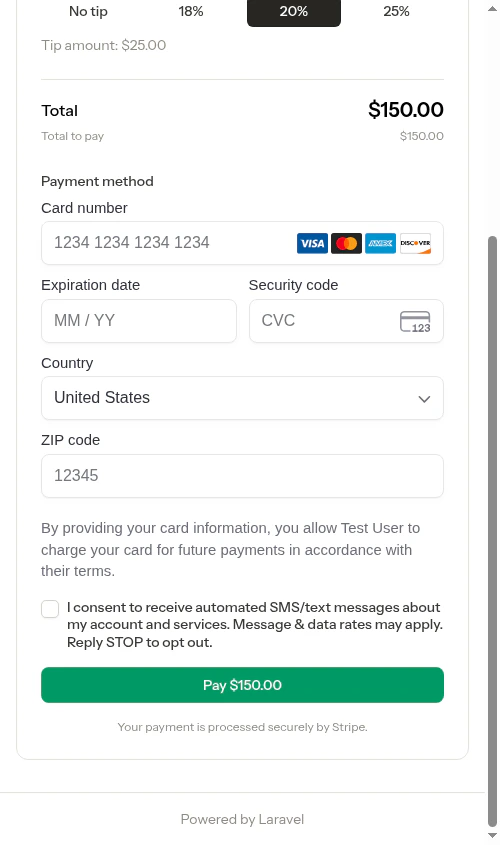
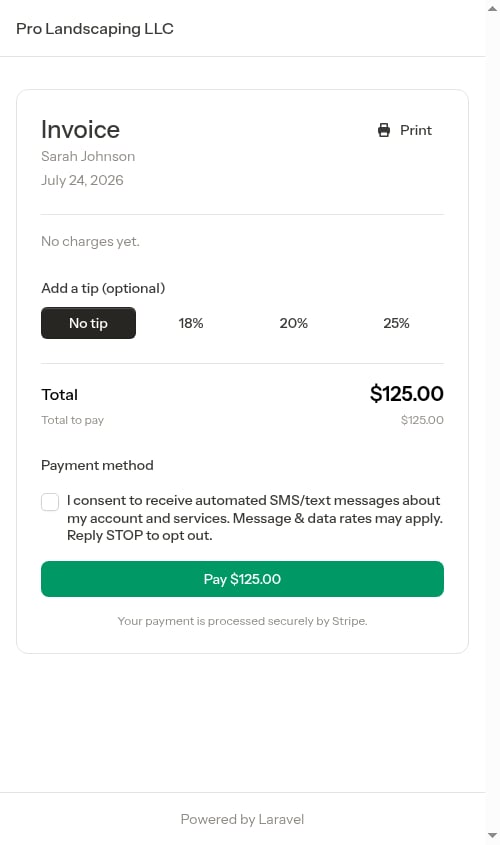 The payment form is powered by Stripe and is fully PCI-compliant. Card details are never sent to Probase — they go directly to Stripe's secure servers.
### Communication consent (optional)
Customers may be asked to consent to receive text message communications about their account and services. This consent is optional and not required to complete payment.
The payment form is powered by Stripe and is fully PCI-compliant. Card details are never sent to Probase — they go directly to Stripe's secure servers.
### Communication consent (optional)
Customers may be asked to consent to receive text message communications about their account and services. This consent is optional and not required to complete payment.
 ### When Stripe isn't connected
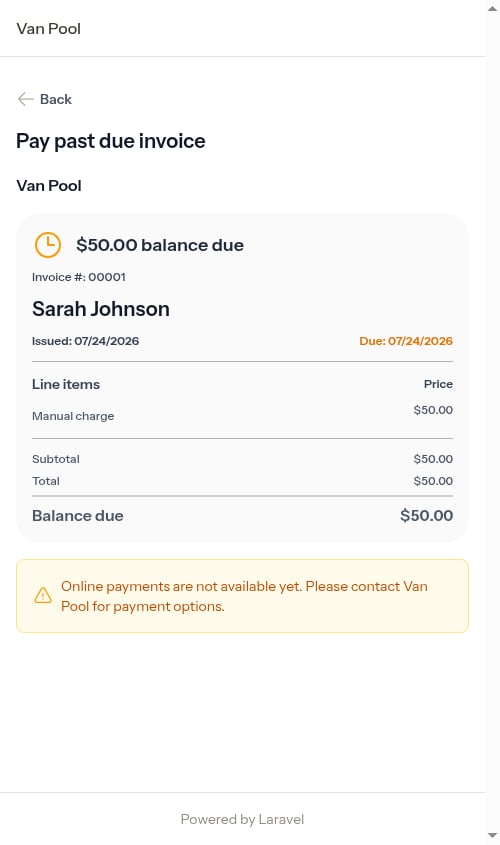
If you haven't connected Stripe yet, customers will see a message that online payments aren't available.
### When Stripe isn't connected
If you haven't connected Stripe yet, customers will see a message that online payments aren't available.
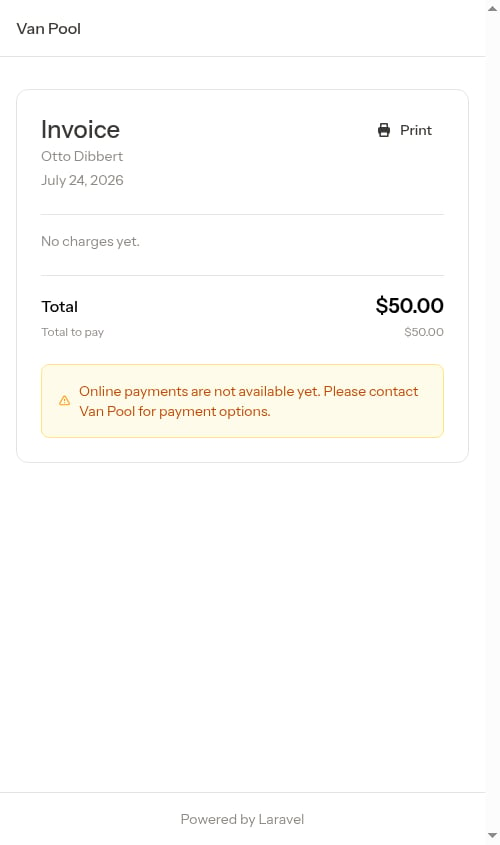 They can still view their invoices and charges, but they'll need to contact you directly to arrange payment.
## Quote links
In addition to payment links, you can also share **quote links** with customers. A quote link lets customers view the full quote details and approve or decline it on their own — no login required.
When a quote is in **Sent** status, a customer quote link appears on the quote detail page in Probase. Copy and share that link via text, email, or any other method. Customers can:
* Review the quote details and full pricing breakdown — base service, any additional line items, subtotal, tax, and total
* Tap **Approve** to accept the quote (the confirmation shows the full total including line items and tax)
* Tap **Decline** and select a reason (Too expensive, Found another provider, etc.)
If the quote has a valid-until date that has passed, customers see an expiration notice and are prompted to contact you for an updated quote.
See [Managing quotes](/customers/managing-quotes) for full details including screenshots of the customer quote experience.
## Best practices
* **Send after completing work** — Use the Send Invoice action right after finishing a job to let the customer see their charge and pay
* **Follow up on overdue invoices** — Re-share the link when following up on outstanding balances
* **Let customers bookmark it** — The link never expires, so customers can return anytime to check their balance
They can still view their invoices and charges, but they'll need to contact you directly to arrange payment.
## Quote links
In addition to payment links, you can also share **quote links** with customers. A quote link lets customers view the full quote details and approve or decline it on their own — no login required.
When a quote is in **Sent** status, a customer quote link appears on the quote detail page in Probase. Copy and share that link via text, email, or any other method. Customers can:
* Review the quote details and full pricing breakdown — base service, any additional line items, subtotal, tax, and total
* Tap **Approve** to accept the quote (the confirmation shows the full total including line items and tax)
* Tap **Decline** and select a reason (Too expensive, Found another provider, etc.)
If the quote has a valid-until date that has passed, customers see an expiration notice and are prompted to contact you for an updated quote.
See [Managing quotes](/customers/managing-quotes) for full details including screenshots of the customer quote experience.
## Best practices
* **Send after completing work** — Use the Send Invoice action right after finishing a job to let the customer see their charge and pay
* **Follow up on overdue invoices** — Re-share the link when following up on outstanding balances
* **Let customers bookmark it** — The link never expires, so customers can return anytime to check their balance