> ## Documentation Index
> Fetch the complete documentation index at: https://docs.probaseapp.com/llms.txt
> Use this file to discover all available pages before exploring further.
# Managing customer services
> View, edit, and manage services for your customers
## What are services?
Services are the work you perform for customers at their properties. Each service includes pricing, billing details, schedule information, and a history of all related appointments.
## Viewing service details
To view a service:
1. Go to **Customers** in the sidebar
2. Click on a customer name
3. Click on a property address
4. Click on a service name
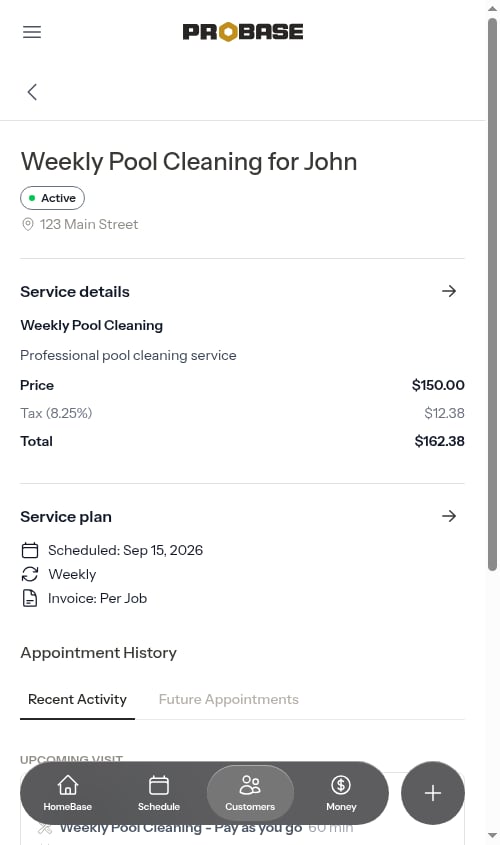
The service details page shows all information about the service in organized sections.
 Services that came from a connected marketplace work differently — they're read-only, carry a **Managed in LawnStarter** (or Lawn Love / Home Gnome) tag, and can't be re-priced, rescheduled, or cancelled from ProBase. Their page has no **Service plan** section at all; instead, **Service details** shows a read-only **Frequency** row with the marketplace's own cadence, and the amount is labelled **Payout** — what the marketplace pays *you* per visit. See [Marketplace customers](/marketplace/marketplace-customers#the-service-page).
## Service information sections
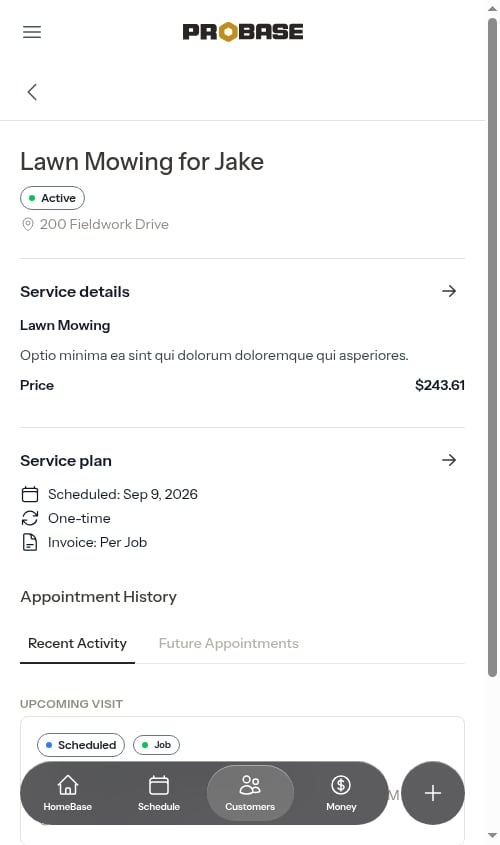
The service details page is organized into two main sections below the header:
### Service details
Shows pricing and core service information:
* **Service name** — What you call this service
* **Description** — Details about what's included (if provided). When the job came from an accepted [quote](/customers/managing-quotes), the description is copied across with its formatting intact, so bullets and bold text you wrote on the quote read the same here
* **Price** — What the customer pays per service or per billing period
* **Tax** and **Total** — If a tax rate is configured, the tax amount and total are displayed
Tap the **→** button in the top-right of this section to open the **Change Pricing** modal and update the price or tax rate.
### Service plan
Shows scheduling and billing configuration:
* **Next scheduled appointment** — The date of the next upcoming visit (if one exists)
* **How often the service repeats** — One-time, Weekly, Bi-weekly, Monthly, Every 2 months, Quarterly, or Every 6 months
* **How the customer is billed** — *Invoice: Per Job* on a per-service service, or the subscription interval (*Invoice: Monthly*, and so on)
Tap the **→** button in the top-right of this section to open the **Change Schedule** modal and update the service name, description, industry (trade), start date, end date, or frequency.
### Appointment History
Below the service plan, this service's appointments are organized into two tabs:
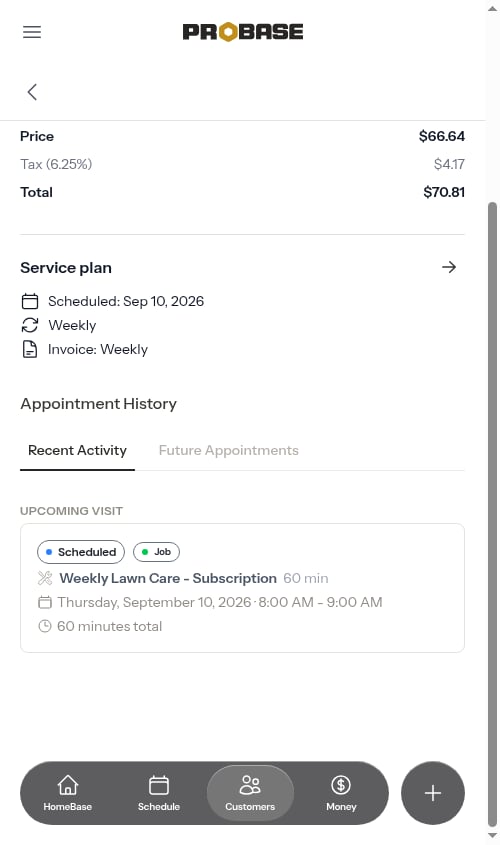
* **Recent Activity** — completed, rescheduled, skipped, and cancelled visits, with the next upcoming visit pinned at the top under an **Upcoming visit** label
* **Future Appointments** — every upcoming scheduled visit, soonest first
Services that came from a connected marketplace work differently — they're read-only, carry a **Managed in LawnStarter** (or Lawn Love / Home Gnome) tag, and can't be re-priced, rescheduled, or cancelled from ProBase. Their page has no **Service plan** section at all; instead, **Service details** shows a read-only **Frequency** row with the marketplace's own cadence, and the amount is labelled **Payout** — what the marketplace pays *you* per visit. See [Marketplace customers](/marketplace/marketplace-customers#the-service-page).
## Service information sections
The service details page is organized into two main sections below the header:
### Service details
Shows pricing and core service information:
* **Service name** — What you call this service
* **Description** — Details about what's included (if provided). When the job came from an accepted [quote](/customers/managing-quotes), the description is copied across with its formatting intact, so bullets and bold text you wrote on the quote read the same here
* **Price** — What the customer pays per service or per billing period
* **Tax** and **Total** — If a tax rate is configured, the tax amount and total are displayed
Tap the **→** button in the top-right of this section to open the **Change Pricing** modal and update the price or tax rate.
### Service plan
Shows scheduling and billing configuration:
* **Next scheduled appointment** — The date of the next upcoming visit (if one exists)
* **How often the service repeats** — One-time, Weekly, Bi-weekly, Monthly, Every 2 months, Quarterly, or Every 6 months
* **How the customer is billed** — *Invoice: Per Job* on a per-service service, or the subscription interval (*Invoice: Monthly*, and so on)
Tap the **→** button in the top-right of this section to open the **Change Schedule** modal and update the service name, description, industry (trade), start date, end date, or frequency.
### Appointment History
Below the service plan, this service's appointments are organized into two tabs:
* **Recent Activity** — completed, rescheduled, skipped, and cancelled visits, with the next upcoming visit pinned at the top under an **Upcoming visit** label
* **Future Appointments** — every upcoming scheduled visit, soonest first
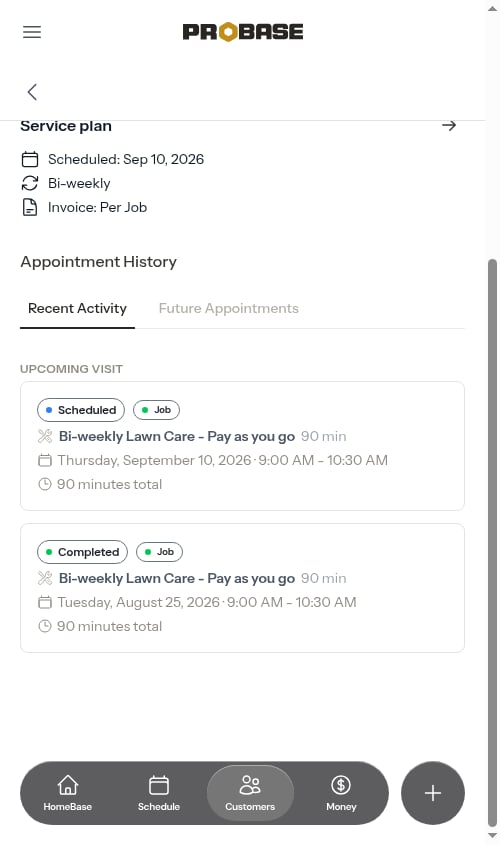 Each tab shows a few at a time with a **Show more** link to reveal the rest. For recurring services, the Future Appointments tab lists the whole pre-scheduled chain — see [How recurring visits are scheduled](/scheduling/future-visits).
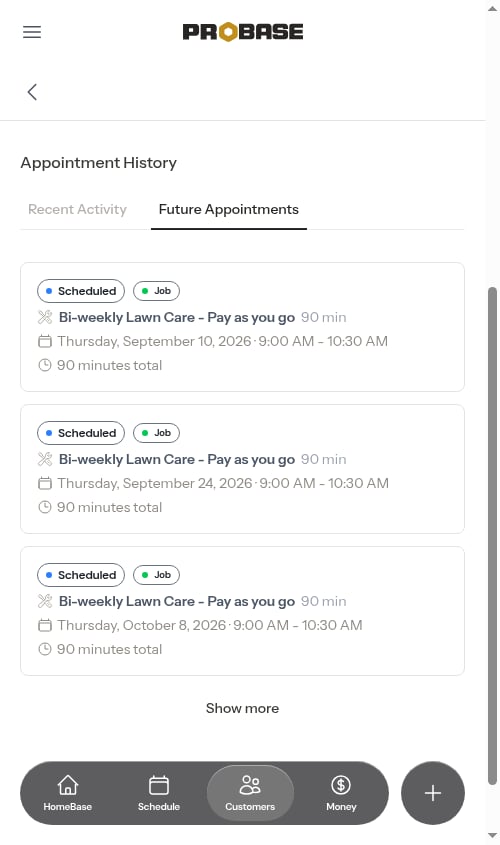 Click any appointment to open the appointment detail page.
## Viewing appointment details
When you click on an appointment, you'll see a dedicated appointment detail page.
Click any appointment to open the appointment detail page.
## Viewing appointment details
When you click on an appointment, you'll see a dedicated appointment detail page.
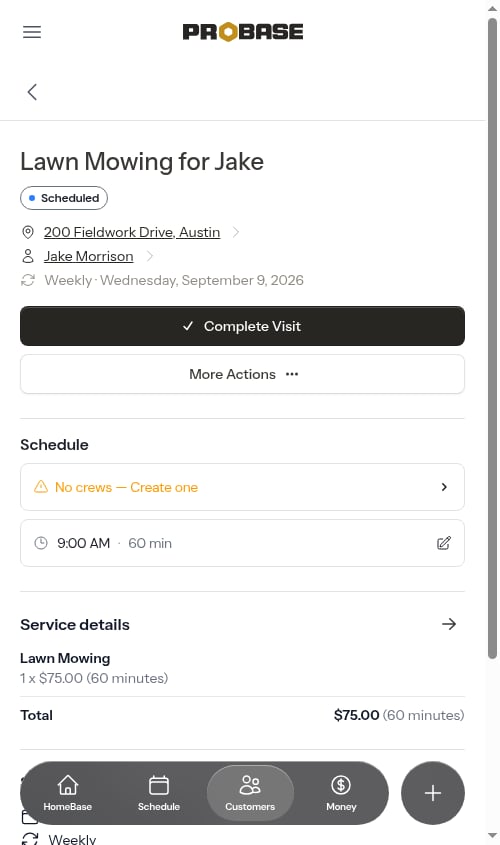 The page includes:
### Page Header
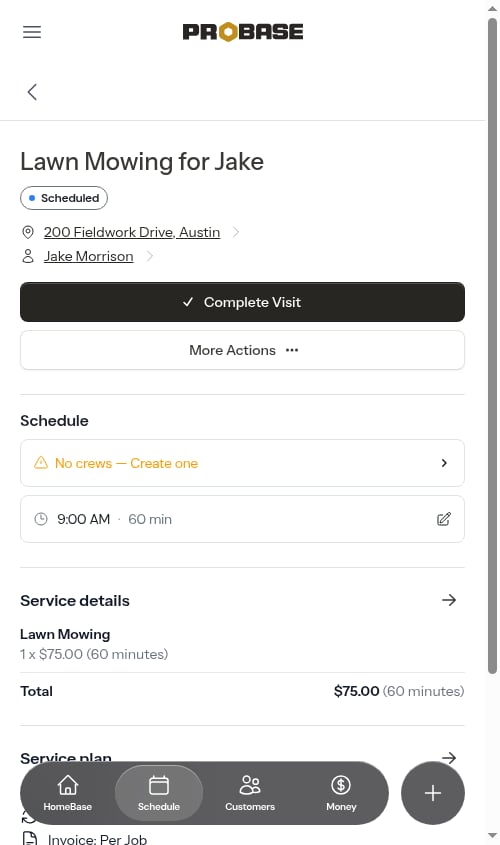
* Service name and customer first name
* Appointment status badge (Scheduled, Completed, Rescheduled, Cancelled, or Skipped) on its own row under the title
* A way back up: the breadcrumb trail across the top on a computer, or the **‹** back arrow in the row under the app bar on a phone (see [Going back](/getting-started/navigation#going-back))
### Quick Facts
Shows key information at a glance, and two of the lines are tappable shortcuts:
* **The property address** — always shown. Tap it to open the address sheet: a satellite map preview of the property, **Copy address**, **Get directions** in your chosen [maps app](/getting-started/maps-preference), and **Open property profile**
* **The customer's name** — on scheduled appointments. Tap it to open the contact sheet: **Call**, **Text message**, **Copy phone number**, **Email**, **Copy email**, and **Open customer profile**
* **How often the service repeats and this visit's date** — for example *Weekly · Monday, June 9, 2025*. Hidden on a visit that's due today
The page includes:
### Page Header
* Service name and customer first name
* Appointment status badge (Scheduled, Completed, Rescheduled, Cancelled, or Skipped) on its own row under the title
* A way back up: the breadcrumb trail across the top on a computer, or the **‹** back arrow in the row under the app bar on a phone (see [Going back](/getting-started/navigation#going-back))
### Quick Facts
Shows key information at a glance, and two of the lines are tappable shortcuts:
* **The property address** — always shown. Tap it to open the address sheet: a satellite map preview of the property, **Copy address**, **Get directions** in your chosen [maps app](/getting-started/maps-preference), and **Open property profile**
* **The customer's name** — on scheduled appointments. Tap it to open the contact sheet: **Call**, **Text message**, **Copy phone number**, **Email**, **Copy email**, and **Open customer profile**
* **How often the service repeats and this visit's date** — for example *Weekly · Monday, June 9, 2025*. Hidden on a visit that's due today
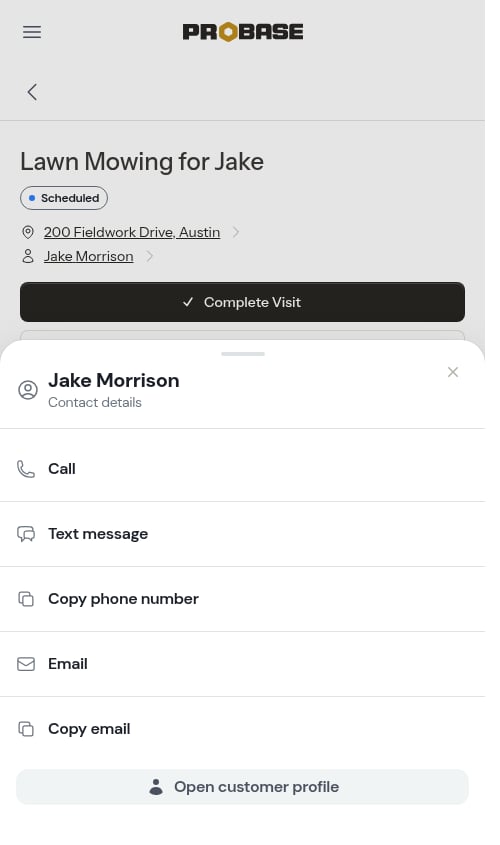
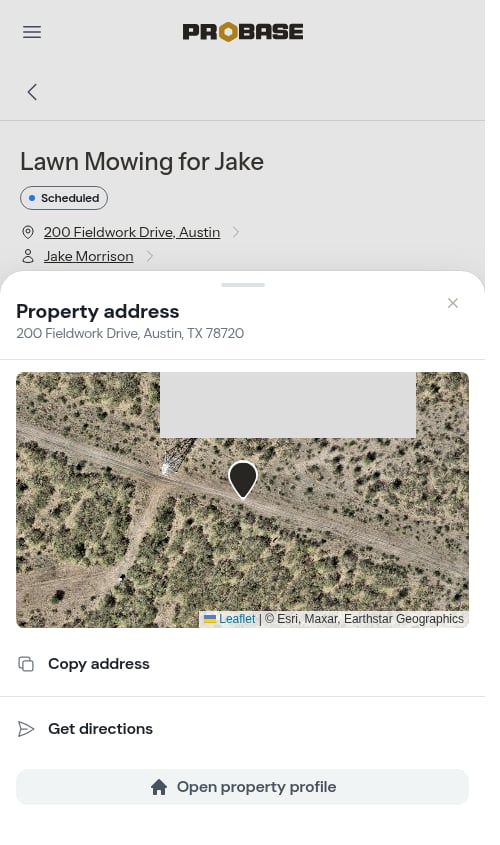 A row reads **Not provided** when there's no phone or email on file. If your role isn't allowed to see customer contact details, the sheet says so rather than listing the actions — see [Roles and permissions](/team/roles-and-permissions). Full details in [Viewing appointment details](/scheduling/creating-appointments#the-contact-sheet).
### Quick Actions
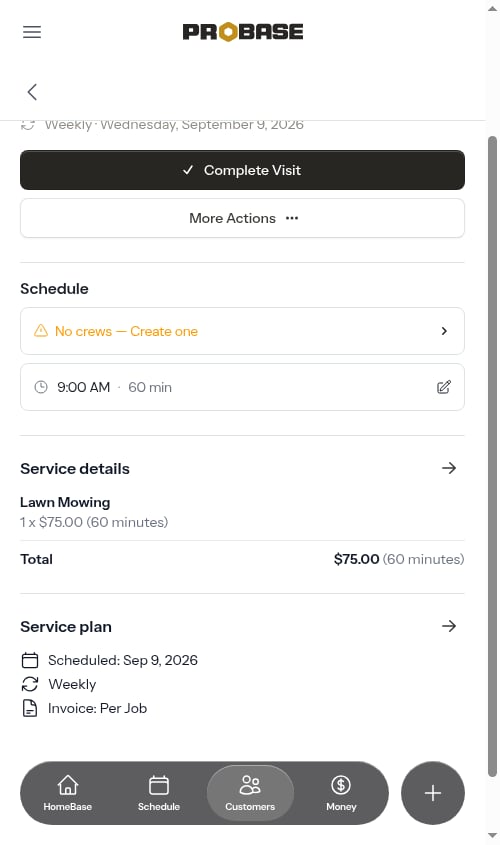
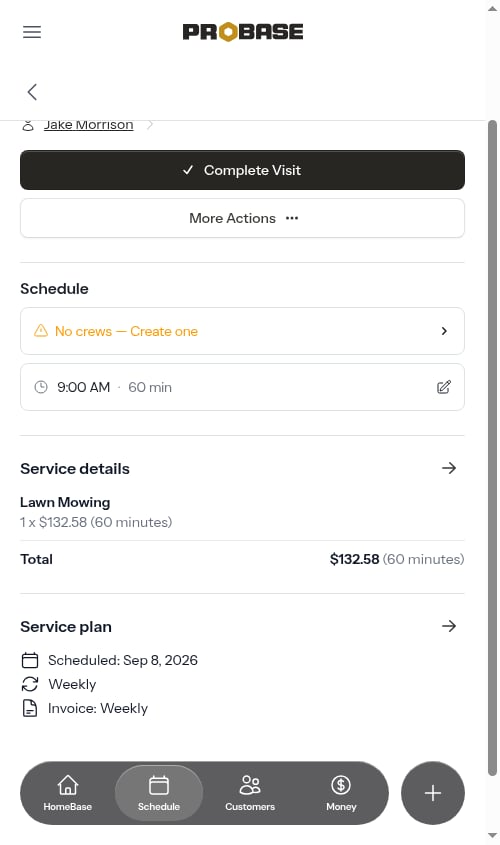
Every scheduled appointment shows the same two buttons — the one action you're most likely to want, and everything else tucked behind **More Actions**:
* **Complete Visit** — Opens the completion form to mark the work as finished. This is the primary button whether the visit is due today or still in the future
* **More Actions** — Slides up the **More actions** sheet with the rest of the options
A row reads **Not provided** when there's no phone or email on file. If your role isn't allowed to see customer contact details, the sheet says so rather than listing the actions — see [Roles and permissions](/team/roles-and-permissions). Full details in [Viewing appointment details](/scheduling/creating-appointments#the-contact-sheet).
### Quick Actions
Every scheduled appointment shows the same two buttons — the one action you're most likely to want, and everything else tucked behind **More Actions**:
* **Complete Visit** — Opens the completion form to mark the work as finished. This is the primary button whether the visit is due today or still in the future
* **More Actions** — Slides up the **More actions** sheet with the rest of the options
 **Inside the More actions sheet:**
* **Directions** — Opens turn-by-turn directions to the property in your chosen [maps app](/getting-started/maps-preference) (Google Maps or Apple Maps)
* **On my way** — Opens a pre-filled SMS to let the customer know you're heading over (appointments due today)
* **Send Confirmation** — Opens a pre-filled SMS to confirm the upcoming appointment (appointments scheduled for a future date)
* **Reschedule** — Moves the visit to another date
* **Skip** — Marks the visit as skipped (recurring services only)
* **Cancel** — Cancels the service, or just this appointment when the service is already cancelled
**Inside the More actions sheet:**
* **Directions** — Opens turn-by-turn directions to the property in your chosen [maps app](/getting-started/maps-preference) (Google Maps or Apple Maps)
* **On my way** — Opens a pre-filled SMS to let the customer know you're heading over (appointments due today)
* **Send Confirmation** — Opens a pre-filled SMS to confirm the upcoming appointment (appointments scheduled for a future date)
* **Reschedule** — Moves the visit to another date
* **Skip** — Marks the visit as skipped (recurring services only)
* **Cancel** — Cancels the service, or just this appointment when the service is already cancelled
 Actions you don't have permission to use simply aren't in the sheet — see [Roles and permissions](/team/roles-and-permissions).
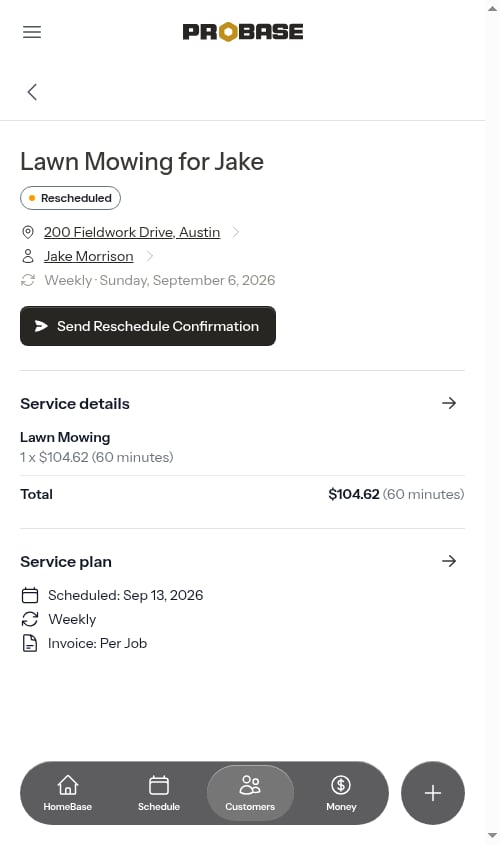
**When the appointment has been rescheduled:**
* **Send Reschedule Confirmation** — Opens a pre-filled SMS that references the new appointment's day, date, and time (or simply notes that a new date will follow if a replacement appointment hasn't been booked yet)
Actions you don't have permission to use simply aren't in the sheet — see [Roles and permissions](/team/roles-and-permissions).
**When the appointment has been rescheduled:**
* **Send Reschedule Confirmation** — Opens a pre-filled SMS that references the new appointment's day, date, and time (or simply notes that a new date will follow if a replacement appointment hasn't been booked yet)
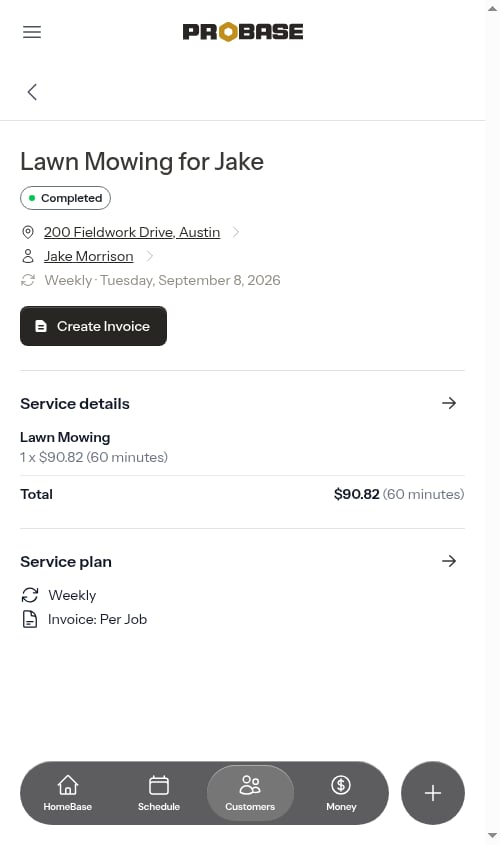
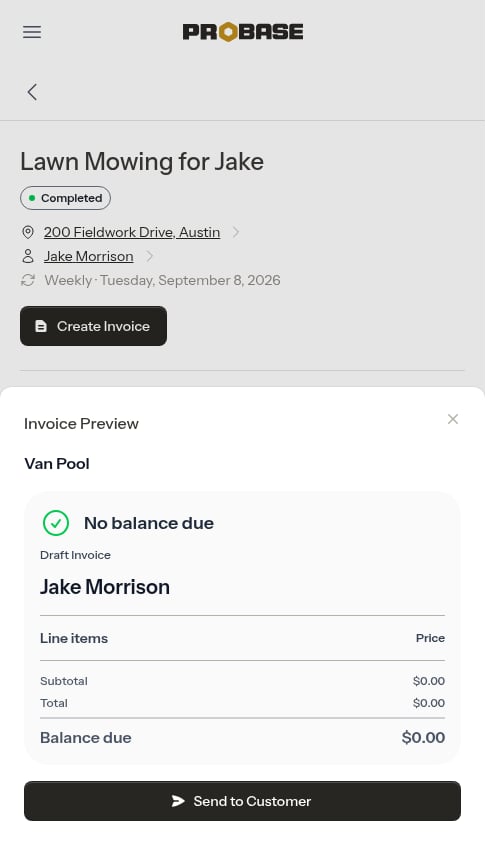
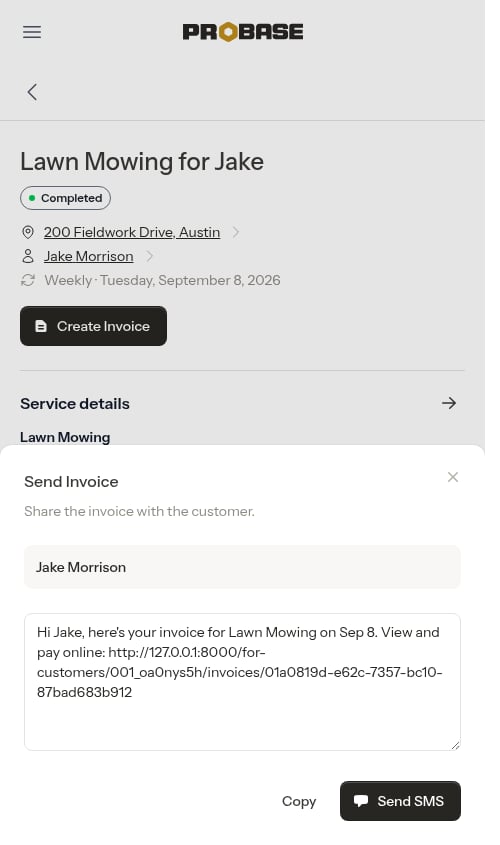
 **When a Job appointment is completed:**
* **Create Invoice** — Builds the invoice and opens a preview so you can review the charges before sending. Tap **Send to Customer** to mark the invoice as sent, then share the payment link via SMS.
**When a Job appointment is completed:**
* **Create Invoice** — Builds the invoice and opens a preview so you can review the charges before sending. Tap **Send to Customer** to mark the invoice as sent, then share the payment link via SMS.
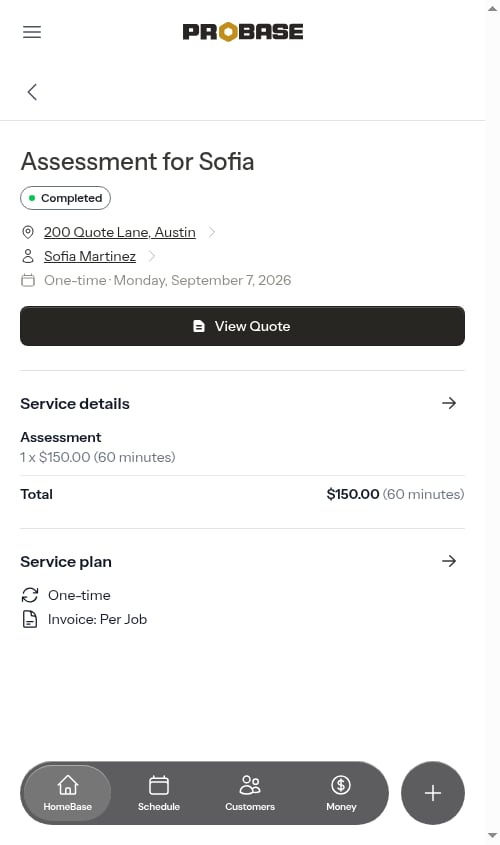
 **When an Assessment appointment is completed:**
* **View Quote** — Opens the quote created from this assessment (appears when a quote already exists)
* **Create Quote** — Starts the quote creation process for this assessment (appears when no quote has been created yet)
**When an Assessment appointment is completed:**
* **View Quote** — Opens the quote created from this assessment (appears when a quote already exists)
* **Create Quote** — Starts the quote creation process for this assessment (appears when no quote has been created yet)
 ### Schedule
Scheduled appointments have a **Schedule** section, just below the action buttons, holding the two things you control about the visit's timing:
* The **crew** row — tap it to assign or swap the crew (see [Assign or change the crew](/scheduling/creating-appointments#assign-or-change-the-crew))
* The **start time · duration** row, marked with a pencil icon — tap it to move the visit within the day or change how long you expect it to take
Once the visit is completed, rescheduled, skipped, or cancelled, the Schedule section drops away.
### Job Notes Summary
An AI-powered summary of all notes across the customer, property, and appointment — giving your crew a quick briefing before they arrive at the job site. Only shown when notes exist.
### Service Details
Shows the base service charge and any additional service items added to this appointment, with quantities and prices. A grand total of all charges and total duration appears at the bottom. Tap the **→** button to open the full service items page where you can add, edit, or remove line items.
### Service Plan
Shows the service frequency (one-time, weekly, bi-weekly, monthly, every 2 months, quarterly, or every 6 months), the next scheduled appointment date (if one exists), and the invoice type (per job or subscription interval).
## Scheduling appointments
### Schedule Appointment button
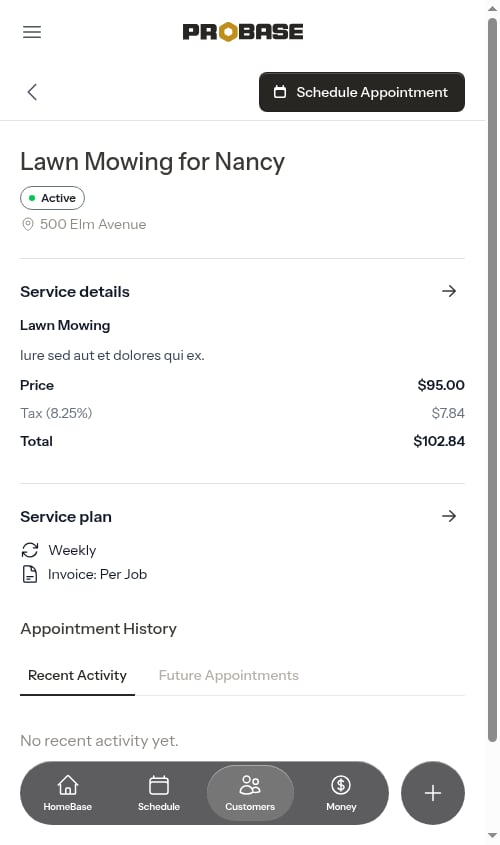
For active jobs that don't have an upcoming appointment scheduled, a **Schedule Appointment** button appears in the top-right of the service page header — on the breadcrumb row on a computer, and beside the **‹** back arrow on a phone.
### Schedule
Scheduled appointments have a **Schedule** section, just below the action buttons, holding the two things you control about the visit's timing:
* The **crew** row — tap it to assign or swap the crew (see [Assign or change the crew](/scheduling/creating-appointments#assign-or-change-the-crew))
* The **start time · duration** row, marked with a pencil icon — tap it to move the visit within the day or change how long you expect it to take
Once the visit is completed, rescheduled, skipped, or cancelled, the Schedule section drops away.
### Job Notes Summary
An AI-powered summary of all notes across the customer, property, and appointment — giving your crew a quick briefing before they arrive at the job site. Only shown when notes exist.
### Service Details
Shows the base service charge and any additional service items added to this appointment, with quantities and prices. A grand total of all charges and total duration appears at the bottom. Tap the **→** button to open the full service items page where you can add, edit, or remove line items.
### Service Plan
Shows the service frequency (one-time, weekly, bi-weekly, monthly, every 2 months, quarterly, or every 6 months), the next scheduled appointment date (if one exists), and the invoice type (per job or subscription interval).
## Scheduling appointments
### Schedule Appointment button
For active jobs that don't have an upcoming appointment scheduled, a **Schedule Appointment** button appears in the top-right of the service page header — on the breadcrumb row on a computer, and beside the **‹** back arrow on a phone.
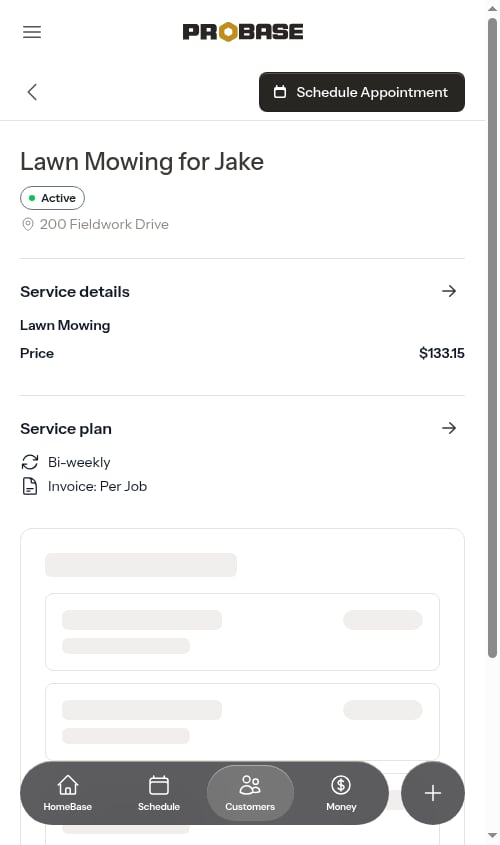 Tapping it opens a modal where you pick a date and a start time, and optionally assign a crew. The visit length is carried over from the service's previous appointment (defaulting to one hour).
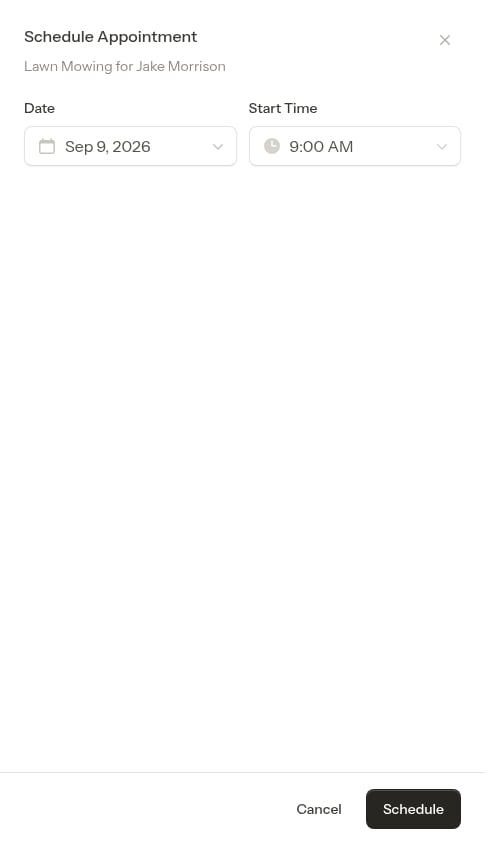 Once scheduled, the button is hidden and the appointment appears in the service's history.
 ## Service actions
### Change Pricing
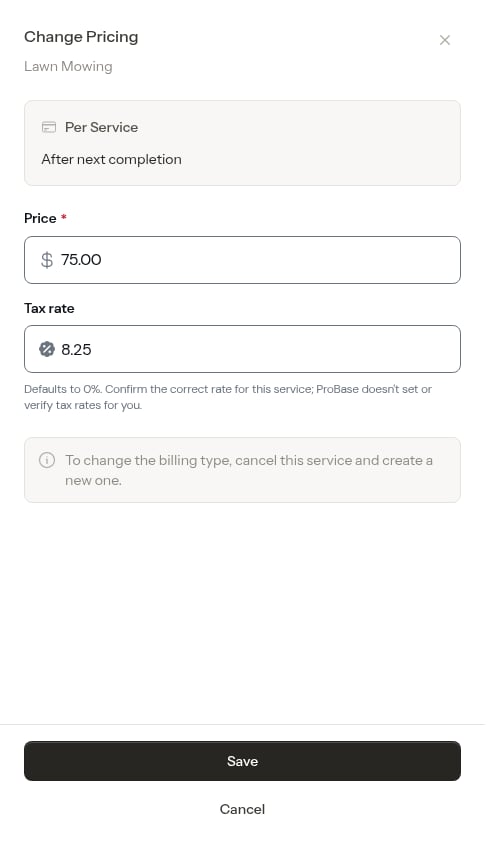
Tap the **→** button in the top-right of the **Service details** section to update the service's price and tax rate. A full-screen modal opens where you can:
* Update the **Price** (what the customer pays per service or per billing period)
* Update the **Tax rate** — entered as a number (e.g., `8.25` for 8.25%). Leaving the field blank saves it as **0%**, so you can clear the rate to stop charging tax. ProBase never sets, suggests, or verifies a tax rate for you — confirm the correct rate for the service before saving.
## Service actions
### Change Pricing
Tap the **→** button in the top-right of the **Service details** section to update the service's price and tax rate. A full-screen modal opens where you can:
* Update the **Price** (what the customer pays per service or per billing period)
* Update the **Tax rate** — entered as a number (e.g., `8.25` for 8.25%). Leaving the field blank saves it as **0%**, so you can clear the rate to stop charging tax. ProBase never sets, suggests, or verifies a tax rate for you — confirm the correct rate for the service before saving.
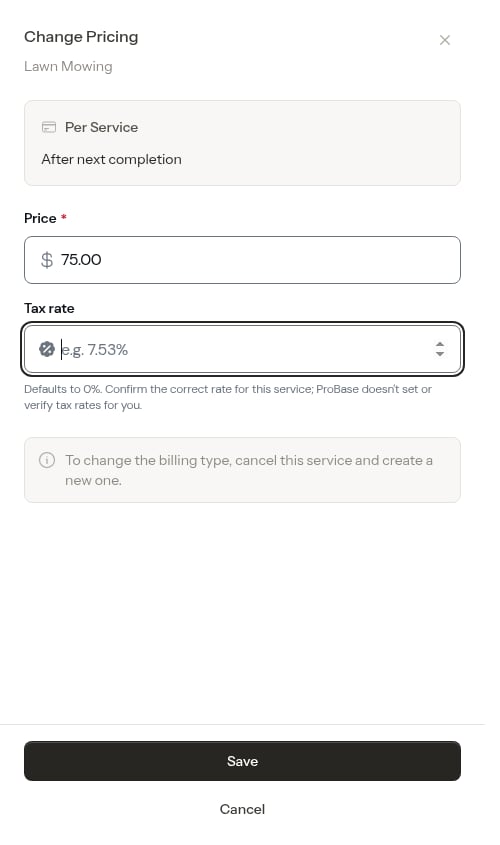
 Clearing the **Tax rate** field and saving stores the rate as **0%**, so the service stops charging tax going forward.
 Changes take effect immediately and apply to all future appointments and billing. Past appointments and charges are not affected.
 ### Change Schedule
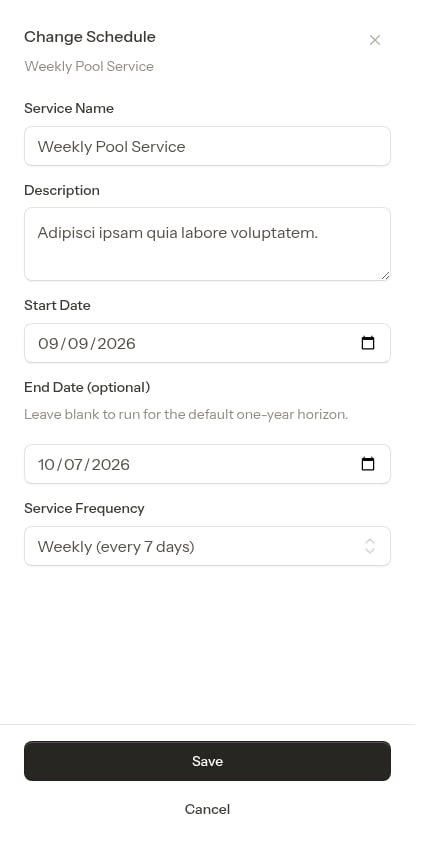
Tap the **→** button in the top-right of the **Service plan** section to update the service's schedule. A full-screen modal opens where you can modify:
* **Service Name** - What you call this service
* **Description** - What's included
* **Industry** - The trade this job belongs to (only shown if you've set up more than one trade). See [Industries (trades)](/getting-started/industries).
* **Start Date** - When the visit schedule begins
* **End Date** (optional) - When the recurring schedule stops (leave blank to run for one year from the start date)
* **Service Frequency** - How often work is performed (One-time, Weekly, Bi-weekly, Monthly, Every 2 months, Quarterly, or Every 6 months)
### Change Schedule
Tap the **→** button in the top-right of the **Service plan** section to update the service's schedule. A full-screen modal opens where you can modify:
* **Service Name** - What you call this service
* **Description** - What's included
* **Industry** - The trade this job belongs to (only shown if you've set up more than one trade). See [Industries (trades)](/getting-started/industries).
* **Start Date** - When the visit schedule begins
* **End Date** (optional) - When the recurring schedule stops (leave blank to run for one year from the start date)
* **Service Frequency** - How often work is performed (One-time, Weekly, Bi-weekly, Monthly, Every 2 months, Quarterly, or Every 6 months)
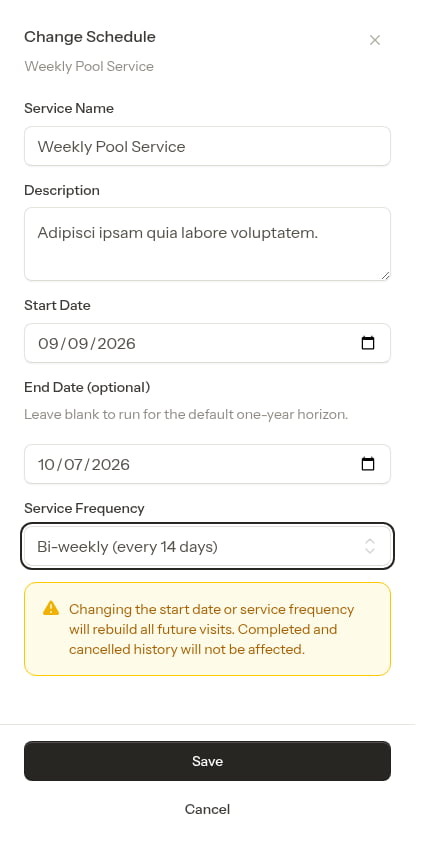
 For recurring services, changing the **Start Date** or **Service Frequency** rebuilds the entire chain of future visits. A warning appears so you know it's about to happen — your completed, skipped, and cancelled history is never touched.
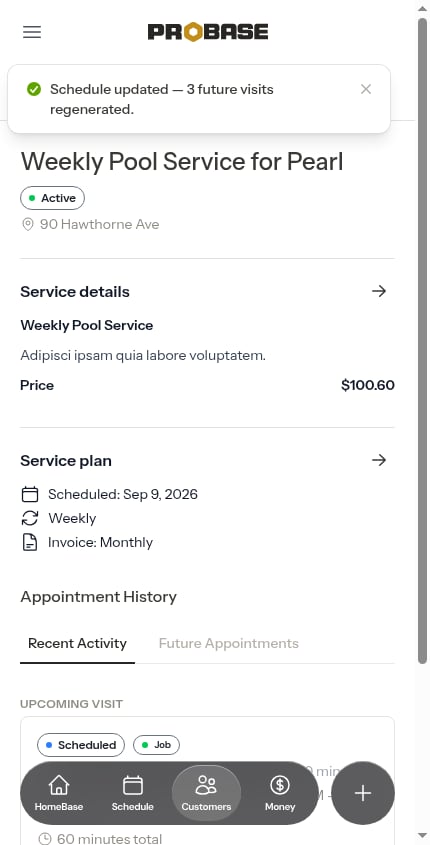
 Changes take effect immediately, and a green confirmation tells you how many visits were updated.
 ### If the schedule can't be saved
If ProBase can't apply the change, you get a **red message** saying so instead of the green confirmation — so a change that didn't stick is never reported as saved. The most common reason is that the service was **cancelled** in the meantime (for example, in another tab, or by a teammate while you had the window open); the message reads *"This service is inactive, so its schedule can't be changed."*
Reload the service page to see its current status. A cancelled service keeps its history and you can still work its remaining visits, but its schedule can't be edited — set up a new service if the customer wants the work to continue. See [Working with cancelled services](#working-with-cancelled-services).
See [How recurring visits are scheduled](/scheduling/future-visits) for the full picture of how the visit chain is rebuilt.
### Cancel Service
To cancel a service, open the appointment detail page, tap **More Actions**, and select **Cancel** to stop providing this service.
A **Cancel Service** modal opens. If the service has upcoming scheduled appointments, you choose what to cancel:
* **Cancel all future appointments** — ends the service and cancels every upcoming visit. The visits are listed (the first few, with **Show more** to see the rest).
* **Cancel only the next appointment** — cancels just the next visit and leaves the rest of the schedule in place. The service stays active.
### If the schedule can't be saved
If ProBase can't apply the change, you get a **red message** saying so instead of the green confirmation — so a change that didn't stick is never reported as saved. The most common reason is that the service was **cancelled** in the meantime (for example, in another tab, or by a teammate while you had the window open); the message reads *"This service is inactive, so its schedule can't be changed."*
Reload the service page to see its current status. A cancelled service keeps its history and you can still work its remaining visits, but its schedule can't be edited — set up a new service if the customer wants the work to continue. See [Working with cancelled services](#working-with-cancelled-services).
See [How recurring visits are scheduled](/scheduling/future-visits) for the full picture of how the visit chain is rebuilt.
### Cancel Service
To cancel a service, open the appointment detail page, tap **More Actions**, and select **Cancel** to stop providing this service.
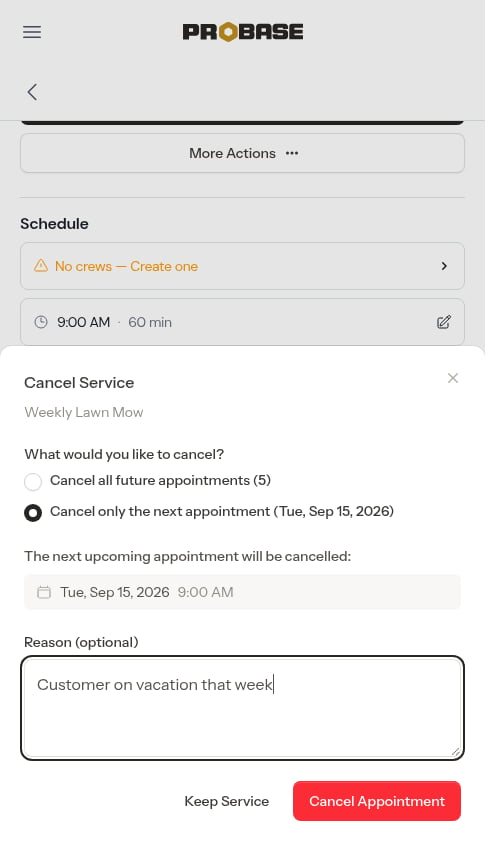
A **Cancel Service** modal opens. If the service has upcoming scheduled appointments, you choose what to cancel:
* **Cancel all future appointments** — ends the service and cancels every upcoming visit. The visits are listed (the first few, with **Show more** to see the rest).
* **Cancel only the next appointment** — cancels just the next visit and leaves the rest of the schedule in place. The service stays active.
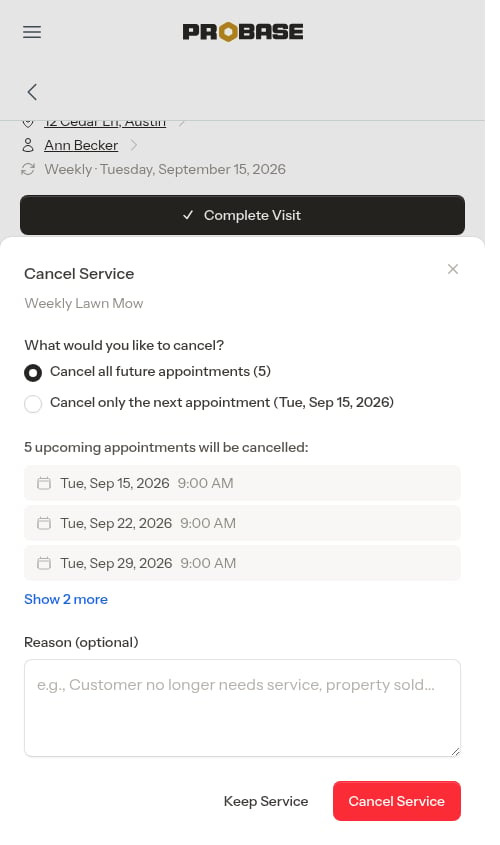 Optionally enter a reason, then confirm. The confirm button reads **Cancel Service** when cancelling everything, or **Cancel Appointment** when cancelling only the next visit.
 After cancelling the whole service:
* Service status changes to "Cancelled"
* All upcoming scheduled appointments are cancelled
* The cancellation reason is saved (if entered)
* The **Schedule Appointment** button is hidden
After cancelling the whole service:
* Service status changes to "Cancelled"
* All upcoming scheduled appointments are cancelled
* The cancellation reason is saved (if entered)
* The **Schedule Appointment** button is hidden
 ## Working with cancelled services
After cancelling a service, you can still:
* View appointment history and past service records
* Cancel individual remaining scheduled appointments (see below)
When you complete appointments on a cancelled service:
* The "Schedule next visit" step is automatically skipped (a cancelled service doesn't book new visits)
* Completion works the same as active services (you can add notes and service records)
* For per-service billing, charges are still created when appointments are completed
## Working with cancelled services
After cancelling a service, you can still:
* View appointment history and past service records
* Cancel individual remaining scheduled appointments (see below)
When you complete appointments on a cancelled service:
* The "Schedule next visit" step is automatically skipped (a cancelled service doesn't book new visits)
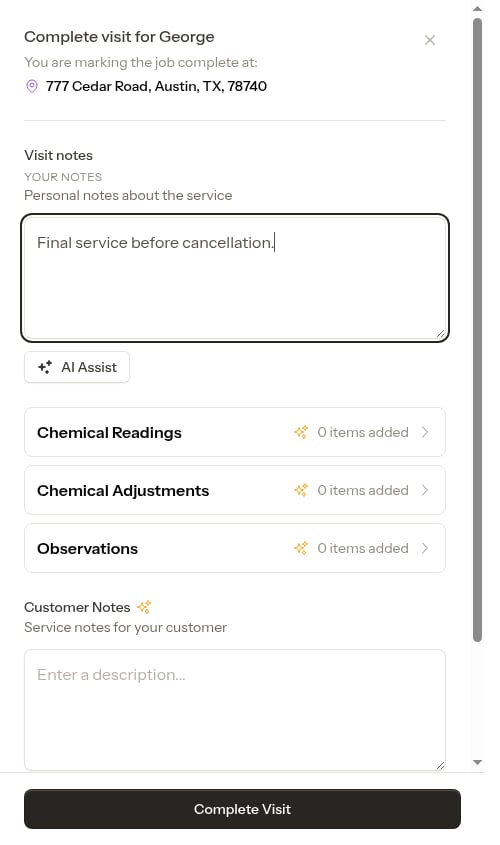
* Completion works the same as active services (you can add notes and service records)
* For per-service billing, charges are still created when appointments are completed
 ### Cancelling individual appointments on a cancelled service
If any scheduled appointments were not automatically cancelled and you want to remove them:
1. Open the appointment from the service details page or calendar
2. From the appointment detail page, tap **More Actions** and select **Cancel Appointment**
3. Enter a cancellation reason (required)
4. Confirm the cancellation
This cancels just that one appointment without affecting other scheduled appointments.
### Cancelling individual appointments on a cancelled service
If any scheduled appointments were not automatically cancelled and you want to remove them:
1. Open the appointment from the service details page or calendar
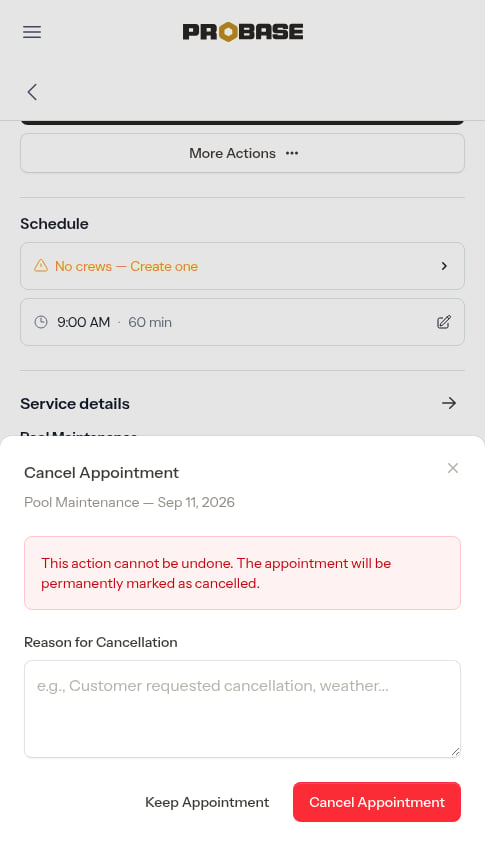
2. From the appointment detail page, tap **More Actions** and select **Cancel Appointment**
3. Enter a cancellation reason (required)
4. Confirm the cancellation
This cancels just that one appointment without affecting other scheduled appointments.
 ## Service types: Jobs vs Assessments
Services can be either Jobs or Assessments, representing different stages in your workflow:
### Jobs
Jobs are confirmed work ready to schedule and perform.
**Characteristics:**
* Service status is "Active", "Completed", or "Cancelled"
* Work is confirmed and ready for scheduling
* Appointments can be completed and will generate charges (for per-service billing)
* Most of your services will be Jobs
* Created when you accept a quote or create a job directly from the Quick Actions menu
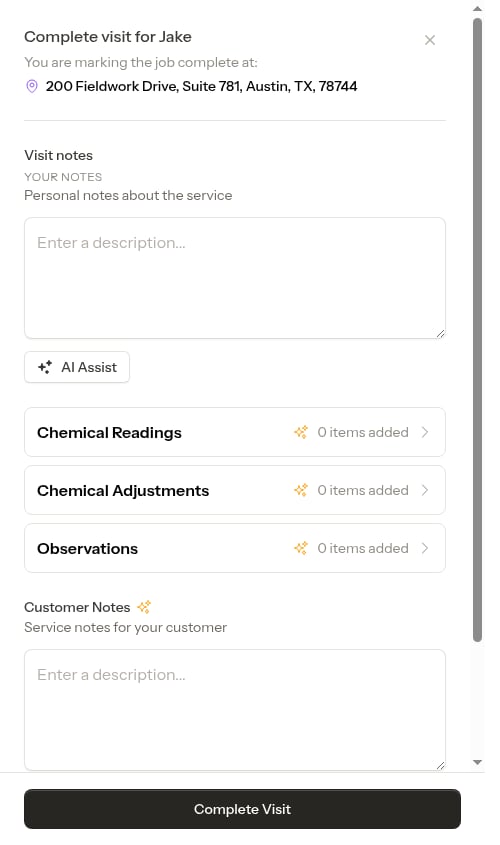
**Completion Process:**
When completing job appointments, a single-screen form collects your visit notes, customer-facing notes, photos, and service records (Observations, Chemical Readings, Chemical Adjustments) all on one screen. For recurring services whose next visit isn't already on the calendar, a follow-up screen appears to schedule it (or skip scheduling if needed). When the next visit is already part of the pre-scheduled chain, that step is skipped automatically.
## Service types: Jobs vs Assessments
Services can be either Jobs or Assessments, representing different stages in your workflow:
### Jobs
Jobs are confirmed work ready to schedule and perform.
**Characteristics:**
* Service status is "Active", "Completed", or "Cancelled"
* Work is confirmed and ready for scheduling
* Appointments can be completed and will generate charges (for per-service billing)
* Most of your services will be Jobs
* Created when you accept a quote or create a job directly from the Quick Actions menu
**Completion Process:**
When completing job appointments, a single-screen form collects your visit notes, customer-facing notes, photos, and service records (Observations, Chemical Readings, Chemical Adjustments) all on one screen. For recurring services whose next visit isn't already on the calendar, a follow-up screen appears to schedule it (or skip scheduling if needed). When the next visit is already part of the pre-scheduled chain, that step is skipped automatically.
 ### Assessments
Assessments are on-site evaluations where you gather information to create quotes.
**Characteristics:**
* Service status is "Draft", "Sent", "Accepted", or "Declined" (matching the assessment workflow)
* Used for on-site assessments before providing formal quotes
* Schedule an appointment to visit the property and assess the work needed
* After completing the assessment, you create a quote with pricing and details
**Completion Process:**
When you've been to the property, tap **Complete visit**. A light sheet opens where you:
1. Answer the visit's checklist questions, if it has a [checklist](/checklists/overview)
2. Write your **Notes** about what you found on site — these are private to you and carry into the quote
3. Finish with **Complete and create quote** (a draft quote opens right away), **Complete — quote later** (the assessment moves to **Ready to quote**), or **Close assessment** (there's nothing to quote)
Choosing **Complete and create quote** opens an empty draft quote with your notes, the customer's words, and the visit's photos gathered under **Context from Assessment**, ready for you to add services and pricing.
See [Working assessments](/customers/assessments) for the full workflow.
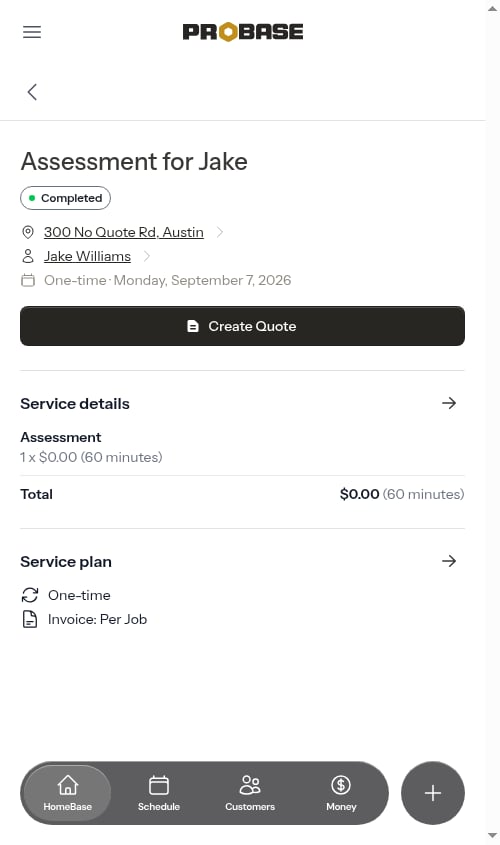
**Quick access to the quote from the service page:**
The assessment service page header always shows a quick-access button for the quote:
* **View Quote** — Appears when a quote has been created for this assessment. Tap it to open the quote directly.
* **Create Quote** — Appears when no quote exists yet. Tap it to start the quote creation process.
### Assessments
Assessments are on-site evaluations where you gather information to create quotes.
**Characteristics:**
* Service status is "Draft", "Sent", "Accepted", or "Declined" (matching the assessment workflow)
* Used for on-site assessments before providing formal quotes
* Schedule an appointment to visit the property and assess the work needed
* After completing the assessment, you create a quote with pricing and details
**Completion Process:**
When you've been to the property, tap **Complete visit**. A light sheet opens where you:
1. Answer the visit's checklist questions, if it has a [checklist](/checklists/overview)
2. Write your **Notes** about what you found on site — these are private to you and carry into the quote
3. Finish with **Complete and create quote** (a draft quote opens right away), **Complete — quote later** (the assessment moves to **Ready to quote**), or **Close assessment** (there's nothing to quote)
Choosing **Complete and create quote** opens an empty draft quote with your notes, the customer's words, and the visit's photos gathered under **Context from Assessment**, ready for you to add services and pricing.
See [Working assessments](/customers/assessments) for the full workflow.
**Quick access to the quote from the service page:**
The assessment service page header always shows a quick-access button for the quote:
* **View Quote** — Appears when a quote has been created for this assessment. Tap it to open the quote directly.
* **Create Quote** — Appears when no quote exists yet. Tap it to start the quote creation process.
 **The assessment workflow:**
1. Create an Assessment service for a customer (see [Creating quotes and assessments](/customers/creating-quotes))
2. Schedule and complete an assessment appointment to visit the property
3. During completion, create a Quote with your recommended service and pricing based on what you observed
4. Review and send the quote to the customer for approval (see [Managing quotes](/customers/managing-quotes))
5. When the customer accepts the quote, it automatically creates a Job service with the first appointment scheduled
6. The job is ready to complete and will generate charges (for per-service billing)
The full workflow is: Assessment → Quote → Job. However, if you can quote without a site visit, create a Quote directly. If work is already confirmed, skip straight to creating a Job.
Once a customer accepts a quote, the original Assessment service is hidden from the customer's services list — only the resulting active Job appears, so the page doesn't show duplicate work. Draft, sent, and declined assessments still appear so you can re-engage them.
## Job notes summary
The appointment detail page shows a **Job notes** section with an AI-generated briefing drawn from notes across the customer, property, and service, plus any notes captured on the visit itself. This gives your crew relevant context before arriving at the job site.
To add notes that appear in this summary:
* **Customer notes** — added via the customer's Edit modal (see [Adding notes](/customers/adding-notes))
* **Property notes** — added via the property's Edit modal or the Notes section on the property page
* **Appointment notes** — captured in the Visit notes field of the job completion form
See [the Job notes summary](/routes/job-notes-and-photos#job-notes-summary) for how the briefing behaves.
## Understanding service billing
### Per-Service Billing
* Customer is billed each time an appointment is completed
* A billing line item (charge) is created automatically when the crew marks the appointment complete
* Best for one-time jobs or pay-per-visit arrangements
* The price shown is the amount charged per visit
### Subscription Billing
* Customer is billed on a recurring schedule (weekly, monthly, quarterly, semi-annual, or annual)
* Billing line items are created **automatically** by ProBase on each configured billing date
* Completing appointments does NOT create charges
* The price shown is the amount charged per billing period
* **Charge Dates** section shows when charges are automatically created — the last charge date and the next 3 upcoming billing dates
See [Per-Service vs Subscription Billing](/billing/one-time-vs-subscription) for a detailed comparison.
## Service frequency
Service frequency determines how often work is performed:
* **One-time** - Work happens once (spring cleanup, installations)
* **Weekly (every 7 days)** - Work every week
* **Bi-weekly (every 14 days)** - Work every two weeks
* **Monthly (every 28 days)** - Work approximately once per month
* **Every 2 months (every 56 days)** - Work approximately once every two months
* **Quarterly (every 90 days)** - Work approximately once every three months
* **Every 6 months (every 182 days)** - Work approximately twice a year
**Important:** Service frequency is different from billing interval. For example, a customer might receive weekly service but pay monthly (subscription with monthly billing interval).
For recurring services, ProBase pre-schedules the full chain of visits based on the service frequency when the job is created, so the next visit is usually already on the calendar. If a service ever has no upcoming visit, completing an appointment lets you schedule the next one (or check **Skip scheduling** to leave it unscheduled for now). See [How recurring visits are scheduled](/scheduling/future-visits).
## Next steps
* [Create appointments](/scheduling/creating-appointments) for your services
* [Complete appointments](/routes/completing-jobs) and document service records
* [Manage your service catalog](/getting-started/service-catalog) to create reusable templates
* [Understand billing types](/billing/one-time-vs-subscription) to choose the right billing method
**The assessment workflow:**
1. Create an Assessment service for a customer (see [Creating quotes and assessments](/customers/creating-quotes))
2. Schedule and complete an assessment appointment to visit the property
3. During completion, create a Quote with your recommended service and pricing based on what you observed
4. Review and send the quote to the customer for approval (see [Managing quotes](/customers/managing-quotes))
5. When the customer accepts the quote, it automatically creates a Job service with the first appointment scheduled
6. The job is ready to complete and will generate charges (for per-service billing)
The full workflow is: Assessment → Quote → Job. However, if you can quote without a site visit, create a Quote directly. If work is already confirmed, skip straight to creating a Job.
Once a customer accepts a quote, the original Assessment service is hidden from the customer's services list — only the resulting active Job appears, so the page doesn't show duplicate work. Draft, sent, and declined assessments still appear so you can re-engage them.
## Job notes summary
The appointment detail page shows a **Job notes** section with an AI-generated briefing drawn from notes across the customer, property, and service, plus any notes captured on the visit itself. This gives your crew relevant context before arriving at the job site.
To add notes that appear in this summary:
* **Customer notes** — added via the customer's Edit modal (see [Adding notes](/customers/adding-notes))
* **Property notes** — added via the property's Edit modal or the Notes section on the property page
* **Appointment notes** — captured in the Visit notes field of the job completion form
See [the Job notes summary](/routes/job-notes-and-photos#job-notes-summary) for how the briefing behaves.
## Understanding service billing
### Per-Service Billing
* Customer is billed each time an appointment is completed
* A billing line item (charge) is created automatically when the crew marks the appointment complete
* Best for one-time jobs or pay-per-visit arrangements
* The price shown is the amount charged per visit
### Subscription Billing
* Customer is billed on a recurring schedule (weekly, monthly, quarterly, semi-annual, or annual)
* Billing line items are created **automatically** by ProBase on each configured billing date
* Completing appointments does NOT create charges
* The price shown is the amount charged per billing period
* **Charge Dates** section shows when charges are automatically created — the last charge date and the next 3 upcoming billing dates
See [Per-Service vs Subscription Billing](/billing/one-time-vs-subscription) for a detailed comparison.
## Service frequency
Service frequency determines how often work is performed:
* **One-time** - Work happens once (spring cleanup, installations)
* **Weekly (every 7 days)** - Work every week
* **Bi-weekly (every 14 days)** - Work every two weeks
* **Monthly (every 28 days)** - Work approximately once per month
* **Every 2 months (every 56 days)** - Work approximately once every two months
* **Quarterly (every 90 days)** - Work approximately once every three months
* **Every 6 months (every 182 days)** - Work approximately twice a year
**Important:** Service frequency is different from billing interval. For example, a customer might receive weekly service but pay monthly (subscription with monthly billing interval).
For recurring services, ProBase pre-schedules the full chain of visits based on the service frequency when the job is created, so the next visit is usually already on the calendar. If a service ever has no upcoming visit, completing an appointment lets you schedule the next one (or check **Skip scheduling** to leave it unscheduled for now). See [How recurring visits are scheduled](/scheduling/future-visits).
## Next steps
* [Create appointments](/scheduling/creating-appointments) for your services
* [Complete appointments](/routes/completing-jobs) and document service records
* [Manage your service catalog](/getting-started/service-catalog) to create reusable templates
* [Understand billing types](/billing/one-time-vs-subscription) to choose the right billing method