> ## Documentation Index
> Fetch the complete documentation index at: https://docs.probaseapp.com/llms.txt
> Use this file to discover all available pages before exploring further.
# Texting your customers
> How the Send text button works — ProBase sends the text from its own number, led by your business name
## Overview
Many places in ProBase offer to text a customer for you — telling them you're on your way, confirming a booked visit, sending a quote, the service report, a link to their customer portal, and more. ProBase always writes the message for you, and you can edit it before it goes.
How the text actually leaves depends on your account:
* **ProBase sends it for you.** The sheet shows a solid **Send text** button. Tap it and ProBase sends the message from its own number — your phone isn't involved.
* **Your phone sends it.** The sheet shows **Send SMS** instead, which opens your phone's messaging app with the number and message filled in. You press send there.
Texting through ProBase is being turned on account by account. If your sheets still say **Send SMS**, everything works as before — nothing extra is needed from you once it's turned on.
## When ProBase sends the text
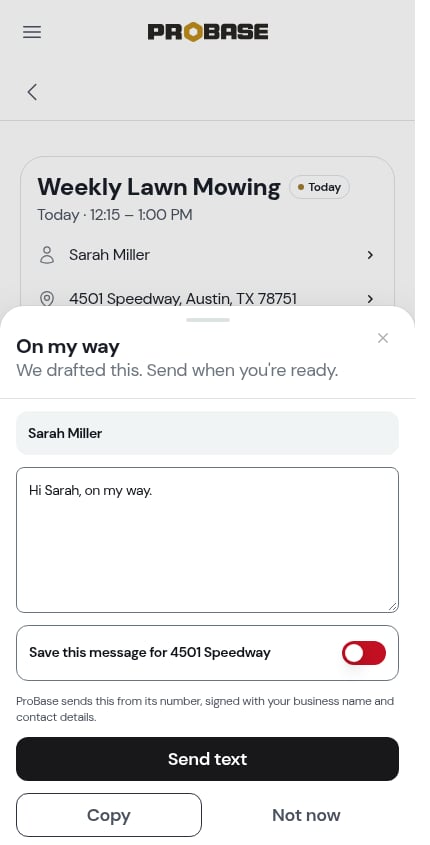 The sheet looks the same as before, with three changes:
* The solid button reads **Send text**.
* A short line under the message explains: *ProBase sends this from its number, signed with your business name and contact details.*
* **Copy** (or **Copy link**) is still there if you'd rather paste the message somewhere else yourself.
Every text ProBase sends starts with your business name and ends with a line telling the customer how to reach you, because ProBase's number can't take replies. A text reads like this:
> Green Acres Lawn: Hi Sarah, here's your invoice. View and pay online: …
>
> This number does not accept replies. Call or text (512) 555-0142 instead.
The number in that last line is your business phone from [Business profile settings](/getting-started/settings). If you haven't added one, ProBase uses the account owner's phone number instead; with neither on file, the line simply reads *This number does not accept replies.* Your email address is never added to a text.
You don't need to type your business name into the message yourself — ProBase adds it when the text goes out, so the message you see and edit in the sheet doesn't show it.
When your phone does the texting (**Send SMS**), the message goes from your own number, so ProBase doesn't add your business name or the no-replies line — customers can reply to you directly.
When the text goes out, a green toast confirms it — for example *Text sent to Sarah.* — and the sheet closes.
### Where you'll see Send text
| Where | What it sends | More detail |
| - | - | - |
| **Text on my way** on a stop card or visit | *Hi Sarah, on my way.* (or your saved wording) | [Texting the customer you're on your way](/routes/daily-crew-schedules#texting-the-customer-youre-on-your-way) |
| The send report step after completing a visit | The service report link (and the invoice, if you include it) | [Sending the service report](/routes/sending-service-reports) |
| Confirming a booked visit — after creating a job or booking an assessment visit | The booked date and time | [Creating jobs](/getting-started/creating-jobs), [Assessments](/customers/assessments) |
| Sending a quote | The customer's quote link | [Managing quotes](/customers/managing-quotes) |
| **Ask for photos** on an assessment | Your question and the photo link | [Assessments](/customers/assessments#asking-for-photos) |
| **Share customer portal access** on a customer's page | The link to their customer portal | [Customer portal](/customers/customer-portal#share-the-portal-link-from-the-customers-page) |
The sheet looks the same as before, with three changes:
* The solid button reads **Send text**.
* A short line under the message explains: *ProBase sends this from its number, signed with your business name and contact details.*
* **Copy** (or **Copy link**) is still there if you'd rather paste the message somewhere else yourself.
Every text ProBase sends starts with your business name and ends with a line telling the customer how to reach you, because ProBase's number can't take replies. A text reads like this:
> Green Acres Lawn: Hi Sarah, here's your invoice. View and pay online: …
>
> This number does not accept replies. Call or text (512) 555-0142 instead.
The number in that last line is your business phone from [Business profile settings](/getting-started/settings). If you haven't added one, ProBase uses the account owner's phone number instead; with neither on file, the line simply reads *This number does not accept replies.* Your email address is never added to a text.
You don't need to type your business name into the message yourself — ProBase adds it when the text goes out, so the message you see and edit in the sheet doesn't show it.
When your phone does the texting (**Send SMS**), the message goes from your own number, so ProBase doesn't add your business name or the no-replies line — customers can reply to you directly.
When the text goes out, a green toast confirms it — for example *Text sent to Sarah.* — and the sheet closes.
### Where you'll see Send text
| Where | What it sends | More detail |
| - | - | - |
| **Text on my way** on a stop card or visit | *Hi Sarah, on my way.* (or your saved wording) | [Texting the customer you're on your way](/routes/daily-crew-schedules#texting-the-customer-youre-on-your-way) |
| The send report step after completing a visit | The service report link (and the invoice, if you include it) | [Sending the service report](/routes/sending-service-reports) |
| Confirming a booked visit — after creating a job or booking an assessment visit | The booked date and time | [Creating jobs](/getting-started/creating-jobs), [Assessments](/customers/assessments) |
| Sending a quote | The customer's quote link | [Managing quotes](/customers/managing-quotes) |
| **Ask for photos** on an assessment | Your question and the photo link | [Assessments](/customers/assessments#asking-for-photos) |
| **Share customer portal access** on a customer's page | The link to their customer portal | [Customer portal](/customers/customer-portal#share-the-portal-link-from-the-customers-page) |
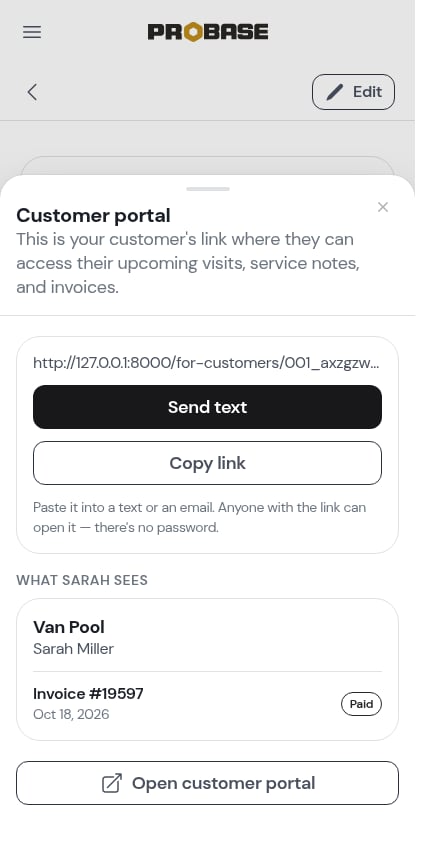
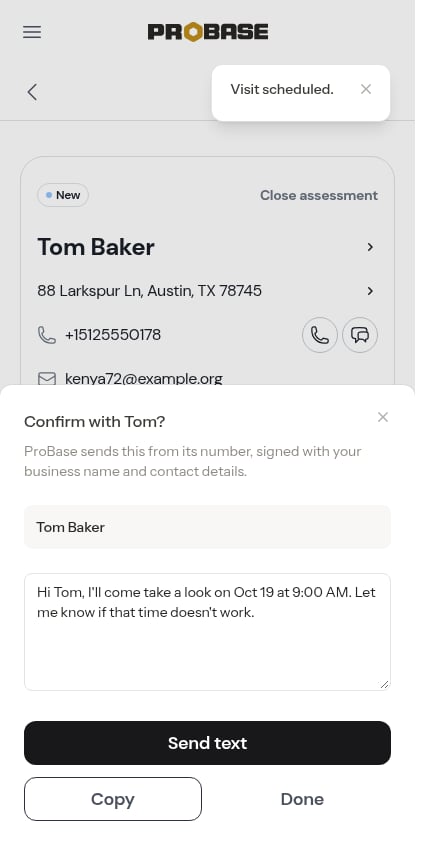 Invoices, reminders and payment receipts are sent the same way, from their own screens — see [Sending invoices](/billing/sending-payment-links) and [Recording payments](/billing/tracking-payments).
## If a text doesn't go out
If ProBase can't send the text, a red message says why and the sheet stays open so you can try again or use **Copy** instead:
* *Sarah has no phone number on file, so the text can't go out.* — add a phone number to the customer's profile first
* *The text to Sarah couldn't be delivered. Try again in a moment.* — the carrier refused it
* *ProBase isn't set up to send texts for your team right now.*
* *Something went wrong sending the text. Try again in a moment.*
ProBase texts the phone number saved on the customer's profile. If the number is wrong, fix it on the customer's page and send again.
## Related pages
* [Sending the service report](/routes/sending-service-reports)
* [Sending invoices](/billing/sending-payment-links)
* [Text message notifications](/getting-started/text-message-notifications) — texts ProBase sends to **you**, not your customers
This documentation is built and hosted on [Mintlify](https://mintlify.com), a developer documentation platform.
Invoices, reminders and payment receipts are sent the same way, from their own screens — see [Sending invoices](/billing/sending-payment-links) and [Recording payments](/billing/tracking-payments).
## If a text doesn't go out
If ProBase can't send the text, a red message says why and the sheet stays open so you can try again or use **Copy** instead:
* *Sarah has no phone number on file, so the text can't go out.* — add a phone number to the customer's profile first
* *The text to Sarah couldn't be delivered. Try again in a moment.* — the carrier refused it
* *ProBase isn't set up to send texts for your team right now.*
* *Something went wrong sending the text. Try again in a moment.*
ProBase texts the phone number saved on the customer's profile. If the number is wrong, fix it on the customer's page and send again.
## Related pages
* [Sending the service report](/routes/sending-service-reports)
* [Sending invoices](/billing/sending-payment-links)
* [Text message notifications](/getting-started/text-message-notifications) — texts ProBase sends to **you**, not your customers
This documentation is built and hosted on [Mintlify](https://mintlify.com), a developer documentation platform.