> ## Documentation Index
> Fetch the complete documentation index at: https://docs.probaseapp.com/llms.txt
> Use this file to discover all available pages before exploring further.
# Exploring a demo account
> Try a fully-loaded sample ProBase account before you add your own work
## Overview
A brand-new Probase account starts empty — no customers, no jobs, nothing on the calendar — which makes it hard to picture how the app looks once your business is running in it.
The **demo account** solves that. It's a complete, ready-made Probase business you can click around in: real-looking customers, jobs on the calendar, invoices, quotes, and completed checklists, all seeded for your line of work. Nothing you tap in the demo touches your own account.
 The demo is being rolled out gradually. If you don't see the banner or the menu item described below, it isn't switched on for your account yet. The demo is also offered to business owners and admins only — crew members and other [roles](/team/roles-and-permissions) don't see these prompts.
## Ways in
Probase offers the demo in several places — use whichever is closest to hand:
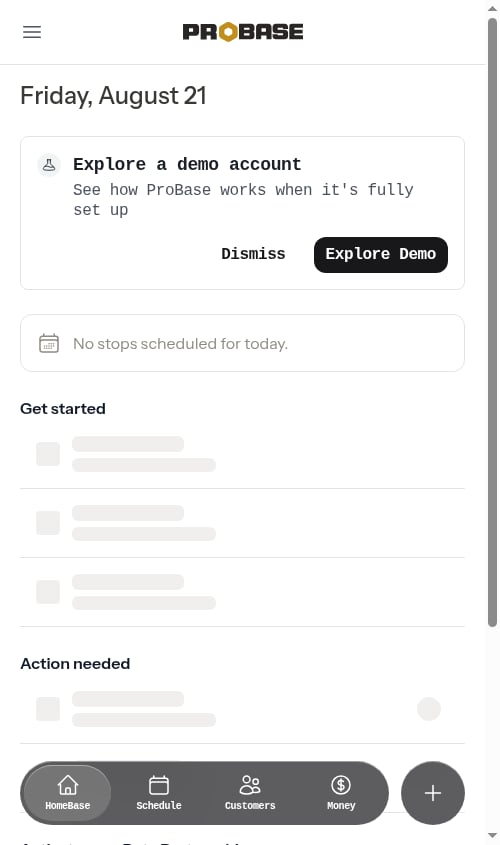
* **The Explore a demo account banner on HomeBase** — sits near the top of your dashboard, reading *See how ProBase works when it's fully set up* with an **Explore Demo** button.
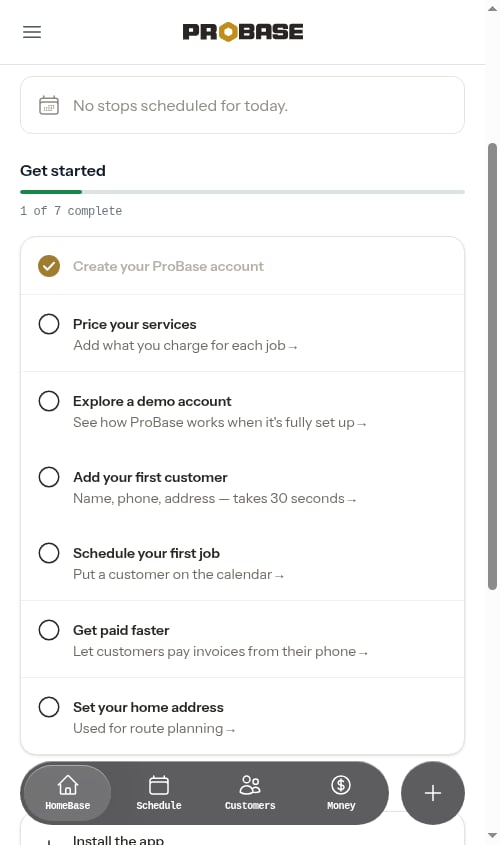
* **The Explore a demo account step in the Get started checklist** — on HomeBase, in the [setup checklist](/getting-started/homebase#get-started-checklist). Opening a demo checks this step off, and it stays tappable afterwards so you can go back in.
* **The Tour a demo item in the navigation menu** — at the very bottom, in the **HELP** group below **Support**, marked with a small flask icon.
* **The Explore a demo account row in Activate your Beta Partnership** — at the bottom of HomeBase. This row is permanent; it never ticks off or disappears.
* **A Tour demo card on an empty screen** — when your Customers list, Schedule, or Money page has nothing in it yet, a card appears there too. See [Tour demo from an empty screen](#tour-demo-from-an-empty-screen).
All four of the HomeBase and menu entries let you [pick which trade](#picking-your-trade) to explore when you do more than one kind of work. Only the empty-screen cards skip the question and open a demo straight away.
Whichever you use, you land in the demo already signed in — there's nothing to set up first.
The demo is being rolled out gradually. If you don't see the banner or the menu item described below, it isn't switched on for your account yet. The demo is also offered to business owners and admins only — crew members and other [roles](/team/roles-and-permissions) don't see these prompts.
## Ways in
Probase offers the demo in several places — use whichever is closest to hand:
* **The Explore a demo account banner on HomeBase** — sits near the top of your dashboard, reading *See how ProBase works when it's fully set up* with an **Explore Demo** button.
* **The Explore a demo account step in the Get started checklist** — on HomeBase, in the [setup checklist](/getting-started/homebase#get-started-checklist). Opening a demo checks this step off, and it stays tappable afterwards so you can go back in.
* **The Tour a demo item in the navigation menu** — at the very bottom, in the **HELP** group below **Support**, marked with a small flask icon.
* **The Explore a demo account row in Activate your Beta Partnership** — at the bottom of HomeBase. This row is permanent; it never ticks off or disappears.
* **A Tour demo card on an empty screen** — when your Customers list, Schedule, or Money page has nothing in it yet, a card appears there too. See [Tour demo from an empty screen](#tour-demo-from-an-empty-screen).
All four of the HomeBase and menu entries let you [pick which trade](#picking-your-trade) to explore when you do more than one kind of work. Only the empty-screen cards skip the question and open a demo straight away.
Whichever you use, you land in the demo already signed in — there's nothing to set up first.
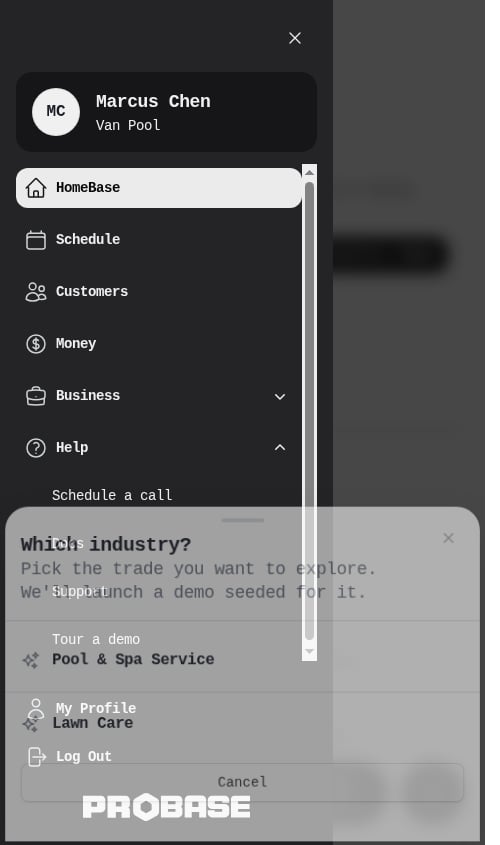 The wording differs a little between these spots — the HomeBase banner, checklist step, and Beta Partnership row all say **Explore a demo account**, while the navigation menu says **Tour a demo** and the empty-screen cards say **Tour demo**. They all open the same demo.
The **Tour a demo** menu item, the checklist step, and the Beta Partnership row all stay available no matter how big your customer book gets, so you can always drop into the demo to try something out.
### Dismissing the HomeBase banner
The banner has a **Dismiss** link next to **Explore Demo**. Tapping it clears the banner off your dashboard **permanently** — it won't come back on the next page load.
Dismissing only hides that one banner. **Explore a demo account** in the Get started checklist, **Explore a demo account** in Activate your Beta Partnership, and **Tour a demo** in the navigation menu are all still there, so the demo is never more than a tap away.
## Picking your trade
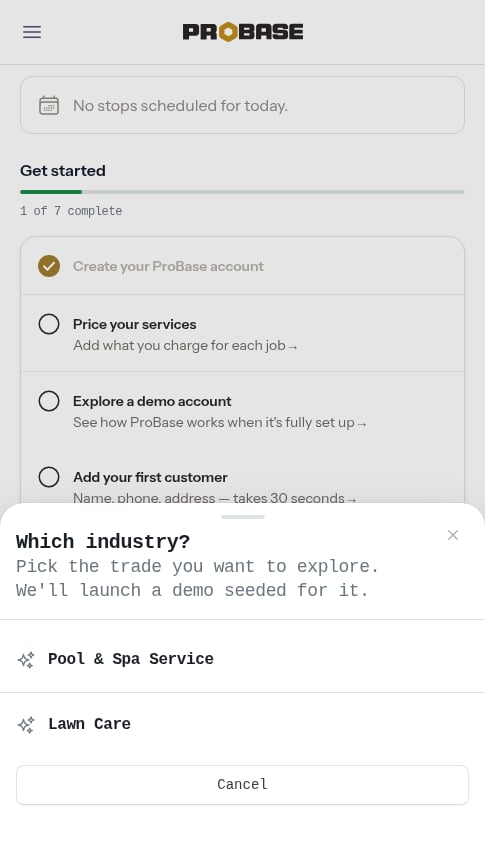
If more than one of the trades you told Probase about during [onboarding](/getting-started/onboarding) has its own sample account, Probase first asks **Which industry?** — *Pick the trade you want to explore. We'll launch a demo seeded for it.* Tap the trade you want and Probase opens a demo built for it, or tap **Cancel** to stay where you are.
The wording differs a little between these spots — the HomeBase banner, checklist step, and Beta Partnership row all say **Explore a demo account**, while the navigation menu says **Tour a demo** and the empty-screen cards say **Tour demo**. They all open the same demo.
The **Tour a demo** menu item, the checklist step, and the Beta Partnership row all stay available no matter how big your customer book gets, so you can always drop into the demo to try something out.
### Dismissing the HomeBase banner
The banner has a **Dismiss** link next to **Explore Demo**. Tapping it clears the banner off your dashboard **permanently** — it won't come back on the next page load.
Dismissing only hides that one banner. **Explore a demo account** in the Get started checklist, **Explore a demo account** in Activate your Beta Partnership, and **Tour a demo** in the navigation menu are all still there, so the demo is never more than a tap away.
## Picking your trade
If more than one of the trades you told Probase about during [onboarding](/getting-started/onboarding) has its own sample account, Probase first asks **Which industry?** — *Pick the trade you want to explore. We'll launch a demo seeded for it.* Tap the trade you want and Probase opens a demo built for it, or tap **Cancel** to stay where you are.
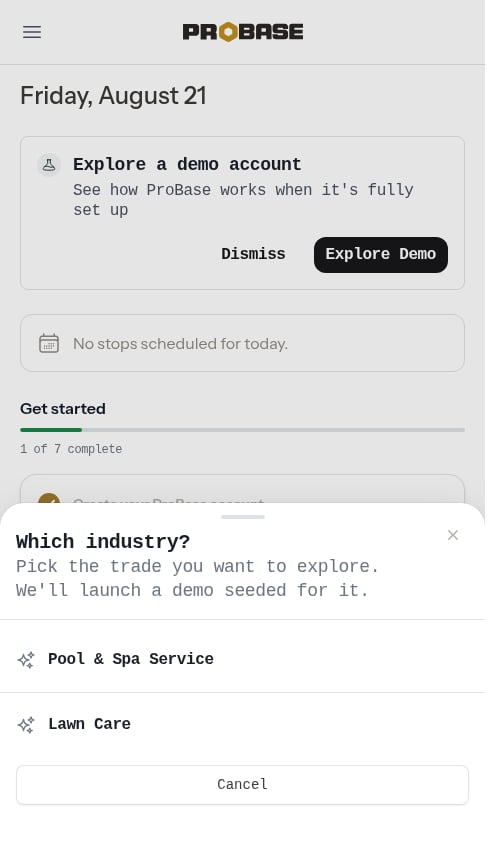 Today **Pool & Spa Service**, **Lawn Care**, and **Handyman** have their own sample accounts. If you only do one kind of work — or your trade doesn't have its own sample account yet — Probase skips the question and opens a general home-services demo instead.
Because **Handyman** work spans so many kinds of small jobs, its sample account doubles as the general home-services demo — so a handyman business and a business whose trade has no sample account of its own end up looking around the same sample company. The only difference is the label: a declared handyman trade shows up as **Handyman** in the picker, while everything else is offered as **Home services**.
Four of the ways in ask before they launch:
* **Explore Demo** on the HomeBase banner
* **Explore a demo account** in the Get started checklist
* **Tour a demo** in the navigation menu
* **Explore a demo account** in Activate your Beta Partnership
### From the Get started checklist
Tapping **Explore a demo account** on HomeBase brings the same **Which industry?** sheet up from the bottom of the screen, over the checklist.
Today **Pool & Spa Service**, **Lawn Care**, and **Handyman** have their own sample accounts. If you only do one kind of work — or your trade doesn't have its own sample account yet — Probase skips the question and opens a general home-services demo instead.
Because **Handyman** work spans so many kinds of small jobs, its sample account doubles as the general home-services demo — so a handyman business and a business whose trade has no sample account of its own end up looking around the same sample company. The only difference is the label: a declared handyman trade shows up as **Handyman** in the picker, while everything else is offered as **Home services**.
Four of the ways in ask before they launch:
* **Explore Demo** on the HomeBase banner
* **Explore a demo account** in the Get started checklist
* **Tour a demo** in the navigation menu
* **Explore a demo account** in Activate your Beta Partnership
### From the Get started checklist
Tapping **Explore a demo account** on HomeBase brings the same **Which industry?** sheet up from the bottom of the screen, over the checklist.
 ### From the navigation menu
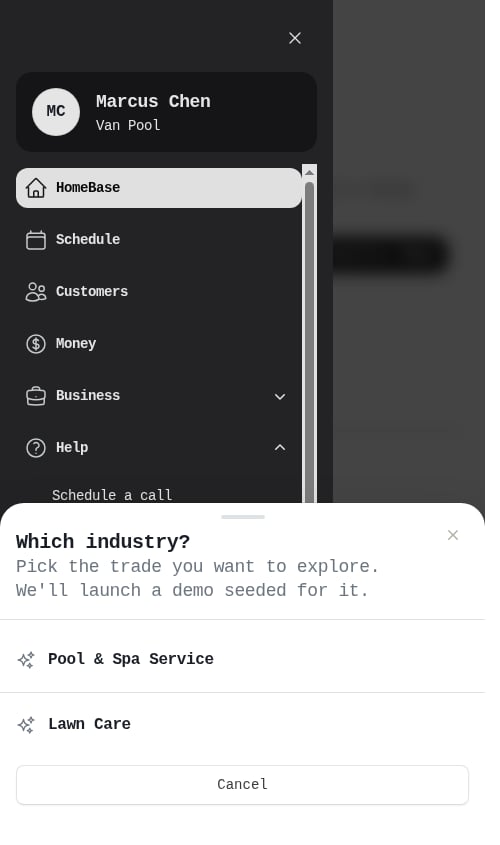
**Tour a demo** in the **HELP** group works the same way — tap it and the trade picker opens over the menu.
### From the navigation menu
**Tour a demo** in the **HELP** group works the same way — tap it and the trade picker opens over the menu.
 ### From Activate your Beta Partnership
The permanent **Explore a demo account** row at the bottom of HomeBase behaves the same way — if you do more than one trade it opens the trade picker rather than choosing for you.
The empty-screen **Tour demo** cards are the one exception: they never ask, because they're built to be a single tap onto the screen you were already looking at. If you do one trade they open that trade's demo; if you do more than one, Probase picks one for you.
### Trying a different trade
You aren't locked into the first demo you open. Tap **Return to my account** in the demo's banner, then open the demo again from the banner, the checklist step, the menu item, or the Beta Partnership row and pick the other trade. You can hop between trades as often as you like.
Tap **Explore Demo** on the HomeBase banner, **Explore a demo account** in the Get started checklist, **Tour a demo** in the **HELP** group of the navigation menu, or **Explore a demo account** in Activate your Beta Partnership.
Tap the trade you want to look at, or **Cancel** to stay where you are.
Whatever you tapped last — the **Explore Demo** button or the trade you picked — swaps to a spinner reading **Opening demo…** while Probase hands you over to the sandbox. It's a full page change, so give it a couple of seconds — there's no need to tap again.
The demo opens as a full Probase account. Browse the schedule, open a customer, look at an invoice — nothing is off limits.
An orange bar sits at the top of every demo screen. Tap **Return to my account** to go back to your real Probase.
## Tour demo from an empty screen
Before you've added your own work, the screens that would normally be full of it offer the demo right where you are — on **Customers** and **Schedule** it sits under the button that adds the real thing, separated by a small **or**:
### From Activate your Beta Partnership
The permanent **Explore a demo account** row at the bottom of HomeBase behaves the same way — if you do more than one trade it opens the trade picker rather than choosing for you.
The empty-screen **Tour demo** cards are the one exception: they never ask, because they're built to be a single tap onto the screen you were already looking at. If you do one trade they open that trade's demo; if you do more than one, Probase picks one for you.
### Trying a different trade
You aren't locked into the first demo you open. Tap **Return to my account** in the demo's banner, then open the demo again from the banner, the checklist step, the menu item, or the Beta Partnership row and pick the other trade. You can hop between trades as often as you like.
Tap **Explore Demo** on the HomeBase banner, **Explore a demo account** in the Get started checklist, **Tour a demo** in the **HELP** group of the navigation menu, or **Explore a demo account** in Activate your Beta Partnership.
Tap the trade you want to look at, or **Cancel** to stay where you are.
Whatever you tapped last — the **Explore Demo** button or the trade you picked — swaps to a spinner reading **Opening demo…** while Probase hands you over to the sandbox. It's a full page change, so give it a couple of seconds — there's no need to tap again.
The demo opens as a full Probase account. Browse the schedule, open a customer, look at an invoice — nothing is off limits.
An orange bar sits at the top of every demo screen. Tap **Return to my account** to go back to your real Probase.
## Tour demo from an empty screen
Before you've added your own work, the screens that would normally be full of it offer the demo right where you are — on **Customers** and **Schedule** it sits under the button that adds the real thing, separated by a small **or**:
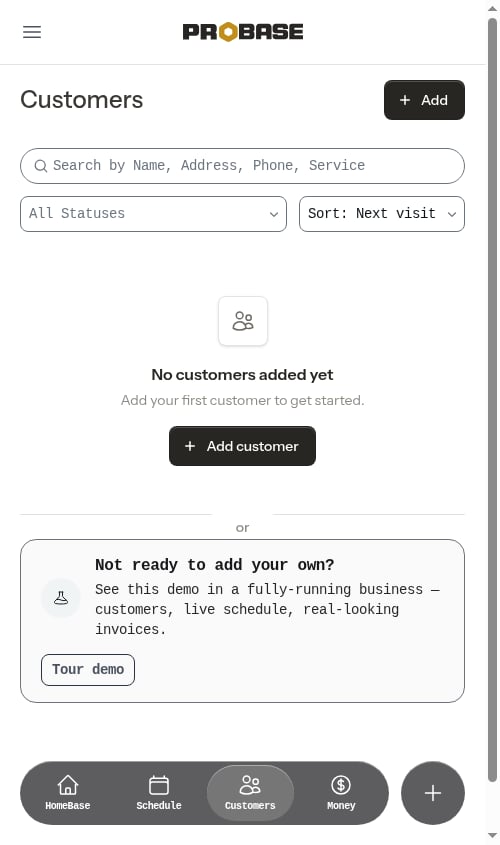 The card reads **Not ready to add your own?** — *See this demo in a fully-running business — customers, live schedule, real-looking invoices* — with a **Tour demo** button. On the **Money** page the same card is headed **Tour demo** instead.
| Where | When it appears | Where the demo opens |
| ----------------------- | ----------------------------------- | ------------------------- |
| **Customers** | You haven't added any customers yet | The demo's Customers list |
| **Schedule** (Day view) | You've never scheduled a job | The demo's Schedule |
| **Money** | You have no invoices yet | The demo's Money page |
Tapping **Tour demo** drops you straight onto that part of the demo, so you land looking at exactly the screen you were curious about.
These cards only show on a genuinely empty screen. Searching or filtering your way to "no results" doesn't count — the card stays away once you have real work of your own. Crew members don't see it on the Schedule either; their empty schedule points them at their crew's work instead.
## What's inside the demo
Each demo account is a busy business already in full swing, so you can see what every part of Probase looks like with real work flowing through it:
* **A staffed team** — an owner, a manager, and crew members, split across two [crews](/getting-started/adding-crews) with their own start and end locations
* **About 30 customers** — spanning every [status](/customers/customer-status): active, recently added, inactive, leads, and archived, each with properties, service history, and notes
* **Inbound leads** — the [contact form](/customers/contact-form) is switched on with its public link live, and a couple of leads have already come in through it
* **A priced service catalog** — [service offerings](/getting-started/service-catalog) for that trade with add-on [service items](/routes/service-items), and [checklists](/checklists/overview) attached and filled in on completed visits — including before-and-after [photos](/routes/job-notes-and-photos) on a few of them
* **A filled-in field log** — each customer's most recent completed visit carries its own [service records](/routes/service-records), so a finished job's detail page and the property's **Service Records** page show real work instead of an empty section. What's recorded matches the trade: a pool visit logs what the tech observed plus pH, chlorine, and alkalinity readings and the chlorine and acid applied; a lawn visit logs the mow-and-edge notes plus the fertilizer put down; a handyman visit logs the work done plus the material used
* **A live calendar** — a month of completed history behind you, [overdue](/scheduling/overdue-jobs) visits, [jobs with no crew assigned](/scheduling/jobs-without-assigned-crew) yet, work booked for today, and a year of [recurring visits](/scheduling/future-visits) projected forward
* **The full sales pipeline** — assessments booked, [quotes](/customers/creating-quotes) sent and waiting on an answer, and quotes that turned into scheduled jobs
* **Real money movement** — [invoices](/billing/invoices) in every state, payments taken by card, [Venmo](/billing/venmo-payments), and cash, tips, and customers carrying a past-due [balance](/billing/customer-balances)
* **Customer reviews** on completed work
* **A working route map** — the demo's [day view map](/routes/daily-crew-schedules#map-view) plots the sample crews' stops and draws the real driving path between them, so you can see what a full day of work looks like on the map, and [route optimization](/routes/optimizing-routes) runs there too
Everything is set in the Phoenix, Arizona area and dated relative to today, so "this week" always looks like this week.
Because it's a working account rather than a guided tour, you can also *do* things: add a customer, book a job, build a checklist, send an invoice. It's the fastest way to practice a workflow before you run it on real work.
## Finding your way back
The demo looks and behaves exactly like your own Probase, so an orange bar with a small flask icon stays pinned to the top of every screen while you're in it:
> 🧪 You are currently viewing a demo — experiment here without making changes to your own account. **Return to my account →**
On a phone the same bar shortens to **Viewing a demo**, to fit the narrower screen — the **Return to my account** link is still on the right.
That bar can't be dismissed, so you always know which account you're looking at. Tap **Return to my account** to go back to your real Probase whenever you're done — the link shows a spinner reading **Leaving demo…** while the switch happens, so one tap is enough.
There's no separate login for the demo — you always enter it from your own account. If your demo session ends (or you open a demo link without going through Probase first), you're sent straight back to your real Probase rather than to a demo sign-in screen.
If the ProBase team sends you a link to the demo by email, opening it works the same way: it drops you into the sandbox, asking you to sign in to your own Probase first if you aren't already.
Don't bookmark the demo's web address itself. Each trip into the demo uses a fresh, short-lived handoff, so a saved demo address goes stale within a few minutes and shows the "temporarily unavailable" page below. Bookmark your own Probase instead and enter the demo from the banner, the checklist step, or the menu each time.
## If the demo doesn't open
Occasionally the demo can't let you in — most often because the [nightly rebuild](#whats-different-in-the-demo) is still finishing, or because you opened an old demo address instead of entering from your own Probase. Rather than an error page, you get a plain message:
> **The demo is temporarily unavailable**
> We couldn't open the demo right now. Please try again in a few minutes.
A **Back to ProBase** button takes you straight back to your own account.
Nothing is wrong with your account when this happens, and there's nothing to fix on your end — wait a couple of minutes and open the demo again from HomeBase, the Get started checklist, the navigation menu, or the Beta Partnership row. If it still won't open after a few tries, [contact support](/support/contact-support).
## What's different in the demo
The demo is deliberately sealed off so nothing you do there reaches the real world:
* **Nobody gets contacted.** Probase doesn't send any email from the demo, and the automated [text-message notifications](/getting-started/text-message-notifications) are switched off there, so a sample customer never receives an invoice, a quote, or a reminder.
* **No real money moves.** Live card payments are turned off, so the customer payment screens in the demo show the [Venmo](/billing/venmo-payments) option instead of card entry — and because the tip prompt rides along with card payment, those screens don't ask for a tip either. No charge, refund, or payout can happen from the demo. (The *history* still shows card payments and tips already taken — those are sample records, not live transactions.)
* **Marketplace accounts can't be linked.** Tapping **Connect** on a [Platform accounts](/marketplace/connecting-accounts) card in the demo leads to a "page not found" instead of the marketplace sign-in, so no real LawnStarter, Lawn Love, or Home Gnome account can be linked or unlinked from the sandbox.
* **The account itself can't be deleted.** The options to delete the business or the user account are hidden inside the demo, so the sample world stays available for the next visit.
* **Your email address is locked.** On **My Profile** inside the demo, the **Email** field is read-only and a line below it reads *Your email address can't be changed in the demo environment.* That address is what ties the sample account back to your real Probase, so changing it would break the link between the two. Everything else on the profile — your name, your photo, your password, your [maps app preference](/getting-started/maps-preference) — is still yours to edit, though like everything else in the demo those edits are wiped overnight.
* **The prompts about *your* account step aside.** Anything that belongs to your real Probase is hidden while you're inside the demo, so nothing points you back out of the sample world by accident. That means none of the demo invitations (you're already in it) — no **Explore a demo account** banner, **Tour a demo** menu item, **Explore a demo account** checklist step, or empty-screen card — no **Schedule a call** in the **HELP** group, and no **Activate your Beta Partnership** section on HomeBase, since those book or change something on your real account. They're all waiting for you the moment you tap **Return to my account**.
* **Everything resets overnight.** The demo world is wiped and rebuilt from scratch every night (around 3am Central), so any mess you make disappears — and the next time you visit, it's a fresh, tidy business again.
Don't keep anything you care about in the demo. It's shared sample data and it's wiped and rebuilt nightly — a customer, job, or note you create there won't be there tomorrow, and it never appears in your real account.
## Next steps
* [HomeBase](/getting-started/homebase) — your own daily dashboard
* [Your first customer](/getting-started/your-first-customer) — start building your real book
* [Getting around Probase](/getting-started/navigation) — a full tour of the navigation
The card reads **Not ready to add your own?** — *See this demo in a fully-running business — customers, live schedule, real-looking invoices* — with a **Tour demo** button. On the **Money** page the same card is headed **Tour demo** instead.
| Where | When it appears | Where the demo opens |
| ----------------------- | ----------------------------------- | ------------------------- |
| **Customers** | You haven't added any customers yet | The demo's Customers list |
| **Schedule** (Day view) | You've never scheduled a job | The demo's Schedule |
| **Money** | You have no invoices yet | The demo's Money page |
Tapping **Tour demo** drops you straight onto that part of the demo, so you land looking at exactly the screen you were curious about.
These cards only show on a genuinely empty screen. Searching or filtering your way to "no results" doesn't count — the card stays away once you have real work of your own. Crew members don't see it on the Schedule either; their empty schedule points them at their crew's work instead.
## What's inside the demo
Each demo account is a busy business already in full swing, so you can see what every part of Probase looks like with real work flowing through it:
* **A staffed team** — an owner, a manager, and crew members, split across two [crews](/getting-started/adding-crews) with their own start and end locations
* **About 30 customers** — spanning every [status](/customers/customer-status): active, recently added, inactive, leads, and archived, each with properties, service history, and notes
* **Inbound leads** — the [contact form](/customers/contact-form) is switched on with its public link live, and a couple of leads have already come in through it
* **A priced service catalog** — [service offerings](/getting-started/service-catalog) for that trade with add-on [service items](/routes/service-items), and [checklists](/checklists/overview) attached and filled in on completed visits — including before-and-after [photos](/routes/job-notes-and-photos) on a few of them
* **A filled-in field log** — each customer's most recent completed visit carries its own [service records](/routes/service-records), so a finished job's detail page and the property's **Service Records** page show real work instead of an empty section. What's recorded matches the trade: a pool visit logs what the tech observed plus pH, chlorine, and alkalinity readings and the chlorine and acid applied; a lawn visit logs the mow-and-edge notes plus the fertilizer put down; a handyman visit logs the work done plus the material used
* **A live calendar** — a month of completed history behind you, [overdue](/scheduling/overdue-jobs) visits, [jobs with no crew assigned](/scheduling/jobs-without-assigned-crew) yet, work booked for today, and a year of [recurring visits](/scheduling/future-visits) projected forward
* **The full sales pipeline** — assessments booked, [quotes](/customers/creating-quotes) sent and waiting on an answer, and quotes that turned into scheduled jobs
* **Real money movement** — [invoices](/billing/invoices) in every state, payments taken by card, [Venmo](/billing/venmo-payments), and cash, tips, and customers carrying a past-due [balance](/billing/customer-balances)
* **Customer reviews** on completed work
* **A working route map** — the demo's [day view map](/routes/daily-crew-schedules#map-view) plots the sample crews' stops and draws the real driving path between them, so you can see what a full day of work looks like on the map, and [route optimization](/routes/optimizing-routes) runs there too
Everything is set in the Phoenix, Arizona area and dated relative to today, so "this week" always looks like this week.
Because it's a working account rather than a guided tour, you can also *do* things: add a customer, book a job, build a checklist, send an invoice. It's the fastest way to practice a workflow before you run it on real work.
## Finding your way back
The demo looks and behaves exactly like your own Probase, so an orange bar with a small flask icon stays pinned to the top of every screen while you're in it:
> 🧪 You are currently viewing a demo — experiment here without making changes to your own account. **Return to my account →**
On a phone the same bar shortens to **Viewing a demo**, to fit the narrower screen — the **Return to my account** link is still on the right.
That bar can't be dismissed, so you always know which account you're looking at. Tap **Return to my account** to go back to your real Probase whenever you're done — the link shows a spinner reading **Leaving demo…** while the switch happens, so one tap is enough.
There's no separate login for the demo — you always enter it from your own account. If your demo session ends (or you open a demo link without going through Probase first), you're sent straight back to your real Probase rather than to a demo sign-in screen.
If the ProBase team sends you a link to the demo by email, opening it works the same way: it drops you into the sandbox, asking you to sign in to your own Probase first if you aren't already.
Don't bookmark the demo's web address itself. Each trip into the demo uses a fresh, short-lived handoff, so a saved demo address goes stale within a few minutes and shows the "temporarily unavailable" page below. Bookmark your own Probase instead and enter the demo from the banner, the checklist step, or the menu each time.
## If the demo doesn't open
Occasionally the demo can't let you in — most often because the [nightly rebuild](#whats-different-in-the-demo) is still finishing, or because you opened an old demo address instead of entering from your own Probase. Rather than an error page, you get a plain message:
> **The demo is temporarily unavailable**
> We couldn't open the demo right now. Please try again in a few minutes.
A **Back to ProBase** button takes you straight back to your own account.
Nothing is wrong with your account when this happens, and there's nothing to fix on your end — wait a couple of minutes and open the demo again from HomeBase, the Get started checklist, the navigation menu, or the Beta Partnership row. If it still won't open after a few tries, [contact support](/support/contact-support).
## What's different in the demo
The demo is deliberately sealed off so nothing you do there reaches the real world:
* **Nobody gets contacted.** Probase doesn't send any email from the demo, and the automated [text-message notifications](/getting-started/text-message-notifications) are switched off there, so a sample customer never receives an invoice, a quote, or a reminder.
* **No real money moves.** Live card payments are turned off, so the customer payment screens in the demo show the [Venmo](/billing/venmo-payments) option instead of card entry — and because the tip prompt rides along with card payment, those screens don't ask for a tip either. No charge, refund, or payout can happen from the demo. (The *history* still shows card payments and tips already taken — those are sample records, not live transactions.)
* **Marketplace accounts can't be linked.** Tapping **Connect** on a [Platform accounts](/marketplace/connecting-accounts) card in the demo leads to a "page not found" instead of the marketplace sign-in, so no real LawnStarter, Lawn Love, or Home Gnome account can be linked or unlinked from the sandbox.
* **The account itself can't be deleted.** The options to delete the business or the user account are hidden inside the demo, so the sample world stays available for the next visit.
* **Your email address is locked.** On **My Profile** inside the demo, the **Email** field is read-only and a line below it reads *Your email address can't be changed in the demo environment.* That address is what ties the sample account back to your real Probase, so changing it would break the link between the two. Everything else on the profile — your name, your photo, your password, your [maps app preference](/getting-started/maps-preference) — is still yours to edit, though like everything else in the demo those edits are wiped overnight.
* **The prompts about *your* account step aside.** Anything that belongs to your real Probase is hidden while you're inside the demo, so nothing points you back out of the sample world by accident. That means none of the demo invitations (you're already in it) — no **Explore a demo account** banner, **Tour a demo** menu item, **Explore a demo account** checklist step, or empty-screen card — no **Schedule a call** in the **HELP** group, and no **Activate your Beta Partnership** section on HomeBase, since those book or change something on your real account. They're all waiting for you the moment you tap **Return to my account**.
* **Everything resets overnight.** The demo world is wiped and rebuilt from scratch every night (around 3am Central), so any mess you make disappears — and the next time you visit, it's a fresh, tidy business again.
Don't keep anything you care about in the demo. It's shared sample data and it's wiped and rebuilt nightly — a customer, job, or note you create there won't be there tomorrow, and it never appears in your real account.
## Next steps
* [HomeBase](/getting-started/homebase) — your own daily dashboard
* [Your first customer](/getting-started/your-first-customer) — start building your real book
* [Getting around Probase](/getting-started/navigation) — a full tour of the navigation