> ## Documentation Index
> Fetch the complete documentation index at: https://docs.probaseapp.com/llms.txt
> Use this file to discover all available pages before exploring further.
# Exporting your records
> Download your accounting ledger or your customer book as a CSV file
## Overview
**Export your records** lets the business Owner download ProBase data as a CSV spreadsheet file. There are two files to choose from:
* **Accounting** — *Every charge, credit, tip and payment, in the order it happened. What an accountant reconciles from.*
* **Customers** — *Your book: every customer, their contact details, their properties and their services.*
A CSV opens in Excel, Google Sheets, Numbers, or any accounting tool that imports spreadsheets.
Only the business **Owner** can export records. Everyone else — Admins included — doesn't see the card at all. See [Roles & permissions](/team/roles-and-permissions#the-owner-is-protected).
## Opening the export page
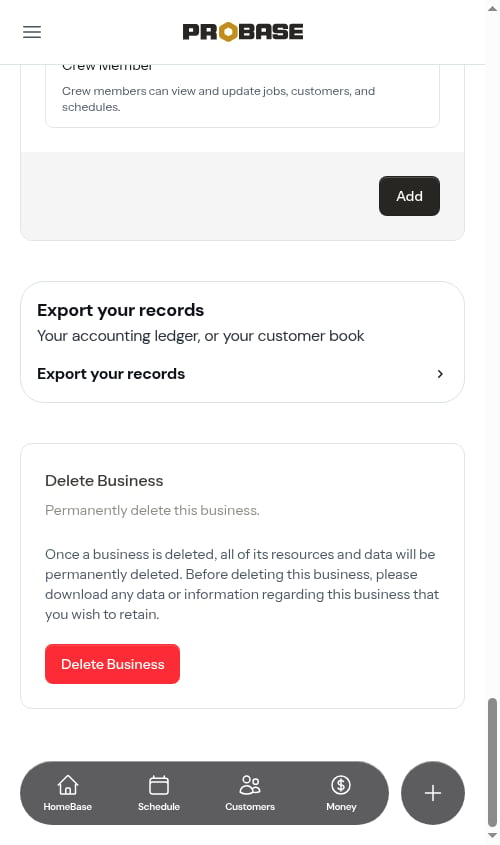
Open **Settings** from the navigation drawer and scroll to the bottom of the page. The **Export your records** card sits just above **Delete Business**. Tap the **Export your records** row.
 ## Exporting a file
Pick **Accounting** or **Customers**.
## Exporting a file
Pick **Accounting** or **Customers**.
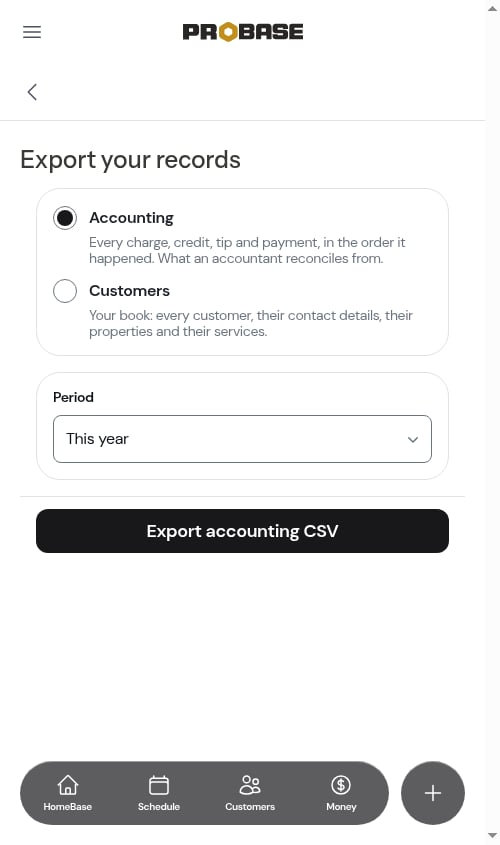 Open the **Period** dropdown and pick **This month**, **Last month**, **This year**, **Last year**, **All time**, or **Custom range**. Periods follow your business's timezone.
The Accounting file starts on **This year** and the Customers file starts on **All time** — change it if you need something different.
Open the **Period** dropdown and pick **This month**, **Last month**, **This year**, **Last year**, **All time**, or **Custom range**. Periods follow your business's timezone.
The Accounting file starts on **This year** and the Customers file starts on **All time** — change it if you need something different.
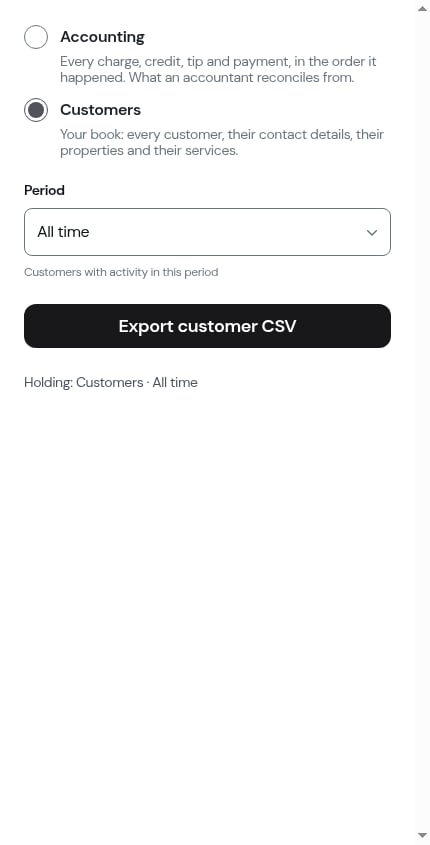
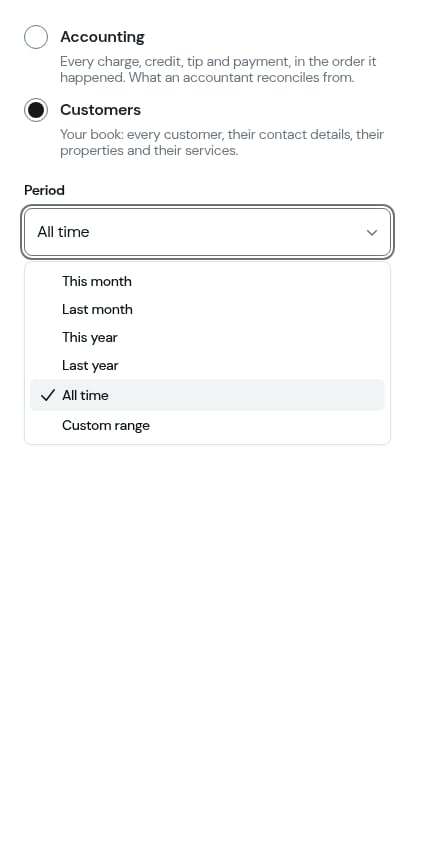 For the Customers file, a line under the dropdown explains what the period means: *Customers with activity in this period*.
 With **Custom range**, choose a **From** and a **To** date. The end date has to be on or after the start date, and the range can't start after today.
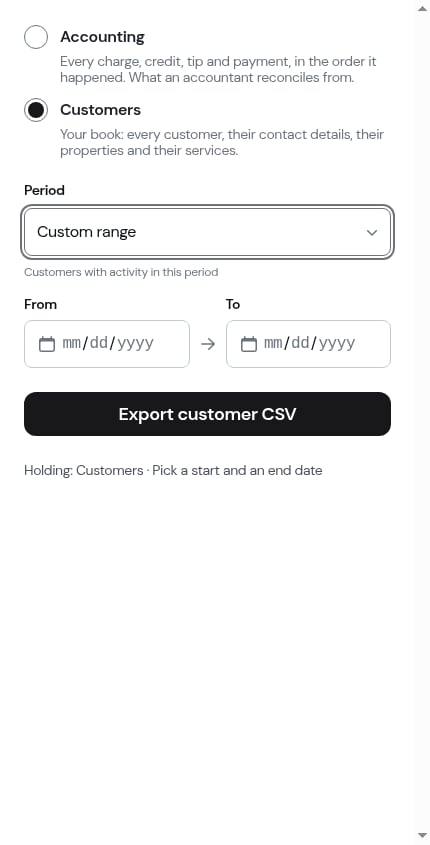 Tap the button at the bottom — it names the file you'll get: **Export accounting CSV** or **Export customer CSV**. You'll see *Preparing your export…* while ProBase builds it.
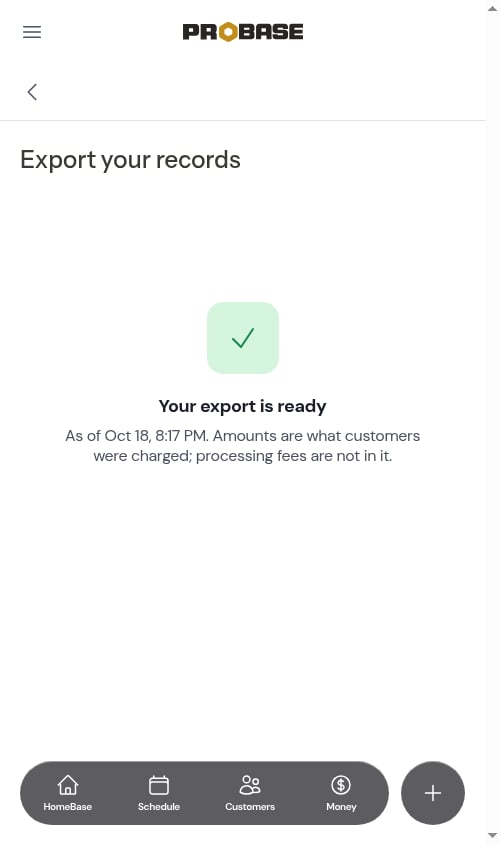
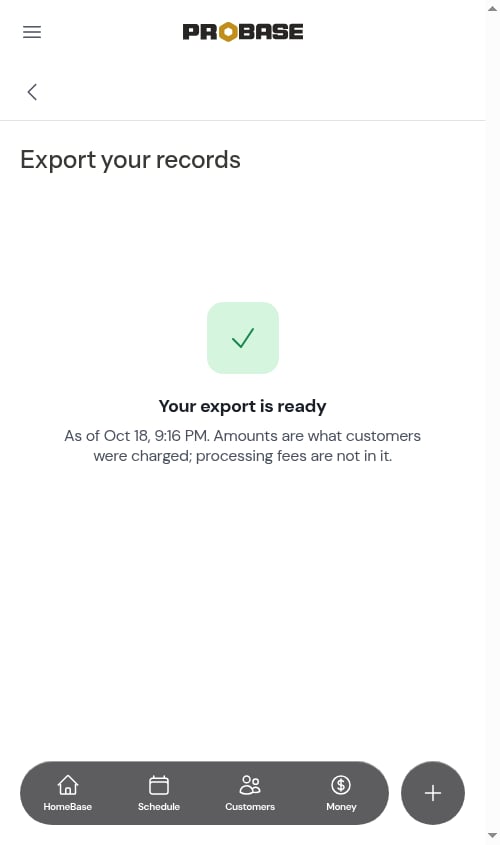
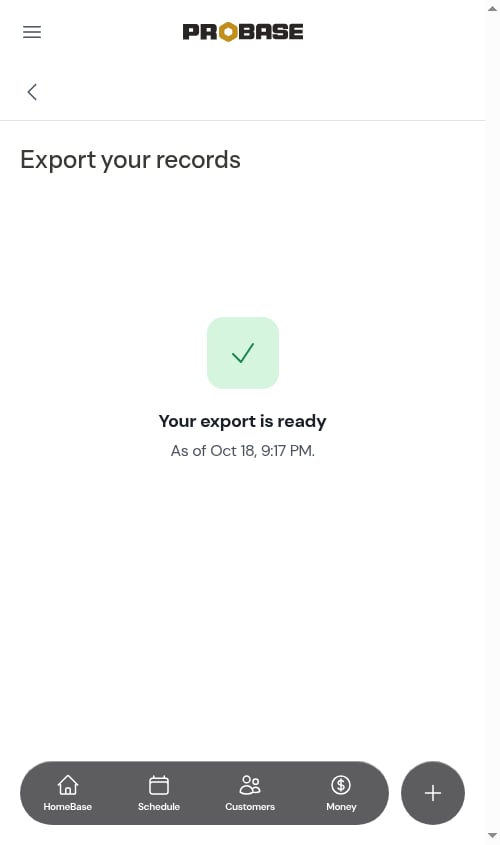
When the file is ready, the page reads **Your export is ready** and the download starts on its own. The line underneath says what moment the file was taken at — for example, *As of Sep 29, 8:01 AM.*
Tap the button at the bottom — it names the file you'll get: **Export accounting CSV** or **Export customer CSV**. You'll see *Preparing your export…* while ProBase builds it.
When the file is ready, the page reads **Your export is ready** and the download starts on its own. The line underneath says what moment the file was taken at — for example, *As of Sep 29, 8:01 AM.*
 The file is named after what's in it, like `probase-accounting-2026-01-01_2026-12-31-20260928-1941.csv`.
The download link only lasts a short while. If you need the file again later, just run the export again — it takes a moment.
## What's in each file
### Accounting
One row per money movement, oldest first, with these columns: **Date**, **Kind** (Charge, Credit, Payment, Tip, or Refund), **Customer**, **Service address**, **ZIP**, **Service**, **Amount**, **Payment method**, **Invoice number**, and **Status** (Paid or Unpaid).
Rows for \$0 are left out.
Amounts are what customers were charged; processing fees are not in it. The ready screen says the same thing when you export the Accounting file.
The file is named after what's in it, like `probase-accounting-2026-01-01_2026-12-31-20260928-1941.csv`.
The download link only lasts a short while. If you need the file again later, just run the export again — it takes a moment.
## What's in each file
### Accounting
One row per money movement, oldest first, with these columns: **Date**, **Kind** (Charge, Credit, Payment, Tip, or Refund), **Customer**, **Service address**, **ZIP**, **Service**, **Amount**, **Payment method**, **Invoice number**, and **Status** (Paid or Unpaid).
Rows for \$0 are left out.
Amounts are what customers were charged; processing fees are not in it. The ready screen says the same thing when you export the Accounting file.
 ### Customers
One row per service — a customer with several properties or services has a row for each — with these columns: **First name**, **Last name**, **Email**, **Phone**, **Customer status** (Lead, Active, or Archived), **Property address**, **Address line 2**, **City**, **State**, **ZIP**, **Service**, **Service type** (Job or Assessment), and **Service status**.
The Customers file holds no money — use the Accounting file for that.
### Customers
One row per service — a customer with several properties or services has a row for each — with these columns: **First name**, **Last name**, **Email**, **Phone**, **Customer status** (Lead, Active, or Archived), **Property address**, **Address line 2**, **City**, **State**, **ZIP**, **Service**, **Service type** (Job or Assessment), and **Service status**.
The Customers file holds no money — use the Accounting file for that.
 ## If there's nothing to export
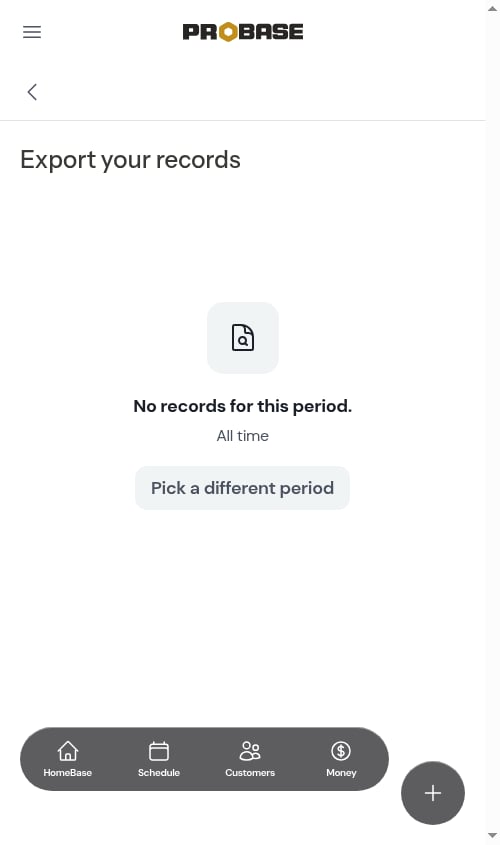
If the period you picked has no records, you'll see **No records for this period.** with the period underneath. Tap **Pick a different period** to go back to the form.
## If there's nothing to export
If the period you picked has no records, you'll see **No records for this period.** with the period underneath. Tap **Pick a different period** to go back to the form.
 ## If the export fails
If something goes wrong, the page reads **We couldn't prepare your export.** — *Nothing was downloaded. Try again in a moment.* Tap **Try again** to run the same export again.
## Related
* [Business Profile settings](/getting-started/settings)
* [Roles & permissions](/team/roles-and-permissions)
* [Importing customers in bulk](/customers/importing-customers)
This documentation is built and hosted on [Mintlify](https://mintlify.com), a developer documentation platform.
## If the export fails
If something goes wrong, the page reads **We couldn't prepare your export.** — *Nothing was downloaded. Try again in a moment.* Tap **Try again** to run the same export again.
## Related
* [Business Profile settings](/getting-started/settings)
* [Roles & permissions](/team/roles-and-permissions)
* [Importing customers in bulk](/customers/importing-customers)
This documentation is built and hosted on [Mintlify](https://mintlify.com), a developer documentation platform.