> ## Documentation Index
> Fetch the complete documentation index at: https://docs.probaseapp.com/llms.txt
> Use this file to discover all available pages before exploring further.
# HomeBase
> Your daily command center for field work
## Overview
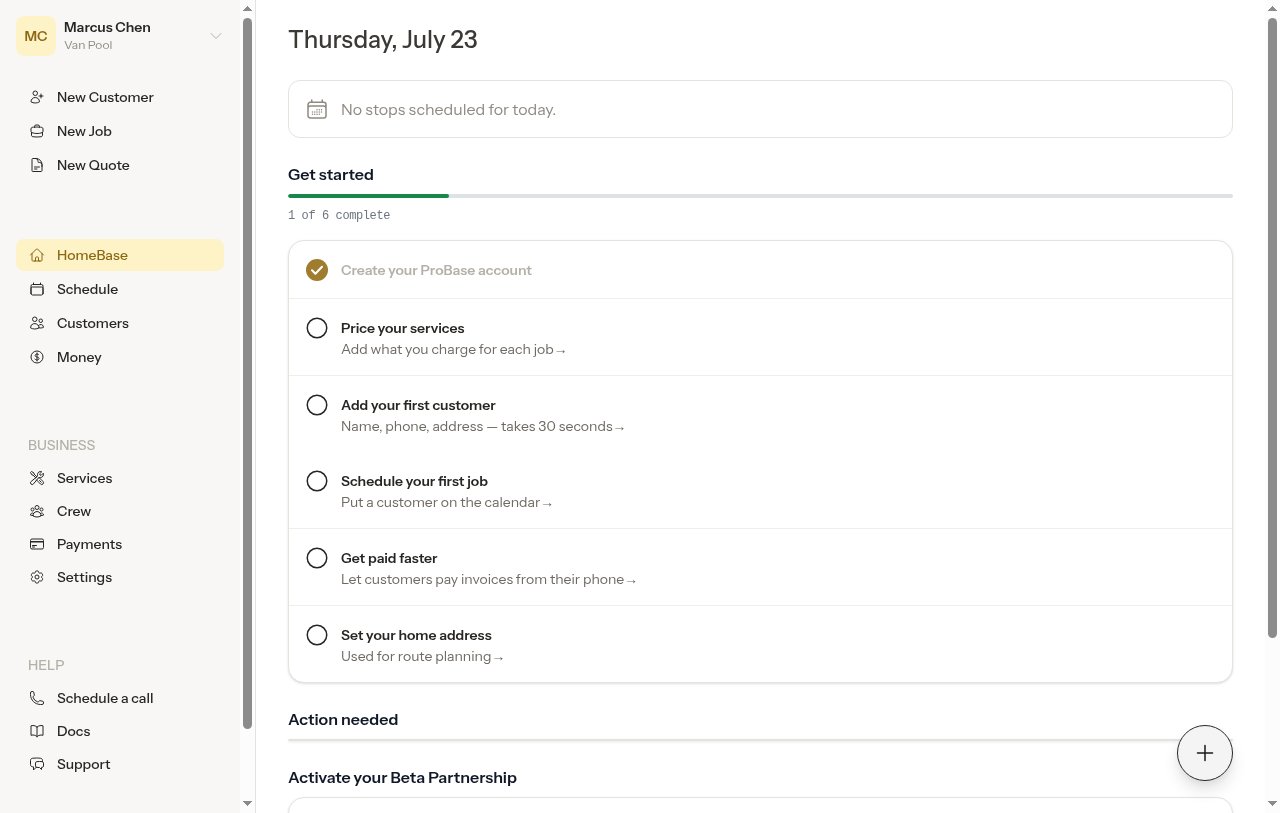
HomeBase is the main dashboard you see after logging in. It gives you a quick snapshot of the day's work so you can jump right in.
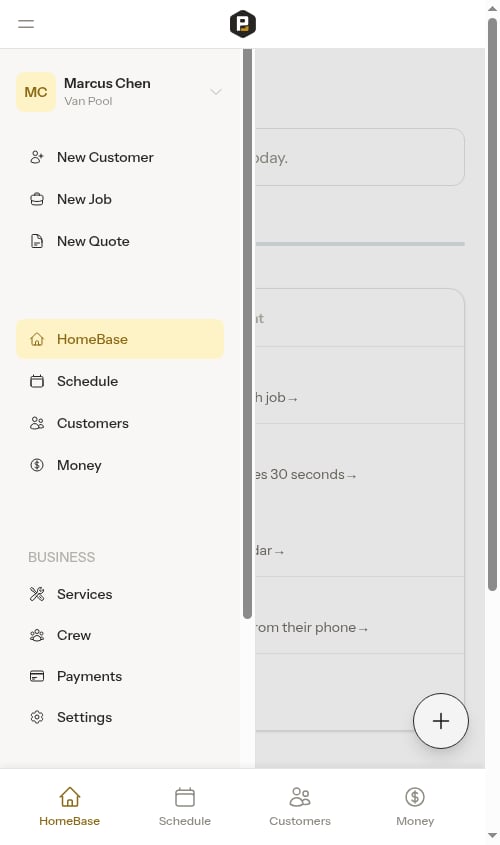
 On your phone, the Probase **hex P** mark sits in the top header on every page — tap it to jump back to HomeBase from anywhere in the app. Open the side navigation drawer (tap the menu icon in the top header) and the full **ProBase** wordmark appears at the bottom so you always know which app you're in.
 ## Today's Stops
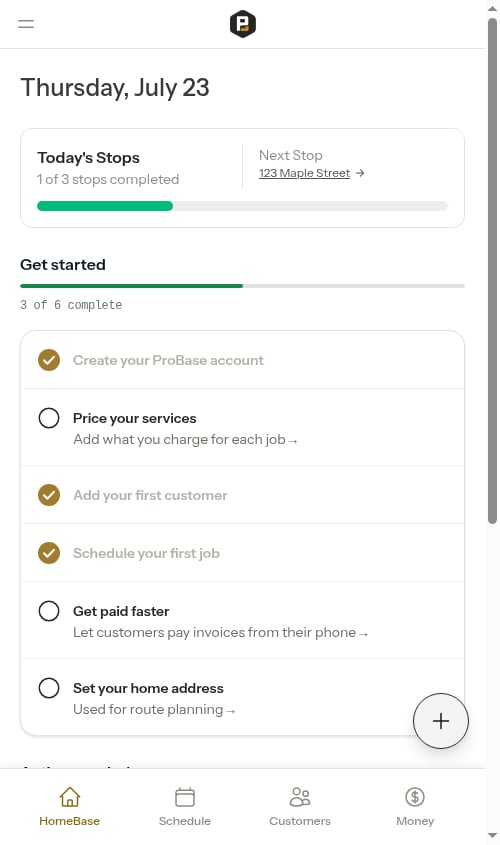
At the top of HomeBase, the **Today's Stops** card shows your progress for the current day:
* **Count** — How many stops are completed versus the total scheduled (e.g., "1 of 3 stops completed")
* **Progress bar** — A visual bar that fills as you complete stops
* **Next Stop** — A link to the next scheduled appointment so you can navigate there in one tap
## Today's Stops
At the top of HomeBase, the **Today's Stops** card shows your progress for the current day:
* **Count** — How many stops are completed versus the total scheduled (e.g., "1 of 3 stops completed")
* **Progress bar** — A visual bar that fills as you complete stops
* **Next Stop** — A link to the next scheduled appointment so you can navigate there in one tap
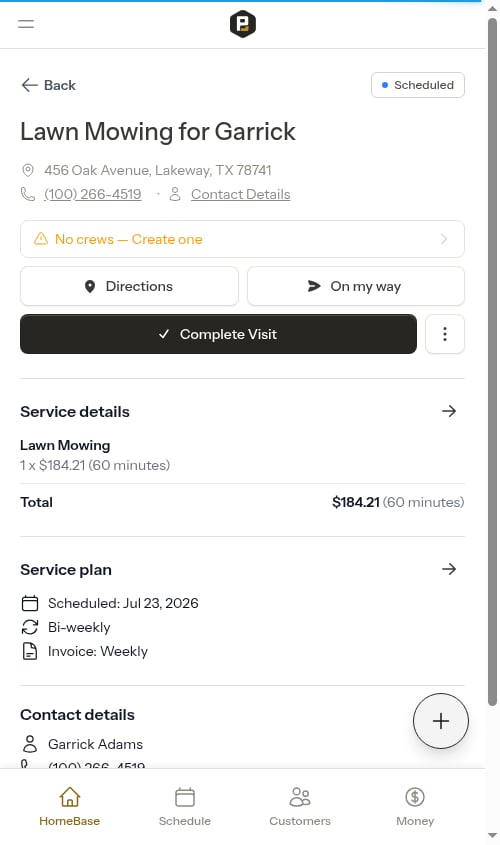 The card updates automatically as you complete, reschedule, or cancel appointments throughout the day.
### No stops scheduled
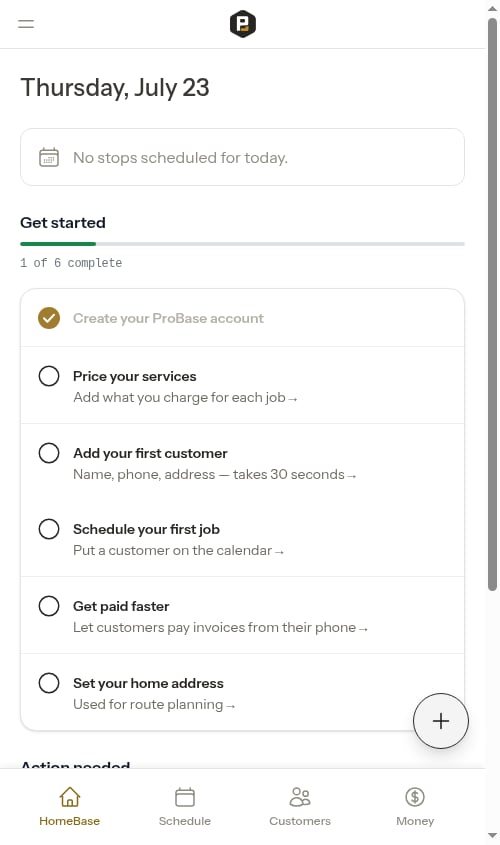
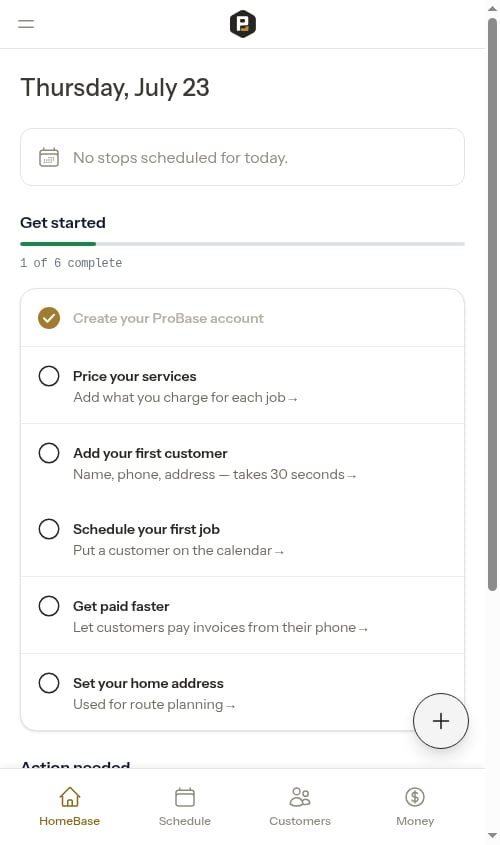
If there are no appointments scheduled for today, the card shows a simple message:
> No stops scheduled for today.
The card updates automatically as you complete, reschedule, or cancel appointments throughout the day.
### No stops scheduled
If there are no appointments scheduled for today, the card shows a simple message:
> No stops scheduled for today.
 ### All done for the day
Once all of today's stops are completed, the **Next Stop** section shows "All done for today!" so you can see at a glance that the day's work is finished.
## Get started checklist
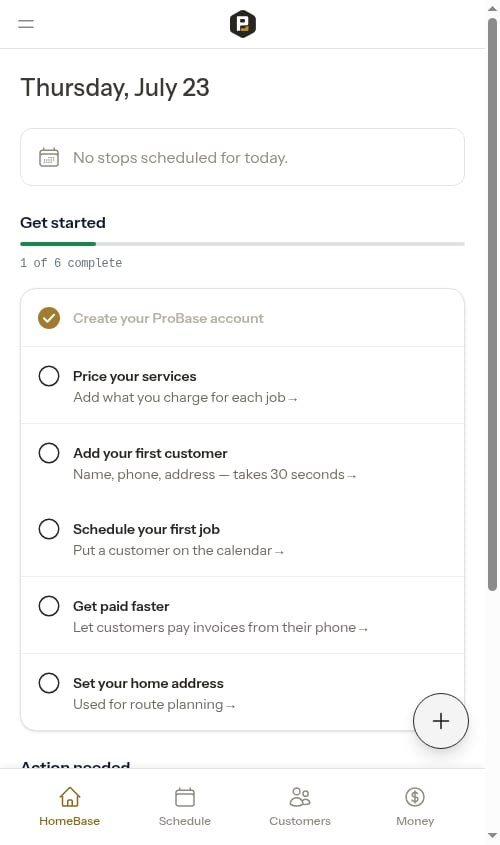
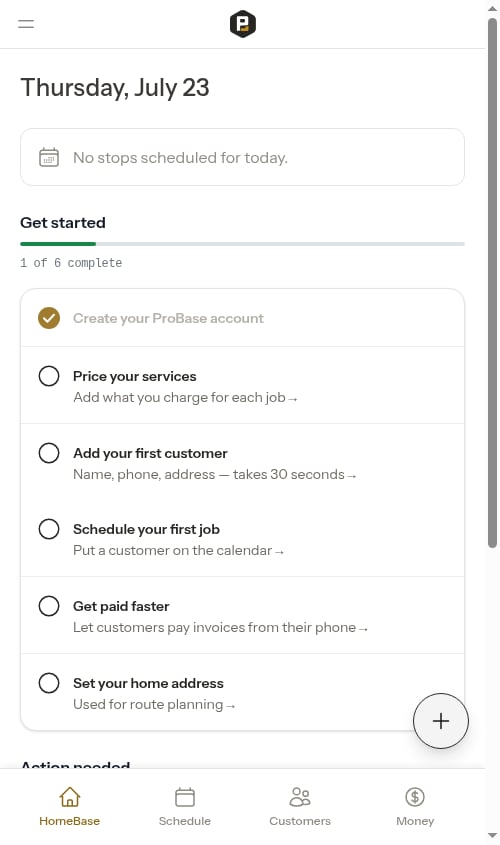
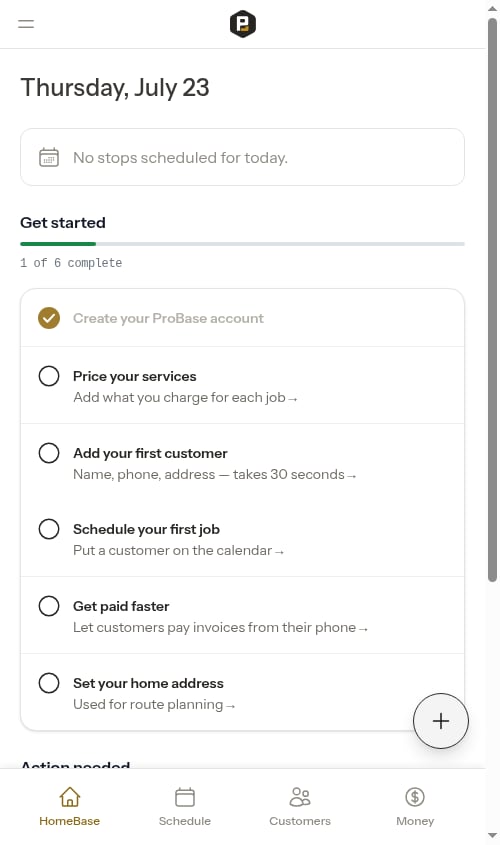
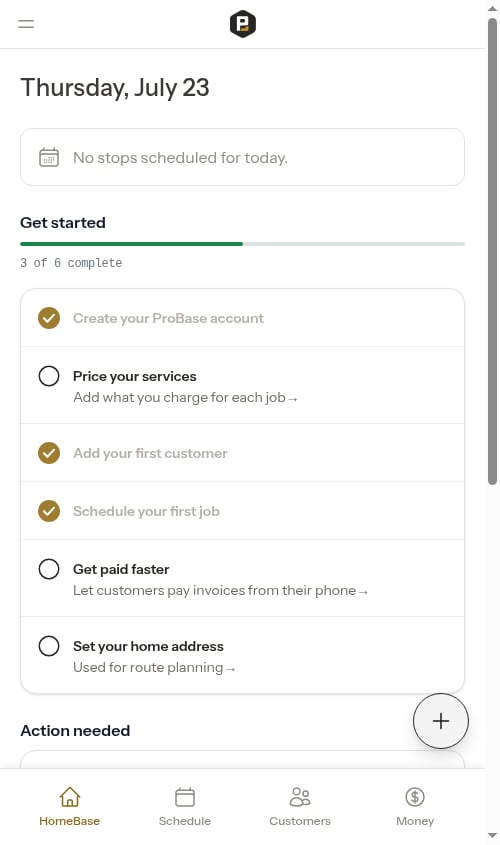
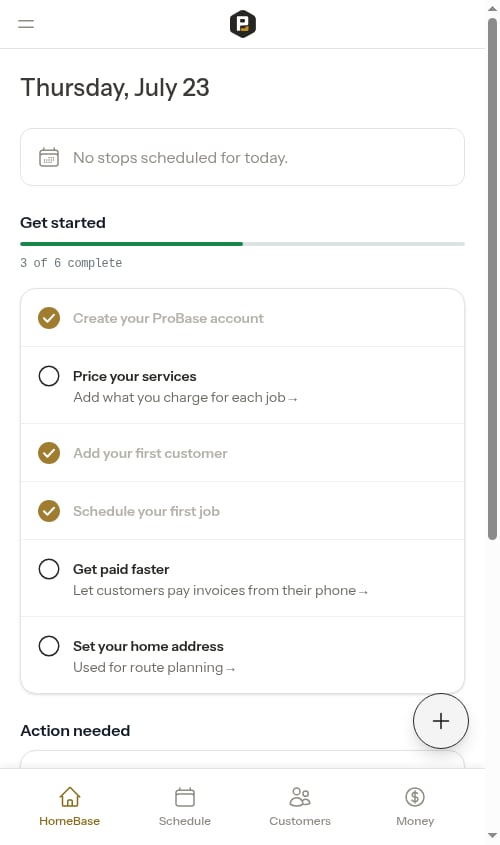
HomeBase shows a **Get started** checklist to help you finish setting up your account. It's a short list of setup steps with a progress bar at the top showing how far you've come (e.g., "2 of 6 complete"). Each step gets a checkmark as you finish it, so you can track your progress at a glance.
### All done for the day
Once all of today's stops are completed, the **Next Stop** section shows "All done for today!" so you can see at a glance that the day's work is finished.
## Get started checklist
HomeBase shows a **Get started** checklist to help you finish setting up your account. It's a short list of setup steps with a progress bar at the top showing how far you've come (e.g., "2 of 6 complete"). Each step gets a checkmark as you finish it, so you can track your progress at a glance.
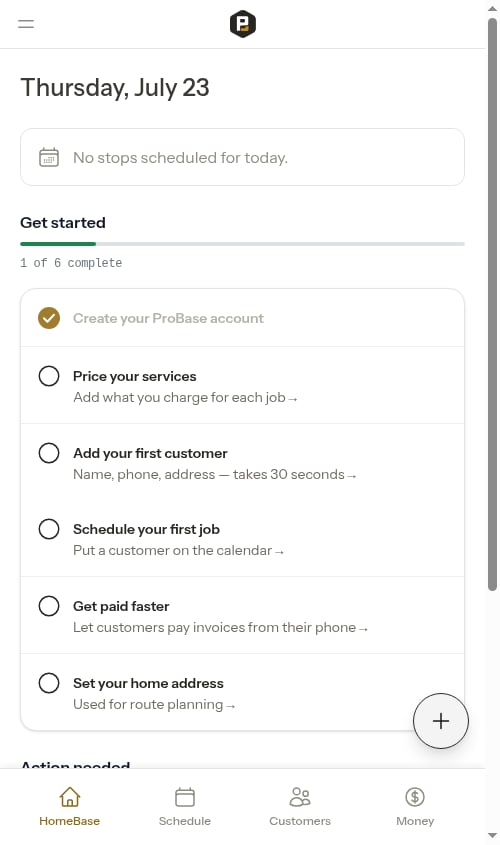 The steps are:
1. **Create your ProBase account** — Already done by the time you log in, so it starts checked off
2. **Price your services** — Add what you charge for each job. Tap it to open your service catalog
3. **Add your first customer** — Opens the Add Customer form right away so you can enter a customer in about 30 seconds
4. **Schedule your first job** — Put a customer on the calendar. Tap it to start a new job
5. **Get paid faster** — Connect Stripe so customers can pay invoices right from their phone
6. **Set your home address** — Used for route planning. Tap it to enter your business address in place
Depending on your line of work, the **Price your services** step may not appear — some businesses see five steps instead of six. The progress count ("of 5" or "of 6") adjusts to match the steps shown.
Unlike a to-do list that empties out, every step stays visible with a checkmark once it's done, so the list doubles as a record of what you've set up. Once every step is complete, the whole **Get started** section disappears from HomeBase.
If you're importing customers from another system, the **Add your first customer** step shows "We're processing your file" and links to your import status instead of opening the Add Customer form.
App-setup reminders (installing the app, turning on notifications) live in the [Action needed](#action-needed) section below rather than in this checklist.
## Importing your existing customers
Near the top of HomeBase, an **Import customers** card lets you bring your existing customer list into Probase. Upload a spreadsheet, CSV, or even a photo of a handwritten list, and Probase reads it for you.
The steps are:
1. **Create your ProBase account** — Already done by the time you log in, so it starts checked off
2. **Price your services** — Add what you charge for each job. Tap it to open your service catalog
3. **Add your first customer** — Opens the Add Customer form right away so you can enter a customer in about 30 seconds
4. **Schedule your first job** — Put a customer on the calendar. Tap it to start a new job
5. **Get paid faster** — Connect Stripe so customers can pay invoices right from their phone
6. **Set your home address** — Used for route planning. Tap it to enter your business address in place
Depending on your line of work, the **Price your services** step may not appear — some businesses see five steps instead of six. The progress count ("of 5" or "of 6") adjusts to match the steps shown.
Unlike a to-do list that empties out, every step stays visible with a checkmark once it's done, so the list doubles as a record of what you've set up. Once every step is complete, the whole **Get started** section disappears from HomeBase.
If you're importing customers from another system, the **Add your first customer** step shows "We're processing your file" and links to your import status instead of opening the Add Customer form.
App-setup reminders (installing the app, turning on notifications) live in the [Action needed](#action-needed) section below rather than in this checklist.
## Importing your existing customers
Near the top of HomeBase, an **Import customers** card lets you bring your existing customer list into Probase. Upload a spreadsheet, CSV, or even a photo of a handwritten list, and Probase reads it for you.
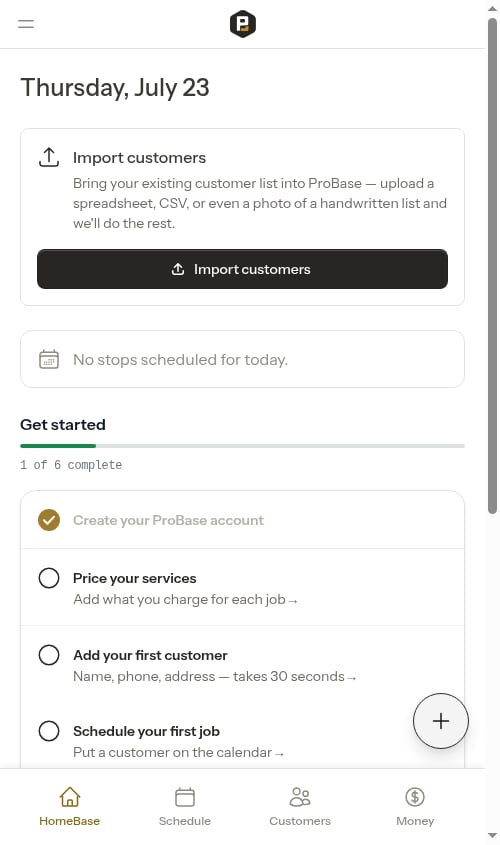 Tap **Import customers** to open the import wizard, where you upload your files and review what Probase found before creating the records. The same **Import customers** button is available in the header of your **Customers** tab.
This card is meant for when you're first getting set up, so it disappears from HomeBase once you have **four or more customers** to keep your dashboard uncluttered. You can still import at any time using the **Import customers** button in the header of your **Customers** tab or the **Bulk data** card in your Account Settings.
See [Importing customers](/customers/importing-customers) for the full bulk-import wizard.
## Action needed
HomeBase displays an **Action needed** section that gathers the things that need your attention into one place. Each item shows a count of what's waiting, so nothing slips through the cracks, with the most urgent items sitting at the top. The whole section hides itself automatically when nothing needs your attention.
Tap **Import customers** to open the import wizard, where you upload your files and review what Probase found before creating the records. The same **Import customers** button is available in the header of your **Customers** tab.
This card is meant for when you're first getting set up, so it disappears from HomeBase once you have **four or more customers** to keep your dashboard uncluttered. You can still import at any time using the **Import customers** button in the header of your **Customers** tab or the **Bulk data** card in your Account Settings.
See [Importing customers](/customers/importing-customers) for the full bulk-import wizard.
## Action needed
HomeBase displays an **Action needed** section that gathers the things that need your attention into one place. Each item shows a count of what's waiting, so nothing slips through the cracks, with the most urgent items sitting at the top. The whole section hides itself automatically when nothing needs your attention.
 ### Set up payments
If you haven't connected Stripe after your first two weeks, a reminder appears here so customers can pay invoices automatically and tip from their phone. Tap it to go to your billing settings and complete the Stripe connection.
### Reconnect your marketplace account
If you've linked a marketplace account (LawnStarter, Lawn Love, or Home Gnome) and that connection has expired, a **Reconnect your account** reminder appears here. Tap it to go to your [Platform accounts](/getting-started/platform-accounts) page and re-link the account so your customers and jobs keep syncing. This item disappears once the connection is active again.
### Install the app
On your phone, if you haven't added Probase to your home screen yet, an **Install the app** reminder appears here. Tap it to open the install flow, which walks you through adding Probase to your home screen and turning on push notifications.
### Set up payments
If you haven't connected Stripe after your first two weeks, a reminder appears here so customers can pay invoices automatically and tip from their phone. Tap it to go to your billing settings and complete the Stripe connection.
### Reconnect your marketplace account
If you've linked a marketplace account (LawnStarter, Lawn Love, or Home Gnome) and that connection has expired, a **Reconnect your account** reminder appears here. Tap it to go to your [Platform accounts](/getting-started/platform-accounts) page and re-link the account so your customers and jobs keep syncing. This item disappears once the connection is active again.
### Install the app
On your phone, if you haven't added Probase to your home screen yet, an **Install the app** reminder appears here. Tap it to open the install flow, which walks you through adding Probase to your home screen and turning on push notifications.
 This item only shows on mobile, and it disappears automatically once Probase detects you're already running it as an installed app — whether you added it to your home screen or you're using the Probase app downloaded from your phone's app store — or on a device that can't install it.
 ### Enable notifications
Once you've installed Probase on your phone, an **Enable notifications** reminder appears here until you grant permission. Tap it to allow push notifications so you get alerted when customers pay, accept quotes, or need follow-up. This item disappears automatically once notifications are enabled.
### Overdue jobs
If you have appointments that were scheduled for a past date but haven't been completed, cancelled, or rescheduled, an action item appears showing the count of overdue jobs.
### Enable notifications
Once you've installed Probase on your phone, an **Enable notifications** reminder appears here until you grant permission. Tap it to allow push notifications so you get alerted when customers pay, accept quotes, or need follow-up. This item disappears automatically once notifications are enabled.
### Overdue jobs
If you have appointments that were scheduled for a past date but haven't been completed, cancelled, or rescheduled, an action item appears showing the count of overdue jobs.
 Tap **Overdue Jobs** to open the full list, where you can see every appointment that needs attention. From there you can:
* **Search** by service name, customer name, or address
* **Tap any appointment** to open the appointment detail page and complete, reschedule, or cancel it
See [Overdue jobs](/scheduling/overdue-jobs) for full details on resolving overdue appointments.
### Jobs without assigned crew
If any scheduled appointments don't have a crew picked yet, an action item appears showing the count. This is most common on multi-crew teams; on single-crew teams new appointments are auto-assigned to your only crew, so the card is usually empty.
Tap **Overdue Jobs** to open the full list, where you can see every appointment that needs attention. From there you can:
* **Search** by service name, customer name, or address
* **Tap any appointment** to open the appointment detail page and complete, reschedule, or cancel it
See [Overdue jobs](/scheduling/overdue-jobs) for full details on resolving overdue appointments.
### Jobs without assigned crew
If any scheduled appointments don't have a crew picked yet, an action item appears showing the count. This is most common on multi-crew teams; on single-crew teams new appointments are auto-assigned to your only crew, so the card is usually empty.
 Tap **Jobs without assigned crew** to open the full list, then tap any job card to open the **Assign Crew** modal directly and pick a crew — no need to navigate to the appointment detail page first.
See [Jobs without assigned crew](/scheduling/jobs-without-assigned-crew) for the full workflow.
### Unscheduled jobs
If you have active jobs that haven't been scheduled yet, an action item appears showing the count of unscheduled jobs. Tap it to open the full **Unscheduled Jobs** list, where you can see every active job that needs an appointment.
Tap **Jobs without assigned crew** to open the full list, then tap any job card to open the **Assign Crew** modal directly and pick a crew — no need to navigate to the appointment detail page first.
See [Jobs without assigned crew](/scheduling/jobs-without-assigned-crew) for the full workflow.
### Unscheduled jobs
If you have active jobs that haven't been scheduled yet, an action item appears showing the count of unscheduled jobs. Tap it to open the full **Unscheduled Jobs** list, where you can see every active job that needs an appointment.
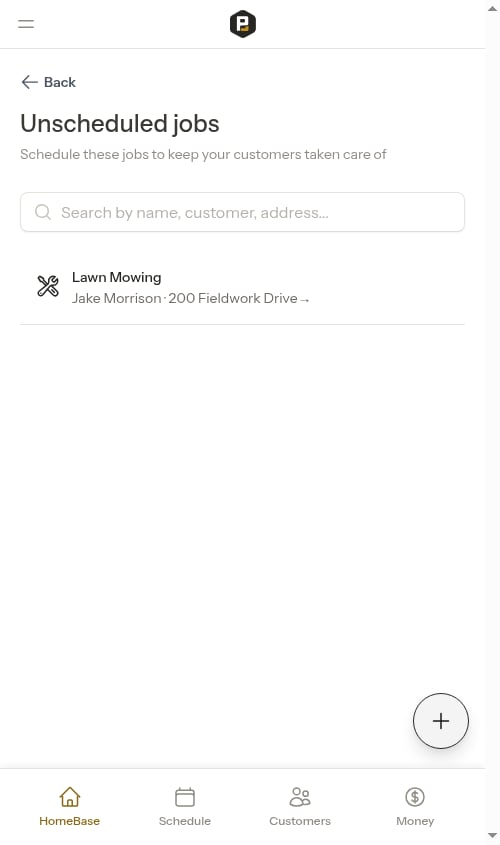 From this list you can:
* **Search** by customer name, service name, or address using the search bar at the top
* **Tap any job** to open a scheduling modal and book an appointment right away
From this list you can:
* **Search** by customer name, service name, or address using the search bar at the top
* **Tap any job** to open a scheduling modal and book an appointment right away
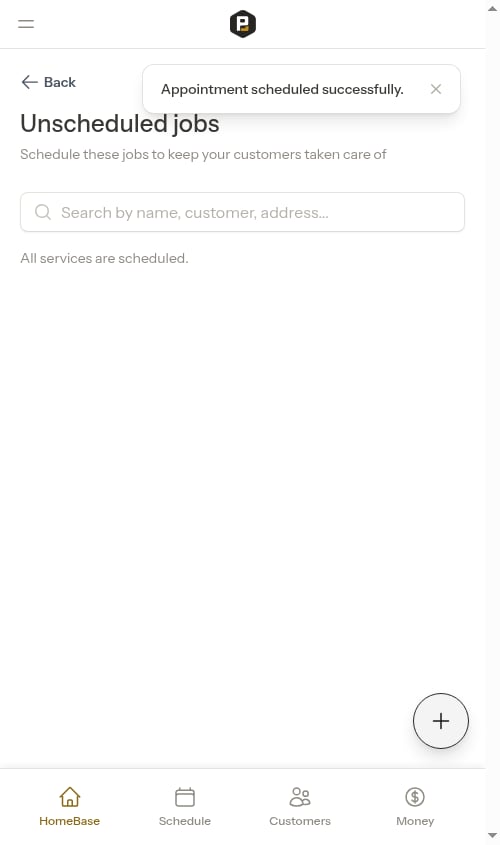
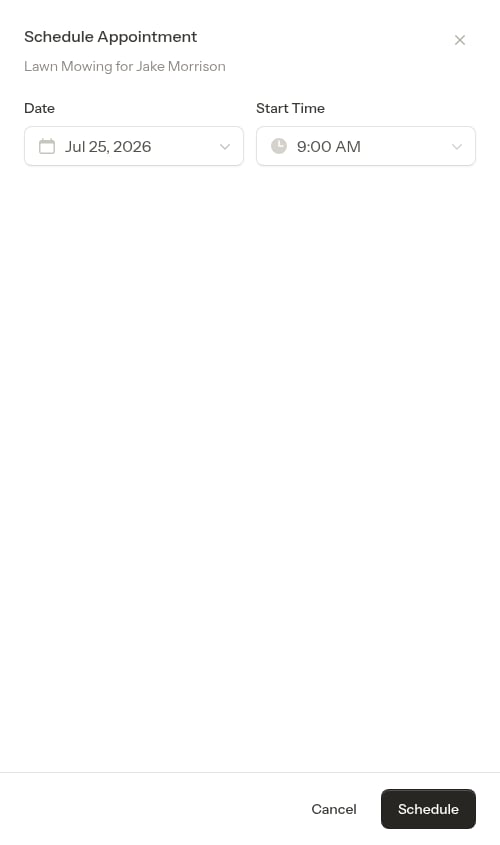 Once scheduled, the job disappears from the unscheduled list and the counter on HomeBase updates automatically.
 ### Overdue payments
If you have customers with overdue invoices, an action item appears showing the count of overdue payments. Tap **View billing** to go directly to your billing page filtered to show only overdue items, so you can quickly follow up and collect outstanding balances.
### Open quotes
If you have quotes in Draft or Sent status waiting for follow-up, an action item shows the count of open quotes. Tap it to open the **Open Quotes** list where you can search and review each quote. From there, tap any quote to open its detail page and send, accept, or update it.
### Leads follow-up
If you have customers with Lead status — meaning they have pending inquiries but no active services — an action item shows the count. Tap it to go directly to your customer list filtered to show only Lead customers, so you can follow up on assessments or services that need to be scheduled.
## Activate your Beta Partnership
Below Action needed, HomeBase shows an **Activate your Beta Partnership** section with a single card: **Book your 1-on-1 strategy call**. Tap it to open a calendar (in a new tab) and book a short strategy call with the ProBase team — they'll help you optimize your setup and routes and answer any questions while you're getting going.
### Overdue payments
If you have customers with overdue invoices, an action item appears showing the count of overdue payments. Tap **View billing** to go directly to your billing page filtered to show only overdue items, so you can quickly follow up and collect outstanding balances.
### Open quotes
If you have quotes in Draft or Sent status waiting for follow-up, an action item shows the count of open quotes. Tap it to open the **Open Quotes** list where you can search and review each quote. From there, tap any quote to open its detail page and send, accept, or update it.
### Leads follow-up
If you have customers with Lead status — meaning they have pending inquiries but no active services — an action item shows the count. Tap it to go directly to your customer list filtered to show only Lead customers, so you can follow up on assessments or services that need to be scheduled.
## Activate your Beta Partnership
Below Action needed, HomeBase shows an **Activate your Beta Partnership** section with a single card: **Book your 1-on-1 strategy call**. Tap it to open a calendar (in a new tab) and book a short strategy call with the ProBase team — they'll help you optimize your setup and routes and answer any questions while you're getting going.
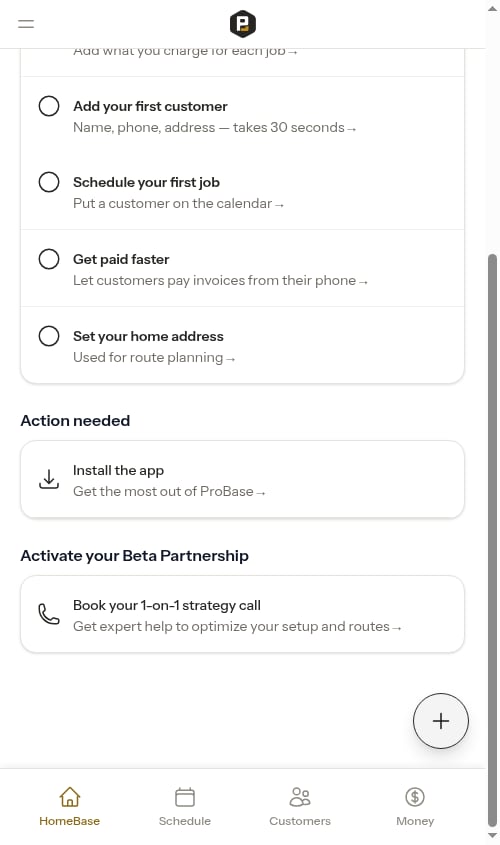 The booking form is pre-filled with your name and email from your Probase account, so you can pick a time without retyping anything. This card stays on HomeBase so a strategy call is always one tap away.
Booking a call is also available anytime from the **Schedule a call** link in the **HELP** group in the sidebar — see [Getting help](#getting-help) below.
## Getting help
A **HELP** group sits at the bottom of the sidebar (and inside the side navigation drawer on mobile) so you can reach support from anywhere in the app:
The booking form is pre-filled with your name and email from your Probase account, so you can pick a time without retyping anything. This card stays on HomeBase so a strategy call is always one tap away.
Booking a call is also available anytime from the **Schedule a call** link in the **HELP** group in the sidebar — see [Getting help](#getting-help) below.
## Getting help
A **HELP** group sits at the bottom of the sidebar (and inside the side navigation drawer on mobile) so you can reach support from anywhere in the app:
 * **Schedule a call** — book a 1:1 with the ProBase team (opens in a new tab, pre-filled with your name and email)
* **Docs** — open these docs in a new tab
* **Support** — start a live chat with the ProBase team
See [Getting around Probase](/getting-started/navigation) for a full tour of the sidebar.
## Quick Actions (FAB)
The floating **+** button in the bottom-right corner gives you fast access to the most common creation tasks:
* **New Customer** — Add a new customer
* **New Job** — Create confirmed work (customer + property + service + appointment)
* **New Quote** — Start the quote wizard for formal quotes or on-site assessments
See [Quick Actions](/getting-started/quick-actions) for full details on each option.
## Date heading
The top of the page shows today's date (e.g., "Tuesday, March 3") so you always know what day the data is for.
## Next steps
* [View today's full schedule](/routes/daily-crew-schedules) to see all appointments in detail
* [Complete appointments](/routes/completing-jobs) as you finish each stop
* [Quick Actions](/getting-started/quick-actions) for shortcuts to common tasks
* **Schedule a call** — book a 1:1 with the ProBase team (opens in a new tab, pre-filled with your name and email)
* **Docs** — open these docs in a new tab
* **Support** — start a live chat with the ProBase team
See [Getting around Probase](/getting-started/navigation) for a full tour of the sidebar.
## Quick Actions (FAB)
The floating **+** button in the bottom-right corner gives you fast access to the most common creation tasks:
* **New Customer** — Add a new customer
* **New Job** — Create confirmed work (customer + property + service + appointment)
* **New Quote** — Start the quote wizard for formal quotes or on-site assessments
See [Quick Actions](/getting-started/quick-actions) for full details on each option.
## Date heading
The top of the page shows today's date (e.g., "Tuesday, March 3") so you always know what day the data is for.
## Next steps
* [View today's full schedule](/routes/daily-crew-schedules) to see all appointments in detail
* [Complete appointments](/routes/completing-jobs) as you finish each stop
* [Quick Actions](/getting-started/quick-actions) for shortcuts to common tasks