> ## Documentation Index
> Fetch the complete documentation index at: https://docs.probaseapp.com/llms.txt
> Use this file to discover all available pages before exploring further.
# Platform accounts
> Connect your marketplace accounts to sync customers and jobs into ProBase
## Overview
If you get work through a marketplace like **LawnStarter**, **Lawn Love**, or **Home Gnome**, you can link that account to ProBase. Once connected, the customers and jobs you get through the marketplace flow into ProBase automatically, so you manage everything in one place instead of jumping between apps.
Open **Platform accounts** from the **BUSINESS** group in the sidebar.
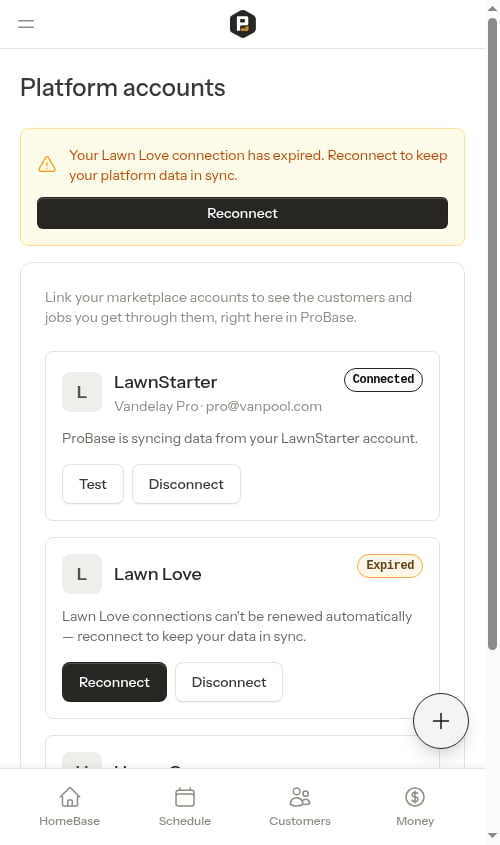 Platform accounts is available to business owners and admins — the same people who can reach your other business settings. If you don't see it in the sidebar, your account either doesn't have the connection feature turned on yet or your role doesn't include business settings access.
## Connecting an account
Each marketplace gets its own card on the page. A card that hasn't been linked yet shows a **Connect** button.
Find the card for your marketplace (LawnStarter, Lawn Love, or Home Gnome) and tap **Connect**. ProBase takes you to that marketplace's sign-in page.
Sign in to your marketplace account and approve the connection when prompted. This tells the marketplace it's okay to share your customers and jobs with ProBase.
ProBase brings you back to the Platform accounts page and shows a confirmation. The card now displays a green **Connected** badge along with the name and email on the linked account.
If you change your mind on the marketplace's sign-in screen and cancel, nothing is linked — ProBase simply returns you to the Platform accounts page and you can try again whenever you're ready.
## Testing a connection
Once an account is linked, its card shows a **Test** button next to **Disconnect**. Use it any time you want to confirm ProBase can still reach the marketplace and see what's on your account — handy if you suspect syncing has stopped.
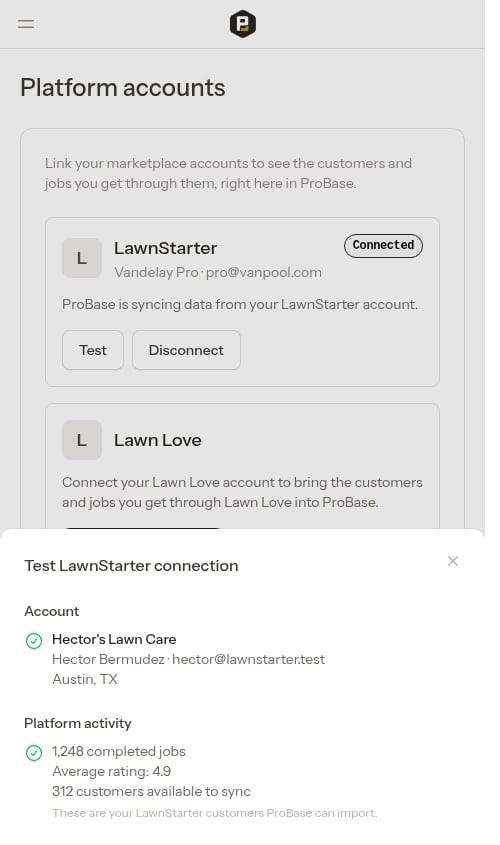
Tap **Test** to open the **Test connection** window. It checks two things and fills each in as soon as it finishes:
* **Account** — the business name, contact name, email, and location on your linked marketplace account. Seeing your own details here confirms ProBase is talking to the right account.
* **Platform activity** — a quick snapshot from the marketplace: your number of completed jobs, your average rating, and how many of your marketplace customers are **available to sync** into ProBase. That customer count is your real number on the marketplace — an easy way to confirm the connection can see your whole book of business before you import it.
Platform accounts is available to business owners and admins — the same people who can reach your other business settings. If you don't see it in the sidebar, your account either doesn't have the connection feature turned on yet or your role doesn't include business settings access.
## Connecting an account
Each marketplace gets its own card on the page. A card that hasn't been linked yet shows a **Connect** button.
Find the card for your marketplace (LawnStarter, Lawn Love, or Home Gnome) and tap **Connect**. ProBase takes you to that marketplace's sign-in page.
Sign in to your marketplace account and approve the connection when prompted. This tells the marketplace it's okay to share your customers and jobs with ProBase.
ProBase brings you back to the Platform accounts page and shows a confirmation. The card now displays a green **Connected** badge along with the name and email on the linked account.
If you change your mind on the marketplace's sign-in screen and cancel, nothing is linked — ProBase simply returns you to the Platform accounts page and you can try again whenever you're ready.
## Testing a connection
Once an account is linked, its card shows a **Test** button next to **Disconnect**. Use it any time you want to confirm ProBase can still reach the marketplace and see what's on your account — handy if you suspect syncing has stopped.
Tap **Test** to open the **Test connection** window. It checks two things and fills each in as soon as it finishes:
* **Account** — the business name, contact name, email, and location on your linked marketplace account. Seeing your own details here confirms ProBase is talking to the right account.
* **Platform activity** — a quick snapshot from the marketplace: your number of completed jobs, your average rating, and how many of your marketplace customers are **available to sync** into ProBase. That customer count is your real number on the marketplace — an easy way to confirm the connection can see your whole book of business before you import it.
 Each section loads on its own, so one may show its results a moment before the other. That's normal.
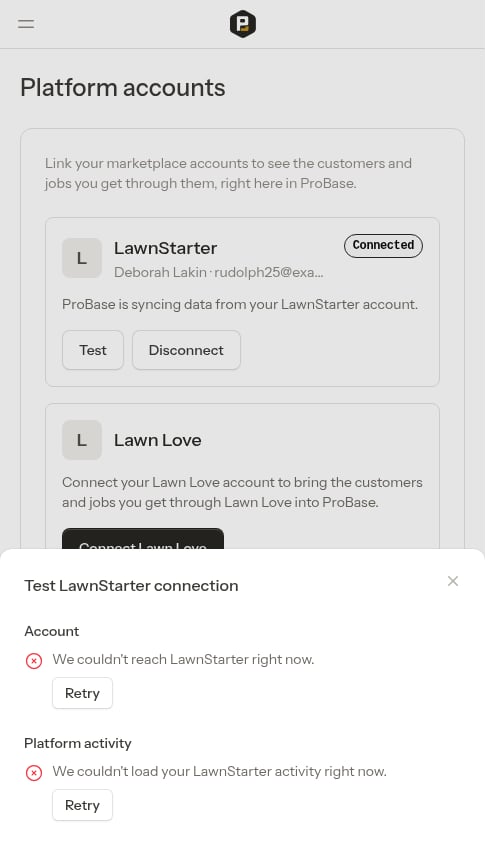
If ProBase can't reach the marketplace, the window shows a short message like "We couldn't reach LawnStarter right now" with a **Retry** button — tap it to try again.
Each section loads on its own, so one may show its results a moment before the other. That's normal.
If ProBase can't reach the marketplace, the window shows a short message like "We couldn't reach LawnStarter right now" with a **Retry** button — tap it to try again.
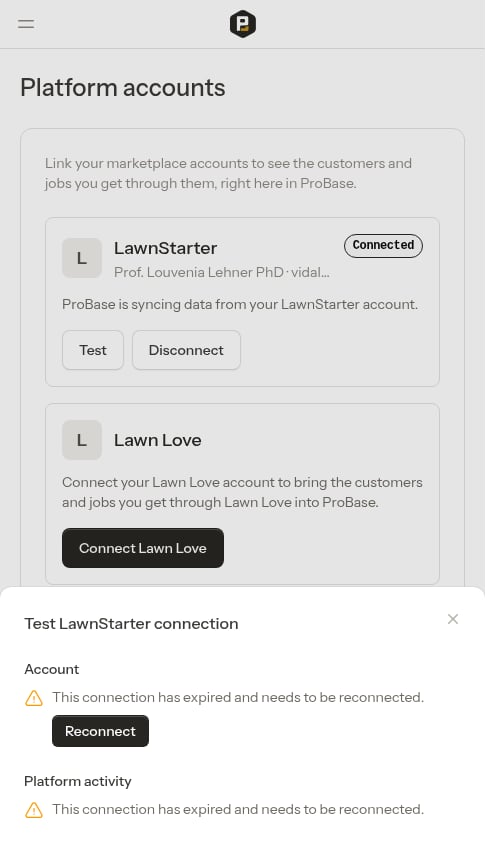
 If the connection has expired, each section shows "This connection has expired and needs to be reconnected." with a **Reconnect** button instead of a Retry button — tap it to sign in to the marketplace again (see [Reconnecting an expired account](#reconnecting-an-expired-account) below).
 ## Connection statuses
Each card shows the current status of that marketplace connection:
* **Connected** (green) — ProBase is actively syncing data from that account. The card shows the linked account's name and email.
* **Expired** (amber) — the connection stopped working and needs to be re-established. See [Reconnecting an expired account](#reconnecting-an-expired-account) below.
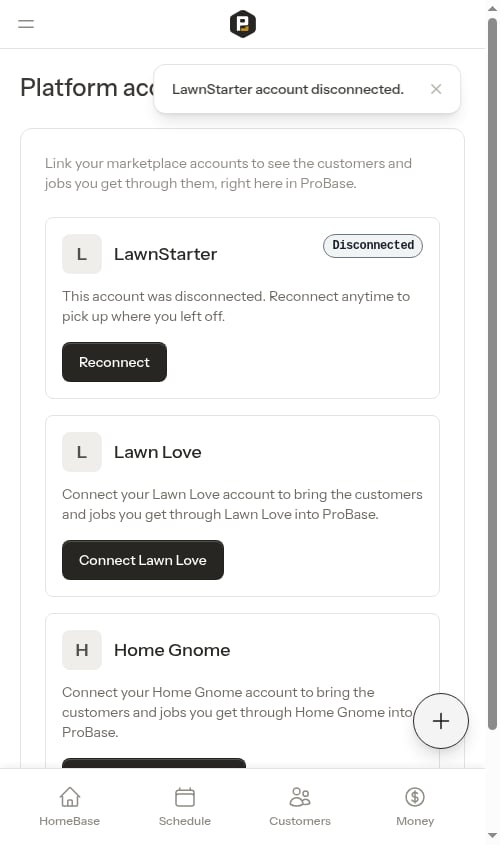
* **Disconnected** (grey) — you unlinked the account. Reconnect anytime to pick up where you left off.
A card with no badge has never been linked and shows a plain **Connect** button.
## Disconnecting an account
To stop syncing from a marketplace:
On a connected card, tap **Disconnect**.
ProBase asks you to confirm. Tap **Disconnect** again in the dialog to unlink the account.
The card flips to a grey **Disconnected** badge and shows a **Reconnect** button. Disconnecting fully unlinks the account and stops the sync right away — you can reconnect at any time and pick up where you left off.
## Connection statuses
Each card shows the current status of that marketplace connection:
* **Connected** (green) — ProBase is actively syncing data from that account. The card shows the linked account's name and email.
* **Expired** (amber) — the connection stopped working and needs to be re-established. See [Reconnecting an expired account](#reconnecting-an-expired-account) below.
* **Disconnected** (grey) — you unlinked the account. Reconnect anytime to pick up where you left off.
A card with no badge has never been linked and shows a plain **Connect** button.
## Disconnecting an account
To stop syncing from a marketplace:
On a connected card, tap **Disconnect**.
ProBase asks you to confirm. Tap **Disconnect** again in the dialog to unlink the account.
The card flips to a grey **Disconnected** badge and shows a **Reconnect** button. Disconnecting fully unlinks the account and stops the sync right away — you can reconnect at any time and pick up where you left off.
 ## Reconnecting an expired account
Marketplace connections can expire on their own after a while — this is normal and doesn't mean anything is wrong with your account. When a connection expires, it can't renew itself, so you'll need to reconnect to keep your data flowing.
When a connection expires, ProBase makes it easy to fix:
* An **amber banner** appears at the top of the Platform accounts page with a **Reconnect** button.
* A matching **Reconnect your account** item appears in the [Action needed](/getting-started/homebase#action-needed) section on HomeBase.
Tap **Reconnect** from either spot and sign in to the marketplace again. Once approved, the card returns to **Connected** and syncing resumes.
## Next steps
* [HomeBase](/getting-started/homebase) — where expired-connection reminders show up
* [Business Profile](/getting-started/settings) — your other business settings
* [Getting around Probase](/getting-started/navigation) — a full tour of the sidebar
## Reconnecting an expired account
Marketplace connections can expire on their own after a while — this is normal and doesn't mean anything is wrong with your account. When a connection expires, it can't renew itself, so you'll need to reconnect to keep your data flowing.
When a connection expires, ProBase makes it easy to fix:
* An **amber banner** appears at the top of the Platform accounts page with a **Reconnect** button.
* A matching **Reconnect your account** item appears in the [Action needed](/getting-started/homebase#action-needed) section on HomeBase.
Tap **Reconnect** from either spot and sign in to the marketplace again. Once approved, the card returns to **Connected** and syncing resumes.
## Next steps
* [HomeBase](/getting-started/homebase) — where expired-connection reminders show up
* [Business Profile](/getting-started/settings) — your other business settings
* [Getting around Probase](/getting-started/navigation) — a full tour of the sidebar