> ## Documentation Index
> Fetch the complete documentation index at: https://docs.probaseapp.com/llms.txt
> Use this file to discover all available pages before exploring further.
# Push notifications
> Turn on phone alerts from ProBase, and what to do when they stop arriving
## What push notifications are
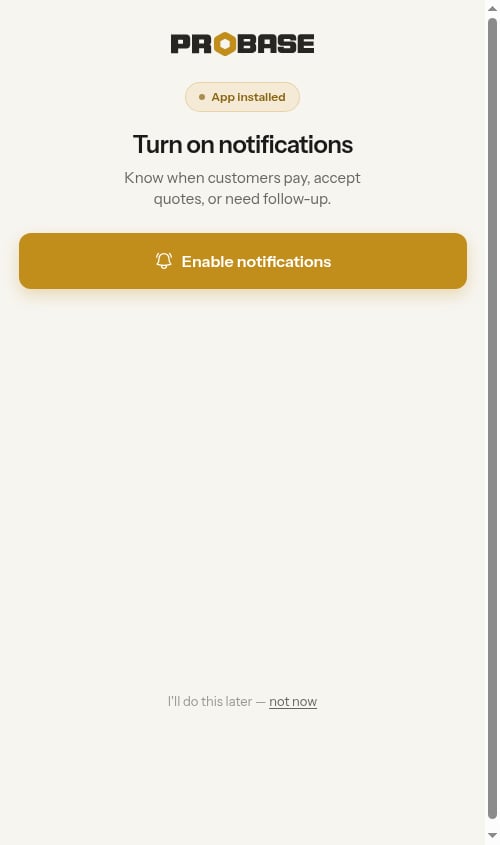
Push notifications are the alerts that appear on your phone's lock screen and notification shade — the same way a text or a messaging app announces itself, but sent by ProBase rather than by your phone carrier. The **Turn on notifications** screen sums up what they're for: *"Know when customers pay, accept quotes, or need follow-up."*
They're separate from [text message notifications](/getting-started/text-message-notifications). Texts go to your phone number and are controlled by the **SMS notifications** toggle on your profile. Push notifications go to a specific phone and are controlled by that phone's own permission prompt. Turning one on or off has no effect on the other.
Push notifications are per device. If you use ProBase on a phone and a tablet, you turn them on separately on each one.
**The alerts themselves are being switched on gradually.** Allowing notifications registers your phone so it's ready to receive them, but the alerts ProBase sends are still being rolled out — so you may not see any straight away. Turning the permission on now means nothing more is needed from you once they start arriving.
## What arrives as a push
Push notifications carry your [updates](/getting-started/updates) — the same short messages that collect behind the bell in the app. A push shows the update's title and its one-line summary, and tapping it opens ProBase straight at the screen the update points to.
Anything sent as a push is also waiting in the Updates drawer, so a notification you swiped away or missed overnight is never lost.
That's how you hear about the things that happen while you're not looking at ProBase — a new contact through your form, a card payment that went through or was declined, or Stripe pausing your payouts. See [What sends an update today](/getting-started/updates#what-sends-an-update-today) for the full list.
## You need the app installed first
ProBase has to be added to your home screen before it can send you push notifications. On an iPhone this is a hard rule set by Apple — notifications simply aren't available in a normal Safari or Chrome tab. That's why ProBase only offers to turn notifications on once it can see you're running the installed app.
If you haven't installed it yet, start there:
* During signup, the last onboarding step walks you through it — see [Add the app to your home screen](/getting-started/onboarding#add-the-app-to-your-home-screen-final-step).
* Afterwards, tap **Install the app** in the **Action needed** section of [HomeBase](/getting-started/homebase#install-the-app).
## Turning notifications on
Open ProBase from the icon on your home screen — not from a browser tab.
Straight after you install during onboarding, ProBase shows a **Turn on notifications** screen with an **App installed** badge.
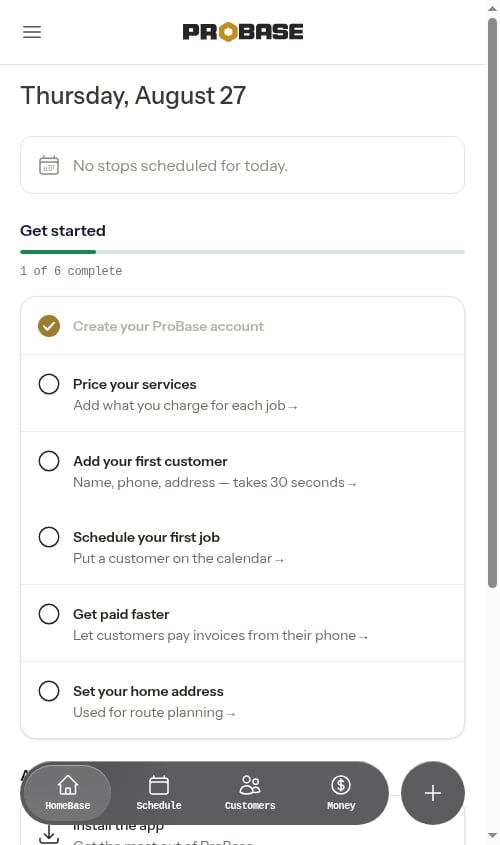
 If you skipped it — or you installed the app some other way — the same prompt is waiting on your dashboard as an **Enable notifications** item in the **Action needed** section, described as *"Get alerts when customers pay, accept quotes, or need follow-up."*
 Your phone asks whether ProBase may send you notifications. Tap **Allow**.
ProBase registers this phone in the background — there's nothing else to confirm. The **Enable notifications** reminder disappears from **Action needed**, and the onboarding screen moves you along to your dashboard.
Not ready yet? On the onboarding screen, tap **I'll do this later — not now**. The reminder stays on your dashboard so you can come back to it whenever you like.
## Other places to turn them on
Once [updates](/getting-started/updates) are switched on for your account, two more places offer the same thing:
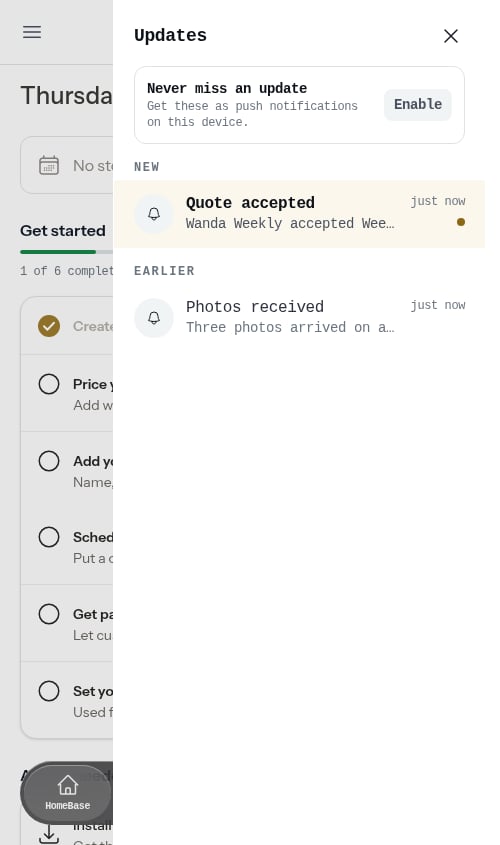
* **In the Updates drawer.** Open the bell on a device that hasn't been asked yet and a **Never miss an update** panel sits at the top — *"Get these as push notifications on this device."* Tap **Enable**.
Your phone asks whether ProBase may send you notifications. Tap **Allow**.
ProBase registers this phone in the background — there's nothing else to confirm. The **Enable notifications** reminder disappears from **Action needed**, and the onboarding screen moves you along to your dashboard.
Not ready yet? On the onboarding screen, tap **I'll do this later — not now**. The reminder stays on your dashboard so you can come back to it whenever you like.
## Other places to turn them on
Once [updates](/getting-started/updates) are switched on for your account, two more places offer the same thing:
* **In the Updates drawer.** Open the bell on a device that hasn't been asked yet and a **Never miss an update** panel sits at the top — *"Get these as push notifications on this device."* Tap **Enable**.
 * **On your profile.** Open the navigation drawer, select **My Profile**, and scroll to **Notification Preferences**. Below **SMS notifications** is a **Push notifications** toggle for the device you're on.
## Turning them off
The **Push notifications** toggle on your profile is also how you turn them off again. Switching it off stops alerts reaching **that device only** — the phone or tablet you're holding. Your other devices keep theirs, and your updates keep collecting behind the bell in the app either way.
Switching it back on asks nothing further if you've already granted permission on that device.
Turning push notifications off doesn't affect text messages. Those have their own switch in the same section — see [Text message notifications](/getting-started/text-message-notifications).
## If notifications are blocked
Your phone only asks once. If you tapped **Don't Allow** the first time — or you'd blocked notifications for ProBase previously — tapping **Enable notifications** again can't re-open the prompt, so ProBase tells you instead:
* On the dashboard, a red message appears: *"Notifications are blocked. Enable them in your browser settings."*
* On the onboarding screen, you'll see: *"Notifications are blocked. Enable them for ProBase in your device's Settings app, then come back here."*
* On your profile, the **Push notifications** toggle is greyed out with a line beneath it: *"Notifications are blocked for ProBase in your browser settings — allow them there first."*
To fix it, open your phone's **Settings** app, find ProBase in the list of apps, switch notifications back on, then reopen ProBase. The reminder clears itself once your phone reports the permission as granted.
Removing ProBase from your home screen usually clears the permission along with it. If you install it again later, you'll be asked afresh.
## Keeping delivery working
Once you've allowed notifications, ProBase re-registers your phone quietly each time you open the app. You don't have to do anything for this — it just means that if your phone or browser ever drops the registration (which they do occasionally, and always after a reinstall), delivery repairs itself the next time you open ProBase.
If you've allowed notifications and nothing has ever arrived, there's most likely nothing wrong with your phone — the alerts are still being switched on (see the note at the top of this page). The steps below are for the case where notifications *were* arriving and then stopped.
Work through this in order:
1. **Open ProBase from the home screen icon** rather than a browser tab, and leave it open for a moment.
2. **Check your phone's Settings** — confirm notifications are still allowed for ProBase, and that the alert style isn't set to silent.
3. **Check Focus / Do Not Disturb.** Both hold notifications back without turning them off.
4. **Check you're on the right phone.** Permission is granted per device, so a second phone or tablet needs its own **Enable notifications** tap.
5. **Check the toggle on your profile.** If **Push notifications** in **Notification Preferences** is off for this device, switch it back on.
Missed alerts aren't lost. Everything ProBase would have pushed to you is still waiting in your [Updates](/getting-started/updates) drawer behind the bell.
Push notifications are one of several ways ProBase reaches you. Text messages have their own on/off switch on your profile — see [Text message notifications](/getting-started/text-message-notifications).
## Related pages
* [Updates](/getting-started/updates) — the in-app feed behind the bell that pushes come from
* [Getting started with onboarding](/getting-started/onboarding) — including the install and notifications steps
* [HomeBase](/getting-started/homebase#action-needed) — where the **Enable notifications** reminder lives
* [Text message notifications](/getting-started/text-message-notifications) — the separate SMS preference
* [Troubleshooting](/support/troubleshooting) — other common issues
* **On your profile.** Open the navigation drawer, select **My Profile**, and scroll to **Notification Preferences**. Below **SMS notifications** is a **Push notifications** toggle for the device you're on.
## Turning them off
The **Push notifications** toggle on your profile is also how you turn them off again. Switching it off stops alerts reaching **that device only** — the phone or tablet you're holding. Your other devices keep theirs, and your updates keep collecting behind the bell in the app either way.
Switching it back on asks nothing further if you've already granted permission on that device.
Turning push notifications off doesn't affect text messages. Those have their own switch in the same section — see [Text message notifications](/getting-started/text-message-notifications).
## If notifications are blocked
Your phone only asks once. If you tapped **Don't Allow** the first time — or you'd blocked notifications for ProBase previously — tapping **Enable notifications** again can't re-open the prompt, so ProBase tells you instead:
* On the dashboard, a red message appears: *"Notifications are blocked. Enable them in your browser settings."*
* On the onboarding screen, you'll see: *"Notifications are blocked. Enable them for ProBase in your device's Settings app, then come back here."*
* On your profile, the **Push notifications** toggle is greyed out with a line beneath it: *"Notifications are blocked for ProBase in your browser settings — allow them there first."*
To fix it, open your phone's **Settings** app, find ProBase in the list of apps, switch notifications back on, then reopen ProBase. The reminder clears itself once your phone reports the permission as granted.
Removing ProBase from your home screen usually clears the permission along with it. If you install it again later, you'll be asked afresh.
## Keeping delivery working
Once you've allowed notifications, ProBase re-registers your phone quietly each time you open the app. You don't have to do anything for this — it just means that if your phone or browser ever drops the registration (which they do occasionally, and always after a reinstall), delivery repairs itself the next time you open ProBase.
If you've allowed notifications and nothing has ever arrived, there's most likely nothing wrong with your phone — the alerts are still being switched on (see the note at the top of this page). The steps below are for the case where notifications *were* arriving and then stopped.
Work through this in order:
1. **Open ProBase from the home screen icon** rather than a browser tab, and leave it open for a moment.
2. **Check your phone's Settings** — confirm notifications are still allowed for ProBase, and that the alert style isn't set to silent.
3. **Check Focus / Do Not Disturb.** Both hold notifications back without turning them off.
4. **Check you're on the right phone.** Permission is granted per device, so a second phone or tablet needs its own **Enable notifications** tap.
5. **Check the toggle on your profile.** If **Push notifications** in **Notification Preferences** is off for this device, switch it back on.
Missed alerts aren't lost. Everything ProBase would have pushed to you is still waiting in your [Updates](/getting-started/updates) drawer behind the bell.
Push notifications are one of several ways ProBase reaches you. Text messages have their own on/off switch on your profile — see [Text message notifications](/getting-started/text-message-notifications).
## Related pages
* [Updates](/getting-started/updates) — the in-app feed behind the bell that pushes come from
* [Getting started with onboarding](/getting-started/onboarding) — including the install and notifications steps
* [HomeBase](/getting-started/homebase#action-needed) — where the **Enable notifications** reminder lives
* [Text message notifications](/getting-started/text-message-notifications) — the separate SMS preference
* [Troubleshooting](/support/troubleshooting) — other common issues