> ## Documentation Index
> Fetch the complete documentation index at: https://docs.probaseapp.com/llms.txt
> Use this file to discover all available pages before exploring further.
# Quick Actions
> Use the floating action button for fast access to common tasks
## What are Quick Actions?
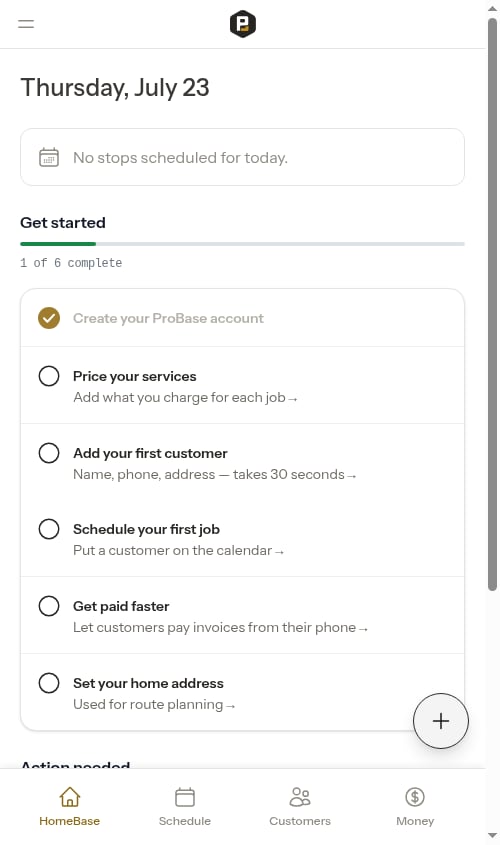
The Quick Actions button (also called the FAB - Floating Action Button) is a circular button with a plus icon that appears in the bottom-right corner of most pages. It gives you instant access to the most common tasks you perform every day.
 ## Using Quick Actions
Look for the floating button with a plus icon in the bottom-right corner of your screen.
When you click the button, a menu expands showing three available actions:
## Using Quick Actions
Look for the floating button with a plus icon in the bottom-right corner of your screen.
When you click the button, a menu expands showing three available actions:
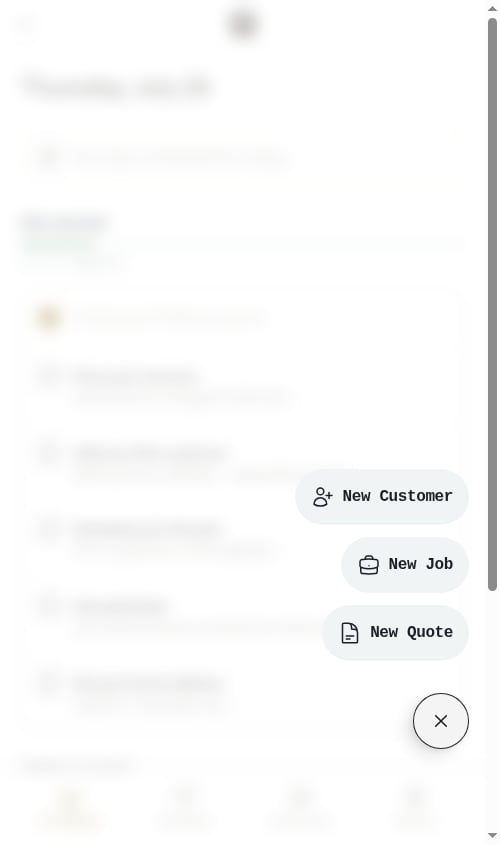 * **New Customer** - Add a new customer with optional property details
* **New Job** - Create confirmed work (customer + property + service + appointment)
* **New Quote** - Create a quote (formal quote or assessment) using the guided wizard
* **New Customer** - Add a new customer with optional property details
* **New Job** - Create confirmed work (customer + property + service + appointment)
* **New Quote** - Create a quote (formal quote or assessment) using the guided wizard
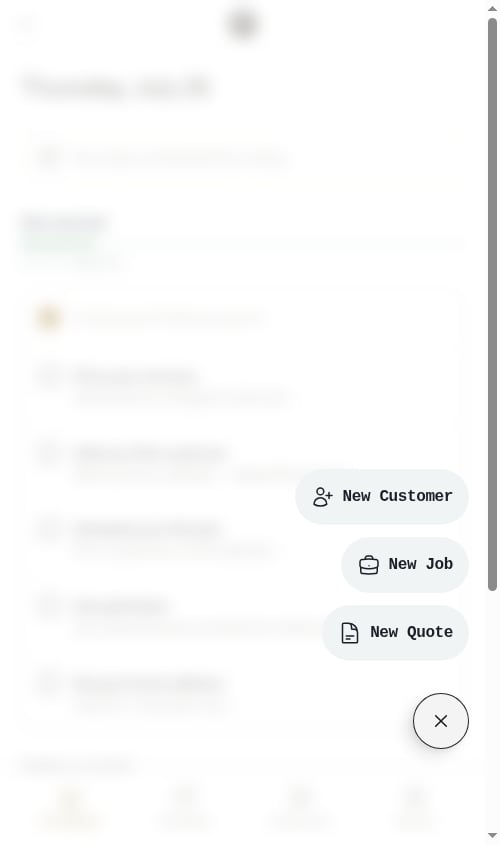 Each menu item shows an icon and label. Click any item to perform that action.
After selecting an action, a modal form opens (for New Customer) or you're taken to the wizard page (for New Job and New Quote). Fill in the required information and follow the steps.
Click outside the menu or press the Quick Actions button again to close the menu without selecting an action.
## Available actions
### New Customer
Opens the customer creation form where you can:
* Enter customer contact information
* Optionally add their first property
* Save and continue to set up services
Each menu item shows an icon and label. Click any item to perform that action.
After selecting an action, a modal form opens (for New Customer) or you're taken to the wizard page (for New Job and New Quote). Fill in the required information and follow the steps.
Click outside the menu or press the Quick Actions button again to close the menu without selecting an action.
## Available actions
### New Customer
Opens the customer creation form where you can:
* Enter customer contact information
* Optionally add their first property
* Save and continue to set up services
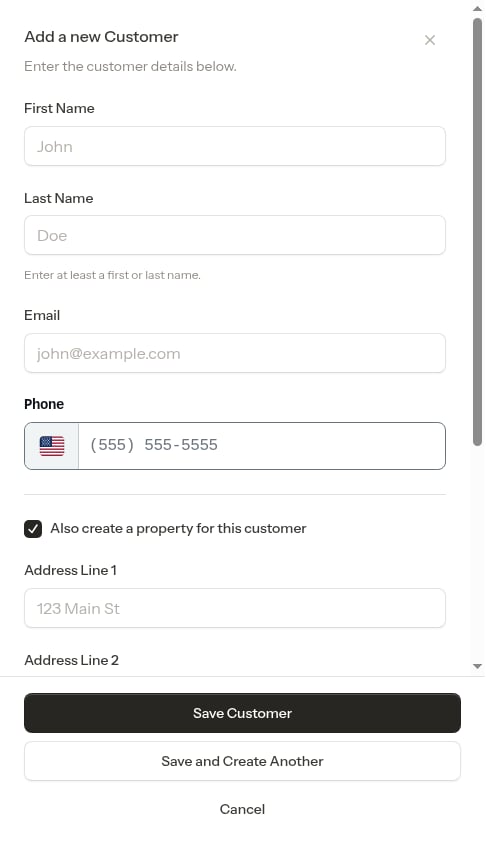 See [Adding customers](/customers/adding-customers) for detailed instructions.
### New Quote
The **New Quote** action opens the quote creation wizard where you can create either:
* **Quotes** - Formal quotes with pricing for customer review and approval
* **Assessments** - On-site evaluation appointments where you visit first, then create a quote
The wizard guides you through:
1. Choosing quote or assessment
2. Selecting or creating the customer
3. Selecting or creating the property
4. Entering service details and pricing
See [Adding customers](/customers/adding-customers) for detailed instructions.
### New Quote
The **New Quote** action opens the quote creation wizard where you can create either:
* **Quotes** - Formal quotes with pricing for customer review and approval
* **Assessments** - On-site evaluation appointments where you visit first, then create a quote
The wizard guides you through:
1. Choosing quote or assessment
2. Selecting or creating the customer
3. Selecting or creating the property
4. Entering service details and pricing
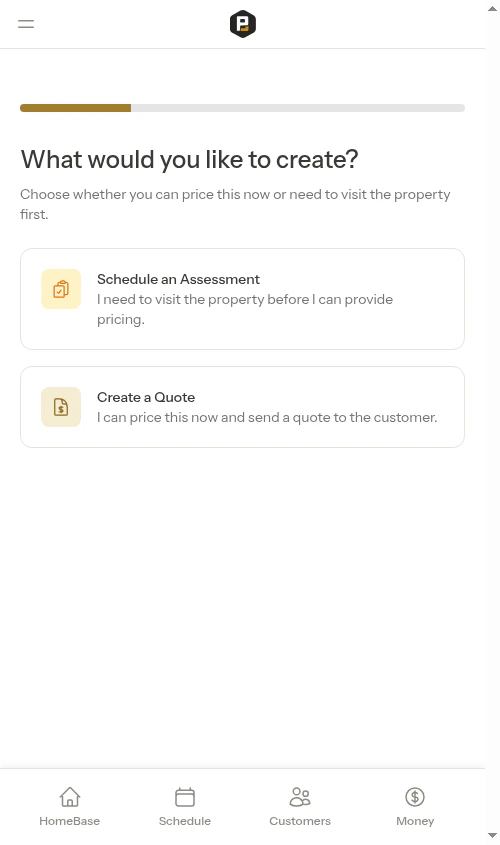 See [Creating quotes and assessments](/customers/creating-quotes) for detailed instructions.
### New Job
The **New Job** action creates confirmed work using a multi-step wizard:
1. **Choose intent** - Schedule a job or visit property first (redirects to quote wizard)
2. **Select or create customer** - Search existing or add new
3. **Select or create property** - Choose address or add new location
4. **Configure job details** - Service name, pricing, billing, frequency, and the job's **start date** (required)
See [Creating quotes and assessments](/customers/creating-quotes) for detailed instructions.
### New Job
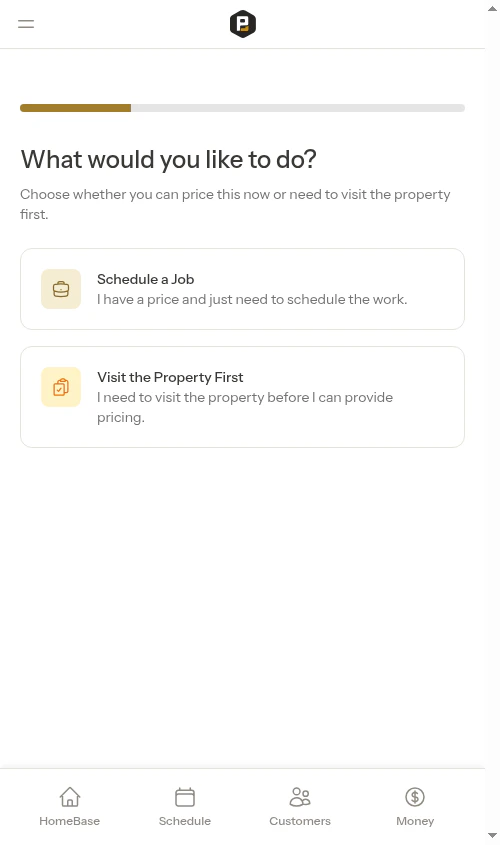
The **New Job** action creates confirmed work using a multi-step wizard:
1. **Choose intent** - Schedule a job or visit property first (redirects to quote wizard)
2. **Select or create customer** - Search existing or add new
3. **Select or create property** - Choose address or add new location
4. **Configure job details** - Service name, pricing, billing, frequency, and the job's **start date** (required)
 This is perfect when:
* Work is confirmed and doesn't need a quote or assessment
* You know the pricing and scope upfront
* You're ready to schedule and start immediately
See [Creating jobs](/getting-started/creating-jobs) for detailed instructions.
## Other common actions
These actions aren't in the Quick Actions FAB but are easily accessible from the relevant pages:
* **Record Payment** — Available as a button at the top of the Money page and on any customer's billing history page. See [Recording payments](/billing/tracking-payments).
* **Send Invoice** — Available on the invoice detail page and on any completed appointment. See [Sharing payment links](/billing/sending-payment-links).
* **Add Charge / Add Credit** — Available as dedicated buttons at the top of any customer's billing history page. See [Customer balances](/billing/customer-balances).
## Where the Quick Actions button appears
The Quick Actions button appears on most pages after you log in. It floats in the bottom-right corner, always accessible no matter where you are in the application.
The Quick Actions button is hidden during multi-step creation wizards (such as the New Job and New Quote wizards) so it doesn't interfere with form inputs.
## Next steps
* [Add your first customer](/getting-started/your-first-customer) - Use the New Customer action to get started
* [Create a job](/getting-started/creating-jobs) - Use the New Job action for confirmed work
* [Create quotes and assessments](/customers/creating-quotes) - Use the New Quote action for quotes and assessments
* [Send payment links](/billing/sending-payment-links) - Share invoices from the Money page or invoice detail page
This is perfect when:
* Work is confirmed and doesn't need a quote or assessment
* You know the pricing and scope upfront
* You're ready to schedule and start immediately
See [Creating jobs](/getting-started/creating-jobs) for detailed instructions.
## Other common actions
These actions aren't in the Quick Actions FAB but are easily accessible from the relevant pages:
* **Record Payment** — Available as a button at the top of the Money page and on any customer's billing history page. See [Recording payments](/billing/tracking-payments).
* **Send Invoice** — Available on the invoice detail page and on any completed appointment. See [Sharing payment links](/billing/sending-payment-links).
* **Add Charge / Add Credit** — Available as dedicated buttons at the top of any customer's billing history page. See [Customer balances](/billing/customer-balances).
## Where the Quick Actions button appears
The Quick Actions button appears on most pages after you log in. It floats in the bottom-right corner, always accessible no matter where you are in the application.
The Quick Actions button is hidden during multi-step creation wizards (such as the New Job and New Quote wizards) so it doesn't interfere with form inputs.
## Next steps
* [Add your first customer](/getting-started/your-first-customer) - Use the New Customer action to get started
* [Create a job](/getting-started/creating-jobs) - Use the New Job action for confirmed work
* [Create quotes and assessments](/customers/creating-quotes) - Use the New Quote action for quotes and assessments
* [Send payment links](/billing/sending-payment-links) - Share invoices from the Money page or invoice detail page