> ## Documentation Index
> Fetch the complete documentation index at: https://docs.probaseapp.com/llms.txt
> Use this file to discover all available pages before exploring further.
# Route optimization
> Let ProBase calculate the most efficient driving order for your crew
## Overview
ProBase can automatically calculate the most efficient order to visit your stops, saving you time and fuel. There are two ways optimization happens:
* **Optimize drive** — tap a button in the Reorder stops panel to instantly reorder one crew's stops for the day. See [Reordering stops](/routes/reordering-routes#optimize-your-drive-automatically).
* **Background auto-optimization** — ProBase silently optimizes routes in the background whenever new appointments are created. Enable this once in your settings and it runs automatically.
## Optimize drive (on-demand)
The **Optimize drive** button lives inside the **Reorder stops** panel, which you open from the **Day** view of the Schedule.
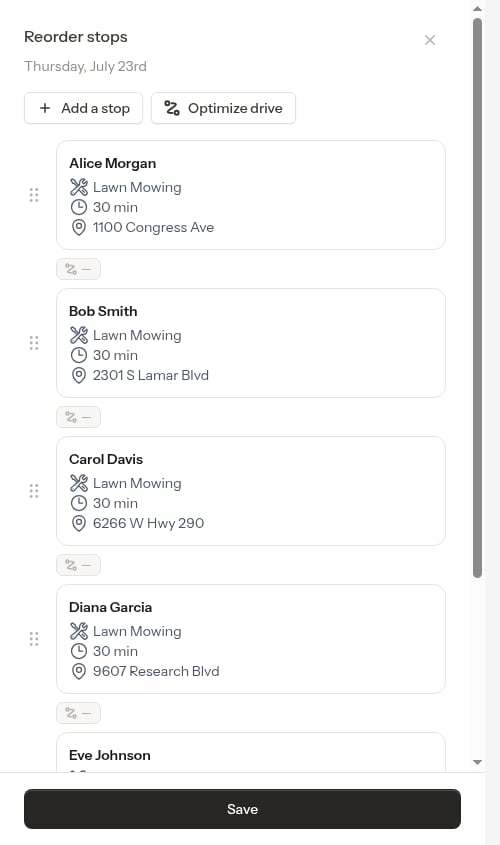 Tapping **Optimize drive** sends your crew's stops to the route optimizer, which calculates the most fuel-efficient visiting order and shows you a summary of total drive time and time saved.
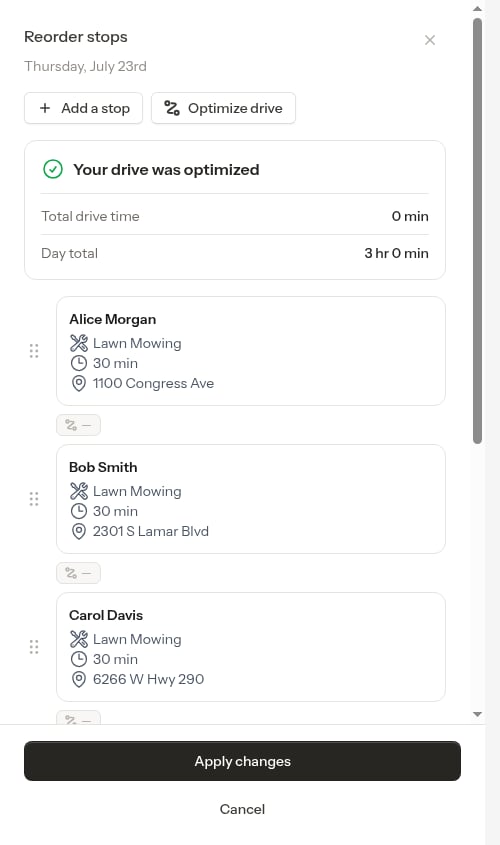 You can then tap **Apply changes** to lock in the new order, or **Cancel** to go back to the original sequence.
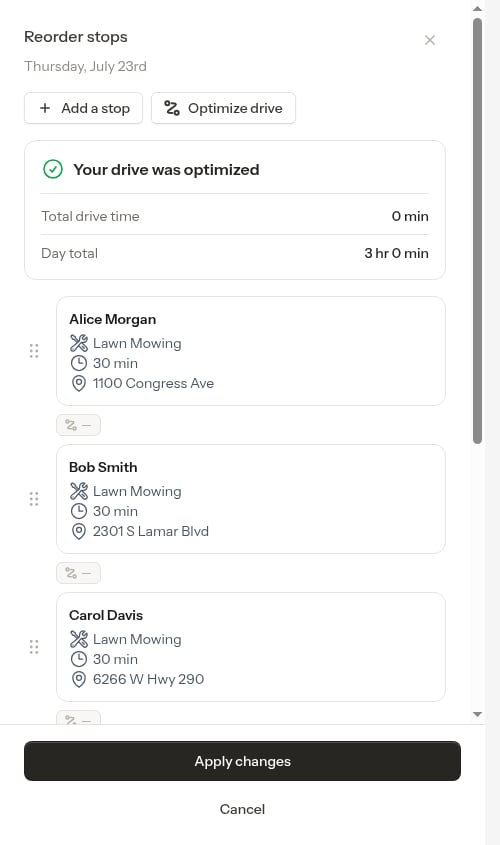
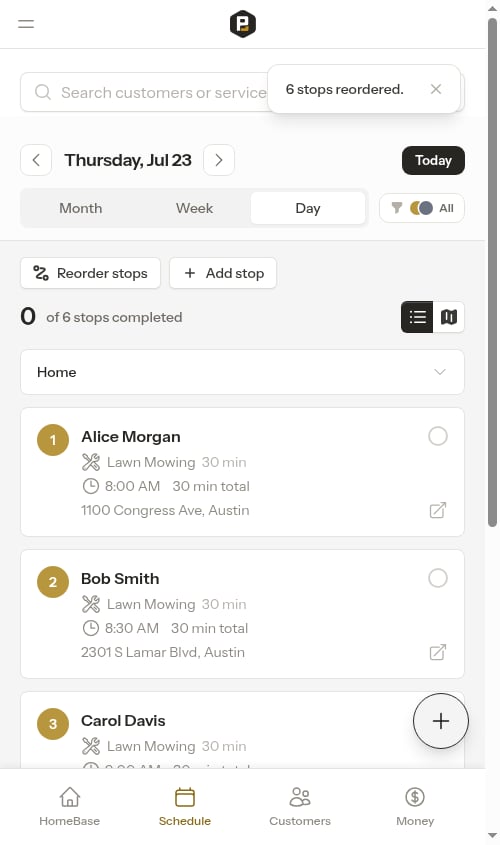 For full step-by-step instructions, see [Optimize your drive automatically](/routes/reordering-routes#optimize-your-drive-automatically).
**Optimize drive** requires the crew to have a configured start location and at least 2 stops with valid addresses. See [Adding crews](/getting-started/adding-crews).
## Background auto-optimization
When enabled, ProBase automatically optimizes a crew's route in the background every time a new appointment is scheduled. You don't need to do anything — the route updates silently so your crew always has an efficient schedule.
### Enable auto-optimization
1. Click **Settings** in the sidebar under BUSINESS
2. Scroll to the **Scheduling** section
3. Toggle **Auto-optimize routes** to ON
For full step-by-step instructions, see [Optimize your drive automatically](/routes/reordering-routes#optimize-your-drive-automatically).
**Optimize drive** requires the crew to have a configured start location and at least 2 stops with valid addresses. See [Adding crews](/getting-started/adding-crews).
## Background auto-optimization
When enabled, ProBase automatically optimizes a crew's route in the background every time a new appointment is scheduled. You don't need to do anything — the route updates silently so your crew always has an efficient schedule.
### Enable auto-optimization
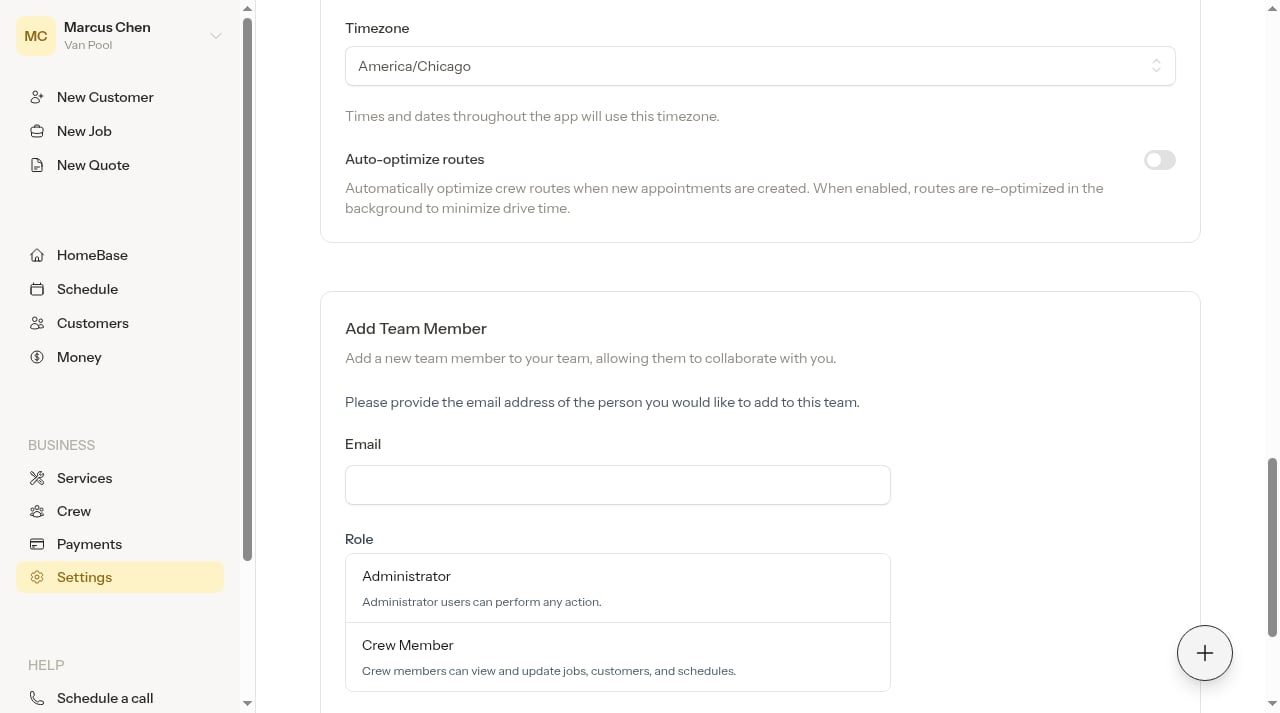
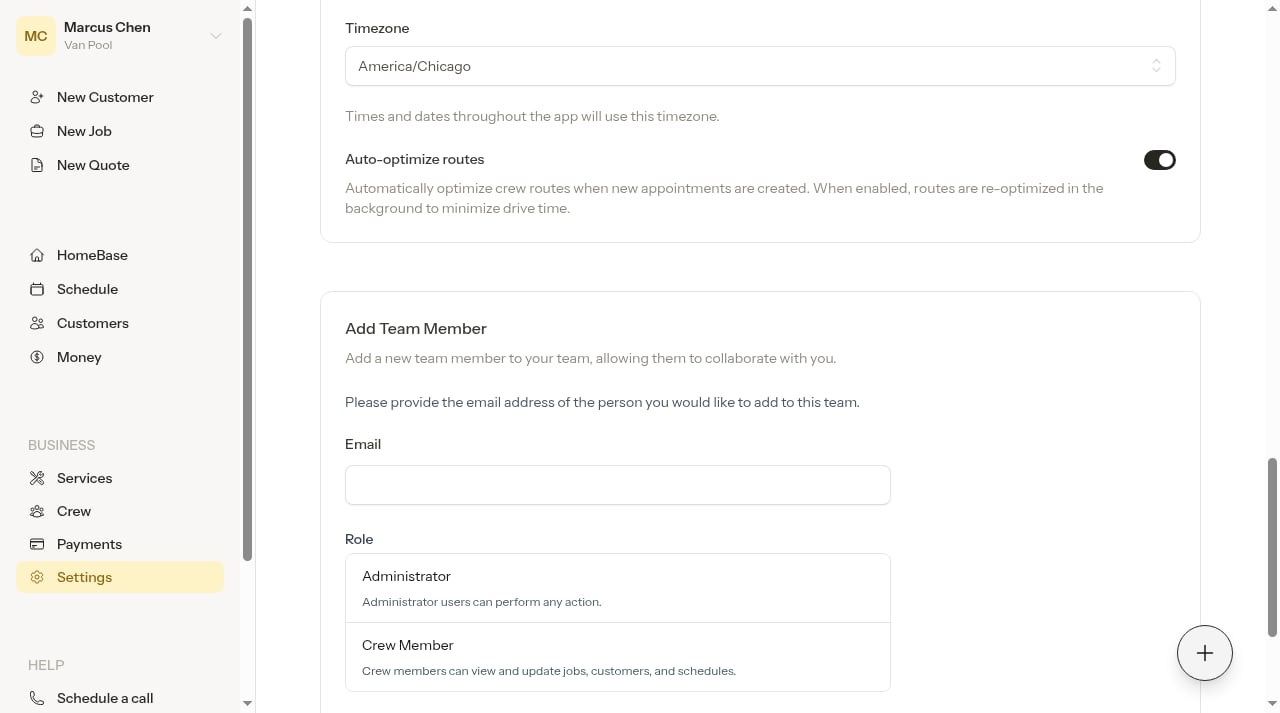
1. Click **Settings** in the sidebar under BUSINESS
2. Scroll to the **Scheduling** section
3. Toggle **Auto-optimize routes** to ON
 ### When auto-optimization runs
With auto-optimization enabled, routes are automatically optimized when:
* A new appointment is created and assigned to a crew
* An unassigned appointment is scheduled
The optimization runs in the background and updates appointment times without any action on your part.
Auto-optimization only runs if the crew has a configured start location and the appointment has a geocoded address. If either is missing, the appointment is added to the schedule without reordering.
### Manual vs automatic optimization
| Situation | Recommended approach |
| ---------------------------------------------------- | ------------------------------------------------- |
| Want routes updated automatically as you schedule | Enable auto-optimization |
| Want to review the optimized order before committing | Use **Optimize drive** in the Reorder stops panel |
| Need to hand-pick a specific stop order | Drag stops manually in the Reorder stops panel |
| Made last-minute changes and want to recalculate | Use **Optimize drive** |
## How optimization works
The optimizer:
1. Starts at the crew's configured **start location** (depot)
2. Calculates the most efficient order to visit all stops
3. Returns to the crew's **end location** at the end of the day
4. Uses real road networks for accurate drive times
After optimization (or after saving a reordered route), appointment times are recalculated using the crew's **Start Time** as the anchor. The first stop gets the start time, and each subsequent stop is scheduled based on travel time plus the previous stop's duration.
See [Setting a crew start time](/getting-started/adding-crews#edit-a-crew) for details on configuring the crew's start time.
## Requirements
Route optimization requires:
* The crew must have a start location configured
* Property addresses must be geocoded (valid addresses entered in Probase)
* At least 2 stops must exist for the crew on that date (appointments and/or manually added route stops)
If you haven't set up crew locations yet, see [Adding crews](/getting-started/adding-crews).
## Next steps
* [Reorder stops](/routes/reordering-routes) to manually adjust a crew's stop order or use Optimize drive
* [Daily crew schedules](/routes/daily-crew-schedules) to track progress through the day
* [Complete appointments](/routes/completing-jobs) as you work through the route
### When auto-optimization runs
With auto-optimization enabled, routes are automatically optimized when:
* A new appointment is created and assigned to a crew
* An unassigned appointment is scheduled
The optimization runs in the background and updates appointment times without any action on your part.
Auto-optimization only runs if the crew has a configured start location and the appointment has a geocoded address. If either is missing, the appointment is added to the schedule without reordering.
### Manual vs automatic optimization
| Situation | Recommended approach |
| ---------------------------------------------------- | ------------------------------------------------- |
| Want routes updated automatically as you schedule | Enable auto-optimization |
| Want to review the optimized order before committing | Use **Optimize drive** in the Reorder stops panel |
| Need to hand-pick a specific stop order | Drag stops manually in the Reorder stops panel |
| Made last-minute changes and want to recalculate | Use **Optimize drive** |
## How optimization works
The optimizer:
1. Starts at the crew's configured **start location** (depot)
2. Calculates the most efficient order to visit all stops
3. Returns to the crew's **end location** at the end of the day
4. Uses real road networks for accurate drive times
After optimization (or after saving a reordered route), appointment times are recalculated using the crew's **Start Time** as the anchor. The first stop gets the start time, and each subsequent stop is scheduled based on travel time plus the previous stop's duration.
See [Setting a crew start time](/getting-started/adding-crews#edit-a-crew) for details on configuring the crew's start time.
## Requirements
Route optimization requires:
* The crew must have a start location configured
* Property addresses must be geocoded (valid addresses entered in Probase)
* At least 2 stops must exist for the crew on that date (appointments and/or manually added route stops)
If you haven't set up crew locations yet, see [Adding crews](/getting-started/adding-crews).
## Next steps
* [Reorder stops](/routes/reordering-routes) to manually adjust a crew's stop order or use Optimize drive
* [Daily crew schedules](/routes/daily-crew-schedules) to track progress through the day
* [Complete appointments](/routes/completing-jobs) as you work through the route