> ## Documentation Index
> Fetch the complete documentation index at: https://docs.probaseapp.com/llms.txt
> Use this file to discover all available pages before exploring further.
# Adding service items
> Add extra charges for additional work or materials to an appointment
## What are service items?
Service items are line items on a scheduled appointment that represent charges beyond the base service price. Use them to charge for extra work performed or materials used during a visit.
**Two types of service items:**
* **Service** — Additional labor or work done on-site (e.g., "Filter Clean", "Algae Treatment"). You can optionally set a duration in minutes.
* **Material** — Parts, supplies, or products used during the job (e.g., "Chlorine Tablets", "Filter Cartridge"). You set a quantity for materials.
Service items flow automatically into the customer's invoice when the job is billed.
When a quote with line items is accepted, those items are automatically copied to the first appointment as service items — you don't need to re-enter them. For recurring jobs, items marked **Make recurring** on the quote also carry forward automatically to future appointments. See [Managing quotes](/customers/managing-quotes#how-line-items-carry-over-when-a-quote-is-accepted) for details.
## Access service items
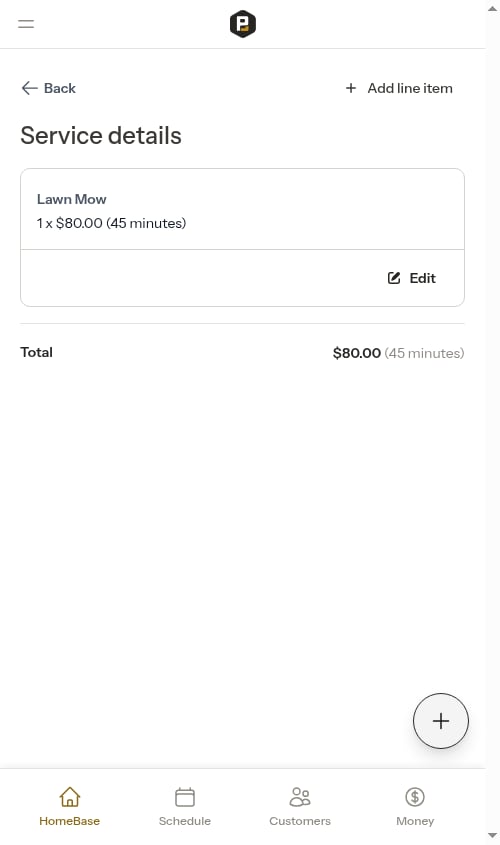
Service items are managed from the **Service details** page for a specific appointment. To open it:
1. Open the appointment detail page (from the calendar, schedule, or customer service page)
2. Scroll to the **Service details** section
3. Tap the arrow button on the right side of the section header to open the full service details page
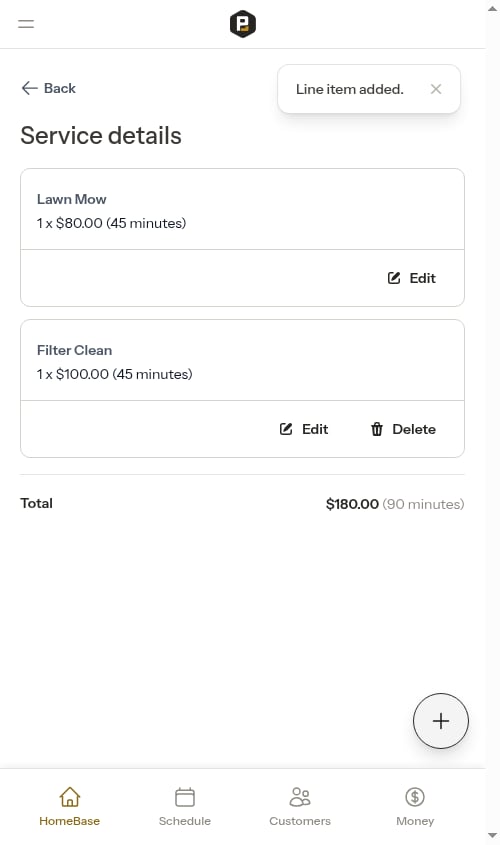
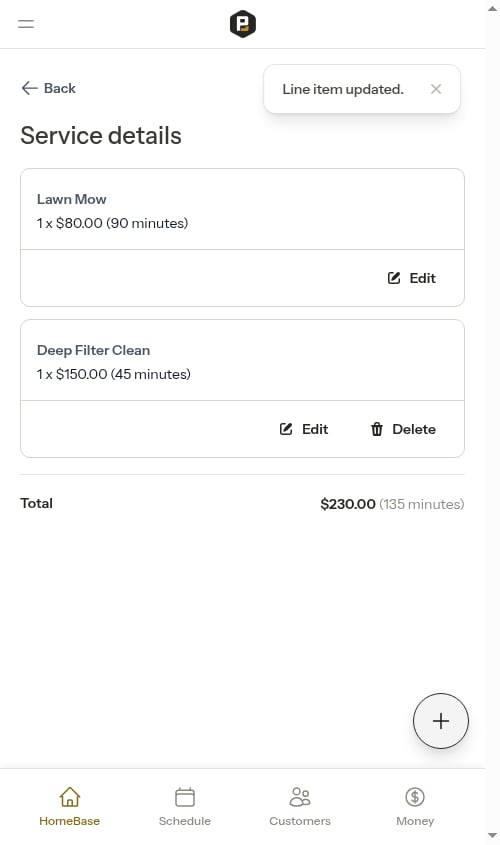
The service details page shows:
* The base service (the parent service for this appointment)
* Any additional line items you've added
* A running total of all charges and total time
 Service items can only be added, edited, or deleted while the appointment is in **Scheduled** status. Once the appointment is completed or cancelled, all items become read-only.
## Add a service item
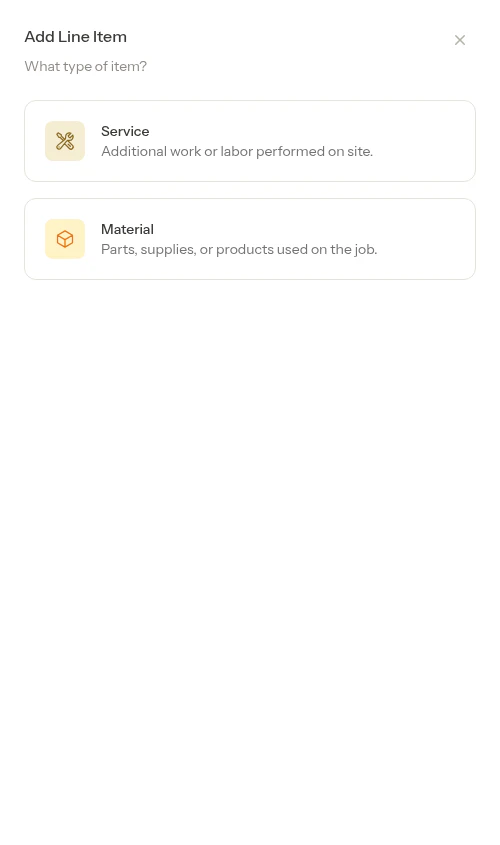
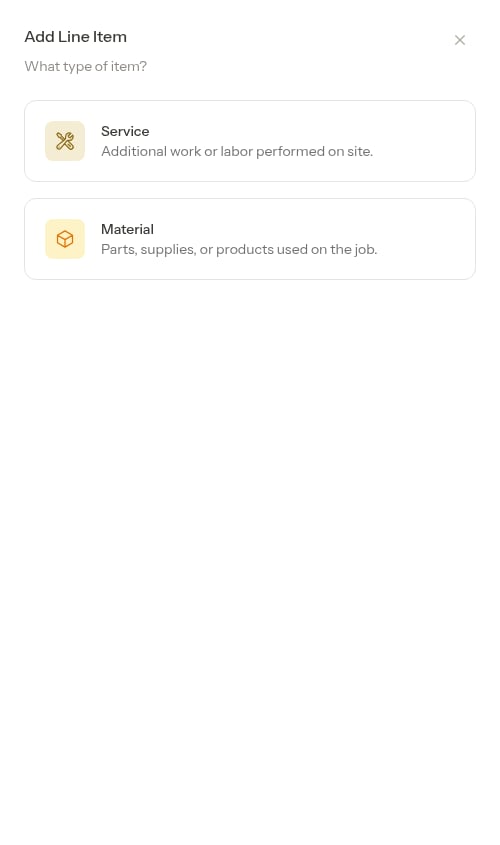
Tap the **Add line item** button in the top-right corner of the service details page. A modal opens to guide you through a two-step process.
Select what kind of item you're adding:
* **Service** — For additional work or labor performed on-site
* **Material** — For parts, supplies, or products used during the job
Service items can only be added, edited, or deleted while the appointment is in **Scheduled** status. Once the appointment is completed or cancelled, all items become read-only.
## Add a service item
Tap the **Add line item** button in the top-right corner of the service details page. A modal opens to guide you through a two-step process.
Select what kind of item you're adding:
* **Service** — For additional work or labor performed on-site
* **Material** — For parts, supplies, or products used during the job
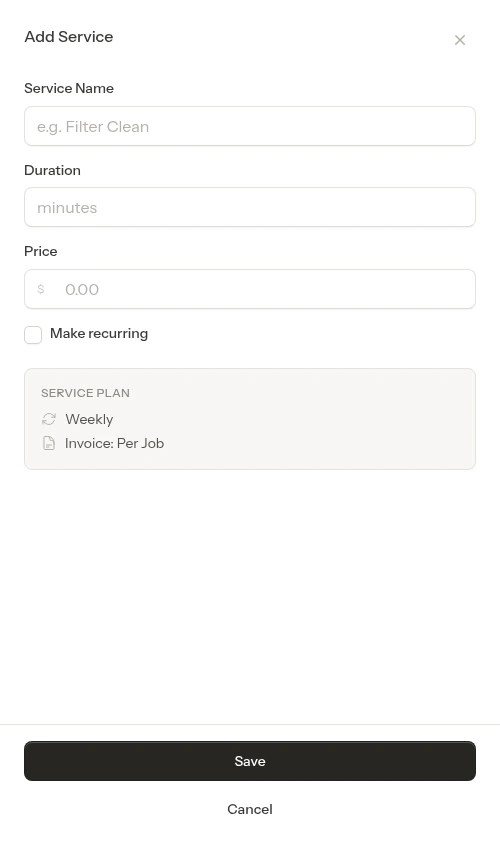
 After selecting a type, a form appears with fields specific to that type.
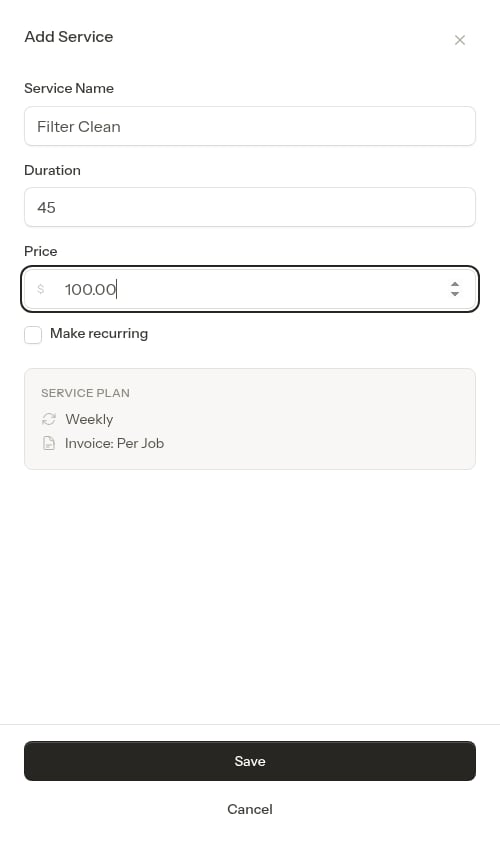
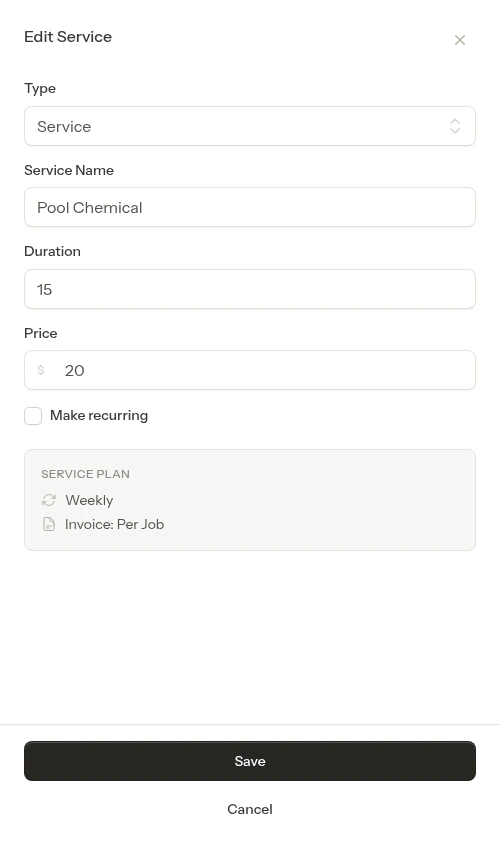
**For Service items:**
* **Service Name** — What the additional service is (e.g., "Filter Clean")
* **Duration** — How many minutes this additional service takes (optional)
* **Price** — What you charge for it
* **Make recurring** — Check this to add the item to every upcoming visit automatically (only shown for recurring jobs)
After selecting a type, a form appears with fields specific to that type.
**For Service items:**
* **Service Name** — What the additional service is (e.g., "Filter Clean")
* **Duration** — How many minutes this additional service takes (optional)
* **Price** — What you charge for it
* **Make recurring** — Check this to add the item to every upcoming visit automatically (only shown for recurring jobs)
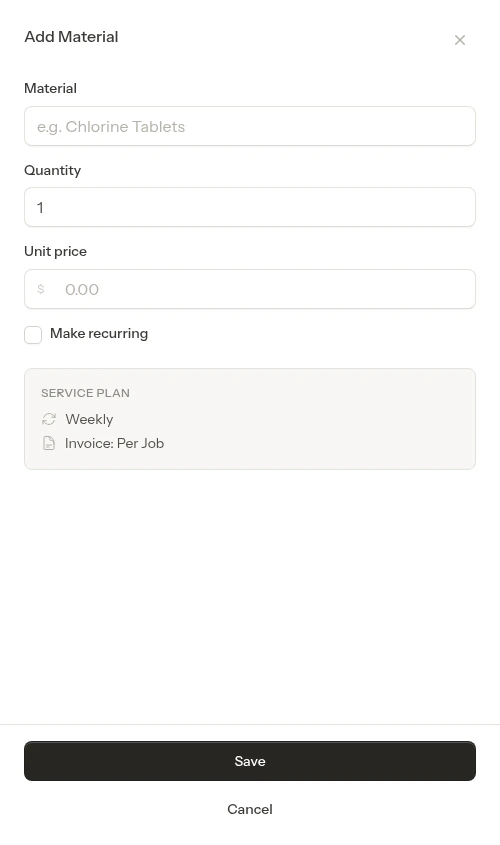
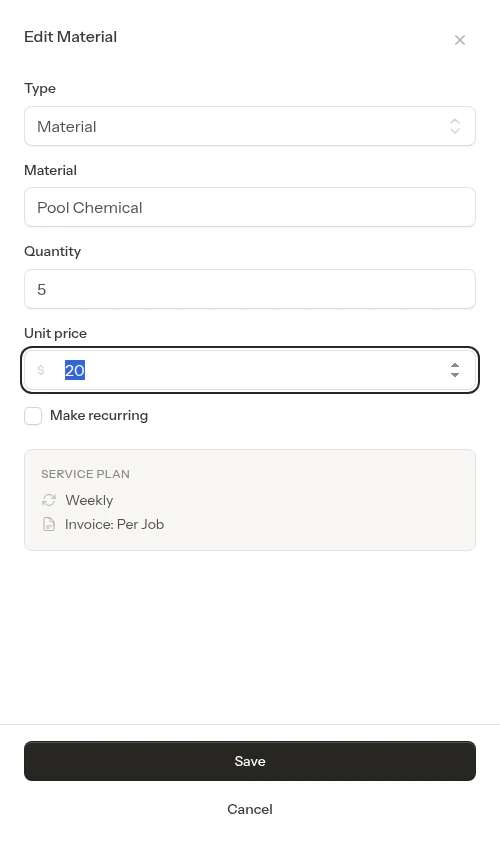
 **For Material items:**
* **Material** — Name of the product or part (e.g., "Chlorine Tablets")
* **Quantity** — How many units were used
* **Unit price** — Price per unit
* **Make recurring** — Check this to add the item to every upcoming visit automatically (only shown for recurring jobs)
**For Material items:**
* **Material** — Name of the product or part (e.g., "Chlorine Tablets")
* **Quantity** — How many units were used
* **Unit price** — Price per unit
* **Make recurring** — Check this to add the item to every upcoming visit automatically (only shown for recurring jobs)
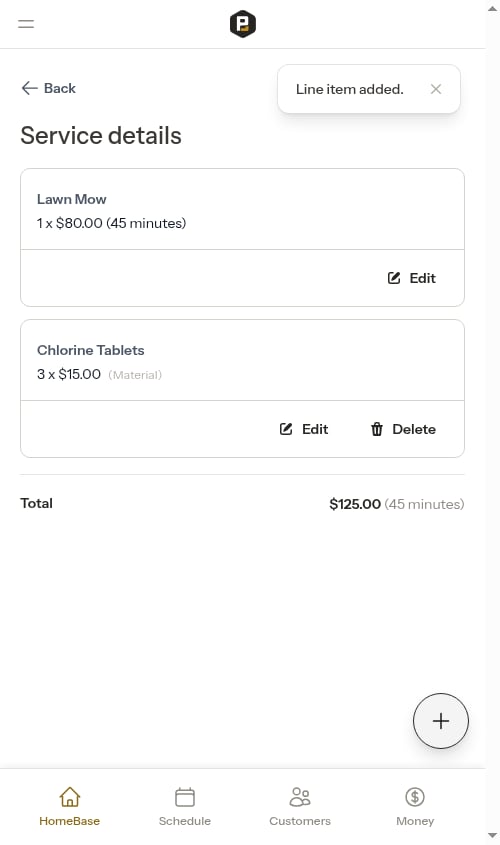
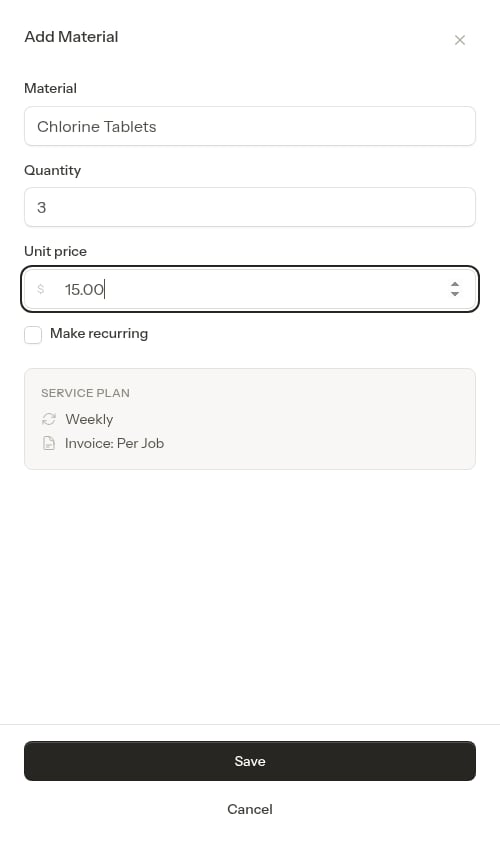 Tap **Save**. The item appears in the list immediately and the total updates.
 ## Edit a service item
On the service details page, locate the item you want to change.
## Edit a service item
On the service details page, locate the item you want to change.
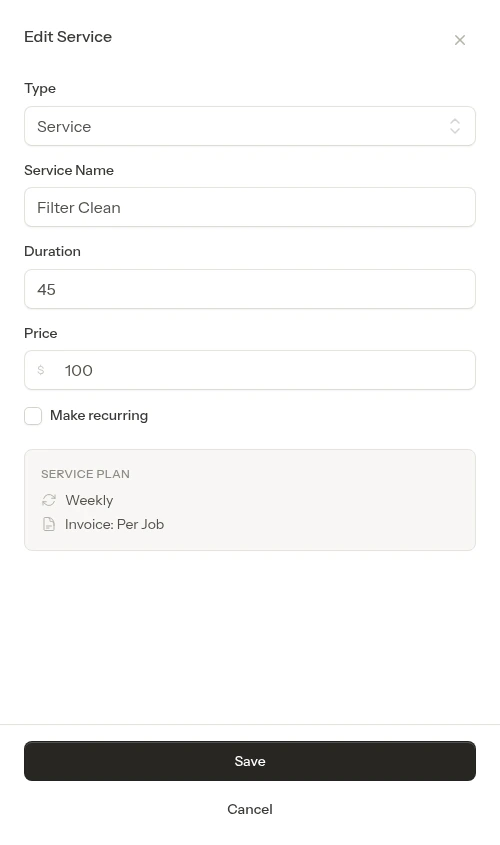
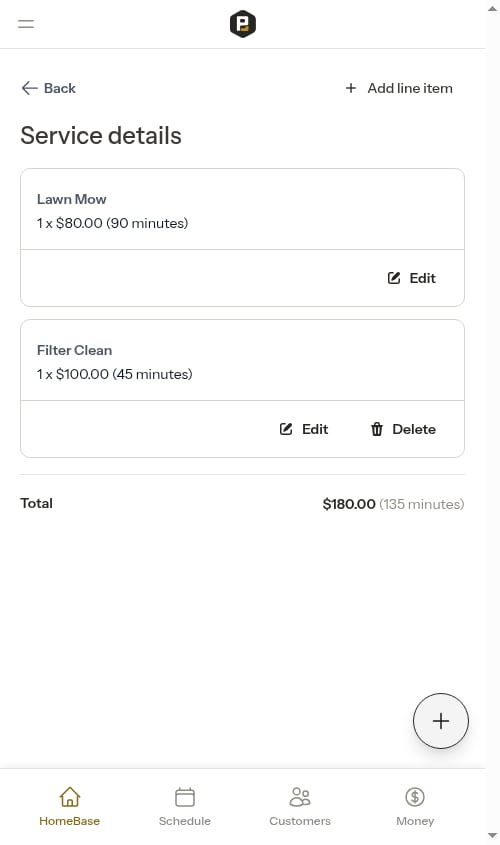 Tap the **Edit** button on the item card. The edit form opens pre-filled with the current values.
When editing, you can also change the **Type** dropdown to switch an item between Service and Material. The **Make recurring** checkbox appears only when the parent job is a recurring service.
Tap the **Edit** button on the item card. The edit form opens pre-filled with the current values.
When editing, you can also change the **Type** dropdown to switch an item between Service and Material. The **Make recurring** checkbox appears only when the parent job is a recurring service.
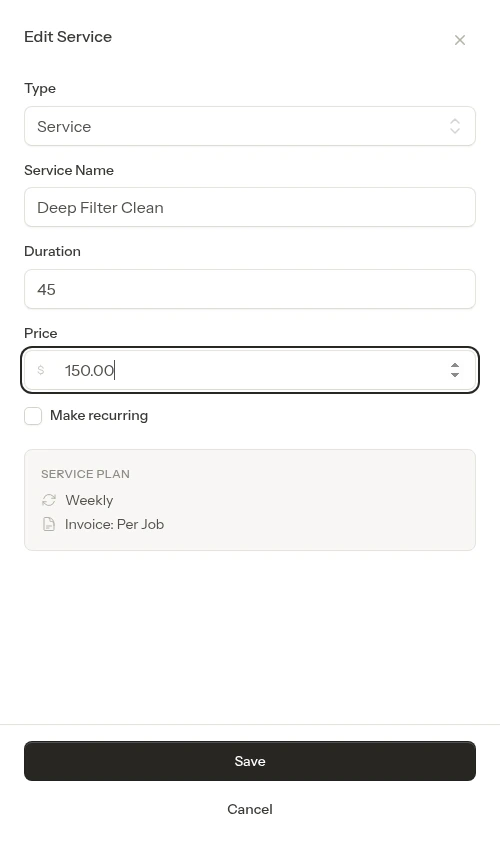 Tap **Save**. The item updates immediately.
 ### Switching item types
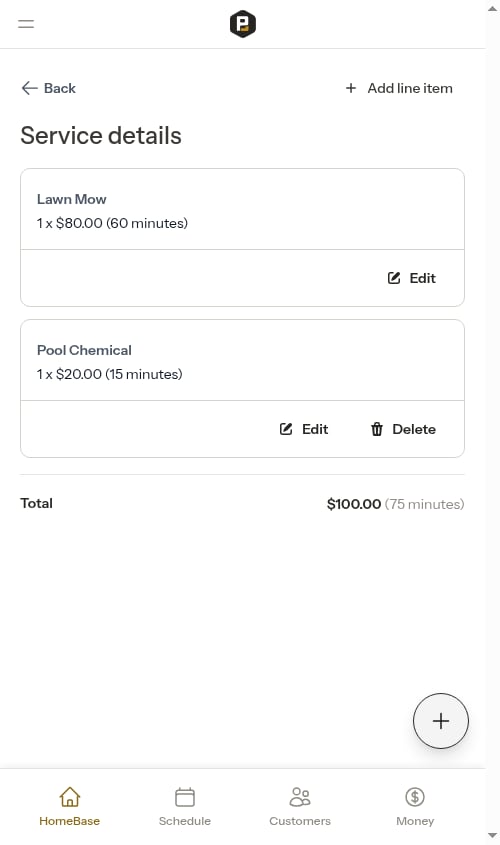
When editing, you can switch a Service item to a Material (or vice versa) using the **Type** dropdown at the top of the edit form. The form fields adjust automatically to match the selected type.
### Switching item types
When editing, you can switch a Service item to a Material (or vice versa) using the **Type** dropdown at the top of the edit form. The form fields adjust automatically to match the selected type.
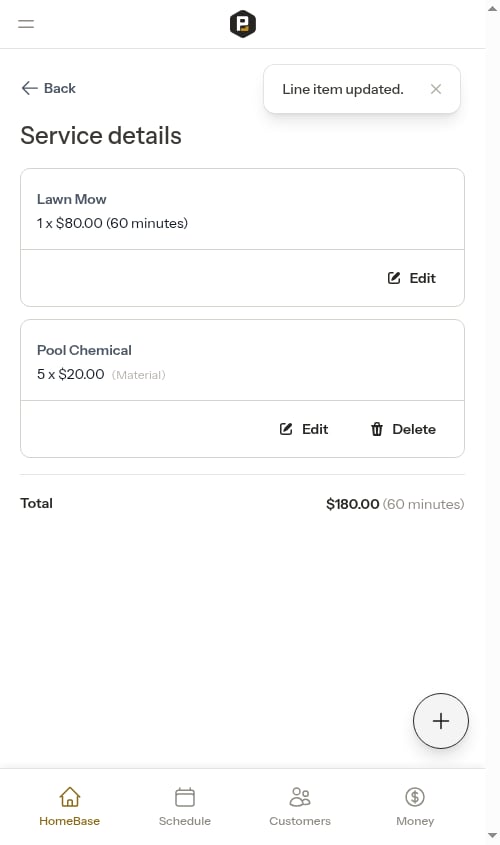 ## Delete a service item
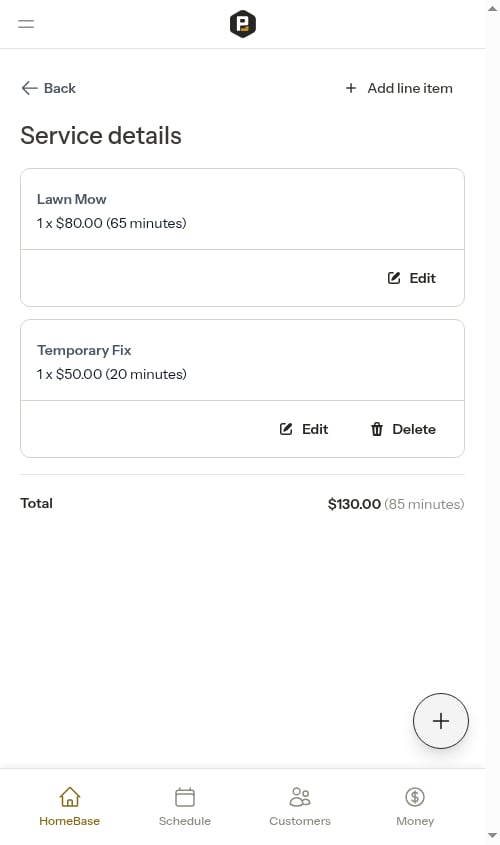
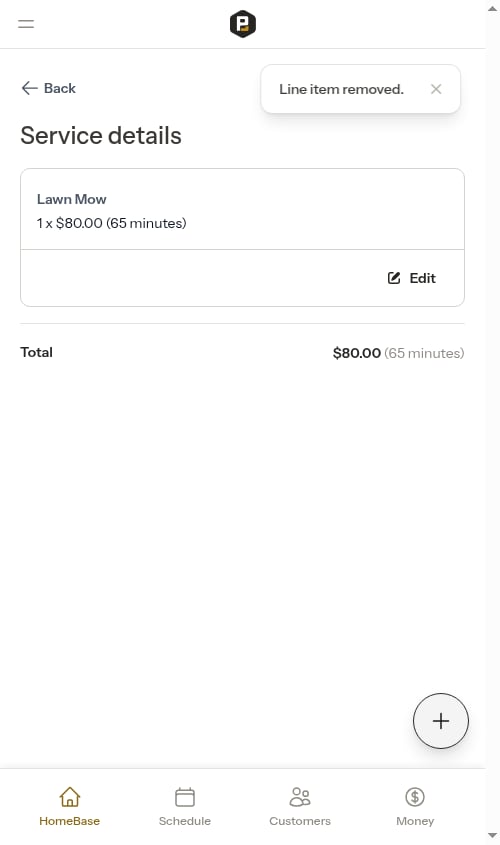
On the service details page, tap **Delete** on the item card. A confirmation prompt appears — confirm to remove the item.
## Delete a service item
On the service details page, tap **Delete** on the item card. A confirmation prompt appears — confirm to remove the item.
 ## Recurring service items
The **Make recurring** option is only available for recurring jobs — services scheduled to repeat weekly, bi-weekly, or monthly. It does not appear for one-time jobs since there are no future appointments to carry items forward to.
Check **Make recurring** when adding or editing a service item to have it appear on every upcoming visit automatically. This is useful for standard materials you always use (e.g., a monthly chemical dose) so you don't have to re-enter them every visit.
Because a recurring service pre-schedules its [whole chain of future visits](/scheduling/future-visits), any change you make to a recurring item flows forward to **all** the upcoming scheduled visits at once:
* **Add** a recurring item, and it appears on every future visit.
* **Edit** a recurring item (price, quantity, name), and the change updates every future visit.
* **Remove** a recurring item (or uncheck **Make recurring**), and it's dropped from every future visit.
Only **upcoming scheduled visits** are updated. Visits that are already completed, skipped, rescheduled, or cancelled keep the items exactly as they were recorded, and any one-off (non-recurring) items you've added to a specific future visit are left in place.
## Recurring service items
The **Make recurring** option is only available for recurring jobs — services scheduled to repeat weekly, bi-weekly, or monthly. It does not appear for one-time jobs since there are no future appointments to carry items forward to.
Check **Make recurring** when adding or editing a service item to have it appear on every upcoming visit automatically. This is useful for standard materials you always use (e.g., a monthly chemical dose) so you don't have to re-enter them every visit.
Because a recurring service pre-schedules its [whole chain of future visits](/scheduling/future-visits), any change you make to a recurring item flows forward to **all** the upcoming scheduled visits at once:
* **Add** a recurring item, and it appears on every future visit.
* **Edit** a recurring item (price, quantity, name), and the change updates every future visit.
* **Remove** a recurring item (or uncheck **Make recurring**), and it's dropped from every future visit.
Only **upcoming scheduled visits** are updated. Visits that are already completed, skipped, rescheduled, or cancelled keep the items exactly as they were recorded, and any one-off (non-recurring) items you've added to a specific future visit are left in place.
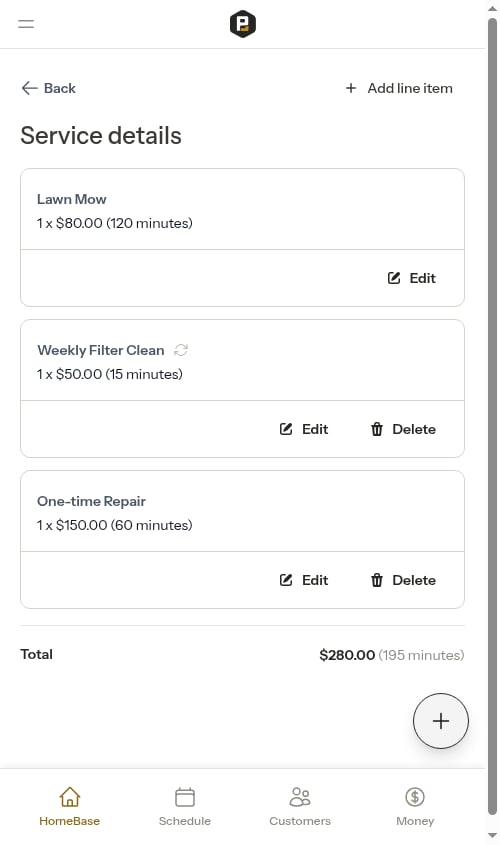
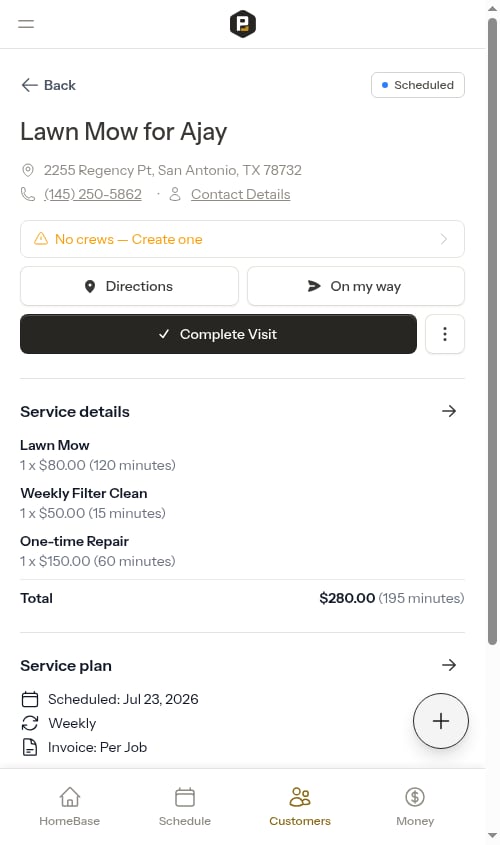
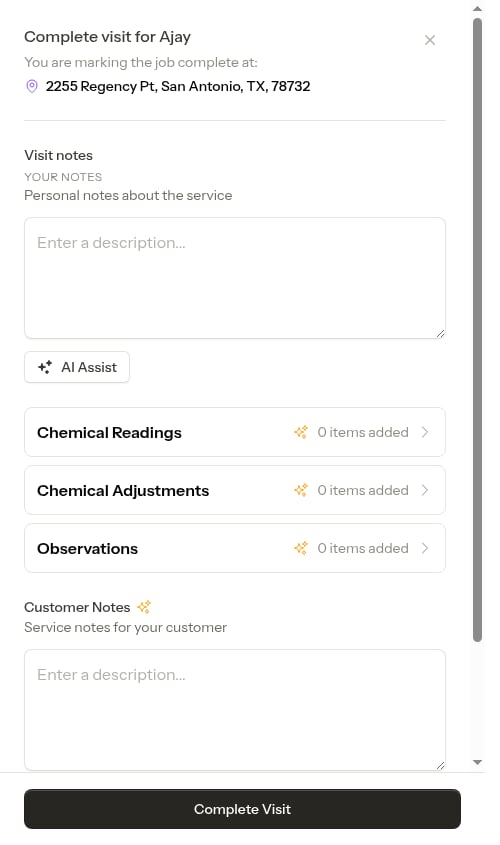
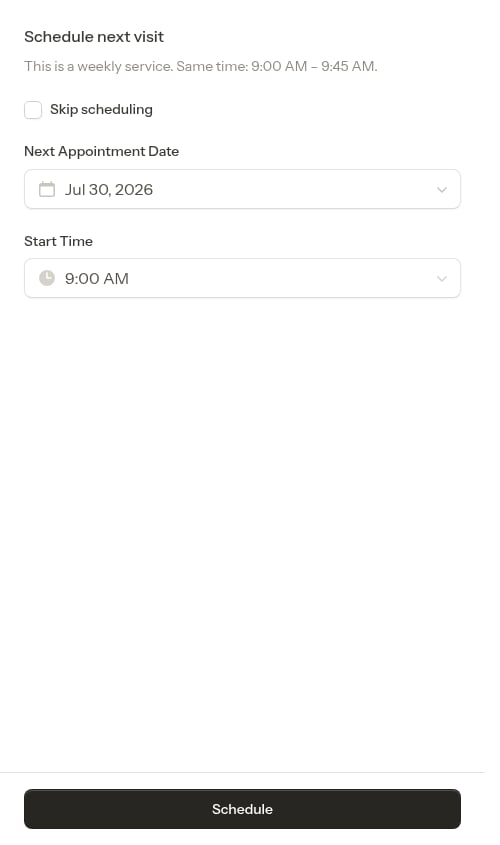
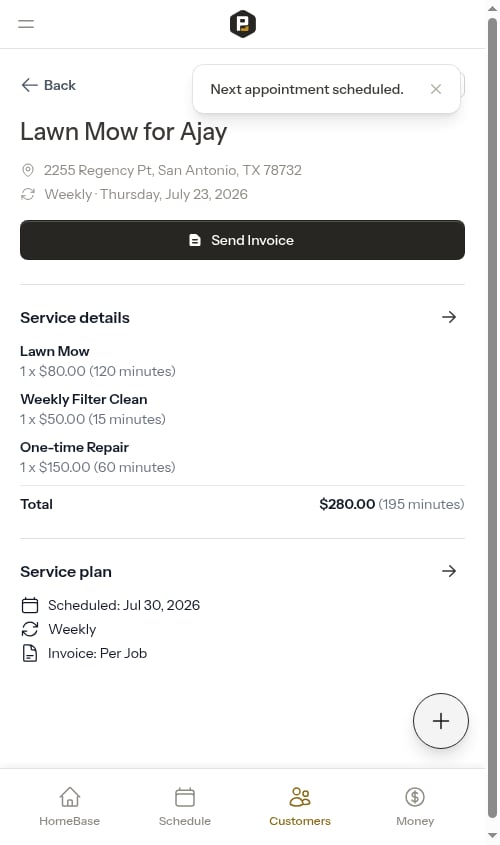
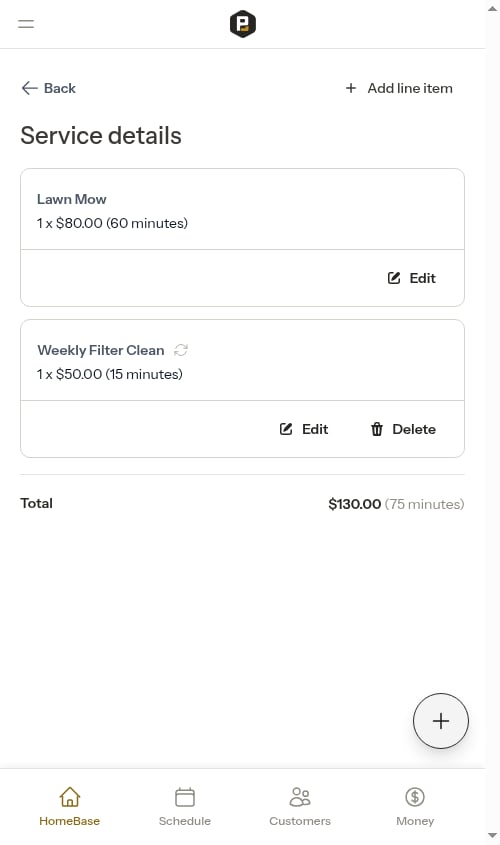 Recurring items stay in sync across every upcoming scheduled visit. Non-recurring items only appear on the visit you add them to.
## After completion: read-only view
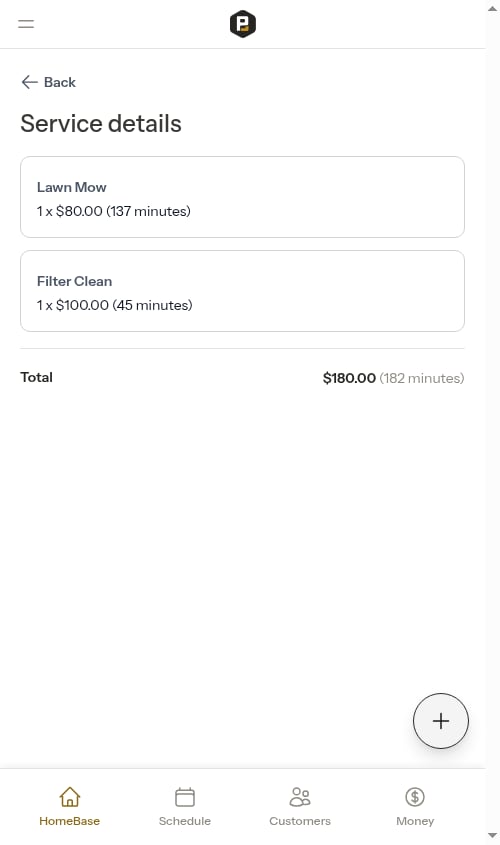
Once an appointment is completed (or cancelled), the service items list becomes read-only. You can still view all the items that were recorded, but you can no longer add, edit, or delete them.
Recurring items stay in sync across every upcoming scheduled visit. Non-recurring items only appear on the visit you add them to.
## After completion: read-only view
Once an appointment is completed (or cancelled), the service items list becomes read-only. You can still view all the items that were recorded, but you can no longer add, edit, or delete them.
 ## How service items affect invoices
When a per-service billing appointment is completed, all line items (the base service plus any additional service items) are sent to the customer's invoice as separate charges. Each line item shows:
* Item name
* Quantity × unit price
This gives customers a clear breakdown of every charge on their invoice.
For subscription-billed services, completing an appointment does not create a charge for the base service itself — the recurring subscription price is billed separately on its own schedule. However, any **additional service items** you add to the appointment (materials, add-ons, extra work) are still charged to the customer when the appointment is completed, just like on a per-service job.
## Next steps
* [Completing appointments](/routes/completing-jobs) — Mark work as done and trigger billing
* [Managing invoices](/billing/invoices) — View and send the invoice after completing
* [How billing works](/billing/how-billing-works) — Understand how charges flow to customer accounts
## How service items affect invoices
When a per-service billing appointment is completed, all line items (the base service plus any additional service items) are sent to the customer's invoice as separate charges. Each line item shows:
* Item name
* Quantity × unit price
This gives customers a clear breakdown of every charge on their invoice.
For subscription-billed services, completing an appointment does not create a charge for the base service itself — the recurring subscription price is billed separately on its own schedule. However, any **additional service items** you add to the appointment (materials, add-ons, extra work) are still charged to the customer when the appointment is completed, just like on a per-service job.
## Next steps
* [Completing appointments](/routes/completing-jobs) — Mark work as done and trigger billing
* [Managing invoices](/billing/invoices) — View and send the invoice after completing
* [How billing works](/billing/how-billing-works) — Understand how charges flow to customer accounts