> ## Documentation Index
> Fetch the complete documentation index at: https://docs.probaseapp.com/llms.txt
> Use this file to discover all available pages before exploring further.
# Service records
> Document detailed information about completed work
## Overview
Service records let you record structured details about work performed during appointments. Unlike general notes, service records capture specific data points like measurements, materials used, and observations in a consistent, searchable format.
Service records are always linked to a specific appointment, making it easy to track what was done during each visit.
## Types of service records
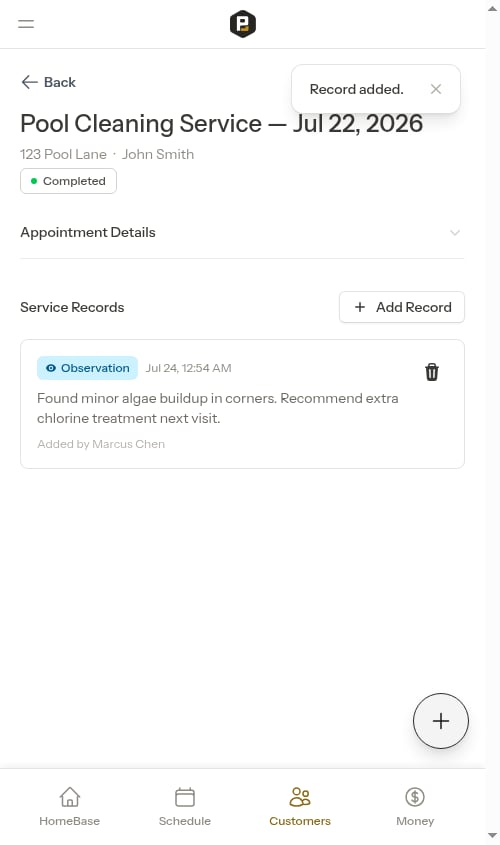
### Observations
General notes about what you noticed during the visit:
* Pool condition ("Pool water is crystal clear")
* Issues found ("Found minor algae buildup in corners")
* Customer requests ("Customer asked about weekly service")
* Weather conditions affecting service
* Equipment status notes
 ### Chemical readings
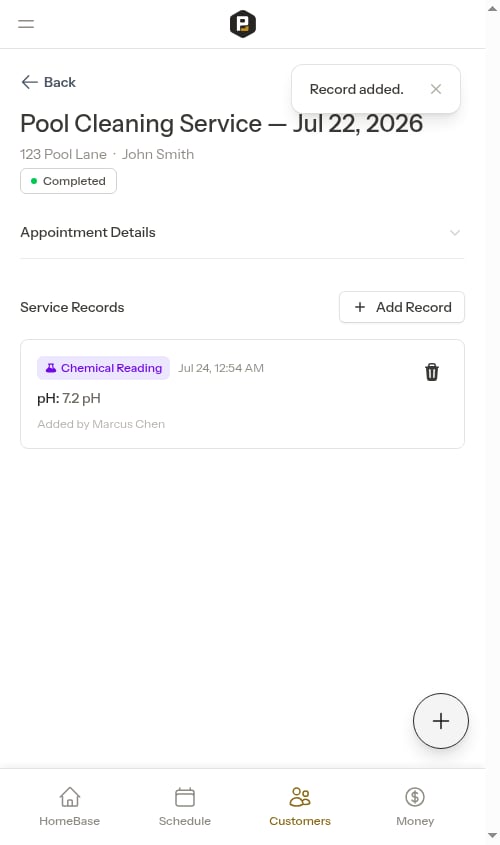
Track chemical test results and measurements:
* pH levels
* Chlorine levels (free, total, combined)
* Alkalinity
* Hardness
* CYA (Cyanuric Acid)
* Other water chemistry readings
Each reading includes:
* Reading type (what was measured)
* Value (numeric measurement)
* Unit (pH, ppm, etc.)
* Optional notes
### Chemical readings
Track chemical test results and measurements:
* pH levels
* Chlorine levels (free, total, combined)
* Alkalinity
* Hardness
* CYA (Cyanuric Acid)
* Other water chemistry readings
Each reading includes:
* Reading type (what was measured)
* Value (numeric measurement)
* Unit (pH, ppm, etc.)
* Optional notes
 ### Chemical Adjustments
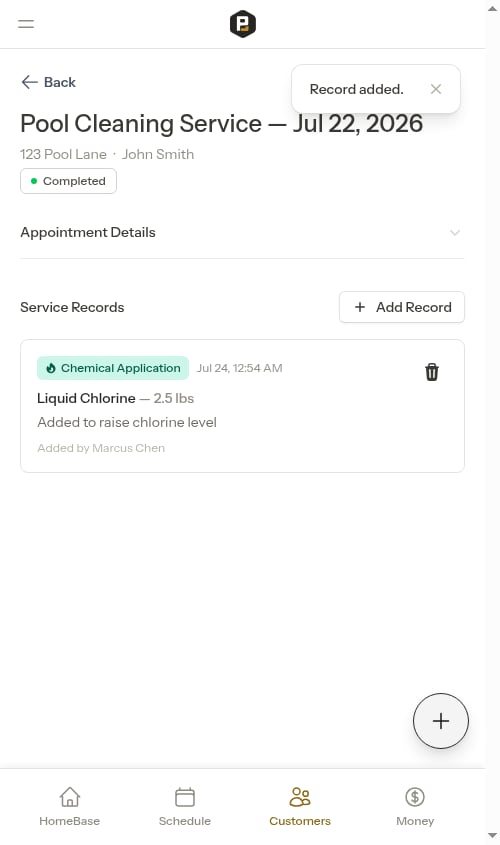
Document chemicals or products added during service:
* Pool shock
* Chlorine tablets
* Muriatic acid
* pH increasers/decreasers
* Algaecides
Each adjustment includes:
* Chemical name
* Amount added
* Unit (lbs, oz, fl oz, gal, qt, ppm)
* Optional notes about where/why applied
### Chemical Adjustments
Document chemicals or products added during service:
* Pool shock
* Chlorine tablets
* Muriatic acid
* pH increasers/decreasers
* Algaecides
Each adjustment includes:
* Chemical name
* Amount added
* Unit (lbs, oz, fl oz, gal, qt, ppm)
* Optional notes about where/why applied
 ### Materials
Track other materials or supplies used on a completed appointment:
* Parts installed (e.g., "Filter cartridge")
* Equipment replaced
* Supplies consumed (not chemicals)
* Amount and unit (unit, lbs, oz, gal, bags, cu yd, qt)
* Optional notes
### Materials
Track other materials or supplies used on a completed appointment:
* Parts installed (e.g., "Filter cartridge")
* Equipment replaced
* Supplies consumed (not chemicals)
* Amount and unit (unit, lbs, oz, gal, bags, cu yd, qt)
* Optional notes
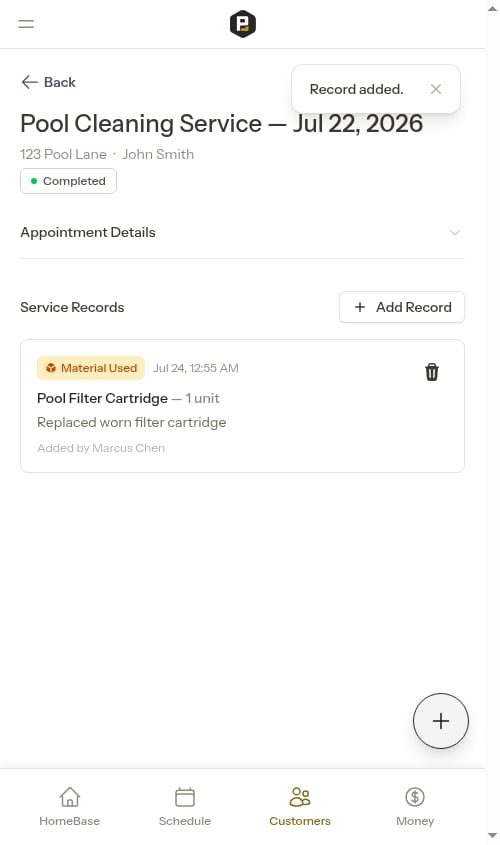 Materials can be recorded **after** an appointment is completed. They aren't part of the in-the-moment completion form — for materials you want to charge the customer for, add them as invoice line items on the appointment or service so they appear on the invoice. See [Adding service items](/routes/service-items).
## Adding service records
Service records can also be created **from a checklist**. When a checklist question is marked **Include in service record**, its answer is saved as a service record automatically when the visit is completed — a numeric "pH" answer becomes a chemical reading without re-entering it. See [Completing checklists on a job](/checklists/completing-checklists#answers-that-become-service-records).
### During appointment completion
The best time to add service records is when completing an appointment:
1. Open the appointment from the calendar or service details page
2. Tap **Complete Visit** to open the completion form
3. Enter your notes in the **Visit Notes** field
4. Click the **AI Assist** button (✦) to automatically extract service records from your notes
5. Or tap any record category card (Observations, Chemical Readings, Chemical Adjustments) to open that category's screen
6. Within the category screen, tap **Add** to create a new entry manually
7. Review all entries before completing — you can edit or remove entries directly from the category screen (see [Editing during completion](#editing-during-completion) below)
8. Tap **Complete Visit** to finish
Materials can be recorded **after** an appointment is completed. They aren't part of the in-the-moment completion form — for materials you want to charge the customer for, add them as invoice line items on the appointment or service so they appear on the invoice. See [Adding service items](/routes/service-items).
## Adding service records
Service records can also be created **from a checklist**. When a checklist question is marked **Include in service record**, its answer is saved as a service record automatically when the visit is completed — a numeric "pH" answer becomes a chemical reading without re-entering it. See [Completing checklists on a job](/checklists/completing-checklists#answers-that-become-service-records).
### During appointment completion
The best time to add service records is when completing an appointment:
1. Open the appointment from the calendar or service details page
2. Tap **Complete Visit** to open the completion form
3. Enter your notes in the **Visit Notes** field
4. Click the **AI Assist** button (✦) to automatically extract service records from your notes
5. Or tap any record category card (Observations, Chemical Readings, Chemical Adjustments) to open that category's screen
6. Within the category screen, tap **Add** to create a new entry manually
7. Review all entries before completing — you can edit or remove entries directly from the category screen (see [Editing during completion](#editing-during-completion) below)
8. Tap **Complete Visit** to finish
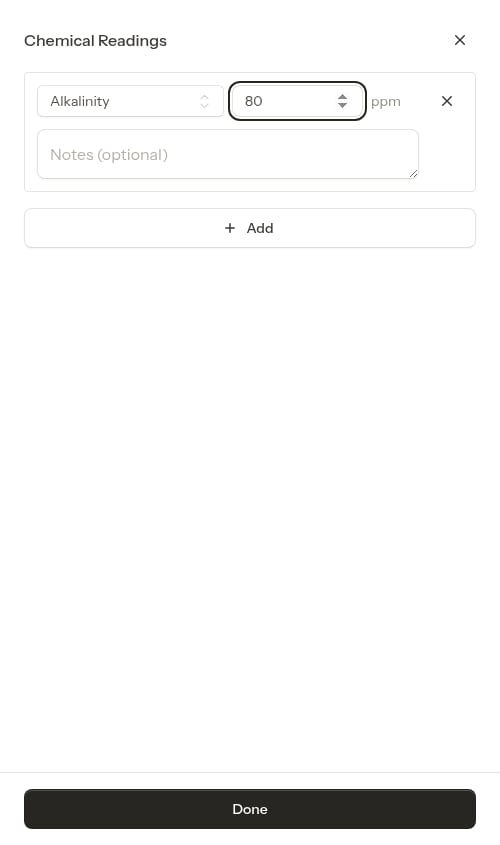
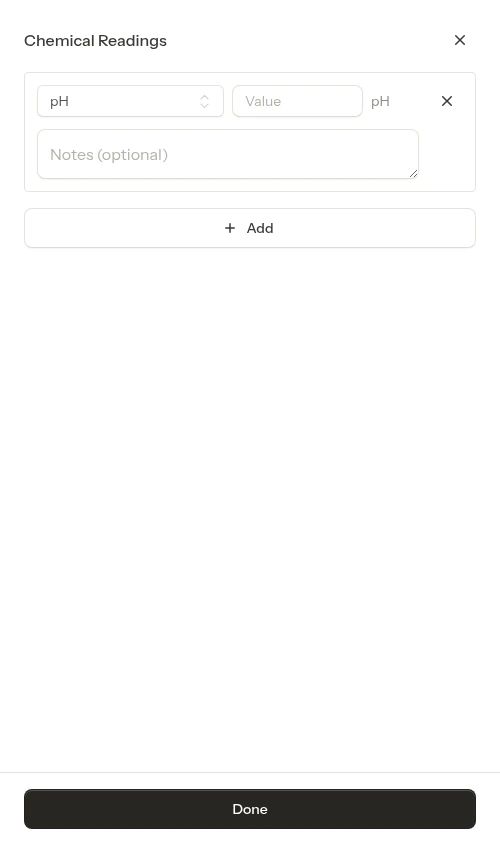 Within a category screen, type your value directly into the entry — for a chemical reading, pick the reading type, enter the value, and the unit fills in automatically. Your entry is saved as you go, so the value you type is exactly what's recorded when you tap **Done** and complete the visit.
 **Materials** can't be added from the completion form. Record any materials or parts used as **invoice line items** on the appointment (or the service) so they appear on the customer's invoice. If you also want a non-billed record of the material for service history, add it after the appointment is completed — see [After appointment completion](#after-appointment-completion).
### After appointment completion
You can also add service records after an appointment is completed:
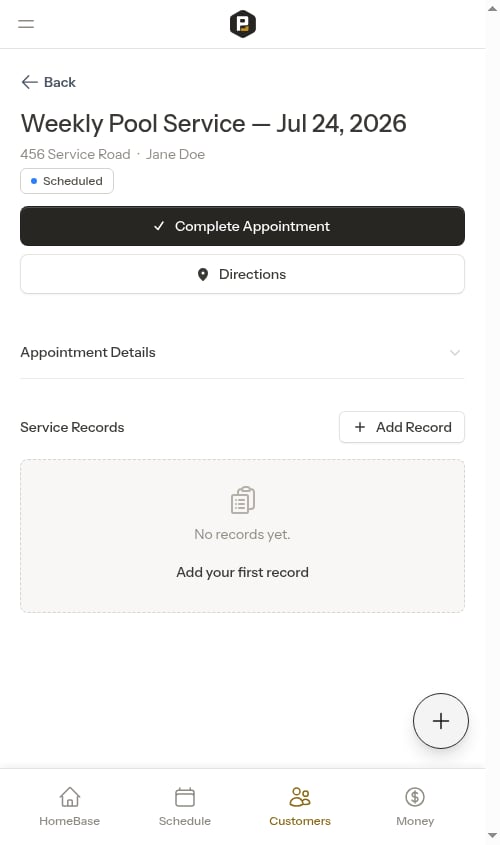
1. Open the completed appointment
2. Scroll to the **Service Records** section
3. Click **Add Record**
4. Select the entry type and fill in the details
5. Click **Save Record**
**Materials** can't be added from the completion form. Record any materials or parts used as **invoice line items** on the appointment (or the service) so they appear on the customer's invoice. If you also want a non-billed record of the material for service history, add it after the appointment is completed — see [After appointment completion](#after-appointment-completion).
### After appointment completion
You can also add service records after an appointment is completed:
1. Open the completed appointment
2. Scroll to the **Service Records** section
3. Click **Add Record**
4. Select the entry type and fill in the details
5. Click **Save Record**
 ## Using AI to parse notes
The fastest way to create service records is using AI:
1. Write your notes naturally in the **Visit Notes** field of the completion form
2. Click the **AI Assist** button (✦) that appears below the text field
3. The system automatically creates service records from your text
4. Review and edit the parsed entries — tap any category card to see what was extracted
5. Remove any incorrect entries
6. Add any missing entries manually
7. Tap **Complete Visit** when ready
Example note that parses well:
> "pH was 7.2, chlorine at 3 ppm. Added 2 lbs shock. Pool looked clear, no algae."
This creates:
* Chemical Reading: pH = 7.2
* Chemical Reading: Chlorine = 3 ppm
* Chemical Application: Shock = 2 lbs
* Observation: "Pool looked clear, no algae"
Materials in your notes aren't turned into service records — add materials and parts as invoice line items so the customer is charged for them.
## Adding entries manually
To add a service record manually:
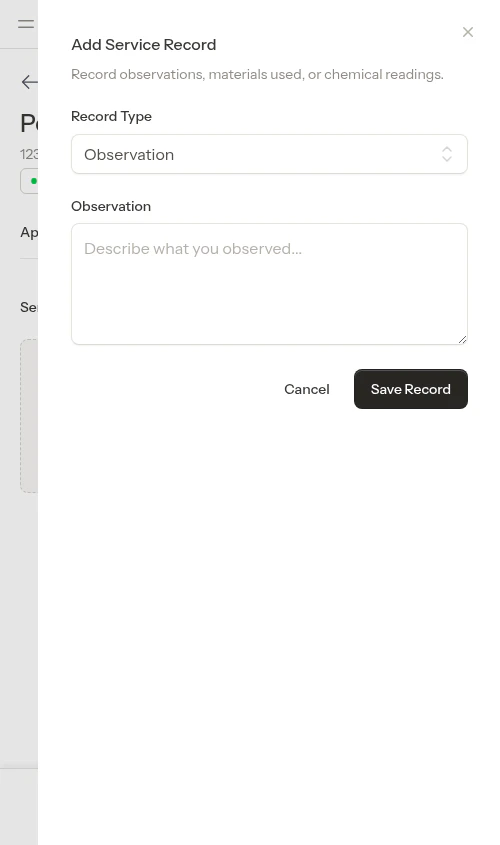
1. Tap **Add** in a category screen during the completion form (Observations, Chemical Readings, or Chemical Adjustments only), or **Add Record** on a completed appointment (any type, including Material)
2. Choose the entry type — on a completed appointment you can pick Observation, Material Used, Chemical Reading, or Chemical Application
3. Fill in the required fields based on the type
4. Add optional notes for context
5. Click **Save Record**
## Using AI to parse notes
The fastest way to create service records is using AI:
1. Write your notes naturally in the **Visit Notes** field of the completion form
2. Click the **AI Assist** button (✦) that appears below the text field
3. The system automatically creates service records from your text
4. Review and edit the parsed entries — tap any category card to see what was extracted
5. Remove any incorrect entries
6. Add any missing entries manually
7. Tap **Complete Visit** when ready
Example note that parses well:
> "pH was 7.2, chlorine at 3 ppm. Added 2 lbs shock. Pool looked clear, no algae."
This creates:
* Chemical Reading: pH = 7.2
* Chemical Reading: Chlorine = 3 ppm
* Chemical Application: Shock = 2 lbs
* Observation: "Pool looked clear, no algae"
Materials in your notes aren't turned into service records — add materials and parts as invoice line items so the customer is charged for them.
## Adding entries manually
To add a service record manually:
1. Tap **Add** in a category screen during the completion form (Observations, Chemical Readings, or Chemical Adjustments only), or **Add Record** on a completed appointment (any type, including Material)
2. Choose the entry type — on a completed appointment you can pick Observation, Material Used, Chemical Reading, or Chemical Application
3. Fill in the required fields based on the type
4. Add optional notes for context
5. Click **Save Record**
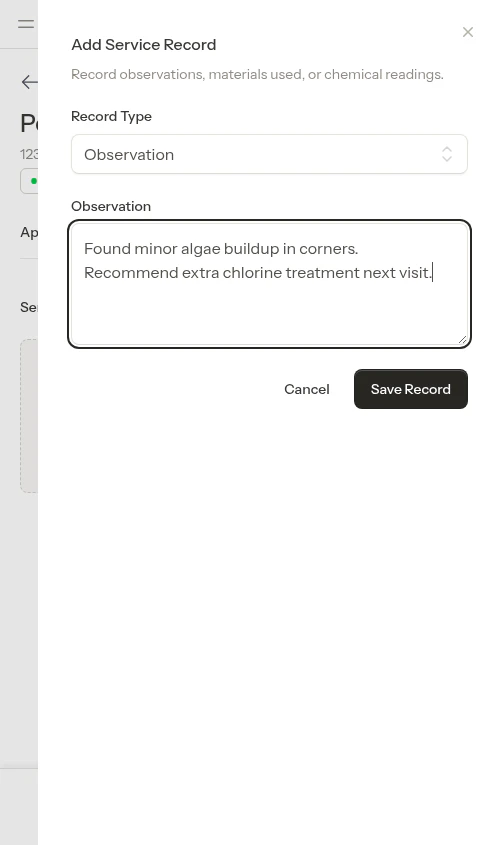 ### Observation fields
* **Notes** (required) - Description of what you observed
### Chemical reading fields
* **Reading Type** (required) - What was measured. Choose from the list (pH, Chlorine, Alkalinity, etc.)
* **Value** (required) - The numeric value
* **Unit** - Unit of measurement, set automatically based on reading type (e.g., "pH", "ppm")
* **Notes** (optional) - Additional context
### Chemical application fields
* **Chemical Name** (required) - Name of chemical applied
* **Amount** (required) - How much was added
* **Unit** (required) - Unit of measurement. Choose from the list (lbs, oz, fl oz, gal, qt, ppm).
* **Notes** (optional) - Why it was added or where it was applied
### Material fields
* **Product Name** (required) - Product or material name
* **Quantity** (required) - How much was used
* **Unit** (required) - Unit of measurement. Choose from the list (unit, lbs, oz, gal, bags, cu yd, qt).
* **Notes** (optional) - Why it was used or where it was applied
When you add entries from a category screen **during appointment completion**, the Reading Type and chemical Unit dropdowns include an **Other…** option so you can type a custom value that isn't in the list. The after-completion **Add Record** modal uses the standard lists only.
## Editing service records
### Editing during completion
While completing an appointment, all entries in a category screen are shown in edit mode — there is no separate edit button. Open any category card (Observations, Chemical Readings, or Chemical Adjustments) in the completion form to see and update all entries in that category.
Each entry stays in its own category — entries can't switch types from the completion form. If an entry is in the wrong category, remove it and add a new one in the correct category instead.
### After completion
Once an appointment is completed, service records become read-only. To change a record, delete it (see [Deleting service records](#deleting-service-records) below) and add a new one with the corrected details. Use **Add Record** from the Service Records section on the completed appointment to add the replacement — this is the only place you can pick **Material Used** as the entry type.
### Observation fields
* **Notes** (required) - Description of what you observed
### Chemical reading fields
* **Reading Type** (required) - What was measured. Choose from the list (pH, Chlorine, Alkalinity, etc.)
* **Value** (required) - The numeric value
* **Unit** - Unit of measurement, set automatically based on reading type (e.g., "pH", "ppm")
* **Notes** (optional) - Additional context
### Chemical application fields
* **Chemical Name** (required) - Name of chemical applied
* **Amount** (required) - How much was added
* **Unit** (required) - Unit of measurement. Choose from the list (lbs, oz, fl oz, gal, qt, ppm).
* **Notes** (optional) - Why it was added or where it was applied
### Material fields
* **Product Name** (required) - Product or material name
* **Quantity** (required) - How much was used
* **Unit** (required) - Unit of measurement. Choose from the list (unit, lbs, oz, gal, bags, cu yd, qt).
* **Notes** (optional) - Why it was used or where it was applied
When you add entries from a category screen **during appointment completion**, the Reading Type and chemical Unit dropdowns include an **Other…** option so you can type a custom value that isn't in the list. The after-completion **Add Record** modal uses the standard lists only.
## Editing service records
### Editing during completion
While completing an appointment, all entries in a category screen are shown in edit mode — there is no separate edit button. Open any category card (Observations, Chemical Readings, or Chemical Adjustments) in the completion form to see and update all entries in that category.
Each entry stays in its own category — entries can't switch types from the completion form. If an entry is in the wrong category, remove it and add a new one in the correct category instead.
### After completion
Once an appointment is completed, service records become read-only. To change a record, delete it (see [Deleting service records](#deleting-service-records) below) and add a new one with the corrected details. Use **Add Record** from the Service Records section on the completed appointment to add the replacement — this is the only place you can pick **Material Used** as the entry type.
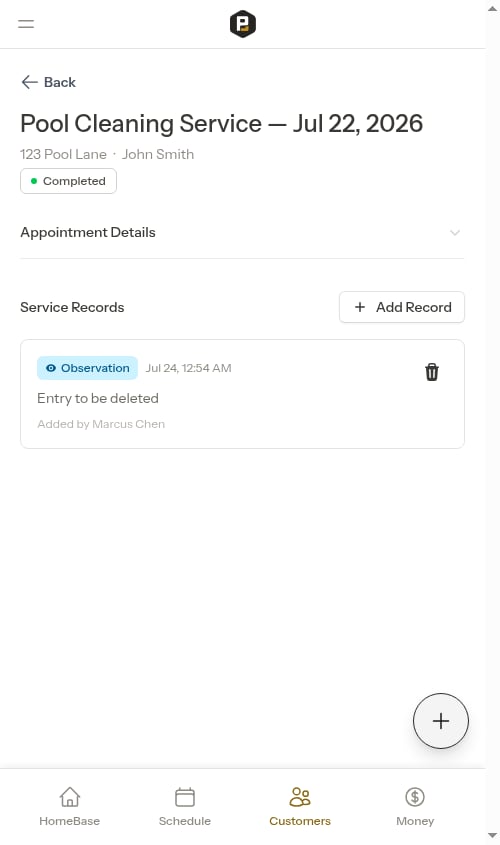 ## Deleting service records
### Removing during completion
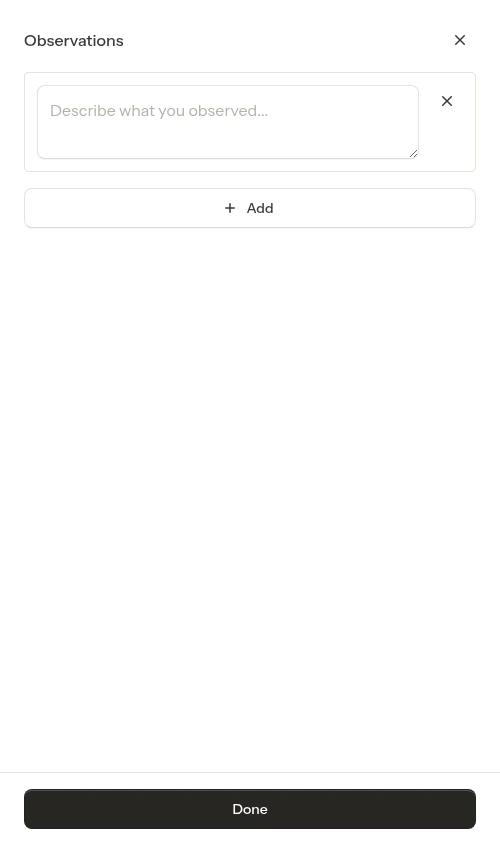
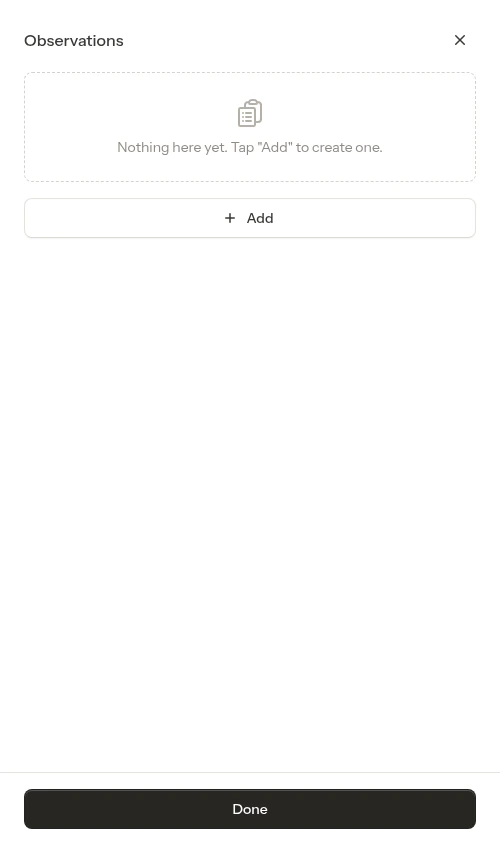
To remove an entry while completing an appointment, open the category card in the completion form (Observations, Chemical Readings, or Chemical Adjustments) and tap the remove button on the entry row.
## Deleting service records
### Removing during completion
To remove an entry while completing an appointment, open the category card in the completion form (Observations, Chemical Readings, or Chemical Adjustments) and tap the remove button on the entry row.
 ### Deleting after completion
To remove a service record from a completed appointment:
1. Open the completed appointment
2. Find the entry in the Service Records section
3. Click the delete icon (trash)
4. Confirm the deletion
### Deleting after completion
To remove a service record from a completed appointment:
1. Open the completed appointment
2. Find the entry in the Service Records section
3. Click the delete icon (trash)
4. Confirm the deletion
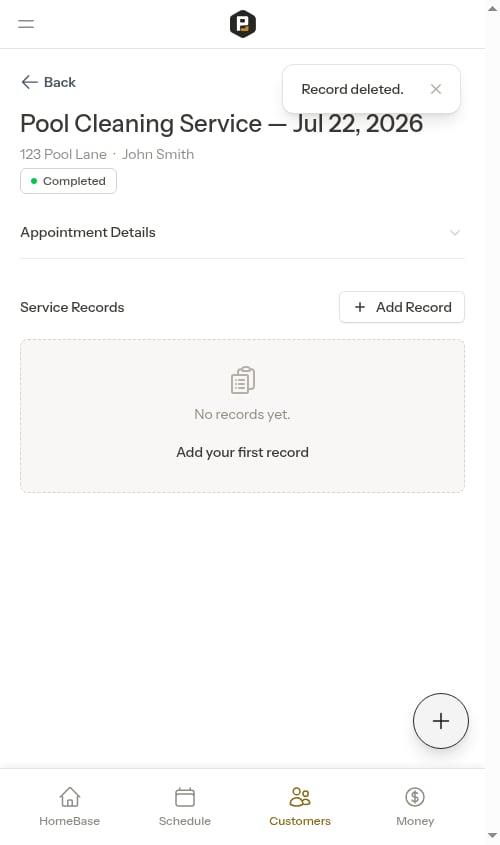 Deleted service records cannot be recovered. Only delete entries that are incorrect or entered by mistake.
## Viewing service records
Service records appear in multiple places:
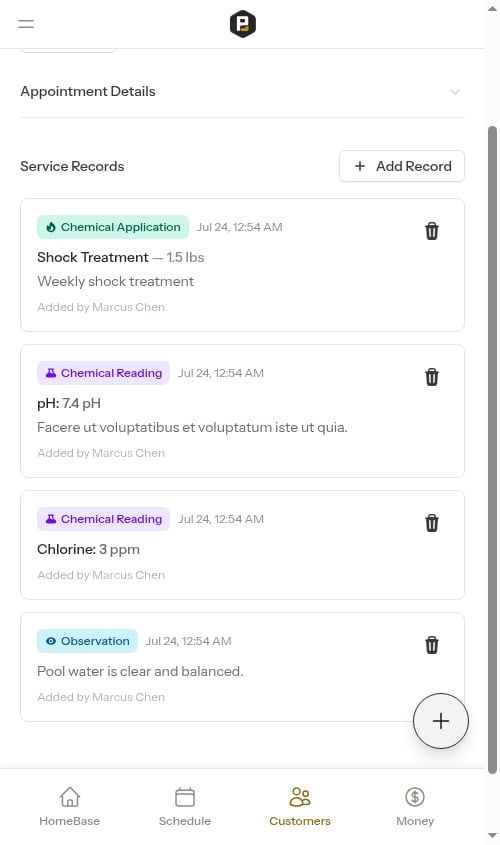
### On completed appointments
Open any completed appointment to see all service records for that visit.
Deleted service records cannot be recovered. Only delete entries that are incorrect or entered by mistake.
## Viewing service records
Service records appear in multiple places:
### On completed appointments
Open any completed appointment to see all service records for that visit.
 ### On the dedicated service records page
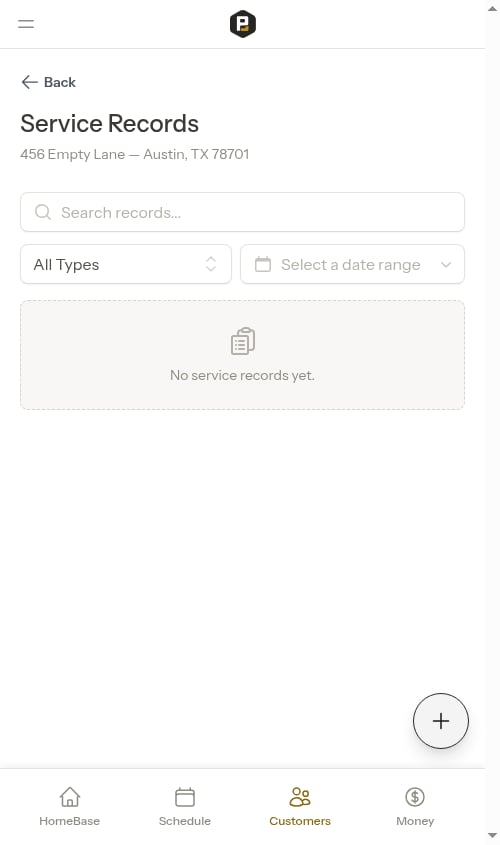
Each property has a dedicated "Service Records" page that lists all service records for that property, with powerful filtering and search capabilities.
To access it:
1. Navigate to a customer's page
2. Find the property in the Properties section
3. Click **Service Records** on the property page
### On the dedicated service records page
Each property has a dedicated "Service Records" page that lists all service records for that property, with powerful filtering and search capabilities.
To access it:
1. Navigate to a customer's page
2. Find the property in the Properties section
3. Click **Service Records** on the property page
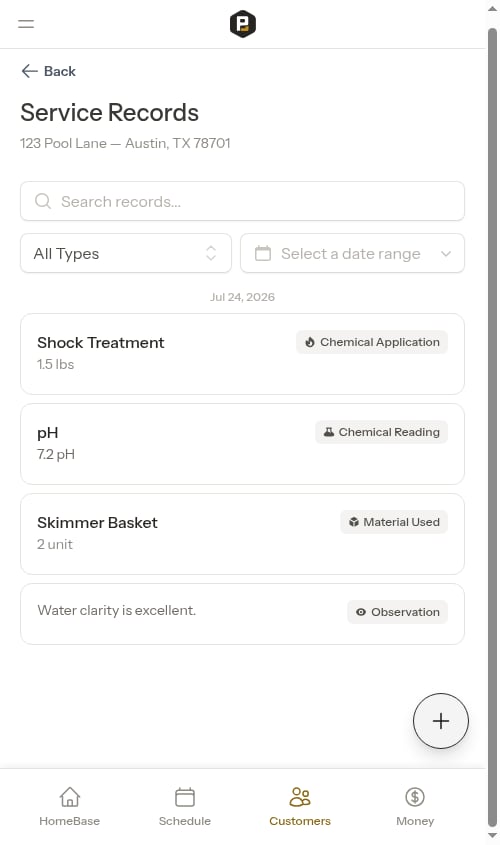 Records appear as a list of cards. Each card shows:
* A **type badge** (Observation, Chemical Reading, Material Used, or Chemical Application)
* The main information (reading value, material used, observation text, etc.)
* Which service the record belongs to
* When the work was recorded and who recorded it
Records are ordered by most recent first, making it easy to see the latest activity.
Records appear as a list of cards. Each card shows:
* A **type badge** (Observation, Chemical Reading, Material Used, or Chemical Application)
* The main information (reading value, material used, observation text, etc.)
* Which service the record belongs to
* When the work was recorded and who recorded it
Records are ordered by most recent first, making it easy to see the latest activity.
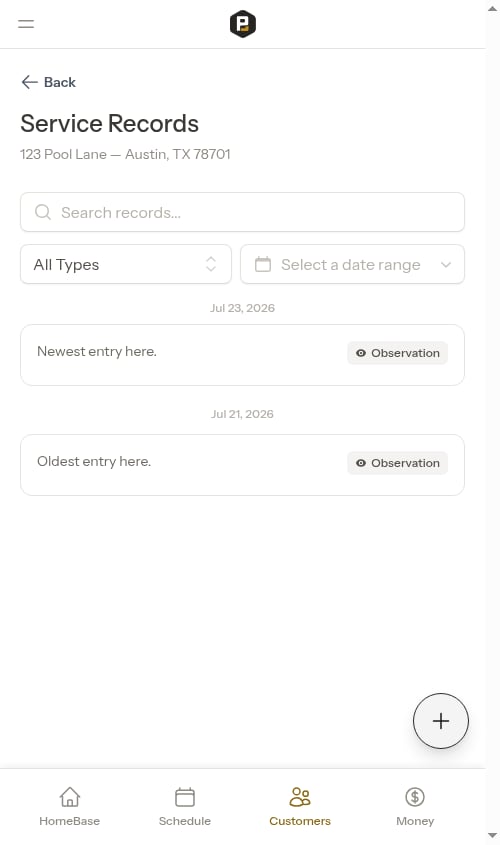 The filtering and search controls stay visible at the top of the page while you scroll through records. This sticky behavior lets you refine your search without scrolling back up, making it faster to find what you need.
### Date separators
The list groups records under date headings (e.g., "Feb 4, 2026"), with a new heading each time the date changes as you scroll.
The filtering and search controls stay visible at the top of the page while you scroll through records. This sticky behavior lets you refine your search without scrolling back up, making it faster to find what you need.
### Date separators
The list groups records under date headings (e.g., "Feb 4, 2026"), with a new heading each time the date changes as you scroll.
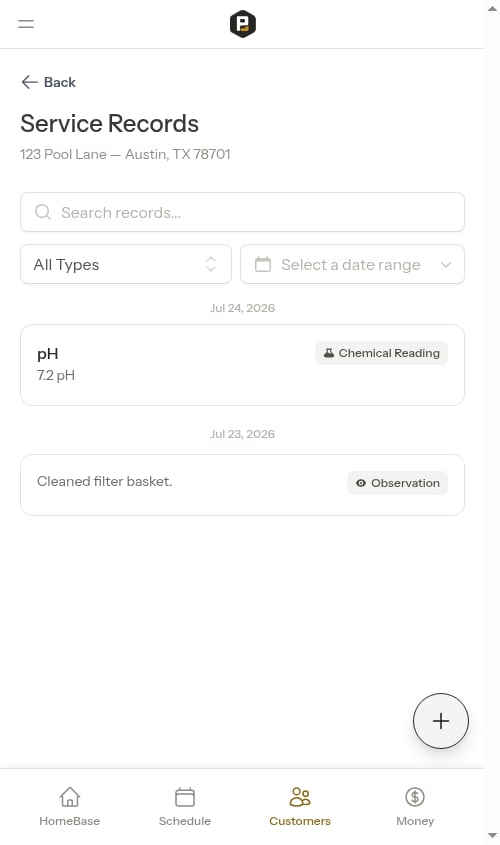 This makes it easy to scan through records and understand when work was performed.
## Filtering and searching
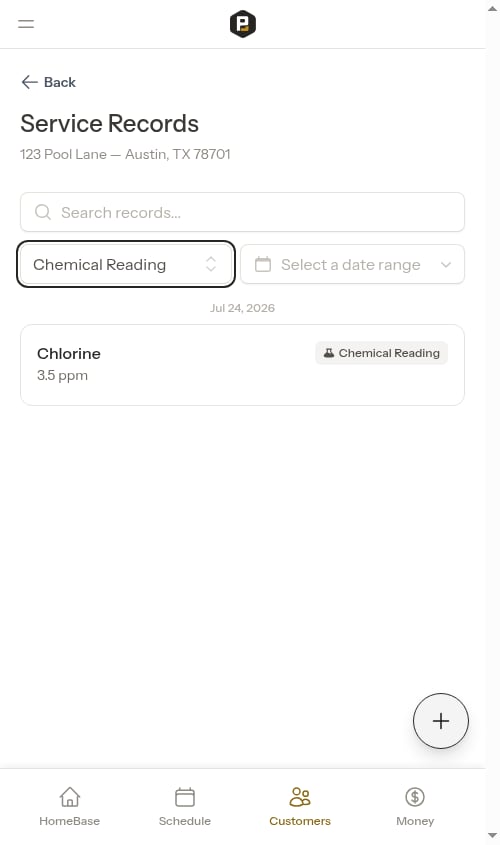
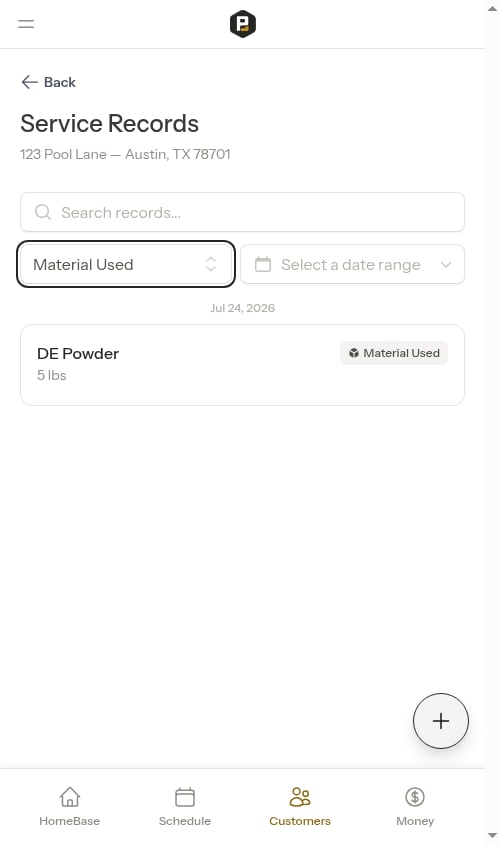
### Filter by type
Use the type dropdown to show only specific types of records:
* All Types (default)
* Observation
* Material Used
* Chemical Reading
* Chemical Application
This makes it easy to scan through records and understand when work was performed.
## Filtering and searching
### Filter by type
Use the type dropdown to show only specific types of records:
* All Types (default)
* Observation
* Material Used
* Chemical Reading
* Chemical Application
 ### Search records
Use the search box to find records by:
* Notes or descriptions
* Service name
* Property address
* Measurement names (e.g., "pH", "chlorine")
* Material or chemical names
* Any text in the entry details
### Search records
Use the search box to find records by:
* Notes or descriptions
* Service name
* Property address
* Measurement names (e.g., "pH", "chlorine")
* Material or chemical names
* Any text in the entry details
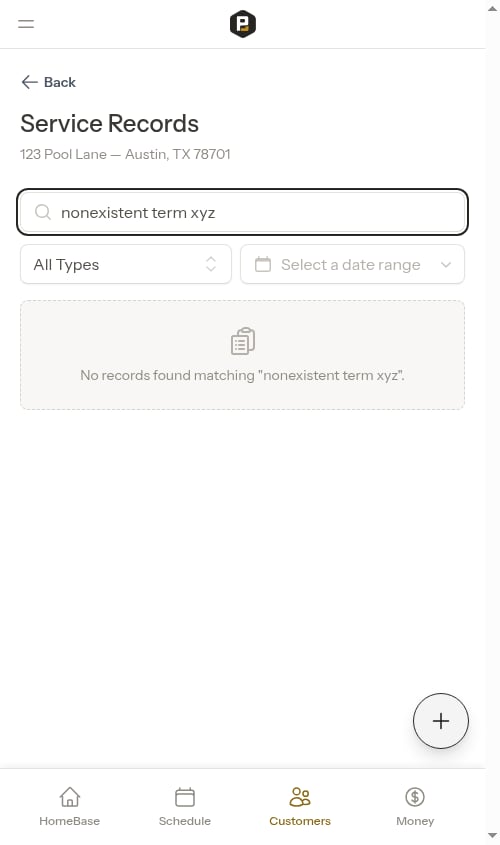
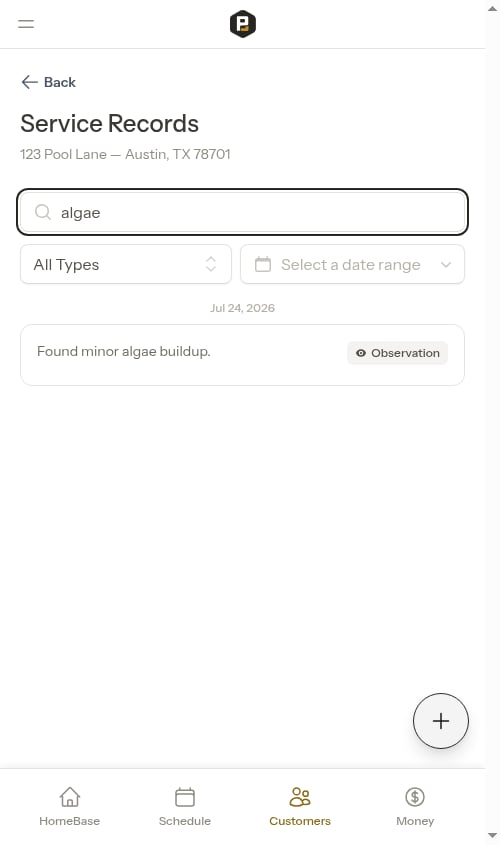 The search updates instantly as you type. If no records match your search, you'll see a helpful message.
 ### Combine filters
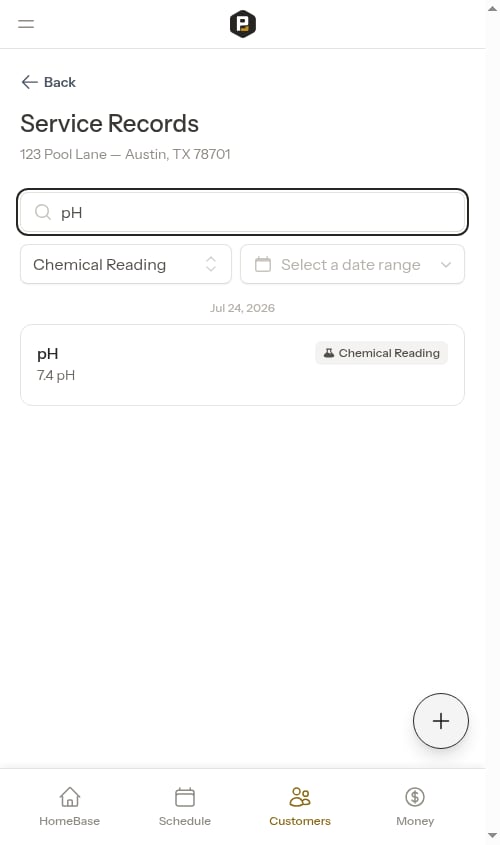
You can use both type filtering and search together to narrow down exactly what you're looking for.
### Combine filters
You can use both type filtering and search together to narrow down exactly what you're looking for.
 ### Date range filtering
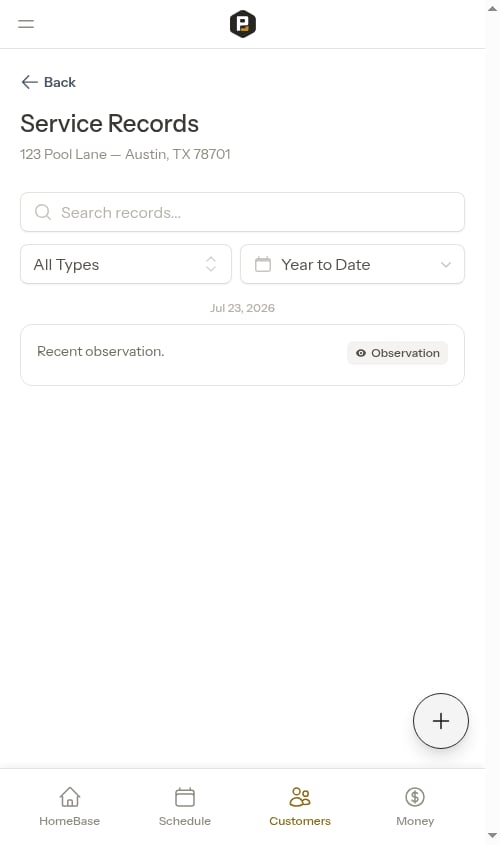
Use the date picker to filter records by date range. Pick a start and end date, or choose one of the built-in presets (such as this week, this month, or year to date) to quickly narrow the list to a specific time period. Leave the range empty to show all records.
### Date range filtering
Use the date picker to filter records by date range. Pick a start and end date, or choose one of the built-in presets (such as this week, this month, or year to date) to quickly narrow the list to a specific time period. Leave the range empty to show all records.
 This is especially useful for:
* Reviewing recent work for quality control
* Generating reports for specific time periods
* Finding records from a particular service visit
* Tracking trends over time
### Empty states
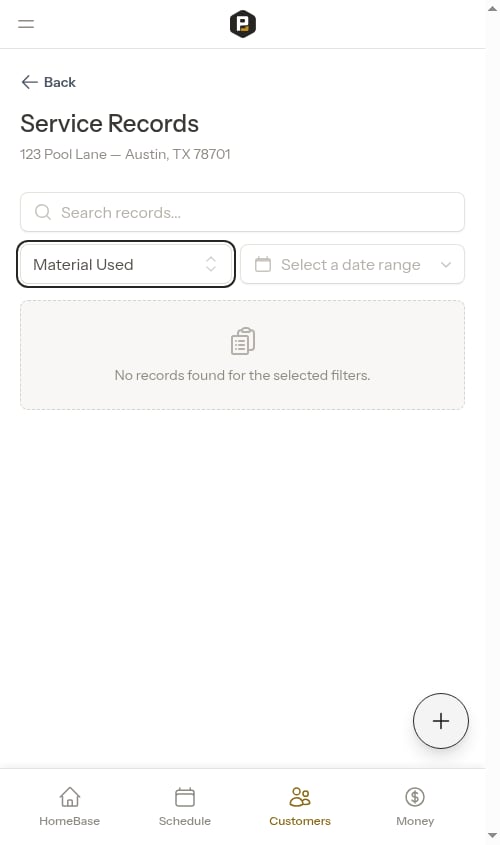
If no records match your filters, you'll see a message explaining what to do next.
This is especially useful for:
* Reviewing recent work for quality control
* Generating reports for specific time periods
* Finding records from a particular service visit
* Tracking trends over time
### Empty states
If no records match your filters, you'll see a message explaining what to do next.
 ## Best practices
**Be consistent**: Use the same terminology and units across entries. For example, always use "pH" (not "ph" or "PH") and "ppm" for chlorine readings. This makes historical data easier to review.
**Use AI parsing**: Write natural notes and let AI create the entries. It's much faster than manual entry and reduces data entry errors.
**Record measurements before and after**: For chemical readings, note values before and after adjustments to track changes and validate your work.
**Document issues**: Use observations to record problems found, even minor ones. This helps identify recurring issues and demonstrates thoroughness.
**Track all materials**: Record everything used, not just chemicals. This helps with inventory management and can support billing for materials.
**Review before completing**: Check parsed entries for accuracy before clicking Complete. AI is good but not perfect - always verify the extracted data.
**Be specific with service records**: Instead of "Fixed pump", write "Replaced impeller seal on main circulation pump". Specific details help with warranty tracking and future troubleshooting.
## Service records vs. notes
**Service records** are for structured, searchable data:
* Chemical readings and test results
* Chemical applications and treatments
* Materials and parts used
* Specific observations about service conditions
**Notes** are for unstructured information:
* General customer preferences
* Access instructions
* Before/after photos
* Long-form documentation
See [Adding notes](/customers/adding-notes) for working with notes.
## Why use service records
**Consistency**: Structured data ensures information is recorded the same way every time, making it easy to compare across visits.
**History**: View trends in measurements over time to identify patterns and make better service decisions.
**Accountability**: See exactly what was done during each visit, who did it, and when.
**Efficiency**: AI parsing makes data entry fast and easy - just write notes naturally and let the system structure them.
**Searchability**: Find specific information quickly by searching across all entries for a customer or property.
**Professionalism**: Detailed service records demonstrate thoroughness to customers and support premium pricing.
## Best practices
**Be consistent**: Use the same terminology and units across entries. For example, always use "pH" (not "ph" or "PH") and "ppm" for chlorine readings. This makes historical data easier to review.
**Use AI parsing**: Write natural notes and let AI create the entries. It's much faster than manual entry and reduces data entry errors.
**Record measurements before and after**: For chemical readings, note values before and after adjustments to track changes and validate your work.
**Document issues**: Use observations to record problems found, even minor ones. This helps identify recurring issues and demonstrates thoroughness.
**Track all materials**: Record everything used, not just chemicals. This helps with inventory management and can support billing for materials.
**Review before completing**: Check parsed entries for accuracy before clicking Complete. AI is good but not perfect - always verify the extracted data.
**Be specific with service records**: Instead of "Fixed pump", write "Replaced impeller seal on main circulation pump". Specific details help with warranty tracking and future troubleshooting.
## Service records vs. notes
**Service records** are for structured, searchable data:
* Chemical readings and test results
* Chemical applications and treatments
* Materials and parts used
* Specific observations about service conditions
**Notes** are for unstructured information:
* General customer preferences
* Access instructions
* Before/after photos
* Long-form documentation
See [Adding notes](/customers/adding-notes) for working with notes.
## Why use service records
**Consistency**: Structured data ensures information is recorded the same way every time, making it easy to compare across visits.
**History**: View trends in measurements over time to identify patterns and make better service decisions.
**Accountability**: See exactly what was done during each visit, who did it, and when.
**Efficiency**: AI parsing makes data entry fast and easy - just write notes naturally and let the system structure them.
**Searchability**: Find specific information quickly by searching across all entries for a customer or property.
**Professionalism**: Detailed service records demonstrate thoroughness to customers and support premium pricing.