> ## Documentation Index
> Fetch the complete documentation index at: https://docs.probaseapp.com/llms.txt
> Use this file to discover all available pages before exploring further.
# The visit page
> The one screen you work a job from — timer, checklists, charges and notes
## Overview
Every scheduled visit has its own page, and that page is where the work happens. It's built for a phone held in one hand on someone's driveway: the facts you need at the top, the button you're most likely to press next, and everything else one tap away.
Open a visit by tapping it anywhere it appears — your [daily schedule](/routes/daily-crew-schedules), the [calendar](/scheduling/weekly-schedule), HomeBase's [overdue](/scheduling/overdue-jobs) list, the customer's or property's **Visits** card, or the job page.
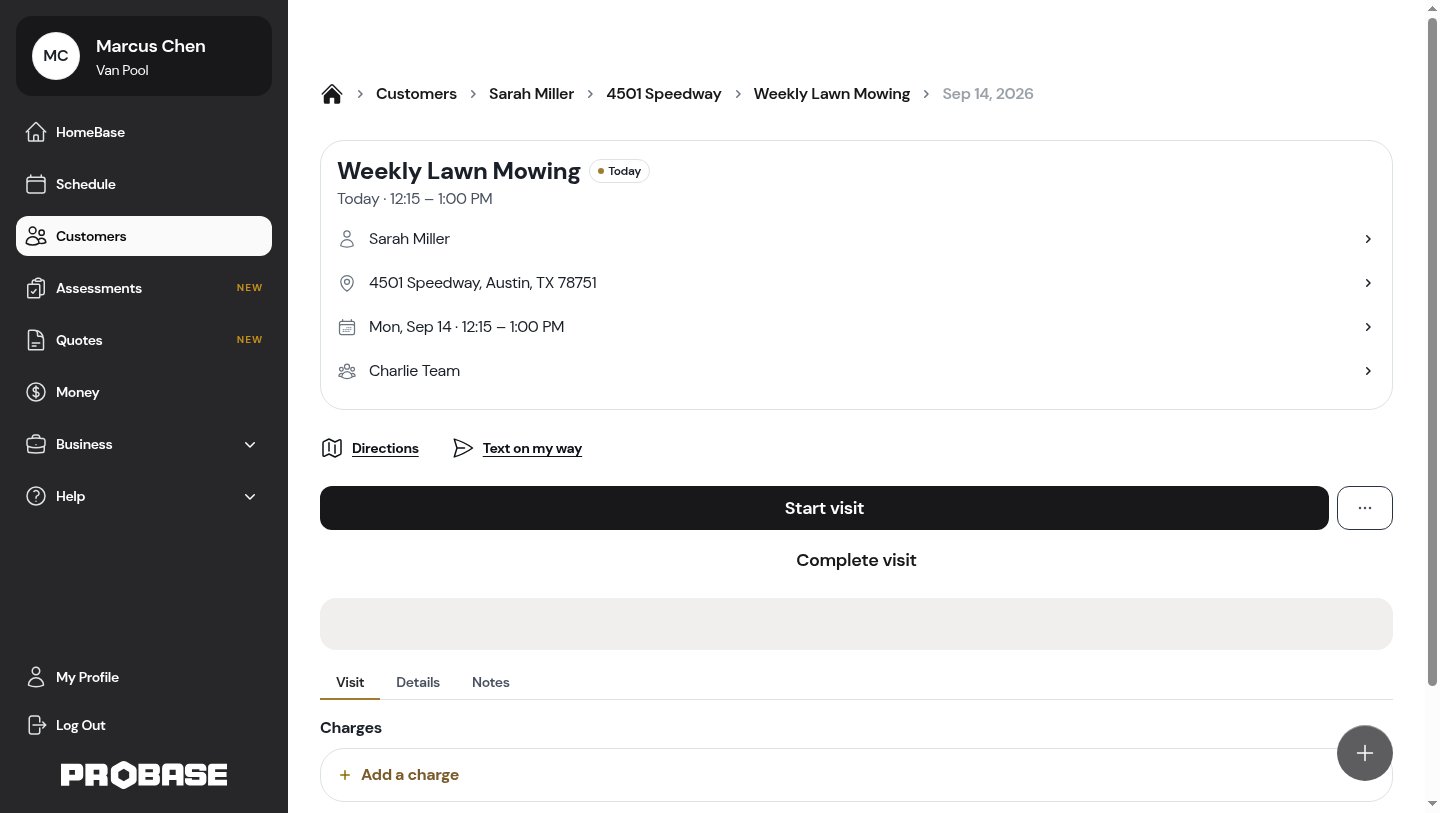
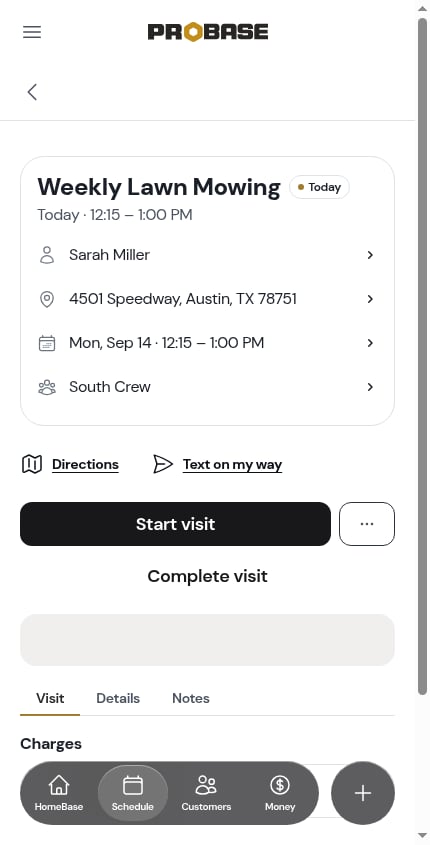 On a computer the same page uses the wider layout, with the breadcrumb trail across the top instead of the back arrow.
 ## What's on the page
From the top down:
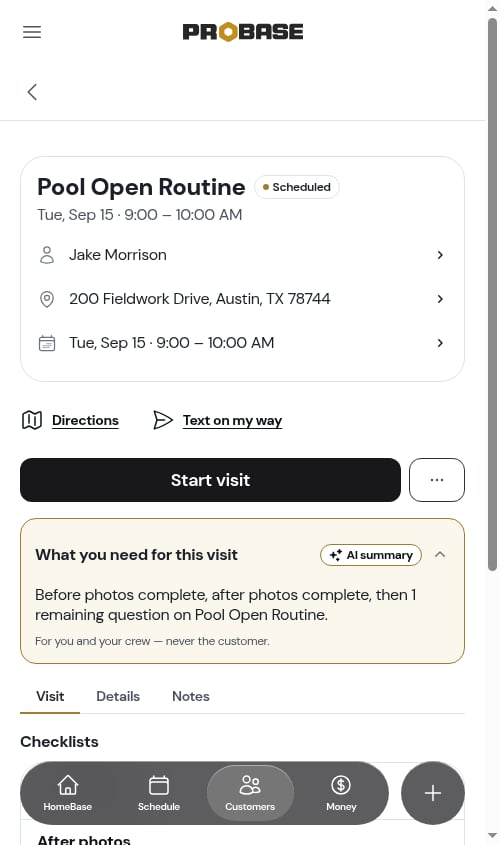
1. **The header card** — the service name, the visit's state, and the customer, property, time and crew rows
2. **Directions and Text on my way** — the two hand-offs you want before you arrive
3. **The action row** — **Start visit**, **⋯ More**, and a quiet third action
4. **The timer** — only once the visit is started
5. **What you need for this visit** — the AI briefing, when there's something worth saying
6. **Visit · Details · Notes** — the three tabs holding the work
## The header card
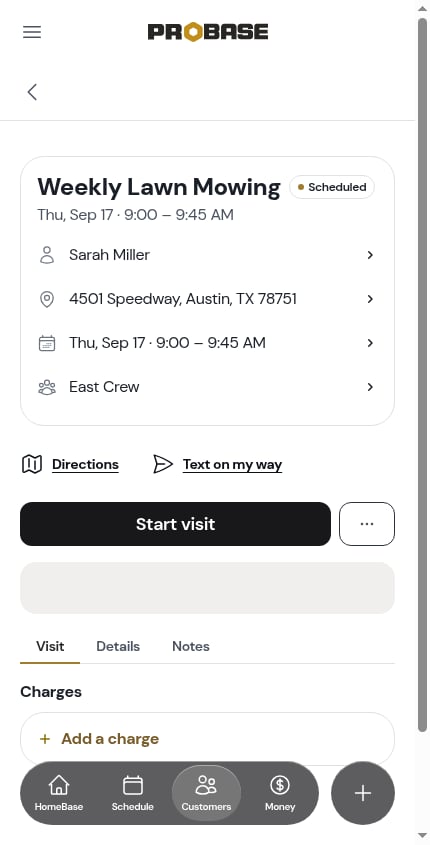
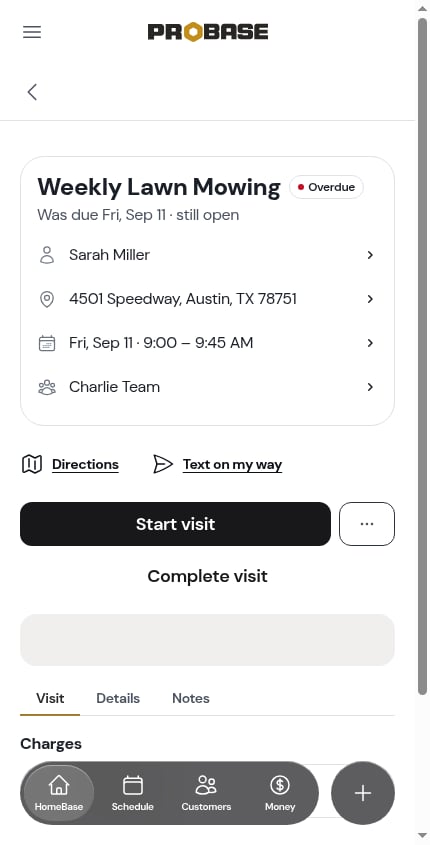
The card carries the job's name as the page title, a coloured **state pill**, and one line underneath saying when the visit is:
| State | What the line says |
| ------------------------ | ---------------------------------- |
| **Scheduled** | *Tue, Sep 2 · 9:00 – 10:00 AM* |
| **Today** | *Today · 12:15 – 1:00 PM* |
| **Overdue** | *Was due Tue, Aug 25 · still open* |
| **Working** / **Paused** | *Started 12:15 PM* |
| **Completed** | *Completed Fri, Aug 28 · 1:07 PM* |
| **Cancelled** | *Cancelled Wed, Aug 26* |
## What's on the page
From the top down:
1. **The header card** — the service name, the visit's state, and the customer, property, time and crew rows
2. **Directions and Text on my way** — the two hand-offs you want before you arrive
3. **The action row** — **Start visit**, **⋯ More**, and a quiet third action
4. **The timer** — only once the visit is started
5. **What you need for this visit** — the AI briefing, when there's something worth saying
6. **Visit · Details · Notes** — the three tabs holding the work
## The header card
The card carries the job's name as the page title, a coloured **state pill**, and one line underneath saying when the visit is:
| State | What the line says |
| ------------------------ | ---------------------------------- |
| **Scheduled** | *Tue, Sep 2 · 9:00 – 10:00 AM* |
| **Today** | *Today · 12:15 – 1:00 PM* |
| **Overdue** | *Was due Tue, Aug 25 · still open* |
| **Working** / **Paused** | *Started 12:15 PM* |
| **Completed** | *Completed Fri, Aug 28 · 1:07 PM* |
| **Cancelled** | *Cancelled Wed, Aug 26* |
 An [assessment](/customers/assessments) visit carries an extra **Assessment** chip beside the state pill, so you always know which kind of visit you're looking at.
### The rows under the title
Under the title sit the rows that place the visit — the customer, the property, the date and time, and (on a business with more than one crew) the crew. Each one is a button that opens what you'd want from it:
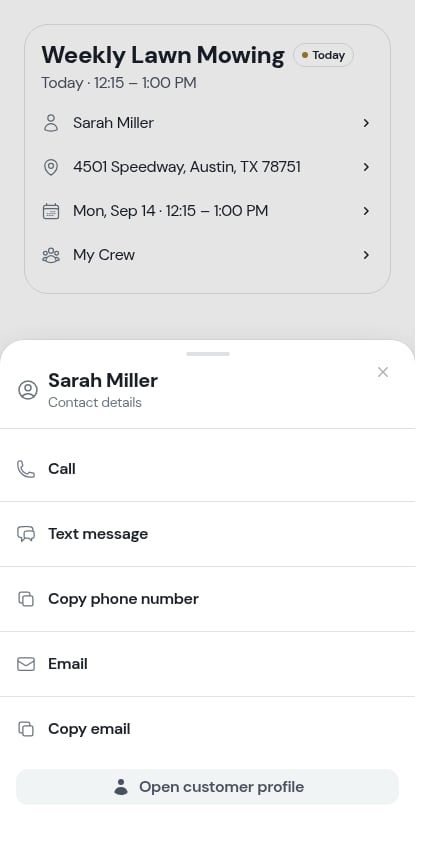
* **The customer** — opens the contact sheet: **Call** and **Text message** first, then **Copy phone number**, **Email**, **Copy email**, and **Open customer profile**
An [assessment](/customers/assessments) visit carries an extra **Assessment** chip beside the state pill, so you always know which kind of visit you're looking at.
### The rows under the title
Under the title sit the rows that place the visit — the customer, the property, the date and time, and (on a business with more than one crew) the crew. Each one is a button that opens what you'd want from it:
* **The customer** — opens the contact sheet: **Call** and **Text message** first, then **Copy phone number**, **Email**, **Copy email**, and **Open customer profile**
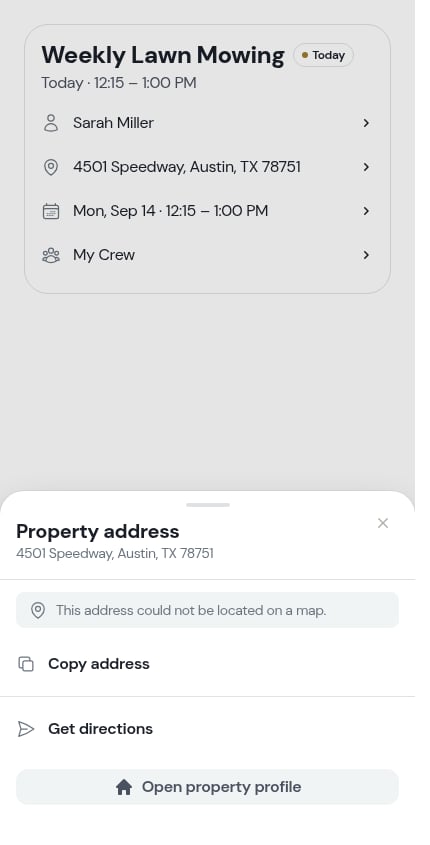
 * **The property address** — opens the address sheet: a satellite preview of the property, **Copy address**, **Get directions** in your chosen [maps app](/getting-started/maps-preference), and **Open property profile**
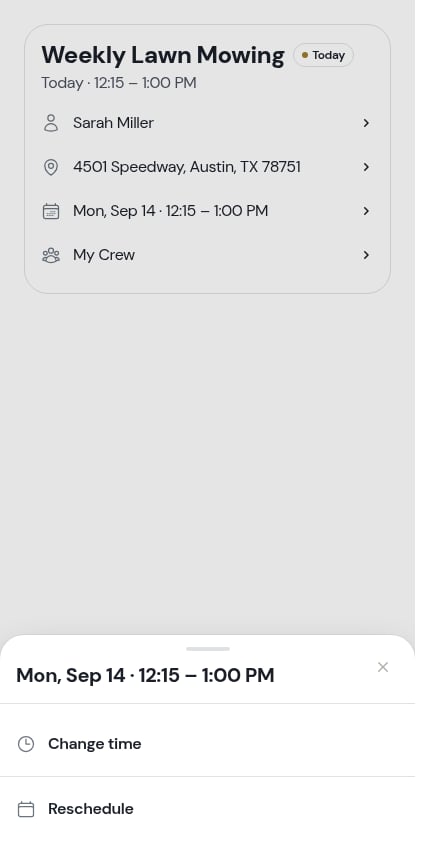
 * **The date and time** — opens a short sheet offering **Change time** (move the visit within the day and set how long it should take) or **Reschedule** (move it to another day)
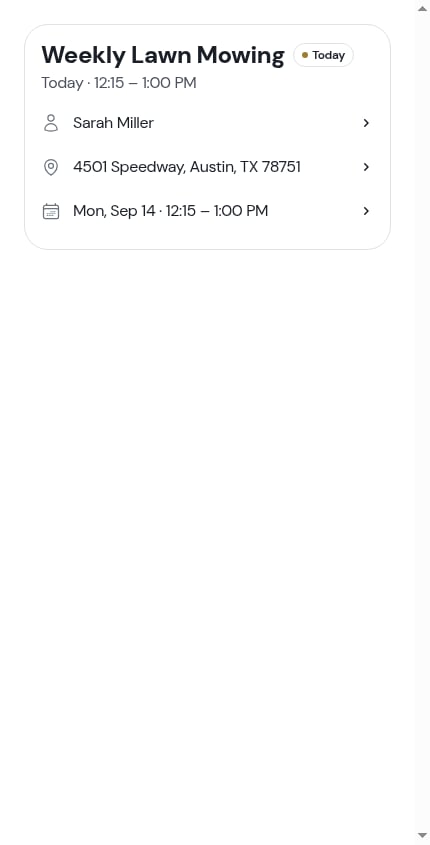
 * **The crew** — opens the **Assign Crew** window. This row only appears when your team has **more than one crew** — with a single crew there's nothing to choose, so ProBase leaves it out entirely
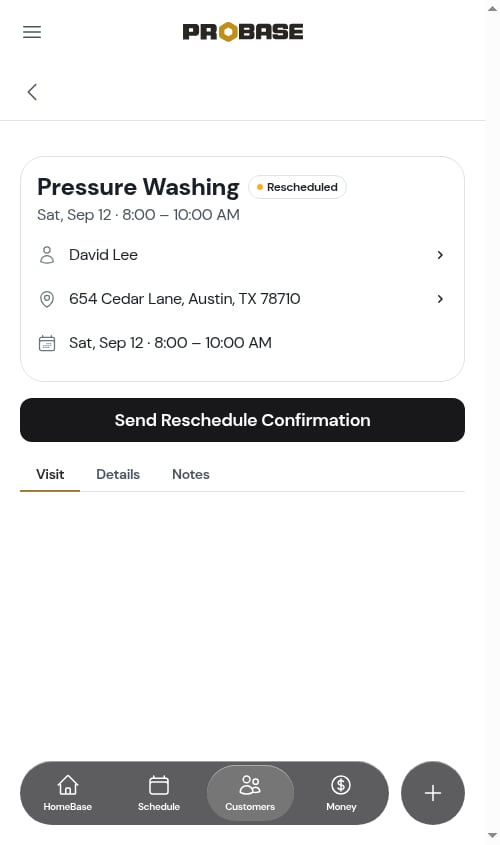
 On a completed, cancelled or rescheduled visit the time and crew rows are still there — they just aren't tappable any more, because nothing about the visit can change. The customer and property rows keep working, so you can still reach the customer about a job you finished this morning.
## Directions and Text on my way
While a visit is scheduled and you haven't started it yet, two wide buttons sit right under the header: **Directions** and **Text on my way**.
On a completed, cancelled or rescheduled visit the time and crew rows are still there — they just aren't tappable any more, because nothing about the visit can change. The customer and property rows keep working, so you can still reach the customer about a job you finished this morning.
## Directions and Text on my way
While a visit is scheduled and you haven't started it yet, two wide buttons sit right under the header: **Directions** and **Text on my way**.
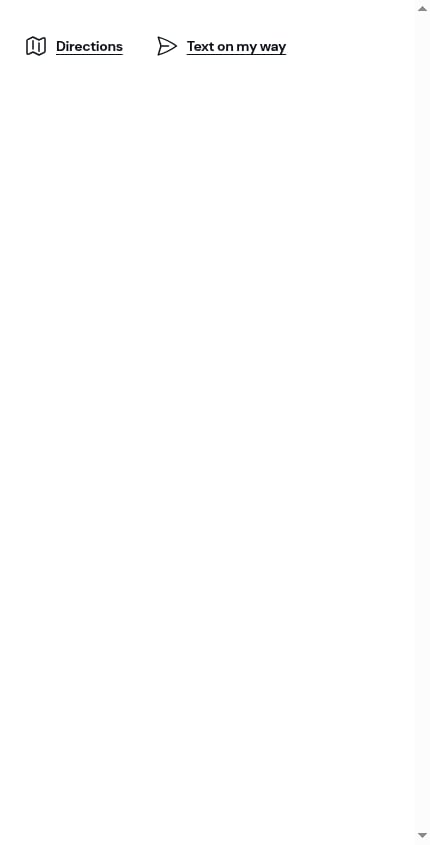 * **Directions** opens turn-by-turn directions to the property in your chosen [maps app](/getting-started/maps-preference)
* **Text on my way** opens the SMS sheet with a message already written — see [Texting the customer you're on your way](/routes/daily-crew-schedules#texting-the-customer-youre-on-your-way)
Once you tap **Start visit**, these two move into the **⋯ More** sheet: you're already there, so they stop taking up the top of the screen.
If your role can't send customer messages, **Text on my way** isn't offered — see [Roles and permissions](/team/roles-and-permissions).
## The action row
One solid button, an outlined **⋯ More** button beside it, and sometimes a quiet third action underneath. What sits there depends on where the visit is:
| Where the visit is | Solid button | Quiet action underneath |
| -------------------------------------------------- | -------------------------------------------------------------------------- | ---------------------------------------- |
| Scheduled for a future day | **Start visit** | — |
| Due today or overdue | **Start visit** | **Complete visit** |
| Working | **Complete visit** | **Pause** |
| Paused | **Complete visit** | **Resume** |
| Assessment visit | **Start visit**, then **Mark assessment complete** over **Create a quote** | **Pause** / **Resume** once started |
| Completed job | **Create Invoice** | — |
| Completed assessment | **Create Quote** or **View Quote** | — |
| Rescheduled | **Send Reschedule Confirmation** | — |
| Cancelled | nothing — the Visit tab explains why instead | — |
| [Marketplace visit](/marketplace/marketplace-jobs) | **Open in App** (**Complete in App** once started in the marketplace) | **Start visit** / **Pause** / **Resume** |
* **Directions** opens turn-by-turn directions to the property in your chosen [maps app](/getting-started/maps-preference)
* **Text on my way** opens the SMS sheet with a message already written — see [Texting the customer you're on your way](/routes/daily-crew-schedules#texting-the-customer-youre-on-your-way)
Once you tap **Start visit**, these two move into the **⋯ More** sheet: you're already there, so they stop taking up the top of the screen.
If your role can't send customer messages, **Text on my way** isn't offered — see [Roles and permissions](/team/roles-and-permissions).
## The action row
One solid button, an outlined **⋯ More** button beside it, and sometimes a quiet third action underneath. What sits there depends on where the visit is:
| Where the visit is | Solid button | Quiet action underneath |
| -------------------------------------------------- | -------------------------------------------------------------------------- | ---------------------------------------- |
| Scheduled for a future day | **Start visit** | — |
| Due today or overdue | **Start visit** | **Complete visit** |
| Working | **Complete visit** | **Pause** |
| Paused | **Complete visit** | **Resume** |
| Assessment visit | **Start visit**, then **Mark assessment complete** over **Create a quote** | **Pause** / **Resume** once started |
| Completed job | **Create Invoice** | — |
| Completed assessment | **Create Quote** or **View Quote** | — |
| Rescheduled | **Send Reschedule Confirmation** | — |
| Cancelled | nothing — the Visit tab explains why instead | — |
| [Marketplace visit](/marketplace/marketplace-jobs) | **Open in App** (**Complete in App** once started in the marketplace) | **Start visit** / **Pause** / **Resume** |
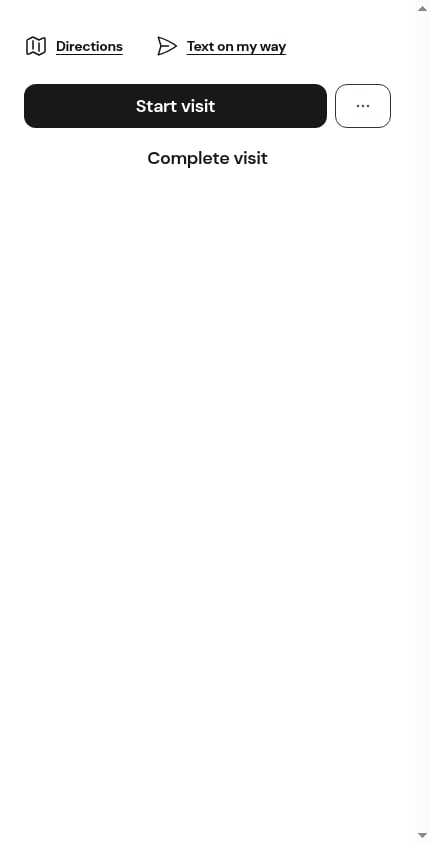
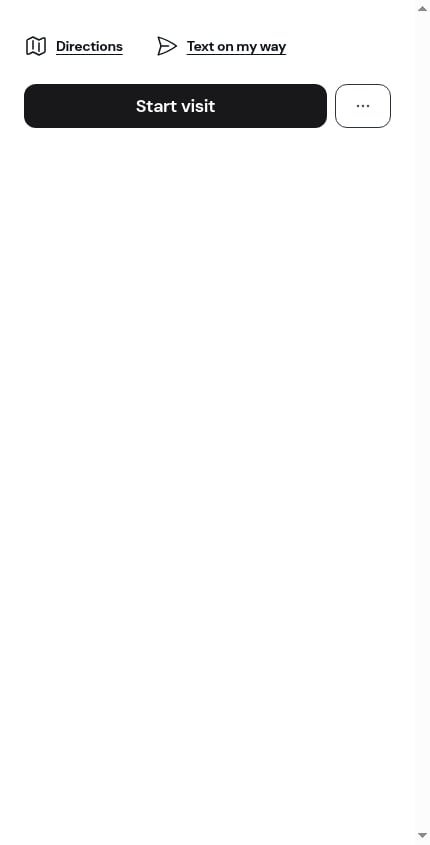 See [Timing a visit](/routes/timing-a-visit) for Start, Pause and Resume, and [Completing a visit](/routes/completing-jobs) for what **Complete visit** opens.
Buttons your role can't use aren't shown at all rather than greyed out, so the row only ever offers things you can actually do.
## The More sheet
Tap **⋯ More** and a sheet slides up with everything that isn't the main button. It's always in the same order, so you learn where things are:
See [Timing a visit](/routes/timing-a-visit) for Start, Pause and Resume, and [Completing a visit](/routes/completing-jobs) for what **Complete visit** opens.
Buttons your role can't use aren't shown at all rather than greyed out, so the row only ever offers things you can actually do.
## The More sheet
Tap **⋯ More** and a sheet slides up with everything that isn't the main button. It's always in the same order, so you learn where things are:
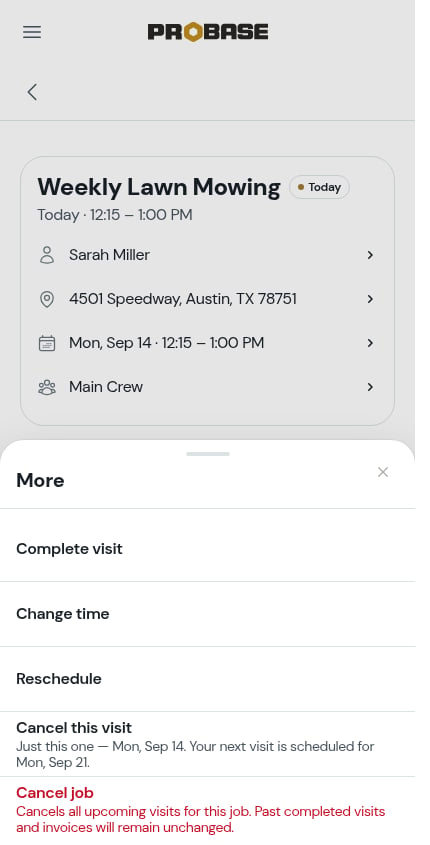 1. **Directions** — only once the visit is started (before that it's a button at the top)
2. **Text on my way** — same
3. **Complete visit** (**Mark assessment complete** on an assessment)
4. **Change time** — move the visit within the day and adjust how long it takes
5. **Reschedule** — move it to another day
6. **Send Confirmation** — only on a visit scheduled for a future day
7. **Cancel this visit** — with a line underneath naming this visit's date and the next visit's date
8. **Cancel job** — in red, always last; cancels every upcoming visit for the job
See [Cancelling a visit](/routes/cancelling-visits) for the last two.
## The AI briefing
On accounts with AI assistance, a cream card headed **What you need for this visit** sits between the action row and the tabs. It's a few plain lines written from the job's and property's notes, the checklists waiting on this visit, and anything charged to it — the gate code, the dog, the thing the customer asked for last time.
1. **Directions** — only once the visit is started (before that it's a button at the top)
2. **Text on my way** — same
3. **Complete visit** (**Mark assessment complete** on an assessment)
4. **Change time** — move the visit within the day and adjust how long it takes
5. **Reschedule** — move it to another day
6. **Send Confirmation** — only on a visit scheduled for a future day
7. **Cancel this visit** — with a line underneath naming this visit's date and the next visit's date
8. **Cancel job** — in red, always last; cancels every upcoming visit for the job
See [Cancelling a visit](/routes/cancelling-visits) for the last two.
## The AI briefing
On accounts with AI assistance, a cream card headed **What you need for this visit** sits between the action row and the tabs. It's a few plain lines written from the job's and property's notes, the checklists waiting on this visit, and anything charged to it — the gate code, the dog, the thing the customer asked for last time.
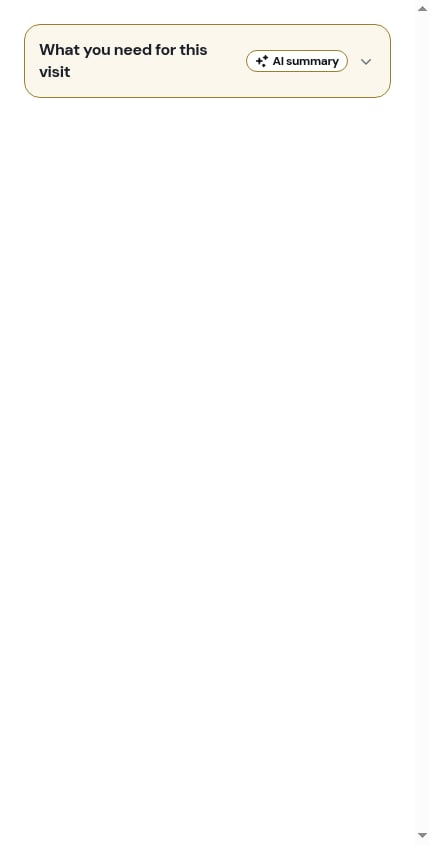
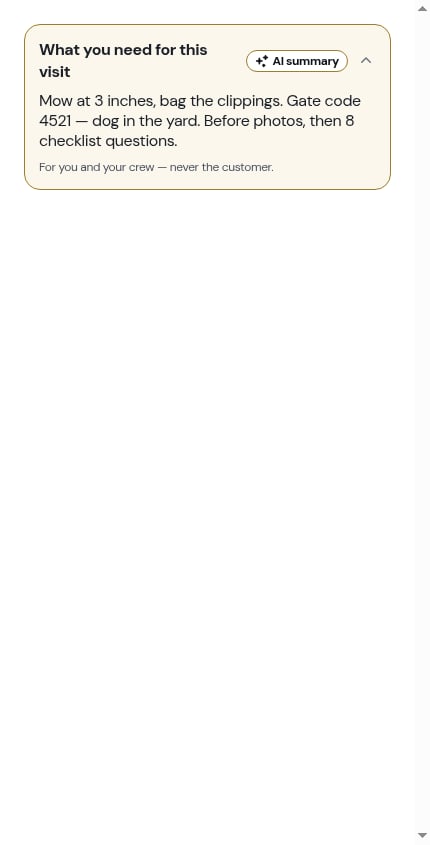 Tap the header row to collapse it once you've read it. ProBase remembers that on your device, so it stays collapsed next time — and it's yours alone: collapsing it doesn't change anything for the rest of your crew.
 The card is labelled **AI summary** and footed *For you and your crew — never the customer.* It appears only while a visit is still ahead of you (scheduled, working or paused) and only when there's something worth saying — if the job has no notes, no open checklists and nothing charged, there's no card rather than a card telling you there's nothing to know.
## The three tabs
### Visit
The work surface. It holds:
* **Checklists** — every checklist that applies to this job, as rows that open in place. The pinned **Before photos** and **After photos** rows come first. See [Completing checklists on a job](/checklists/completing-checklists)
* **Charges** — a second card holding anything you've added to this visit, with an **Add a charge** row at the bottom. See [Charges on a visit](/routes/visit-charges)
* **History** — on a completed or cancelled visit that has something logged, the record of what happened and when
The card is labelled **AI summary** and footed *For you and your crew — never the customer.* It appears only while a visit is still ahead of you (scheduled, working or paused) and only when there's something worth saying — if the job has no notes, no open checklists and nothing charged, there's no card rather than a card telling you there's nothing to know.
## The three tabs
### Visit
The work surface. It holds:
* **Checklists** — every checklist that applies to this job, as rows that open in place. The pinned **Before photos** and **After photos** rows come first. See [Completing checklists on a job](/checklists/completing-checklists)
* **Charges** — a second card holding anything you've added to this visit, with an **Add a charge** row at the bottom. See [Charges on a visit](/routes/visit-charges)
* **History** — on a completed or cancelled visit that has something logged, the record of what happened and when
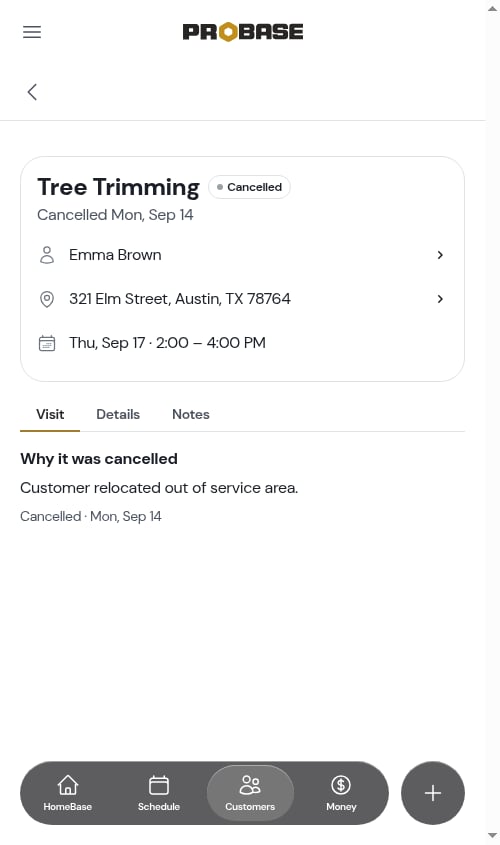
 On a cancelled visit the tab leads with **Why it was cancelled** instead, and the timer, checklists and charge row drop away.
### Details
The facts about the job behind the visit, in two cards:
On a cancelled visit the tab leads with **Why it was cancelled** instead, and the timer, checklists and charge row drop away.
### Details
The facts about the job behind the visit, in two cards:
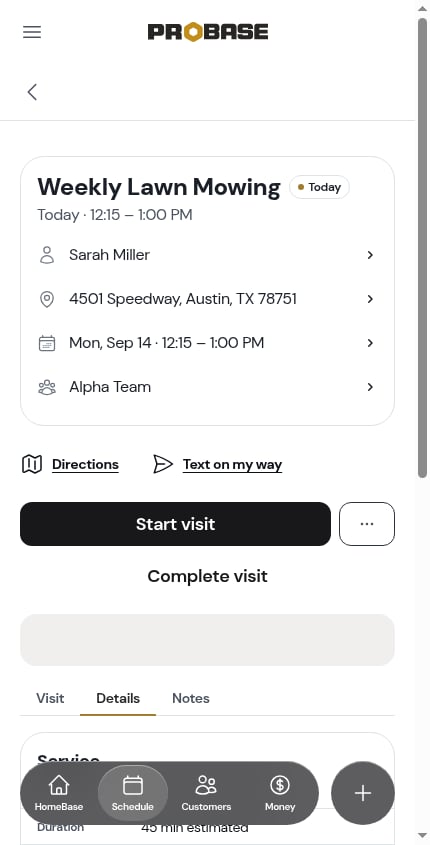 * **Service** — the service name, the estimated duration, how often it repeats, how it's billed, the price and tax, the job's standing **Charges**, and **This visit**'s own charges as a separate list. The two lists never blend together. Tapping one of the **This visit** rows reopens it for editing — see [Charges on a visit](/routes/visit-charges)
* **Property** — the address, gate code, and the rest of the property's details. If something's missing, an **Add property details** row sits at the bottom of the card
* **Service** — the service name, the estimated duration, how often it repeats, how it's billed, the price and tax, the job's standing **Charges**, and **This visit**'s own charges as a separate list. The two lists never blend together. Tapping one of the **This visit** rows reopens it for editing — see [Charges on a visit](/routes/visit-charges)
* **Property** — the address, gate code, and the rest of the property's details. If something's missing, an **Add property details** row sits at the bottom of the card
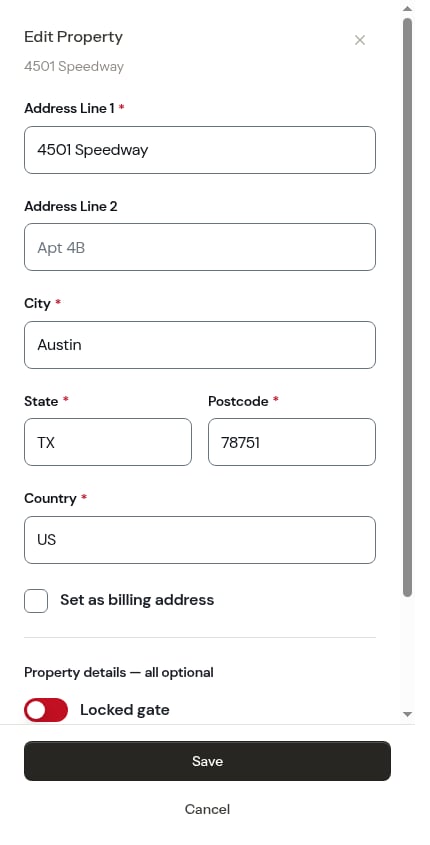
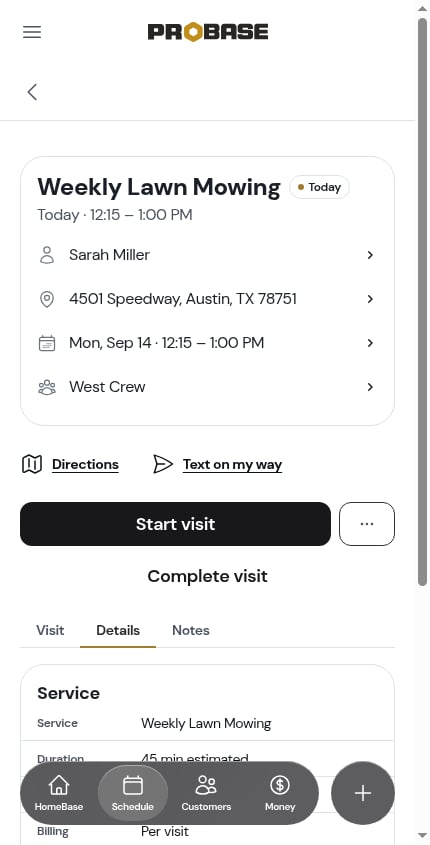 Tapping **Add property details** opens the property editor **in place**, over the visit — fill it in, save, and you're back on the same tab with the card filled in. You never leave the visit.
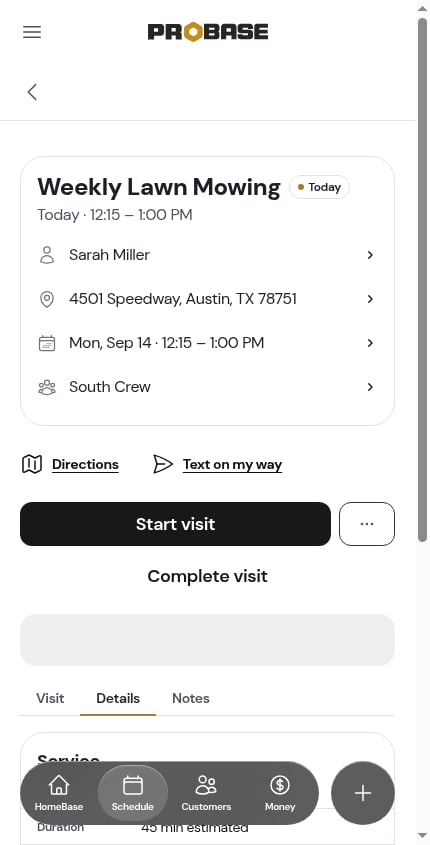 An assessment visit has no Details tab — there's no job behind it yet.
### Notes
Everything written about this visit, once each: your **This visit** notes pad at the top, then the property's notes and the job's notes read-only underneath. See [Notes and photos on a visit](/routes/job-notes-and-photos).
An assessment visit has no Details tab — there's no job behind it yet.
### Notes
Everything written about this visit, once each: your **This visit** notes pad at the top, then the property's notes and the job's notes read-only underneath. See [Notes and photos on a visit](/routes/job-notes-and-photos).
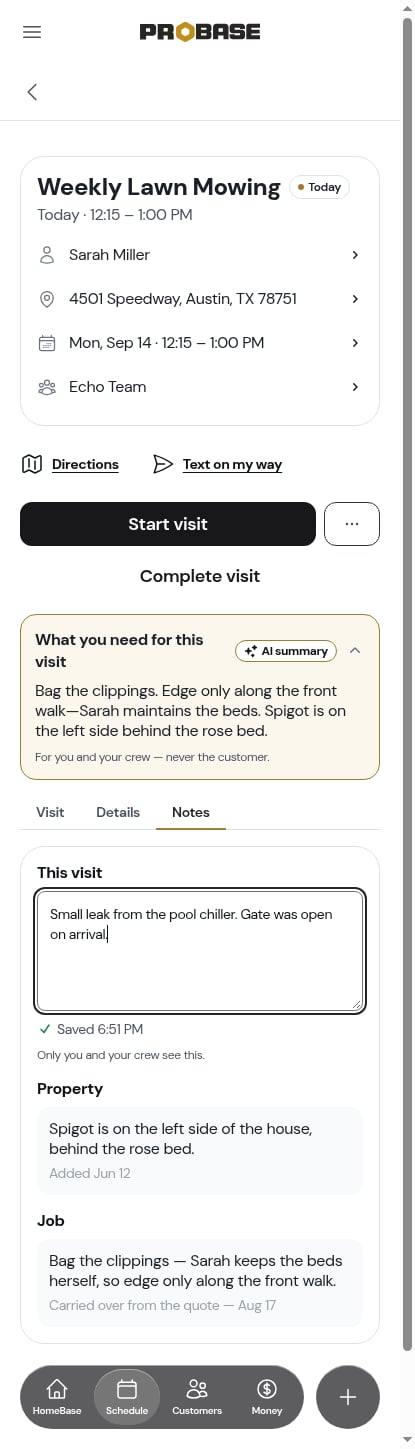 The tab you're on is part of the page's web address, so a link to a visit can land straight on **Details** or **Notes** — and coming back from a photo or a sheet puts you back on the tab you left.
## After the visit
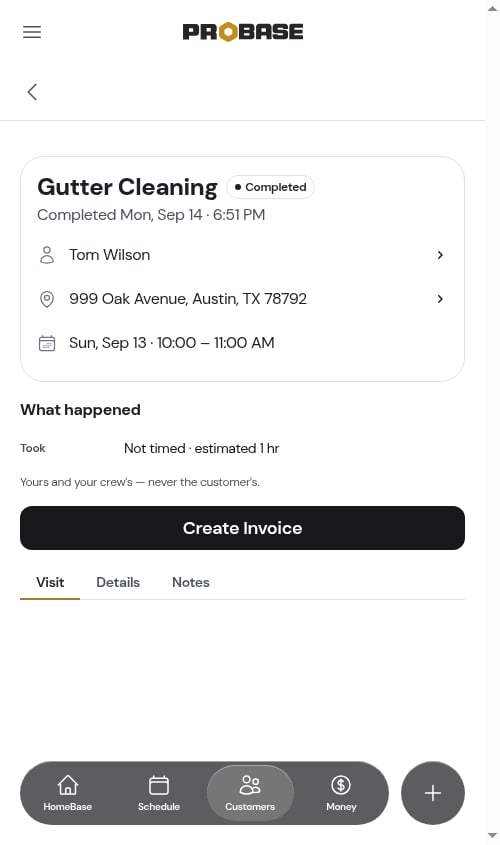
A completed visit keeps the same page, with **What happened** added between the header and the buttons and the checklists locked read-only. See [Completing a visit](/routes/completing-jobs#what-a-completed-visit-looks-like).
The tab you're on is part of the page's web address, so a link to a visit can land straight on **Details** or **Notes** — and coming back from a photo or a sheet puts you back on the tab you left.
## After the visit
A completed visit keeps the same page, with **What happened** added between the header and the buttons and the checklists locked read-only. See [Completing a visit](/routes/completing-jobs#what-a-completed-visit-looks-like).
 A cancelled visit leads with the reason it was cancelled.
 A rescheduled visit keeps a **Send Reschedule Confirmation** button so you can tell the customer about the new date.
 ## Marketplace visits
A visit that came from a connected marketplace uses this same page. The header card, the hand-offs and your own clock all work as normal — what changes is that the actions the marketplace owns (completing, rescheduling, cancelling, and adding charges) aren't offered here. In their place the main button is **Open in App**, which takes you to the job in the marketplace app, and the header carries a marketplace pill plus a **Last synced … Refresh** row.
A marketplace visit also has just **one tab, Details** — there are no checklists or charges to capture, and its notes are the marketplace's.
## Marketplace visits
A visit that came from a connected marketplace uses this same page. The header card, the hand-offs and your own clock all work as normal — what changes is that the actions the marketplace owns (completing, rescheduling, cancelling, and adding charges) aren't offered here. In their place the main button is **Open in App**, which takes you to the job in the marketplace app, and the header carries a marketplace pill plus a **Last synced … Refresh** row.
A marketplace visit also has just **one tab, Details** — there are no checklists or charges to capture, and its notes are the marketplace's.
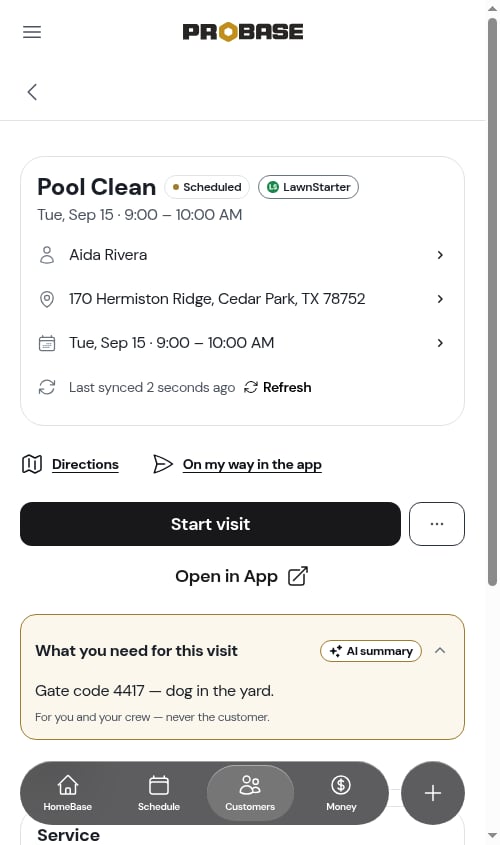 See [Marketplace jobs](/marketplace/marketplace-jobs) for the full picture.
## Next steps
* [Timing a visit](/routes/timing-a-visit) — start, pause and resume the clock
* [Completing a visit](/routes/completing-jobs) — finish the work and send the report
* [Charges on a visit](/routes/visit-charges) — bill for the extra you did
* [Cancelling a visit](/routes/cancelling-visits) — when the visit doesn't happen
See [Marketplace jobs](/marketplace/marketplace-jobs) for the full picture.
## Next steps
* [Timing a visit](/routes/timing-a-visit) — start, pause and resume the clock
* [Completing a visit](/routes/completing-jobs) — finish the work and send the report
* [Charges on a visit](/routes/visit-charges) — bill for the extra you did
* [Cancelling a visit](/routes/cancelling-visits) — when the visit doesn't happen