> ## Documentation Index
> Fetch the complete documentation index at: https://docs.probaseapp.com/llms.txt
> Use this file to discover all available pages before exploring further.
# Creating appointments
> Schedule work for your customers
## Overview
Appointments are scheduled work visits for a service. You can create them from the service detail page or from the calendar.
## Create an appointment from a service
Navigate to **Customers**, click the customer name, click the property address, then click the service name.
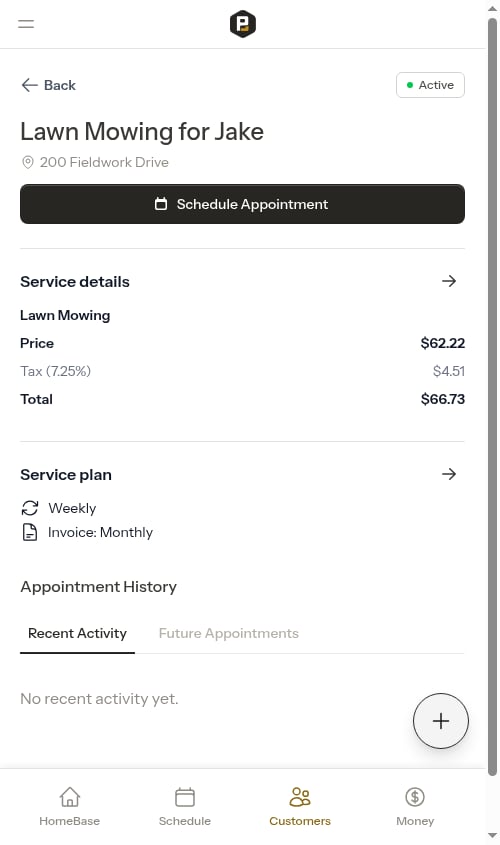
For active jobs that don't have an appointment yet, a prominent **Schedule Appointment** button appears near the top of the service details page, below the status badge.
 A modal opens with date and time fields:
* Pick the **Date**
* Choose the **Start Time** — the end time is set automatically based on the previous appointment's duration (defaults to 60 minutes if there's no prior appointment)
* Optionally assign a **Crew** — if the service has a prior appointment, the same crew is pre-selected for you. The crew field only appears when you have more than one crew on your team.
If the service already has a scheduled appointment, a warning appears reminding you that the existing appointment stays on the calendar.
A modal opens with date and time fields:
* Pick the **Date**
* Choose the **Start Time** — the end time is set automatically based on the previous appointment's duration (defaults to 60 minutes if there's no prior appointment)
* Optionally assign a **Crew** — if the service has a prior appointment, the same crew is pre-selected for you. The crew field only appears when you have more than one crew on your team.
If the service already has a scheduled appointment, a warning appears reminding you that the existing appointment stays on the calendar.
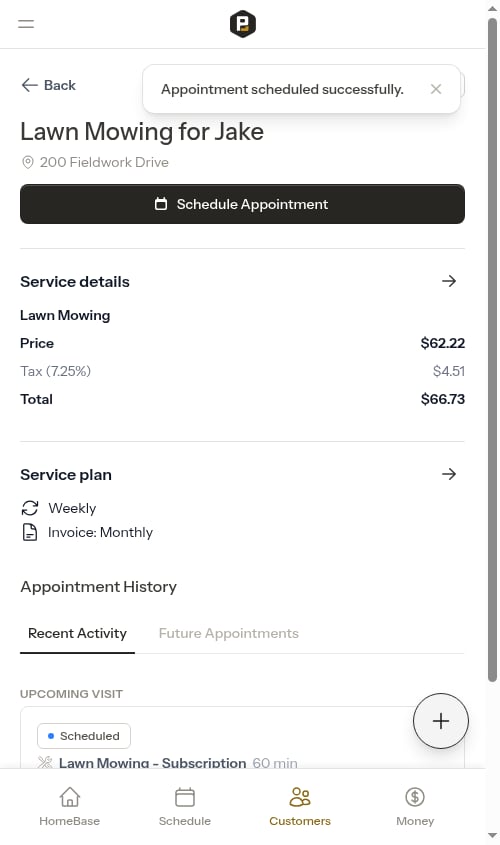
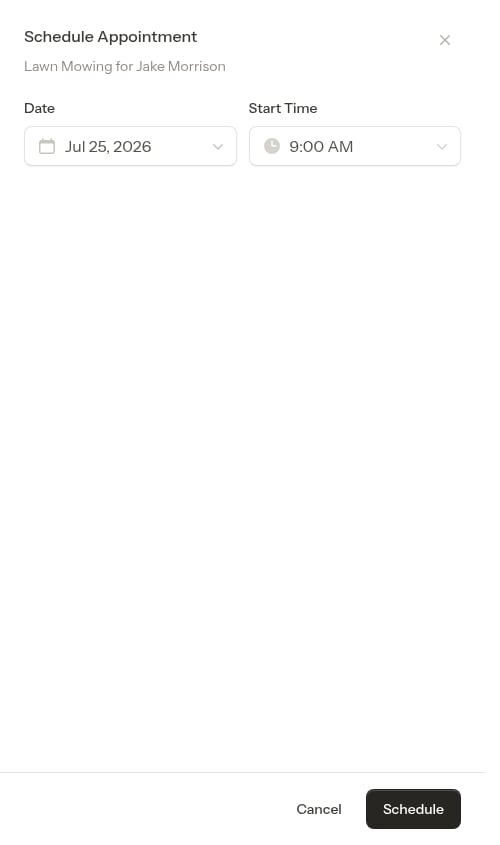 Click **Schedule** to schedule the visit. The appointment appears in the service's history and on the calendar. The **Schedule Appointment** button is hidden once an upcoming appointment exists.
 ## View appointments
After creating appointments, you can view them:
* **On the service details page** - Shows all appointments for that specific service
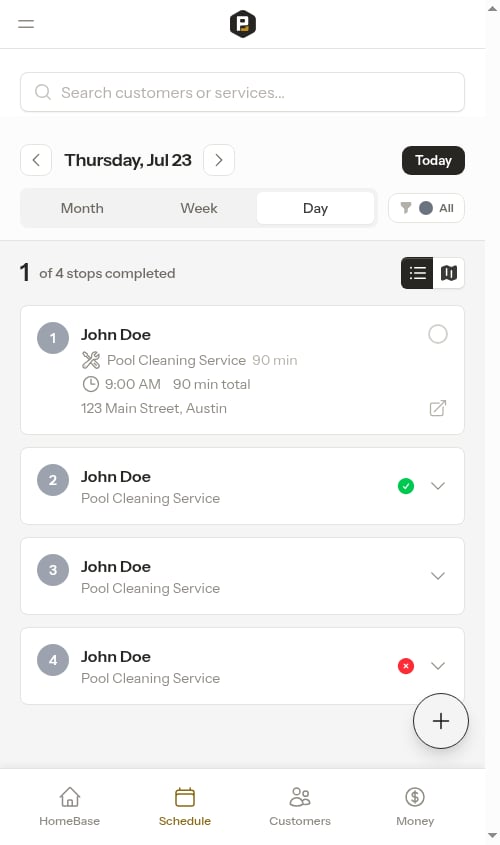
* **On the calendar** - Click **Schedule** in the sidebar to see all appointments across all customers
## View appointments
After creating appointments, you can view them:
* **On the service details page** - Shows all appointments for that specific service
* **On the calendar** - Click **Schedule** in the sidebar to see all appointments across all customers
 ## View appointment details
Click on any appointment in the calendar or on a service page to open the dedicated appointment detail page.
## View appointment details
Click on any appointment in the calendar or on a service page to open the dedicated appointment detail page.
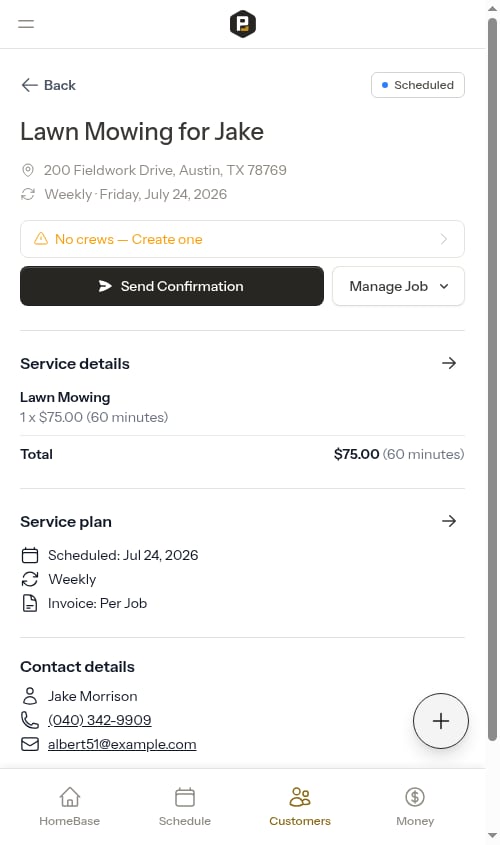 The appointment detail page shows:
### Page Header
* Service name and customer first name
* Appointment status badge (Scheduled, Completed, Rescheduled, Cancelled, or Skipped)
* A back button to return to the previous page
### Quick Facts
Key details at a glance — property address, and for appointments due today: the customer's phone number (tappable to call) and a link to Contact Details.
### Quick Actions
Contextual buttons change based on the appointment status. For scheduled future appointments, you can send a confirmation SMS or open the **Manage Job** dropdown to complete, skip, reschedule, or cancel. For appointments due today, you'll see prominent buttons for getting directions (in your chosen [maps app](/getting-started/maps-preference)), sending an "on my way" text, and completing the visit.
The appointment detail page shows:
### Page Header
* Service name and customer first name
* Appointment status badge (Scheduled, Completed, Rescheduled, Cancelled, or Skipped)
* A back button to return to the previous page
### Quick Facts
Key details at a glance — property address, and for appointments due today: the customer's phone number (tappable to call) and a link to Contact Details.
### Quick Actions
Contextual buttons change based on the appointment status. For scheduled future appointments, you can send a confirmation SMS or open the **Manage Job** dropdown to complete, skip, reschedule, or cancel. For appointments due today, you'll see prominent buttons for getting directions (in your chosen [maps app](/getting-started/maps-preference)), sending an "on my way" text, and completing the visit.
 See [Completing appointments](/routes/completing-jobs) and [Rescheduling appointments](/scheduling/rescheduling-jobs) for details on each workflow.
### Assign or change the crew
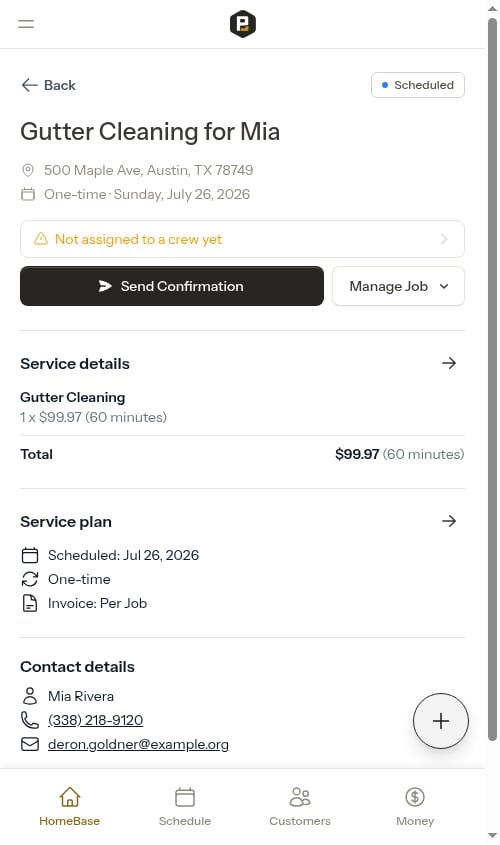
Scheduled appointments show a crew row directly above the quick action buttons. Tap it to assign a crew (or swap to a different one) without leaving the appointment page.
* If the appointment already has a crew, the row shows the crew's color, truck icon, and name.
* If no crew has been picked yet, the row shows an amber **Not assigned to a crew yet** warning.
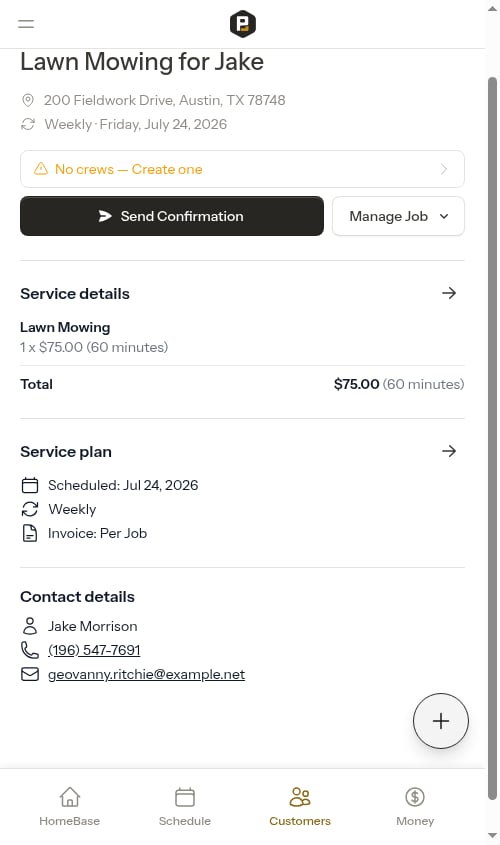
* If your team has no crews at all, the row turns into a shortcut to the Crews page so you can create one first.
See [Completing appointments](/routes/completing-jobs) and [Rescheduling appointments](/scheduling/rescheduling-jobs) for details on each workflow.
### Assign or change the crew
Scheduled appointments show a crew row directly above the quick action buttons. Tap it to assign a crew (or swap to a different one) without leaving the appointment page.
* If the appointment already has a crew, the row shows the crew's color, truck icon, and name.
* If no crew has been picked yet, the row shows an amber **Not assigned to a crew yet** warning.
* If your team has no crews at all, the row turns into a shortcut to the Crews page so you can create one first.
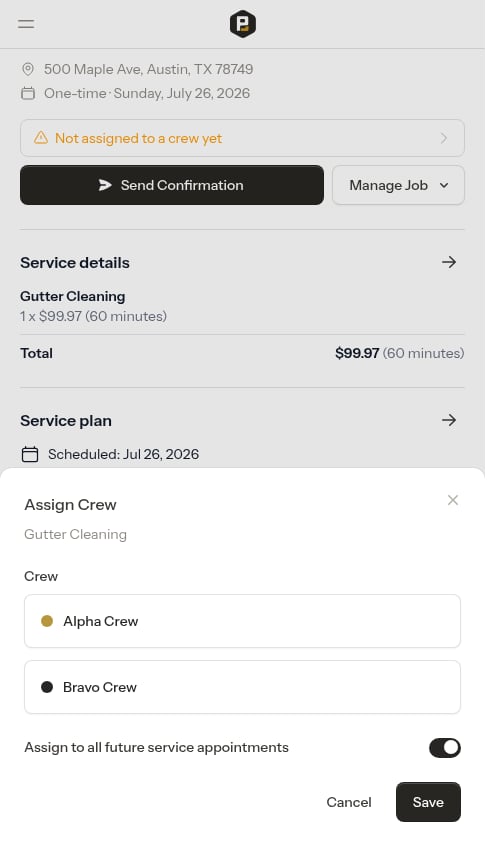
 Tap the row to open the **Assign Crew** modal, pick a crew, and tap **Save**. If your team has only one crew, it's pre-selected for you — confirm by tapping Save.
 #### Assign one visit or every future visit
Recurring services [pre-schedule the whole chain of future visits](/scheduling/future-visits), so the modal includes an **Assign to all future service appointments** toggle:
* **On (default)** — the crew is assigned to this visit *and* every upcoming scheduled visit in the chain, so you only have to pick a crew once.
* **Off** — the crew is assigned to just this one visit. A note confirms the date, and other future visits keep their current crew.
#### Assign one visit or every future visit
Recurring services [pre-schedule the whole chain of future visits](/scheduling/future-visits), so the modal includes an **Assign to all future service appointments** toggle:
* **On (default)** — the crew is assigned to this visit *and* every upcoming scheduled visit in the chain, so you only have to pick a crew once.
* **Off** — the crew is assigned to just this one visit. A note confirms the date, and other future visits keep their current crew.
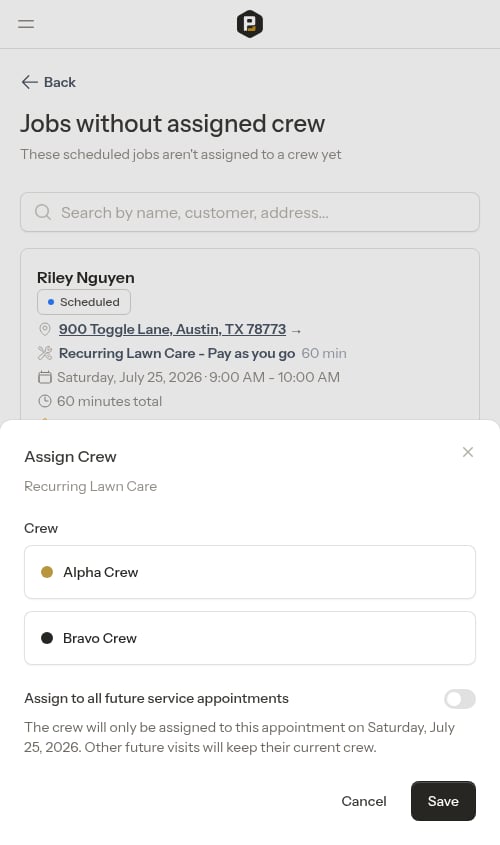 The new crew is reflected on the appointment detail page immediately, and you'll see a "Crew assigned." confirmation.
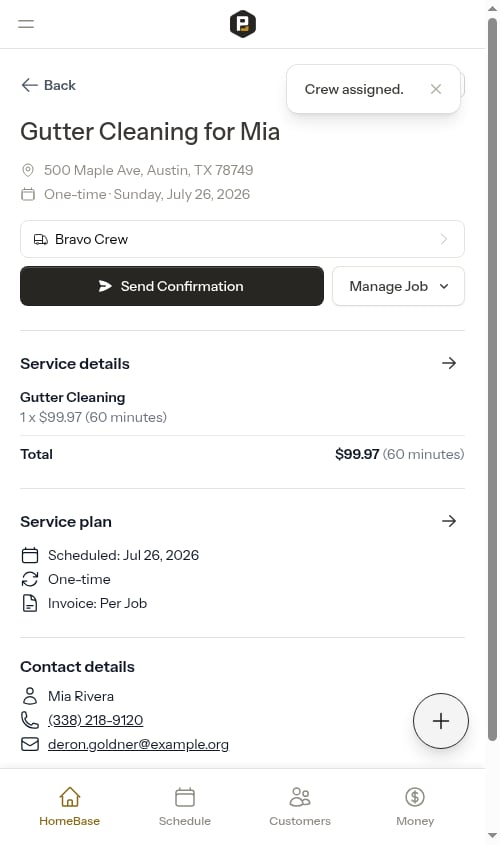 The crew row appears on every scheduled appointment — whether your team has one crew or many. It's the fastest way to pick a crew for an overdue or unassigned job from the appointment detail page itself.
### Service Details
Shows the base service charge and any additional service items for this appointment, with quantities and prices and a grand total. Tap the **→** button to open the service items page where you can add extra charges for additional work or materials.
### Service Plan
Shows the service frequency (one-time, weekly, bi-weekly, or monthly), the next scheduled appointment date, and the invoice type.
### Contact Details
For scheduled appointments, the customer's name, phone number, and email appear at the bottom for easy reference.
## Next steps
* [Reschedule appointments](/scheduling/rescheduling-jobs) if plans change
* [Complete appointments](/routes/completing-jobs) when work is done
* [View the calendar](/scheduling/weekly-schedule) to see all scheduled work
The crew row appears on every scheduled appointment — whether your team has one crew or many. It's the fastest way to pick a crew for an overdue or unassigned job from the appointment detail page itself.
### Service Details
Shows the base service charge and any additional service items for this appointment, with quantities and prices and a grand total. Tap the **→** button to open the service items page where you can add extra charges for additional work or materials.
### Service Plan
Shows the service frequency (one-time, weekly, bi-weekly, or monthly), the next scheduled appointment date, and the invoice type.
### Contact Details
For scheduled appointments, the customer's name, phone number, and email appear at the bottom for easy reference.
## Next steps
* [Reschedule appointments](/scheduling/rescheduling-jobs) if plans change
* [Complete appointments](/routes/completing-jobs) when work is done
* [View the calendar](/scheduling/weekly-schedule) to see all scheduled work