> ## Documentation Index
> Fetch the complete documentation index at: https://docs.probaseapp.com/llms.txt
> Use this file to discover all available pages before exploring further.
# How recurring visits are scheduled
> Recurring services pre-schedule their whole chain of future visits
## The whole schedule, planned up front
When you create a **recurring** service (weekly, bi-weekly, or monthly), Probase doesn't just book the next visit — it pre-schedules the **entire chain of future appointments** at once. Every visit from your start date through the end date appears on the calendar immediately, so customers and crews can see exactly what's coming.
 * If you set an **End Date** when creating the job, visits run up to that date.
* If you leave the End Date blank, the chain runs for **one year** from the start date.
* **One-time services** get a single appointment on the start date — there's no chain.
This means you don't have to remember to book the next visit after every job. The schedule is already in place, and you manage exceptions (a skip here, a reschedule there) as they come up.
## Recent Activity and Future Appointments
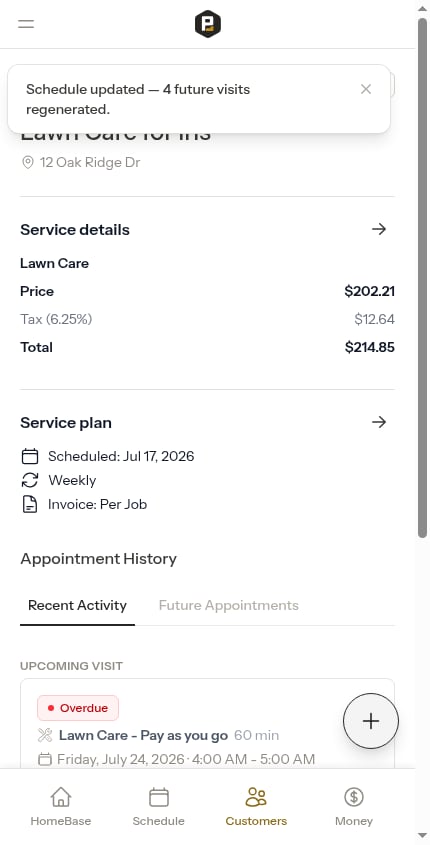
On the service details page, appointments are split across two tabs so the long visit chain stays easy to scan:
* **Recent Activity** — what just happened: completed, rescheduled, skipped, and cancelled visits, plus the next upcoming visit pinned at the top.
* **Future Appointments** — every upcoming scheduled visit, soonest first.
Each tab shows a few visits at a time with a **Show more** link to reveal the rest.
## Changing the schedule rebuilds the chain
When you edit a recurring service's schedule from the **Change Schedule** modal, Probase keeps the future chain in sync with your changes:
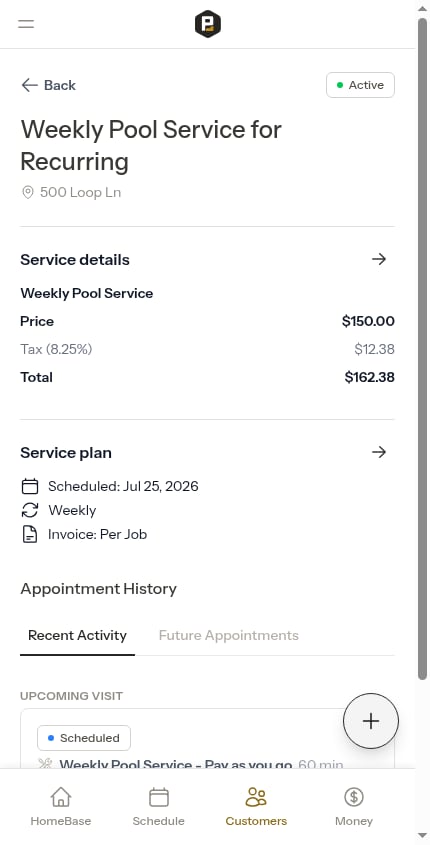
On the service details page, tap the **→** button in the top-right of the **Service plan** section.
* If you set an **End Date** when creating the job, visits run up to that date.
* If you leave the End Date blank, the chain runs for **one year** from the start date.
* **One-time services** get a single appointment on the start date — there's no chain.
This means you don't have to remember to book the next visit after every job. The schedule is already in place, and you manage exceptions (a skip here, a reschedule there) as they come up.
## Recent Activity and Future Appointments
On the service details page, appointments are split across two tabs so the long visit chain stays easy to scan:
* **Recent Activity** — what just happened: completed, rescheduled, skipped, and cancelled visits, plus the next upcoming visit pinned at the top.
* **Future Appointments** — every upcoming scheduled visit, soonest first.
Each tab shows a few visits at a time with a **Show more** link to reveal the rest.
## Changing the schedule rebuilds the chain
When you edit a recurring service's schedule from the **Change Schedule** modal, Probase keeps the future chain in sync with your changes:
On the service details page, tap the **→** button in the top-right of the **Service plan** section.
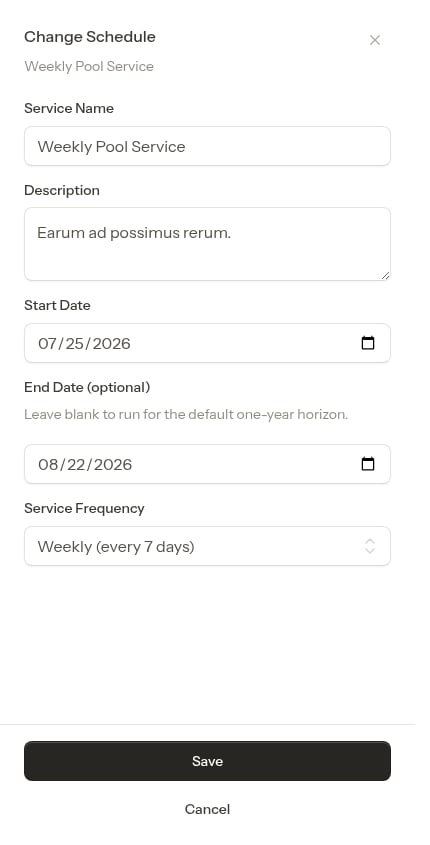 You can change the **Service Name**, **Description**, **Start Date**, **End Date**, and **Service Frequency**.
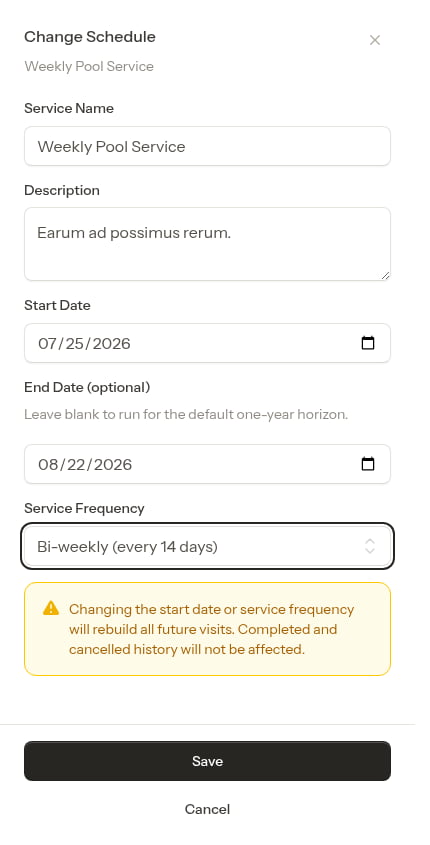
If you change the **Start Date** or **Service Frequency**, a warning appears letting you know the future visits will be rebuilt.
You can change the **Service Name**, **Description**, **Start Date**, **End Date**, and **Service Frequency**.
If you change the **Start Date** or **Service Frequency**, a warning appears letting you know the future visits will be rebuilt.
 Tap **Save**. Probase reshapes the chain and confirms how many visits changed.
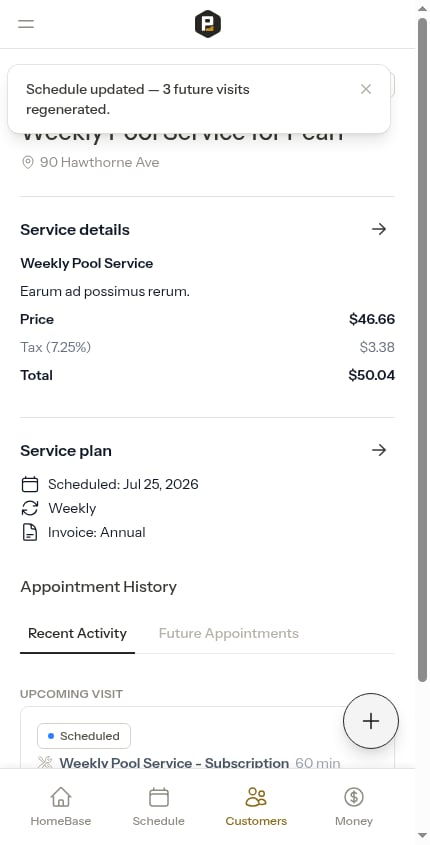 How the chain is reshaped depends on what you changed:
* **Start date or frequency changed** — every future scheduled visit is rebuilt from scratch on the new cadence.
* **End date pushed out (or cleared)** — Probase fills in the additional visits up to the new horizon.
* **End date pulled in** — visits scheduled past the new end date are removed.
Rebuilding the chain only ever touches **upcoming scheduled visits**. Completed, skipped, rescheduled, and cancelled visits are part of your history and are never changed or deleted.
How the chain is reshaped depends on what you changed:
* **Start date or frequency changed** — every future scheduled visit is rebuilt from scratch on the new cadence.
* **End date pushed out (or cleared)** — Probase fills in the additional visits up to the new horizon.
* **End date pulled in** — visits scheduled past the new end date are removed.
Rebuilding the chain only ever touches **upcoming scheduled visits**. Completed, skipped, rescheduled, and cancelled visits are part of your history and are never changed or deleted.
 ## Working through the visit chain
Because the whole chain already exists, the everyday actions you take on a single visit behave a little differently than booking one at a time:
* **Completing a visit** — when the next visit is already on the calendar, you don't get prompted to schedule it again. See [Completing appointments](/routes/completing-jobs).
* **Skipping a visit** — items and notes move forward to the existing next visit automatically. See [Skipping appointments](/scheduling/rescheduling-jobs#skipping-appointments).
* **Assigning a crew** — you can assign a crew to just one visit or to every future visit at once. See [Assign or change the crew](/scheduling/creating-appointments#assign-or-change-the-crew).
* **Cancelling a service** — choose whether to cancel only the next visit or all future visits. See [Cancel Service](/customers/managing-services#cancel-service).
## Next steps
* [Creating jobs](/getting-started/creating-jobs) — set the start and end dates that drive the chain
* [Managing customer services](/customers/managing-services) — edit pricing, schedule, and cancel services
* [Completing appointments](/routes/completing-jobs) — mark visits done as you work through the chain
## Working through the visit chain
Because the whole chain already exists, the everyday actions you take on a single visit behave a little differently than booking one at a time:
* **Completing a visit** — when the next visit is already on the calendar, you don't get prompted to schedule it again. See [Completing appointments](/routes/completing-jobs).
* **Skipping a visit** — items and notes move forward to the existing next visit automatically. See [Skipping appointments](/scheduling/rescheduling-jobs#skipping-appointments).
* **Assigning a crew** — you can assign a crew to just one visit or to every future visit at once. See [Assign or change the crew](/scheduling/creating-appointments#assign-or-change-the-crew).
* **Cancelling a service** — choose whether to cancel only the next visit or all future visits. See [Cancel Service](/customers/managing-services#cancel-service).
## Next steps
* [Creating jobs](/getting-started/creating-jobs) — set the start and end dates that drive the chain
* [Managing customer services](/customers/managing-services) — edit pricing, schedule, and cancel services
* [Completing appointments](/routes/completing-jobs) — mark visits done as you work through the chain