> ## Documentation Index
> Fetch the complete documentation index at: https://docs.probaseapp.com/llms.txt
> Use this file to discover all available pages before exploring further.
# Jobs without assigned crew
> Find and resolve scheduled jobs that don't have a crew picked yet
## What this is
Scheduled appointments can sometimes land on your calendar without a crew picked — for example when you reschedule a visit without choosing one, or when an older appointment didn't get assigned for some reason. Probase flags these so they don't sit on the schedule unassigned.
On single-crew teams, brand-new appointments are auto-assigned to your only crew, so this card is usually empty. It appears when an appointment has slipped through without a crew — most commonly on multi-crew teams.
## Finding jobs without an assigned crew
When you have scheduled jobs missing a crew, a **Jobs without assigned crew** item appears in the **Action needed** section on HomeBase. The count shows how many appointments still need a crew.
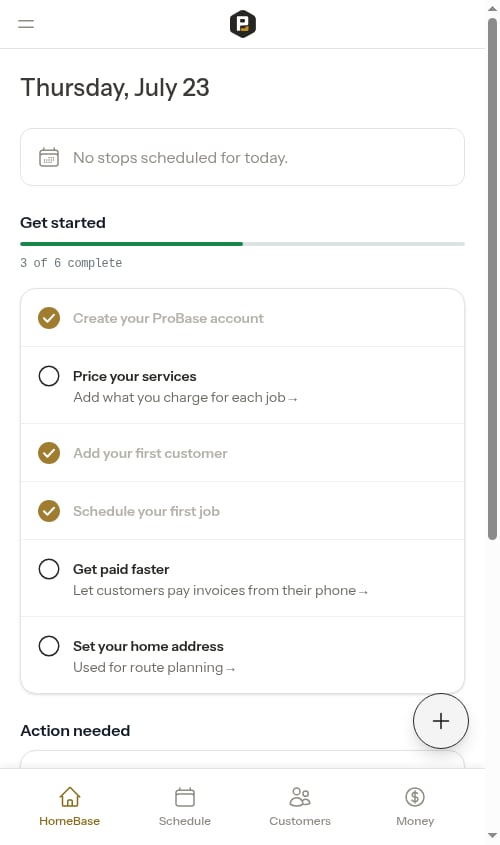 Tap **Jobs without assigned crew** to open the full list.
## The list page
The Jobs without assigned crew page shows scheduled appointments that don't have a crew yet, sorted oldest-first so the most urgent items appear at the top.
Tap **Jobs without assigned crew** to open the full list.
## The list page
The Jobs without assigned crew page shows scheduled appointments that don't have a crew yet, sorted oldest-first so the most urgent items appear at the top.
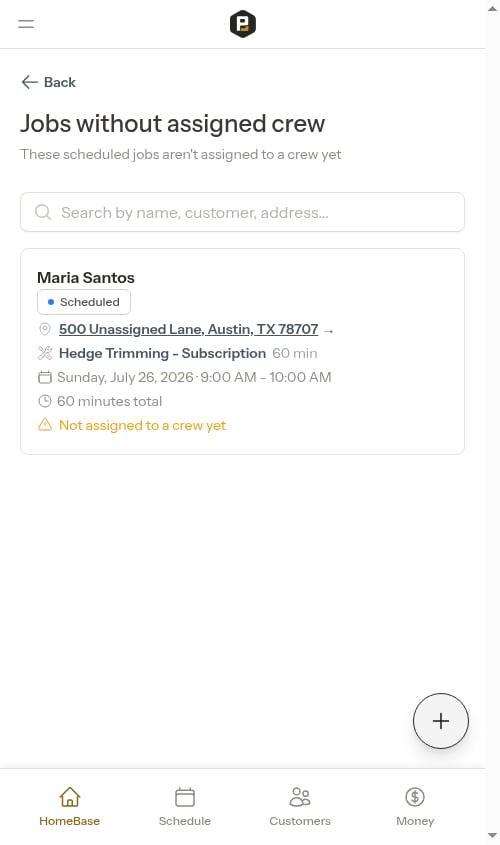 Each card shows the customer name, scheduled status, property address, service name, date and time, and an amber **Not assigned to a crew yet** badge.
The list focuses on the **next 14 days**. Because recurring services [pre-schedule their whole chain of future visits](/scheduling/future-visits), this keeps the list to jobs that need a crew soon rather than flooding it with months of far-future visits. Each service shows only its earliest unassigned visit in the window, so you assign a crew once and move on.
Each card shows the customer name, scheduled status, property address, service name, date and time, and an amber **Not assigned to a crew yet** badge.
The list focuses on the **next 14 days**. Because recurring services [pre-schedule their whole chain of future visits](/scheduling/future-visits), this keeps the list to jobs that need a crew soon rather than flooding it with months of far-future visits. Each service shows only its earliest unassigned visit in the window, so you assign a crew once and move on.
 ### Searching
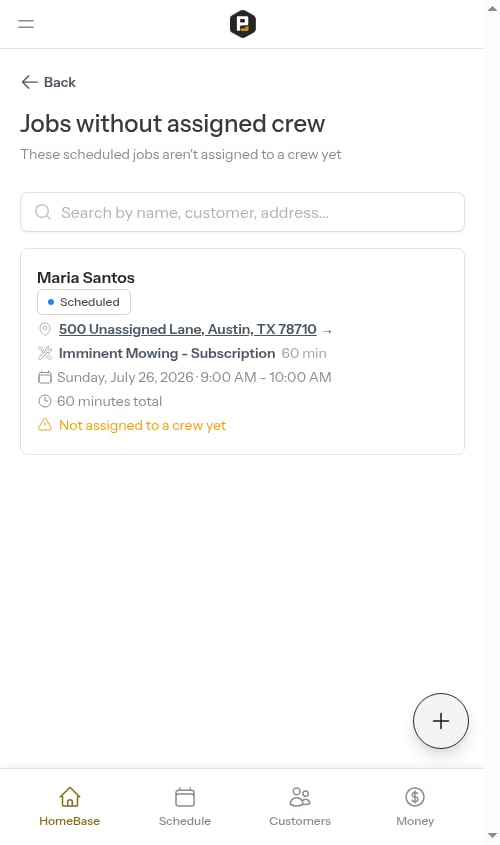
Use the search bar at the top to filter by service name, customer name, or address.
### Load more
If you have many unassigned jobs, the list loads 20 at a time. Scroll to the bottom and the next batch loads automatically.
## Assigning a crew from the list
Tap any job card to open the **Assign Crew** modal directly — no need to navigate to the appointment detail page first.
### Searching
Use the search bar at the top to filter by service name, customer name, or address.
### Load more
If you have many unassigned jobs, the list loads 20 at a time. Scroll to the bottom and the next batch loads automatically.
## Assigning a crew from the list
Tap any job card to open the **Assign Crew** modal directly — no need to navigate to the appointment detail page first.
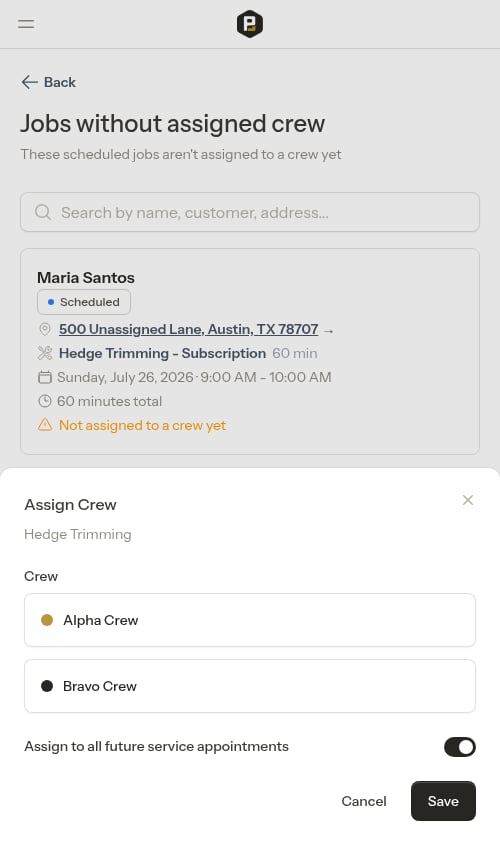 The Assign Crew modal opens with the service name shown so you know which appointment you're updating.
Tap one of the crews in the list. Each crew shows its color dot and name. If your team has only one crew, it's pre-selected — just confirm by tapping Save.
The Assign Crew modal opens with the service name shown so you know which appointment you're updating.
Tap one of the crews in the list. Each crew shows its color dot and name. If your team has only one crew, it's pre-selected — just confirm by tapping Save.
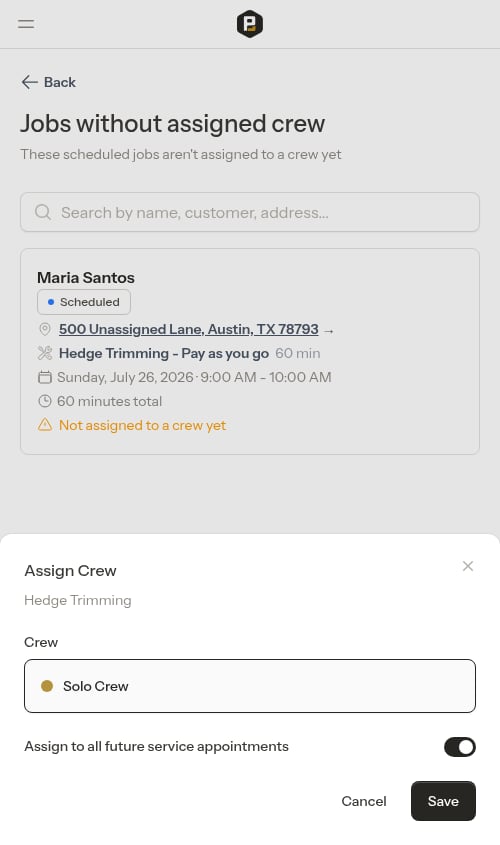 Leave **Assign to all future service appointments** on (the default) to apply the crew to every upcoming visit in this service's chain, or turn it off to assign just this one visit. See [Assign one visit or every future visit](/scheduling/creating-appointments#assign-one-visit-or-every-future-visit).
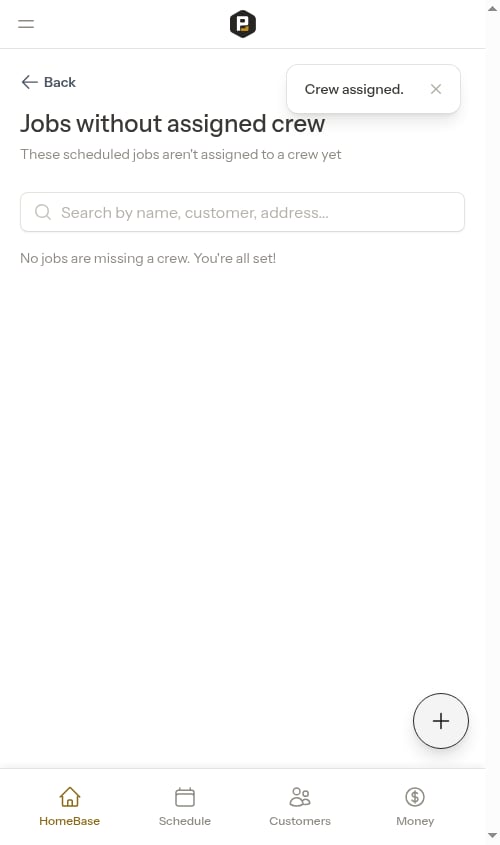
Tap **Save**. A "Crew assigned." confirmation appears, the modal closes, and the appointment disappears from the list.
Once you've assigned a crew to every unassigned job, the list shows an empty state ("No jobs are missing a crew. You're all set!") and the **Jobs without assigned crew** action item disappears from HomeBase.
Leave **Assign to all future service appointments** on (the default) to apply the crew to every upcoming visit in this service's chain, or turn it off to assign just this one visit. See [Assign one visit or every future visit](/scheduling/creating-appointments#assign-one-visit-or-every-future-visit).
Tap **Save**. A "Crew assigned." confirmation appears, the modal closes, and the appointment disappears from the list.
Once you've assigned a crew to every unassigned job, the list shows an empty state ("No jobs are missing a crew. You're all set!") and the **Jobs without assigned crew** action item disappears from HomeBase.
 ## Other places to assign a crew
The same Assign Crew modal is reachable from a few other places when you'd rather work appointment-by-appointment:
* **Appointment detail page** — the crew row above the quick actions opens the modal. See [Assign or change the crew](/scheduling/creating-appointments#assign-or-change-the-crew).
* **Overdue jobs list** — when your team has more than one crew, overdue cards show the crew row so you can spot unassigned visits at a glance. See [Overdue jobs](/scheduling/overdue-jobs).
* **Reschedule modal** — pick or change the crew while you reschedule. See [Rescheduling appointments](/scheduling/rescheduling-jobs).
* **Job creation wizard** — pick a crew when scheduling the first appointment. See [Creating jobs](/getting-started/creating-jobs).
* **Assessment creation** — pick a crew when scheduling the on-site visit. See [Creating quotes and assessments](/customers/creating-quotes).
## Next steps
* [Adding your crews](/getting-started/adding-crews) — Set up multiple crews so appointments can be routed to the right one
* [Overdue jobs](/scheduling/overdue-jobs) — Resolve appointments that slipped past their scheduled date
* [HomeBase](/getting-started/homebase) — Your daily command center for field work
## Other places to assign a crew
The same Assign Crew modal is reachable from a few other places when you'd rather work appointment-by-appointment:
* **Appointment detail page** — the crew row above the quick actions opens the modal. See [Assign or change the crew](/scheduling/creating-appointments#assign-or-change-the-crew).
* **Overdue jobs list** — when your team has more than one crew, overdue cards show the crew row so you can spot unassigned visits at a glance. See [Overdue jobs](/scheduling/overdue-jobs).
* **Reschedule modal** — pick or change the crew while you reschedule. See [Rescheduling appointments](/scheduling/rescheduling-jobs).
* **Job creation wizard** — pick a crew when scheduling the first appointment. See [Creating jobs](/getting-started/creating-jobs).
* **Assessment creation** — pick a crew when scheduling the on-site visit. See [Creating quotes and assessments](/customers/creating-quotes).
## Next steps
* [Adding your crews](/getting-started/adding-crews) — Set up multiple crews so appointments can be routed to the right one
* [Overdue jobs](/scheduling/overdue-jobs) — Resolve appointments that slipped past their scheduled date
* [HomeBase](/getting-started/homebase) — Your daily command center for field work