> ## Documentation Index
> Fetch the complete documentation index at: https://docs.probaseapp.com/llms.txt
> Use this file to discover all available pages before exploring further.
# Month view
> See a whole month of appointments on one grid
## Overview
The **Month view** gives you the big picture: every appointment for the month laid out on a single day-cell grid. It's the fastest way to spot a packed week, find an open day to slot in new work, or get a feel for how busy the month ahead looks.
 ## Open the Month view
Click **Schedule** in the sidebar, then tap **Month** in the view picker at the top of the page.
## Open the Month view
Click **Schedule** in the sidebar, then tap **Month** in the view picker at the top of the page.
 Probase remembers the view you last used, so once you switch to Month you'll keep landing there until you choose a different view.
## What you'll see
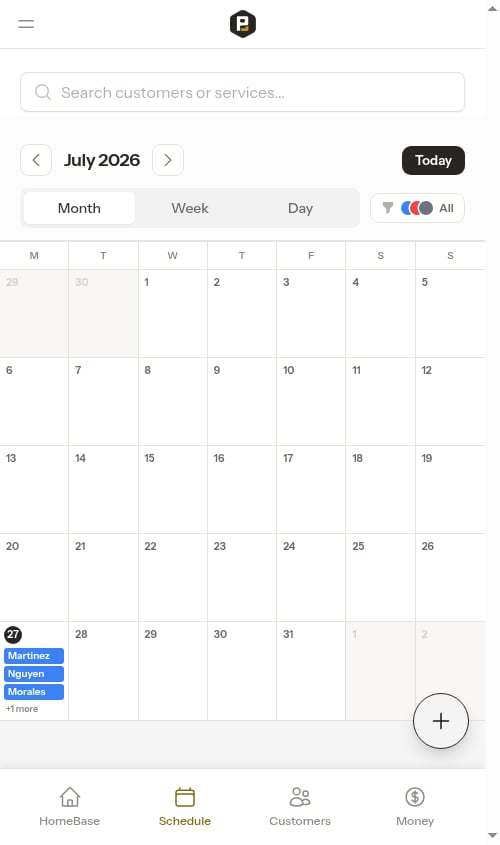
Each day in the grid shows up to three appointments as small colored bars:
* **The color of each bar matches the assigned crew**, so you can read crew workload across the whole month at a glance. Appointments with no crew assigned yet show in grey.
* **Each bar is labelled with the customer's last name** so you can tell the day's jobs apart.
* When a day has more than three appointments, the extras collapse into a **"+N more"** label — tap into the day to see the full list.
* **Today** is highlighted with a filled circle on the date number.
The Month view always shows the full month, including a few trailing days from the previous and next month to fill out the first and last rows. Those out-of-month days are greyed out and can't be tapped.
## Tap a day to see what's on it
Tap any day in the grid to open the **day overview** — a bottom drawer on your phone, or a side panel on a wider screen — listing that day's jobs and stops in start-time order, with the job count and total time booked.
Probase remembers the view you last used, so once you switch to Month you'll keep landing there until you choose a different view.
## What you'll see
Each day in the grid shows up to three appointments as small colored bars:
* **The color of each bar matches the assigned crew**, so you can read crew workload across the whole month at a glance. Appointments with no crew assigned yet show in grey.
* **Each bar is labelled with the customer's last name** so you can tell the day's jobs apart.
* When a day has more than three appointments, the extras collapse into a **"+N more"** label — tap into the day to see the full list.
* **Today** is highlighted with a filled circle on the date number.
The Month view always shows the full month, including a few trailing days from the previous and next month to fill out the first and last rows. Those out-of-month days are greyed out and can't be tapped.
## Tap a day to see what's on it
Tap any day in the grid to open the **day overview** — a bottom drawer on your phone, or a side panel on a wider screen — listing that day's jobs and stops in start-time order, with the job count and total time booked.
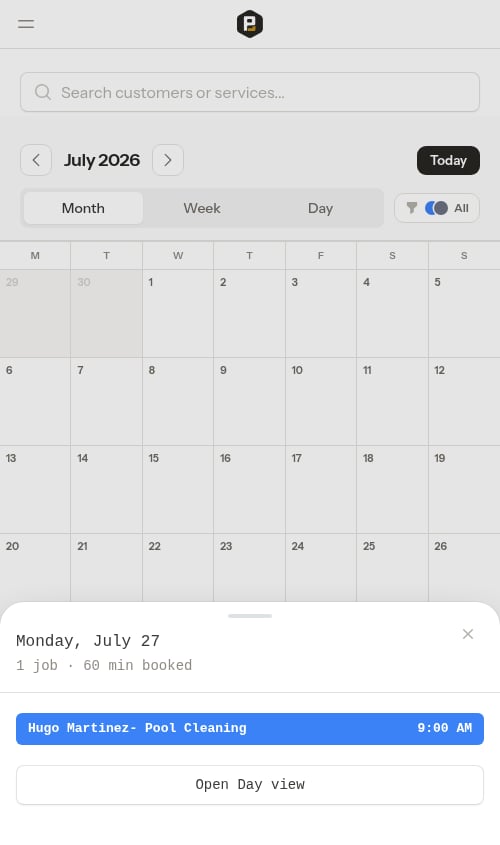 From the day overview you can:
* Tap any job in the list to open its [appointment detail page](/scheduling/creating-appointments#view-appointment-details).
* Tap **Open Day view** to drill into that day's full **Day view**, where you can see full appointment cards, track progress, complete or reschedule jobs, and reorder stops.
* Tap the **✕**, tap outside, or press **Esc** to close it — the month stays exactly where it was. On a phone you can also drag the drawer down by its grab handle to flick it closed.
From the day overview you can:
* Tap any job in the list to open its [appointment detail page](/scheduling/creating-appointments#view-appointment-details).
* Tap **Open Day view** to drill into that day's full **Day view**, where you can see full appointment cards, track progress, complete or reschedule jobs, and reorder stops.
* Tap the **✕**, tap outside, or press **Esc** to close it — the month stays exactly where it was. On a phone you can also drag the drawer down by its grab handle to flick it closed.
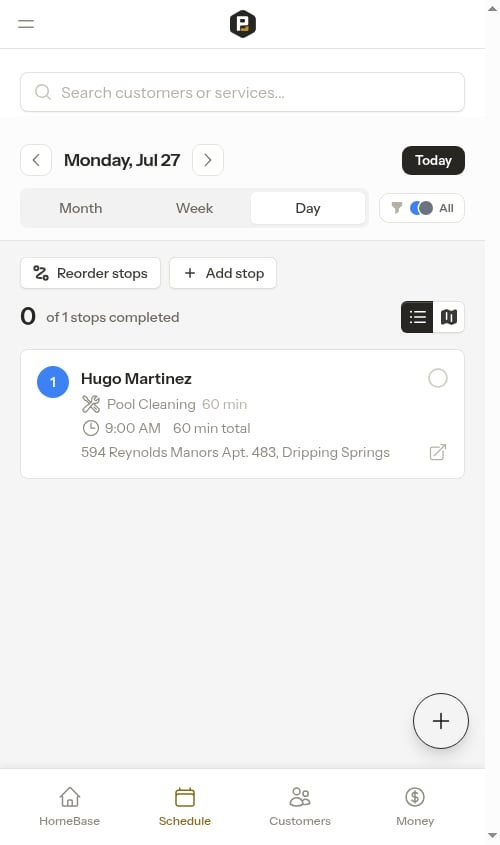 To get back to the month overview from the Day view, tap **Month** in the view picker again. The date you drilled into stays selected, so switching back to Month keeps you in the right month.
## Move between months
Use the date picker at the top of the page to move through the calendar:
* Tap the **left and right arrows** to step back and forward a month at a time.
* Tap the **date label** to open a calendar and jump to any month.
* Tap **Today** to snap back to the current month.
The calendar covers a fixed window — up to one year ahead and three months back. The arrows dim and stop when you reach either edge.
## Filter the month
The crew filter and search box work the same in Month view as in the other calendar views. Filter to a single crew to see just their month, or search by customer or service name to highlight specific jobs. See [Filter appointments](/scheduling/weekly-schedule#filter-appointments) for details.
## Next steps
* [Weekly calendar](/scheduling/weekly-schedule) for a multi-day planning view
* [Daily crew schedules](/routes/daily-crew-schedules) for today's work in the field
* [Creating appointments](/scheduling/creating-appointments) to add new work to the schedule
To get back to the month overview from the Day view, tap **Month** in the view picker again. The date you drilled into stays selected, so switching back to Month keeps you in the right month.
## Move between months
Use the date picker at the top of the page to move through the calendar:
* Tap the **left and right arrows** to step back and forward a month at a time.
* Tap the **date label** to open a calendar and jump to any month.
* Tap **Today** to snap back to the current month.
The calendar covers a fixed window — up to one year ahead and three months back. The arrows dim and stop when you reach either edge.
## Filter the month
The crew filter and search box work the same in Month view as in the other calendar views. Filter to a single crew to see just their month, or search by customer or service name to highlight specific jobs. See [Filter appointments](/scheduling/weekly-schedule#filter-appointments) for details.
## Next steps
* [Weekly calendar](/scheduling/weekly-schedule) for a multi-day planning view
* [Daily crew schedules](/routes/daily-crew-schedules) for today's work in the field
* [Creating appointments](/scheduling/creating-appointments) to add new work to the schedule