> ## Documentation Index
> Fetch the complete documentation index at: https://docs.probaseapp.com/llms.txt
> Use this file to discover all available pages before exploring further.
# Overdue jobs
> Identify and resolve jobs that are past their scheduled date
## What are overdue jobs?
An overdue job is any service appointment that was scheduled for a past date but hasn't been completed, cancelled, or rescheduled. This can happen when a crew couldn't make it, a customer cancelled last-minute, or an appointment was created but never resolved.
Probase flags these automatically so nothing slips through the cracks.
## Finding overdue jobs
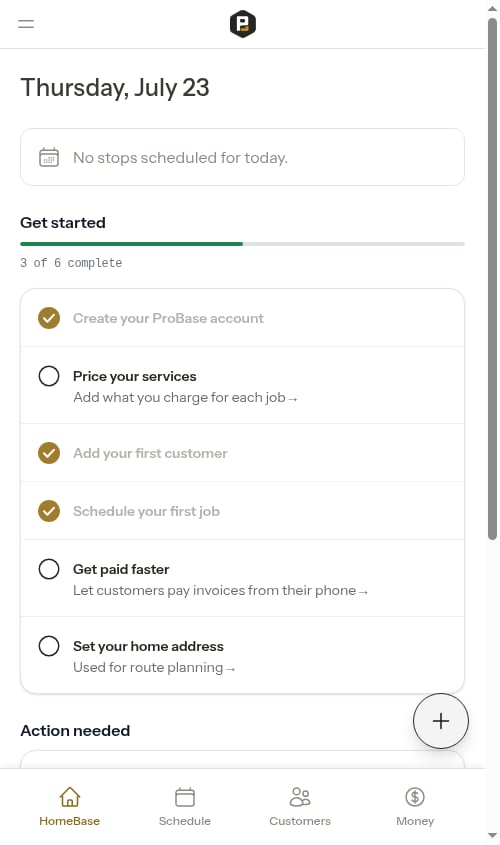
When you have overdue appointments, an **Overdue Jobs** action item appears in the **Action needed** section on HomeBase. The count shows exactly how many appointments need attention.
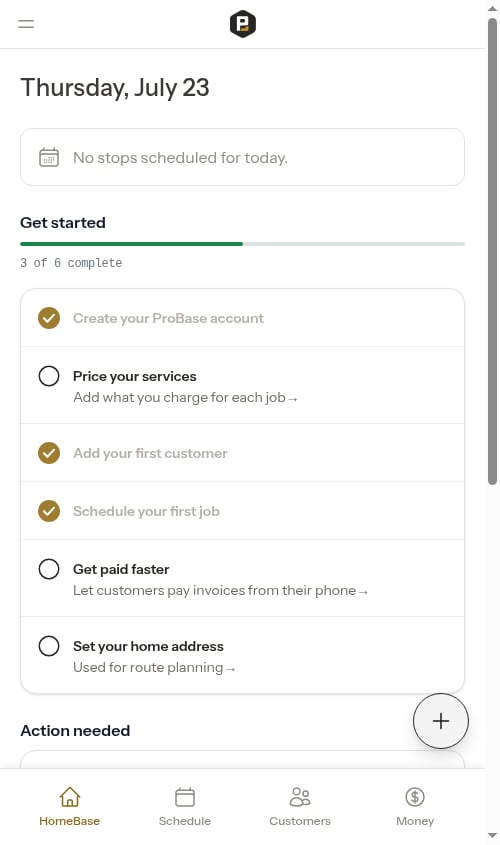 Tap **Overdue Jobs** to open the full list.
## The Overdue Jobs list
The Overdue Jobs page shows all past-due appointments sorted oldest-first, so the most urgent items appear at the top.
Tap **Overdue Jobs** to open the full list.
## The Overdue Jobs list
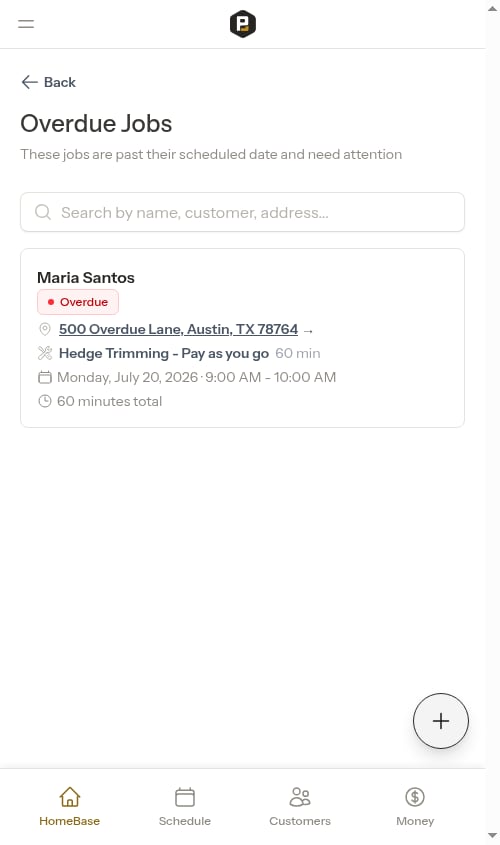
The Overdue Jobs page shows all past-due appointments sorted oldest-first, so the most urgent items appear at the top.
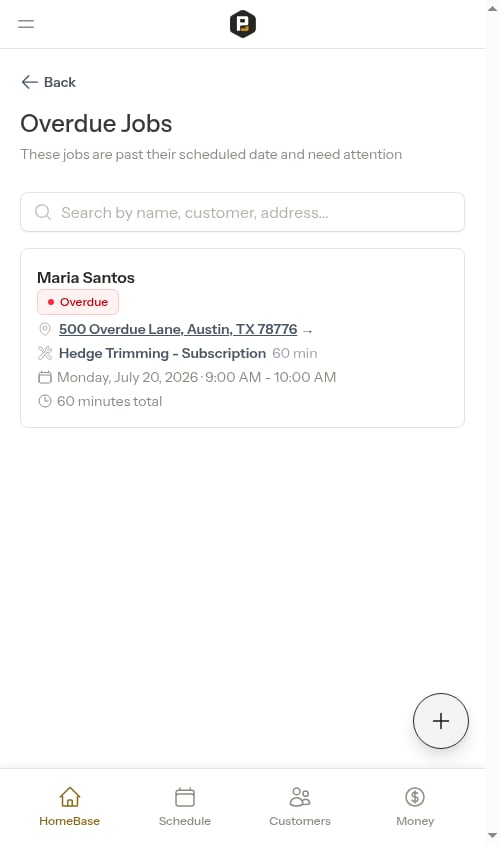 Each card shows:
* Service name
* Customer name
* Property address
* Original scheduled date
* Assigned crew (when your team has more than one crew) — color-coded with a truck icon, or an amber "Not assigned to a crew yet" warning if no crew has been picked
Each card shows:
* Service name
* Customer name
* Property address
* Original scheduled date
* Assigned crew (when your team has more than one crew) — color-coded with a truck icon, or an amber "Not assigned to a crew yet" warning if no crew has been picked
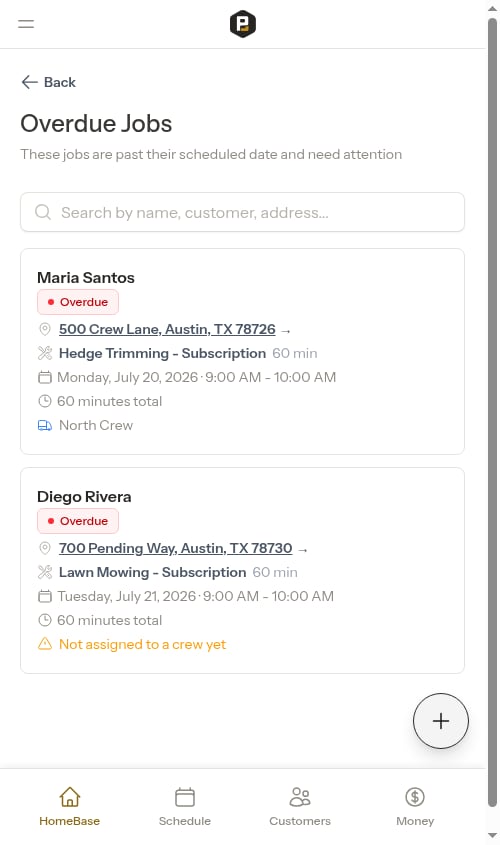 The crew row only appears on overdue cards when your team has more than one crew. If you run a single crew, the assignment is implicit and the row is hidden to reduce clutter.
### Searching
Use the search bar at the top to filter by service name, customer name, or address.
### Load more
If you have many overdue jobs, the list loads 20 at a time. Scroll to the bottom and the next batch loads automatically.
## Resolving an overdue job
Tap any appointment card to open the full appointment detail page.
The crew row only appears on overdue cards when your team has more than one crew. If you run a single crew, the assignment is implicit and the row is hidden to reduce clutter.
### Searching
Use the search bar at the top to filter by service name, customer name, or address.
### Load more
If you have many overdue jobs, the list loads 20 at a time. Scroll to the bottom and the next batch loads automatically.
## Resolving an overdue job
Tap any appointment card to open the full appointment detail page.
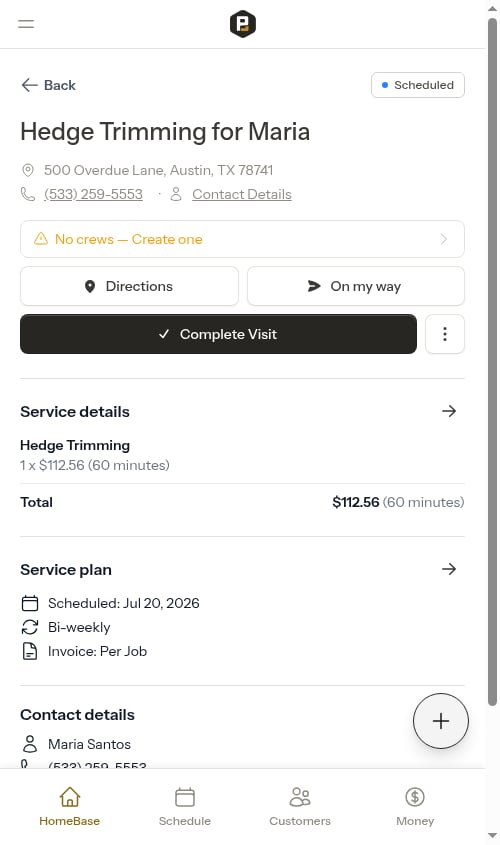 From the appointment detail page you can:
* **Assign a crew** — Tap the crew row above the quick actions to pick a crew for an unassigned visit, or swap to a different one. See [Assign or change the crew](/scheduling/creating-appointments#assign-or-change-the-crew).
* **Complete** — Mark the appointment as done if the work was actually performed
* **Reschedule** — Set a new date and time for the appointment
* **Cancel** — Cancel the appointment if the work won't happen
### Cancelling an overdue job
If a job needs to be cancelled:
Tap the appointment from the overdue list to open its detail page.
Tap the **Cancel** option on the appointment detail page. This opens the **Cancel Service** modal.
From the appointment detail page you can:
* **Assign a crew** — Tap the crew row above the quick actions to pick a crew for an unassigned visit, or swap to a different one. See [Assign or change the crew](/scheduling/creating-appointments#assign-or-change-the-crew).
* **Complete** — Mark the appointment as done if the work was actually performed
* **Reschedule** — Set a new date and time for the appointment
* **Cancel** — Cancel the appointment if the work won't happen
### Cancelling an overdue job
If a job needs to be cancelled:
Tap the appointment from the overdue list to open its detail page.
Tap the **Cancel** option on the appointment detail page. This opens the **Cancel Service** modal.
 Whenever the service still has any scheduled visits, you'll see a choice:
* **Cancel all future appointments** — ends the recurring service and cancels every upcoming visit (this is the default).
* **Cancel only the next appointment** — cancels just the next scheduled visit and leaves the rest of the schedule in place.
The modal previews exactly which appointments will be cancelled before you confirm — the "Cancel all future appointments" option shows how many visits that covers, and "Cancel only the next appointment" shows the date of that next visit — so you always see the impact before committing.
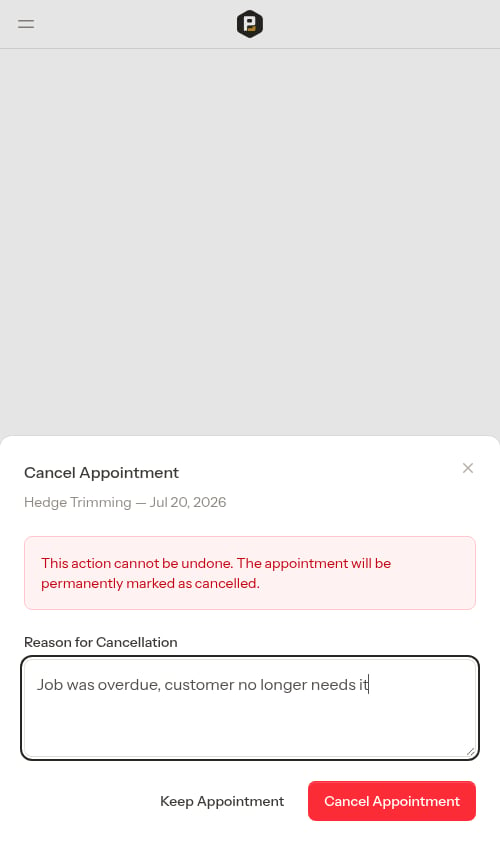
Type a cancellation reason (for example, "Customer requested cancellation" or "weather") and confirm.
Whenever the service still has any scheduled visits, you'll see a choice:
* **Cancel all future appointments** — ends the recurring service and cancels every upcoming visit (this is the default).
* **Cancel only the next appointment** — cancels just the next scheduled visit and leaves the rest of the schedule in place.
The modal previews exactly which appointments will be cancelled before you confirm — the "Cancel all future appointments" option shows how many visits that covers, and "Cancel only the next appointment" shows the date of that next visit — so you always see the impact before committing.
Type a cancellation reason (for example, "Customer requested cancellation" or "weather") and confirm.
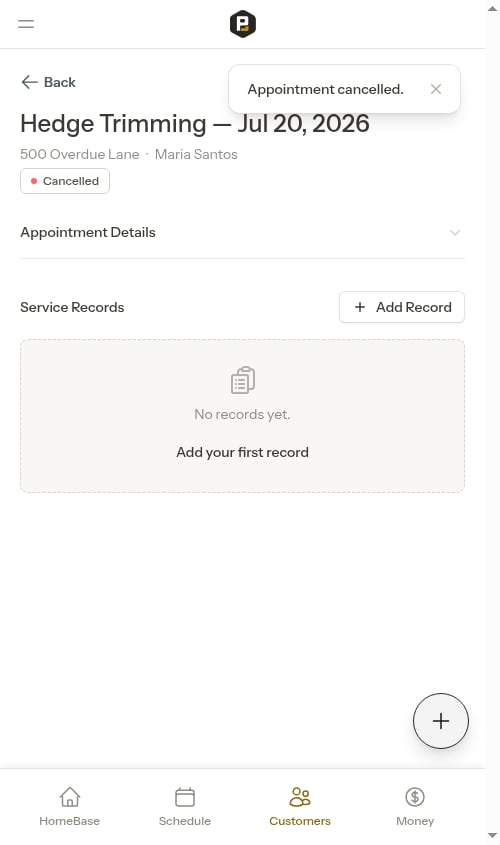
 The selected appointment (or appointments) are cancelled and the overdue visit drops off the overdue list.
 The Cancel Service modal defaults to **cancelling all future appointments**. If you only mean to cancel the single overdue visit on a recurring service, switch the choice to **Cancel only the next appointment** before confirming.
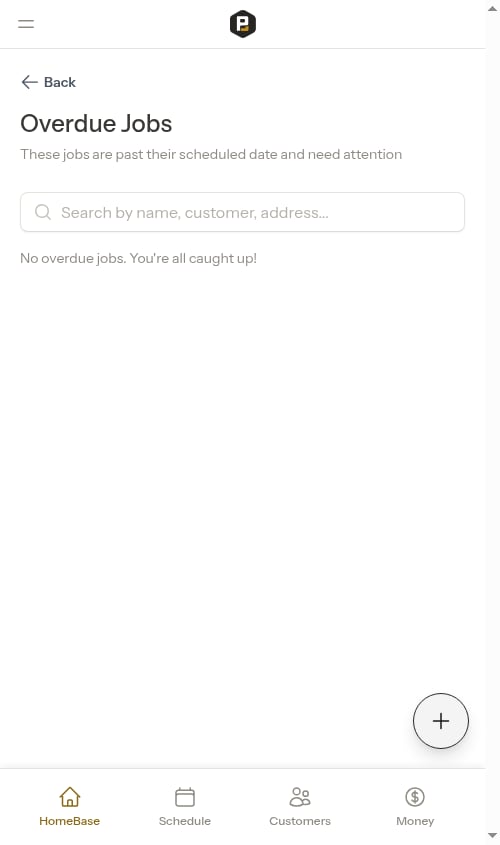
After resolving appointments, the list updates automatically. Once all overdue jobs are addressed, the list shows an empty state and the **Overdue Jobs** action item disappears from HomeBase.
The Cancel Service modal defaults to **cancelling all future appointments**. If you only mean to cancel the single overdue visit on a recurring service, switch the choice to **Cancel only the next appointment** before confirming.
After resolving appointments, the list updates automatically. Once all overdue jobs are addressed, the list shows an empty state and the **Overdue Jobs** action item disappears from HomeBase.
 ## Tips for staying on top of overdue jobs
* **Check HomeBase daily** — The Action needed section is the fastest way to spot overdue jobs before they pile up
* **Reschedule promptly** — Rescheduling keeps the job active and ensures customers get the service they've signed up for
* **Cancel when appropriate** — If a customer cancelled verbally, record the cancellation in Probase to keep your schedule accurate
* **Use the search** — If you have a long list, search by customer name to quickly find a specific job
## Next steps
* [Rescheduling jobs](/scheduling/rescheduling-jobs) — How to reschedule an appointment to a new date
* [Completing jobs](/routes/completing-jobs) — Mark appointments as done to clear them from the list
* [HomeBase](/getting-started/homebase) — Your daily command center for field work
## Tips for staying on top of overdue jobs
* **Check HomeBase daily** — The Action needed section is the fastest way to spot overdue jobs before they pile up
* **Reschedule promptly** — Rescheduling keeps the job active and ensures customers get the service they've signed up for
* **Cancel when appropriate** — If a customer cancelled verbally, record the cancellation in Probase to keep your schedule accurate
* **Use the search** — If you have a long list, search by customer name to quickly find a specific job
## Next steps
* [Rescheduling jobs](/scheduling/rescheduling-jobs) — How to reschedule an appointment to a new date
* [Completing jobs](/routes/completing-jobs) — Mark appointments as done to clear them from the list
* [HomeBase](/getting-started/homebase) — Your daily command center for field work