> ## Documentation Index
> Fetch the complete documentation index at: https://docs.probaseapp.com/llms.txt
> Use this file to discover all available pages before exploring further.
# Rescheduling appointments
> Move appointments to different dates or skip them for recurring services
## Overview
When you need to change when work is scheduled, you can reschedule an appointment. This creates a new appointment with the new date and marks the original as "Rescheduled." For recurring services, you can also skip an appointment — marking it as skipped while automatically scheduling the next occurrence.
## Reschedule an appointment
Click on the appointment from the calendar or from the service details page to open the dedicated appointment detail page.
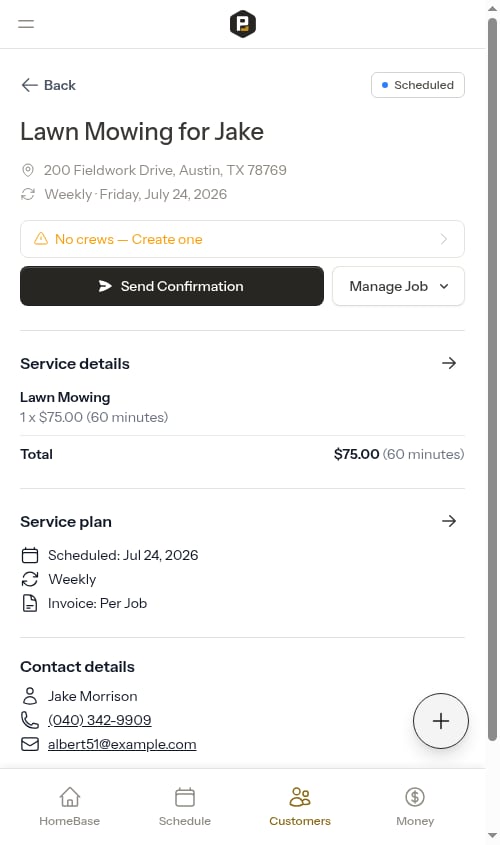 On the appointment detail page, click the **Manage Job** button to open the dropdown menu. For appointments due today, tap the **...** button instead.
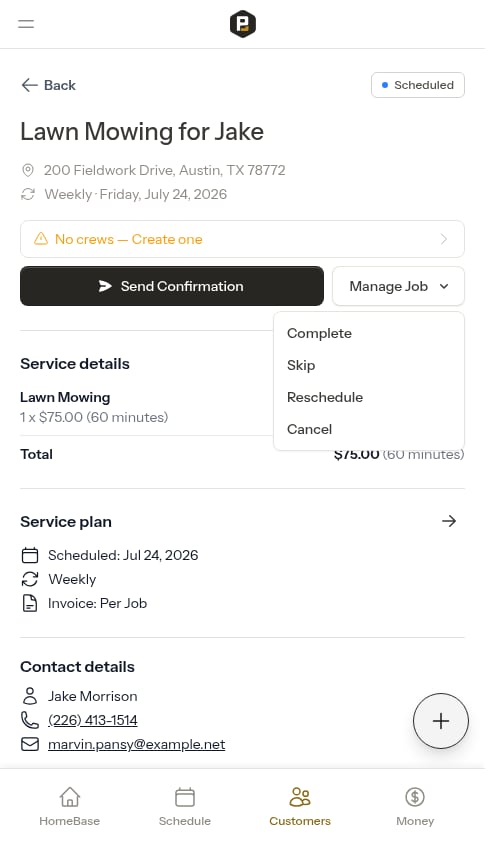 From the dropdown, click **Reschedule**. A reschedule modal opens.
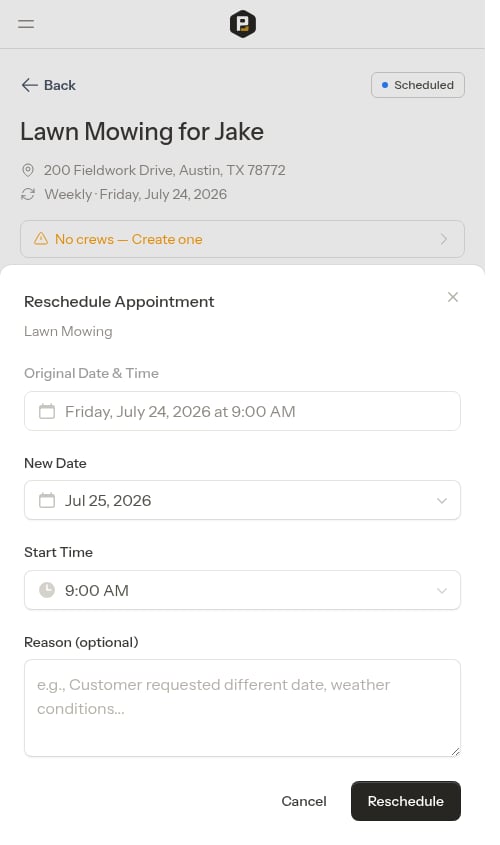 In the reschedule form:
* Select the new **Date**
* Set the new **Start time** (defaults to the same time as the original appointment)
* Reassign the **Crew** if needed — the picker pre-selects the crew already on the appointment, so you can leave it alone to keep the same crew. The crew picker only appears when your team has more than one crew; with a single crew the appointment stays assigned to it automatically.
* Enter a **Reason** for rescheduling (optional)
In the reschedule form:
* Select the new **Date**
* Set the new **Start time** (defaults to the same time as the original appointment)
* Reassign the **Crew** if needed — the picker pre-selects the crew already on the appointment, so you can leave it alone to keep the same crew. The crew picker only appears when your team has more than one crew; with a single crew the appointment stays assigned to it automatically.
* Enter a **Reason** for rescheduling (optional)
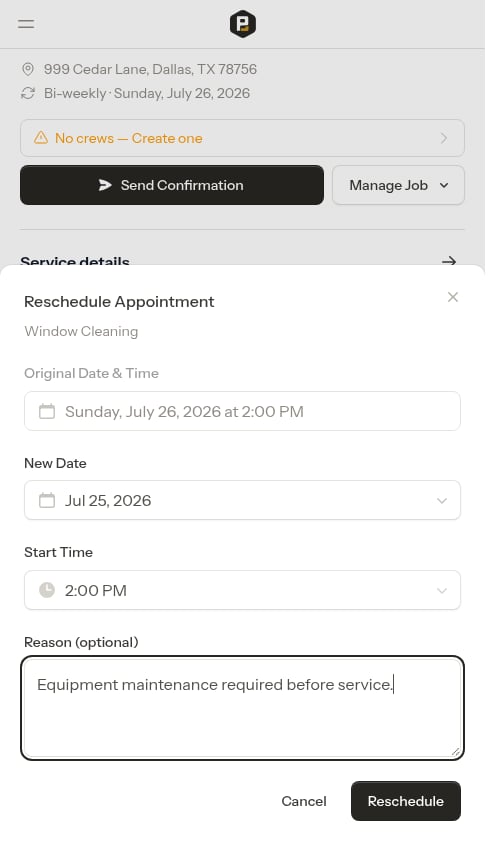 Click **Reschedule** to create the new appointment. The original appointment is marked as "Rescheduled" with your reason, and a new "Scheduled" appointment appears with the new date and time.
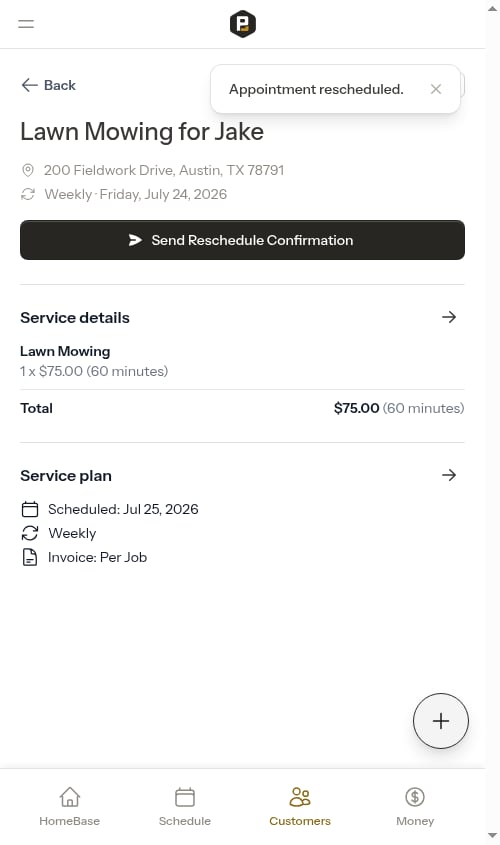 ## What happens when you reschedule
When you reschedule an appointment:
1. The original appointment status changes to **Rescheduled**
2. The reason you entered is saved on the original appointment
3. A new **Scheduled** appointment is created for the new date and time
4. Any **service items** (line items) from the original appointment are moved to the new appointment
5. Any **notes** attached to the original appointment are moved to the new appointment
6. Both appointments remain in the history on the service details page
## What happens when you reschedule
When you reschedule an appointment:
1. The original appointment status changes to **Rescheduled**
2. The reason you entered is saved on the original appointment
3. A new **Scheduled** appointment is created for the new date and time
4. Any **service items** (line items) from the original appointment are moved to the new appointment
5. Any **notes** attached to the original appointment are moved to the new appointment
6. Both appointments remain in the history on the service details page
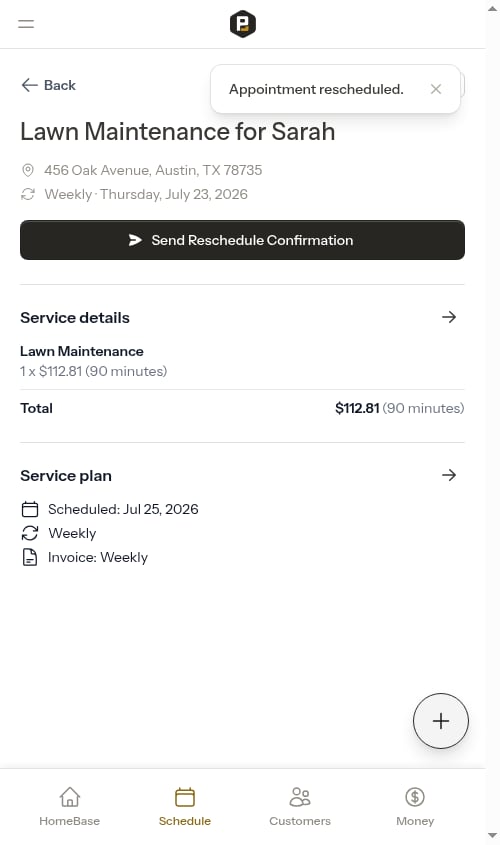 This creates a complete audit trail of all scheduling changes. Because items and notes move with the appointment, your crew will have everything they need on the rescheduled date without any re-entry.
## Viewing rescheduled appointments
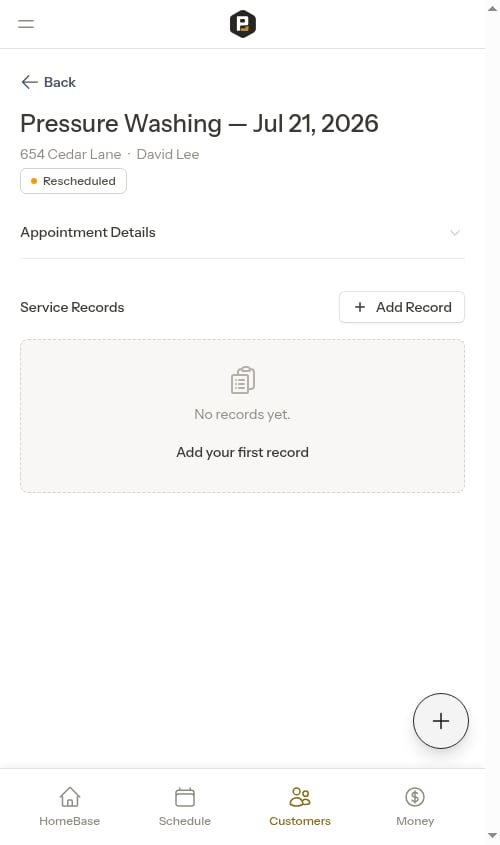
Rescheduled appointments appear with a "Rescheduled" status badge (orange) in the calendar and on the service details page. Click on them to see the reason for rescheduling and when it was changed.
This creates a complete audit trail of all scheduling changes. Because items and notes move with the appointment, your crew will have everything they need on the rescheduled date without any re-entry.
## Viewing rescheduled appointments
Rescheduled appointments appear with a "Rescheduled" status badge (orange) in the calendar and on the service details page. Click on them to see the reason for rescheduling and when it was changed.
 ## Sending a reschedule confirmation
When you open a rescheduled appointment, the quick actions area shows a single **Send Reschedule Confirmation** button. Use this to text the customer the details of the new appointment that was created when you rescheduled.
## Sending a reschedule confirmation
When you open a rescheduled appointment, the quick actions area shows a single **Send Reschedule Confirmation** button. Use this to text the customer the details of the new appointment that was created when you rescheduled.
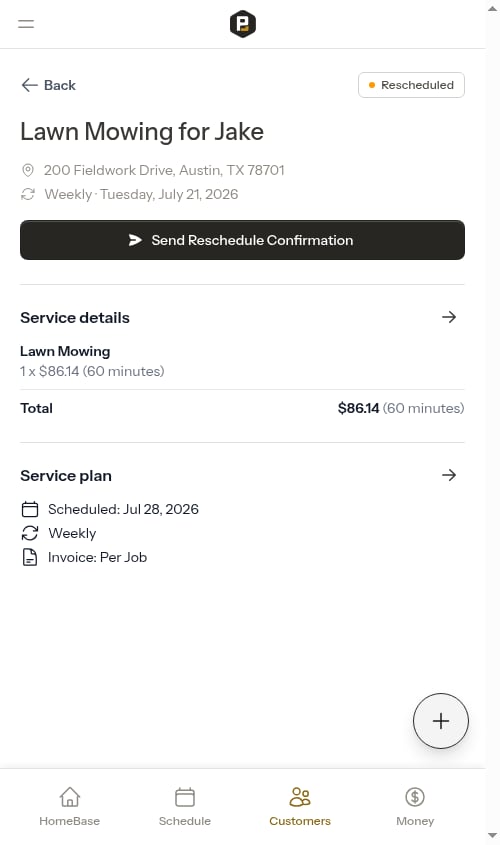 From the calendar or the service details page, click the rescheduled appointment (the one with the orange "Rescheduled" badge — not the new one).
The button opens a pre-filled SMS modal. The message references the **next scheduled appointment** linked to the same service — including the day of the week, date, start and end time, and the property address. If no follow-up appointment exists yet, the message simply notes that the appointment has been rescheduled and that you'll follow up with the new date.
From the calendar or the service details page, click the rescheduled appointment (the one with the orange "Rescheduled" badge — not the new one).
The button opens a pre-filled SMS modal. The message references the **next scheduled appointment** linked to the same service — including the day of the week, date, start and end time, and the property address. If no follow-up appointment exists yet, the message simply notes that the appointment has been rescheduled and that you'll follow up with the new date.
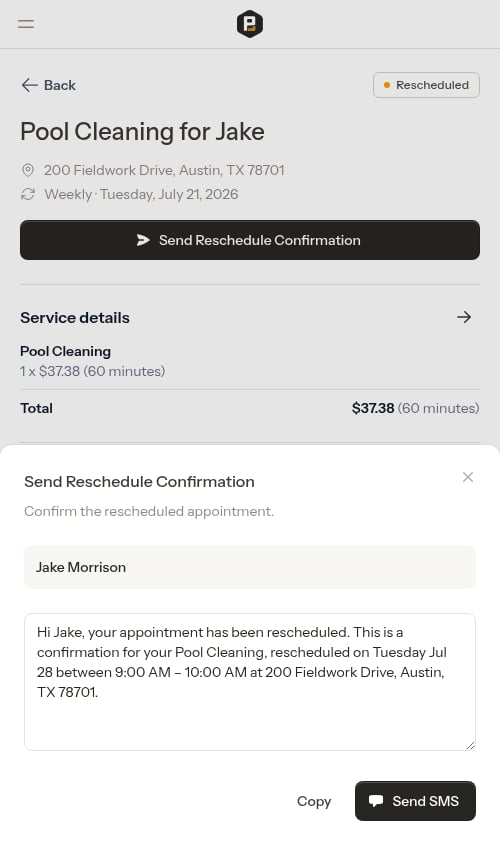 Edit the message if you need to add context, then send. The text goes to the customer's phone number on file.
Customers don't get an automatic notification when you reschedule. Sending the confirmation is what lets them know about the new date and time.
## Skipping appointments
For recurring services (weekly, bi-weekly, or monthly), you can **skip** an appointment instead of rescheduling it. Skipping marks the current appointment as skipped. Because recurring services [pre-schedule the whole chain of future visits](/scheduling/future-visits), the next visit is usually already on the calendar — skipping simply moves this visit's items and notes forward to it. If there's no upcoming visit, skipping schedules the next occurrence on its normal interval date instead.
Use skip when:
* A customer is on vacation or not home
* Bad weather prevents the visit
* A holiday falls on the service day
Skip is only available for recurring services. One-time services do not have a Skip option.
Click on the appointment from the calendar or service details page.
Click **Manage Job** (or **...** for due appointments) to open the dropdown.
Edit the message if you need to add context, then send. The text goes to the customer's phone number on file.
Customers don't get an automatic notification when you reschedule. Sending the confirmation is what lets them know about the new date and time.
## Skipping appointments
For recurring services (weekly, bi-weekly, or monthly), you can **skip** an appointment instead of rescheduling it. Skipping marks the current appointment as skipped. Because recurring services [pre-schedule the whole chain of future visits](/scheduling/future-visits), the next visit is usually already on the calendar — skipping simply moves this visit's items and notes forward to it. If there's no upcoming visit, skipping schedules the next occurrence on its normal interval date instead.
Use skip when:
* A customer is on vacation or not home
* Bad weather prevents the visit
* A holiday falls on the service day
Skip is only available for recurring services. One-time services do not have a Skip option.
Click on the appointment from the calendar or service details page.
Click **Manage Job** (or **...** for due appointments) to open the dropdown.
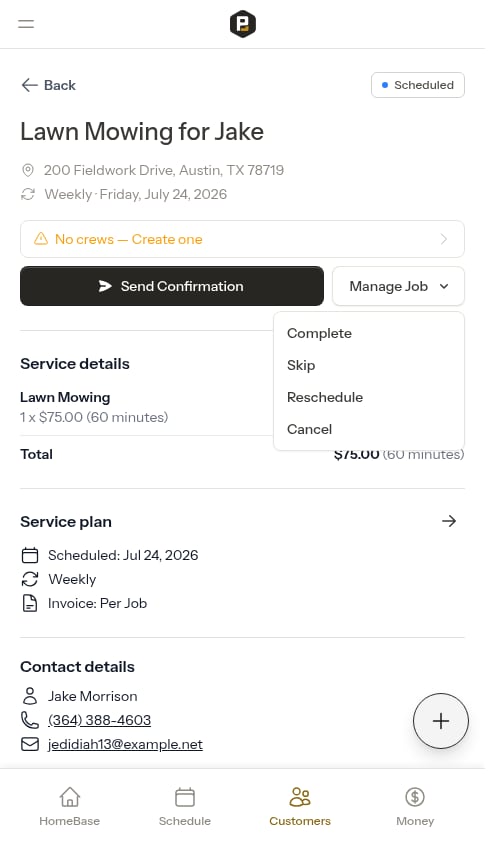 Click **Skip** from the dropdown. A skip modal opens.
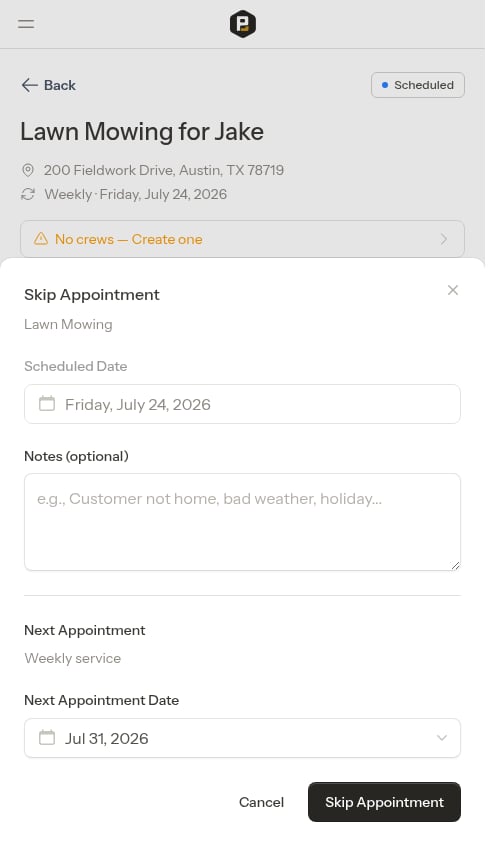 * Add an optional note explaining why you're skipping (e.g., "Customer not home", "Bad weather")
* When the next visit is already on the calendar, the modal shows that visit's date and notes that it will receive this visit's items and notes — there's nothing else to fill in.
* Add an optional note explaining why you're skipping (e.g., "Customer not home", "Bad weather")
* When the next visit is already on the calendar, the modal shows that visit's date and notes that it will receive this visit's items and notes — there's nothing else to fill in.
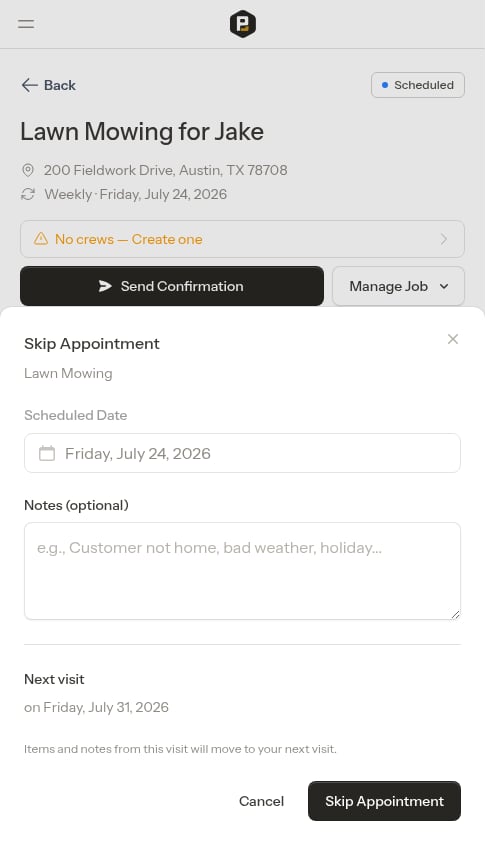 * If there's no upcoming visit, a **Next Appointment Date** is pre-filled based on the service interval. Confirm or adjust this date.
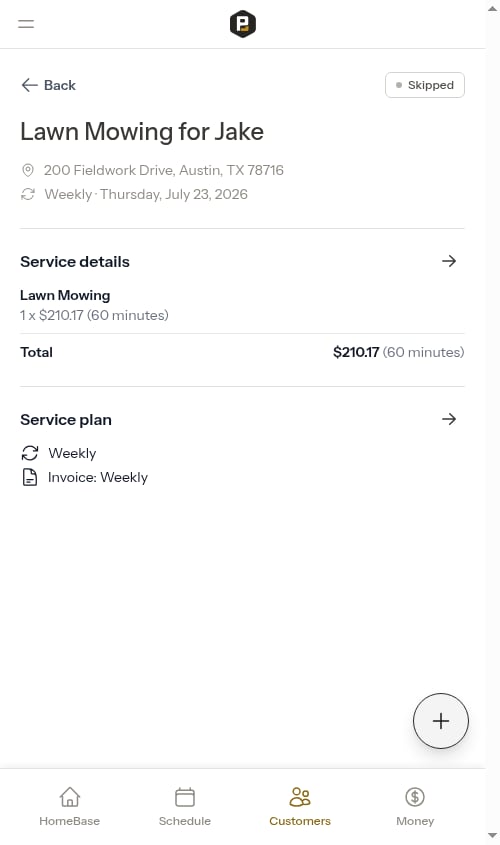
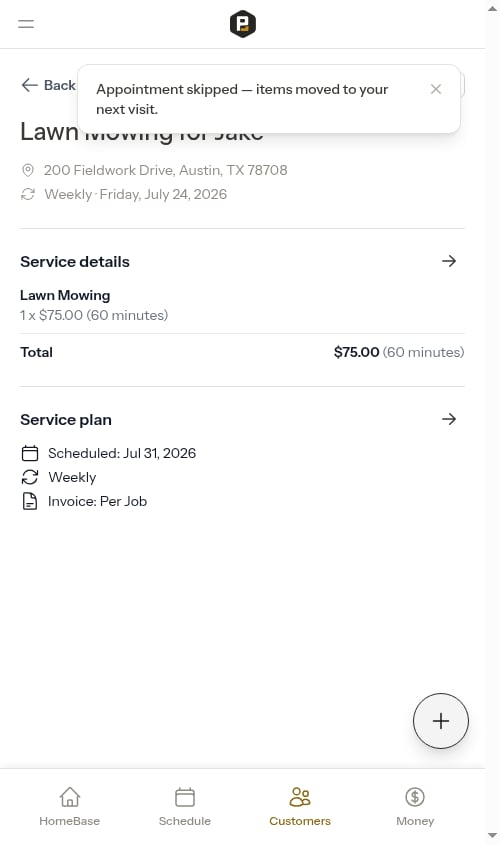
Click **Skip Appointment**. The current appointment is marked as Skipped, and the work moves to the next visit.
* If there's no upcoming visit, a **Next Appointment Date** is pre-filled based on the service interval. Confirm or adjust this date.
Click **Skip Appointment**. The current appointment is marked as Skipped, and the work moves to the next visit.
 ### What happens when you skip
* The appointment status changes to **Skipped**
* Your optional skip reason note is saved on the skipped appointment
* When a future visit already exists: any **service items** and **notes** from the skipped appointment move forward to it
* When no future visit exists (active service): a new **Scheduled** appointment is created for the next interval date, carrying the skipped visit's items and notes forward
* For cancelled services: no next appointment is created
### What happens when you skip
* The appointment status changes to **Skipped**
* Your optional skip reason note is saved on the skipped appointment
* When a future visit already exists: any **service items** and **notes** from the skipped appointment move forward to it
* When no future visit exists (active service): a new **Scheduled** appointment is created for the next interval date, carrying the skipped visit's items and notes forward
* For cancelled services: no next appointment is created