> ## Documentation Index
> Fetch the complete documentation index at: https://docs.probaseapp.com/llms.txt
> Use this file to discover all available pages before exploring further.
# Troubleshooting
> Solve common issues
## Scheduling issues
**Appointments not appearing on calendar**
**Possible causes:**
* Appointment doesn't have a date set
* Page needs to be refreshed
**Solutions:**
1. Click on the appointment and verify date is set
2. Refresh the page
3. Check that the service is active (not cancelled)
**Can't create an appointment**
**Possible causes:**
* Customer doesn't have a service set up
* Service is cancelled
**Solutions:**
1. Go to the customer's page and navigate to their property
2. Verify they have an active service
3. If service is cancelled, you can still complete existing appointments but cannot add new ones
4. Create a new service if needed
**A job link takes me somewhere else instead of the job**
If you open a job from a bookmark, the browser back button, or an older link — and that job has since been removed (for example its service was cancelled, or the job was rescheduled or deleted) — Probase no longer shows a "Not Found" error. Instead it returns you to the surrounding page you came from and shows a brief notice: **"That job is no longer available."**
Probase picks the most useful place to land based on where the link pointed: a job opened from your schedule sends you back to that schedule, one opened from the dashboard or overdue-jobs list returns you there, and a job opened from a customer's service sends you to the parent service page.
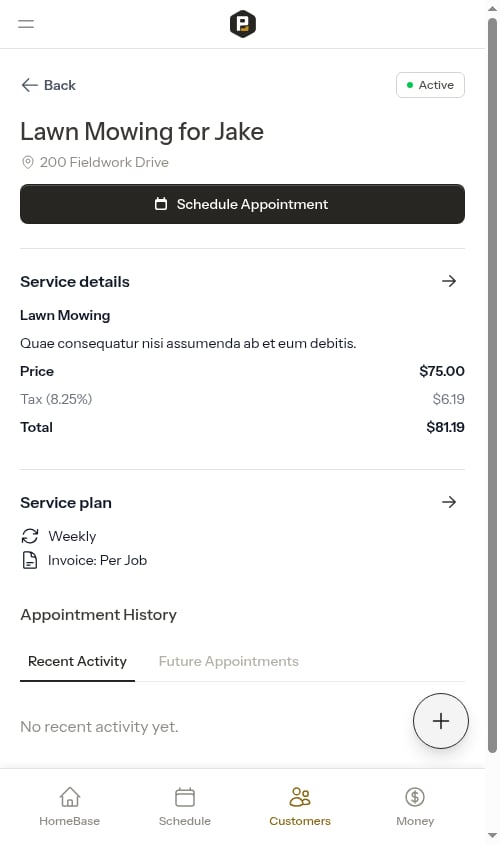 Wherever you land, you can review the appointment history, schedule a new appointment, or open whichever visit you actually need. This is expected behavior, not an error — there's nothing to fix.
**Route optimization not working**
**Possible causes:**
* Properties don't have valid geocoded addresses
* Crew doesn't have a start location configured
* Too few appointments to optimize (need at least 2)
**Solutions:**
1. Verify all property addresses are complete and correct (system automatically geocodes addresses)
2. Go to **Team Roster → Crews**, click the crew name, then click **Edit** to set their start address
3. Ensure there are at least 2 appointments assigned to the crew for that date
4. Check that all appointments have valid property addresses
## Billing issues
**Billing line item not created**
**For per-service billing:**
* Ensure the appointment was marked **Complete**
* Check that the service has a price set
**For subscription billing:**
* Verify the service status is **Active** (not cancelled)
* Check that the billing interval is set
* The recurring billing day is set automatically from when the service was created — review the upcoming charge dates listed on the service details page to confirm when the next charge will appear
**Solutions:**
1. Go to the service and verify settings
2. If per-service, mark the appointment complete
3. If subscription, check the billing schedule in the service details
**Customer says they didn't receive payment link**
**Solutions:**
1. Verify you shared the correct link with them
2. Regenerate the payment link if needed and share again
3. The link shows real-time balance information when opened
## Customer payment portal issues
**Customer says payment link doesn't work**
**Solutions:**
1. Verify the link was copied correctly (check for any cut-off characters)
2. Re-share the payment link by opening the invoice from the Money page and tapping **Send Invoice** — this generates a fresh pre-filled message with the current payment link
3. Make sure the invoice has been sent (draft invoices are not visible to customers — tap **Send Invoice** to publish it)
**Customer says they can't pay online**
**Possible causes:**
* Stripe account not connected
* Stripe account status is restricted or pending
**Solutions:**
1. Go to **Payments** in the sidebar (under BUSINESS) and check your Stripe connection status
2. If not connected, click **Connect with Stripe** to set up payment processing
3. If status is "Pending" or "Restricted", click **Continue Setup** or **Update Information** to complete Stripe requirements
4. Once Stripe status is "Active", customers will be able to complete payments
5. If Stripe is not connected, arrange payment via cash, check, or other method and record as a credit
See [Setting up payment processing](/billing/stripe-setup) for details.
## Crew and team issues
**Crew not showing scheduled appointments**
**Solutions:**
1. Check that appointments are assigned to that crew
2. Verify the date range you're viewing
3. Refresh the page
## Data issues
**Balance doesn't look right**
**Solutions:**
1. Review all billing line items on the customer's page
2. Remember: charges are negative (customer owes), credits are positive (payment/refund)
3. Balance = sum of all line items (negative balance means customer owes money)
## Mobile issues
**How to refresh the page on mobile**
On mobile devices and tablets, you can refresh the page by pulling down from the top:
1. Make sure you're scrolled to the top of the page
2. Pull down with your finger
3. You'll see a circular indicator with an arrow appear
4. Keep pulling — the arrow flips direction once you've pulled far enough
5. Release to refresh
The page will reload with updated information.
Pull-to-refresh only works when you're at the top of the page. If you're scrolled down, scroll to the top first.
**Mobile display issues**
**Solutions:**
1. Check internet connection
2. Try rotating your device (some views work better in landscape)
3. Clear browser cache
4. Try a different browser
5. Restart the device
**Photos not uploading to notes**
**Solutions:**
1. Check internet connection
2. Verify you have storage space on your device
3. Try uploading one photo at a time
4. If on cellular, ensure you have data available
5. Files may take time to upload on slower connections
## Performance issues
**Probase is slow**
**Solutions:**
1. Check your internet connection speed
2. Close other browser tabs
3. Clear browser cache and cookies
4. Try a different browser
5. Restart your device
**Page won't load**
**Solutions:**
1. Refresh the page
2. Clear browser cache
3. Try a different browser
4. Wait a few minutes and try again
## Account access issues
**"Your session expired" prompt with a Reload button**
If you leave Probase open in the background for a while — especially on a phone where the browser or app has been backgrounded — your login session can time out for security. The next time something on the page tries to save or refresh, Probase shows a clear in-app message:
Wherever you land, you can review the appointment history, schedule a new appointment, or open whichever visit you actually need. This is expected behavior, not an error — there's nothing to fix.
**Route optimization not working**
**Possible causes:**
* Properties don't have valid geocoded addresses
* Crew doesn't have a start location configured
* Too few appointments to optimize (need at least 2)
**Solutions:**
1. Verify all property addresses are complete and correct (system automatically geocodes addresses)
2. Go to **Team Roster → Crews**, click the crew name, then click **Edit** to set their start address
3. Ensure there are at least 2 appointments assigned to the crew for that date
4. Check that all appointments have valid property addresses
## Billing issues
**Billing line item not created**
**For per-service billing:**
* Ensure the appointment was marked **Complete**
* Check that the service has a price set
**For subscription billing:**
* Verify the service status is **Active** (not cancelled)
* Check that the billing interval is set
* The recurring billing day is set automatically from when the service was created — review the upcoming charge dates listed on the service details page to confirm when the next charge will appear
**Solutions:**
1. Go to the service and verify settings
2. If per-service, mark the appointment complete
3. If subscription, check the billing schedule in the service details
**Customer says they didn't receive payment link**
**Solutions:**
1. Verify you shared the correct link with them
2. Regenerate the payment link if needed and share again
3. The link shows real-time balance information when opened
## Customer payment portal issues
**Customer says payment link doesn't work**
**Solutions:**
1. Verify the link was copied correctly (check for any cut-off characters)
2. Re-share the payment link by opening the invoice from the Money page and tapping **Send Invoice** — this generates a fresh pre-filled message with the current payment link
3. Make sure the invoice has been sent (draft invoices are not visible to customers — tap **Send Invoice** to publish it)
**Customer says they can't pay online**
**Possible causes:**
* Stripe account not connected
* Stripe account status is restricted or pending
**Solutions:**
1. Go to **Payments** in the sidebar (under BUSINESS) and check your Stripe connection status
2. If not connected, click **Connect with Stripe** to set up payment processing
3. If status is "Pending" or "Restricted", click **Continue Setup** or **Update Information** to complete Stripe requirements
4. Once Stripe status is "Active", customers will be able to complete payments
5. If Stripe is not connected, arrange payment via cash, check, or other method and record as a credit
See [Setting up payment processing](/billing/stripe-setup) for details.
## Crew and team issues
**Crew not showing scheduled appointments**
**Solutions:**
1. Check that appointments are assigned to that crew
2. Verify the date range you're viewing
3. Refresh the page
## Data issues
**Balance doesn't look right**
**Solutions:**
1. Review all billing line items on the customer's page
2. Remember: charges are negative (customer owes), credits are positive (payment/refund)
3. Balance = sum of all line items (negative balance means customer owes money)
## Mobile issues
**How to refresh the page on mobile**
On mobile devices and tablets, you can refresh the page by pulling down from the top:
1. Make sure you're scrolled to the top of the page
2. Pull down with your finger
3. You'll see a circular indicator with an arrow appear
4. Keep pulling — the arrow flips direction once you've pulled far enough
5. Release to refresh
The page will reload with updated information.
Pull-to-refresh only works when you're at the top of the page. If you're scrolled down, scroll to the top first.
**Mobile display issues**
**Solutions:**
1. Check internet connection
2. Try rotating your device (some views work better in landscape)
3. Clear browser cache
4. Try a different browser
5. Restart the device
**Photos not uploading to notes**
**Solutions:**
1. Check internet connection
2. Verify you have storage space on your device
3. Try uploading one photo at a time
4. If on cellular, ensure you have data available
5. Files may take time to upload on slower connections
## Performance issues
**Probase is slow**
**Solutions:**
1. Check your internet connection speed
2. Close other browser tabs
3. Clear browser cache and cookies
4. Try a different browser
5. Restart your device
**Page won't load**
**Solutions:**
1. Refresh the page
2. Clear browser cache
3. Try a different browser
4. Wait a few minutes and try again
## Account access issues
**"Your session expired" prompt with a Reload button**
If you leave Probase open in the background for a while — especially on a phone where the browser or app has been backgrounded — your login session can time out for security. The next time something on the page tries to save or refresh, Probase shows a clear in-app message:
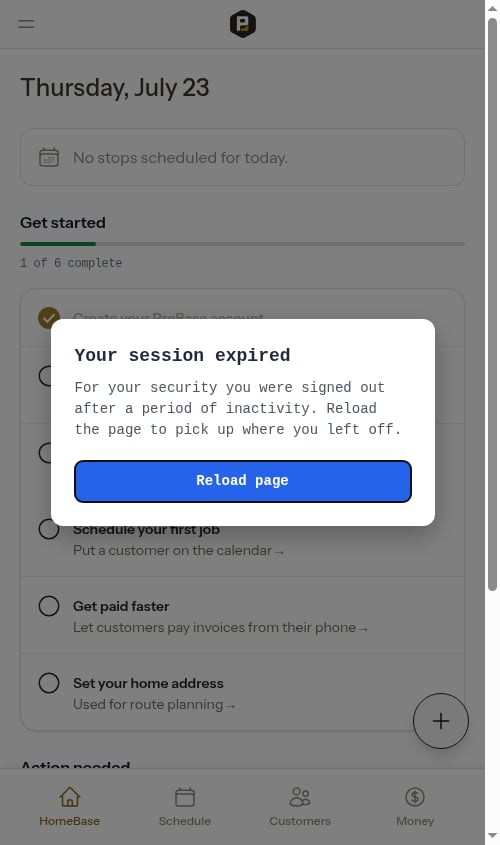 > **Your session expired** — For your security you were signed out after a period of inactivity. Reload the page to pick up where you left off.
**Solution:** Tap **Reload page**. Reloading signs you back in fresh and picks up where you left off. This is expected behavior, not an error — you don't need to log out manually or clear anything. If the prompt keeps reappearing, close the tab completely and open Probase again.
**"You no longer have access" prompt on a job page**
If you belong to more than one business and switch which one you're working in, a job you still have open from the previous business is no longer yours to view. The next time that page tries to load or save, Probase shows a clear in-app message instead of a confusing error:
> **Your session expired** — For your security you were signed out after a period of inactivity. Reload the page to pick up where you left off.
**Solution:** Tap **Reload page**. Reloading signs you back in fresh and picks up where you left off. This is expected behavior, not an error — you don't need to log out manually or clear anything. If the prompt keeps reappearing, close the tab completely and open Probase again.
**"You no longer have access" prompt on a job page**
If you belong to more than one business and switch which one you're working in, a job you still have open from the previous business is no longer yours to view. The next time that page tries to load or save, Probase shows a clear in-app message instead of a confusing error:
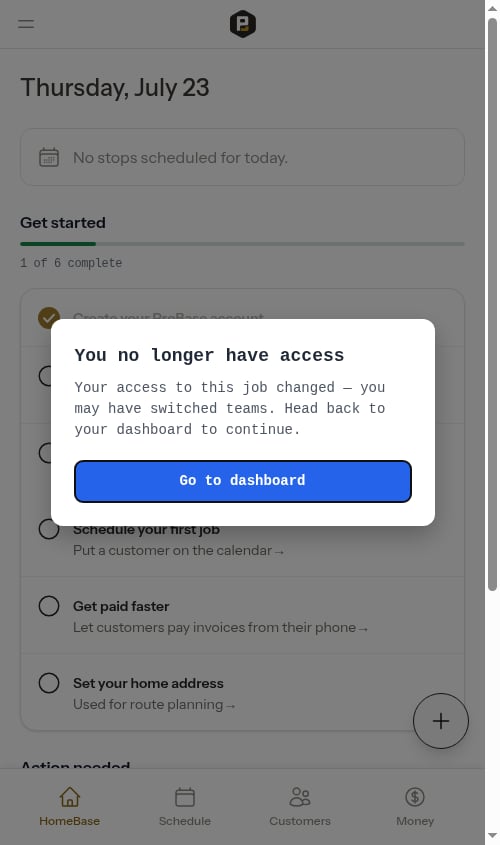 > **You no longer have access** — Your access to this job changed — you may have switched teams. Head back to your dashboard to continue.
**Solution:** Tap **Go to dashboard**. Unlike the session-expired prompt, reloading won't help here — the job belongs to a different business, so Probase sends you back to your current business's dashboard where everything works normally. This is expected behavior, not an error.
**Stuck on a redirect loop, blank page, or "session expired" after an update**
This is almost always a stale browser session — your device is holding on to an old login token that the server no longer recognises.
**Solution:** Visit `/logout` directly in your address bar (for example `https://app.probaseapp.com/logout`). This signs you out cleanly and drops you on the login page so you can sign back in. If support sends you a "recovery link" by email or text, this is the same thing — clicking it is safe and just clears your session.
**"Your sign-in session expired. Please try again." after Sign in with Google**
This appears on the login page when the Google sign-in handshake couldn't be completed — usually because you took too long on the Google account screen, opened the Google sign-in link in a different browser than where you started, or your browser cleared cookies in the middle of the flow.
**Solution:** Tap **Sign up with Google** or **Log in with Google** again from the same browser you're currently signed in to Google on, and complete the Google screen promptly. If you still get the message, try logging in with your email and password instead.
**"You don't have a business set up yet" after logging in**
If your only business was removed (for example, you deleted your last business from **Settings**) but your user account still exists, you'll land on a short **Create your business** screen instead of the dashboard. This recovery happens automatically no matter how you sign back in — with your email and password, or with **Log in with Google**.
1. Enter a **Business name** for your new account
2. Click **Create my team now**
3. You'll be taken to the dashboard with a fresh team
If you were instead invited to someone else's business in the meantime, signing back in drops you straight onto that team's dashboard rather than this screen.
If you weren't expecting to see this screen, [contact support](/support/contact-support) before creating a new business — your old data may be recoverable.
## General troubleshooting steps
**When something isn't working:**
1. **Refresh the page** - Many issues are resolved by refreshing (on mobile, pull down from the top to refresh)
2. **Check your internet** - Slow or unstable connection causes issues
3. **Try a different browser** - Browser-specific issues are common
4. **Log out and back in** - Resets your session
5. **Clear cache and cookies** - Removes corrupted data
6. **Check for updates** - Ensure your browser is up to date
**Still having issues?**
If these solutions don't help, see [Contact support](/support/contact-support) for assistance. When contacting support, include:
* What you were trying to do
* What happened instead
* Any error messages you saw
* Your browser and device type
* Screenshots if possible
> **You no longer have access** — Your access to this job changed — you may have switched teams. Head back to your dashboard to continue.
**Solution:** Tap **Go to dashboard**. Unlike the session-expired prompt, reloading won't help here — the job belongs to a different business, so Probase sends you back to your current business's dashboard where everything works normally. This is expected behavior, not an error.
**Stuck on a redirect loop, blank page, or "session expired" after an update**
This is almost always a stale browser session — your device is holding on to an old login token that the server no longer recognises.
**Solution:** Visit `/logout` directly in your address bar (for example `https://app.probaseapp.com/logout`). This signs you out cleanly and drops you on the login page so you can sign back in. If support sends you a "recovery link" by email or text, this is the same thing — clicking it is safe and just clears your session.
**"Your sign-in session expired. Please try again." after Sign in with Google**
This appears on the login page when the Google sign-in handshake couldn't be completed — usually because you took too long on the Google account screen, opened the Google sign-in link in a different browser than where you started, or your browser cleared cookies in the middle of the flow.
**Solution:** Tap **Sign up with Google** or **Log in with Google** again from the same browser you're currently signed in to Google on, and complete the Google screen promptly. If you still get the message, try logging in with your email and password instead.
**"You don't have a business set up yet" after logging in**
If your only business was removed (for example, you deleted your last business from **Settings**) but your user account still exists, you'll land on a short **Create your business** screen instead of the dashboard. This recovery happens automatically no matter how you sign back in — with your email and password, or with **Log in with Google**.
1. Enter a **Business name** for your new account
2. Click **Create my team now**
3. You'll be taken to the dashboard with a fresh team
If you were instead invited to someone else's business in the meantime, signing back in drops you straight onto that team's dashboard rather than this screen.
If you weren't expecting to see this screen, [contact support](/support/contact-support) before creating a new business — your old data may be recoverable.
## General troubleshooting steps
**When something isn't working:**
1. **Refresh the page** - Many issues are resolved by refreshing (on mobile, pull down from the top to refresh)
2. **Check your internet** - Slow or unstable connection causes issues
3. **Try a different browser** - Browser-specific issues are common
4. **Log out and back in** - Resets your session
5. **Clear cache and cookies** - Removes corrupted data
6. **Check for updates** - Ensure your browser is up to date
**Still having issues?**
If these solutions don't help, see [Contact support](/support/contact-support) for assistance. When contacting support, include:
* What you were trying to do
* What happened instead
* Any error messages you saw
* Your browser and device type
* Screenshots if possible