> ## Documentation Index
> Fetch the complete documentation index at: https://docs.probaseapp.com/llms.txt
> Use this file to discover all available pages before exploring further.
# Inviting team members
> Invite people to your team by email, set their role and crews, and manage pending invitations
## Overview
Adding someone to your team is a two-part flow: **you send an invitation**, then **they accept it and finish their own profile**. This page walks through both sides.
Only owners and admins can invite new members.
## Sending an invitation
Go to **Team Roster** in the sidebar and click **Invite team member** in the top-right corner.
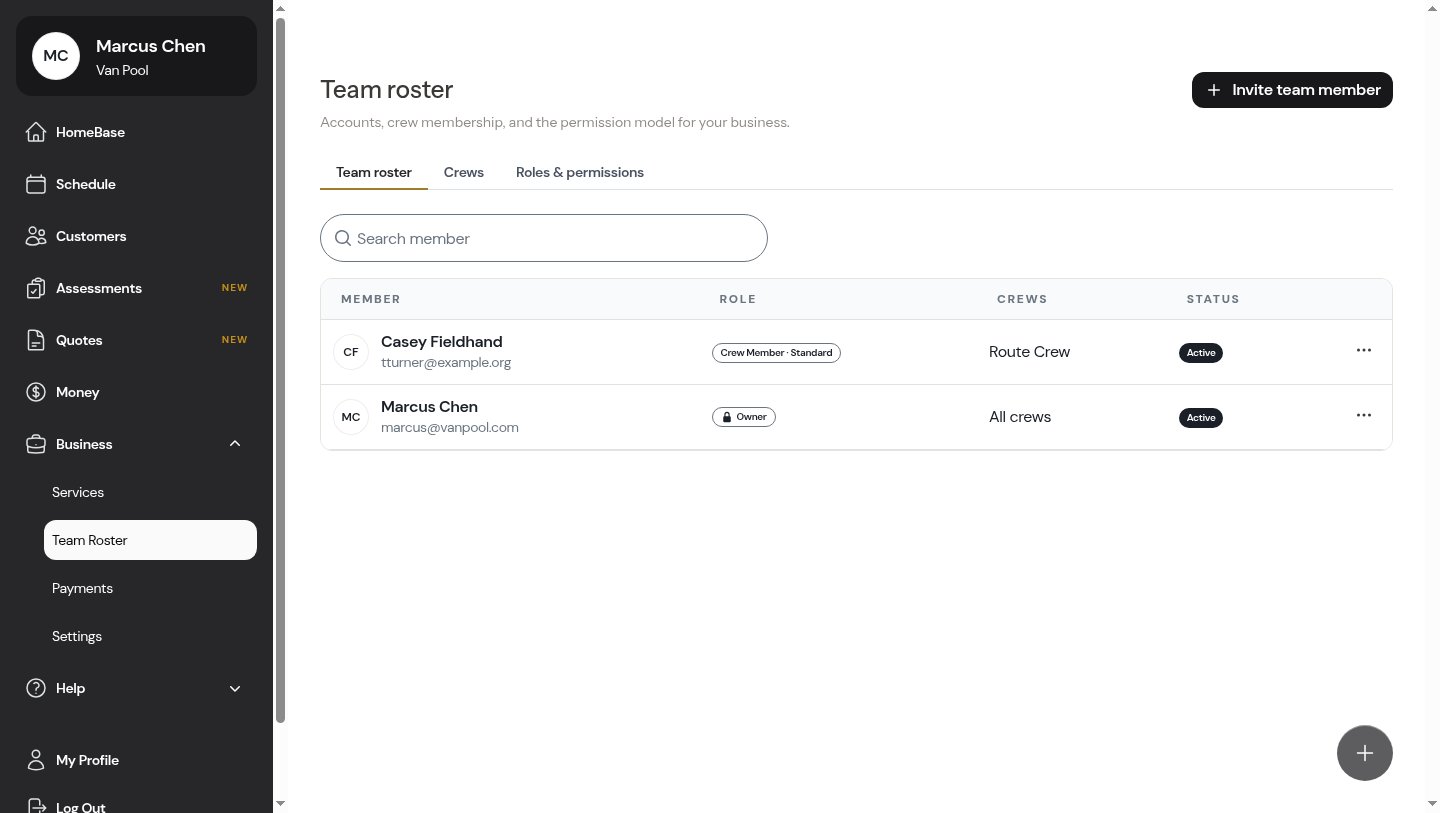 Enter the new member's details:
* **Email** (required) — where the invitation is sent
* **Full name** — optional; the new member can set or change it when they join
* **Role** — pick the [role](/team/roles-and-permissions) that decides what they can do
* **Crews** — optionally assign them to one or more crews now (this field appears once you have crews set up)
Enter the new member's details:
* **Email** (required) — where the invitation is sent
* **Full name** — optional; the new member can set or change it when they join
* **Role** — pick the [role](/team/roles-and-permissions) that decides what they can do
* **Crews** — optionally assign them to one or more crews now (this field appears once you have crews set up)
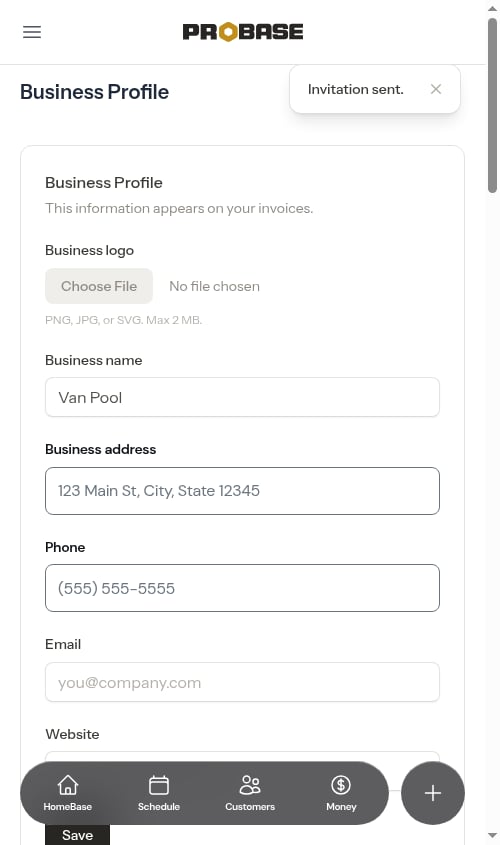
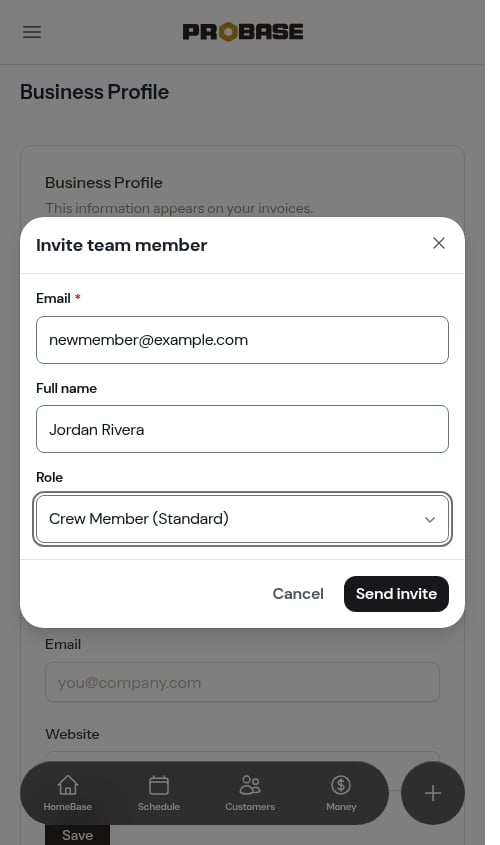 Click **Send invite**. ProBase emails the person an invitation link and shows a confirmation.
 You only set the person's email, name, role, and crews when inviting. They fill in the rest — phone number, home address, and profile photo — themselves when they accept.
## Managing pending invitations
Sent invitations that haven't been accepted yet appear as **Pending** — both in the **Pending invites** section of the Team Roster and in the **Manage Team** area of your **Settings** (Business Profile) page.
For a quick fix when someone didn't get the email, you can [resend an invitation right from its card on the Team Roster](/team/team-roster#pending-invites). For the full set of controls — resend, expire, or cancel — open **Settings** in the sidebar and find the **Pending Invitations** list. Each row has an actions menu (**⋯**) with:
* **Resend** — send the invitation email again and extend the acceptance window
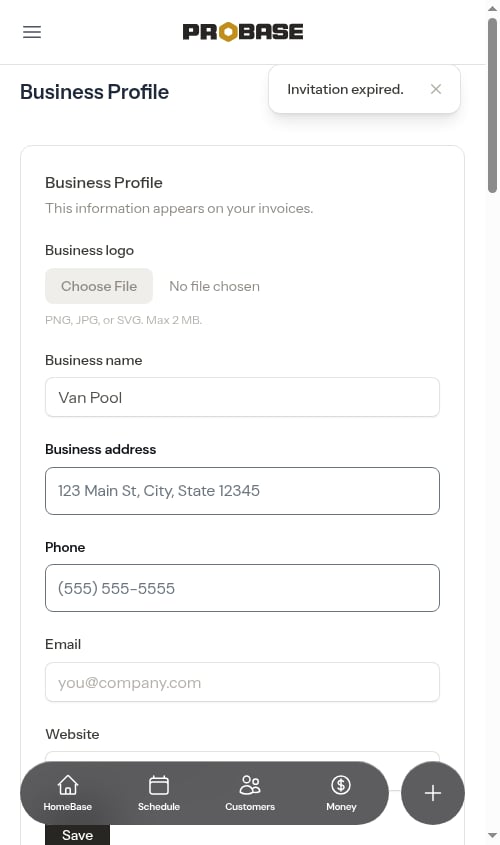
* **Expire now** — end the acceptance window immediately without deleting the invite. It flips to **Expired** and can still be resent later.
You only set the person's email, name, role, and crews when inviting. They fill in the rest — phone number, home address, and profile photo — themselves when they accept.
## Managing pending invitations
Sent invitations that haven't been accepted yet appear as **Pending** — both in the **Pending invites** section of the Team Roster and in the **Manage Team** area of your **Settings** (Business Profile) page.
For a quick fix when someone didn't get the email, you can [resend an invitation right from its card on the Team Roster](/team/team-roster#pending-invites). For the full set of controls — resend, expire, or cancel — open **Settings** in the sidebar and find the **Pending Invitations** list. Each row has an actions menu (**⋯**) with:
* **Resend** — send the invitation email again and extend the acceptance window
* **Expire now** — end the acceptance window immediately without deleting the invite. It flips to **Expired** and can still be resent later.
 * **Revoke** — withdraw the invitation entirely. The invite link stops working and the row disappears from the list. ProBase asks you to confirm first.
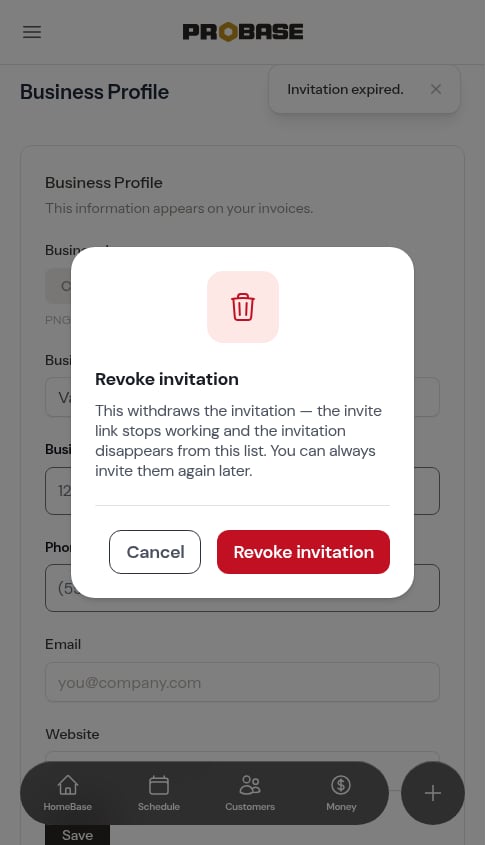
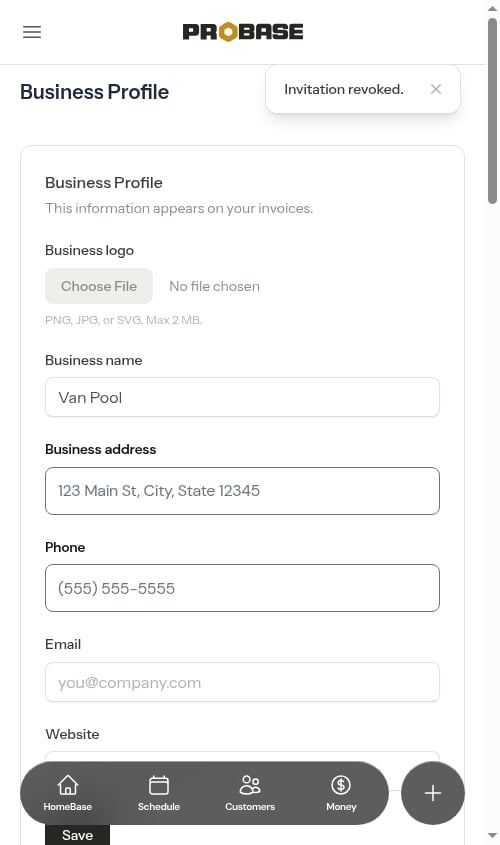 **Expire vs. Revoke:** *Expire now* keeps the invitation so you can resend it later. *Revoke* deletes it — you'd have to invite the person from scratch. You can always invite someone again either way.
## Accepting an invitation (the new member's view)
When someone you invited opens their invitation email, here's what they'll do:
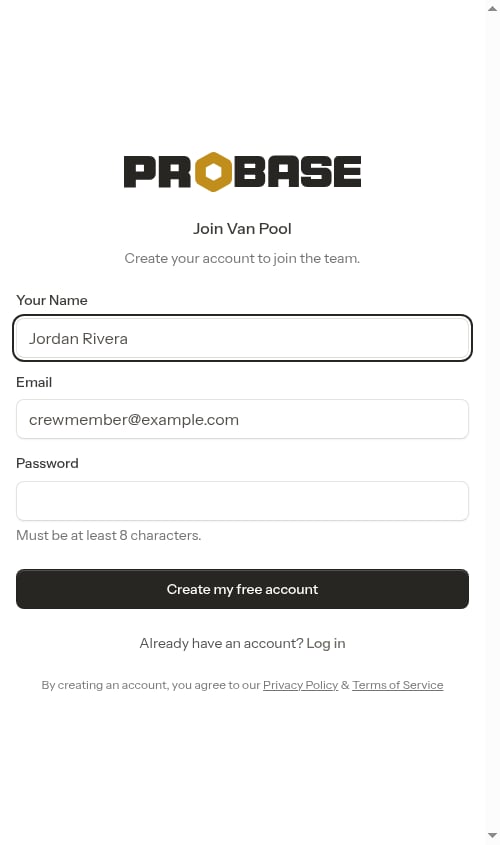
The link takes them to a **Join \{your company}** sign-up screen with their email already filled in. They pick a password and create their account — or, if the option is available, tap **Sign up with Google** to create it with their Google login instead. Either way, joining your team happens automatically; they don't end up with a business of their own. If they already have a ProBase login, they can log in instead.
**Expire vs. Revoke:** *Expire now* keeps the invitation so you can resend it later. *Revoke* deletes it — you'd have to invite the person from scratch. You can always invite someone again either way.
## Accepting an invitation (the new member's view)
When someone you invited opens their invitation email, here's what they'll do:
The link takes them to a **Join \{your company}** sign-up screen with their email already filled in. They pick a password and create their account — or, if the option is available, tap **Sign up with Google** to create it with their Google login instead. Either way, joining your team happens automatically; they don't end up with a business of their own. If they already have a ProBase login, they can log in instead.
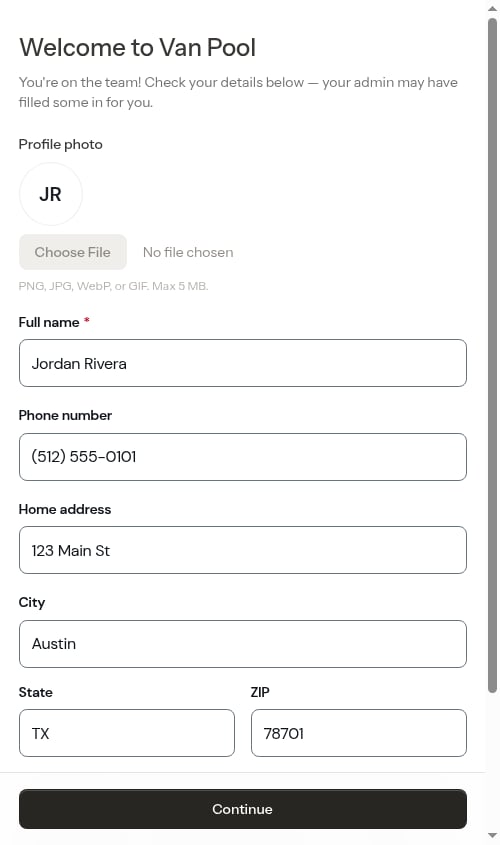
 Once they're in, ProBase welcomes them to your team and asks them to confirm their details — some of which you may have filled in for them. They add:
* A **profile photo** (optional)
* Their **full name**
* Their **phone number**
* Their **home address**, city, state, and ZIP
Once they're in, ProBase welcomes them to your team and asks them to confirm their details — some of which you may have filled in for them. They add:
* A **profile photo** (optional)
* Their **full name**
* Their **phone number**
* Their **home address**, city, state, and ZIP
 The phone field includes a text-message consent notice — submitting the form opts them in to appointment updates by SMS. They can turn SMS off later from their profile.
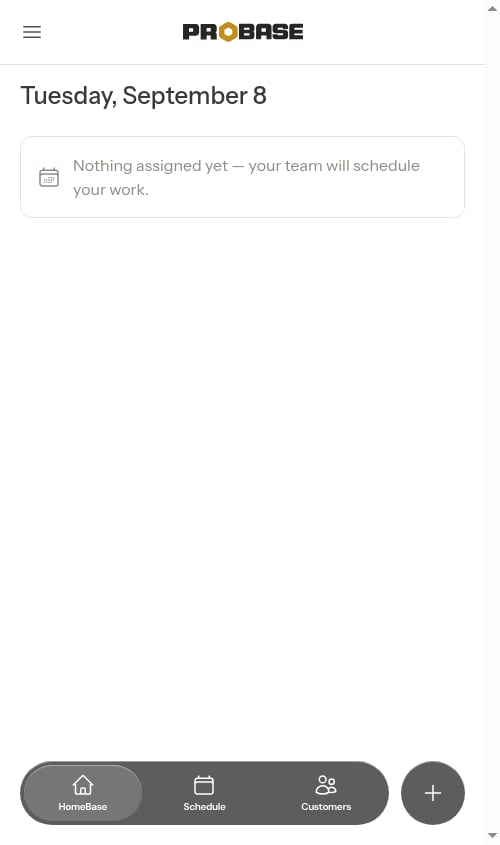
After clicking **Continue**, they're on the team and land on their HomeBase, ready to see the work assigned to them.
The phone field includes a text-message consent notice — submitting the form opts them in to appointment updates by SMS. They can turn SMS off later from their profile.
After clicking **Continue**, they're on the team and land on their HomeBase, ready to see the work assigned to them.
 ### If the invitation has expired
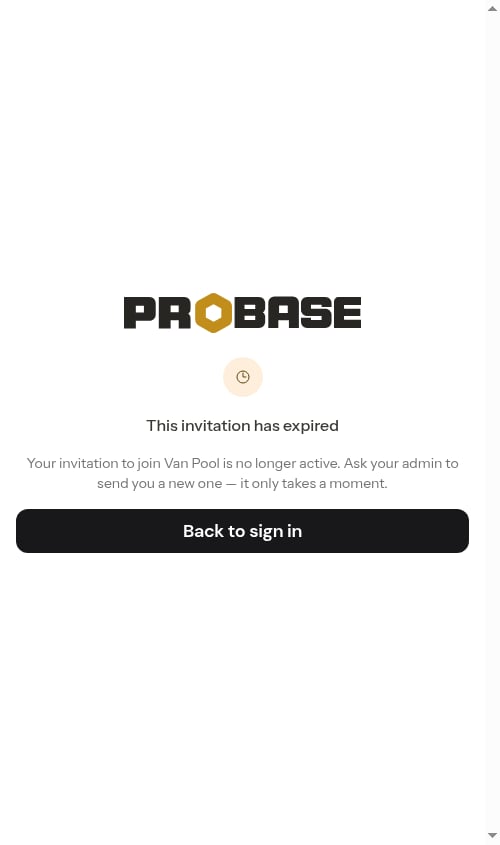
If a member opens an invitation link after it's expired, they see a message explaining the invite is no longer active and to ask their admin for a new one. Nothing is added to your team until you send a fresh invitation.
### If the invitation has expired
If a member opens an invitation link after it's expired, they see a message explaining the invite is no longer active and to ask their admin for a new one. Nothing is added to your team until you send a fresh invitation.
 ## Next steps
* [Manage your team roster](/team/team-roster)
* [Set up roles & permissions](/team/roles-and-permissions)
* [Add members to crews](/getting-started/adding-crews)
## Next steps
* [Manage your team roster](/team/team-roster)
* [Set up roles & permissions](/team/roles-and-permissions)
* [Add members to crews](/getting-started/adding-crews)