Overview
Automatic charging lets Probase charge customers automatically when their outstanding balance reaches a threshold you set. Customers with saved payment methods are charged in the background — no manual action needed.Automatic charging requires your Stripe account to be connected and the customer to have a saved payment method on file.
Enable auto-charge
Open Auto-Charge Settings
Scroll down to the Auto-Charge Settings section (visible only when Stripe is connected).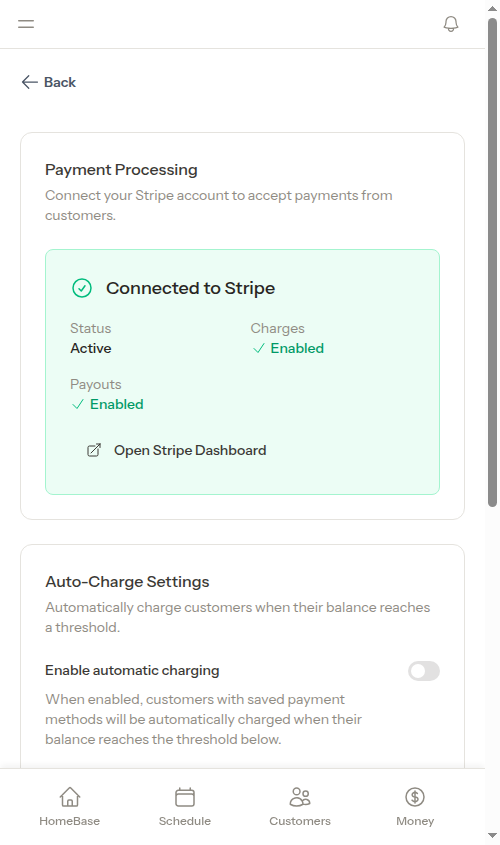
Set the threshold
Enter the dollar amount that triggers a charge in the Charge when balance reaches field. For example, entering 50 or more.
How it works
Once enabled:- Your crew completes appointments and billing line items are created as usual
- When a customer’s outstanding balance reaches or exceeds your threshold, the system automatically charges their saved payment method
- A credit is added to the customer’s account for the payment
- The customer’s balance updates to reflect the payment
Requirements
For automatic charging to work for a customer:- Auto-charge must be enabled in your Payments settings
- Your Stripe account must be active
- The customer must have a saved payment method on file (saved when they pay through their payment link)
Per-customer control
Auto-charge can be enabled or disabled for individual customers regardless of your team setting. This lets you opt specific customers out of automatic charging if they prefer to pay manually.When you enable or disable auto-charge at the team level, new customers inherit that setting. Existing customers keep their individual settings unless changed directly.
Next steps
- Set up Stripe to accept online payments
- Share payment links so customers can save their payment method
- Track payments to see payment history