Overview
Everything you write or photograph on a job has one home. Notes about the customer and the property live on their own records; notes about this visit are typed into the pad on the visit’s Notes tab; photos are taken on the visit’s Before photos and After photos checklists. Notes are different from service records, which capture structured facts — a pH reading, a material used. Write in plain language and let AI Assist pull the records out of it.The visit notes pad
Open a visit and tap the Notes tab. The first thing on it is This visit — a plain box you type into while you work.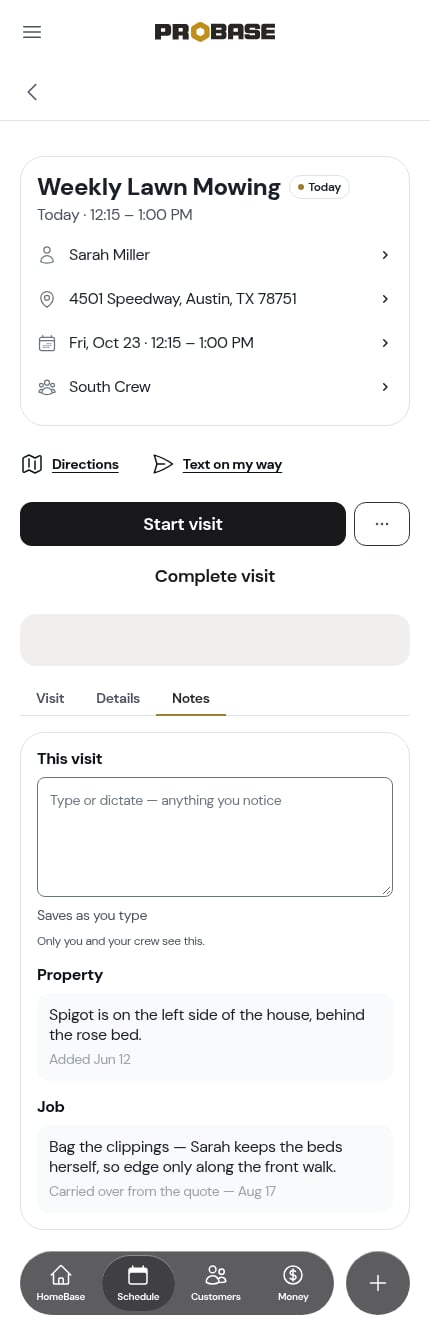
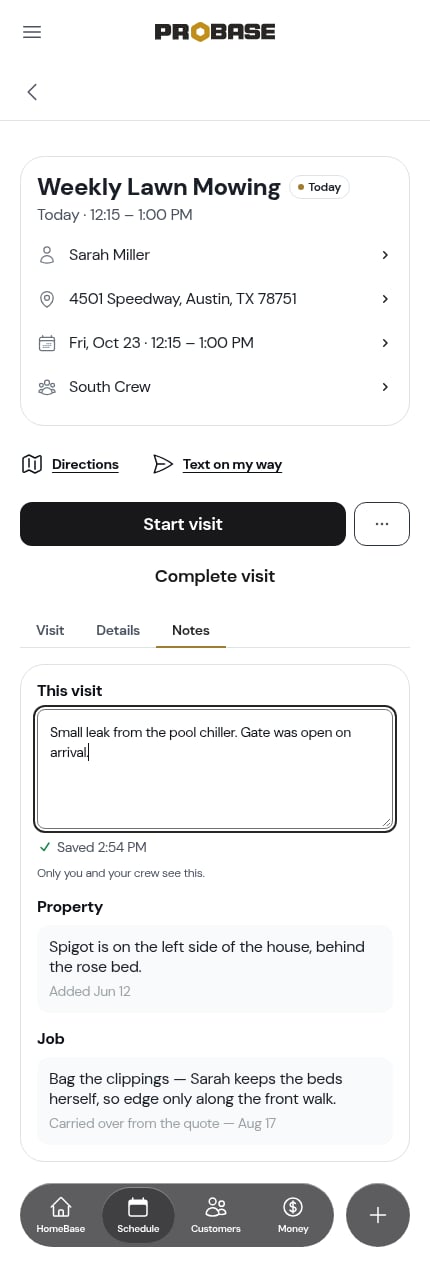
- It saves as you stop typing — no Save button. A ✓ Saved 4:47 PM line sits under the box so you can see it landed.
- It’s internal: Only you and your crew see this. The customer never reads it.
- Use your keyboard’s microphone to dictate if that’s quicker — it’s an ordinary text box.
- What you type here arrives already filled in as the Visit notes on the completion form, so you edit rather than retype at the end of the job.
- The briefing doesn’t read it. The pad is what you write about the visit, so typing in it never changes the briefing card above the tabs.
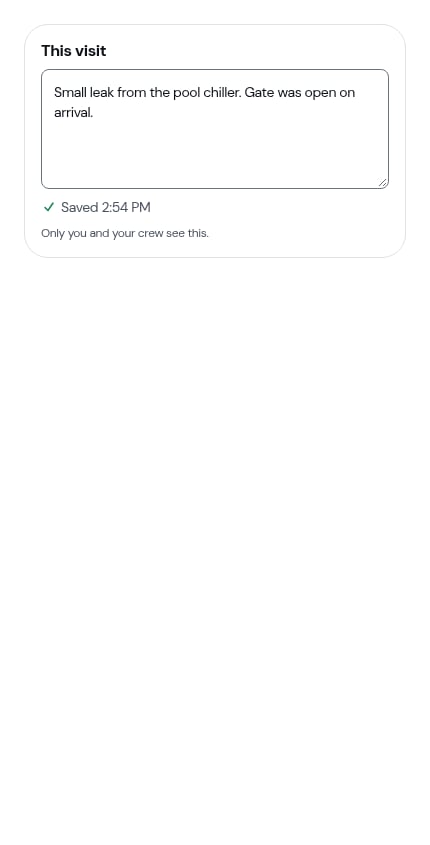
Once a visit is completed or cancelled the pad stops being editable and shows what you wrote as a plain panel. If your role can’t save visit notes, you see the same read-only panel.
The Notes tab
Under the pad, the same tab gathers every other note that applies to this visit — read-only, grouped by where it was written, each note showing when it was added:- This visit — notes already saved on this visit, including the visit notes from a completed job
- Property — gate codes, parking, pets, where the spigot is
- Job — anything written on the job itself. A note that came across when you accepted a quote is labelled Carried over from the quote — Aug 17
There’s no Add note row here on purpose — a note belongs to the record it’s about. Add property and customer notes on their own pages (Adding customer notes), and everything you want to say about this visit goes in the pad.
Photos on a visit
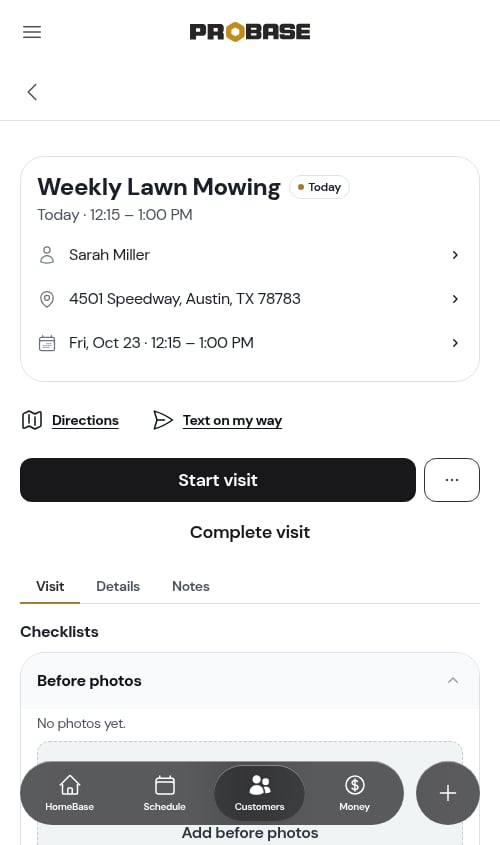
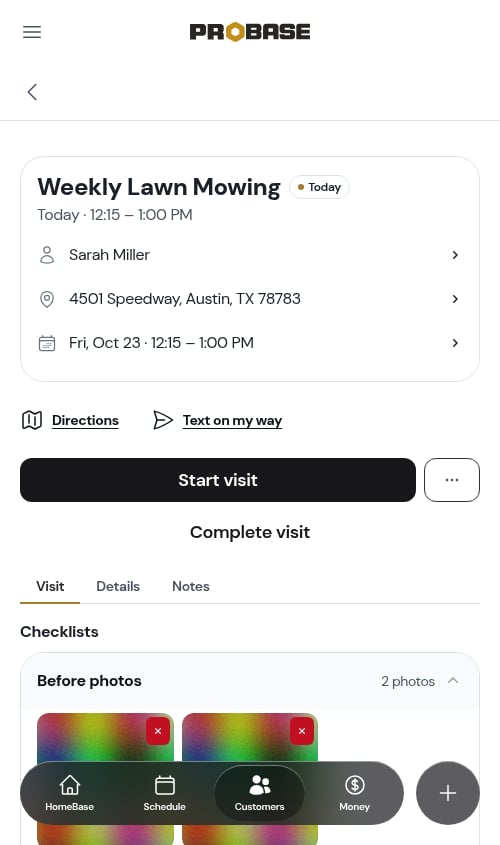
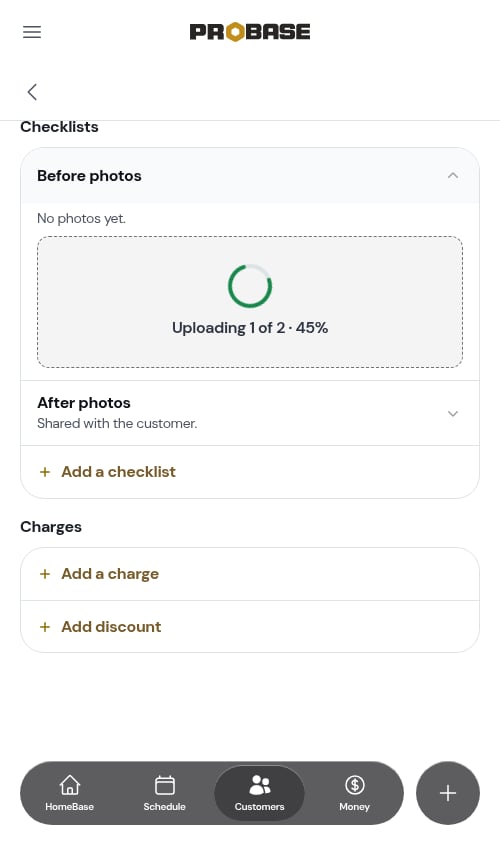
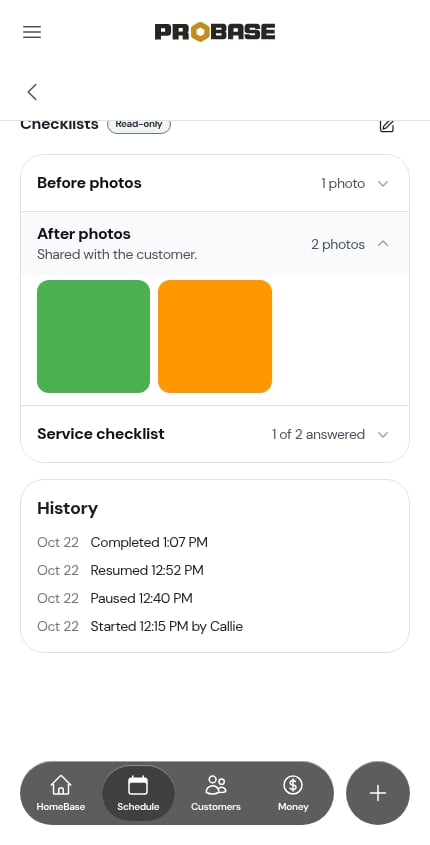
Photos are taken on checklists, not on a notes form. Every job carries two ProBase checklists for them, pinned to the top of the Checklists card on the Visit tab:- Before photos — how you found it. Kept to your crew unless you tick Include before photos when you send the report
- After photos — how you left it, Shared with the customer.
Customer and property notes
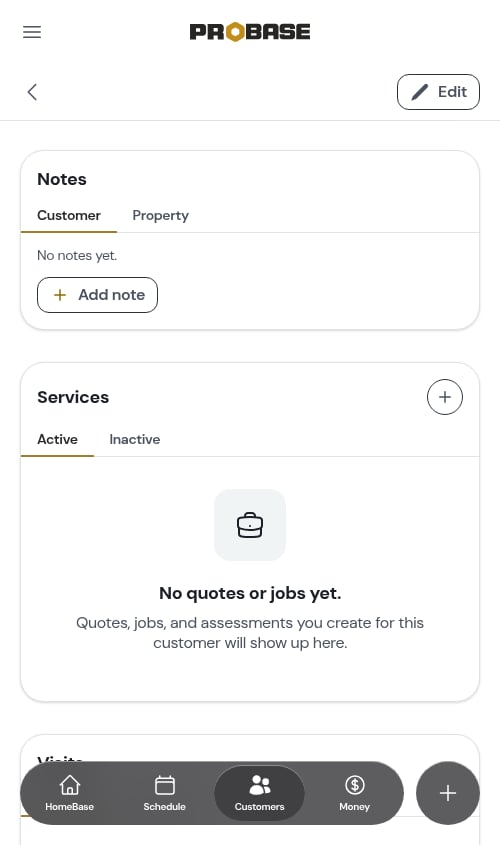
Both live in the Notes card on the customer page and on each property page, with a Customer tab and a Property tab.- Go to Customers and open the customer (or open a specific property’s page)
- Scroll to the Notes card
- Choose the Customer or Property tab
- Tap Add note
- Write your note and optionally attach photos or files
- Tap Save
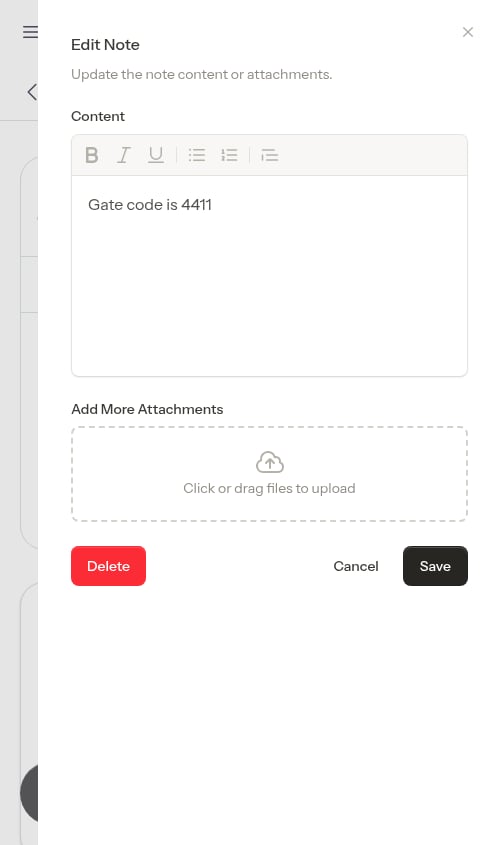
Note attachments
Customer and property notes take files as well as text — you can save a note with just files, just text, or both. They’re useful for:- Gate codes or access instructions written on paper
- Property diagrams or maps
- Signed service agreements
- Photos of damage or an issue to follow up on
- Reference documents
Image previews
Each attached image shows a small thumbnail — a scaled-down copy, not the whole file, so a note or a photo row full of pictures opens quickly on a phone. The full-size original is only fetched when you open it. How it opens depends on where the thumbnail is:- On a saved note — click it to open a preview window with the full picture, the filename, and a Download button
- On a checklist photo question — tap it to open the full-size photo in a new tab. That works while you’re still working the visit and on a completed visit’s read-only rows
- In the What [first name] will see preview on the completion form — the tiles are there to show you the report, so they don’t open full size. The ✕ on a tile drops that photo from the report without removing it from the visit
iPhone photos
Photos an iPhone takes are in Apple’s HEIC format, which Android phones, browsers and printers often can’t open. ProBase saves them as an ordinary JPEG instead — on visit checklists, on note attachments, and on photos a customer sends you from an assessment link — so the picture shows wherever it’s opened, including in the customer’s service report. There’s nothing to set up, and iPhone photos already on a visit’s photo rows are converted the first time the row is opened. See Photos from an iPhone. See Why photos open quickly for what loads when on a visit’s photo rows, and If a photo doesn’t make it for what happens on a weak signal.The briefing
Above the tabs, a card headed What you need for this visit turns all of those notes into a few plain lines for whoever is working the job — the gate code, the dog, the thing the customer asked for last time. It’s written for you and your crew, never the customer, and it’s there only while the visit is still ahead of you. See The AI briefing.Marketplace jobs get the same card, built from the access notes and customer instructions the marketplace sent. Those notes are read-only — see The briefing on a marketplace job.
Notes vs. service records
When you finish a visit you’re documenting two different things: Notes — free-form text about the visit, the property, or the customer. Write them in plain language. Service records — structured facts: chemical readings, materials used, observations. You don’t type these into a form; AI Assist pulls them out of your notes, and checklist answers marked for the service record become records automatically.Best practices
- Gate codes, parking, pets — property notes, so they’re in the briefing on every visit
- Billing arrangements and contact preferences — customer notes
- What happened today — the visit’s notes pad, while it’s fresh
- Before and after photos — the two photo checklists; the after set is what the customer sees
- Problems found — write them in the pad and photograph them on After photos, so both land on the record of the visit
Next steps
- The visit page — everything else on the screen
- Completing a visit — the notes and photos at the end of the job
- Completing checklists on a job — photos and answers as you work
- Adding customer notes — the Notes card in full