What is the service catalog?
Your service catalog is a collection of reusable service templates that you offer to customers. Instead of entering service details from scratch every time you create a new customer service, you can select a template from your catalog that pre-fills the name, description, pricing, billing type, and service frequency. Think of your service catalog as your menu of services. When you set up a new customer, you simply choose from this menu rather than typing everything out each time.Why use service templates?
Service templates save time and ensure consistency:- Faster customer setup - Select a template instead of typing service details each time
- Consistent pricing - Ensure the same service has the same starting price for all customers
- Professional descriptions - Write your service descriptions once, use them everywhere
- Easy price updates - Change your prices in one place for future customers
When you create your account, ProBase automatically creates industry-specific service templates based on your industry selection (lawn care, pool cleaning, etc.). You can use these as-is, customize them, or create your own.
Viewing your service catalog
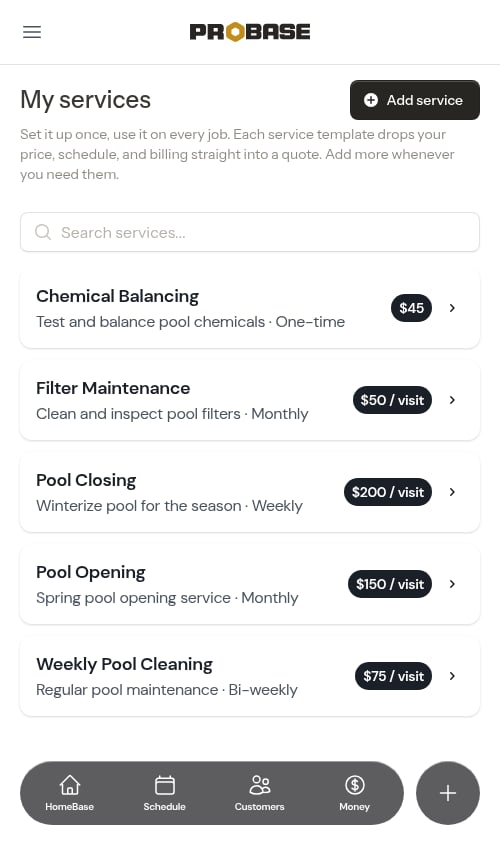
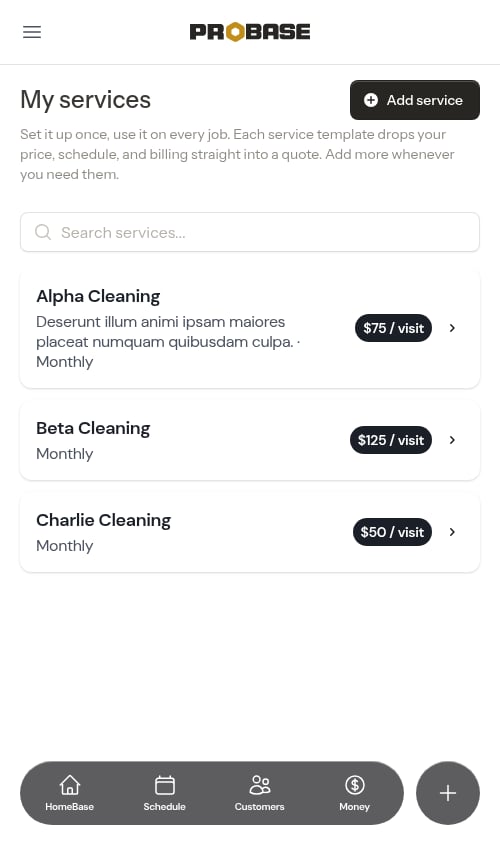
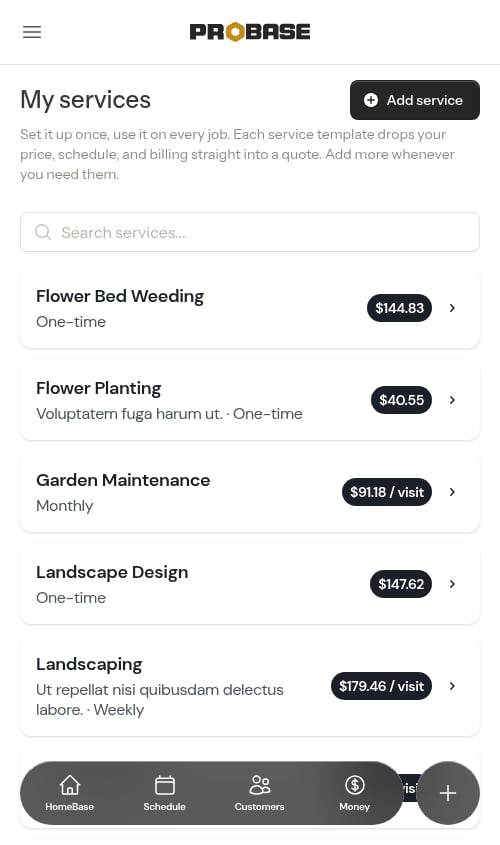
To see all your service templates, click Services in the sidebar (under Business). This opens your My services page — a list of every service you offer, under a reminder of what a template does for you: Set it up once, use it on every job. Each service template drops your price, schedule, and billing straight into a quote. Add more whenever you need them. Each row shows:- The service name
- A short description and how often the work happens, on one line — for example Skim, vacuum, brush walls, test & balance chemicals · Weekly
- A price badge on the right with your starting price, labelled by how the customer is billed:
- Recurring work billed per service reads $50 / visit
- A subscription reads per billing period — / wk, / mo, / qtr, / 6 mo, or / yr — for example a weekly service billed monthly reads $215 / mo
- A one-time service billed per service shows just the amount
- For a service you haven’t priced yet, the price badge is replaced by a line of guidance — for example Most pros charge $45–$55 per visit for a small lot. — on the services ProBase has a reference range for
Pricing your services
A starting price makes a template ready to drop straight into a quote or job. The My services page makes it easy to spot and fix any that are still missing one.- Services with a price show a dark badge with the amount — $50 / visit** on recurring per-service work, **$215 / mo (or / wk, / qtr, / 6 mo, / yr) on a subscription, or just the amount on a one-time service.
- Services without a price show no badge. Where ProBase has a reference range for that kind of work, the row shows it instead — Most pros charge $45–$55 per visit for a small lot. — so you have a starting point rather than a blank.
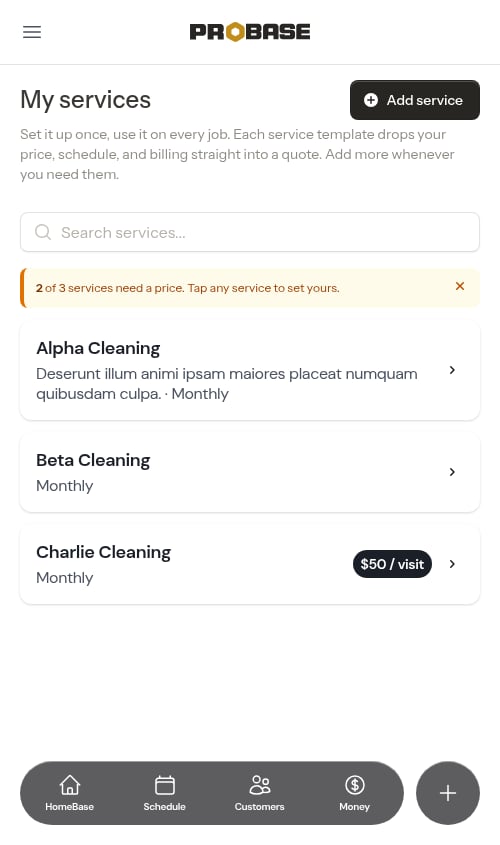
You can dismiss the reminder banner with the × button if you’d rather price your services later — it won’t get in your way. You can still price any service at any time by tapping it.
Searching your catalog
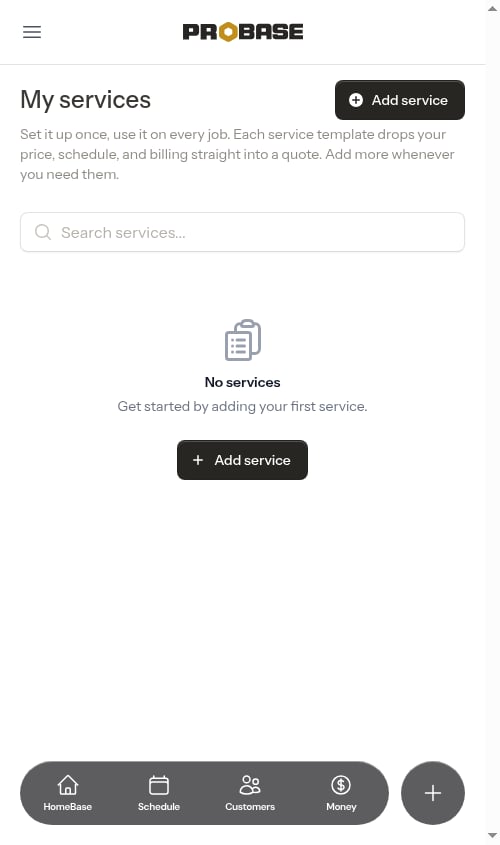
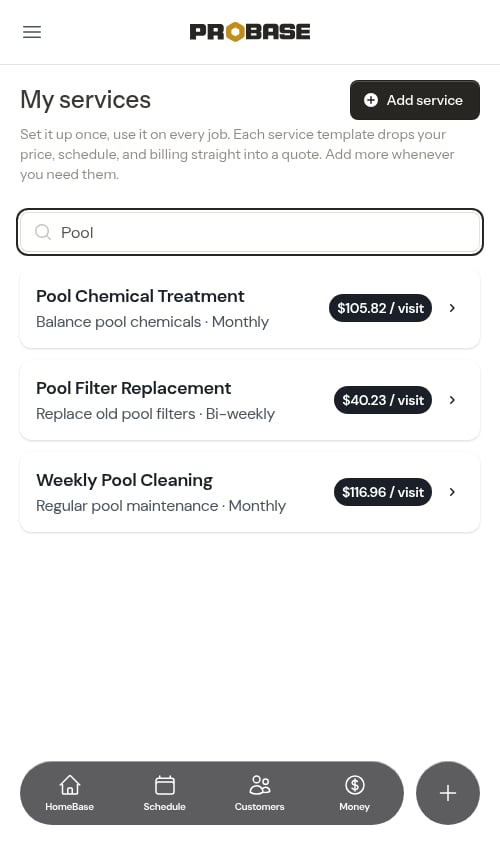
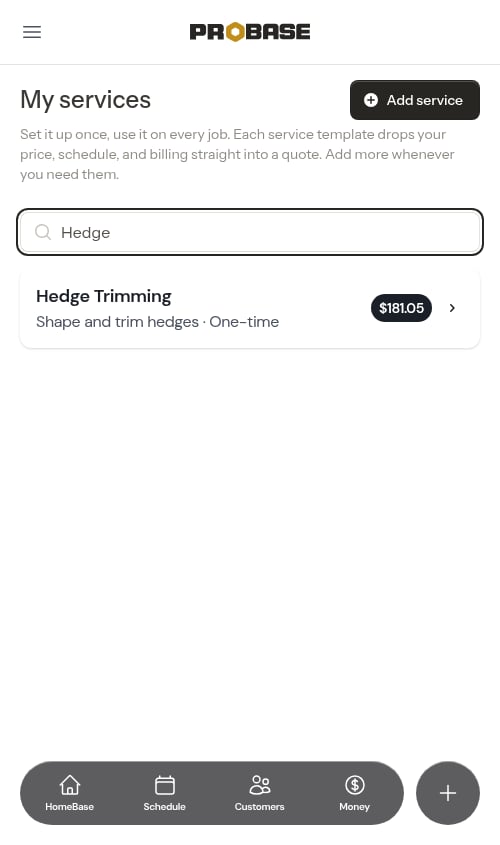
If you have many services, use the search bar at the top to filter by name or description. Before you type, the list shows every service in your catalog.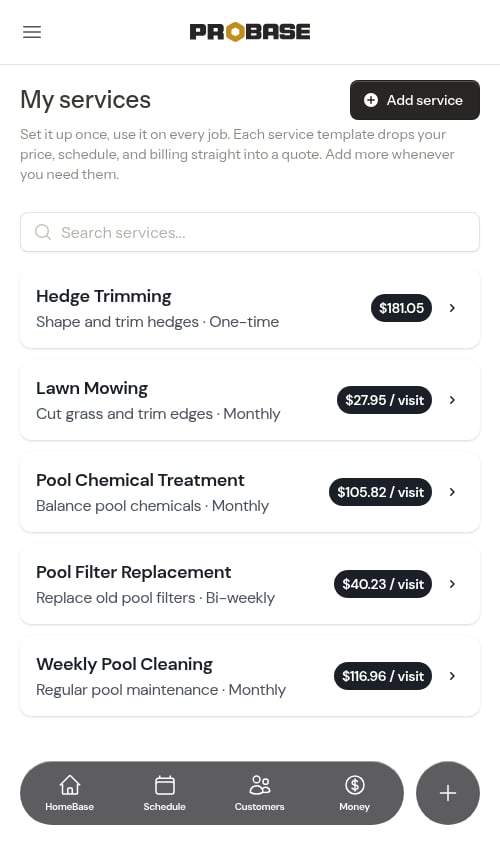
Filtering by trade
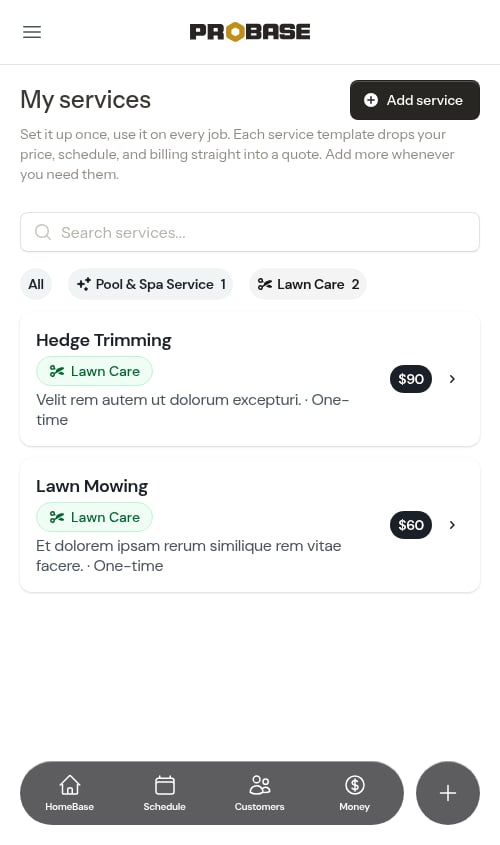
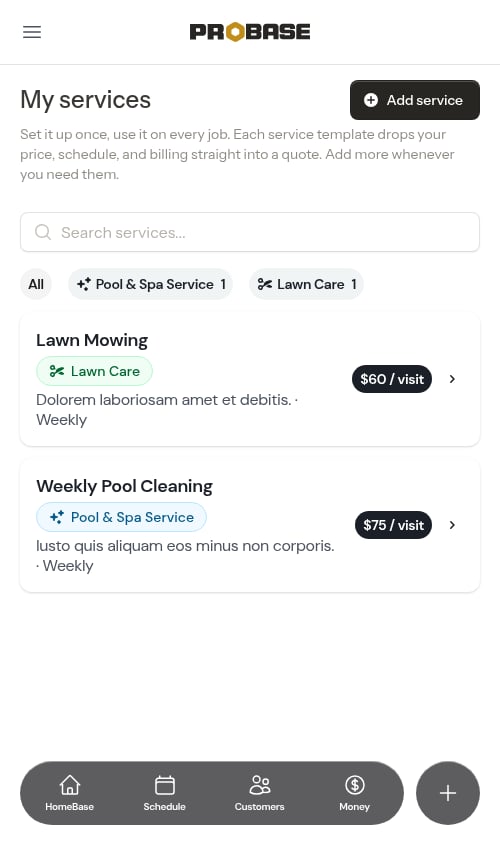
If trades (industries) are enabled for your account, each service shows a small colored trade chip, and a row of filter chips above the list lets you narrow the catalog to a single trade with one tap. Each chip shows how many services it covers.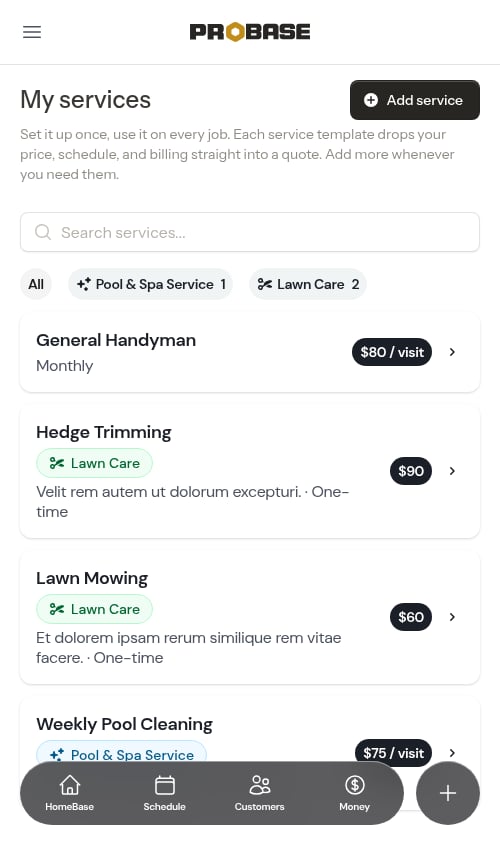
Browse services to add
Rather than typing every service from scratch, you can pick from a ready-made gallery of common services for your trade. Scroll to the bottom of My services and you’ll see a Browse services button with a count of what’s left — for example 15 more lawn services ready to add.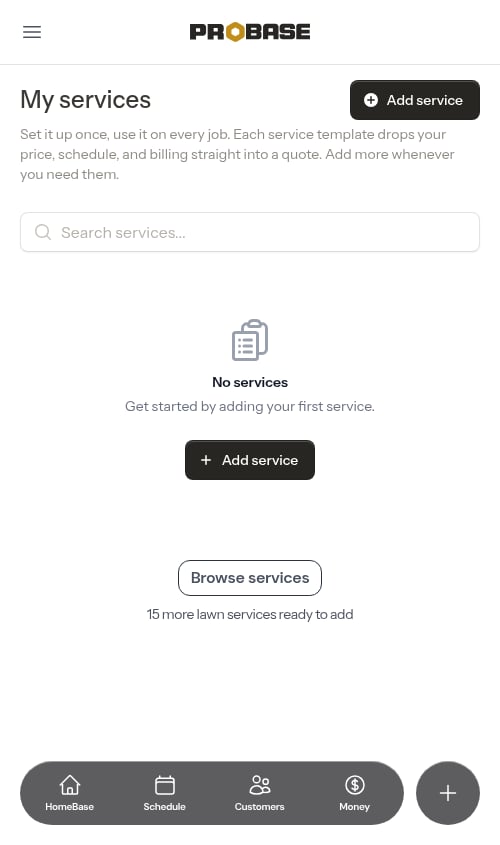
The gallery is available for lawn work today. If your business doesn’t do lawn work, the Browse services button doesn’t appear and you add services with Add service instead.
1
Open the gallery
Tap Browse services. The gallery lists every service for your trade that isn’t already in your catalog, each with a plain-language description, how often the work usually happens, and a price range to guide you — for example, Aeration — Perforate soil to improve air, water, and nutrient flow · One-time. Most pros charge $230–$300.Use the search box at the top to find a service by name, or tap Back (or Done) to return to My services.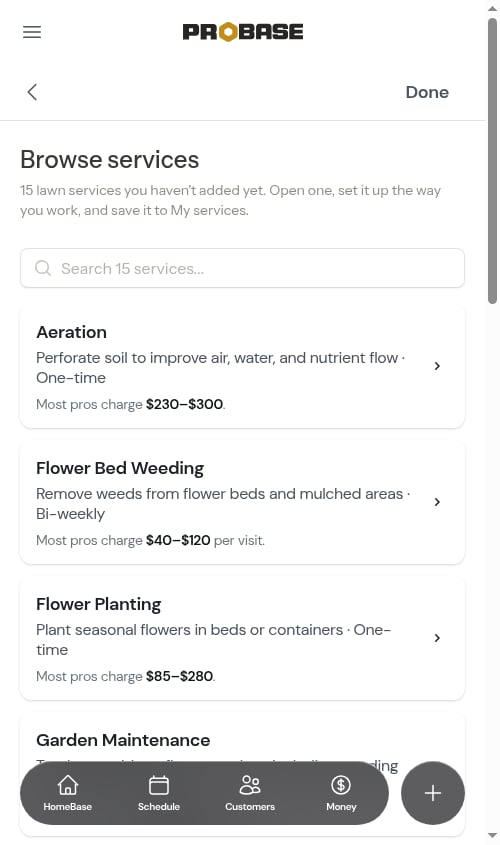
2
Open a service and set it up your way
Tap a service to open the Add your service form with the name, description, frequency, billing, and time on site already filled in from the gallery. Everything is editable — change any of it to match how you actually work.The price is deliberately left for you, with the reference range shown under the field so you have a starting point.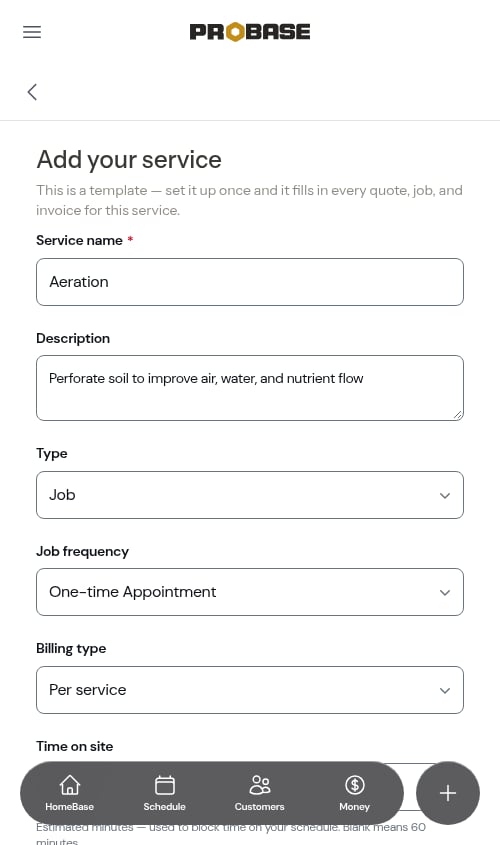
3
Save it to My services
Tap Save. ProBase confirms Service created successfully and opens the new template’s page. It’s now part of your catalog, it drops out of the gallery, and the remaining count on My services goes down by one.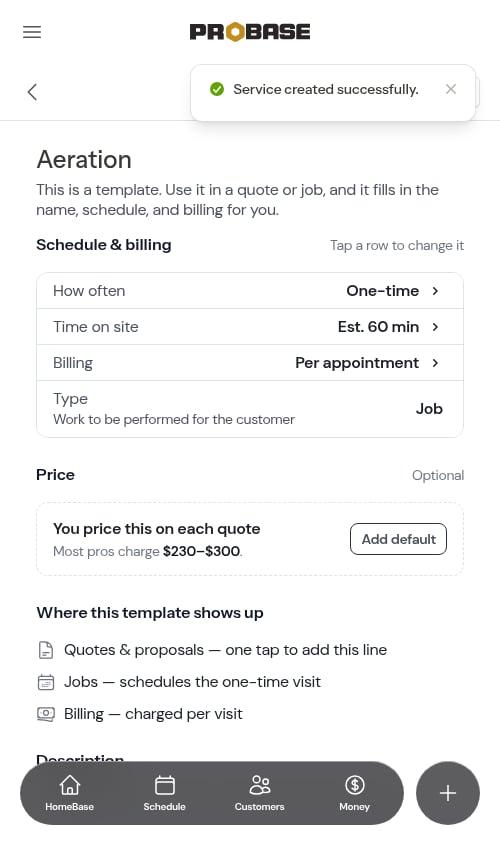
Creating a new service template
1
Open the create form
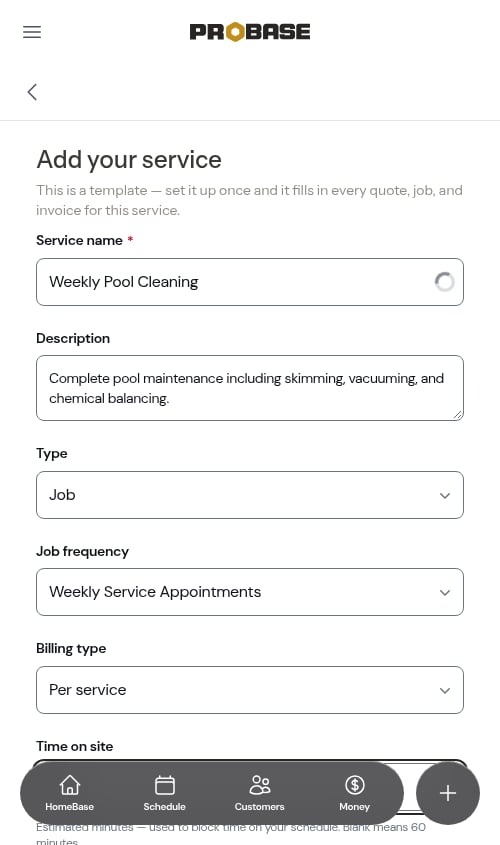
Go to Services in the sidebar (under Business), then click Add service in the page header (or in the empty-state card if your catalog is empty).The form is headed Add your service, with a reminder of what you’re building: This is a template — set it up once and it fills in every quote, job, and invoice for this service.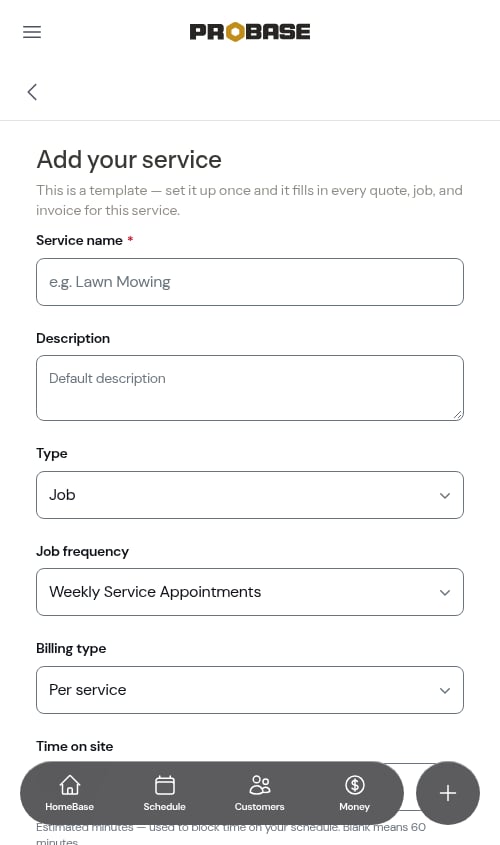
2
Enter basic information
Fill in the service details:
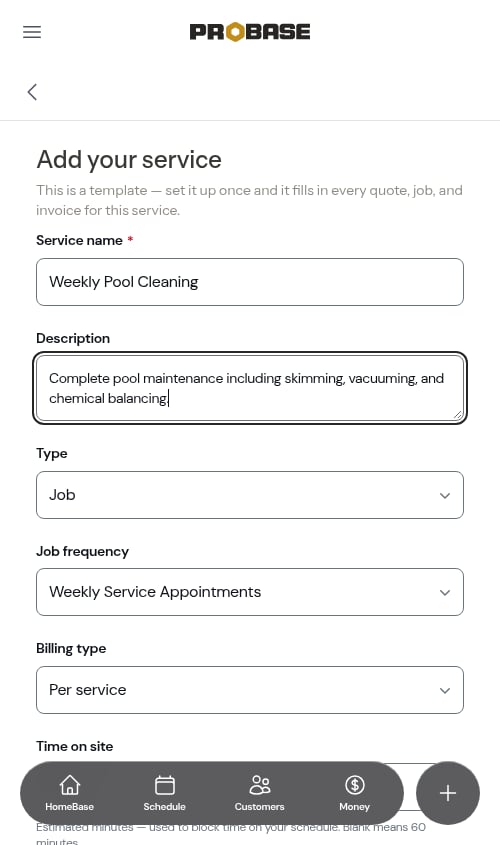
- Service name (required) - What you call this service (e.g., “Weekly Pool Cleaning”)
-
Description (optional) - What’s included in this service
Once your business has declared at least one trade, an Industry field appears just below the service name. Tagging a service with a trade — chosen from the trades your business has set up — organizes your catalog, and a Pool tag also unlocks chemical-reading fields at job completion. ProBase even suggests a matching trade as you type the service name. It’s optional, and the field stays hidden until you’ve set up a trade. See Industries (trades) for details.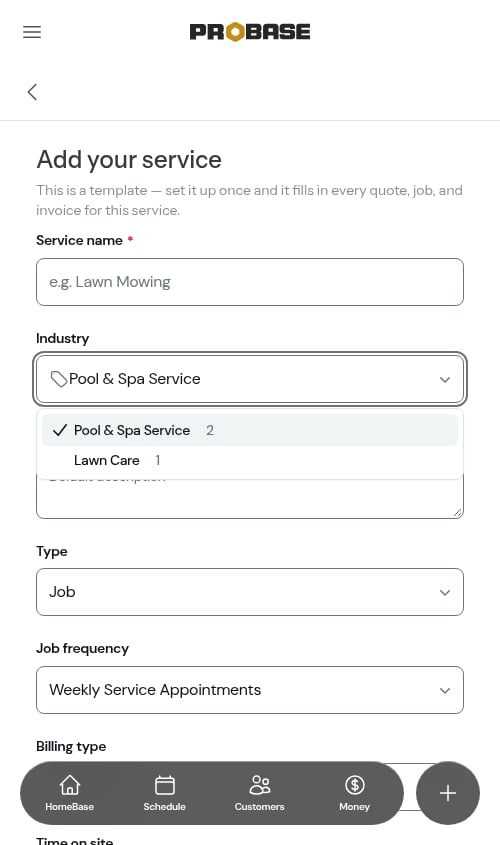
3
Choose the service type
Below the description, the Type field sets what kind of template you’re creating: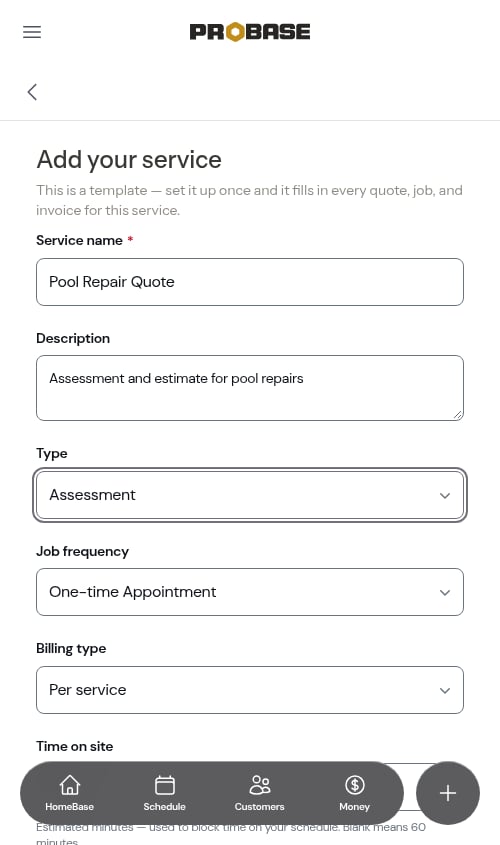
- Job - Confirmed service work ready to schedule and perform
- Assessment - On-site evaluation visit that leads to a quote
Jobs vs Assessments: Create “Job” templates for standard services you’ll book directly. Create “Assessment” templates for initial visits where you need to see the property before providing firm pricing (like large projects, custom work, or new customer evaluations).
4
Set the job frequency
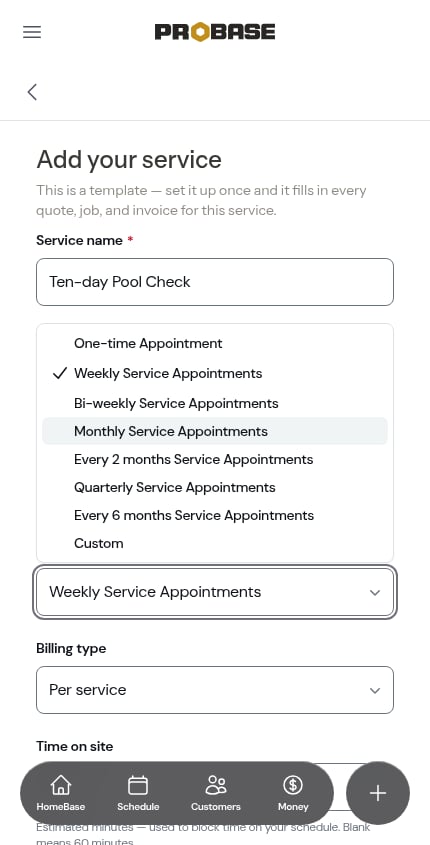
Job frequency is how often the work happens. Pick from: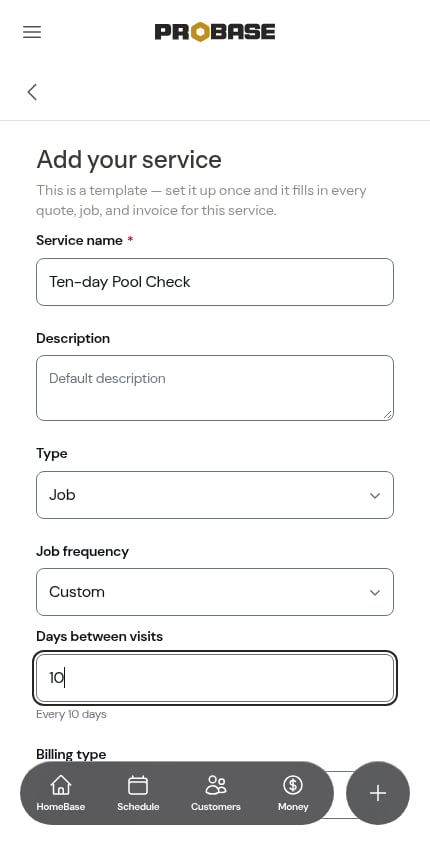
- One-time Appointment - Service happens once (spring cleanup, installation projects)
- Weekly Service Appointments - every 7 days
- Bi-weekly Service Appointments - every 14 days
- Monthly Service Appointments - every 28 days
- Every 2 months Service Appointments - every 56 days
- Quarterly Service Appointments - every 90 days
- Every 6 months Service Appointments - every 182 days
-
Custom - any other cadence you work on
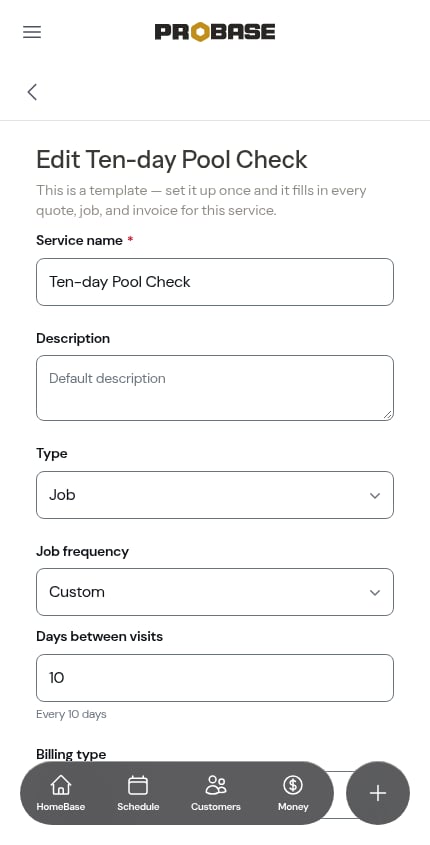
Re-open a template that’s on a custom cadence and the frequency picker comes back as Custom with your day count already in the box — it never rounds to the nearest preset.
5
Choose how it's billed
Billing type sets how the customer pays:
- Per service - the customer is billed each time an appointment is completed. Best for one-time jobs and pay-per-visit work (spring cleanup, mulch installation, individual mowings).
-
Subscription - the customer pays a flat rate on a recurring schedule. Choosing this reveals a Billing interval field — Weekly Charges, Monthly Charges, Quarterly Charges, Semi-annual Charges, or Annual Charges. Best for flat-rate plans (a monthly lawn care plan, an annual pool maintenance contract).
Job frequency and billing interval are separate. A customer might get weekly service but pay monthly — that’s Weekly Service Appointments with a Subscription billing type on a Monthly Charges interval.
This is your default billing setup. You can customize pricing and billing details for each individual customer when you create their service.
6
Set the time on site and starting price
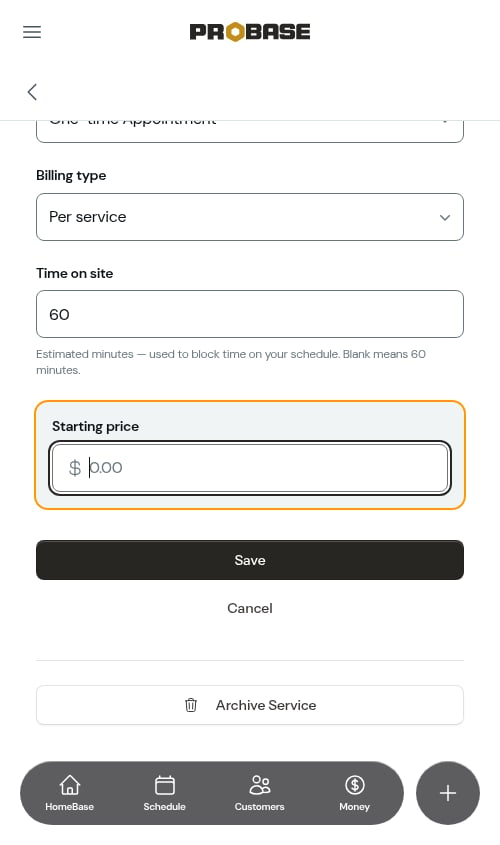
- Time on site - your estimate in minutes, used to block out time on the schedule
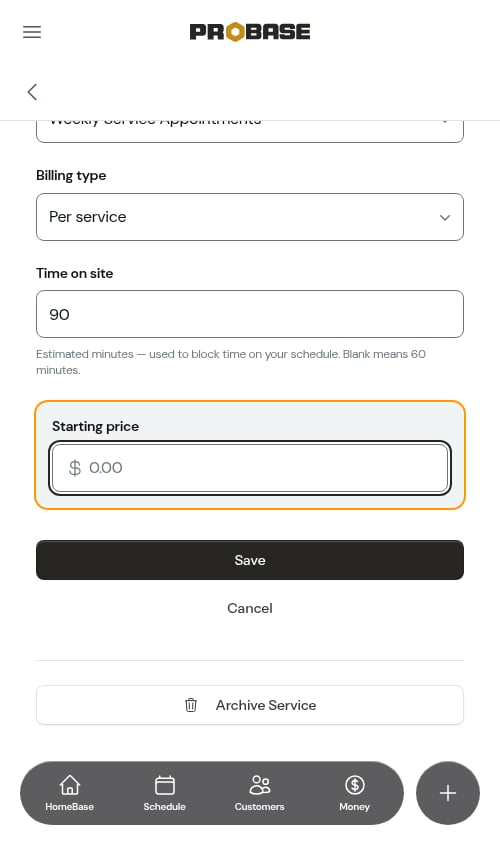
- Starting price - optional. Leave it blank if you price this work on each quote; where ProBase has a reference range for that kind of service, a line of guidance sits under the field — for example Most pros charge $45–$55 per visit for a small lot.
7
Save the template
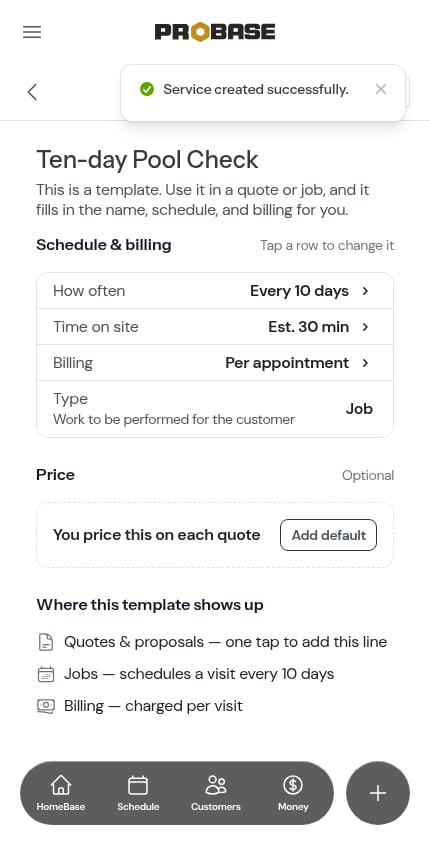
Click Save to add it to your catalog. You’ll be taken to the details page where you can view the service or make further edits.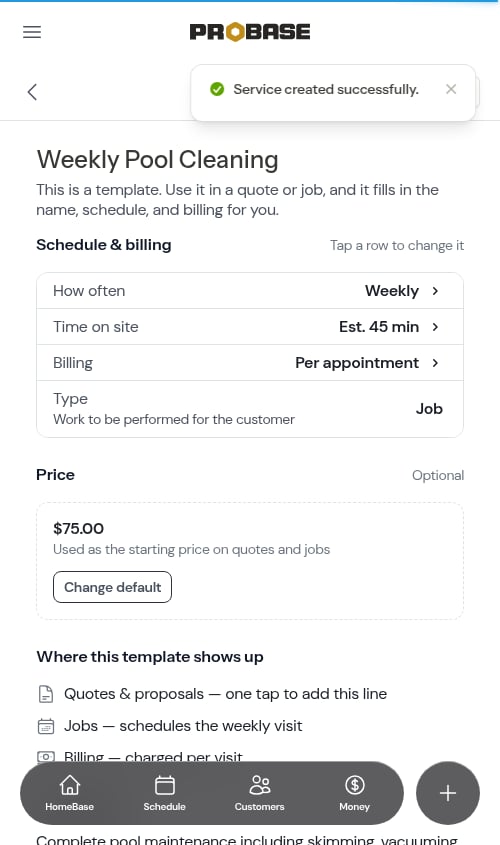
Viewing service template details
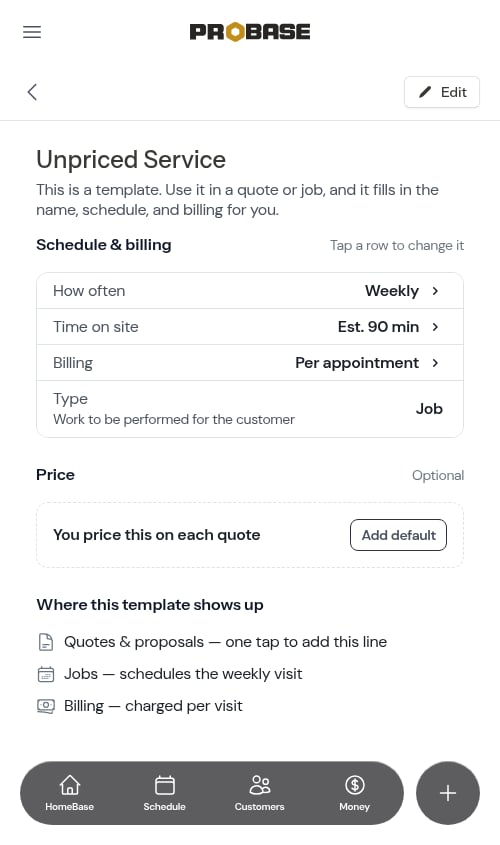
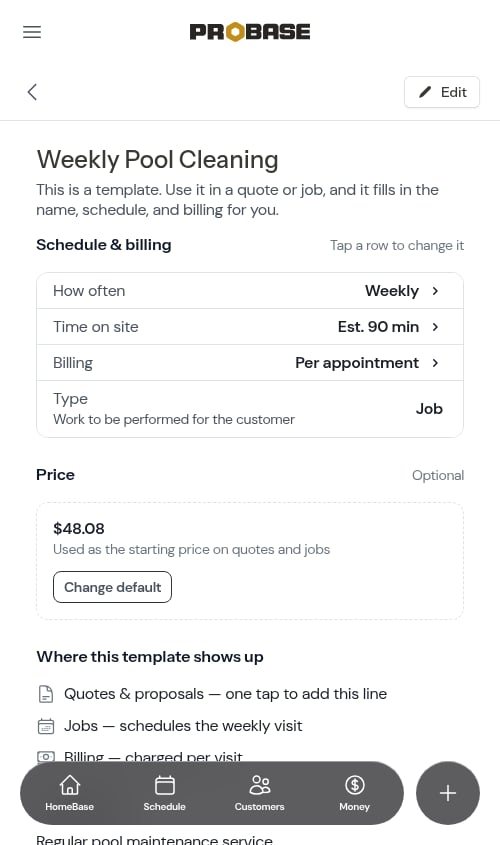
Tap any service in your catalog to open its details page. Under the service name is a reminder of what you’re looking at — This is a template. Use it in a quote or job, and it fills in the name, schedule, and billing for you. — and an Edit button sits in the header.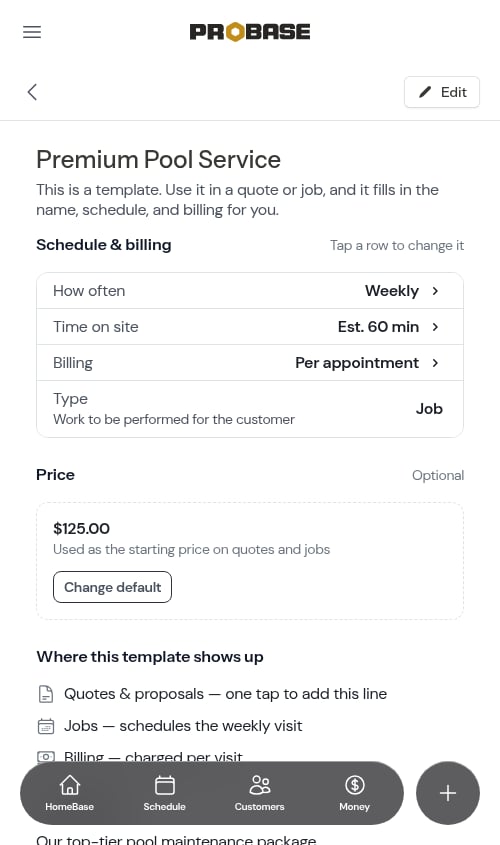
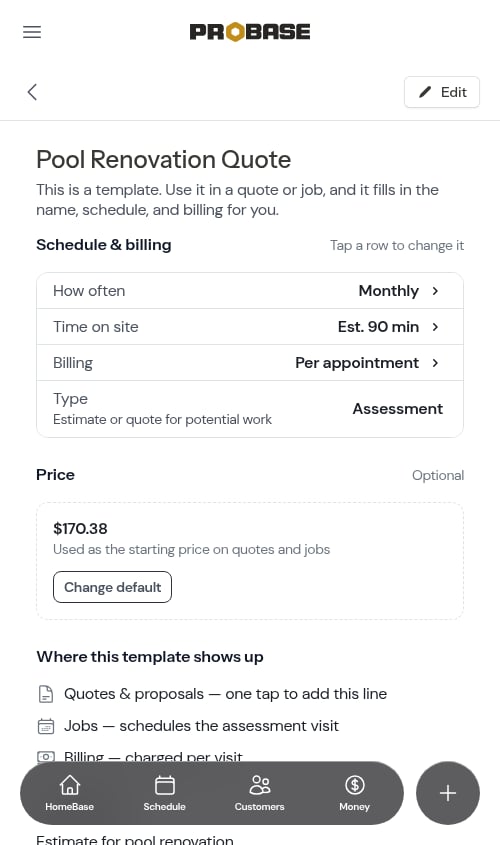
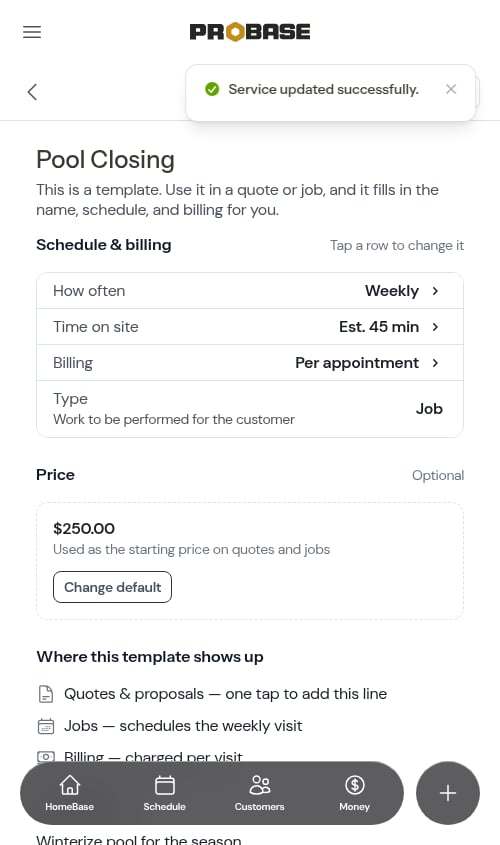
- Schedule & billing — the settings you actually tweak, as rows: How often, Time on site, Billing, and Type (Job or Assessment, with a one-line explanation). Tap any row except Type to jump straight to the edit form — the header notes Tap a row to change it
- Price — marked Optional. See The Price section below
- Where this template shows up — three lines spelling out what the template does for you: Quotes & proposals — one tap to add this line, Jobs — schedules the weekly visit (worded to match this template’s frequency), and Billing — charged per visit (or recurring monthly charge on a subscription)
- Description — your own description, when you’ve written one
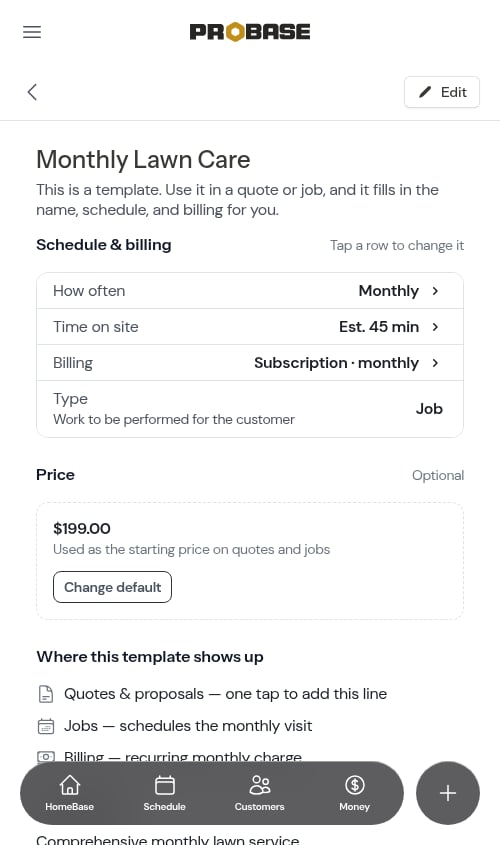
The Price section
A starting price is optional, and the Price section says so:- With a price — the amount is shown with Used as the starting price on quotes and jobs, and a Change default button opens the edit form.
- Without a price — the section reads You price this on each quote with an Add default button.
Editing a service template
To update a service template:- Go to Services in the sidebar (under Business)
- Click on the service to view its details
- Click Edit to open the edit form
- Make your changes
- Click Save to update the template
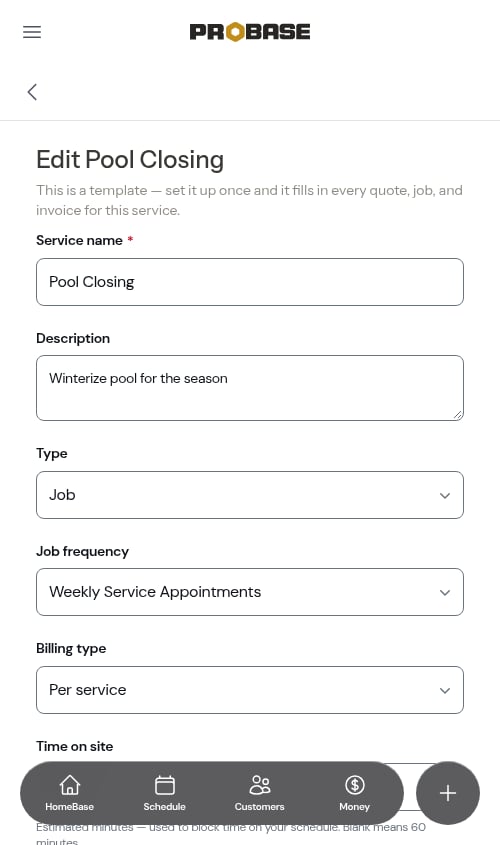
- Updating prices - Adjust your pricing based on market conditions
- Improving descriptions - Add more details about what’s included
- Changing billing types - Switch between per-service and subscription billing
- Updating duration estimates - Fine-tune scheduling times
Where ProBase has a reference range for that kind of work, the Most pros charge … guidance sits under the Starting price field on the edit form, so you have a benchmark in front of you while you set the amount.
Archiving a service template
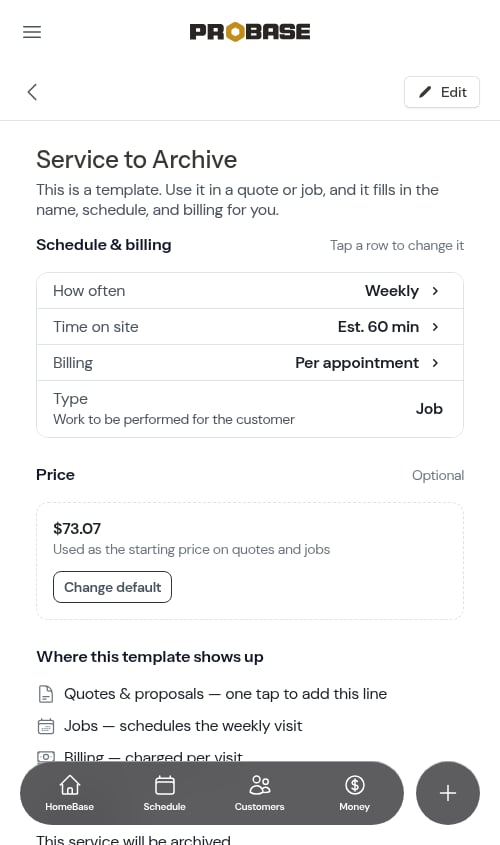
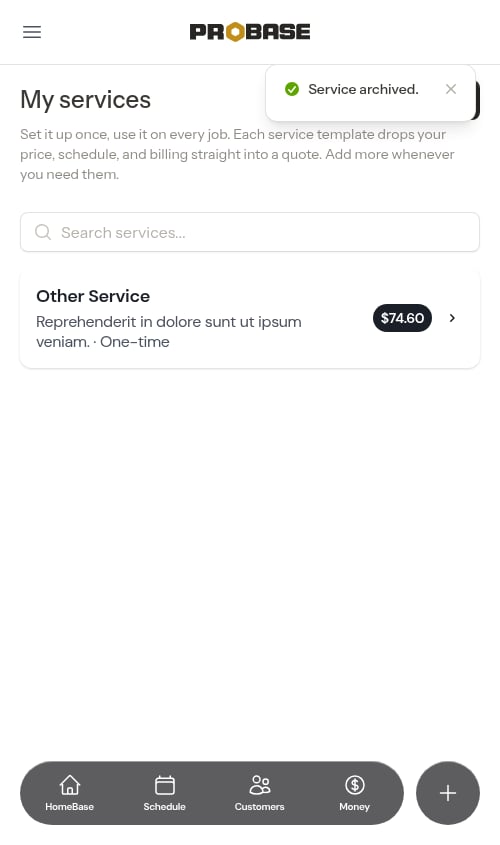
If you no longer offer a service, you can archive it to remove it from the catalog. Archiving lives on the Edit screen so destructive actions stay alongside other modifications to the template.- Go to Services in the sidebar (under Business)
- Click on the service to view its details
- Click Edit to open the edit form
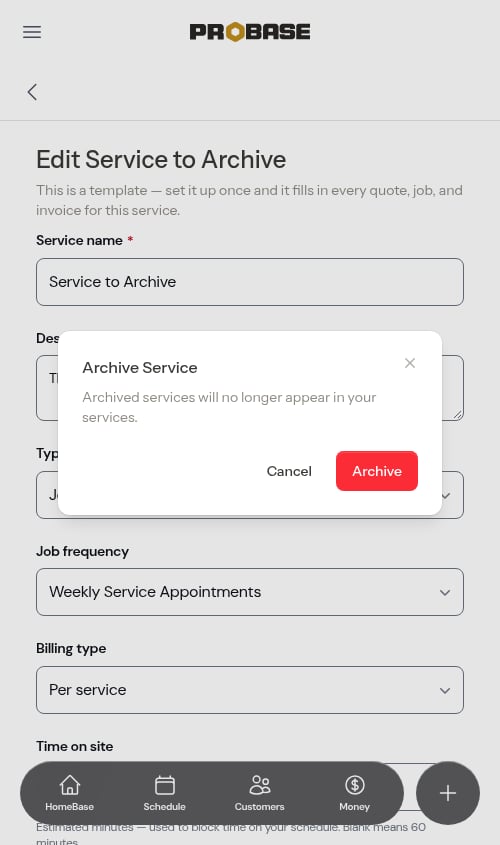
- Scroll down past the form and click Archive Service
- Confirm the action in the modal — a subheading reminds you that archived services will no longer appear in your services
- The service is removed from your catalog list
- It no longer appears when creating new customer services
- Existing customer services using this template are not affected
Using templates when creating customer services
When you create a new job — or a new quote — for a customer through the Quick Actions menu or directly on a property, the wizard asks you to start from one of your saved services:- In the job wizard, the What are you doing? step lists your catalog one service per row, with a Search services… box at the top. In the quote builder, the same choice appears as Start from one of your services — your most-used service as a card, with a Pick another service from your catalog row underneath (All 8 of your saved services.) to reveal the rest.
- Either way, the service you’ve picked most in the last 30 days sits at the top badged Most used — in the quote builder it’s already selected when the step opens.
-
Picking a service fills in:
- Service name and description
- Price (if you set a starting price on the template)
- Billing type and interval
- Service frequency
- Industry (the trade the template belongs to)
- You can still change any of those fields before you save — the wizard groups the ones worth double-checking in a Confirm for this job section, with the price front and center.
- Or pick Custom service — Type the details yourself — nothing saved to your catalog — to start from scratch. Nothing you type there is added to your catalog.
The wizard you use decides what gets created, not the template you pick: the job wizard always creates a Job, and the quote wizard creates a Quote or an Assessment depending on the intent you chose on its first step. See Creating jobs and Creating quotes and assessments.
Working with assessments
When a customer needs an on-site look before you can price the work:- Start an assessment — tap Add on the Assessments screen, or New Assessment in the Quick Actions + menu
- Pick the customer and property, then either ask the customer for photos or book an on-site visit
- After the visit, tap Complete visit, write your private notes, and choose Complete and create quote to open a draft quote right away (or Complete — quote later to price it another time)
- Build the quote — your notes, the customer’s words, and any photos ride along under Context from Assessment — then send it to the customer
- When the customer accepts, the quote automatically creates an active job and schedules the first appointment
Assessments are for on-site evaluation visits that lead to quotes. For confirmed work that doesn’t need assessment, create a Job directly using the Quick Actions menu.
Adding checklists to a service
You can attach a checklist to a service so your crew captures the same details — chemistry readings, completed tasks, photos, a customer sign-off — on every job for that service. Open a service and scroll to the Checklists section, then tap the add button to pick a checklist from your library.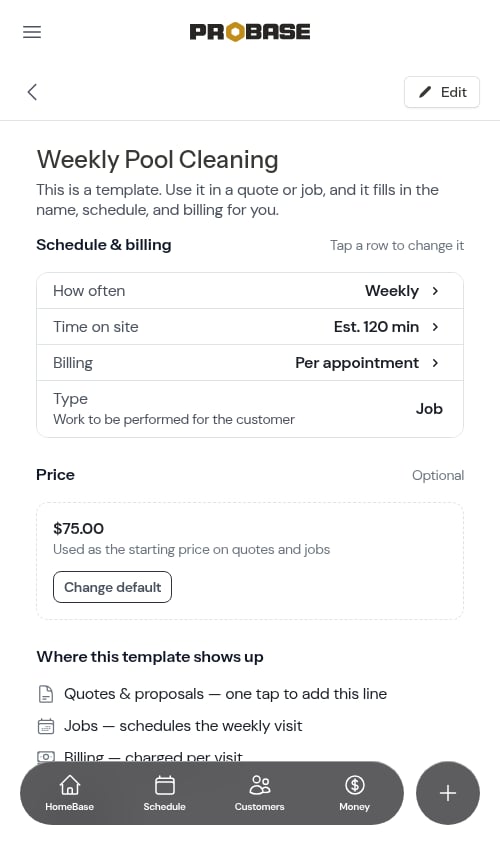
Common service catalog examples
Lawn Care
- Weekly Lawn Mowing (Per Service, Weekly)
- Bi-weekly Maintenance (Per Service, Bi-weekly)
- Monthly Lawn Care Plan (Subscription Monthly, Weekly service)
- Spring Cleanup (Per Service, One-time)
- Fall Cleanup (Per Service, One-time)
- Mulch Installation (Per Service, One-time)
Pool Cleaning
- Weekly Pool Cleaning (Per Service, Weekly)
- Monthly Pool Care Plan (Subscription Monthly, Weekly service)
- Filter Cleaning (Per Service, One-time)
- Green Pool Recovery (Per Service, One-time)
- Pool Opening/Closing (Per Service, One-time)
Tips for organizing your catalog
- Use clear, descriptive names - “Weekly Lawn Mowing” is better than “Mowing”
- Write detailed descriptions - Include what’s included and what’s not
- Set realistic duration estimates - Helps with route planning and scheduling
- Archive unused services - Keep your catalog clean and focused on current offerings
- Search frequently - Use the search bar to quickly find the right template
Next steps
- Create a job using your service templates
- Understand billing types to choose the right option
- Add your first customer and assign services