Overview
ProBase tracks all charges and credits on each customer’s account using billing line items. These line items are automatically grouped into invoices that you can send to customers so they can view and pay online.The billing workflow
- Charges are created — when work is completed, on a subscription’s billing day, or when you add one
- They collect on a draft invoice — each customer has one draft that gathers their new charges
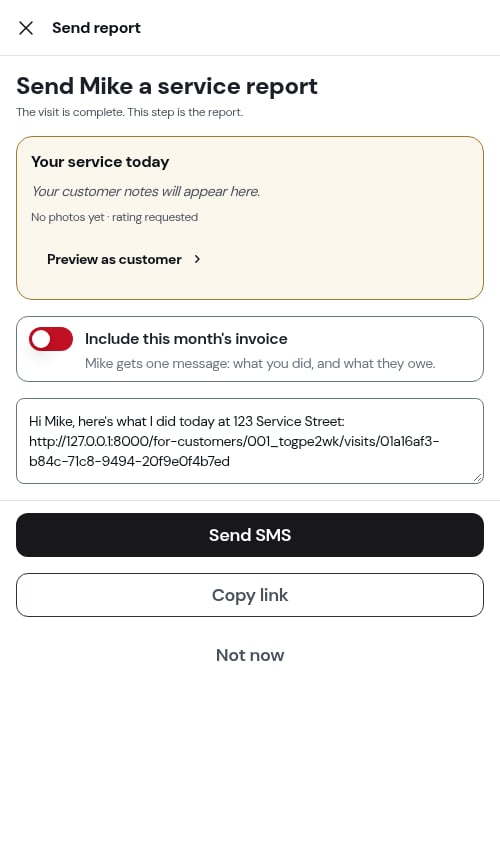
- You send the invoice — from the invoice itself, with the service report when you finish a visit, or all your drafts at once
- The customer pays — by card online through Stripe, or by cash, check, Venmo, Cash App, PayPal and the like, which you record
- The invoice is marked paid — once nothing is left to pay
To accept card payments online, connect your Stripe account first.
Invoice states
- Not Yet Sent — a draft. It collects charges, has no number, and the customer can’t see it.
- Unpaid — sent and waiting to be paid, not due yet.
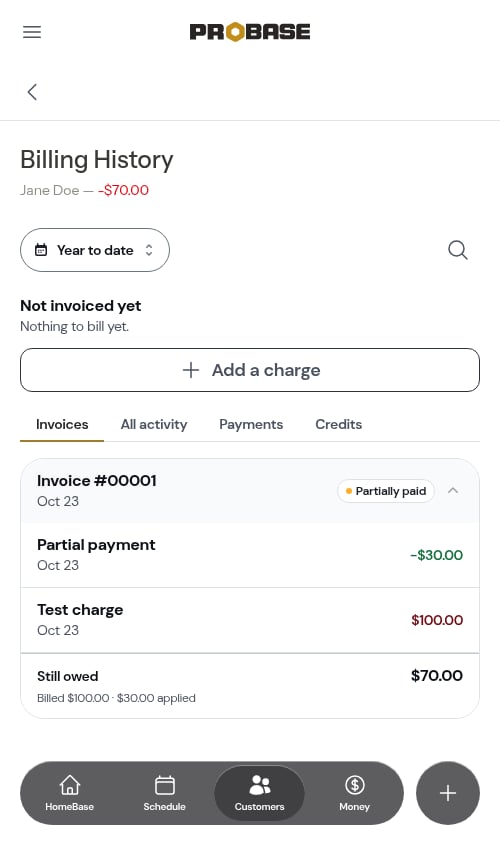
- Partially paid — some money has landed, but there’s still a balance.
- Overdue — sent, unpaid, and past its own due date.
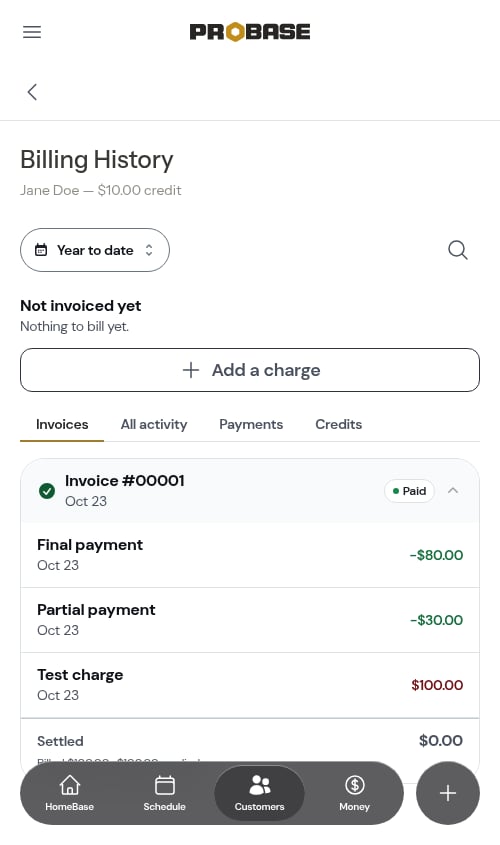
- Paid — nothing left to pay.
When billing line items are created
Per-service billing
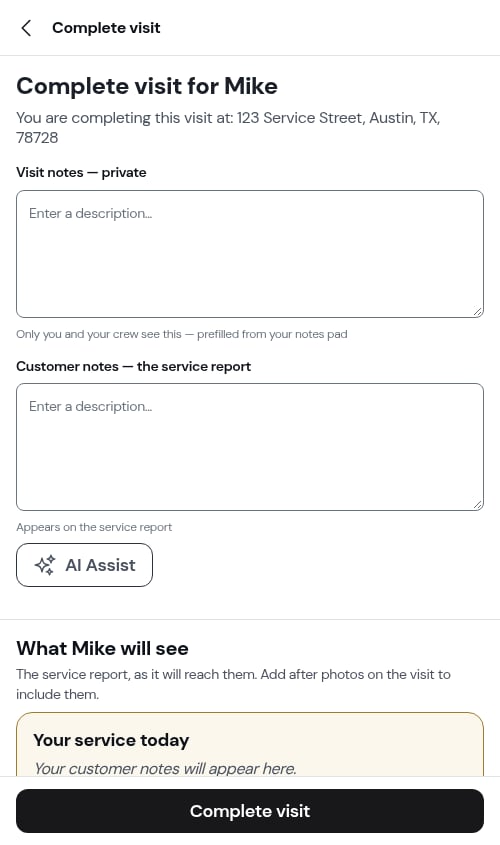
When you complete an appointment for a per-service customer:- Crew marks the appointment as complete
- A billing line item (charge) is created automatically
- Amount is based on the service price
- Tax is calculated and added based on the service’s tax rate
- A draft invoice is created (or the charge is added to an existing draft)

Subscription billing
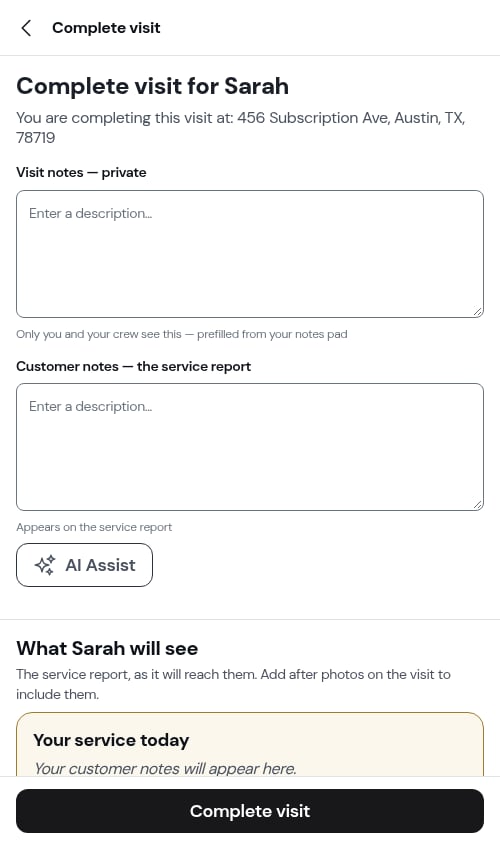
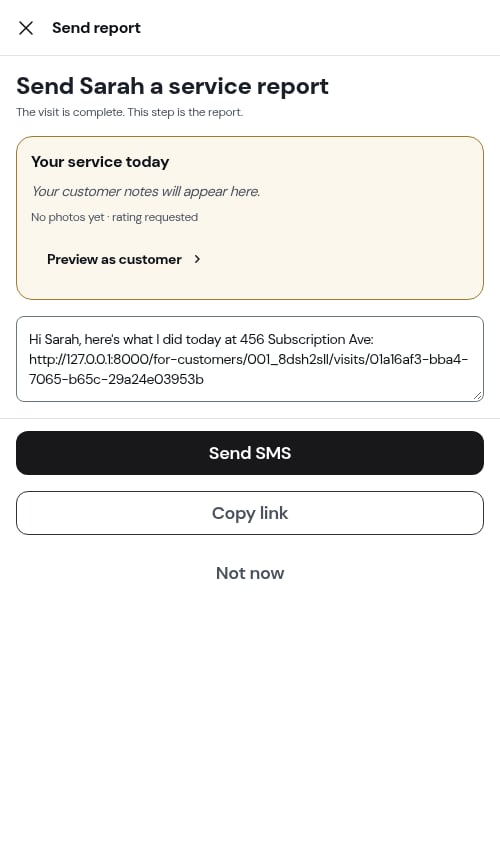
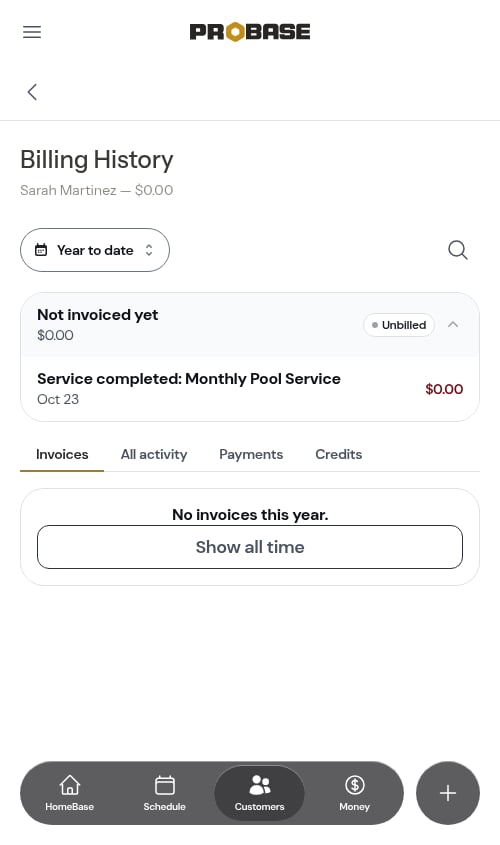
For subscription services, billing line items are created automatically by ProBase on each configured billing date (the day of week, month, or year you set when creating the service). Unlike per-service billing, subscription charges are not created when appointments are completed — they are created on the billing schedule regardless of whether appointments were performed. Completing a subscription appointment still records a $0 “Service completed” entry in the billing history so the visit is tracked, but it does not add a charge for the base service — the recurring charge appears separately on its billing date. Note that any charges you add to a single visit (extra work, materials, add-ons) are still billed when that visit is completed.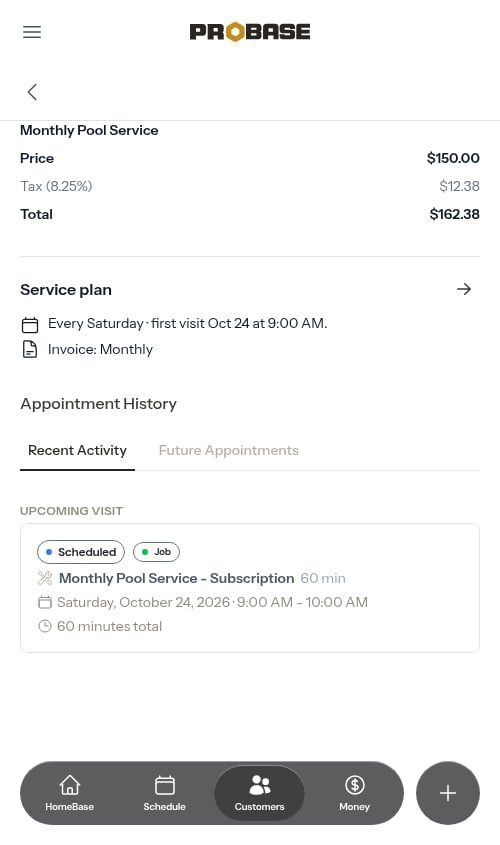
View billing history
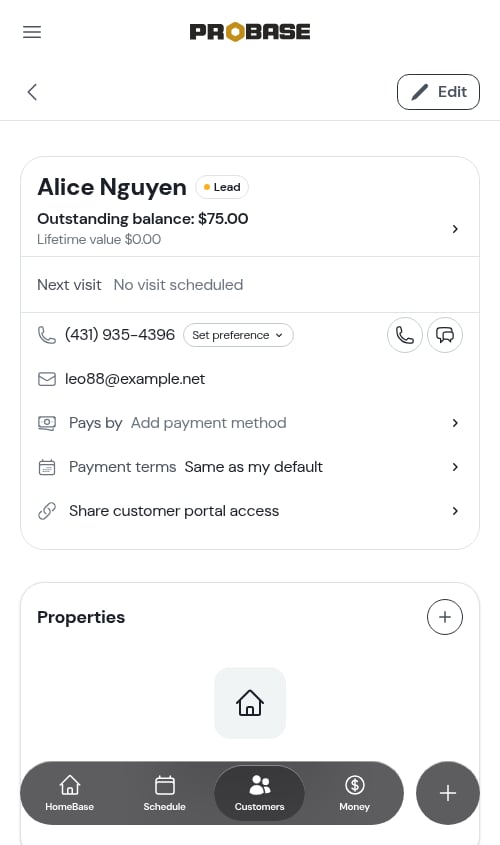
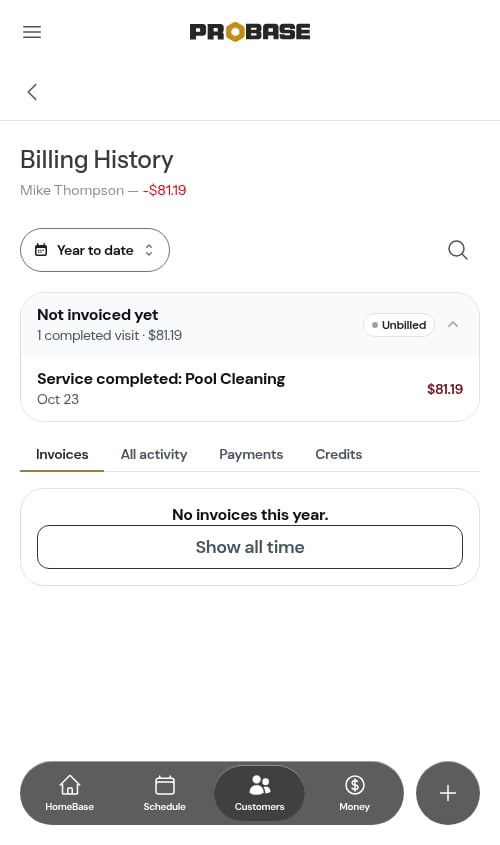
Each customer has a Billing History page showing what’s waiting to be invoiced, their invoices, and every charge, credit, and payment. Open the customer and tap the Outstanding balance row in the top card. See Customer balances.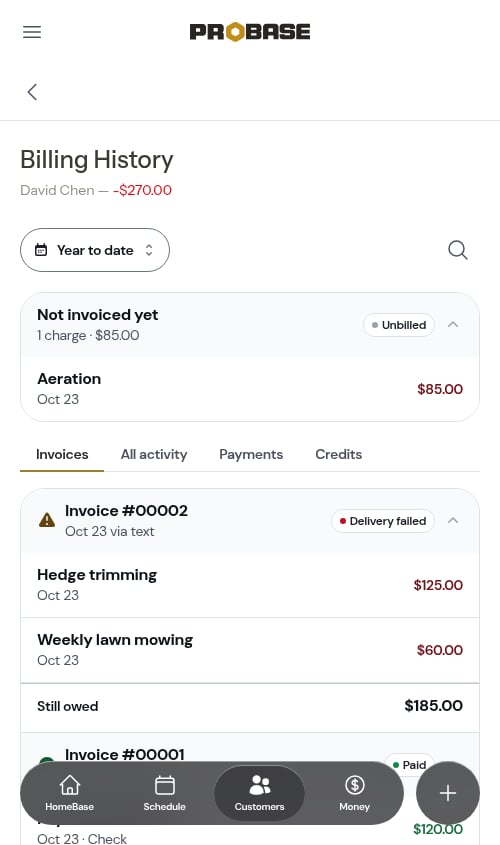
Add a charge or credit manually
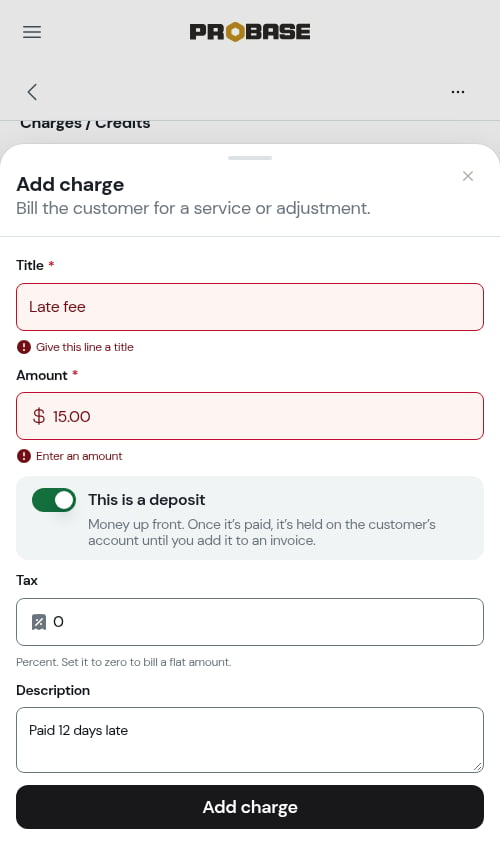
Charges and credits are added on the invoice. Open the customer’s draft (or an unpaid invoice that has no payment yet) and tap Add charge or Add credit at the bottom of the Charges / Credits card:- Add charge — for amounts the customer owes, like Pool filter replacement or Late fee. Mark it as a deposit, set the tax, or add a description.
- Add credit — for a discount or adjustment. To give back money a customer paid, use Refund instead.
Payment status
Charges are automatically tracked as Paid or Unpaid:- Unpaid — No credits have been applied to this charge yet
- Paid — Credits or payments have fully covered the charge amount
Understanding customer balances
Each customer has a balance that’s automatically calculated from all their billing line items:- Negative balance (like -$150.00) - Customer owes you money
- Zero balance ($0.00) - Account is paid in full
- Positive balance (like $25.00) - Customer has a credit on their account