What is onboarding?
When you first create your ProBase account, you’ll go through a quick onboarding process to set up your business. This guided wizard helps you get started faster by collecting essential information and setting up your account properly.The onboarding wizard
The wizard has three short steps — Set up your account, a few quick questions about your work, and an optional look at how you’d like to get paid — followed by a personalized “You’re all set” confirmation and an optional step to install the app on your phone. A progress bar at the top shows where you are on the first three steps (Step 1 of 3, Step 2 of 3, Step 3 of 3). The progress bar is hidden on the “You’re all set” and install screens, since those aren’t data-collection steps.Step 1: Set up your account (Step 1 of 3)
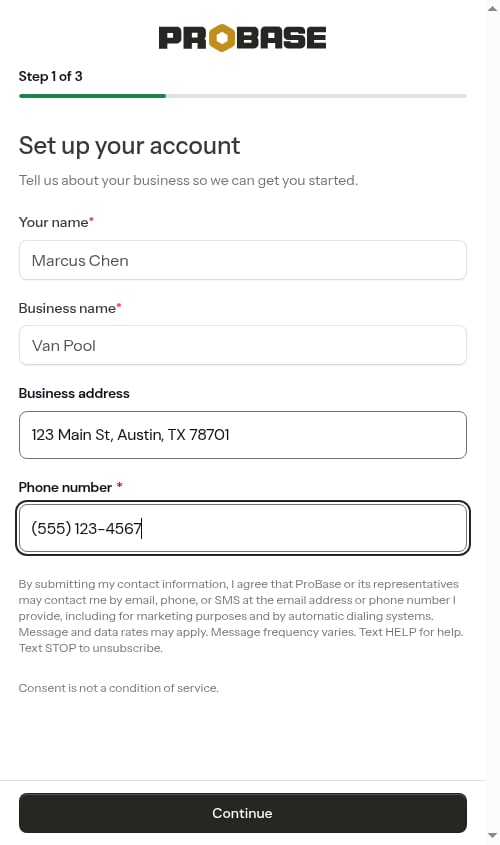
The first screen reads Set up your account with the subheading “Tell us about your business so we can get you started.” Enter your essential business information:- Your name (required) — Your full name as the account owner. This is captured here (not on the signup form) so the signup screen can stay short.
- Business name (required) — Your company or business name.
- Business address (optional) — Your business or home address. Start typing and pick your address from the autocomplete suggestions. Adding it sets your timezone and puts your address on your invoices, but you can skip it for now and add it later. Your routes start from each crew’s own starting address, which you set on the crew’s page — see Adding crews.
- Phone number (required — optional if you signed up from a pro link, see below) — Business phone number, automatically formatted as you type: (555) 555-5555.
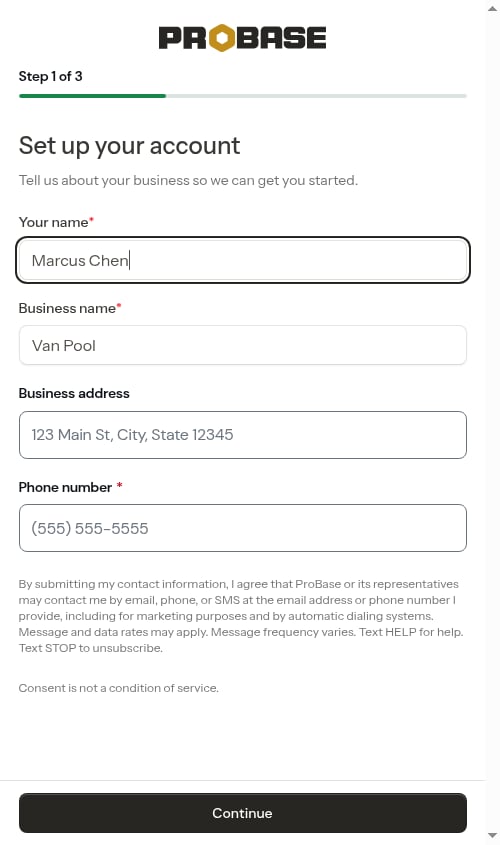
The address field offers autocomplete suggestions as you type — choose your address from the list so ProBase can detect your timezone and use it as the starting point for crew routing.
Text message consent
Below the form you’ll see a short disclosure explaining that, by submitting your contact information, you agree that ProBase or its representatives may contact you by email, phone, or SMS — including for marketing purposes and by automatic dialing systems. The disclosure also notes that consent is not a condition of service. When you tap Continue, your account is opted in to SMS notifications automatically. You can turn SMS off at any time from your Profile page — see Notification preferences.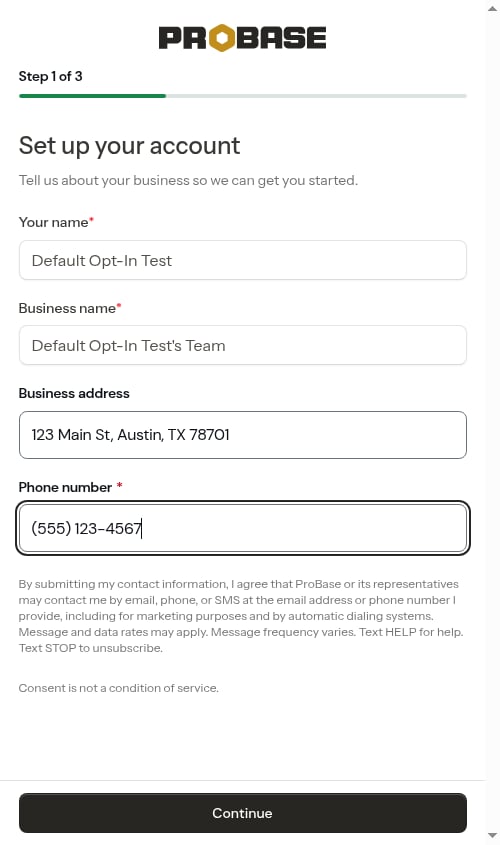
If you signed up from a pro link
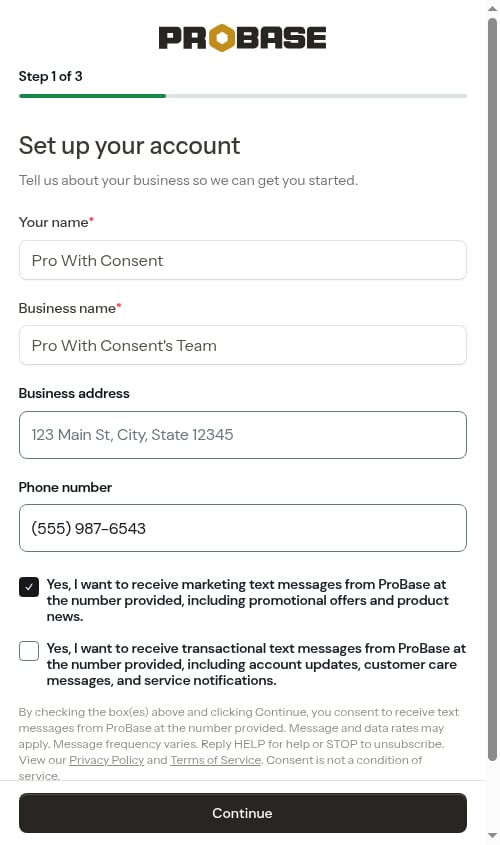
Accounts created through a ProBase pro signup link (the signup page at /register-pro) see a different version of this step:- Your Phone number is optional — no red asterisk.
- Instead of the disclosure paragraph, there are two independent tick boxes, both off by default: one for marketing text messages (promotional offers and product news) and one for transactional text messages (account updates, customer care messages, and service notifications). The full disclaimer, with links to the Privacy Policy and Terms of Service, sits below them.
- Nothing is recorded unless you tick a box, so leaving both unticked simply means no texts.
If you tick a box while the phone field is blank or incomplete, Continue won’t submit — an inline message appears: “Enter a phone number to receive text messages, or uncheck the box above.” Add your number or untick the box to carry on.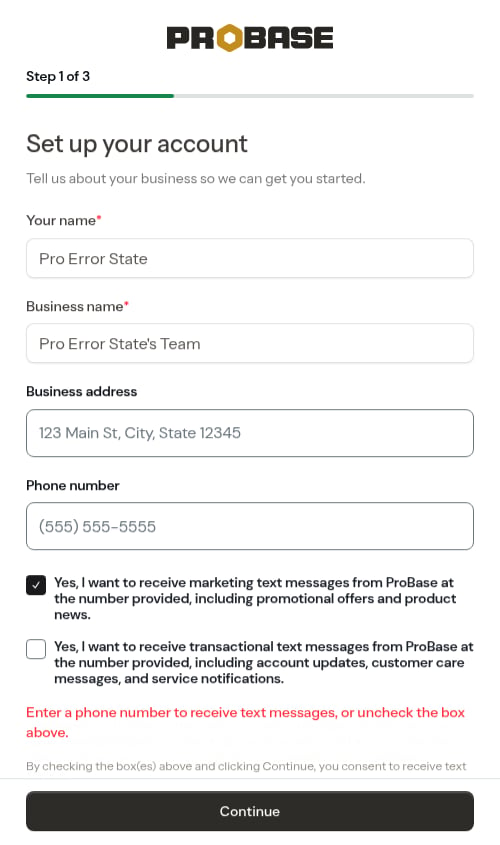
Step 2: A few quick questions (Step 2 of 3)
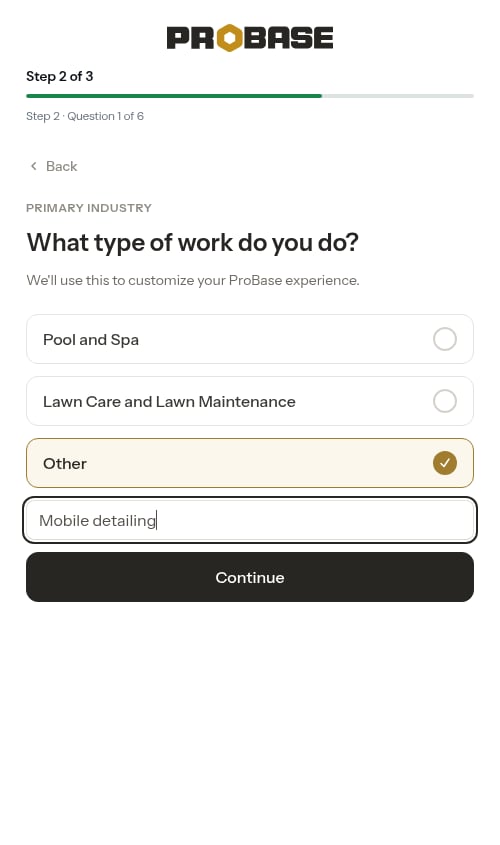
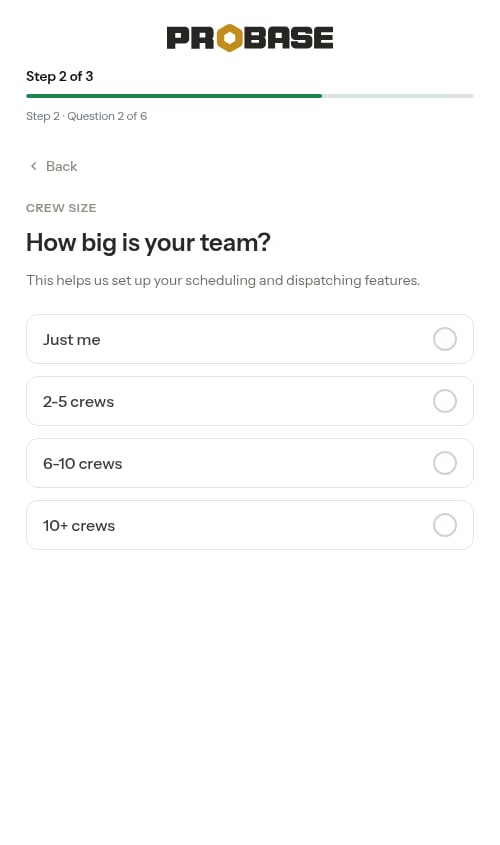
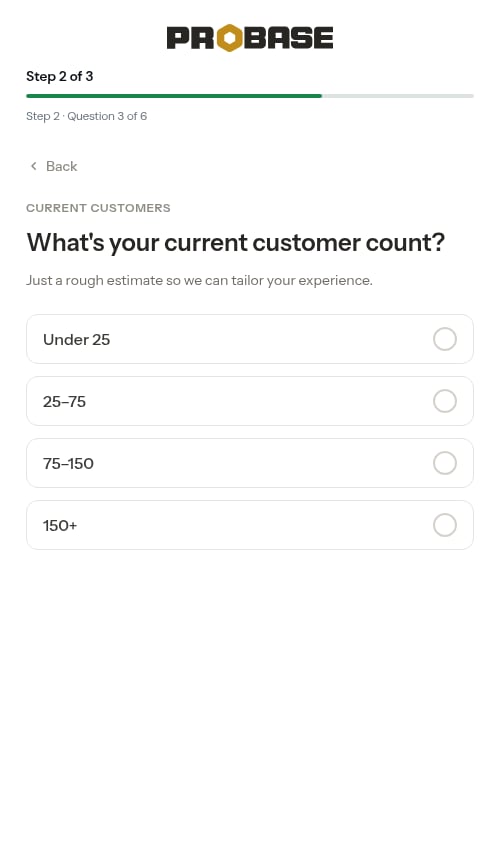
The second step asks you a short series of questions, one at a time. A counter beneath the progress bar shows where you are — Step 2 · Question X of 6. Each question has a Back button so you can return to an earlier question (or back to Step 1) at any time. For every question, simply tapping your answer moves you straight to the next question — there’s no extra Continue button to press. Your choice is checked off instantly the moment you tap it, so the step feels responsive even before your answer finishes saving. The first four questions are required; the last two are optional and can be skipped.If your answer can’t be saved — for example, if your connection drops mid-tap — the checkmark clears itself and a short “Something went wrong. Please try again.” message appears below the options. Just tap your answer again to retry; you stay on the same question until it saves.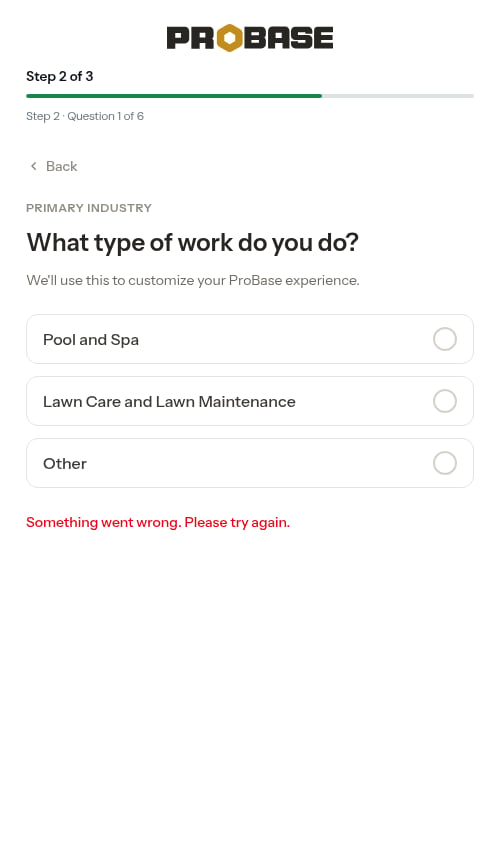
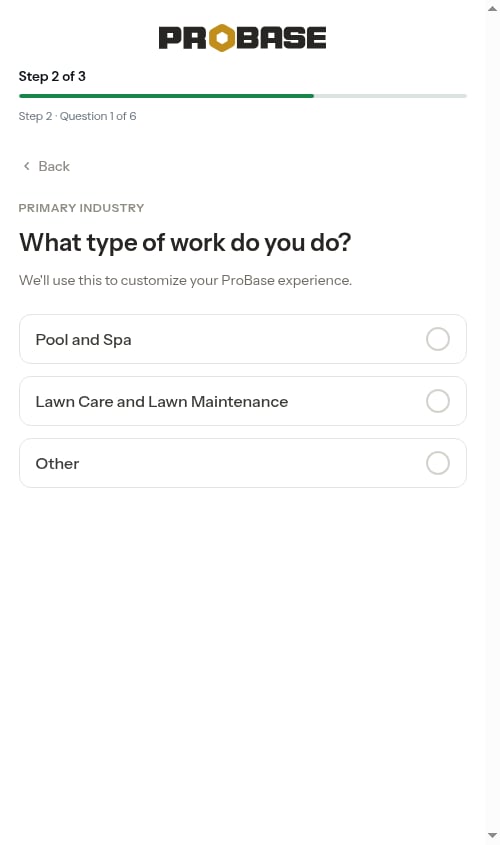
- Pool and Spa
- Lawn Care and Lawn Maintenance
- Other
If trades (industries) are enabled for your account, this first question changes to “What services do you offer?” (under a YOUR SERVICES heading, with the note “Choose all that apply. We’ll use this to set up your standard line items and schedule formats.”) — a multi-select where you pick all the trades that apply instead of a single option. To keep onboarding quick, this step only offers the two most common trades — Pool and Lawn — plus an Other card for businesses that don’t do either; you can add any of ProBase’s other trades later from your Business Profile. Your Pool/Lawn selections seed a starter catalog for those trades, while picking Other declares no trade and seeds nothing (you’ll build your own catalog). This question is optional; tap Skip to move on without declaring any. See Industries (trades) for the full walkthrough.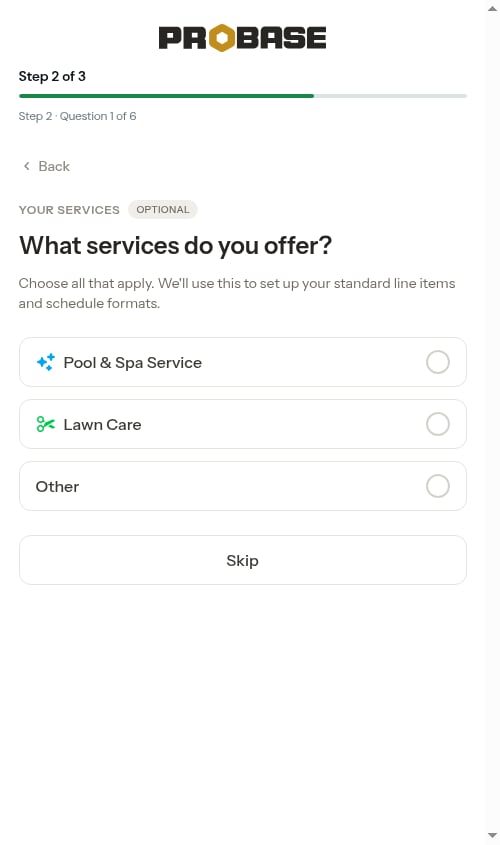
- Just me
- 2-5 crews
- 6-10 crews
- 10+ crews
- Under 25
- 25–75
- 75–150
- 150+
- Pool businesses also see Skimmer and PoolBrain.
- Lawn businesses also see Yardbook and LawnPro.
- Businesses that picked more than one trade, chose Other, or skipped the trade question see just the common options.
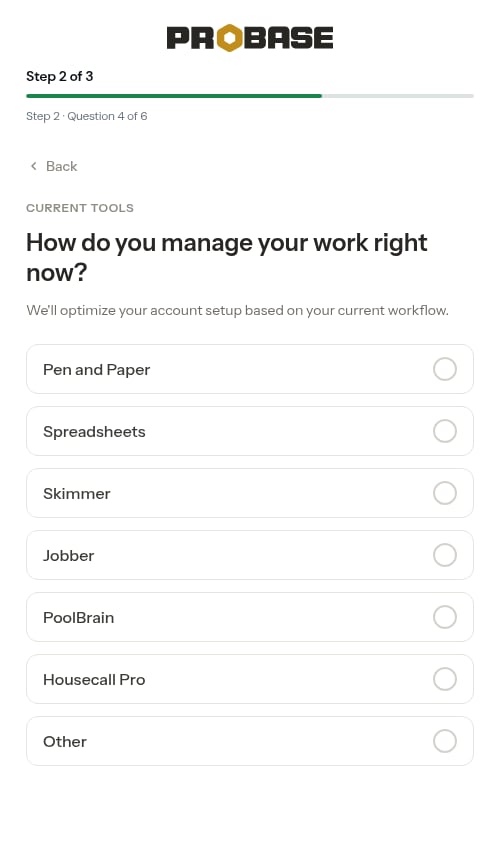
If you go Back and change your trade after answering this question, and the tool you’d picked isn’t offered for your new trade (for example, you’d chosen Skimmer as a Pool business and then switched to Lawn), your answer clears itself so you can pick again from the updated list.
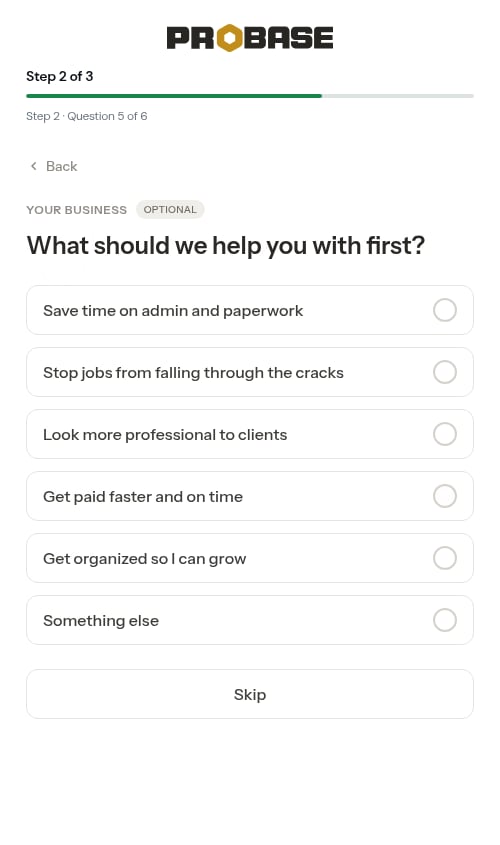
- Save time on admin and paperwork
- Stop jobs from falling through the cracks
- Look more professional to clients
- Get paid faster and on time
- Get organized so I can grow
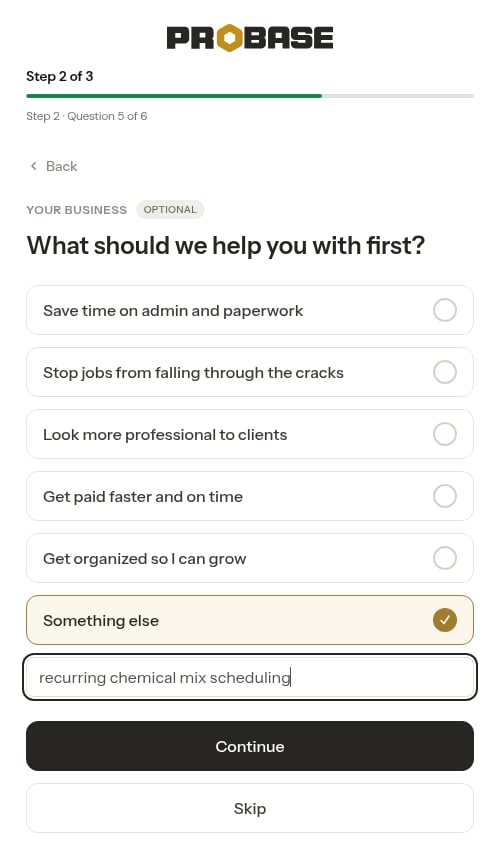
- Something else (with a text box)
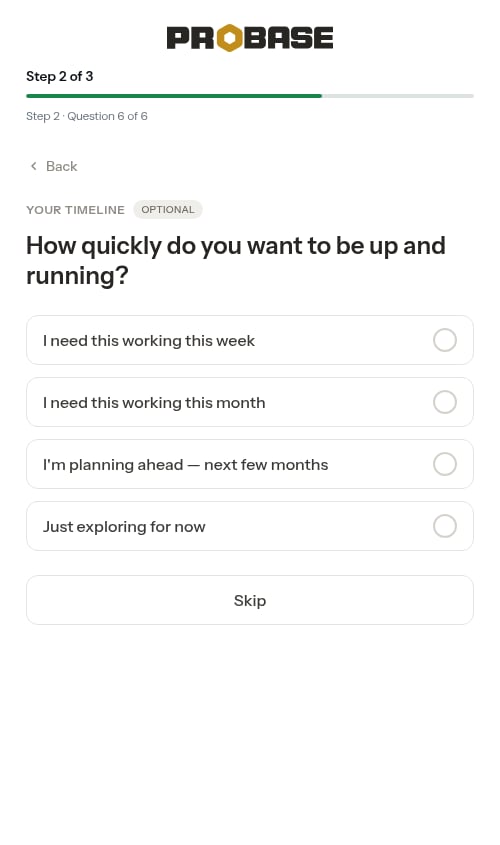
- I need this working this week
- I need this working this month
- I’m planning ahead — next few months
- Just exploring for now
Step 3: How do you want to get paid? (Step 3 of 3, optional)
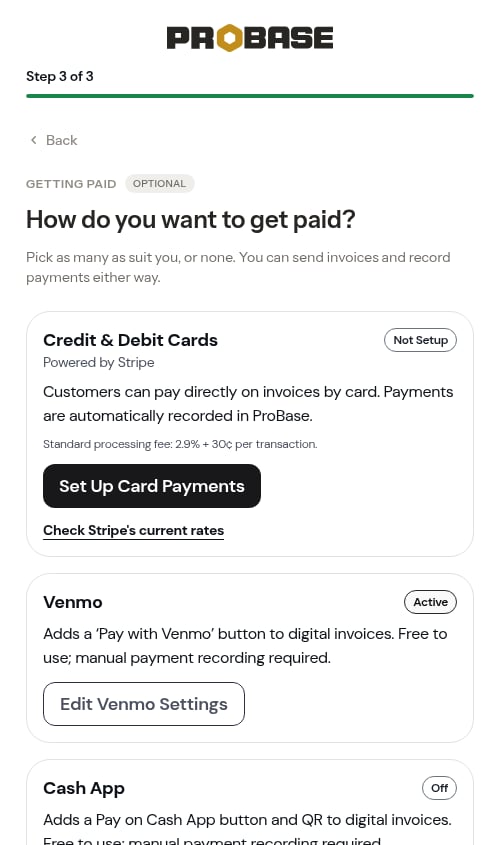
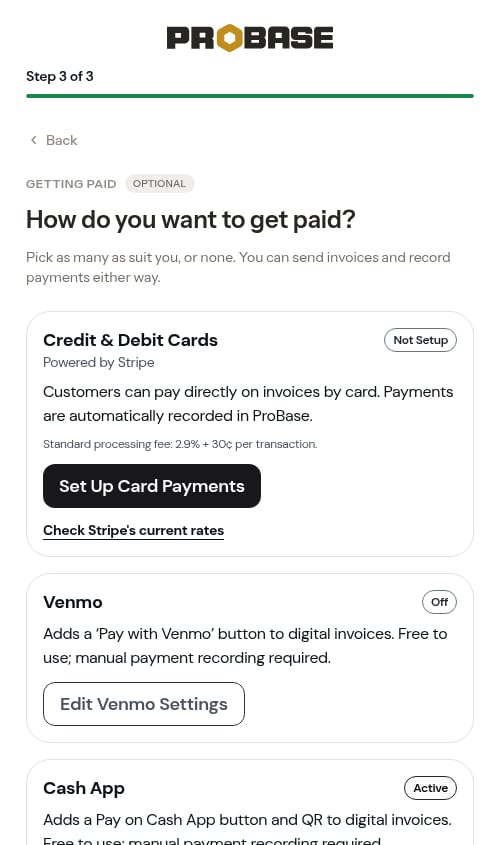
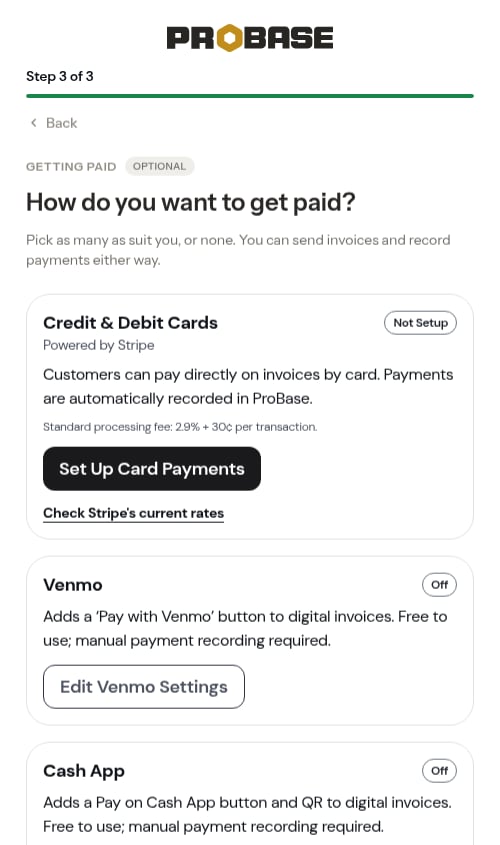
After your last question, the wizard shows the same payment guide you can open later from Settings. It sits under a GETTING PAID heading with an Optional tag, asks How do you want to get paid?, and reassures you: “Pick as many as suit you, or none. You can send invoices and record payments either way.”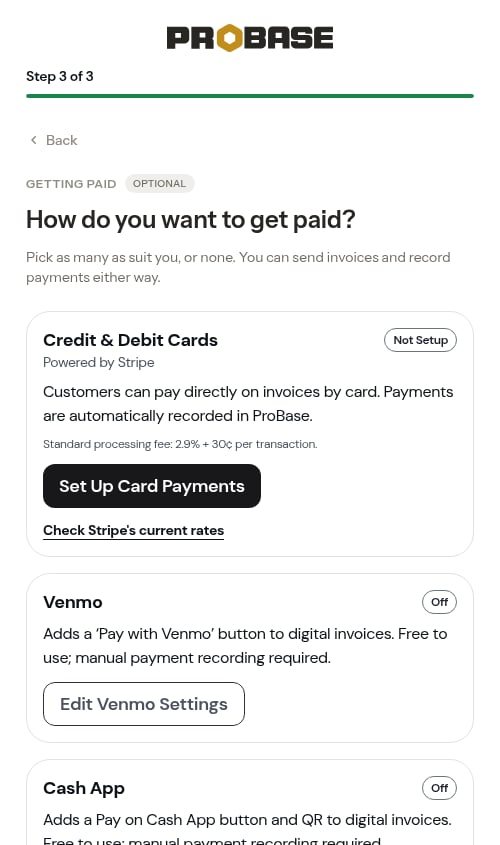
- Credit & Debit Cards (powered by Stripe) — starts as Not Setup. Tap Set Up Card Payments to start your Stripe account. When you finish (or leave) Stripe, you come straight back to this step with the badge updated. See Stripe setup.
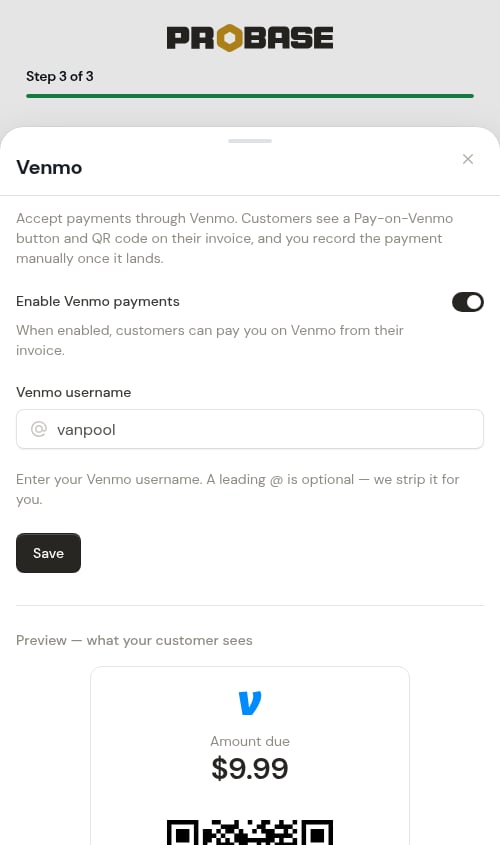
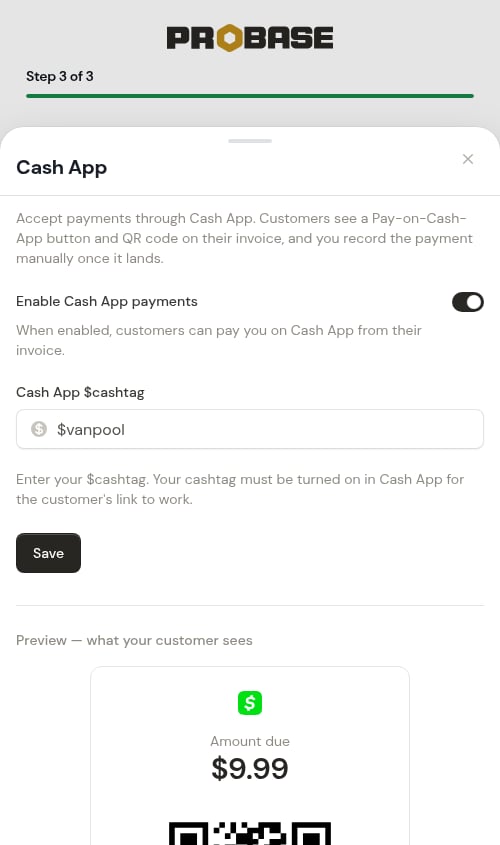
- Venmo, Cash App and PayPal — one card each, starting as Off. Tap Edit Venmo Settings, Edit Cash App Settings or Edit PayPal Settings to open that app’s settings in a sheet right on this screen. Save them and the sheet closes, with the card’s badge now reading Active. See Venmo, Cash App and PayPal.
- Cash, Check, Zelle, or Bank Transfer — always Always Active. There’s nothing to set up; you can record these payments by hand any time. If this is how you get paid, tap This is how I get paid — the card then reads “You chose this on [date] — the Set up payments prompts are off your HomeBase. Add cards or Venmo here any time.” and HomeBase’s Choose how customers pay you setup reads done (see Only taking payments by hand?).
You’re all set
Once your questions are answered, you’ll land on a personalized confirmation screen: “You’re all set, [First name].” with a note that your business “is ready to create estimates and jobs.” This is a celebration screen rather than a numbered step, so the progress bar is hidden here. Whenever ProBase pre-configured services for you, this screen also counts them up (“13 services pre-configured”), previews them, and shows a “~30 minutes of setup, done for you” badge. The count reflects however many templates were added for the trades you picked.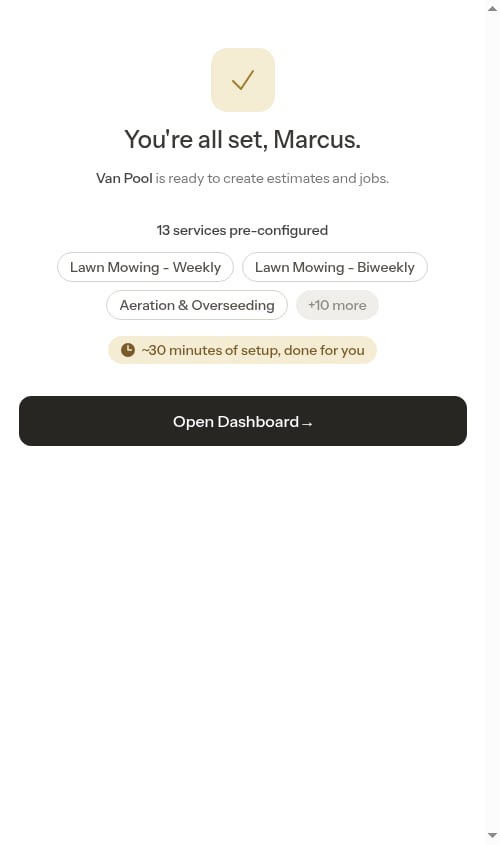

Add the app to your home screen (final step)
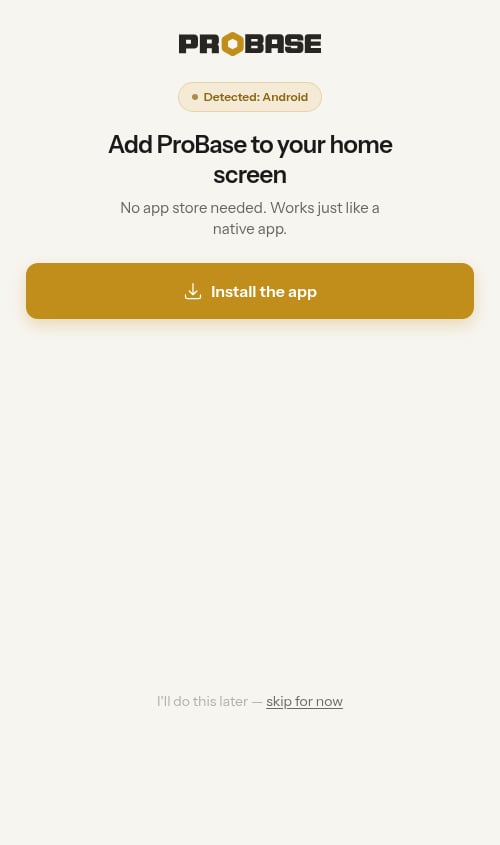
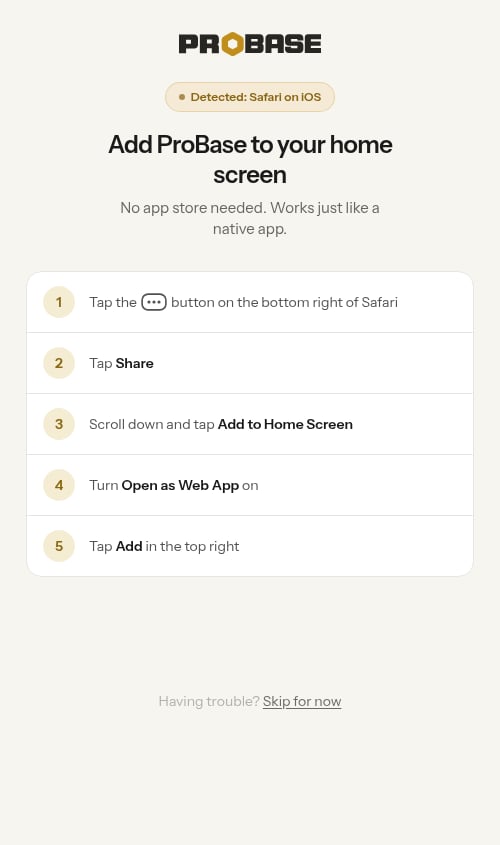
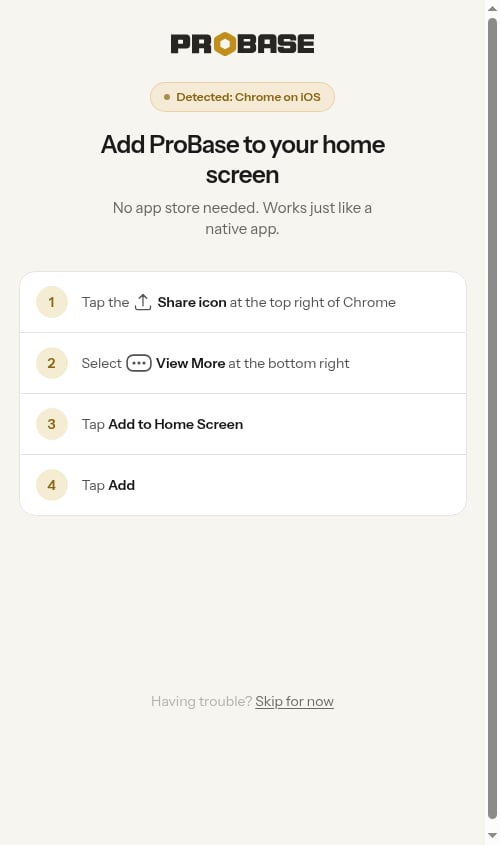
ProBase works best when installed as an app on your phone. After the “You’re all set” screen, this step walks you through adding it to your home screen so you can access it quickly without opening a browser. The screen is headed Add ProBase to your home screen with the reassurance “No app store needed. Works just like a native app.” ProBase automatically detects which phone and browser you’re using and shows a small Detected: badge along with the exact steps for your device.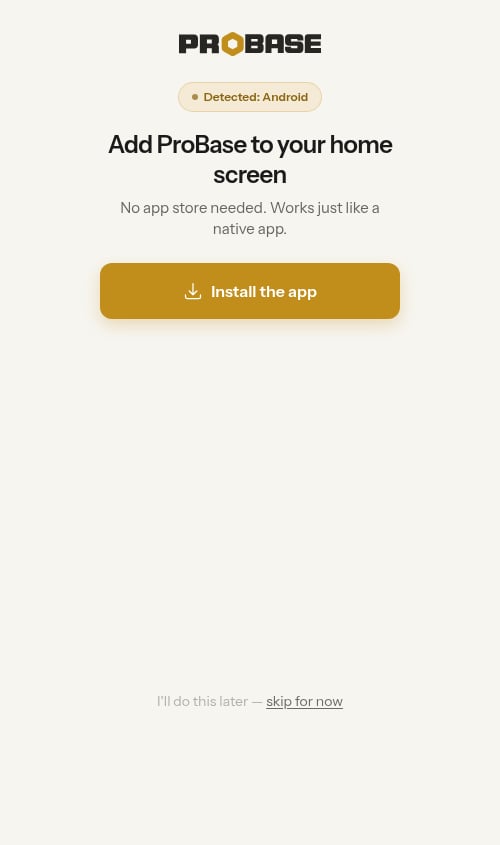
-
Safari — five steps: tap the ••• button at the bottom right of Safari, tap Share, scroll down and tap Add to Home Screen, turn Open as Web App on, then tap Add in the top right.
-
Chrome on iOS — four steps: tap the Share icon at the top right of Chrome, select View More at the bottom right, tap Add to Home Screen, then tap Add.
If you signed up from Facebook or Instagram
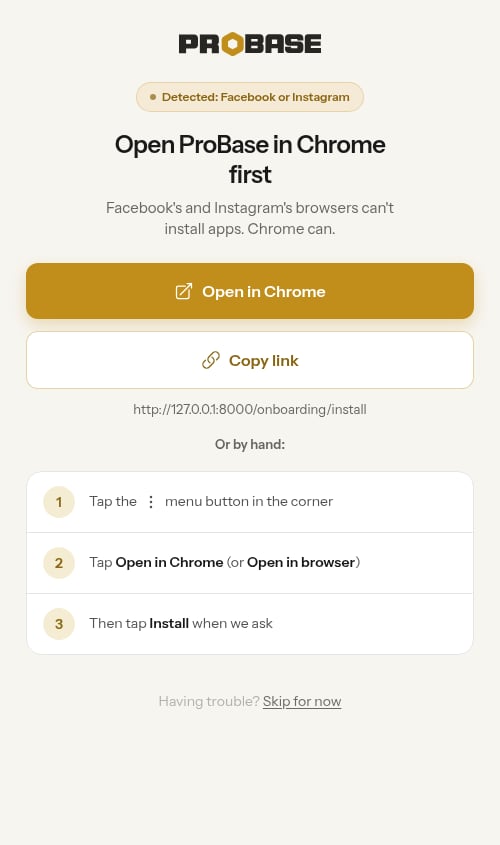
If you tapped a ProBase ad or link inside the Facebook or Instagram app, ProBase opens in that app’s built-in browser. That browser can’t add apps to your home screen, so ProBase spots it (the badge reads Detected: Facebook or Instagram) and asks you to open ProBase in your phone’s real browser first — Safari on an iPhone, Chrome on Android.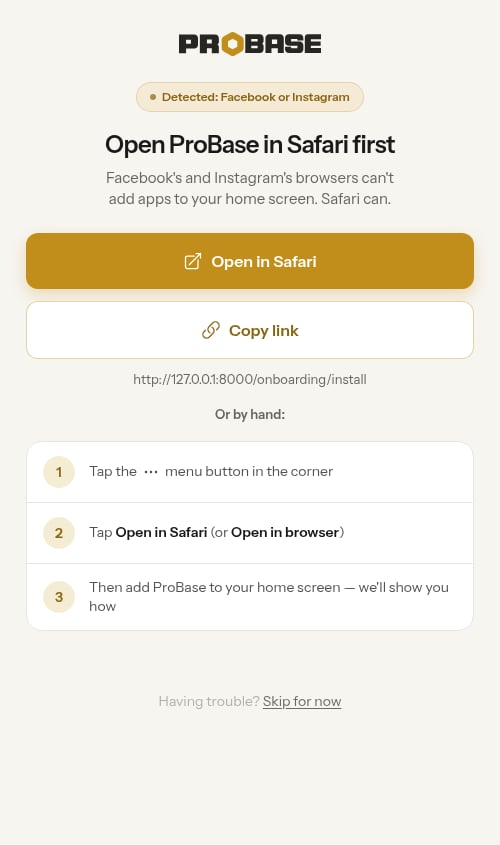
1
Tap Open in Safari (or Open in Chrome)
The gold button at the top tries to open this same page in your phone’s browser. If it works, you’ll find yourself in Safari or Chrome on the install screen.
2
Still here? Do it by hand
If the page doesn’t move after a couple of seconds, a red line appears: “Still here? Follow the steps below, or copy the link and paste it into Safari.” Follow the Or by hand steps: tap the menu button (••• on iPhone, ⋮ on Android) in the corner, then tap Open in Safari or Open in Chrome (some versions say Open in browser).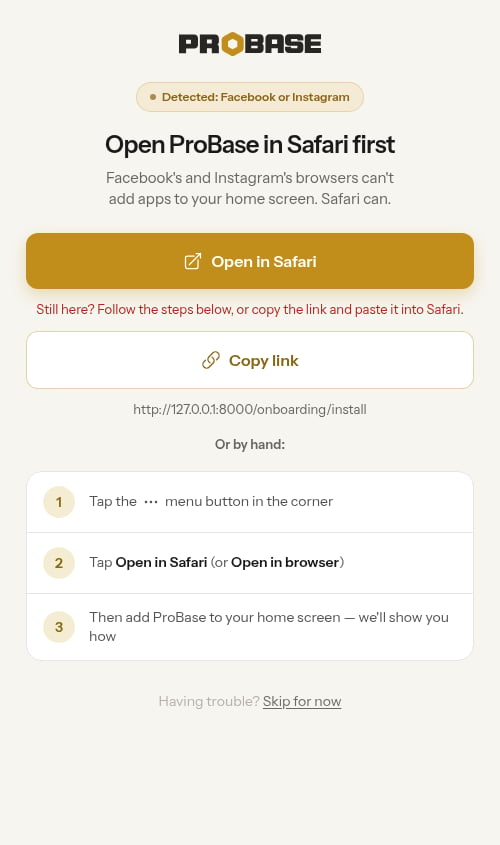
3
Or copy the link
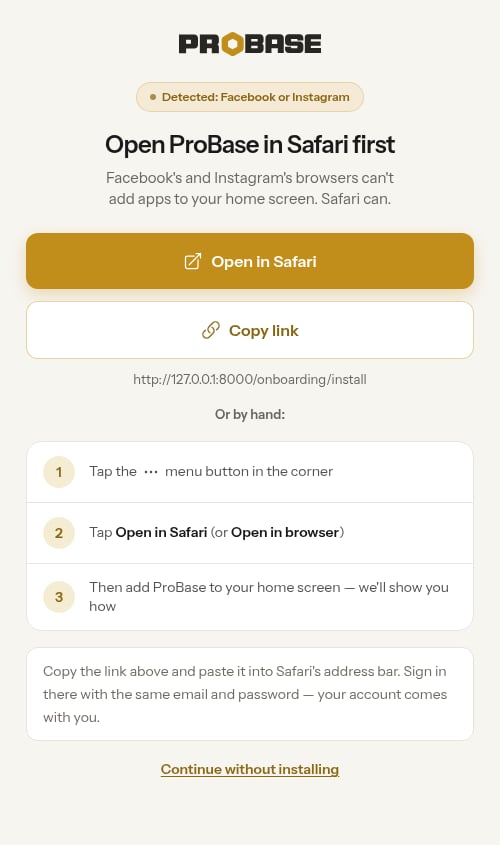
Tap Copy link (it changes to Link copied) and paste the link into your browser’s address bar. If your phone won’t let ProBase copy it, the link is printed under the button — long-press it to copy it yourself.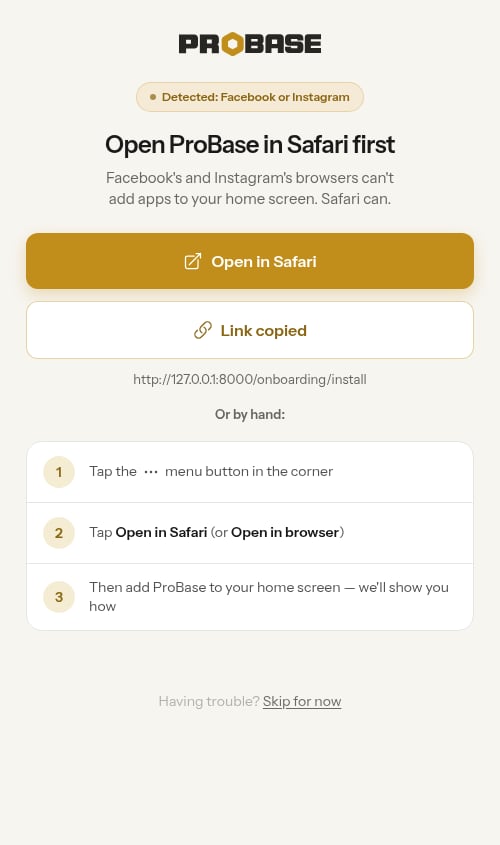
4
Sign in and install
In Safari or Chrome, sign in with the same email and password you just created — your account comes with you — and follow the normal install steps for your phone.
Turn on notifications
Once ProBase is added to your home screen, you’ll see a Turn on notifications screen marked with an App installed badge — “Know when customers pay, accept quotes, or need follow-up.” Tap Enable notifications, then tap Allow when your phone asks. ProBase registers the phone in the background, so there’s nothing else to confirm. Or tap I’ll do this later — not now to skip.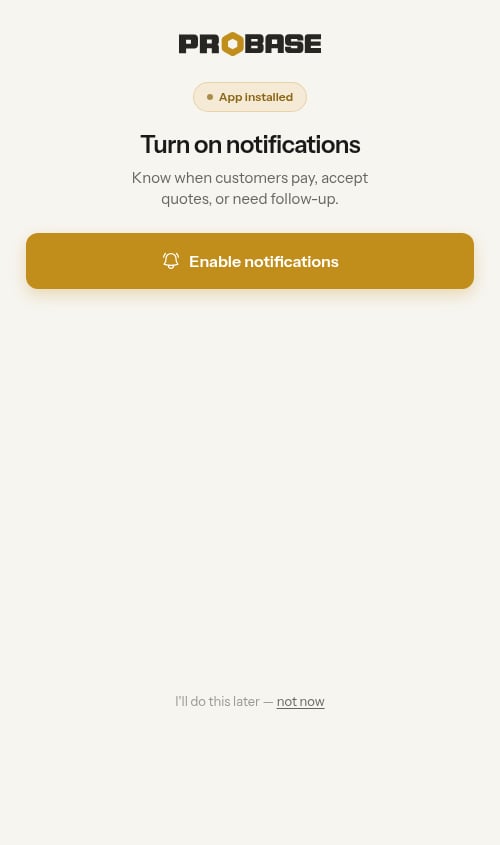
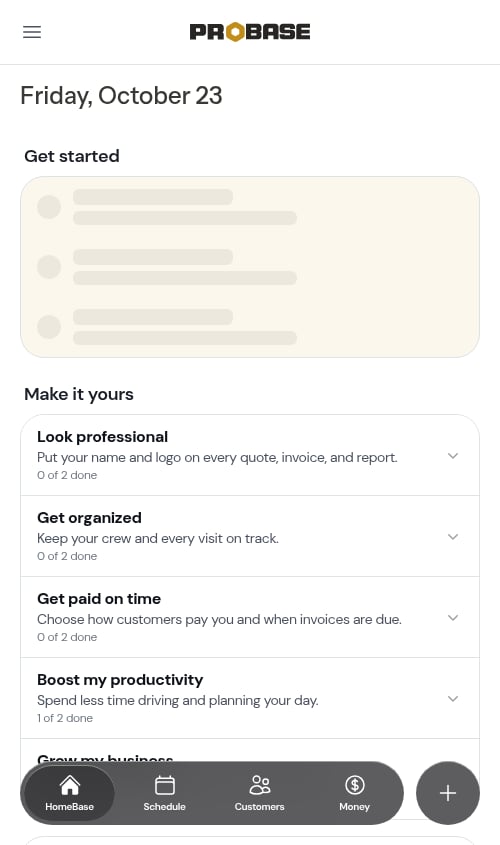
This screen only appears once the app is installed — on an iPhone, notifications aren’t available at all in a plain browser tab. If you skip it, the same prompt waits for you as Enable notifications under Make it yours → Boost my productivity on your dashboard. See Push notifications for the full picture.
If notifications are turned off for ProBase — either because you tapped Don’t Allow when your phone asked, or because you’d blocked them before — a message appears letting you know: “Notifications are blocked. Enable them for ProBase in your device’s Settings app, then come back here.” Open your phone’s Settings app, find ProBase, and switch notifications on, then return to this screen. You can also tap I’ll do this later — not now to move on and turn them on later.
These steps only appear on mobile devices. On a desktop or laptop — or if ProBase is already installed and you’re opening it from your home screen — they’re automatically skipped and you go straight to the dashboard.
Installing is optional. Tap the skip for now link to continue without installing. Tapping it once reveals a short troubleshooting tip plus a Continue without installing link, so you’re never stuck — you can always install the app later from Install the app under Make it yours → Boost my productivity on your dashboard.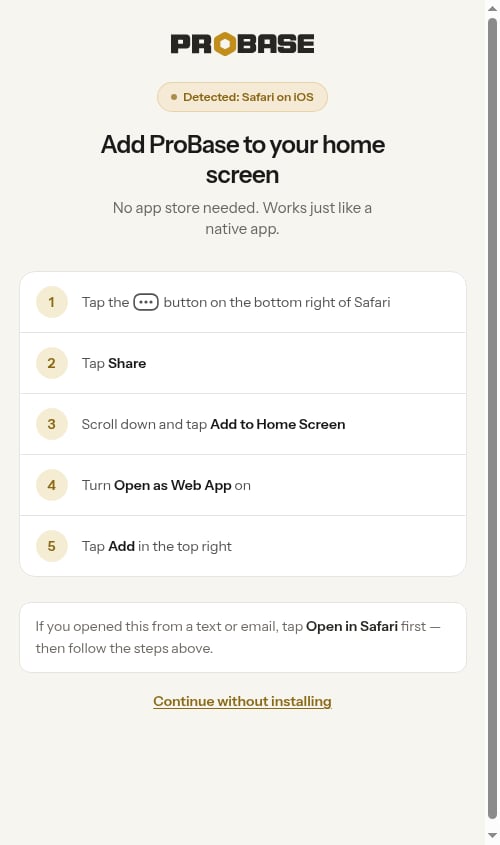
What happens after onboarding?
Once you complete the onboarding wizard:- Your account is fully activated
- You’re taken to the dashboard
- Industry-specific service templates are automatically created in your service catalog — lawn care pros get mowing, trimming, cleanup, and fertilization starters; pool cleaning pros get pool cleaning, filter service, repairs, and related work
- The business address you entered sets your timezone and appears on your invoices (routes start from each crew’s starting address instead)
- Any payment method you set up on the Getting paid step (Stripe, Venmo, Cash App or PayPal) stays set up — and if you skipped it, the same guide is waiting on Payments in the sidebar and in HomeBase’s Choose how customers pay you setup, under Make it yours
- You can start adding customers, creating jobs, and scheduling work
What gets set up automatically
Based on your industry selection, ProBase creates a starter service catalog so you can begin booking jobs immediately:- Lawn Care and Lawn Maintenance — 13 starter templates (Lawn Mowing - Weekly, Lawn Mowing - Biweekly, Aeration & Overseeding, Bush Trimming, Gutter Cleaning, Junk Removal, Lawn Fertilization, Leaf Removal, Mulching, Pressure Washing, Weed Pulling, Yard Cleanup, and Full Service Yard Care). A further 15 lawn services are held back so your catalog stays short — add any of them later from Browse services.
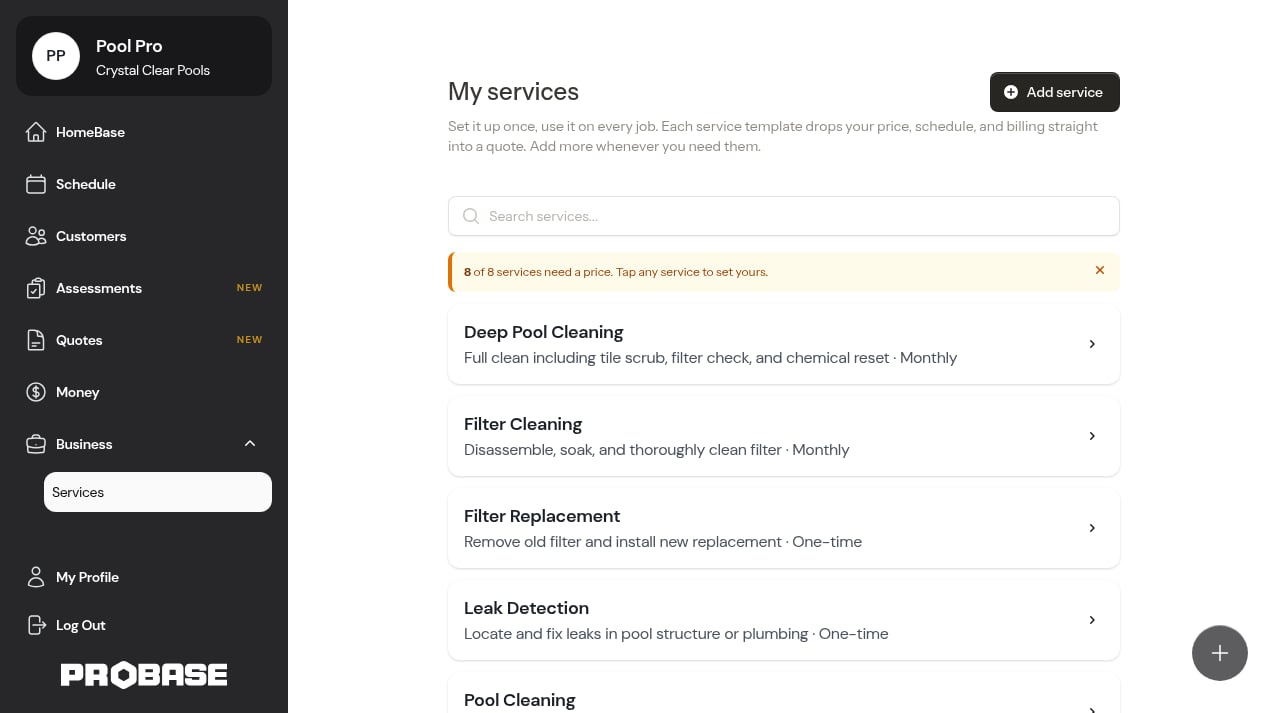
- Pool and Spa — 8 service templates (Pool Cleaning, Deep Pool Cleaning, Pool Open/Close, Filter Cleaning, Filter Replacement, Pump Repair, Leak Detection, Pressure Washing).
- Other — 2 generic starter templates (Standard Service and Monthly Subscription) that you can rename, re-price, or archive as you build out your own catalog.
If you’re invited to join a team
If another business invited you to join their team, you’ll see a simplified onboarding flow where you provide your phone number and are immediately added to the team. The same SMS disclosure appears below the phone field — submitting the form opts you in to text messages so you can receive appointment updates from the team. You can turn SMS off later from your Profile page. Team members don’t need to complete the full business setup since they’re joining an existing account.Resuming onboarding
If you close the browser before finishing, your progress is saved automatically. When you return, the wizard resumes at the step where you left off.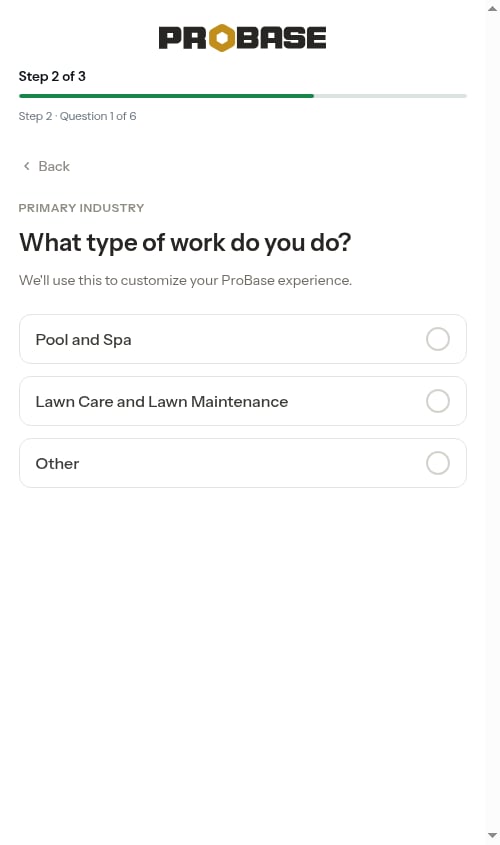
Accessing onboarding again
You can only complete onboarding once. After finishing, you won’t see the wizard again. If you need to update your business information later, go to your account settings.Navigating between steps
Every question on the quick questions step has a Back button. Tapping Back on the first question returns you to Set up your account with your earlier answers still filled in.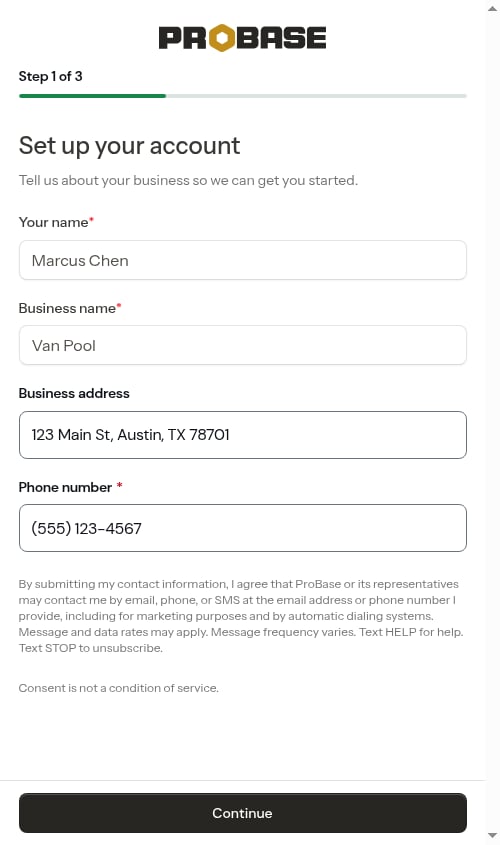
Getting help during onboarding
If you have questions or run into issues while completing onboarding:- Required fields are marked and will show errors if left blank
- If Continue doesn’t move you forward, something needs fixing — ProBase scrolls that field into view and puts your cursor in it, with the reason shown underneath in red
- Use the Back button on any question to review or change an earlier answer
- Contact our support team if you need assistance
Next steps
After completing onboarding:- Text message notifications - Review or change the SMS choices you made during setup
- Set up your service catalog - Review and customize your service templates
- Add crews - Create teams for field work
- Add your first customer - Start building your customer base
- Create jobs - Schedule your first appointments