Overview
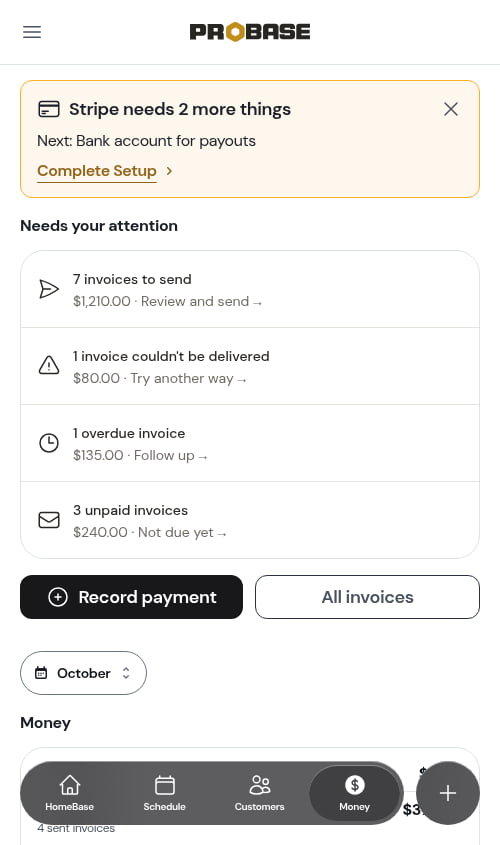
The Money screen is where you check on your business’s money. It answers three questions, top to bottom:- What needs my attention? — invoices to send, invoices that didn’t reach the customer, and invoices waiting to be paid
- What do I want to do? — record a payment, or open all your invoices
- How much came in, and how much is still out there? — your money for the period you pick
Needs your attention
The first card lists the invoices that are waiting on you. Each row shows how many there are, how much money they add up to, and what to do next:
A row only shows up when it has something in it. When everything is sent and paid, the whole card disappears.
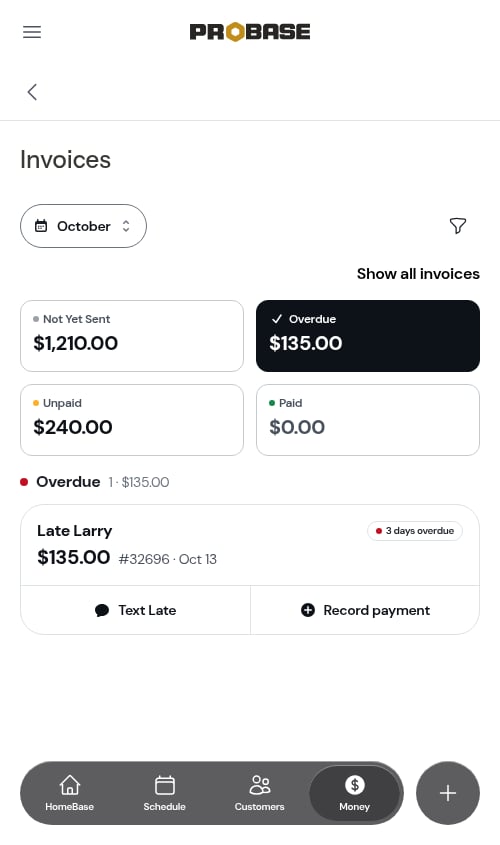
The number on a row is always the number of invoices you’ll find when you tap it. Tap 1 overdue invoice and you land on exactly one overdue invoice.
Record payment and All invoices
Beneath the attention card are two buttons:- Record payment — log a cash, check, Venmo, Cash App, PayPal, or any other payment you took by hand. See Recording payments.
- All invoices — open the full Invoices list, grouped by where each invoice stands.
Pick a period
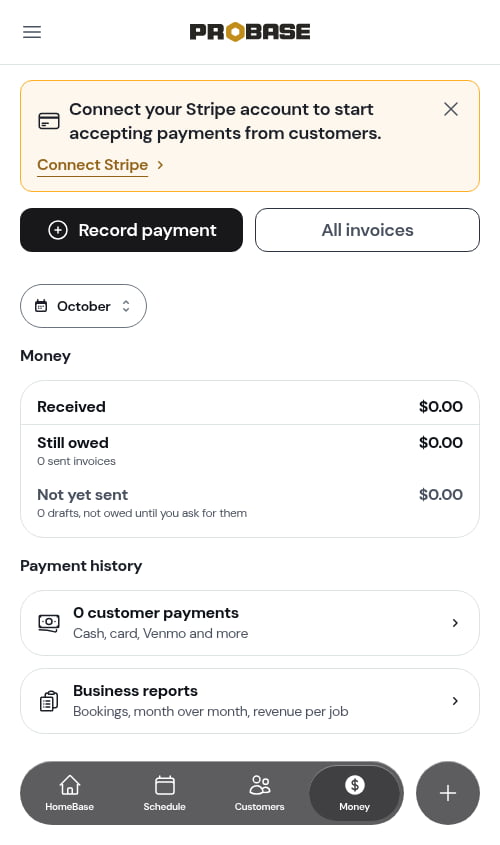
The chip below the buttons sets the time period for the figures underneath it. This month is selected the first time you open Money each day — the chip shows the month’s name, like October. Tap the chip to choose:- Today
- Yesterday
- This week
- Last 7 days
- This month
- Year to date
- All time
- Custom range (pick a From and To date, then Apply)
Your period follows you
The period you pick is shared by Money, the Invoices list, the Payments list, and Business reports. Pick Year to date on Money, open All invoices or Business reports, and they open on Year to date too — and so does Money when you come back. ProBase remembers your choice for the rest of the day, even if you leave and return later. The next day, every money screen starts again on This month. The period is also part of the page’s web address, so a link or bookmark you save opens on the same period.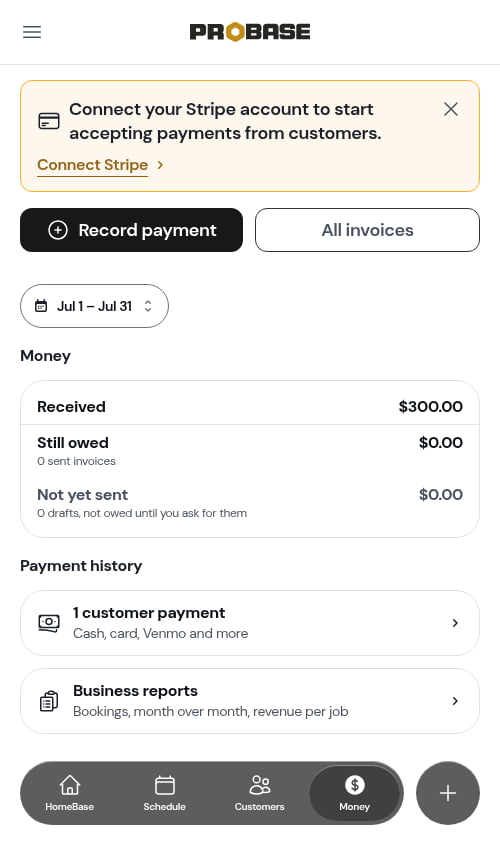
A customer’s Billing history keeps its own period (Year to date by default). Changing it there doesn’t change the money screens, and the other way round.
What the period changes
On This month — where every money screen starts each day — the attention card, Still owed and Not yet sent show everything that’s open right now, whenever it was billed. Only Received and the payment count follow the month. Pick any other period and everything on the screen follows it:- Received and the payment count — money that came in during the period.
- The attention card, Still owed, the archived line and Not yet sent — only invoices from the period: a sent invoice counts when it was issued in the period, a draft when it was started in the period. An invoice that’s overdue today but was issued before the period isn’t counted.
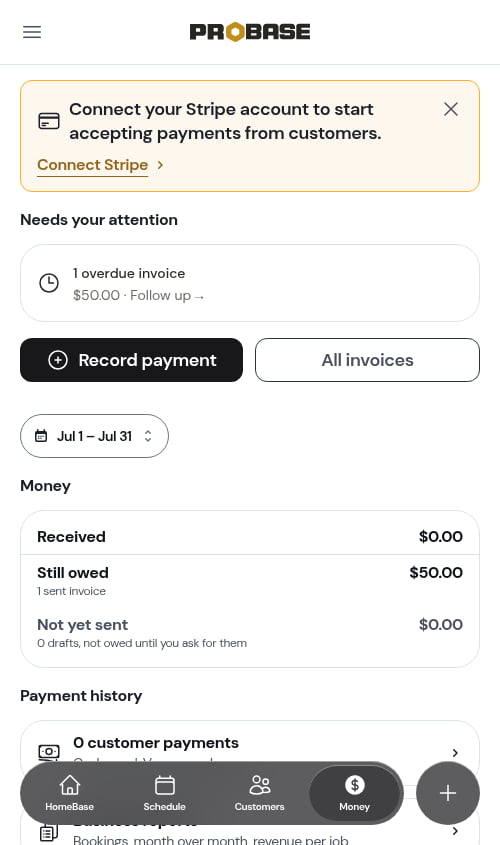
Switch back to This month (or pick All time) to see everything you’re still owed. HomeBase’s Overdue payments item always counts every overdue invoice, whatever period you last picked on Money.
The Money card
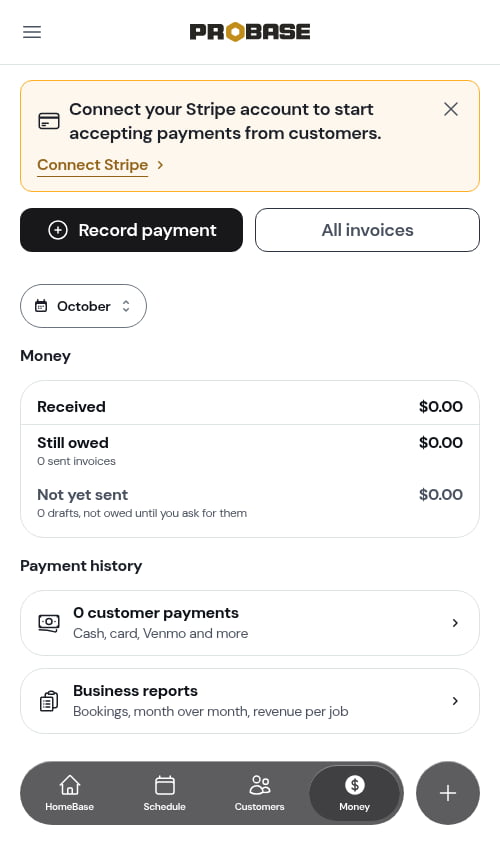
The Money card shows three figures:- Received — everything that came in during the period. If you’ve connected a marketplace, it’s split underneath into Your customers (payments and tips from your own customers, minus any refunds) and one row for each marketplace you’ve connected — for example LawnStarter, with its logo and the note “LawnStarter pays you directly. Nothing to collect.” A marketplace you’ve since disconnected keeps its row only for periods when its deposits still arrived. If you haven’t connected one, Received stands on its own with no split — you’ll never see a $0.00 marketplace row.
- Still owed — the total left on invoices you’ve sent that aren’t paid yet, with how many sent invoices that covers. If you’ve archived any unpaid invoices, a line beneath reads Plus $240.00 archived — tap it to see them.
- Not yet sent — the money sitting on drafts, counted as what each customer will be asked to pay (after any credit already on the draft). Customers don’t owe it until you send the invoice.
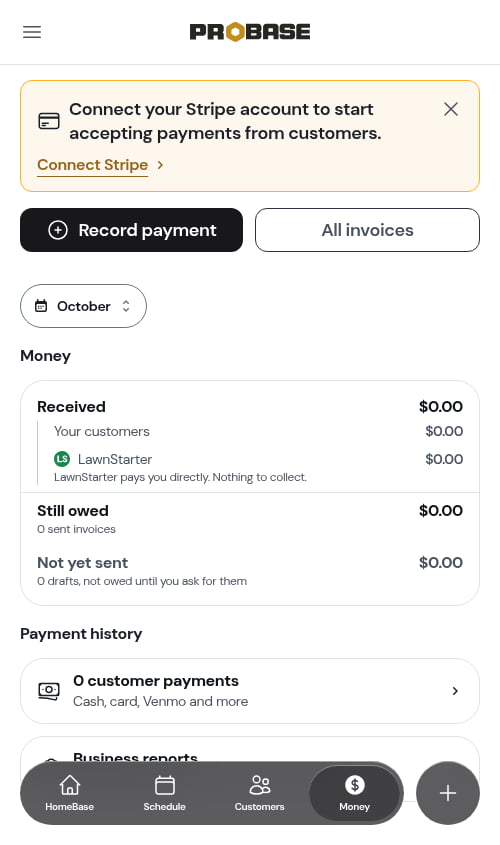
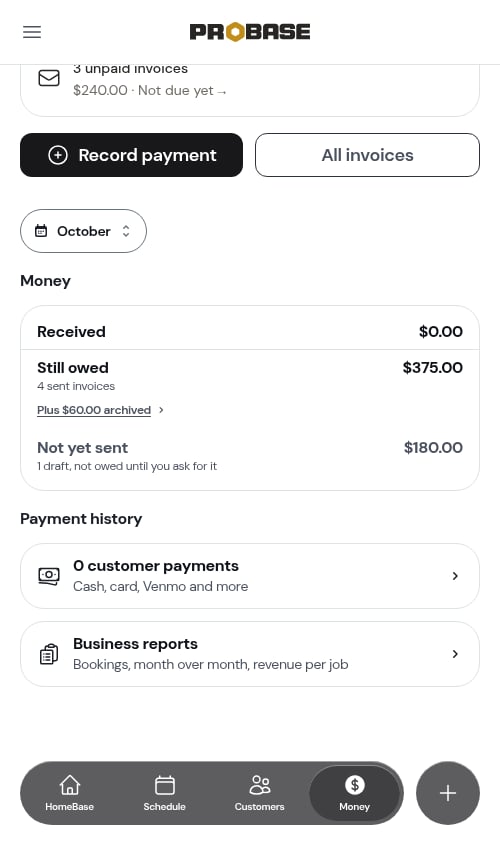
Marketplace money is never mixed into Still owed or Not yet sent — the marketplace pays you directly, so there is nothing for you to collect. See Marketplace earnings & payouts.
Payment history
Under the Money card:- N customer payments (Cash, card, Venmo and more) — opens the Payments list for the same period.
- Business reports (Bookings, month over month, revenue per job) — opens Business reports.
Before you’ve billed anyone
A brand-new account has nothing to collect yet, so the attention card is hidden and the Money card shows zeros. As soon as you finish a job or add a charge, a draft invoice appears and the invoices to send row shows up.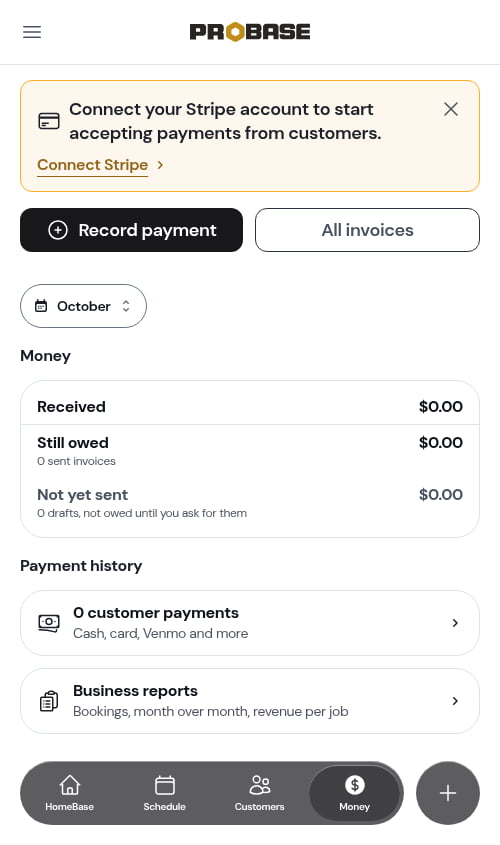
Card payment banner
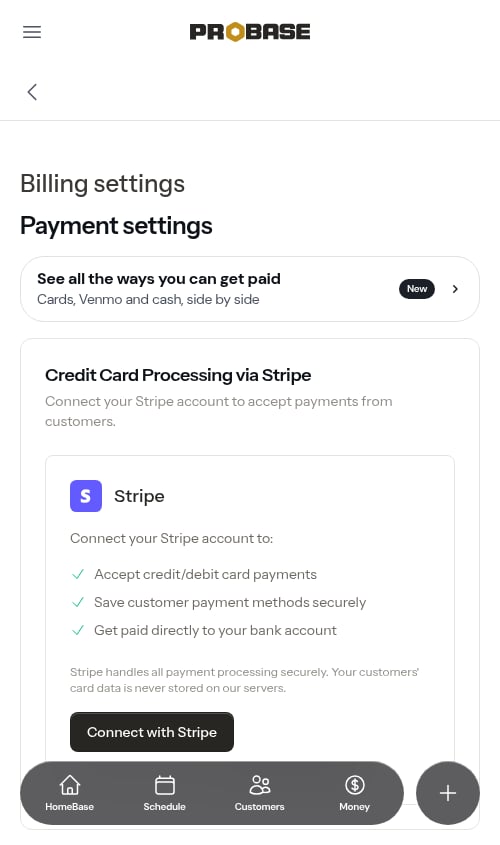
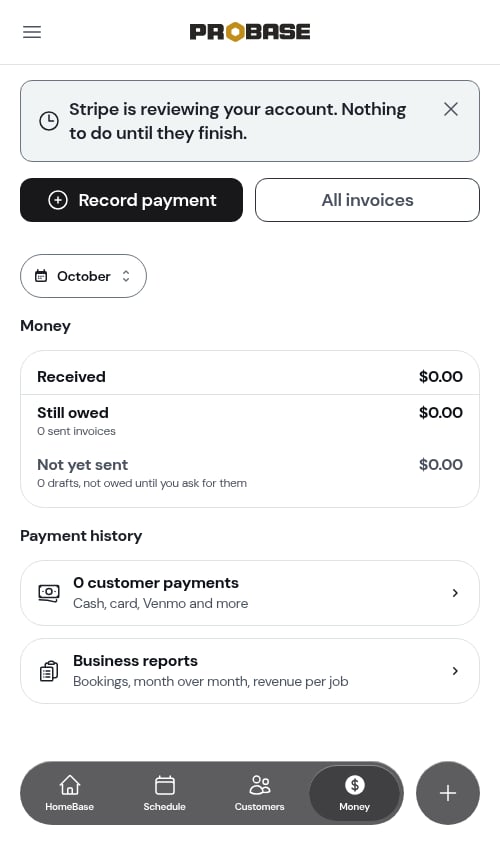
Until card payments are fully set up, a banner sits at the top of Money. If you haven’t connected Stripe yet it reads “Connect your Stripe account to start accepting payments from customers.” with a Connect Stripe link. If you’ve started but Stripe still needs something from you, the banner at the top of Money tells you what’s missing — for example “Stripe needs 2 more things” with the next item and a Complete Setup link. Tap the X to dismiss it. While Stripe reviews your details, the banner says so and has no button. See Setting up payment processing.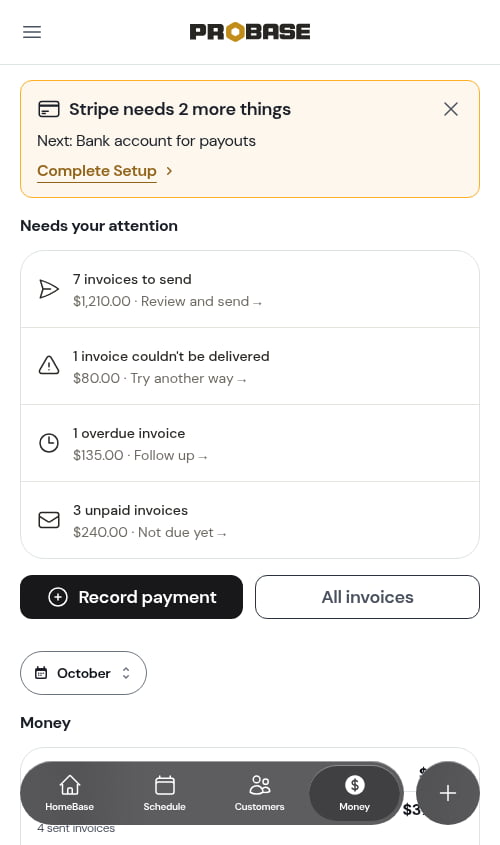
Payment settings
Your payment terms, tips, ratings, and payment methods live under Payments in the sidebar (under Business). See Payment terms and due dates, Tips and gratuity, and Setting up payment processing.