Overview
Adding someone to your team is a two-part flow: you send an invitation, then they accept it and finish their own profile. This page walks through both sides. Only owners and admins can invite new members.Sending an invitation
1
Open the invite form
Go to Team Roster in the sidebar and click Invite team member in the top-right corner.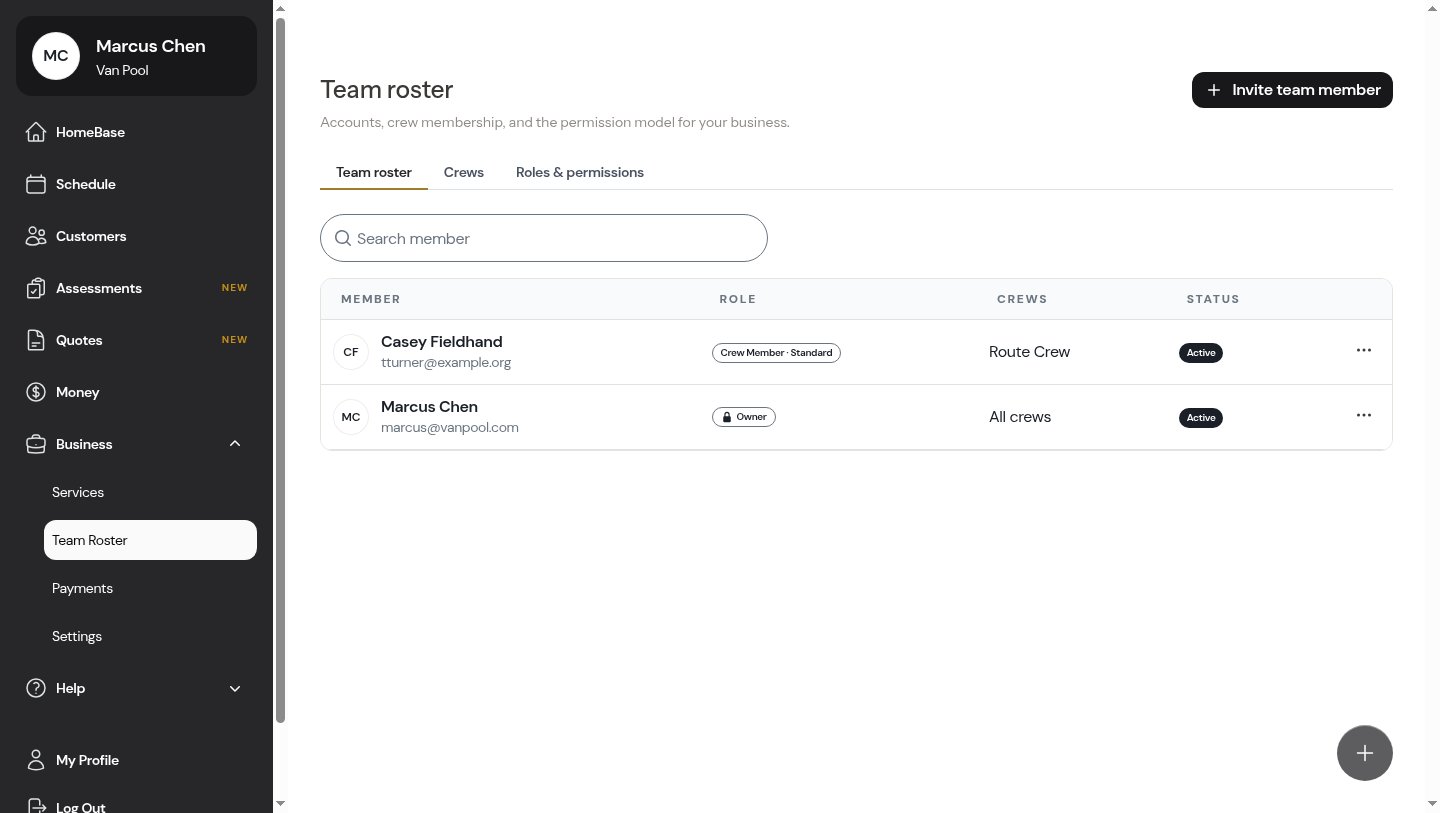
2
Fill in the invite
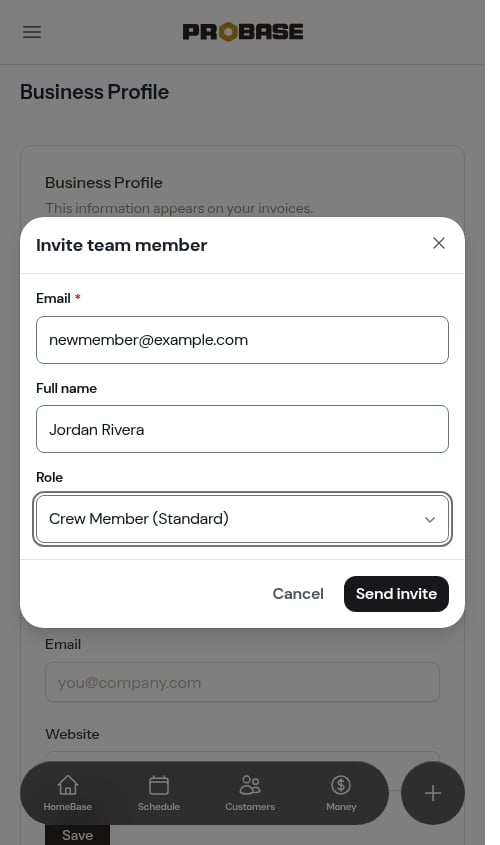
Enter the new member’s details:
- Email (required) — where the invitation is sent
- Full name — optional; the new member can set or change it when they join
- Role — pick the role that decides what they can do
-
Crews — optionally assign them to one or more crews now (this field appears once you have crews set up)
3
Send it
Click Send invite. ProBase emails the person an invitation link and shows a confirmation.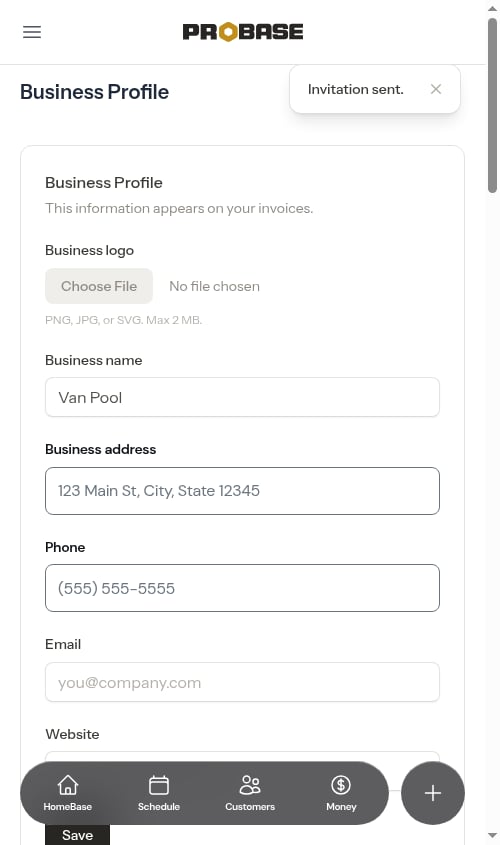
You only set the person’s email, name, role, and crews when inviting. They fill in the rest — phone number, home address, and profile photo — themselves when they accept.
Managing pending invitations
Sent invitations that haven’t been accepted yet appear as Pending — both in the Pending invites section of the Team Roster and in the Manage Team area of your Settings (Business Profile) page. For a quick fix when someone didn’t get the email, you can resend an invitation right from its card on the Team Roster. For the full set of controls — resend, expire, or cancel — open Settings in the sidebar and find the Pending Invitations list. Each row has an actions menu (⋯) with:- Resend — send the invitation email again and extend the acceptance window
- Expire now — end the acceptance window immediately without deleting the invite. It flips to Expired and can still be resent later.
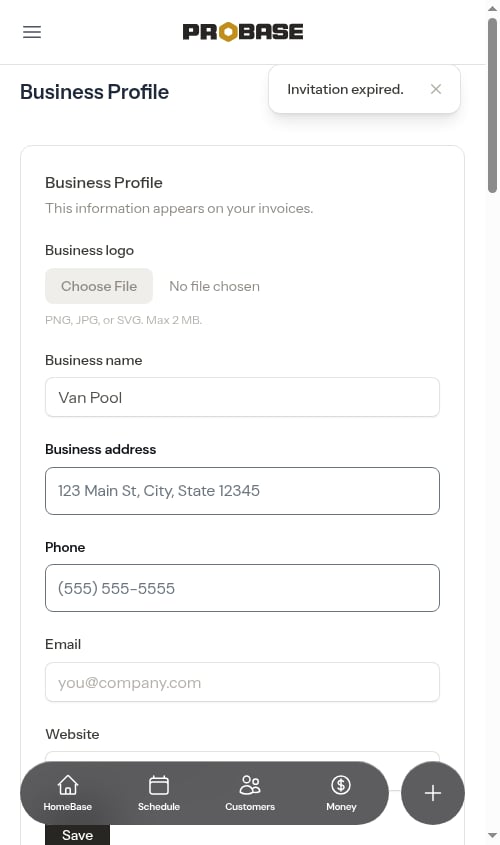
- Revoke — withdraw the invitation entirely. The invite link stops working and the row disappears from the list. ProBase asks you to confirm first.
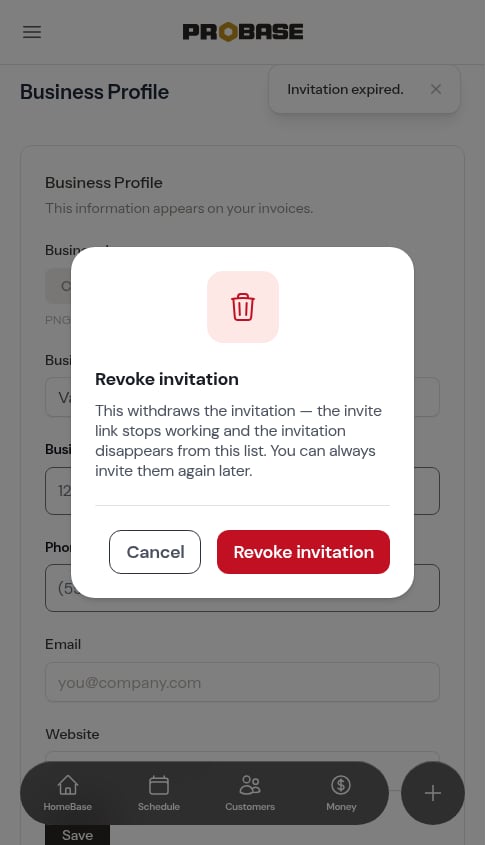
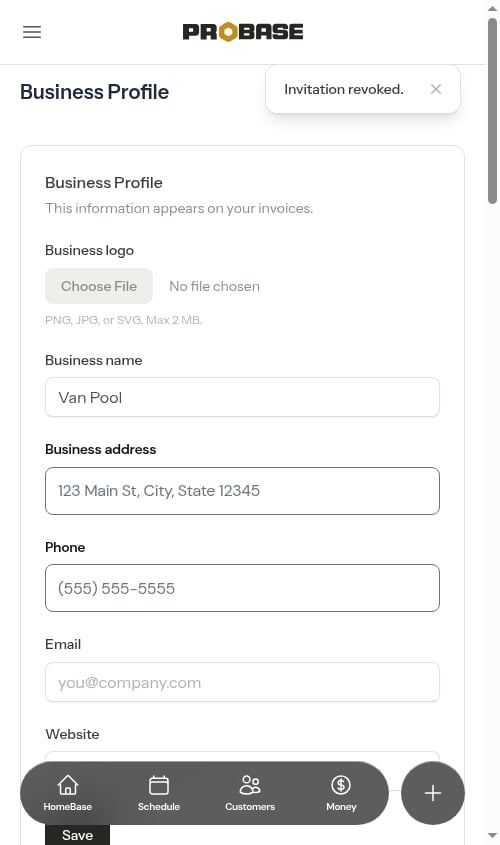
Expire vs. Revoke: Expire now keeps the invitation so you can resend it later. Revoke deletes it — you’d have to invite the person from scratch. You can always invite someone again either way.
Accepting an invitation (the new member’s view)
When someone you invited opens their invitation email, here’s what they’ll do:1
Create an account
The link takes them to a Join {your company} sign-up screen with their email already filled in. They pick a password and create their account — or, if the option is available, tap Sign up with Google to create it with their Google login instead. Either way, joining your team happens automatically; they don’t end up with a business of their own. If they already have a ProBase login, they can log in instead.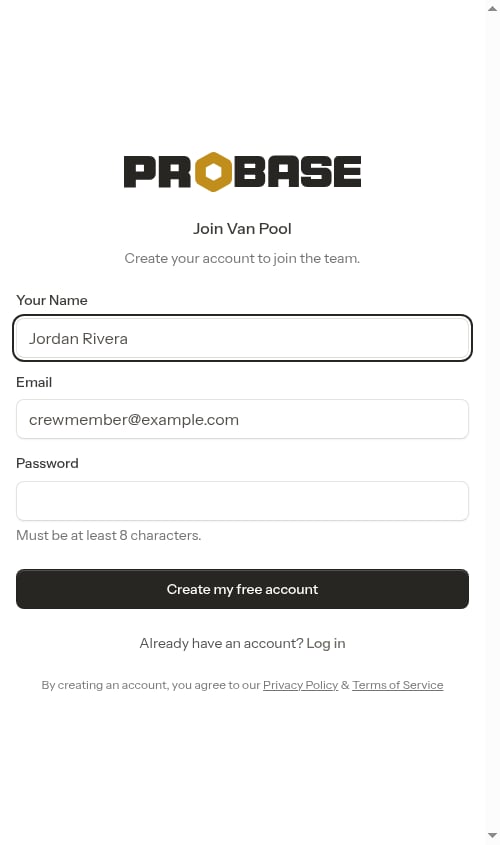
2
Complete their profile
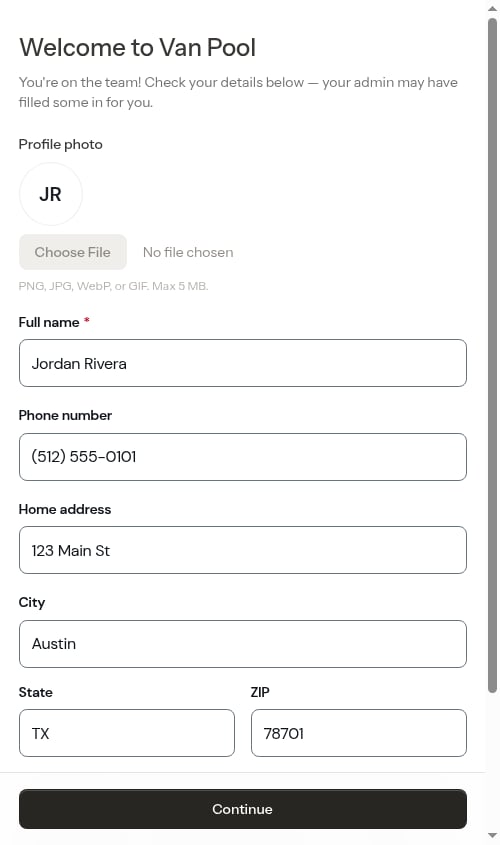
Once they’re in, ProBase welcomes them to your team and asks them to confirm their details — some of which you may have filled in for them. They add:
- A profile photo (optional)
- Their full name
- Their phone number
-
Their home address, city, state, and ZIP
3
Land on HomeBase
After clicking Continue, they’re on the team and land on their HomeBase, ready to see the work assigned to them.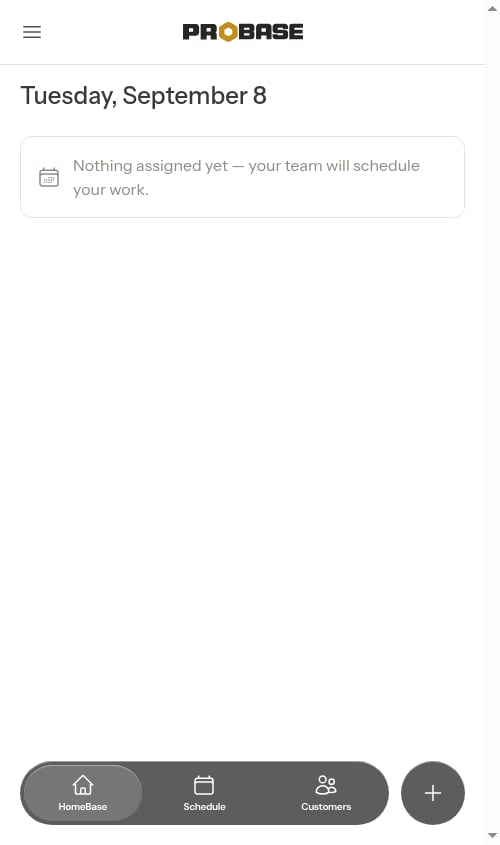
If the invitation has expired
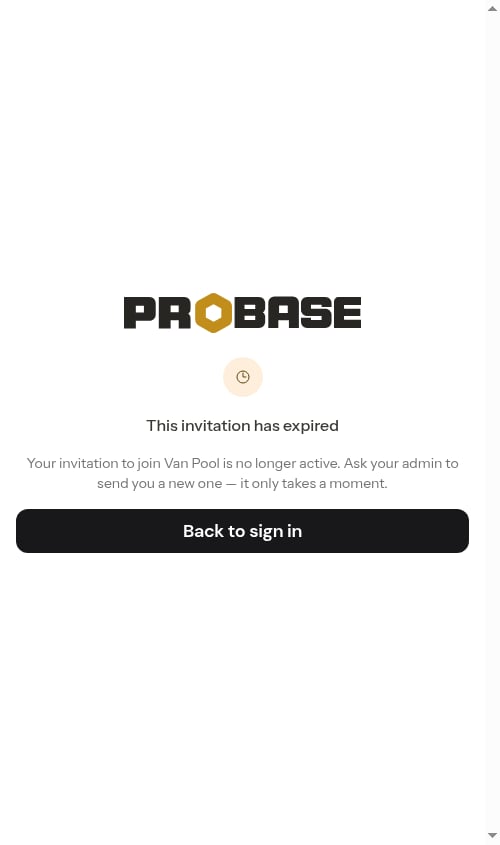
If a member opens an invitation link after it’s expired, they see a message explaining the invite is no longer active and to ask their admin for a new one. Nothing is added to your team until you send a fresh invitation.