Overview
At the end of a week or month you may have a pile of drafts — one per customer — waiting to be sent. Send batch invoices lists them all so you can review them and send them in one go.Sending in one go needs ProBase to send the texts and emails for your business. When that isn’t on for your account yet, the same screen is a review list: you can see every draft and open each one to send it from there — “Sending in one go isn’t on for your business yet.”
Open Send batch invoices
Either:- On Money, tap N invoices to send · Review and send
- On HomeBase, tap Review drafts on the Send your drafts card (see HomeBase)
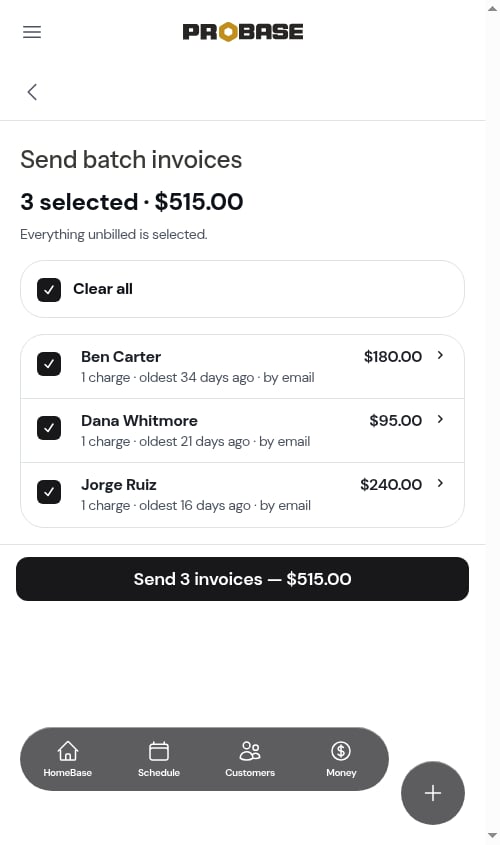
Review the list
Every customer with an open draft is listed and ticked. Each row shows:- The customer and what the draft will ask them to pay — its Balance due, with tax included and any credit already on it taken off
- How many charges are on it and how old the oldest one is — 1 charge · oldest 34 days ago — or, for a subscription bill, the plan and the day it was billed
- How it will go: by text when the customer has a phone number, otherwise by email
1
Untick anyone you're not ready to bill
Tap a row’s tick box to leave that customer out.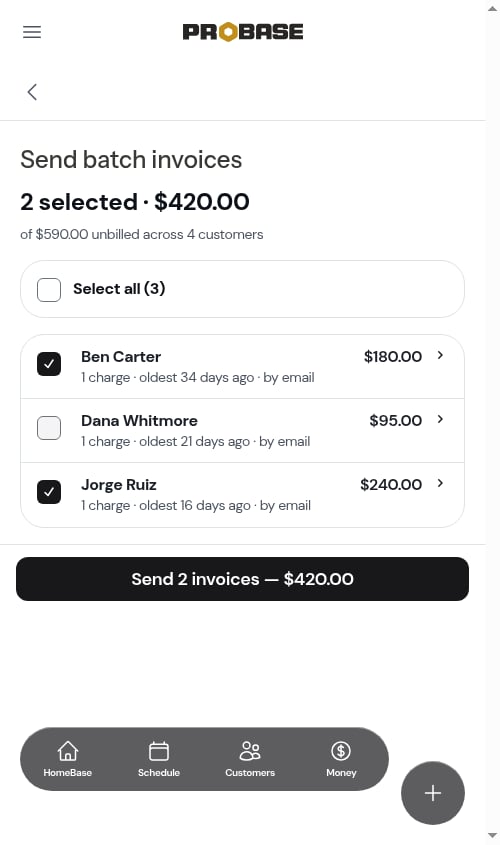
2
Check a draft if you need to
Tap a row’s name to open that draft. When you come back, your ticks are just as you left them.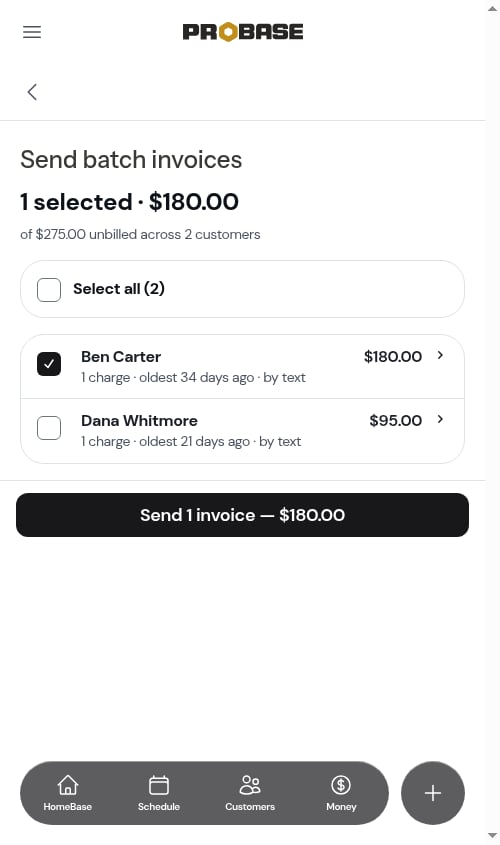
3
Tap Send
Tap Send 3 invoices — $515.00. A confirmation sheet shows the total, how many go by text and by email, and a reminder that there’s no way to unsend once they go.
4
Confirm
Tap the send button on the sheet, or Go back to change your selection.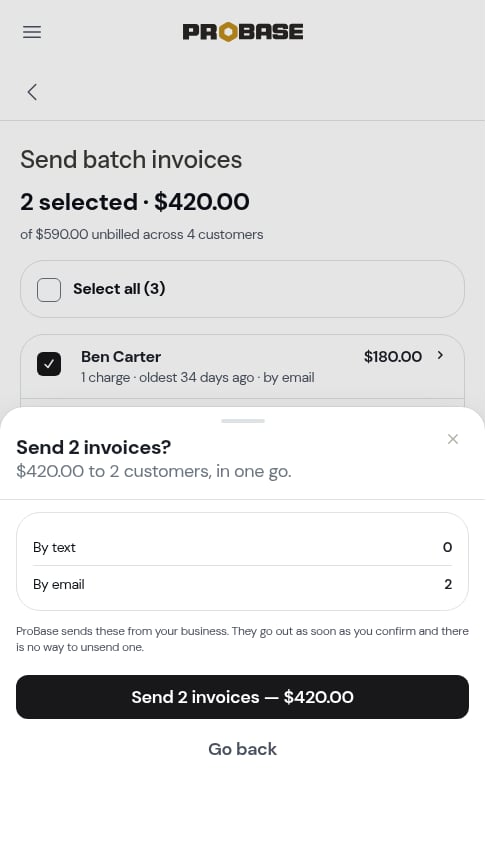
A customer with no phone number and no email can’t be sent anything, so they aren’t on the list. Their draft stays a draft — add a phone or email to their profile, then send it.
Send results
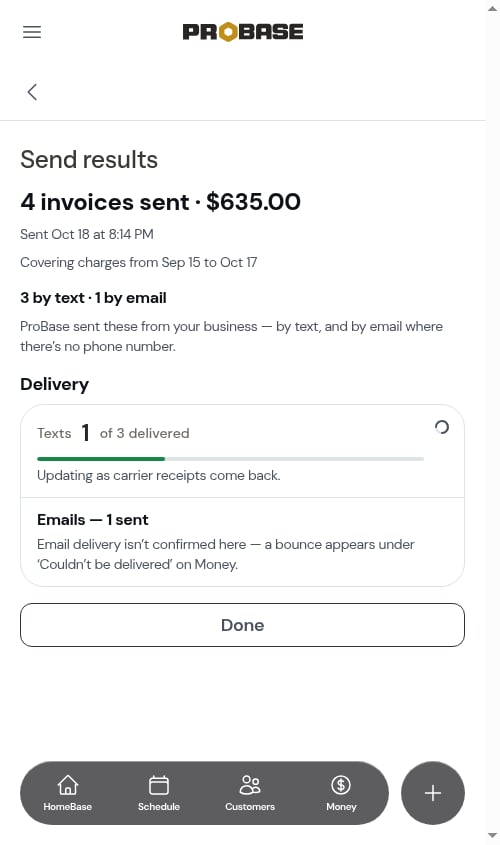
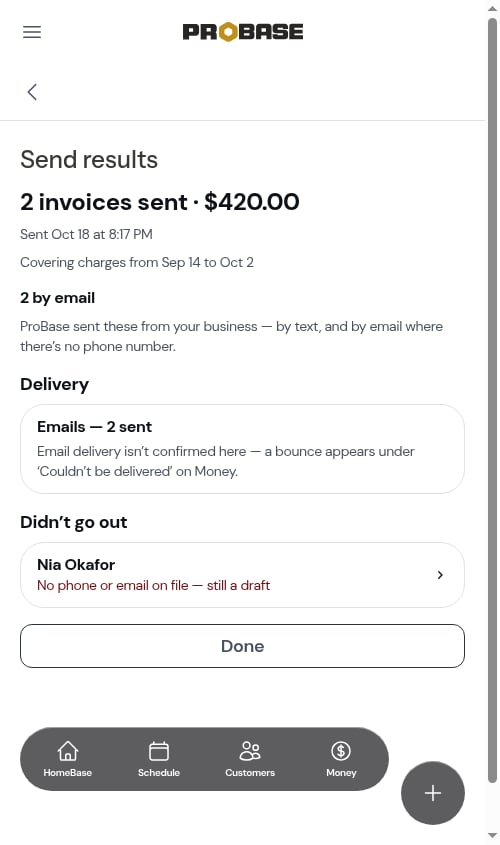
After you confirm, the Send results screen shows what went out:- How many invoices were sent and their total, when, and which charges they cover
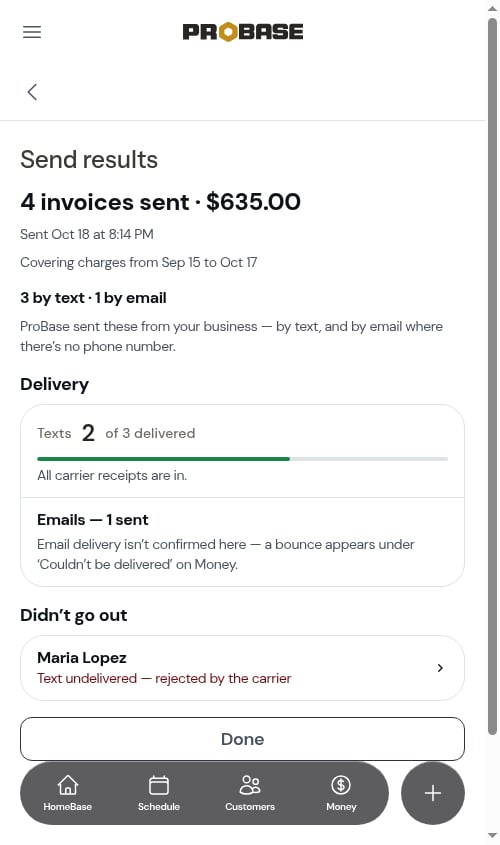
- Delivery — Texts N of M delivered, updating as carrier receipts come back (“Updating as carrier receipts come back.”). Emails show how many were sent; email delivery isn’t confirmed, and a bounce later shows up under Couldn’t be delivered on Money.
- Didn’t go out — any invoice whose text failed (for example invalid number or rejected by the carrier), or any draft that was skipped. Tap a row to open that invoice and resend it another way.
Every batch you’ve sent is listed under Invoice batches on Business reports, so you can open its results again later.
When there’s nothing to send
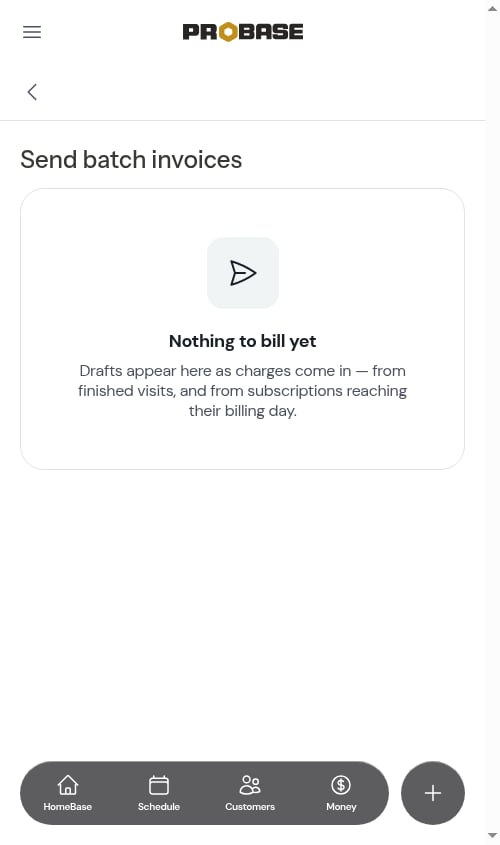
If no customer has an open draft, the screen reads Nothing to bill yet — drafts appear as charges come in from finished visits and from subscriptions reaching their billing day.