Overview
Export your records lets the business Owner download ProBase data as a CSV spreadsheet file. There are two files to choose from:- Accounting — Every charge, credit, tip and payment, in the order it happened. What an accountant reconciles from.
- Customers — Your book: every customer, their contact details, their properties and their services.
Only the business Owner can export records. Everyone else — Admins included — doesn’t see the card at all. See Roles & permissions.
Opening the export page
Open Settings from the navigation drawer and scroll to the bottom of the page. The Export your records card sits just above Delete Business. Tap the Export your records row.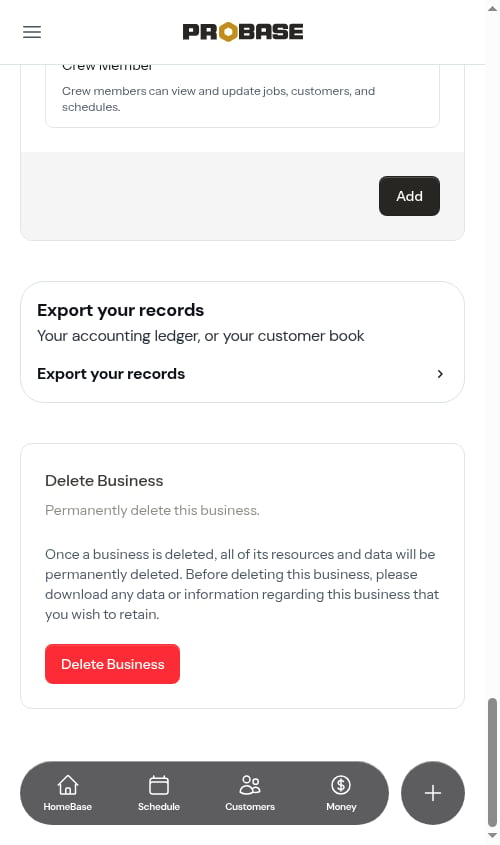
Exporting a file
1
Choose a file
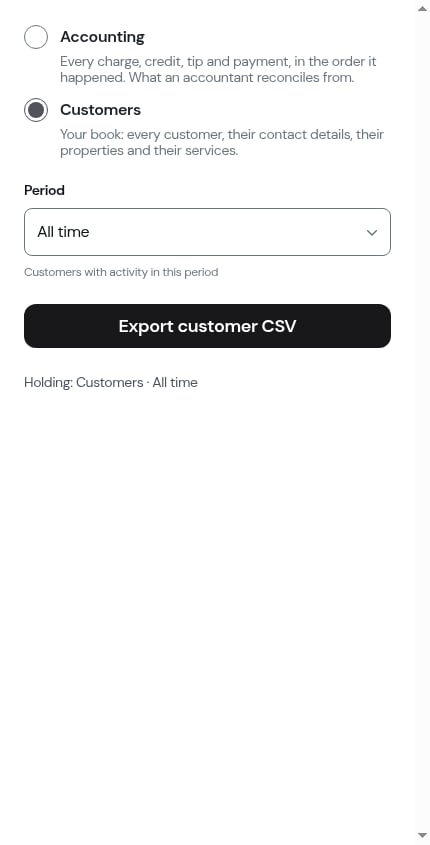
Pick Accounting or Customers.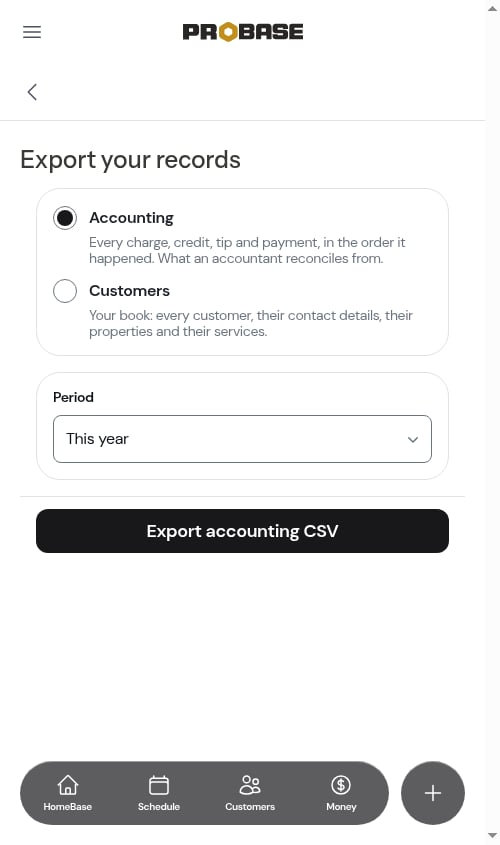
2
Choose a period
Open the Period dropdown and pick This month, Last month, This year, Last year, All time, or Custom range. Periods follow your business’s timezone.The Accounting file starts on This year and the Customers file starts on All time — change it if you need something different.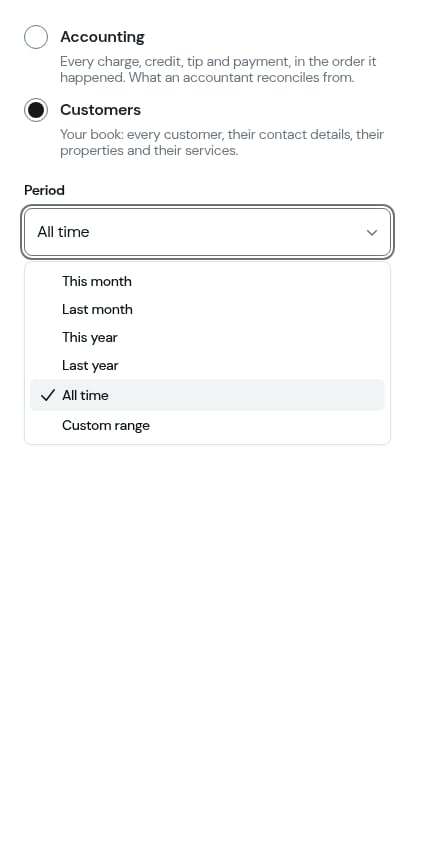
3
Pick your dates (Custom range only)
With Custom range, choose a From and a To date. The end date has to be on or after the start date, and the range can’t start after today.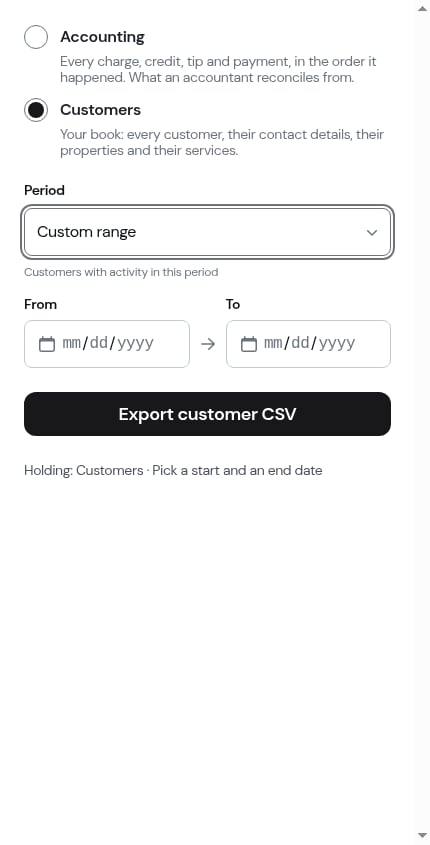
4
Export
Tap the button at the bottom — it names the file you’ll get: Export accounting CSV or Export customer CSV. You’ll see Preparing your export… while ProBase builds it.
5
Your download starts
When the file is ready, the page reads Your export is ready and the download starts on its own. The line underneath says what moment the file was taken at — for example, As of Sep 29, 8:01 AM.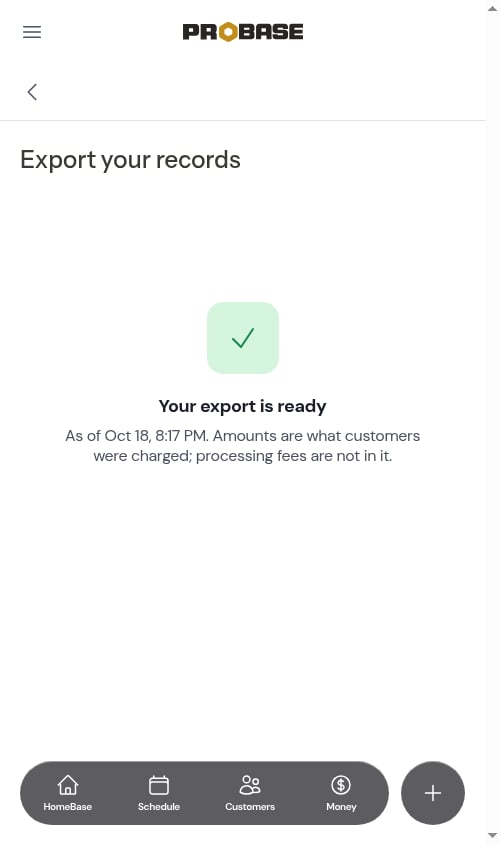
probase-accounting-2026-01-01_2026-12-31-20260928-1941.csv.The download link only lasts a short while. If you need the file again later, just run the export again — it takes a moment.
What’s in each file
Accounting
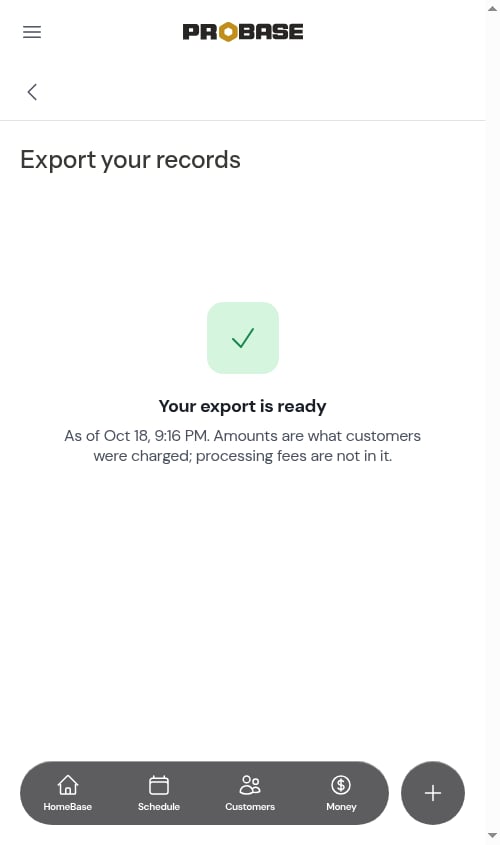
One row per money movement, oldest first, with these columns: Date, Kind (Charge, Credit, Payment, Tip, or Refund), Customer, Service address, ZIP, Service, Amount, Payment method, Invoice number, and Status (Paid or Unpaid). Rows for $0 are left out.Amounts are what customers were charged; processing fees are not in it. The ready screen says the same thing when you export the Accounting file.
Customers
One row per service — a customer with several properties or services has a row for each — with these columns: First name, Last name, Email, Phone, Customer status (Lead, Active, or Archived), Property address, Address line 2, City, State, ZIP, Service, Service type (Job or Assessment), and Service status. The Customers file holds no money — use the Accounting file for that.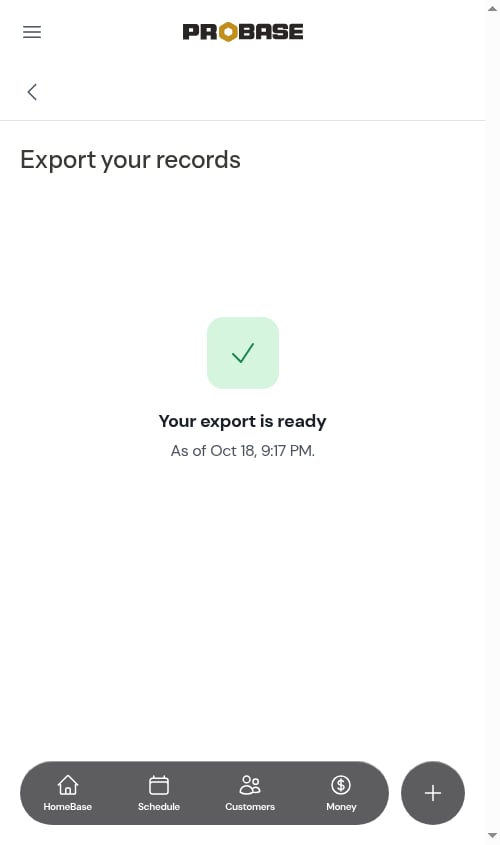
If there’s nothing to export
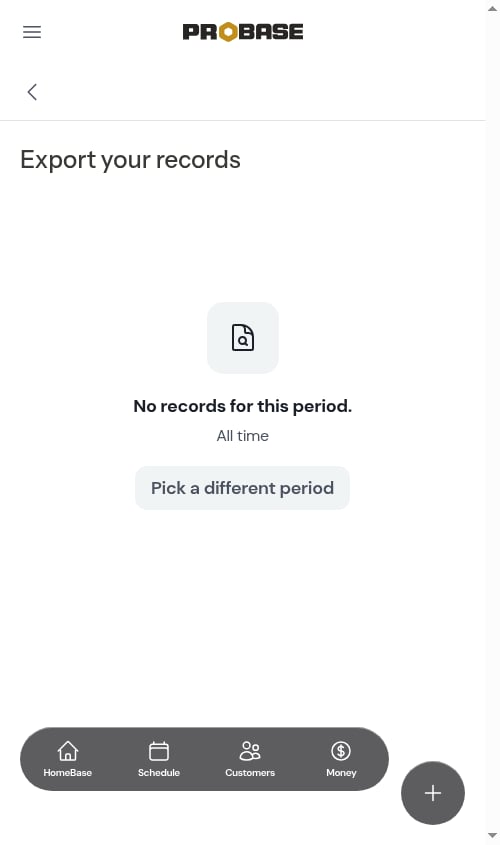
If the period you picked has no records, you’ll see No records for this period. with the period underneath. Tap Pick a different period to go back to the form.