Overview
ProBase can work out the most efficient order to visit your stops, saving you time and fuel. It shows up in a few places:- Optimize route — a full preview of a better order for one crew’s day. You see exactly what would move and what it saves, then apply it or leave it. This page.
- Rebalance this day — the same idea across several crews, moving jobs between them. See Rebalancing the day.
- Assign & optimize routes — hands out the day’s unassigned jobs and routes them in one pass. See Jobs that need a crew.
- Background auto-optimization — ProBase quietly reorders days as work is added, and tells you afterwards. See Background auto-optimization.
- Crew and start-time suggestions — the same engine works out what each crew would cost you in driving when you assign one, and what start time fits the day. See The Recommended crew and The recommended start time.
Opening the Optimize route preview
Two doors lead to the same screen:- Schedule → Day view — the “Save about 40 min of driving” row in the Needs you card (Plan your day), whose verb reads Optimize the route
- Schedule → Day view → Reorder stops → Optimize drive
The day note on the Day view — “This day runs 47 min past 5:00 PM.” with Reorder beside it — opens the Reorder stops panel rather than this screen. Optimize drive at the top of that panel brings you here.
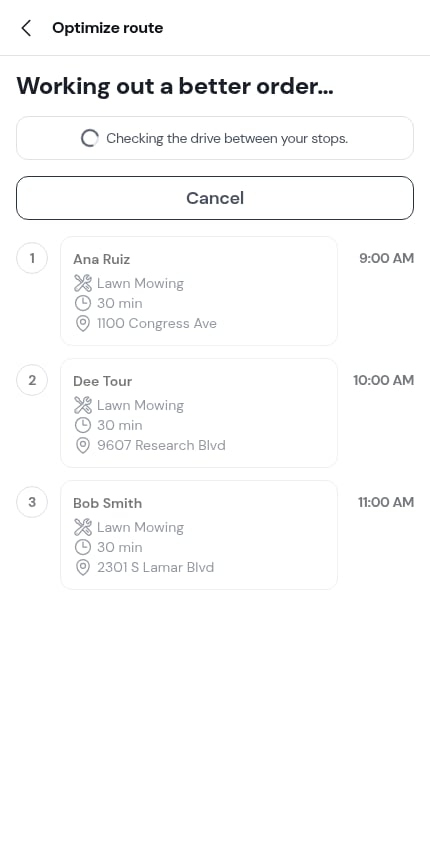
Working out a better order… Checking the drive between your stops.You can tap Cancel while it’s thinking; nothing is written either way.

Reading the proposal
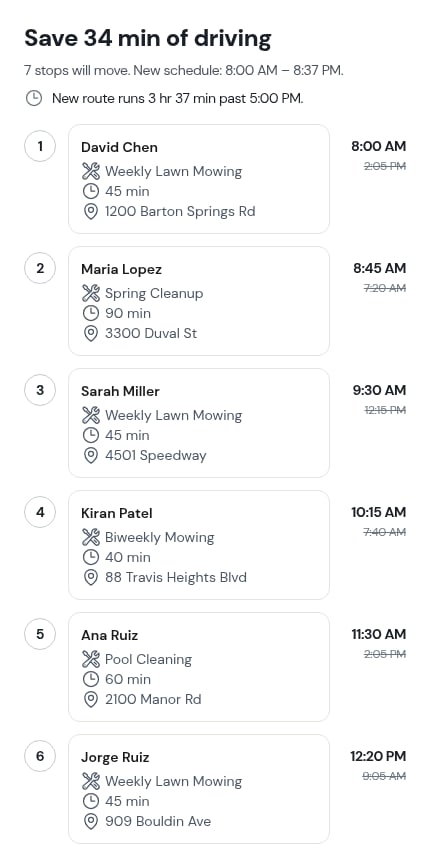
When ProBase finds a better order, the screen answers the only question that matters with a number: Save 34 min of driving, and underneath, what that costs you in movement — “6 stops will move. New schedule: 6:30 AM – 2:41 PM.”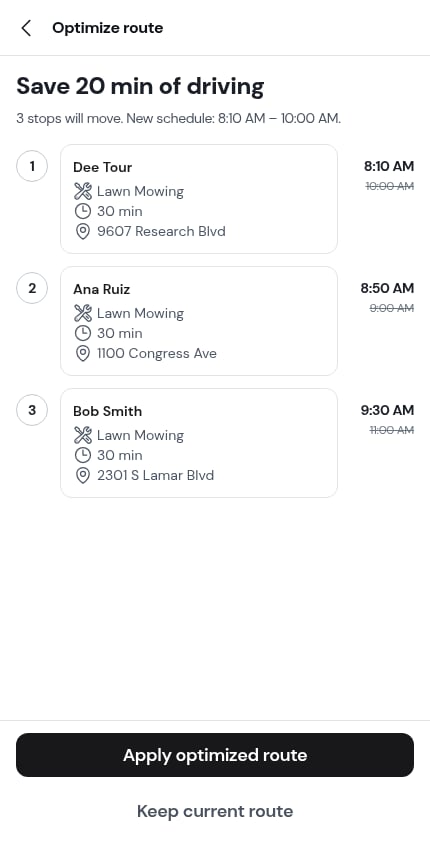
Pinned stops
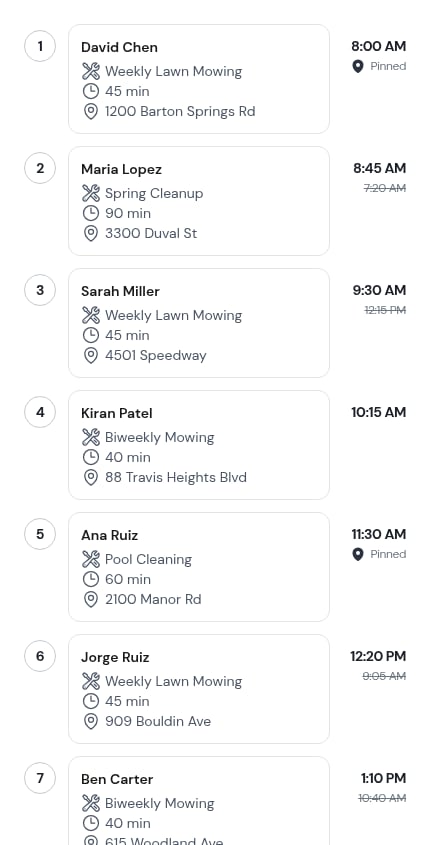
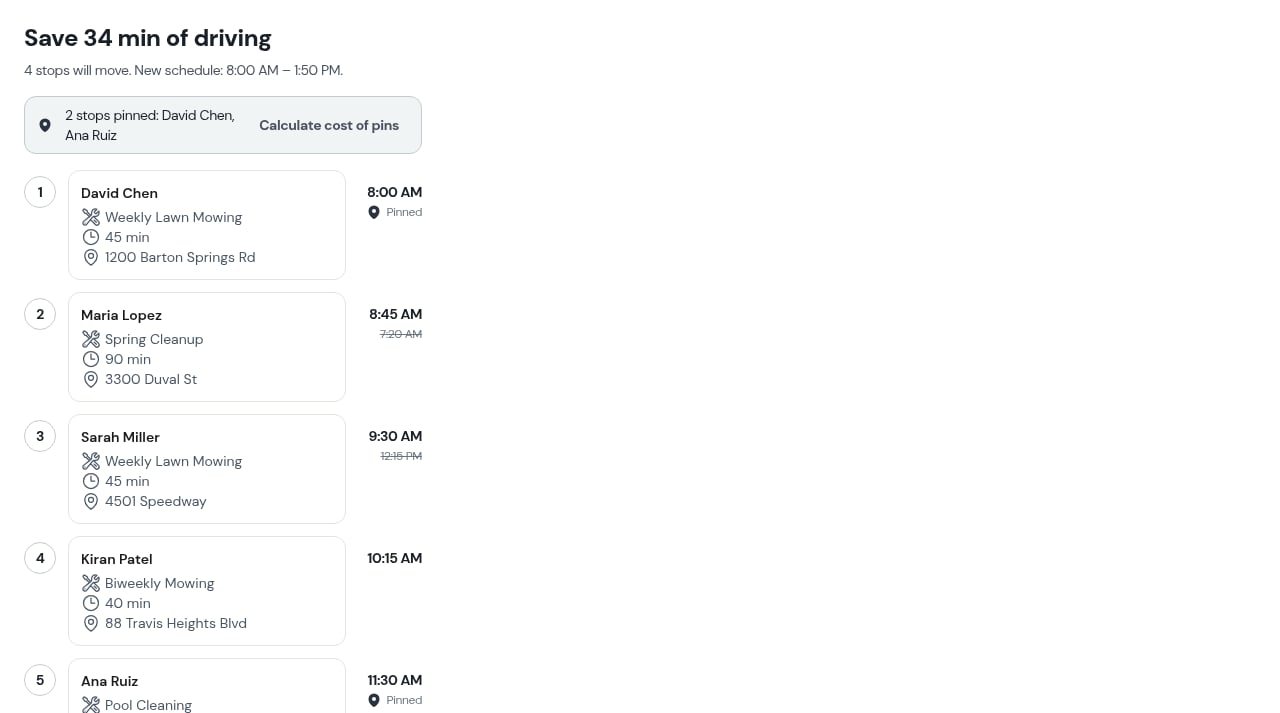
Pinned stops keep their times — the preview lists them by name (“2 stops pinned: David Chen, Ana Ruiz”) and marks their rows Pinned instead of showing a new time.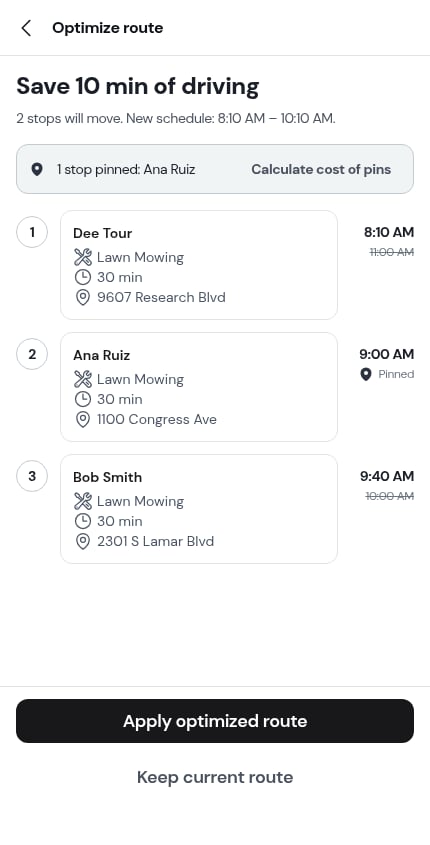
Applying it
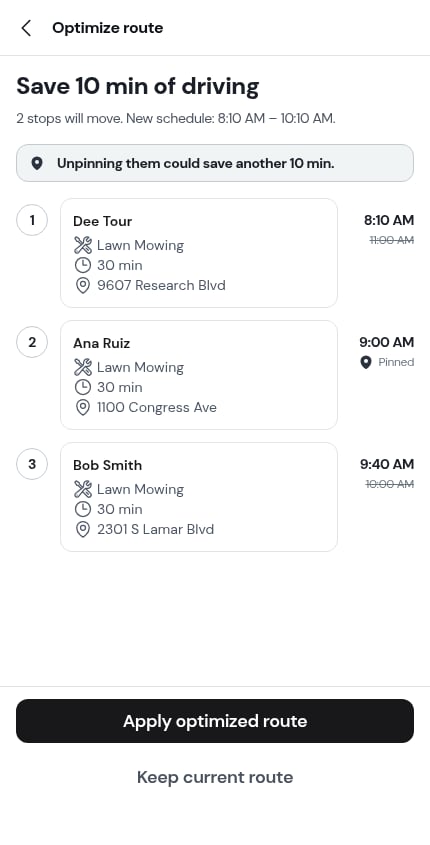
Two buttons sit at the bottom:- Apply optimized route — writes the new order and re-times every stop that moved.
- Keep current route — closes the screen, changes nothing, and marks the day as reviewed so it isn’t offered to you again until the stops on it change.
Undoing
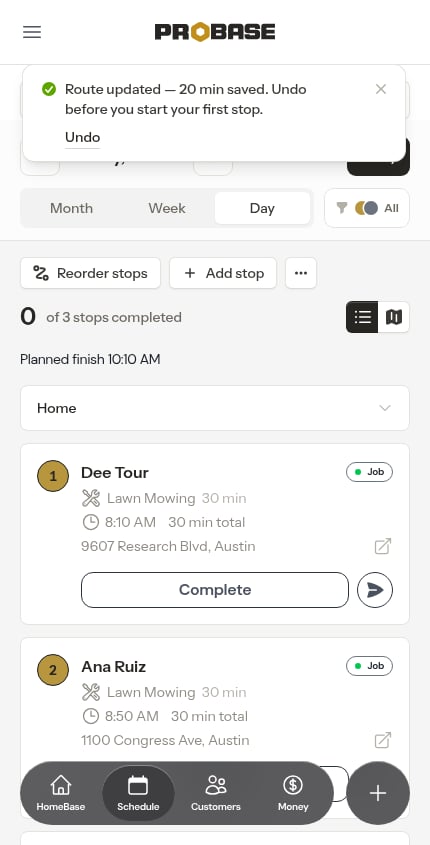
Undo puts every moved stop back where it was. It stays available until your crew starts the day — once a stop on the day is completed (or the day has passed) it expires. The undo also lives in ⋯ More → Undo the reorder — 34 min saved on the Day view while it’s good, so you don’t have to catch the message.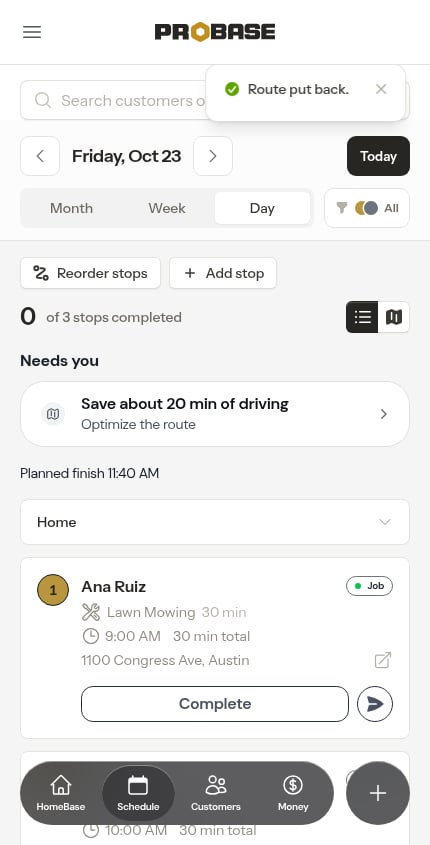
If a stop on the day is already done, the preview warns you before you apply: A stop on this day is already done — This can’t be undone. The route can still be applied; there’s just no going back, so the confirmation afterwards carries no Undo.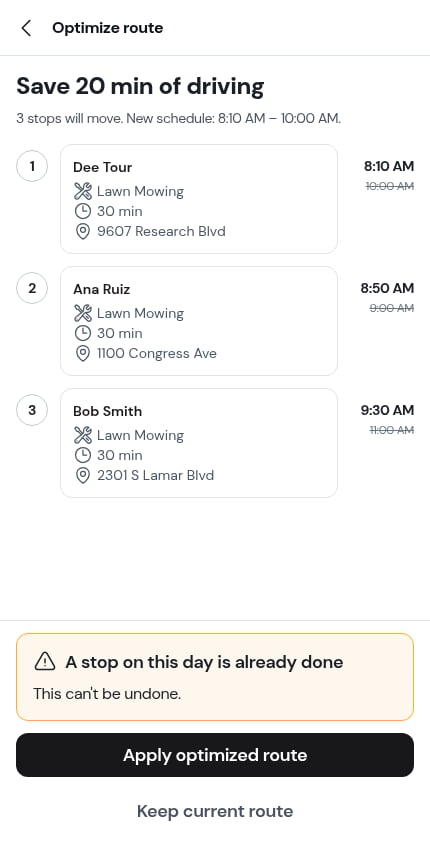
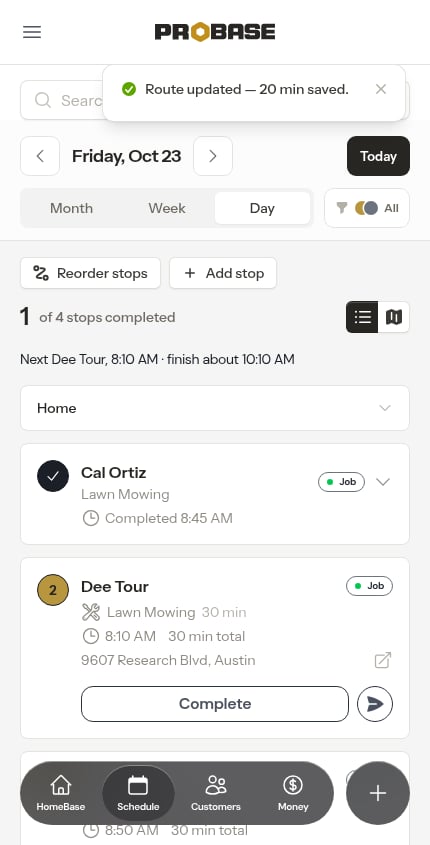
If you leave the preview open for a while, the worked-out order can go stale — tapping Apply optimized route then works the day out again first (“That preview had gone stale — working out the order again.”) so you never apply yesterday’s arithmetic.
The other answers
Not every day has a better order in it, and ProBase says which case you’re in rather than showing a blank screen.

When the crew has no start address
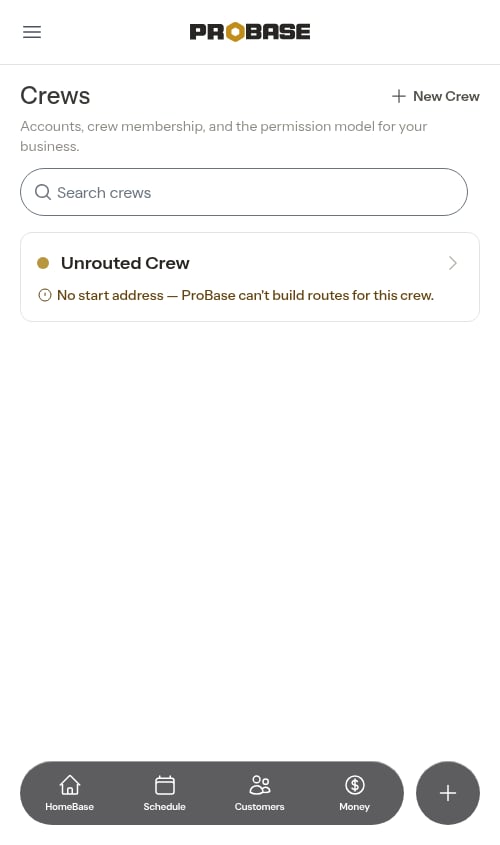
If the crew you’re optimizing has no start address saved, the preview doesn’t leave you guessing. Beneath “Couldn’t work out a better order right now.” a yellow notice names the crew — “Yardless Crew has no start address” — and explains: “ProBase can’t build a route for a crew without one. Add a start address on the Crews page, then try again.” Tap Open Crews to go straight to the Crews page, add the address, then come back and tap Try again. You can dismiss the notice with the X if you’d rather not see it; nothing on your day was changed.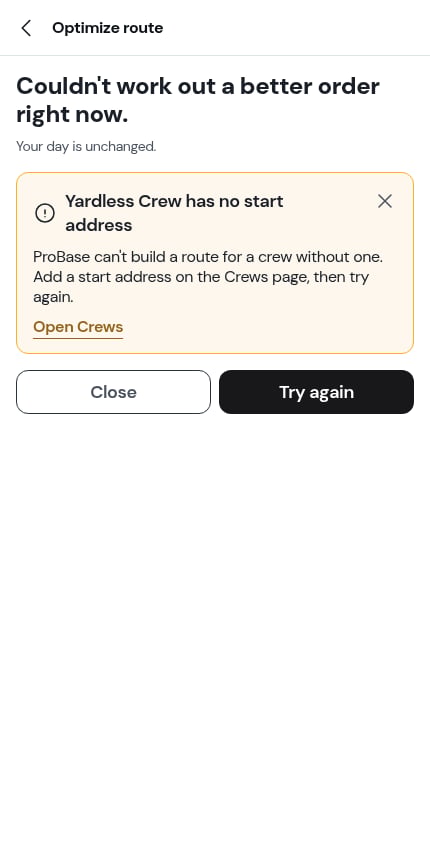

A day that’s already underway
Optimizing today is different from planning tomorrow, and ProBase treats it that way. When a day is underway it works the route out from where the crew actually is and no earlier than right now — the stop being worked, or the last one completed, is the starting point. No stop is ever proposed at a time that’s already gone, and the job your crew is standing on is never moved.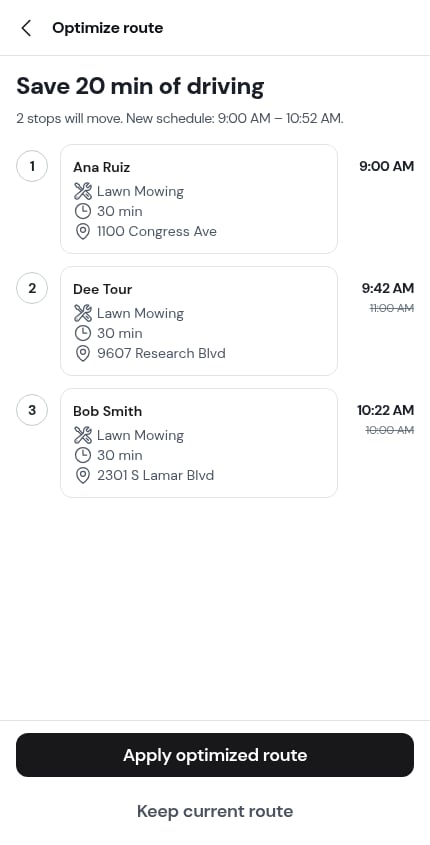
Background auto-optimization
With Optimize my routes automatically switched on in Settings, ProBase reorders a crew’s day in the background as work is added or changed — no action from you. It doesn’t do it silently. The next time you open that day, a message tells you what happened: “ProBase reordered this day — 22 min saved.” — or, on a multi-crew team where work moved, “ProBase reordered this day and moved 2 jobs to Alex — 41 min saved.” — with Undo beside it.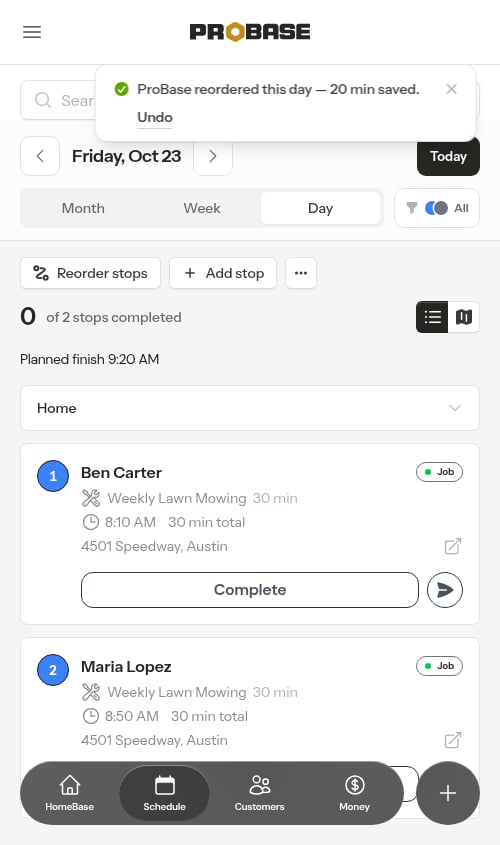
What optimization never moves
- A pinned stop keeps its time. See Pinning a visit’s time.
-
A stop a crew is already working stays exactly where it is — the preview marks it held rather than proposing a new time for the job someone is standing on.
- A stop is never proposed before the crew’s start time, and on a day already underway, never before now.
- Nothing is written to other days.
Requirements
Route optimization needs:- The crew to have a starting address saved — it’s where the drive is measured from. See Start and end locations.
- Property addresses that ProBase can find on the map.
- At least two stops for that crew on the date.
Drive time is padded
Every drive time ProBase plans with — in the preview, in the Reorder stops panel, in the crew suggestions — already includes your drive time buffer, so the numbers you see are the numbers it schedules with. Set it in Settings → Scheduling.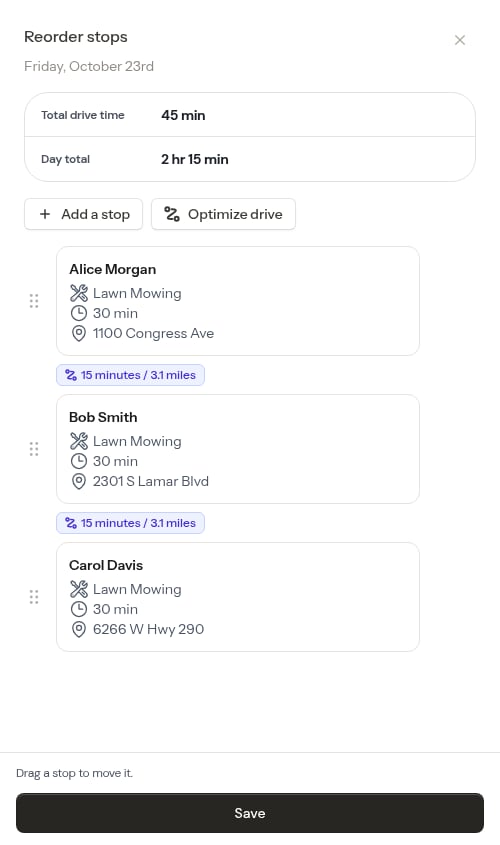
Next steps
- Reorder stops — hand-pick the order yourself
- Rebalance the day — move work between crews
- Plan your day — where HomeBase and the Day view surface all of this
- Daily crew schedules — track progress once the day starts