Overview
The Month view gives you the big picture: every appointment for the month laid out on a single day-cell grid. It’s the fastest way to spot a packed week, find an open day to slot in new work, or get a feel for how busy the month ahead looks.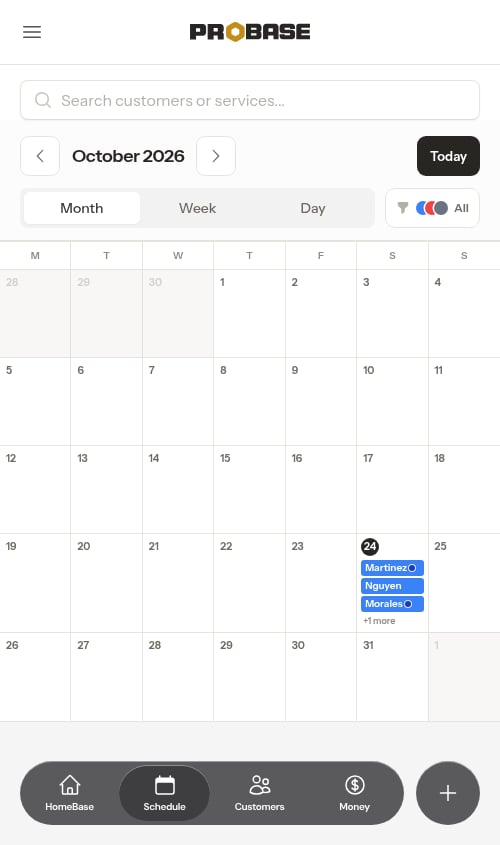
Open the Month view
Click Schedule in the sidebar, then tap Month in the view picker at the top of the page.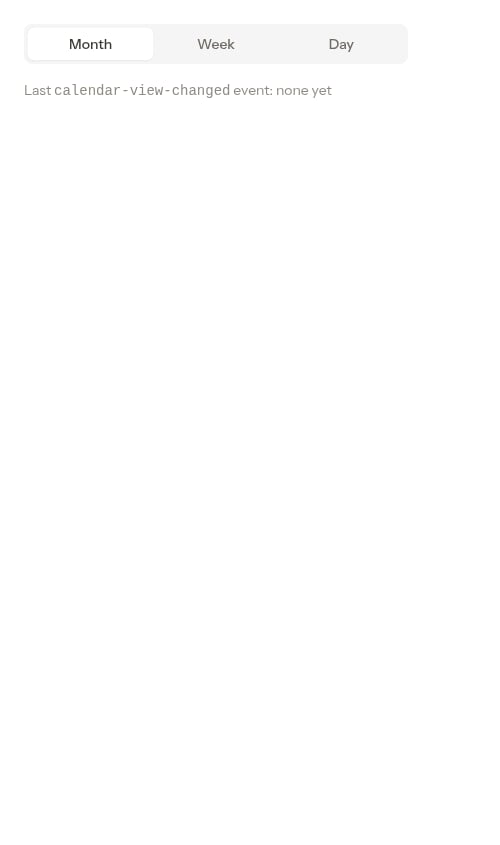
What you’ll see
Each day in the grid shows up to three appointments as small colored bars:- The color of each bar matches the assigned crew, so you can read crew workload across the whole month at a glance. Appointments with no crew assigned yet show in grey.
- Each bar is labelled with the customer’s last name so you can tell the day’s jobs apart.
- When a day has more than three appointments, the extras collapse into a “+N more” label — tap into the day to see the full list.
- Today is highlighted with a filled circle on the date number.
- Marketplace jobs show the marketplace’s small brand mark (its logo) at the start of the bar, so you can spot work from a connected marketplace across the whole month. See Marketplace jobs.
Tap a day to see what’s on it
Tap any day in the grid to open the day overview — a bottom drawer on your phone, or a side panel on a wider screen — listing that day’s jobs and stops in start-time order, with the job count and total time booked.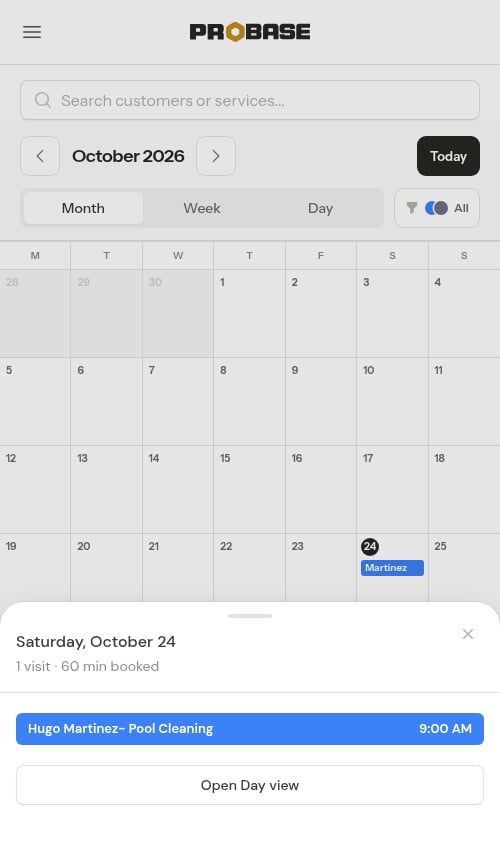
- Tap any job in the list to open its visit page.
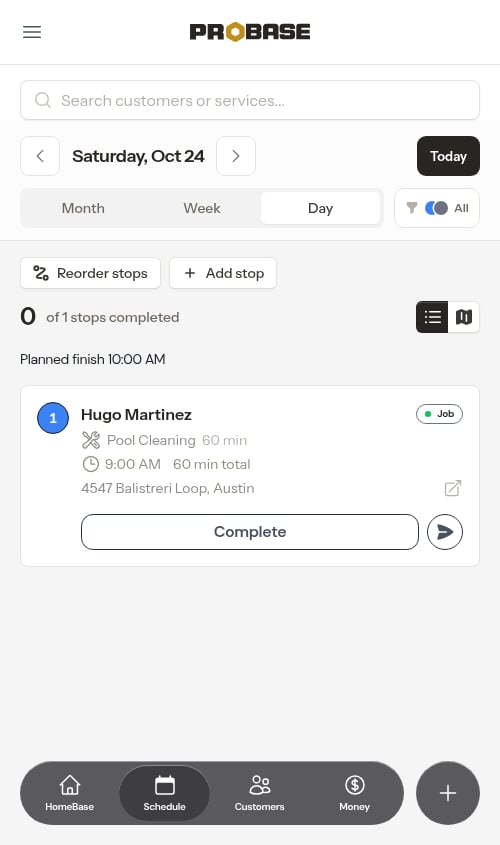
- Tap Open Day view to drill into that day’s full Day view, where you can see full appointment cards, track progress, complete or reschedule jobs, and reorder stops.
- Tap the ✕, tap outside, or press Esc to close it — the month stays exactly where it was. On a phone you can also drag the drawer down by its grab handle to flick it closed.
Drag a visit to another day
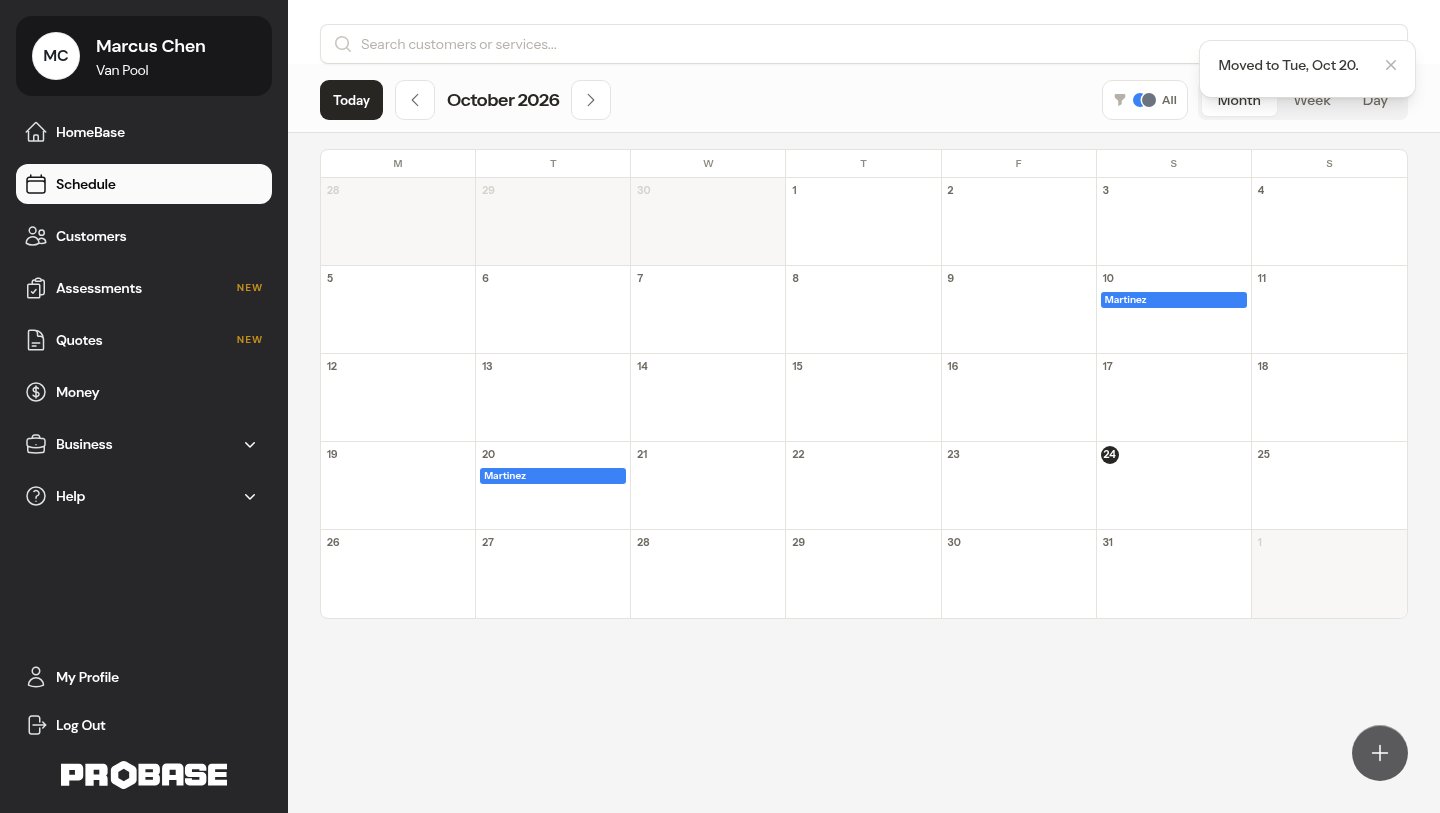
On a computer, pick a visit’s bar up with the mouse and drop it on another day in the grid. The visit keeps its time of day, and ProBase asks you to confirm before anything is written.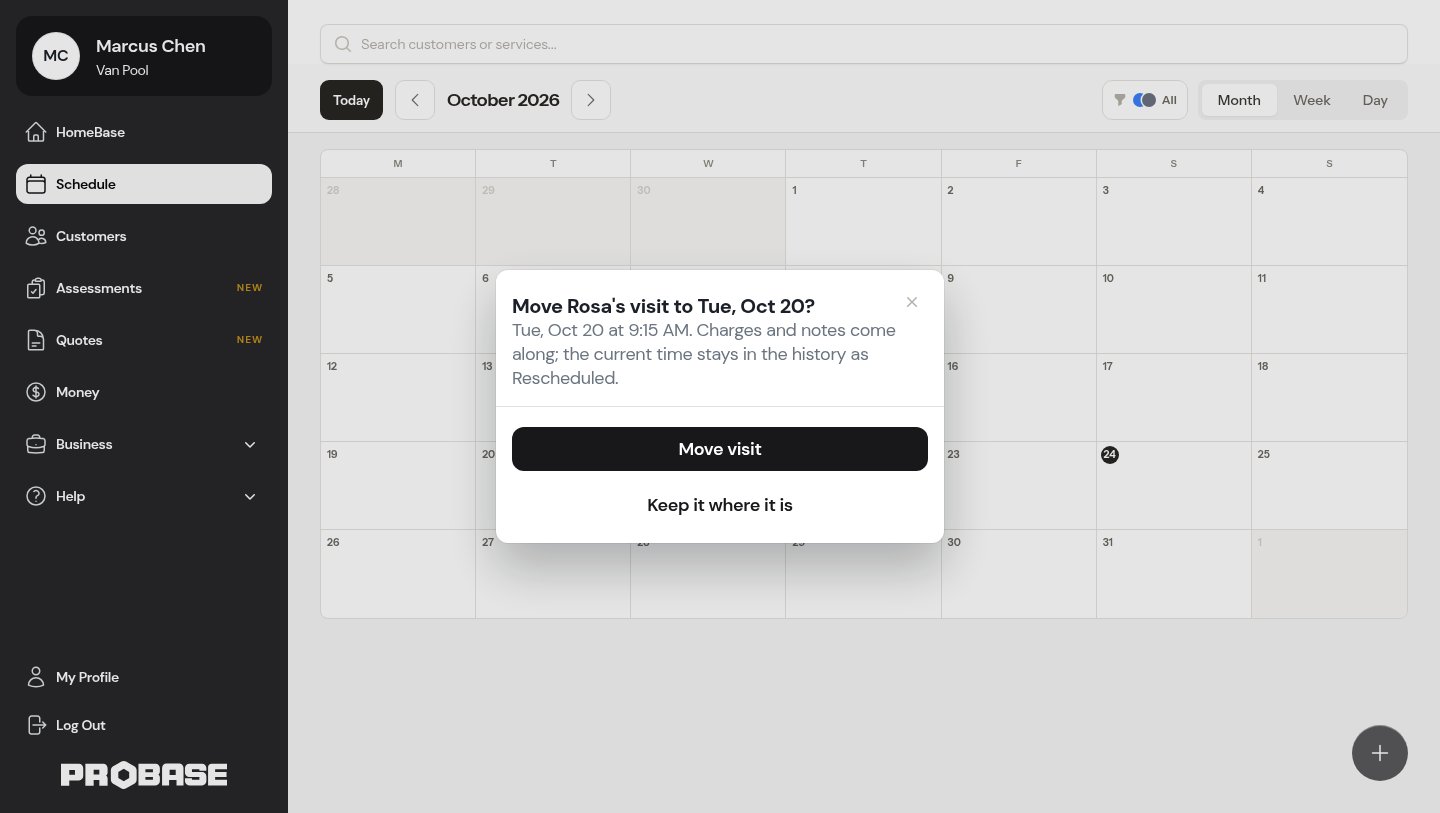
Move between months
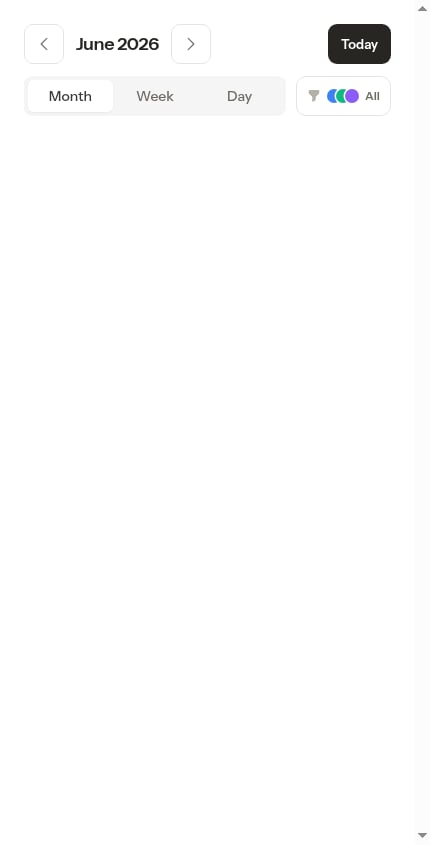
Use the date picker at the top of the page to move through the calendar:- Tap the left and right arrows to step back and forward a month at a time.
- Tap the date label to open a calendar and jump to any month.
- Tap Today to snap back to the current month.
Filter the month
The crew filter and search box work the same in Month view as in the other calendar views. Filter to a single crew to see just their month, or search by customer or service name to highlight specific jobs. See Filter appointments for details.Next steps
- Weekly calendar for a multi-day planning view
- Daily crew schedules for today’s work in the field
- Creating appointments to add new work to the schedule