Overview
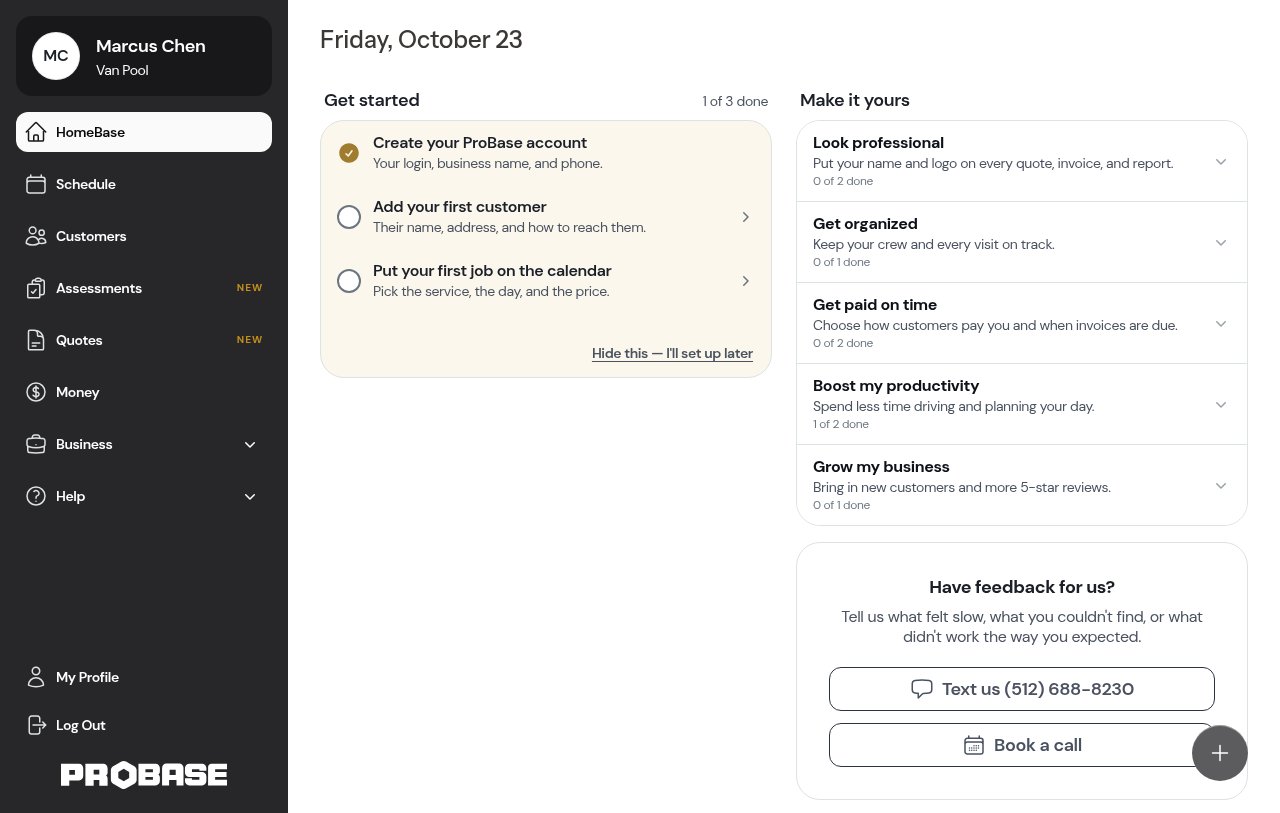
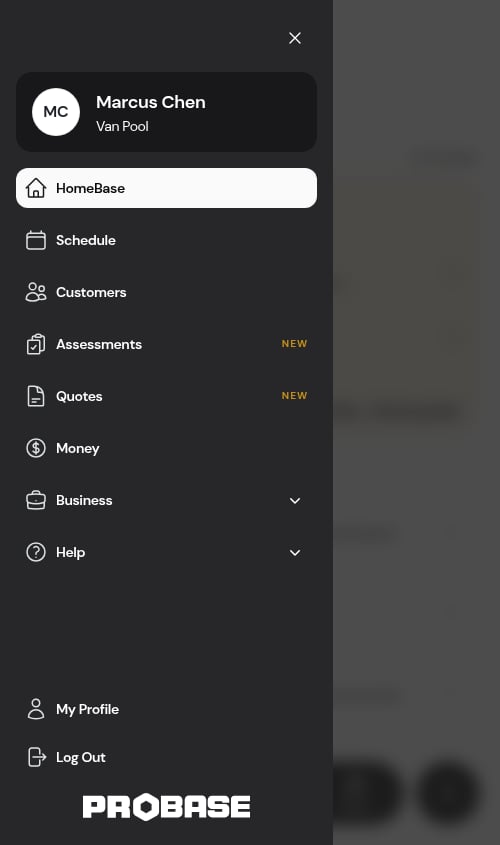
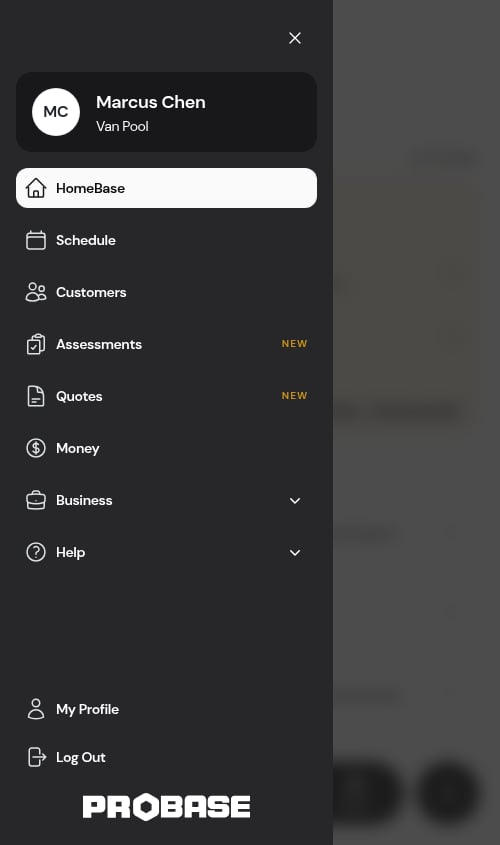
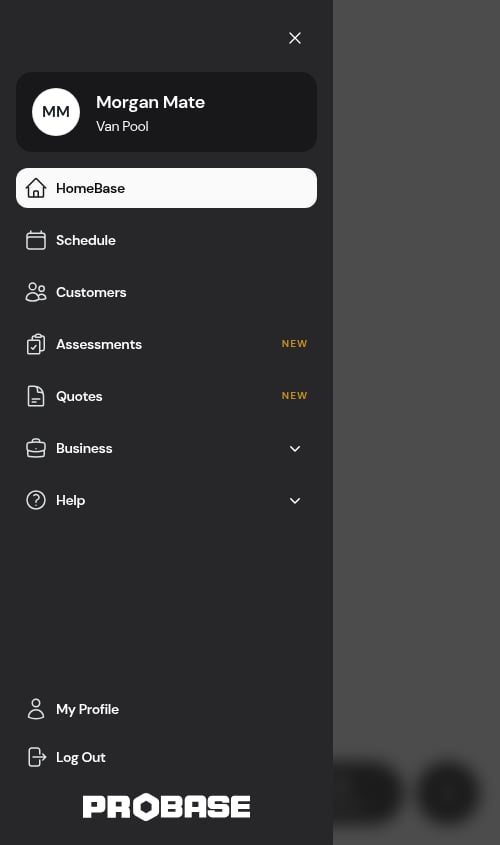
Everything in ProBase is reachable from the navigation drawer. On a computer it sits down the left side of every screen. On your phone it tucks away behind the menu (hamburger) icon in the app bar at the top and slides out over the page when you tap it — and it carries the exact same items, so the app works the same whether you’re at a desk or in the field.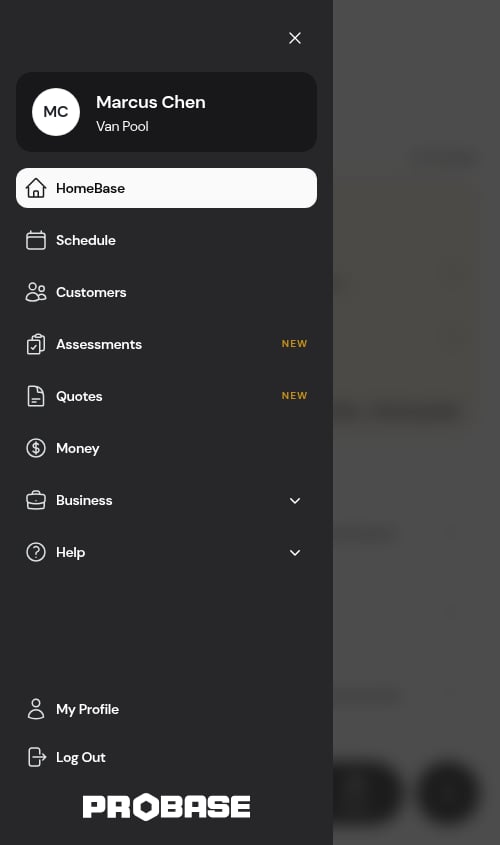
Your account
At the very top of the drawer is your identity: your profile photo (or your initials, if you haven’t added a photo), your name in large text, and your business name on the line underneath. It’s a label, not a menu — the account actions live in the footer at the bottom of the drawer.Main navigation
The first group of items is the screens you’ll use every day:- HomeBase — your daily dashboard (learn more)
- Schedule — the calendar and weekly schedule (learn more)
- Customers — your customer list (learn more)
- Assessments — the visits you’re booked to go and look at before you can price the work (learn more)
- Quotes — the quotes you’ve drafted, sent, and had answered (learn more)
- Money — invoices, payments, and balances (learn more)
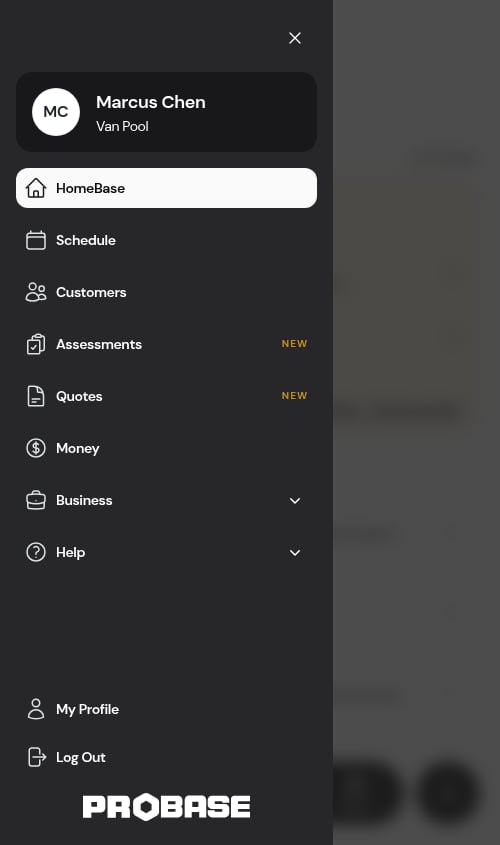
Assessments and Quotes currently wear a small gold NEW label on the right. It’s a launch marker for the two newest screens, not a count of anything waiting — it disappears for everyone on its own once the screens have been out for a while. Each item only appears if your role lets you see that screen.
Business
If you own or help manage the business, a Business group holds the setup screens. Tap the group to open it — the caret on the right flips over — and tap it again to fold it away:- Services — your reusable service templates and pricing (learn more)
- Checklists — reusable in-job forms your crew fills out on every visit (learn more). This item appears when checklists are enabled for your account.
- Team Roster — your people, crews, and roles, all under one page (learn more)
- Payments — see every way you can get paid, connect Stripe, turn on Venmo, Cash App or PayPal, and set your invoice settings (learn more)
- Integrations — link the outside tools you already use. Today that’s your marketplace accounts, which sync customers and jobs into ProBase (learn more). This item appears when marketplace connections are enabled for your account.
- Settings — your business profile and account settings (learn more)
The group opens itself when you’re inside it. Land on Services, Settings, Integrations, or any other Business screen and the group is already open when you pull the drawer out, with the screen you’re on highlighted — you never have to hunt for where you are.
The Business group only appears for business owners, admins, and managers. Crew members who log in see the everyday navigation but not these setup screens — and even within the group, each item only shows for people whose role allows it.
Help
Below Business, a Help group keeps support one tap away from anywhere in the app. It starts folded up — tap Help to open it:- Schedule a call — book a 1:1 with the ProBase team (opens in a new tab, pre-filled with your name and email)
- Docs — open these docs in a new tab
- Support — start a live chat with the ProBase team
- Tour a demo — opens a fully-loaded sample business you can look around in (learn more) without touching your own work. It appears below Support when the demo is switched on for your account, and only for owners and admins. If you do more than one kind of work, tapping it first asks which trade you want to explore.
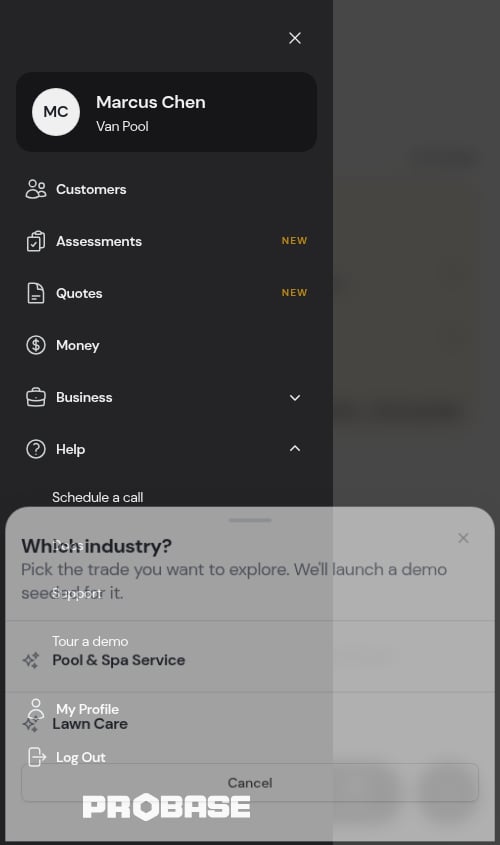
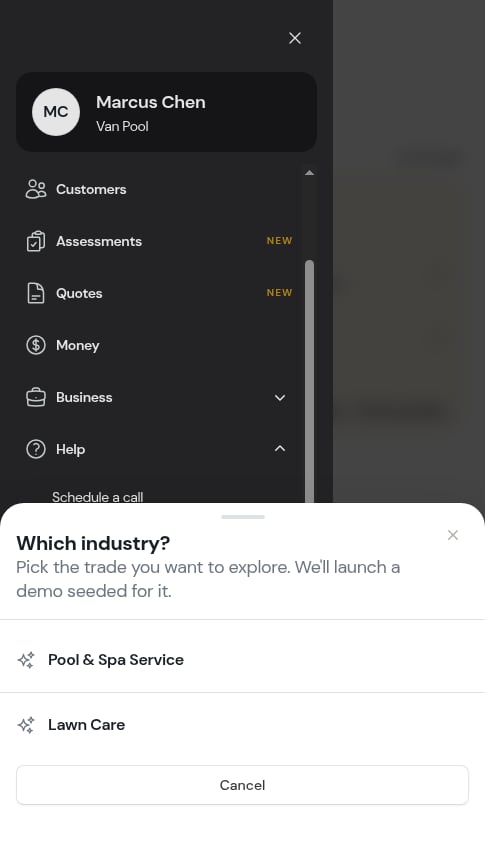
Inside the demo account the Help group is trimmed to Docs and Support — Schedule a call and Tour a demo are about your real account, so they step aside while you’re in the sample world.
At the bottom
A footer is pinned to the bottom of the drawer, below a divider. It stays put while the list of screens above it scrolls, so these are always in reach:- Updates — opens the Updates drawer, with a gold pill on the right carrying your unread count (learn more). This is the computer version of the bell that sits in the phone app bar, and it appears once updates are switched on for your account.
- My Profile — update your name, email, password, and personal settings such as your maps app preference
- Log Out — sign out of ProBase
When the list is longer than your screen
Opening the Business group adds half a dozen items to the list, and on a short screen — a small phone, a laptop with a browser toolbar, or a window you’ve made shorter — that’s more than fits. Only the middle of the drawer scrolls. Your name and business stay pinned at the top, My Profile, Log Out, and the wordmark stay pinned at the bottom, and the list of screens between them slides under your finger until you reach whatever you were after. Help, right at the end of the list, is always reachable without folding Business away first.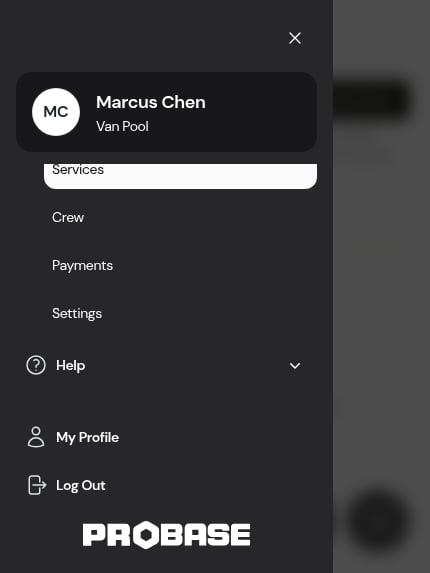
Making room for the page
On a computer, the ✕ button at the top of the drawer shrinks it down to a narrow strip of icons, giving the page more width. The group labels and item names disappear, leaving just the icons; tap the › arrow that takes its place to bring the full drawer back.Creating things
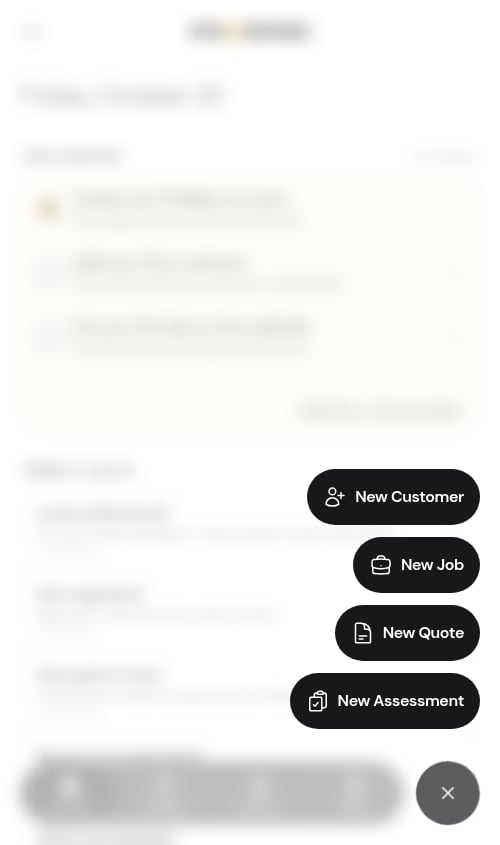
The things you create most often live on the floating + button rather than in the drawer, so they’re one tap away from any screen without opening the menu:- New Customer — opens the new-customer form right away
- New Job — starts the guided job wizard for confirmed work
- New Quote — starts a quote for a customer and property
- New Assessment — starts an assessment when you need a look at the property before you can price the work
Going back
Pages you drill into — a job, a customer, a property, a service, a quote, or one of HomeBase’s follow-up lists — always tell you where you are and give you a one-tap way out. What that looks like depends on your screen size.On a computer: the breadcrumb trail
A trail sits across the top of the page, starting with a small house icon (HomeBase) and then naming each level down to the page you’re on. Every step except the last one is a link, so you can jump back up as many levels as you like:🏠 › Customers › Elena Rivera › 750 Oakwood Dr › Weekly MowingThe trail starts where you came from. Open a job from the Schedule and the trail is rooted at Schedule; open one from your next stop on HomeBase and it’s rooted at Dashboard; open one from HomeBase’s Overdue jobs list and Overdue Jobs sits in between. Reach the same job through a customer’s service page and you get the full customer trail instead. A job is named in one step. On a trail that comes from the Schedule or HomeBase, the last step is the visit itself, written out in one line — the service, the customer, and the date together — so you can tell at a glance which visit you have open:
🏠 › Schedule › Lawn Mowing for Elena Rivera on Aug 13, 2026The visit is where the trail ends. Everything about it — what’s being charged, the property’s details, the notes — sits on the Visit, Details, and Notes tabs of that one page, so there’s no deeper level to climb back out of. See The visit page.
HomeBase is spelled Dashboard in the trail, and the house icon at the start of every trail goes to the same place.
On a phone: the back arrow
A row pinned just under the app bar carries a ‹ back arrow on the left. Tapping it takes you up one level. Any actions for that page — Edit on a customer, property, or job, for example — ride on the right-hand side of the same row, so they stay reachable as you scroll. On a visit, the actions are buttons on the page itself instead: the main action, the outlined ⋯ More beside it, and whatever quiet action applies — see The visit page.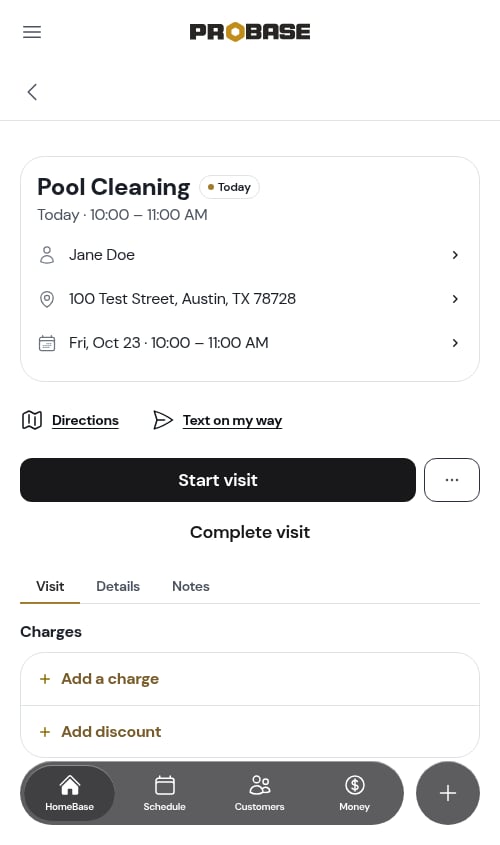
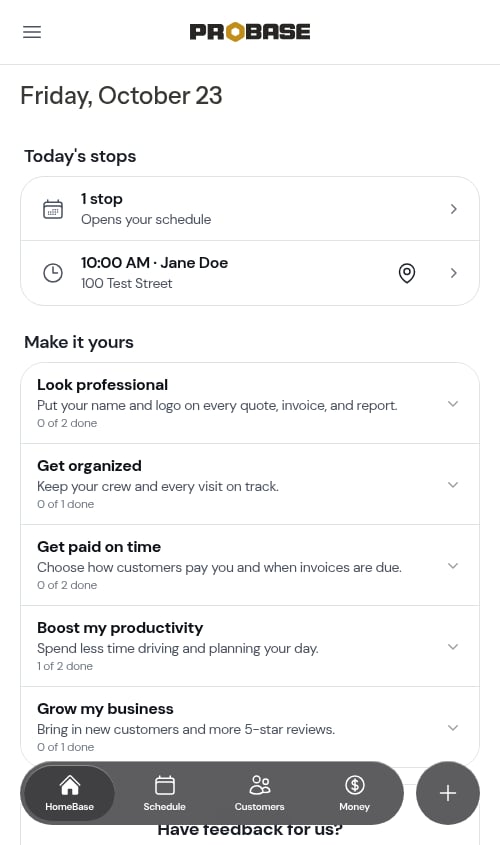
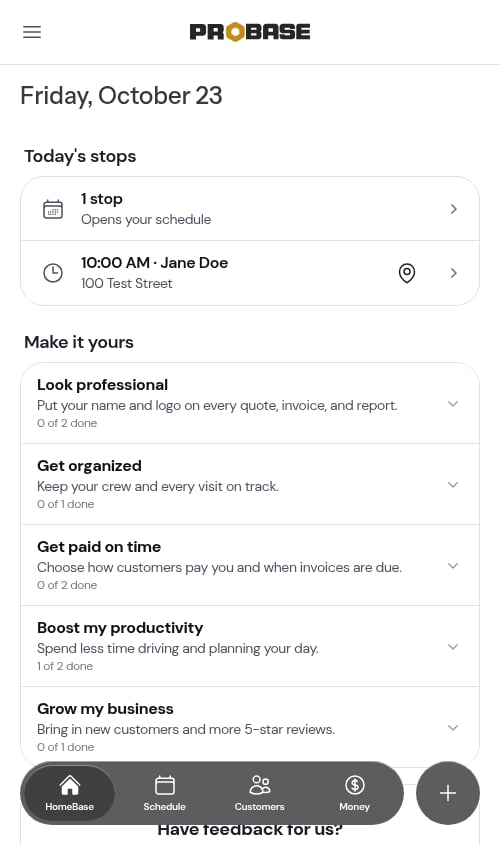
Back knows where you came from
Both the trail and the arrow are context-aware — they take you where you came from rather than always to the same place: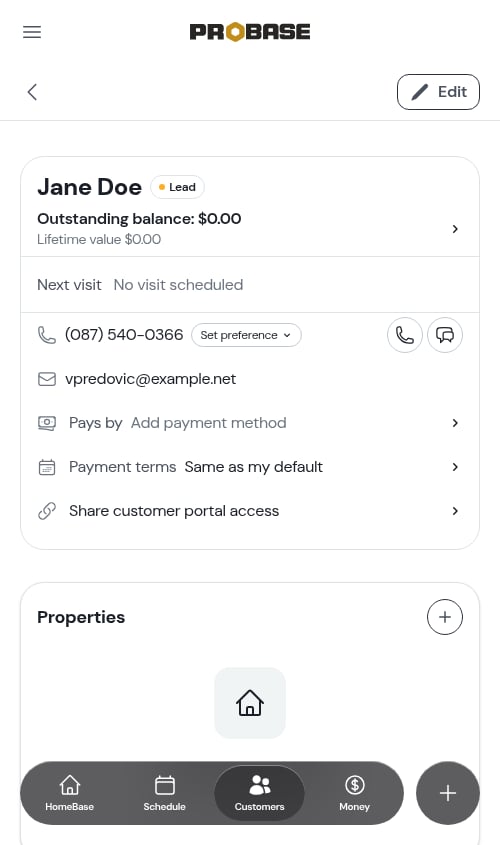
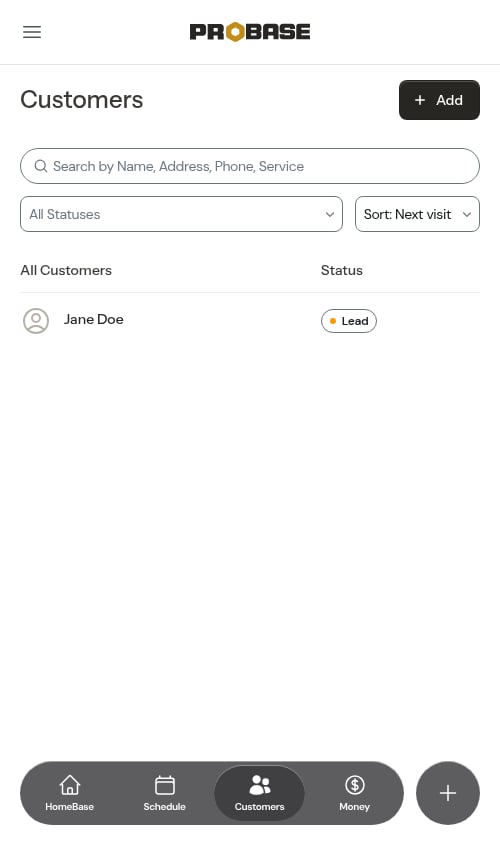
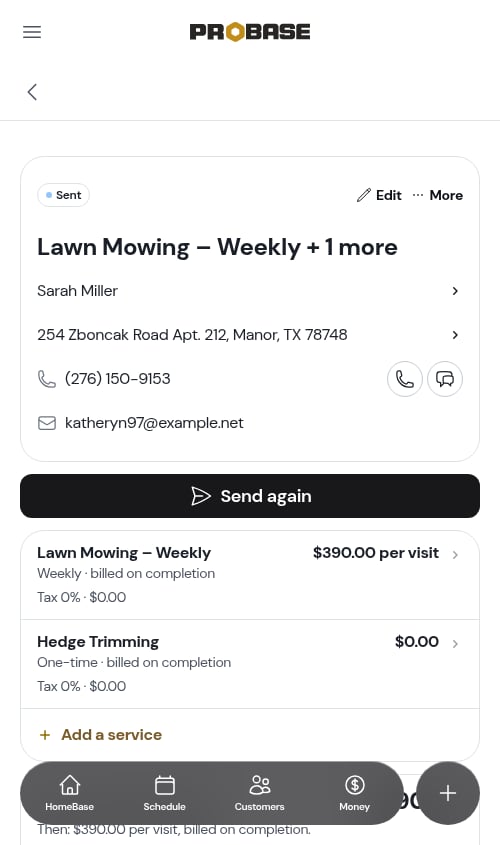
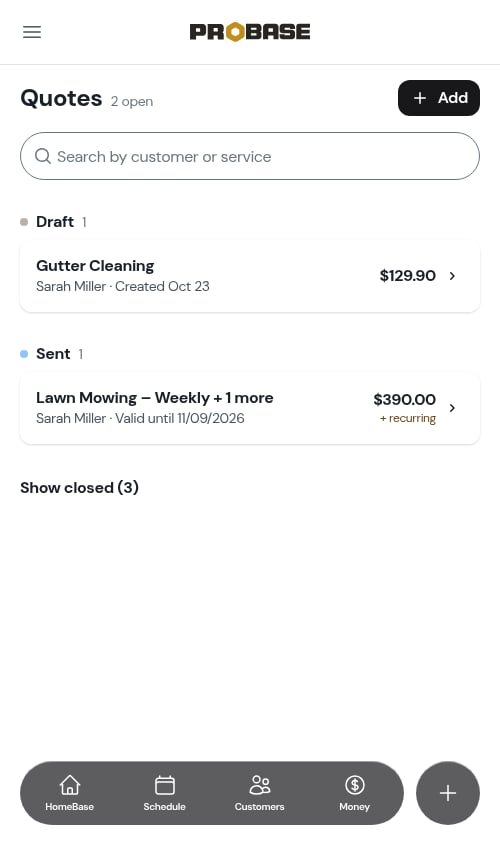
Your browser’s back button (or the back-swipe gesture on a phone) works normally too. The in-app back is there because it knows which list a record belongs to even when you arrived from a bookmark or a link someone sent you.
On your phone
The app bar
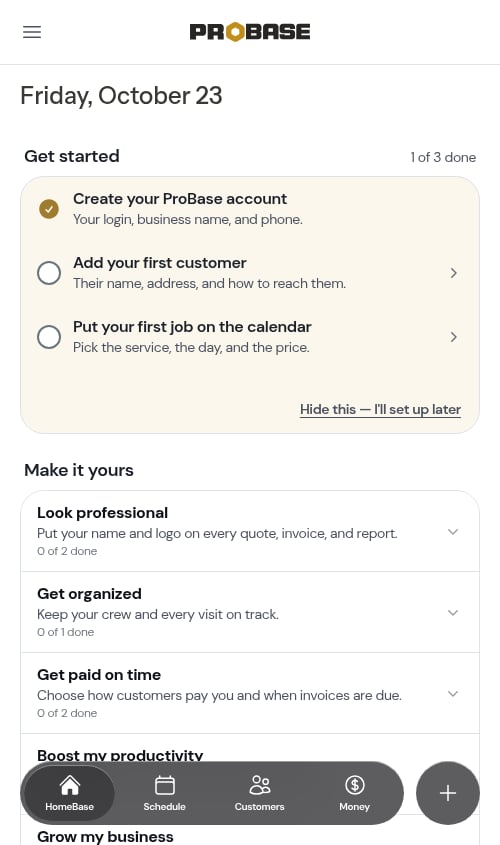
A slim bar is fixed to the top of every screen with these things on it:- The menu (hamburger) icon on the left — slides the navigation drawer out over the page. Tap the ✕ at the top of the drawer, or anywhere on the dimmed page behind it, to close it again. Tapping any screen in the drawer closes it straight away and then loads the page, so the tap always feels like it landed. Items that open somewhere else in a new tab — Docs, Schedule a call — leave the drawer where it is, and opening a group (Business, Help) just unfolds it.
- The ProBase wordmark in the middle — tap it to jump back to HomeBase from anywhere in the app.
- The chat icon on the right — opens a live chat with the ProBase team, so support is reachable without opening the menu.
- The bell at the far right edge — opens your Updates, with a gold badge showing how many you haven’t read. It sits outermost so it’s the easiest thing to reach with your thumb, and it appears once updates are switched on for your account.
The bottom bar
You also get a bar floating along the bottom of every screen with the four places you go most: HomeBase, Schedule, Customers, and Money. Tap one to jump straight there without opening the menu — the tab you’re on wears a frosted pill, and it moves the instant you tap so the switch feels immediate.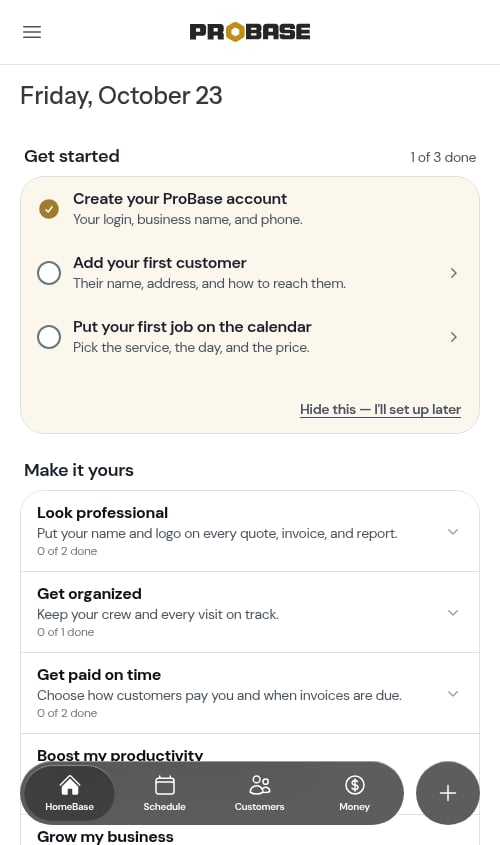
The buttons at the bottom of a form
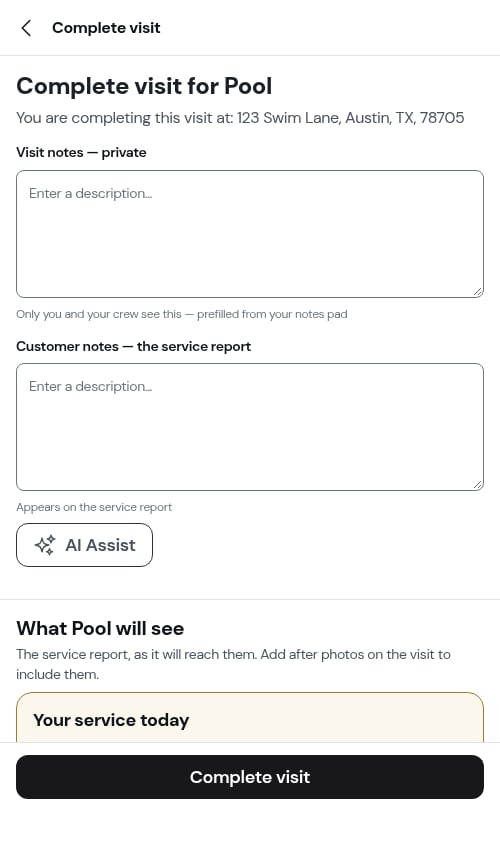
Anything that takes over the screen — the New Job wizard, adding or editing a customer, editing a property, editing a job’s schedule or pricing, scheduling a visit, reordering a route, adding a stop, completing a visit, the onboarding steps, and joining a team — keeps the buttons that close it (Back / Next, Cancel / Save, Continue, Done) in a bar pinned along the bottom of the screen. You never scroll to find them; the content scrolls behind the bar instead.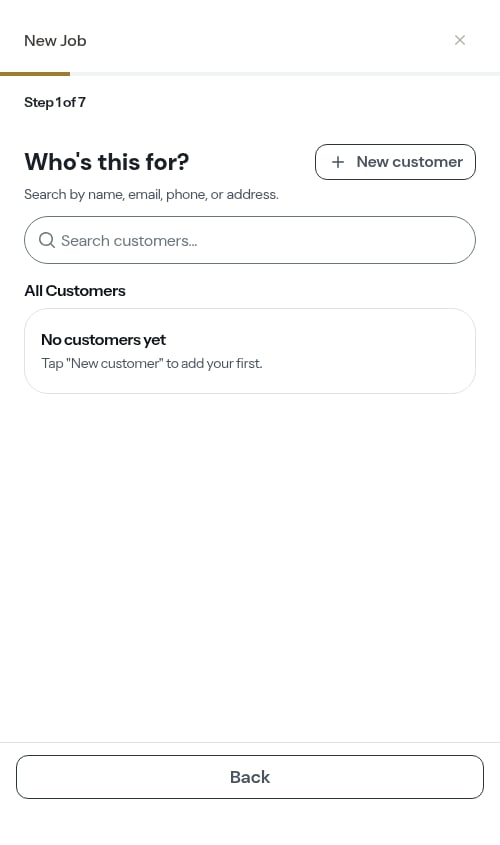
Next steps
- HomeBase — your daily command center
- Quick Actions — the floating + button
- Settings — set up your business profile