Overview
A charge is something extra you did on this one visit that the job’s normal price doesn’t already cover — a hedge you trimmed while you were there, a bag of fertiliser you spread, a gate latch you replaced. You add it on the visit, in a few seconds, and it flows onto the invoice for that visit. A charge is a name and a price. Nothing else. There’s no quantity to work out, no duration to estimate, and no decision about whether it repeats — it belongs to this visit and only this visit.Charges that apply to every visit of a job — a standing bagging fee, a monthly filter charge — aren’t added here. Those live on the job itself and ride every visit automatically. See Managing services.
Adding a charge
1
Open the visit's Visit tab
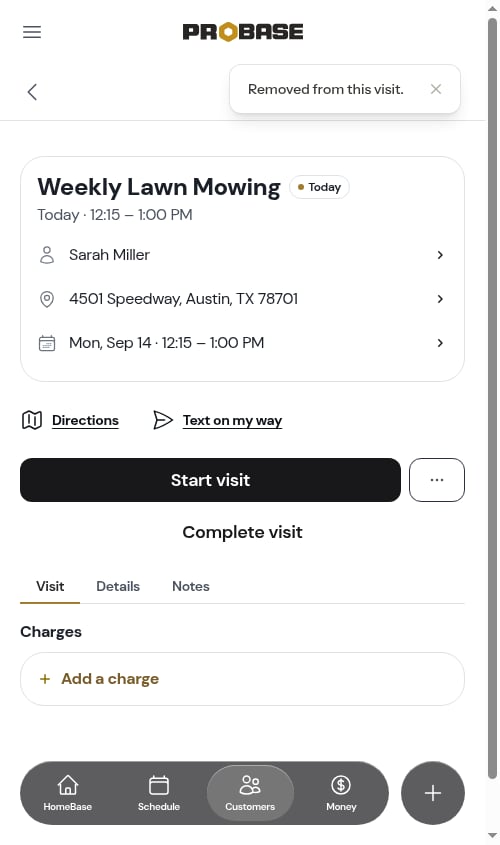
Open the visit and stay on the Visit tab. Under the Checklists card is a second card headed Charges.Its last row is the capture row. While the visit has nothing on it, the row simply reads Add a charge.
2
Tap the row
The Add a charge sheet slides up from the bottom of the screen.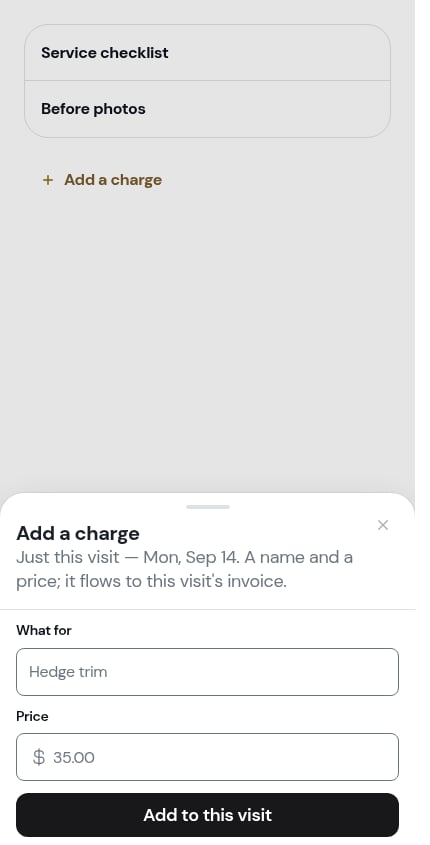
3
Fill in What for and Price
Two fields:
- What for — what you did, in your own words (“Hedge trim”)
- Price — what to charge for it
4
Tap Add to this visit
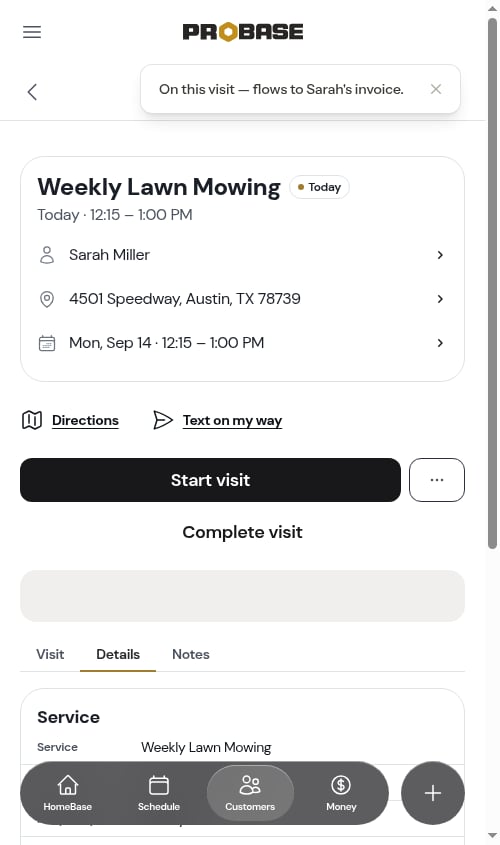
The sheet closes and a message confirms where the money is going — On this visit — flows to Sarah’s invoice.The capture row now carries a running summary instead of the plain label: Charges · 1 · $35.00 — how many charges are on the visit, and the price of the last one you added.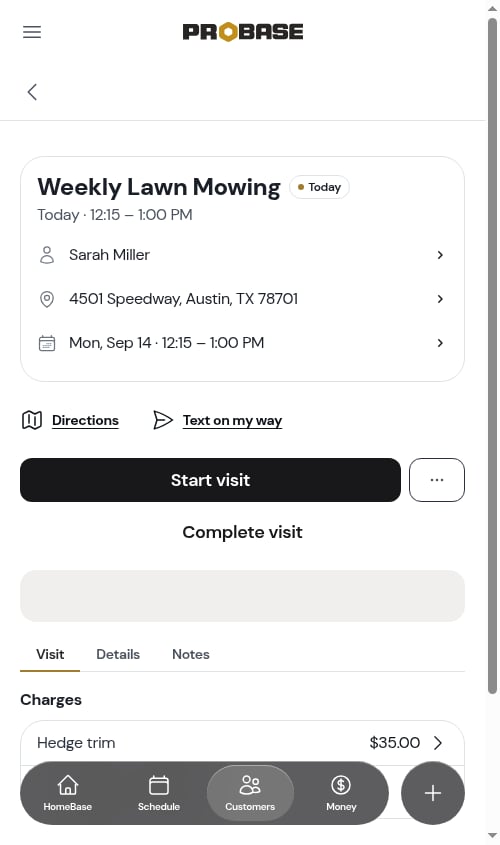
Editing or removing a charge
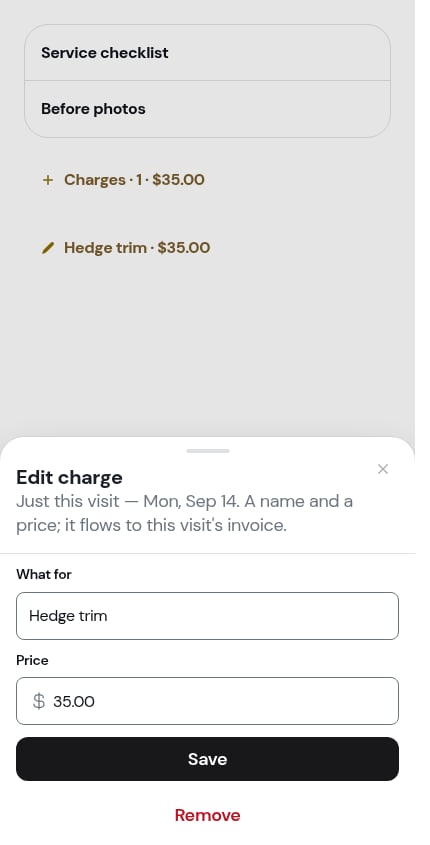
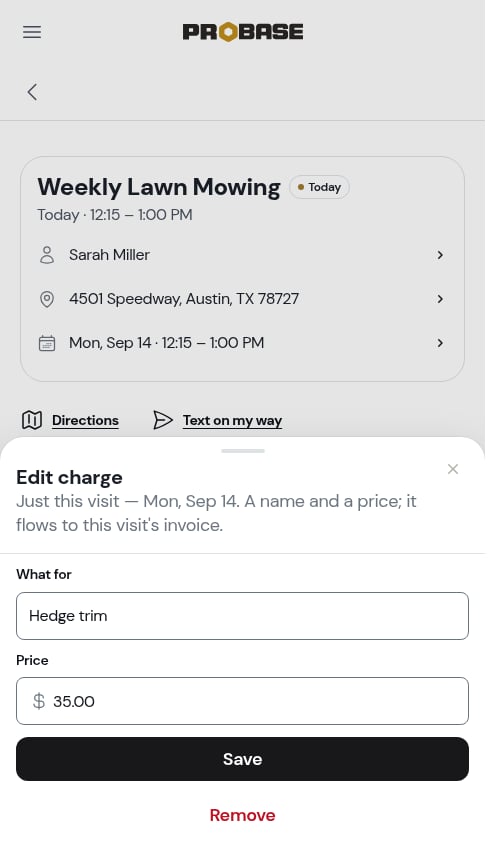
Every charge on the visit is its own row in the Charges card, showing the name on the left and the price on the right. Tap the row to reopen it.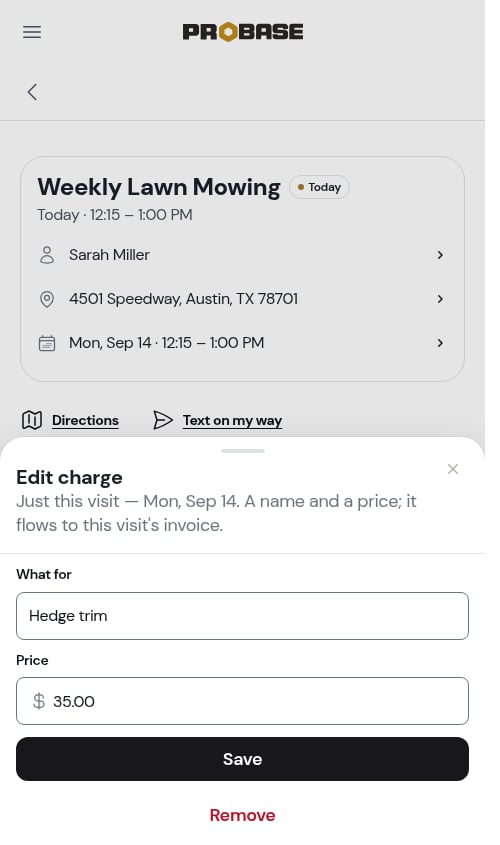
- Change either field and tap Save
- Tap Remove to take the charge off the visit entirely
Where charges show up
On the Details tab
The Details tab shows the money on the visit as two separate lists under the Service card, and they never blend together:- Charges — the job’s standing charges, the ones on every visit. Read-only here; they’re part of the job.
- This visit — the charges you added to this visit alone.
On the invoice
When you complete the visit, each charge becomes its own line on the customer’s invoice for that visit, at the price you entered. Nothing is billed before the visit is completed. For a job billed per visit, that’s on top of the service’s own price. For a subscription job, the subscription is billed on its own schedule and your visit charges are billed when the visit completes. See How billing works.When you can’t add a charge
The Charges card isn’t there at all when adding one wouldn’t make sense:- On a completed or cancelled visit — the money is settled
- On an assessment visit — there’s no job to bill yet; pricing happens on the quote
- On a marketplace visit — the marketplace owns the money on those jobs
- If your role can’t edit charges — see Roles and permissions
What happens to charges if the visit is cancelled
Nothing is billed for a cancelled visit. If the visit you’re cancelling has charges of its own and another visit is already booked, ProBase asks whether to move them forward rather than losing them — they’ll be billed when that visit completes instead. See Cancelling a visit.Next steps
- The visit page — everything else on the screen
- Completing a visit — what happens when you finish
- Invoices — where the charges end up