Season contracts
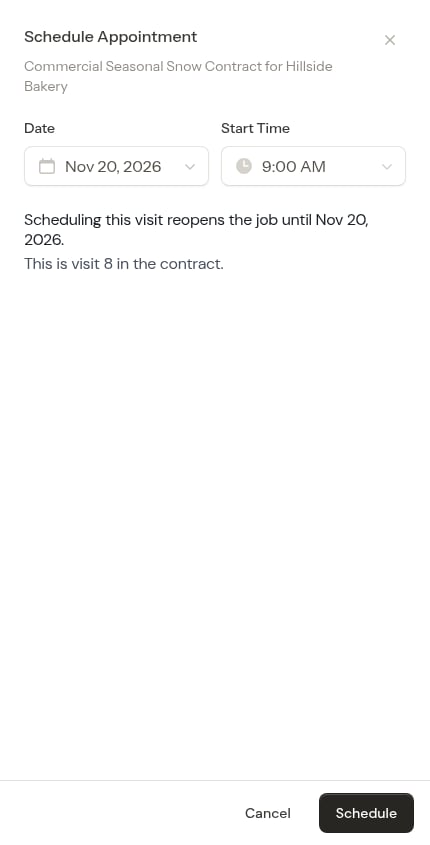
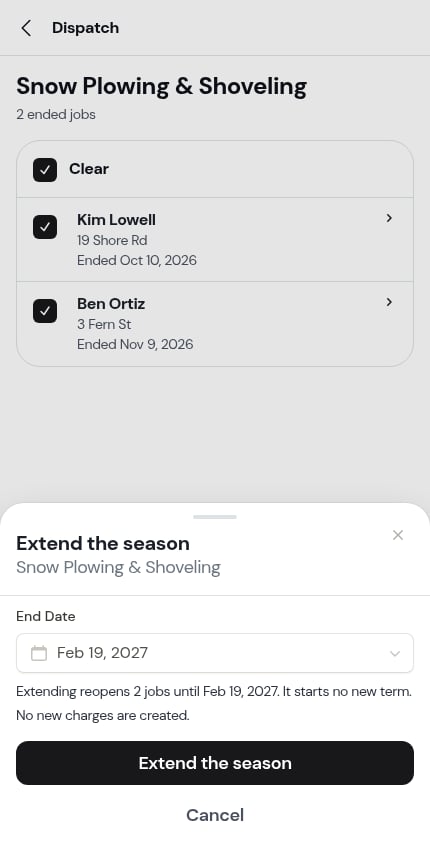
Many snow customers pay one price for the whole winter, not per push. A Fixed term total plan is made for this. It’s a contract: one total price for a set timeframe, such as Nov 1 to Mar 31. The customer pays it all at once or in monthly payments. You can also limit how many visits or days the price includes, and charge for any extra. A contract is always an on-demand job. ProBase doesn’t book its visits by itself. You add visits when they’re needed, one at a time or with Dispatch.Season contracts are rolling out gradually. If you don’t see Fixed term total under How is this plan structured?, it hasn’t reached your account yet. On some accounts the Fixed term total option wears a small Beta label. The label is only a heads-up: contracts work and bill the same way with or without it.
How a contract bills
- The payments add up to the contract price. ProBase charges each payment on its date, overnight, and adds it to the customer’s invoice as [job] — payment 1 of 6. Each payment is charged once, even if you edit the list later.
- Charges and discounts go on the first payment. Any extra charges on the job bill once, with the first payment. A discount also comes off the first payment.
- Visits don’t add a charge. A completed visit adds a $0 line with a note such as Visit 4 of 10 in your contract, so the customer can see how much of the contract they’ve used.
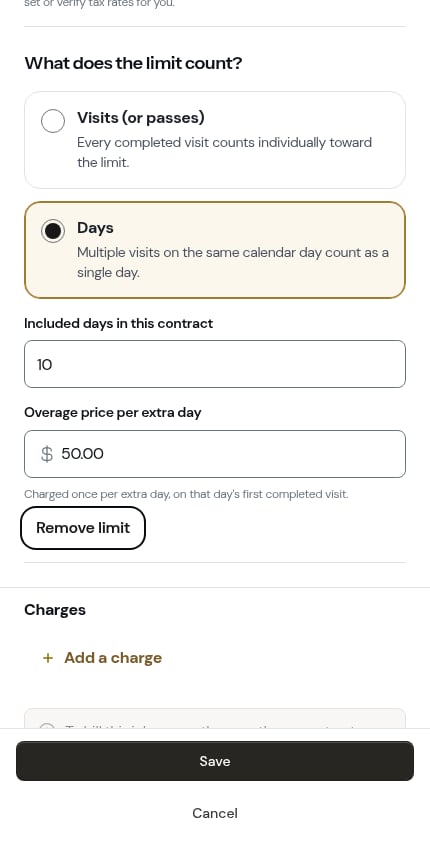
- Extra visits. With a visit limit, each visit completed past the limit adds an extra visit charge at your overage price. With a day limit, the first visit on each extra day adds an extra day charge, and later visits that day are free. A visit counts on the day it was scheduled for, not the day you marked it done — a push scheduled for Nov 9 that you complete early on Nov 6 counts as Nov 9. The bill, the job page’s used count and the Dispatch list all count it the same way.
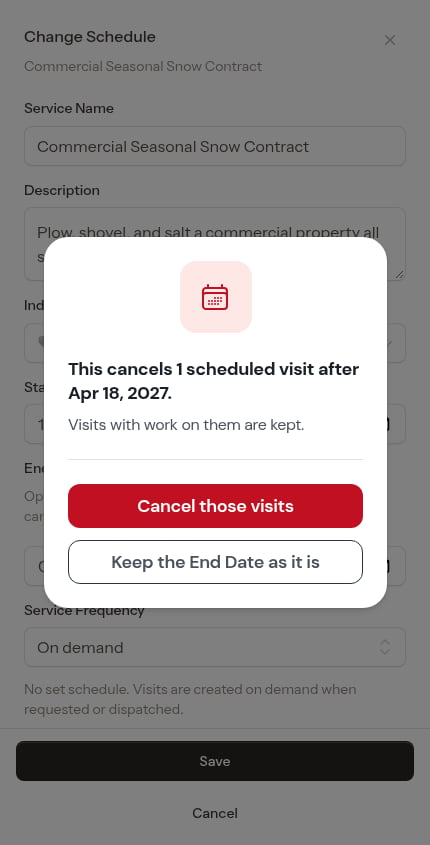
- Cancelling stops billing. A cancelled contract charges no more payments. A contract that closes at its End Date still charges any payments it has left.
Setting up a contract service
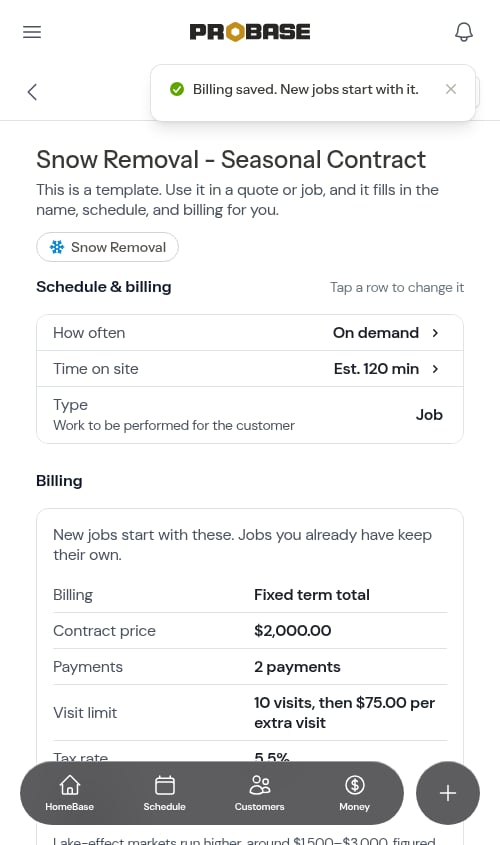
Set up the service once, and every new contract for it starts from the same price, payments and limit. This uses the service’s billing setup.1
Choose Fixed term total
On How do you want to bill this service?, pick Fixed rate or recurring plan and tap Next. On How is this plan structured?, pick Fixed term total — A total contract price for a specific timeframe (e.g., a winter season), paid upfront or in installments. Ongoing recurring is the plan that bills on a repeating schedule with no end date.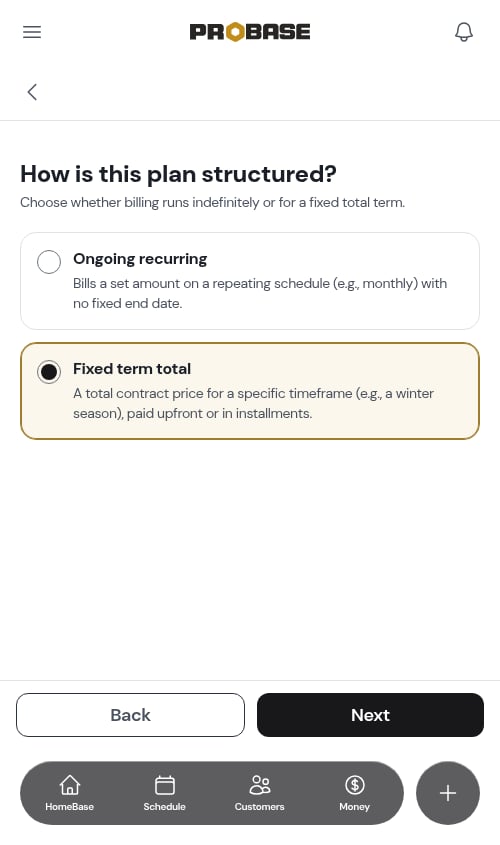
2
Set the contract price
Enter the Contract price for the whole term and the Tax rate.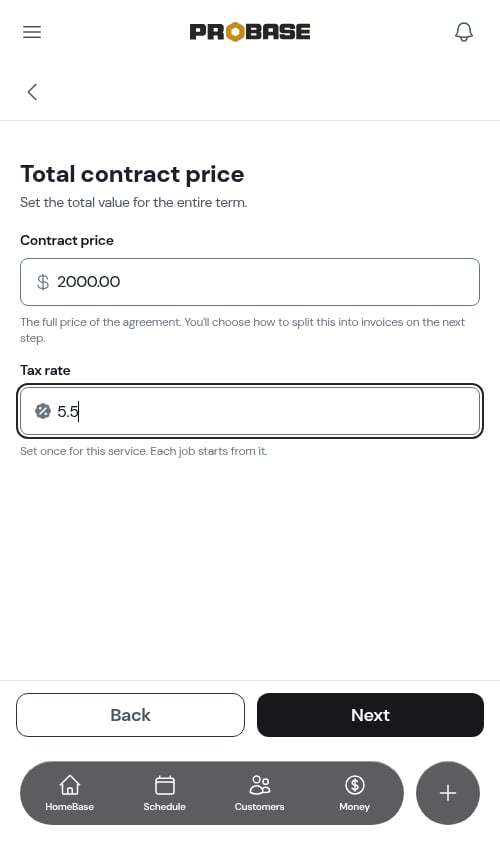
3
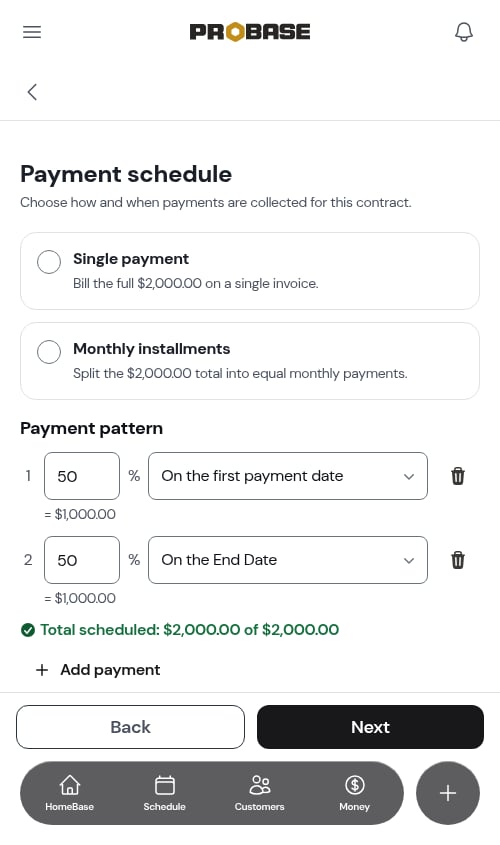
Pick a payment schedule
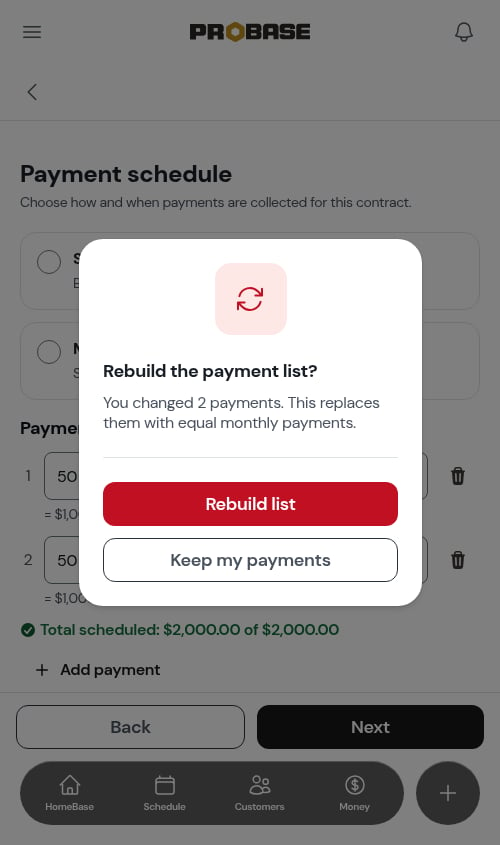
Choose Single payment to bill the full price on one invoice, or Monthly installments to split it into equal monthly payments.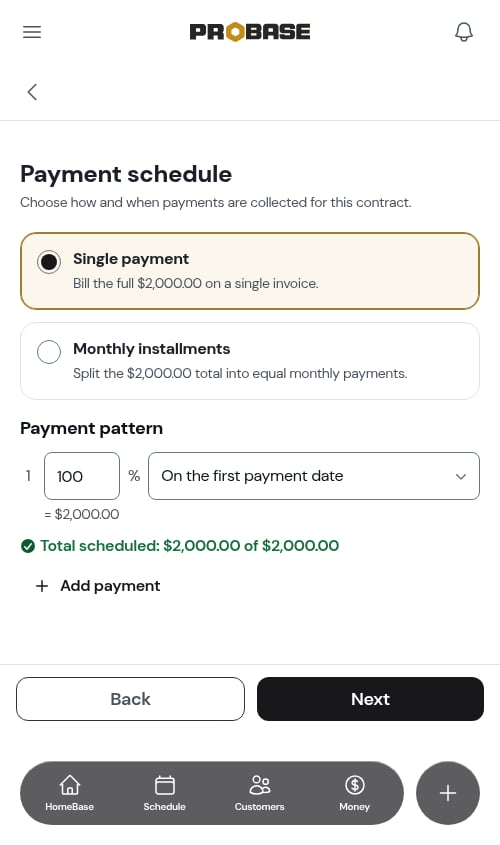
4
Add a visit limit (optional)
Choose what the limit counts: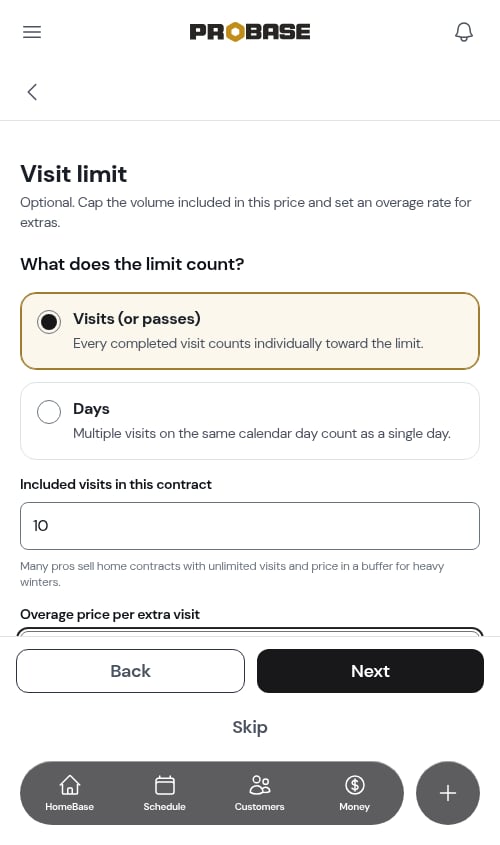
- Visits (or passes) — every completed visit counts.
- Days — several visits on the same day count as one day.
Selling a contract on a new job
1
Start an on-demand job
Tap the + button, choose New Job, and pick the customer, property and service. On the Schedule step, Service Frequency must be On demand. Set the Start Date and the End Date — a contract’s payments run up to its End Date.
2
Choose Fixed term total
On How do you want to bill this job?, pick Fixed rate or recurring plan, then Fixed term total.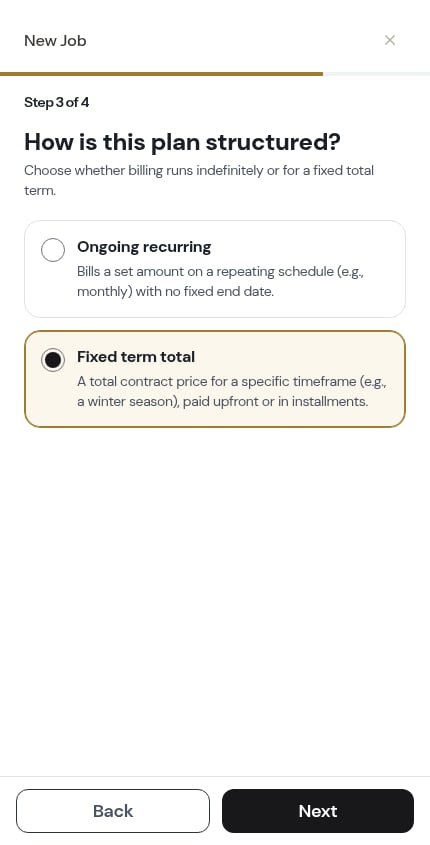
3
Pick a payment schedule
Choose Single payment or Monthly installments.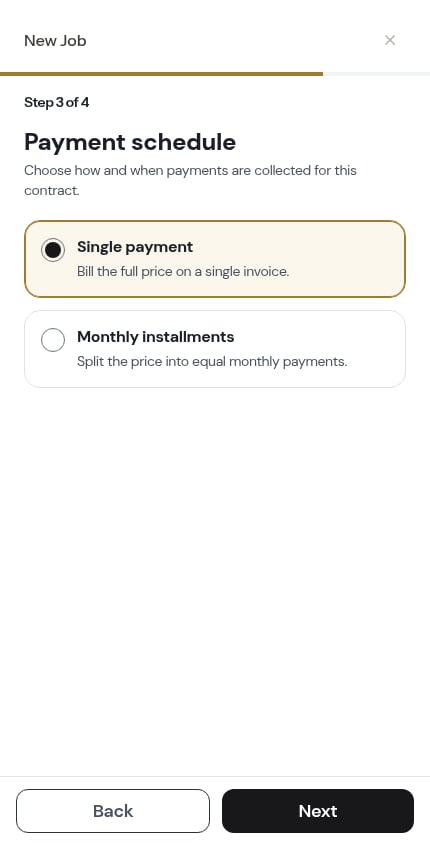
4
Fill in what the customer pays
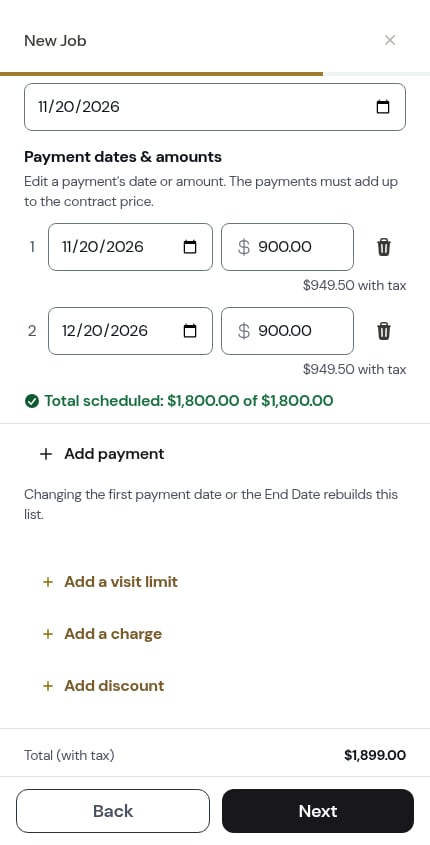
The summary asks for the Contract price and Tax rate, then shows the First payment date and the list of Payment dates & amounts, each with its amount with tax. Until you add a price, it reads Add a contract price to save this contract.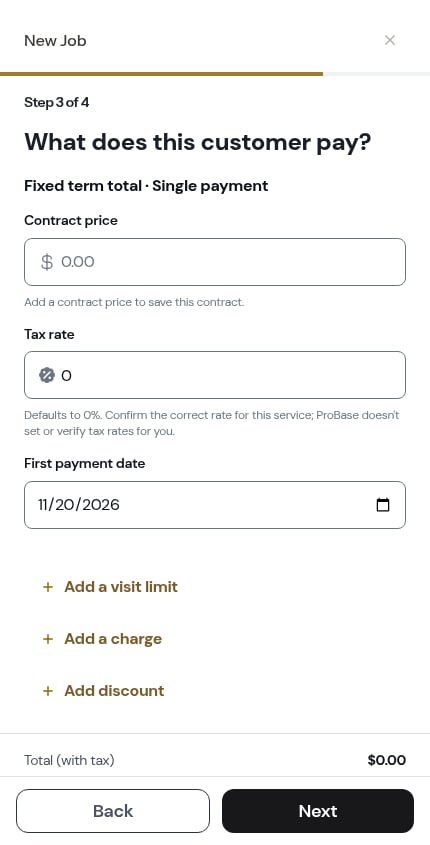
5
Add a limit, charges or a discount (optional)
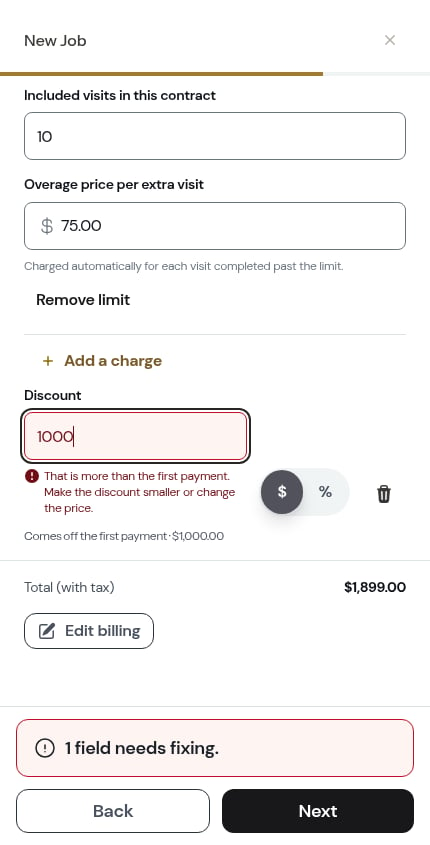
Below the payments, tap Add a visit limit, Add a charge or Add discount. A discount Comes off the first payment, so it can’t be more than the first payment plus any charges. If it is, the summary says That is more than the first payment. Make the discount smaller or change the price.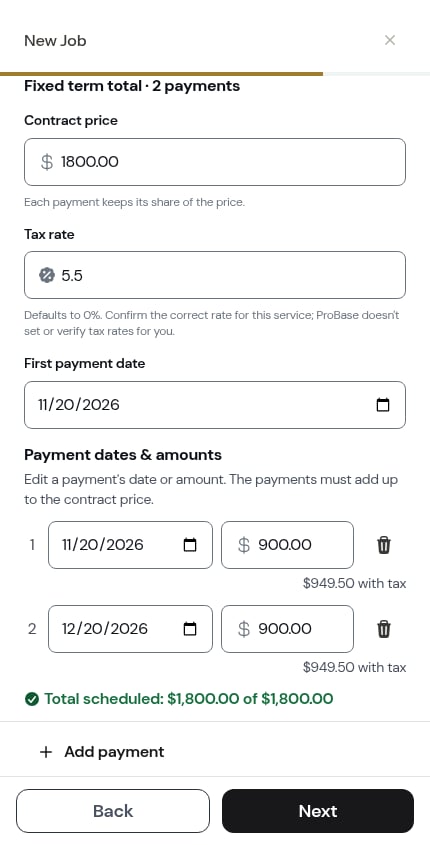
6
Confirm and create
The confirmation shows the price, such as $1,800.00 / contract, and the billing, such as Fixed term total · first payment Nov 2, 2026. Tap Confirm and create job.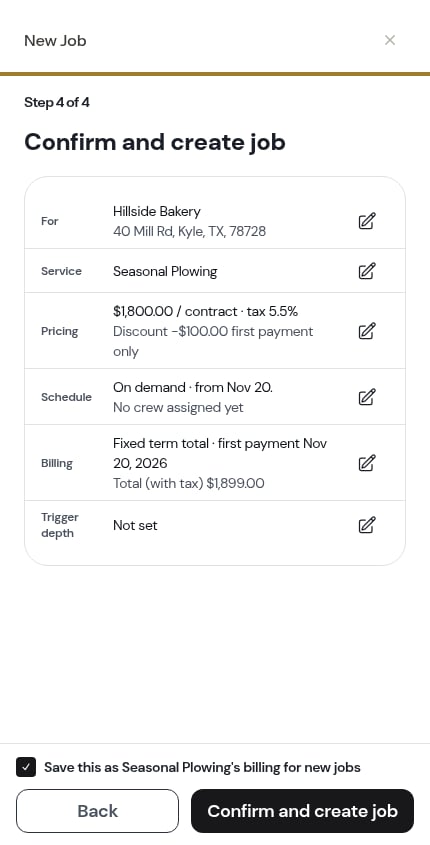
The contract’s job page
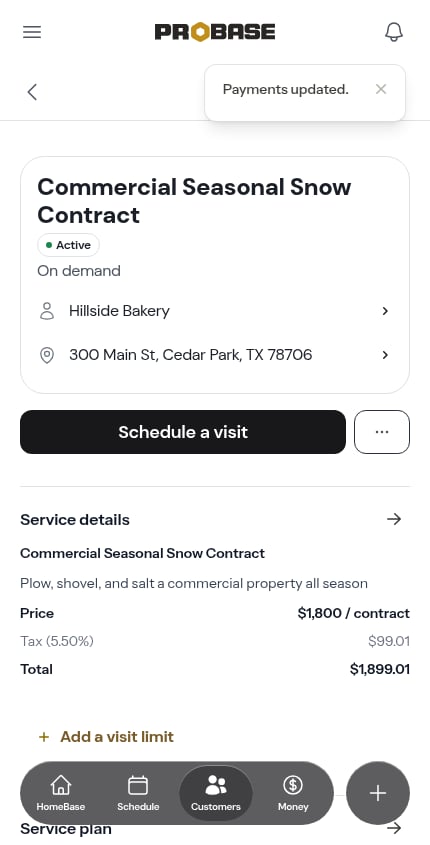
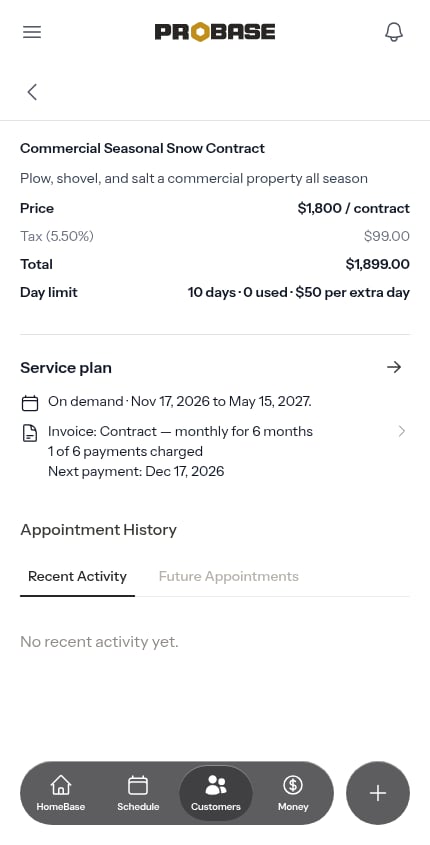
The job page shows the price, such as $1,800 / contract, and the total with tax. The Service plan section shows how it’s collected, for example Invoice: Contract — monthly for 6 months, and how far along it is: 1 of 6 payments charged and Next payment: [date], or Charged in full.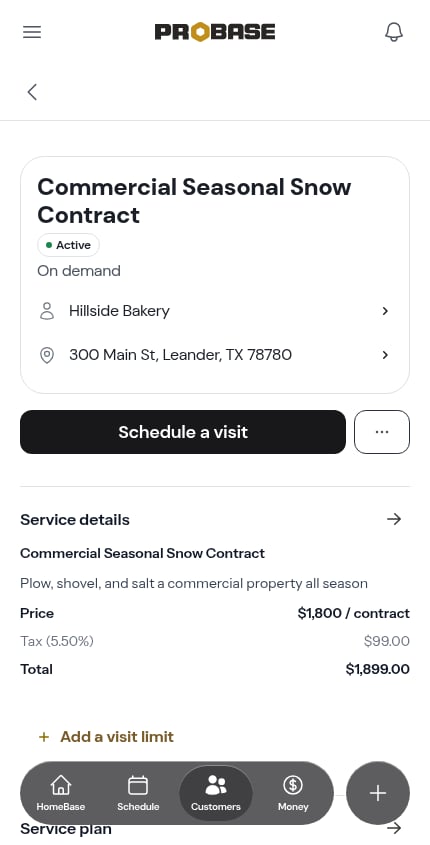
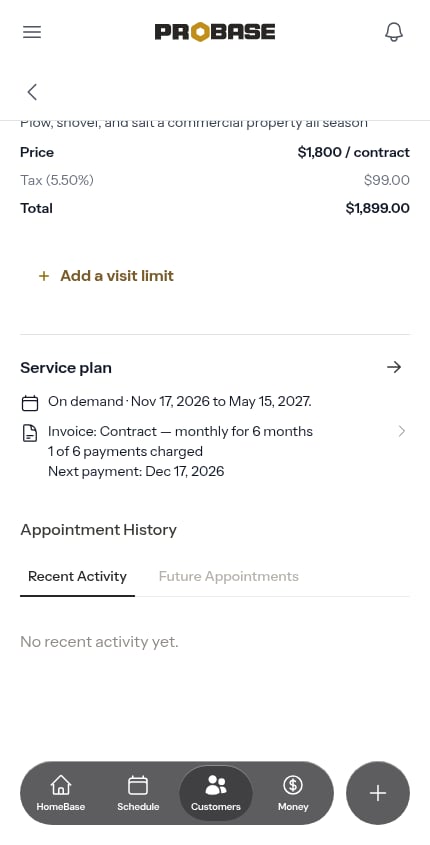
After you save a change on a contract’s job page, reload the page to see the new figures.
Editing the payment list
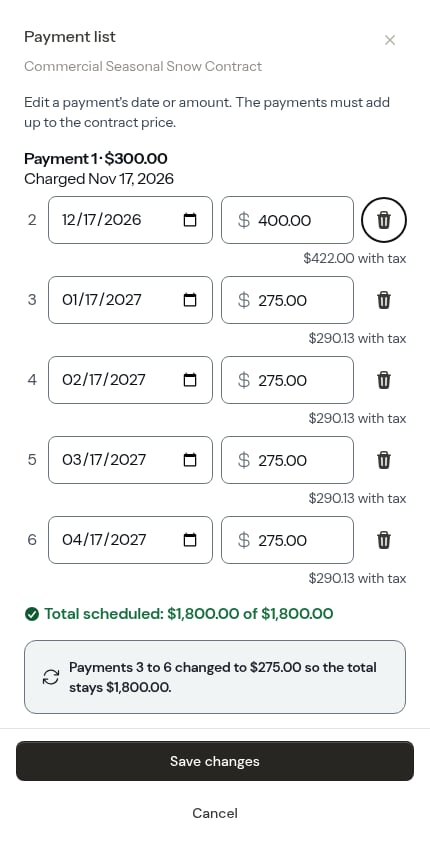
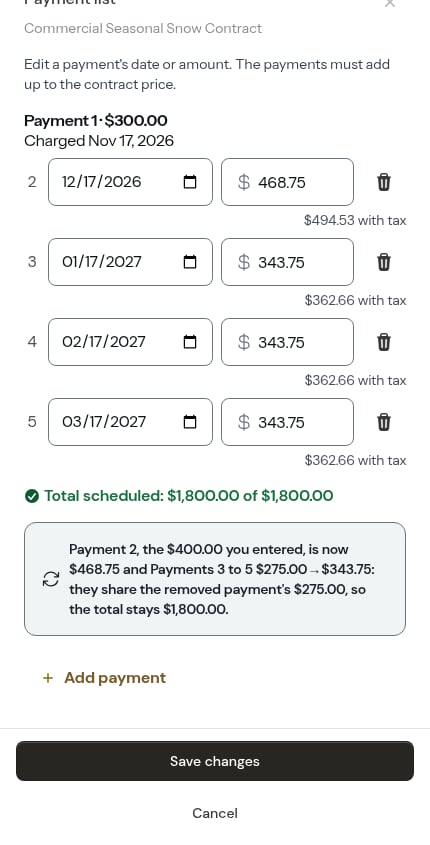
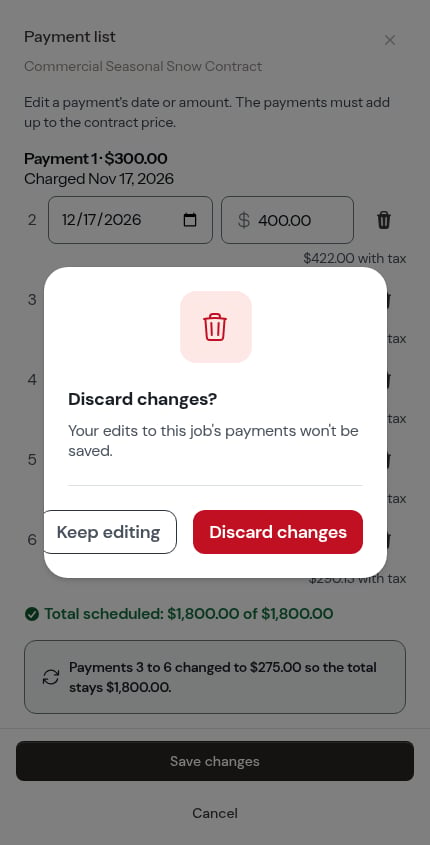
Tap the Invoice: Contract line to open the Payment list. Change a payment’s date or amount, remove one, or tap Add payment. The payments must add up to the contract price. Charged payments are locked and read, for example, Payment 1 · $300.00 / Charged Nov 1.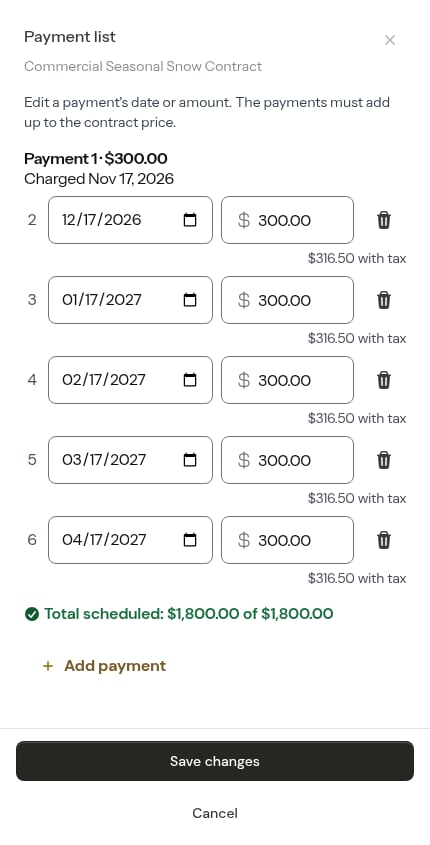
Changing the price or adding a visit limit
Change Pricing on a contract shows the Contract price, how to collect it (for example 6 monthly payments), and what’s been charged so far. The contract price can’t change once the contract is charged in full.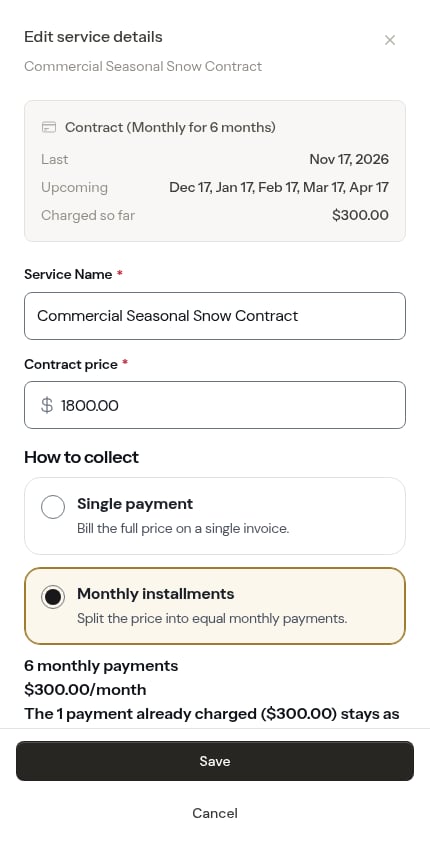
Changing the schedule
While a contract has payments left to charge, it stays On demand. Change Schedule says This contract still has remaining payments. if you pick another frequency.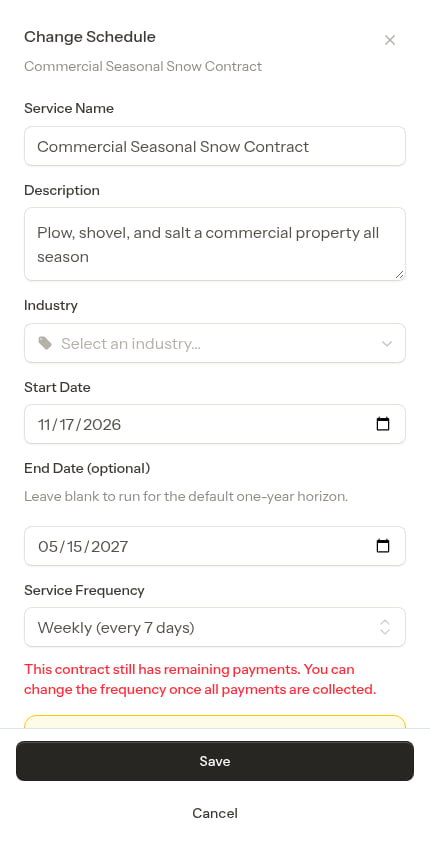
Contracts in Dispatch
On the Dispatch list, a contract whose next visit would go past its limit reads Visit limit reached · $75.00 (or Day limit reached for a day limit), showing the extra price. You can still dispatch it — the extra visit is charged at that price.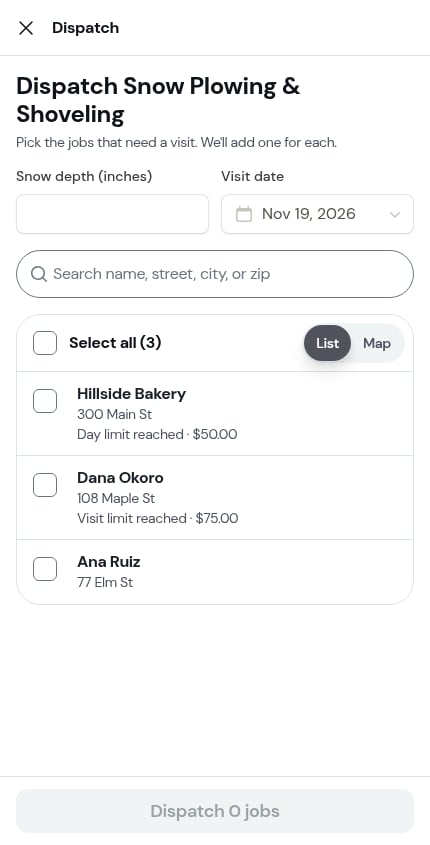
Quoting a contract
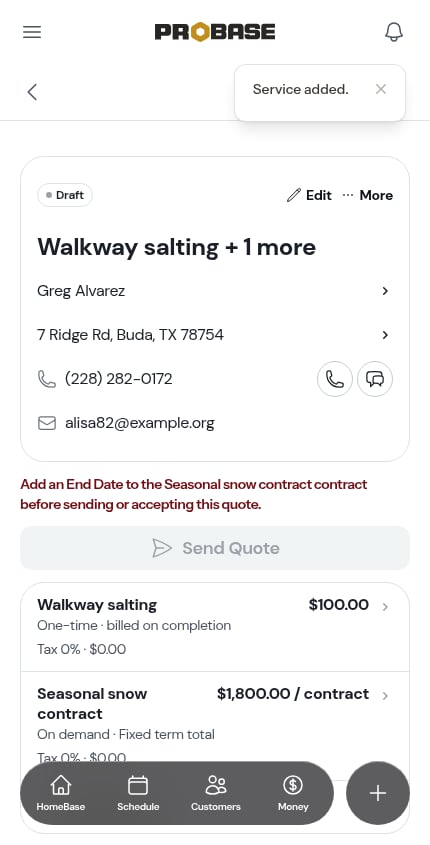
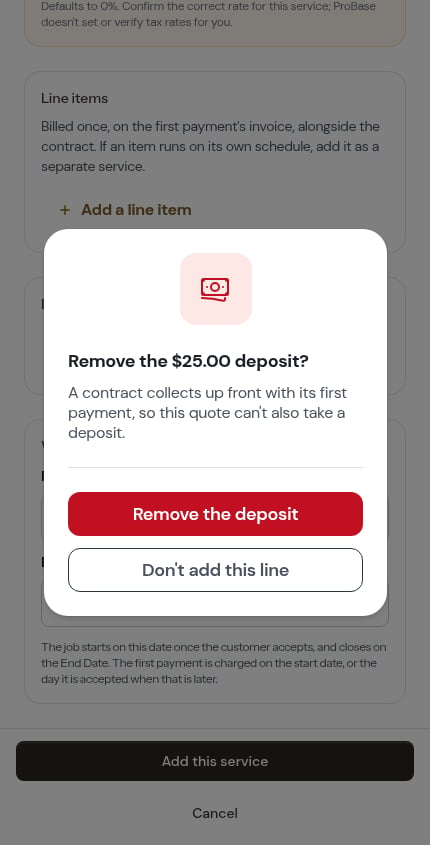
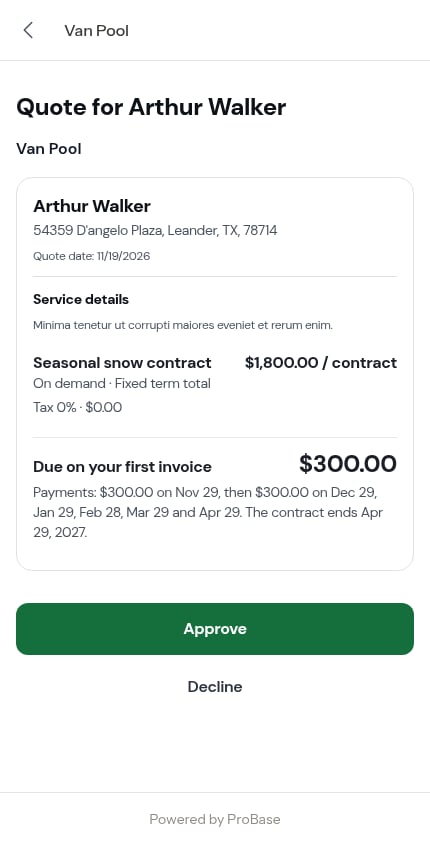
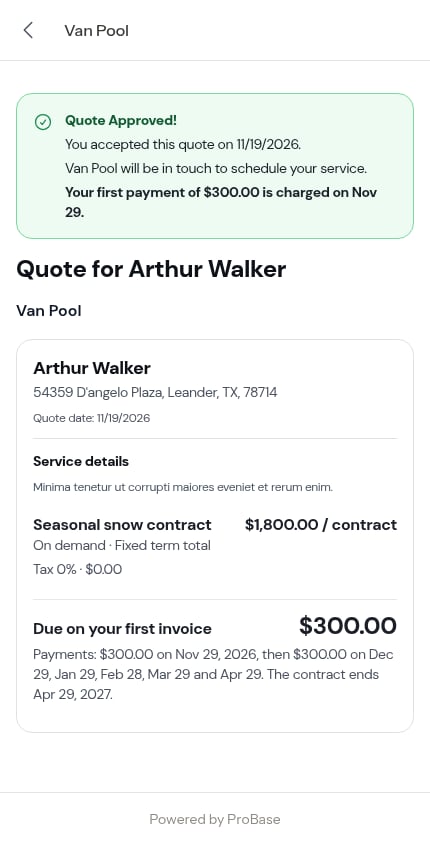
On a quote, set an on-demand line’s service to one whose billing setup is Fixed term total. The line fills in its Contract price and payments from the setup. Give the line an End Date — the quote can’t be sent or accepted without one, and shows Add an End Date to the [service] contract before sending or accepting this quote. until you do.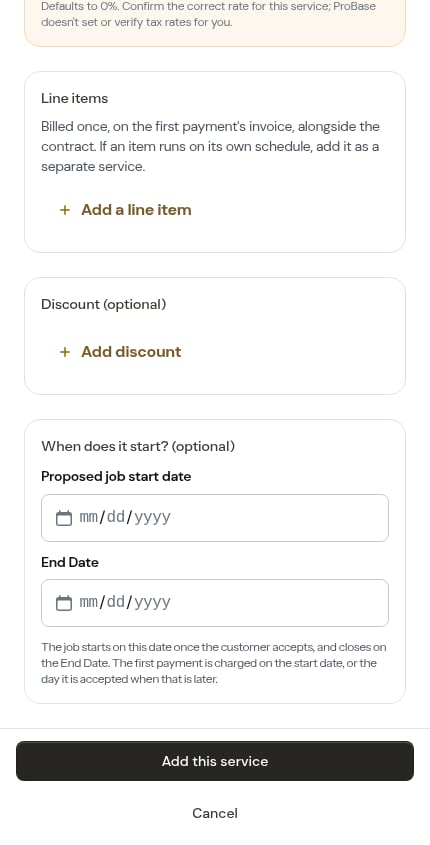
Importing contracts
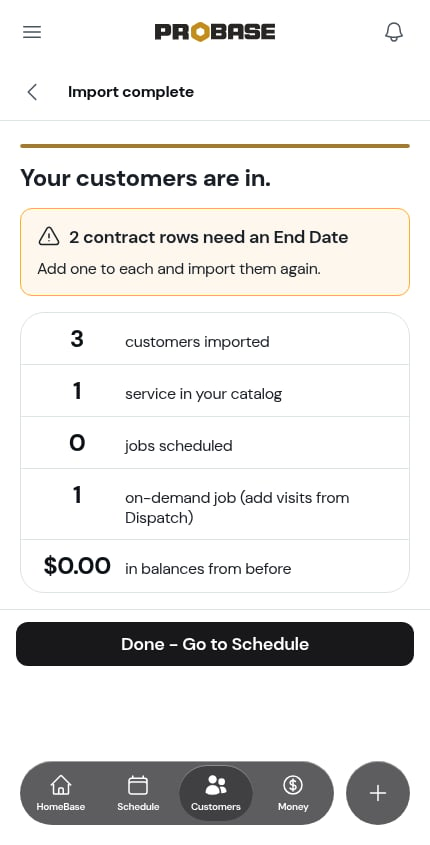
When you import customers onto a contract service, each row becomes a contract using the service’s setup. A row is set aside, with no job made, if the contract needs an End Date and the row has none, or if there’s no price on the row or the service. The import summary tells you how many rows were set aside and why, for example 2 contract rows need an End Date. Add one to each and import them again.